
How to fix AacAmbientLighting.exe - Application error in Windows?

Prefer to fix it yourself? The manual steps follow.
- 8methods
- 5 to 30 minutes
- Easy
Applies to Windows 11, Windows 10; ASUS Armoury Crate on ROG, TUF and Prime laptops, motherboards and ASUS lighting devices
8 methods in this guide
Hello. I keep getting an "AacAmbientLighting.exe - Application Error" message on my Windows PC. Is there a way to fix this?
AacAmbientLighting.exe is the ambient lighting helper of ASUS Armoury Crate, and its Application Error means this ASUS helper crashed, not Windows. The wave of reports began in December 2023 with Armoury Crate 5.7.9, and ASUS fixed it with a component update. Update Armoury Crate first; if the window stays, reinstall it cleanly with the ASUS Uninstall Tool.
The window comes from an ASUS Armoury Crate component in C:\Program Files\ASUS\AacAmbientHal, not from Windows. Open Armoury Crate, go to Settings > Update Center, install every update and restart (Fix 1). If the error comes back, remove Armoury Crate with the official Armoury Crate Uninstall Tool, restart and install it again with ArmouryCrateInstallTool (Fix 2). If you do not use ASUS lighting at all, you can leave Armoury Crate uninstalled (Fix 3).
| Error | AacAmbientLighting.exe - Application Error, a Windows crash window for the ASUS ambient lighting helper. |
|---|---|
| Where it appears | Right after sign-in or at start-up, sometimes during games; Reliability Monitor lists it as a failed application at every start. |
| Main cause | A faulty or half-finished Armoury Crate component update. In December 2023 it came with Armoury Crate 5.7.9 and the ASUS Windows Dynamic Lighting Plug-in 1.9.0.0. |
| Fastest fix | Install all updates in Armoury Crate > Settings > Update Center and restart (Fix 1). |
| The file | C:\Program Files\ASUS\AacAmbientHal\AacAmbientLighting.exe, part of the package ASUSAmbientHAL64. A .NET program made by ASUS. |
| Also written as | aacambientlighting, AacAmbientLightning.exe, aac ambient lighting exe error, asus ambient lighting error, AacAmbientLighting.exe bad image. |
| Affects | ASUS ROG, TUF and Prime laptops and desktops, and PCs with ASUS lighting devices, on Windows 11 and Windows 10 (1903 or later, as ASUS lists for Armoury Crate). |
| Vendor status | Known to ASUS. A ROG forum admin called a reinstall the temporary fix on 27 December 2023, and the update came out on 29 December 2023. |
| Time to fix | 5 minutes for Fix 1, about 20 minutes for a clean reinstall (Fix 2). |
Facts checked on 15 October 2026. Steps written for Windows 11 (25H2 and 26H2) and Windows 10 22H2, ASUS Armoury Crate.
What the AacAmbientLighting.exe Application Error means
AacAmbientLighting.exe - Application Error is the title Windows puts on a crash window when this one program stops with an error it did not handle. Windows itself keeps running. The crash belongs to an ASUS helper that drives the ambient lighting effects of Armoury Crate.
Event Viewer shows what happened inside. In the reports on the ASUS ROG forum, the entry reads "Faulting application name: AacAmbientLighting.exe" with exception code 0xe0434352, which is the code Windows records for a .NET program that crashed. A second entry names the reason: "Only one usage of each socket address (protocol/network address/port) is normally permitted", so the helper tried to open a local port that something else already held.
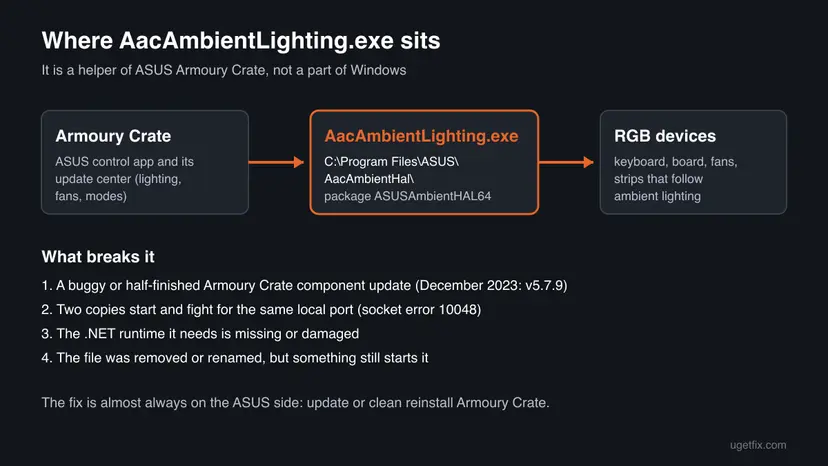
People search for this window in several spellings. All of them lead to the same file:
- aacambientlighting, aac ambient lighting and the typo AacAmbientLightning.exe are the same ASUS file name.
- AacAmbientLighting.exe error and AacAmbientLighting.exe application error are the crash window this page fixes.
- Windows cannot find ... AacAmbientLighting.exe is a different message: the file is gone or was renamed, but Windows is still asked to start it (Fix 4).
- AacAmbientLighting.exe bad image and you must install .NET are related windows that users report. They point to damaged program files or a missing .NET runtime (Fix 2 and Fix 5).
- asus aac ambient hal is the folder name
AacAmbientHal, where the file lives.
What is AacAmbientLighting.exe, and is it safe?
AacAmbientLighting.exe is a background helper that ASUS installs with Armoury Crate, the ASUS app for lighting, fan profiles and performance modes. It runs the ambient lighting effects that your keyboard, motherboard, fans or light strips show through Aura Sync. It is not part of Windows, and Windows does not need it.
- Usual location
C:\Program Files\ASUS\AacAmbientHal\AacAmbientLighting.exe- Package name
- ASUSAmbientHAL64 (version 1.0.0.2 in the December 2023 reports)
- File version in those reports
- 1.2.0.0, built on .NET 6 (CoreCLR 6.0.25 in one user's log)
- Installed by
- Armoury Crate and its lighting components, including the ASUS Windows Dynamic Lighting Plug-in
- Needed for Windows?
- No. Only ASUS lighting effects depend on it.
In that folder, the file is the genuine ASUS helper and is safe. ASUS does not explain what "Aac" stands for, and we could not confirm it. A file with the same name in another folder, in your user folder or in Temp is not the ASUS helper and should be scanned (Fix 6).
What causes the AacAmbientLighting.exe error, most common first
ASUS did not publish a cause beyond the update it shipped. The order below comes from the ASUS forum threads, where the error first appeared on 16 December 2023, and from the error details users posted there.
| Cause | How often | Start with |
|---|---|---|
| A faulty Armoury Crate component, as in the December 2023 release 5.7.9 and the Dynamic Lighting Plug-in 1.9.0.0. | Most often | Fix 1 |
| An update that did not finish or left old and new ASUS parts mixed, so the helper starts twice or with the wrong files. | Often | Fix 2 |
| You do not need Armoury Crate at all, but it keeps installing and starting its lighting helper. | Sometimes | Fix 3 |
| The helper was removed or renamed by hand, but a start entry still calls it. | Sometimes | Fix 4 |
| The .NET runtime the helper is built on is missing or damaged. | Rarely | Fix 5 |
| A fake file with the same name, or damaged Windows files. | Rarely | Fix 6, Fix 7 and Fix 8 |
Several users in the ROG forum also saw slow wake from sleep and kernel power errors at the same time. One of them reported that these stopped after removing Armoury Crate with the Uninstall Tool. If your PC shows both, start with Fix 2.
How to fix the AacAmbientLighting.exe Application Error
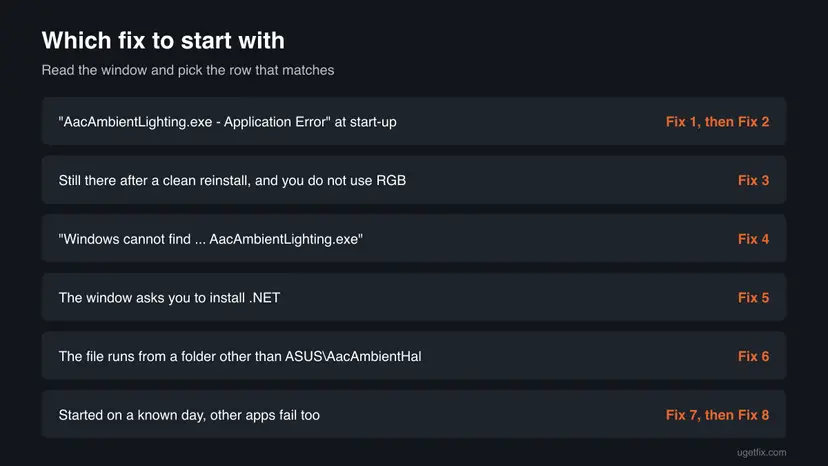
Fixes 1 to 3 repair or remove Armoury Crate and solve most cases. Fix 4 is for the "Windows cannot find" message and Fix 5 for the .NET message. Fixes 6 to 8 are checks and general repairs for the few cases that remain.
| What you see or have | Start with |
|---|---|
| "AacAmbientLighting.exe - Application Error" at start-up or during games. | Fix 1, then Fix 2 |
| The error came back after a clean reinstall, and you do not use RGB lighting. | Fix 3 |
| "Windows cannot find" with AacAmbientLighting.exe in the message. | Fix 4 |
| The window asks you to install or update .NET. | Fix 5 |
AacAmbientLighting.exe runs from a folder other than ASUS\AacAmbientHal. | Fix 6 |
| The error started on a known day, or other programs crash too. | Fix 7, then Fix 8 |
Fix 1. Update Armoury Crate and all its components
5 minutesLow riskEveryone who sees the window. This is the fix ASUS shipped for the December 2023 crashes.
The crash comes from one ASUS component, and ASUS replaces such components through the Armoury Crate Update Center. The ROG forum thread about this error was closed as solved with the words "The update is out".
- Close the error window with OK.
- Open Armoury Crate from the Start menu.
- Select Settings (the gear at the bottom left) and open Update Center.
- Select Check for Update and wait for the list.
- Select Update all, or update each item, including entries for lighting, AURA or Dynamic Lighting.
- Restart the PC when Armoury Crate asks, even if it does not ask.
If you renamed files in C:\Program Files\ASUS\AacAmbientHal to stop the crashes, as some forum posts suggest, give them back their original names before you update. Users in the ROG forum report that the update fails on renamed files.
It worked if: After the restart no AacAmbientLighting.exe window appears, and Reliability Monitor shows no new failure for it.
If not: If Armoury Crate will not open, finds no update, or the window comes back, go to Fix 2.
Fix 2. Remove Armoury Crate with the ASUS Uninstall Tool, then install it again
20 minutesRead the warningFix 1 did not help, Armoury Crate does not open, or you also see bad image or service errors.
A ROG forum admin named an uninstall and a new install of Armoury Crate as the fix for this crash. The ASUS Uninstall Tool removes all Armoury Crate apps and services, so the new install brings back one matching set of components.
This removes your Armoury Crate lighting profiles, fan curves and scenario settings. Write down or photograph any custom values first. Fans and lighting run on their default settings until Armoury Crate is installed again.
- Open the Armoury Crate support page and open the Driver & Utility tab.
- Choose Windows 10 64-bit as the operating system, as ASUS says (the same tool works on Windows 11), and download Armoury Crate Uninstall Tool. Download ArmouryCrateInstallTool.zip from the same page now.
- Unzip
Armoury_Crate_Uninstall_Tool.zipand double-click Armoury Crate Uninstall Tool.exe. - Let it finish and restart the PC, as ASUS requires to complete the removal.
- Unzip
ArmouryCrateInstallTool.zip, run the installer inside and select Start. - When the install is done, open Armoury Crate and run Update Center once more (Fix 1, steps 3 to 6).

If the tool says the uninstall failed, ASUS says to restart and run it again; the second run should succeed. If it fails twice, the tool leaves a log named ACUTLog_ plus the date in its own folder. Send that file to ASUS support.
It worked if: Armoury Crate opens, shows your devices, and the AacAmbientLighting.exe window no longer appears after a restart.
If not: If the error returns right after a fresh install and you do not need ASUS lighting, go to Fix 3. If the message changes to "Windows cannot find", go to Fix 4.
Fix 3. Leave Armoury Crate uninstalled if you do not use ASUS lighting
10 minutesLow riskThe error came back after a clean install, and you do not use RGB effects or Armoury Crate features.
AacAmbientLighting.exe exists only for Armoury Crate lighting. Without Armoury Crate the helper is not installed, so it cannot crash. Several users in the ROG forum chose this until ASUS shipped the fix.
- Run the Armoury Crate Uninstall Tool and restart, as in Fix 2, steps 1 to 4.
- Do not run the install tool afterwards.
- On a new ROG, TUF or Prime motherboard, ASUS offers to install Armoury Crate at start-up. Decline the invitation if it appears again.
- Check that the folder
C:\Program Files\ASUS\AacAmbientHalis gone or empty.
What you lose depends on the PC. On ASUS laptops, Armoury Crate also switches performance modes, GPU modes and keyboard lighting. One user of an ROG Flow Z13 noticed that the GPU switch icon disappeared until Armoury Crate was installed again. Basic keyboard backlight keys keep working on most models, but we could not confirm this for every model.
It worked if: No AacAmbientLighting.exe window, and no ASUS lighting services in Task Manager.
If not: If a "Windows cannot find" message appears instead, go to Fix 4.
Fix 4. Fix "Windows cannot find AacAmbientLighting.exe"
10 minutesLow riskThe message says Windows cannot find the file, usually after an uninstall, a failed update or renamed files.
This message means the program is gone but an ASUS service, task or start entry still calls it. Putting the ASUS parts back in a matching state, or removing them fully, stops the call.
- Open
C:\Program Files\ASUS\AacAmbientHalin File Explorer. - If you renamed
AacAmbientLighting.exeor other files there (for example with.oldor.bakat the end), rename them back to their original names. - Restart the PC and check whether the message is gone.
- If the folder is empty or missing, either install Armoury Crate again (Fix 2, steps 5 and 6) or run the Armoury Crate Uninstall Tool once more to remove the rest (Fix 2, steps 1 to 4).
- Open Task Manager with Ctrl + Shift + Esc, select Startup apps and look for ASUS entries that you no longer need.
How to switch off a start entry: Stop apps from opening at startup
It worked if: After the restart no "Windows cannot find" message appears.
If not: If the message names a different ASUS file, repeat the uninstall tool run and restart; ASUS says a second run should complete the removal.
Fix 5. Repair or install the .NET runtime the helper needs
10 minutesLow riskThe window says you must install or update .NET, or Event Viewer shows a .NET Runtime error for AacAmbientLighting.exe.
AacAmbientLighting.exe is a .NET program; the forum logs show it ran on .NET 6. When the runtime it was built for is missing or damaged, it stops before it can drive any lights.
- Read the window: it names the .NET version the program needs and offers to open Microsoft's download page. Use that link, not a third-party site.
- Install the .NET Desktop Runtime of the named version, x64, and restart.
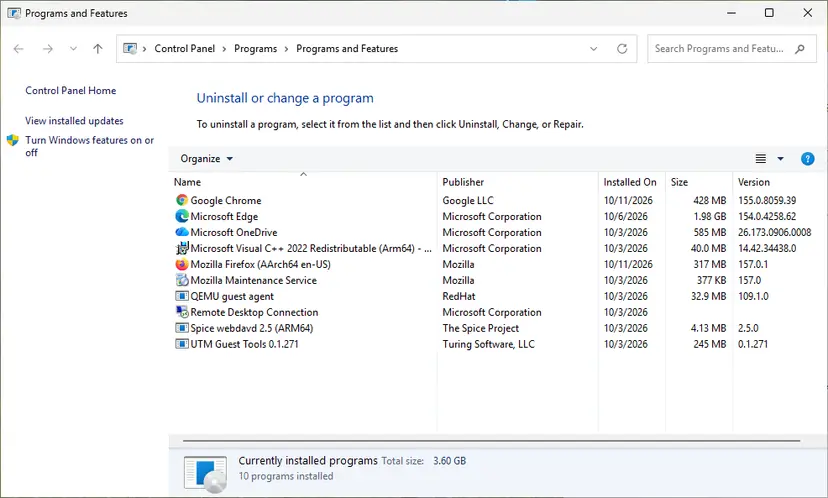
- If .NET is already installed, repair it as shown in the procedure below.
- Then reinstall Armoury Crate once (Fix 2), so its own files are written again.
Step by step: How to repair Microsoft Visual C++ Redistributable and .NET Framework
It worked if: The .NET message no longer appears and the helper starts without a crash window.
If not: If the Application Error stays with no .NET message, go back to Fix 2 or try Fix 7.
Fix 6. Check that AacAmbientLighting.exe is the real ASUS file and scan it
10 minutesNo riskYou are not sure the file belongs to ASUS, or you do not own any ASUS hardware or software.
Malware can use the name of a known helper. The genuine file has a fixed ASUS folder and an ASUS signature; a copy elsewhere is not the ASUS helper.
- Press Ctrl + Shift + Esc to open Task Manager and open the Details tab.
- Right-click AacAmbientLighting.exe and select Open file location. The folder should be
C:\Program Files\ASUS\AacAmbientHal. - Right-click the file, select Properties and open the Digital Signatures tab. The signer should be an ASUSTeK company name.
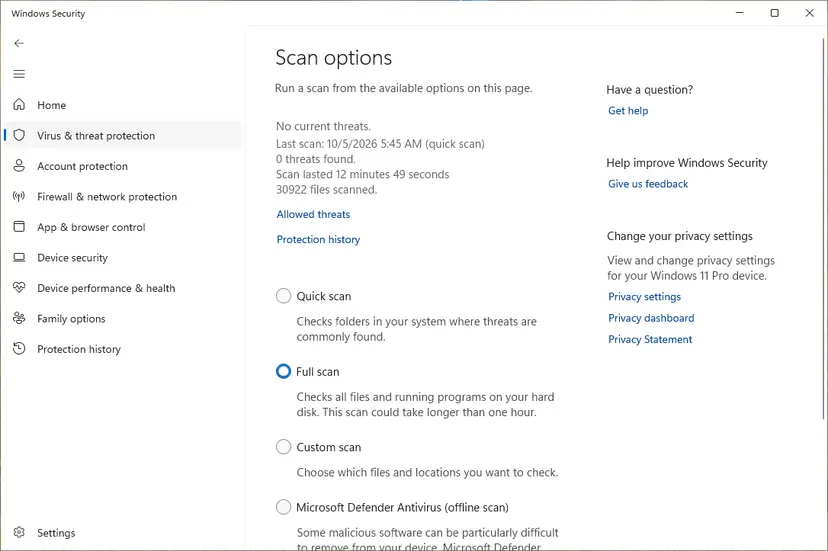
- If the folder or the signer is different, or you never installed ASUS software, run a full scan with Microsoft Defender.
Microsoft Defender's full scan and Protection history: How to scan for malware with Microsoft Defender
It worked if: The file sits in the ASUS folder with an ASUS signature, or Defender found and removed the fake copy.
If not: If the genuine file still crashes, go to Fix 7.
Fix 7. Return Windows to a restore point from before the Armoury Crate update
20 minutesLow riskThe error began on a known day, right after an ASUS update, and you have a restore point from before it.
A restore point brings back programs, drivers and services as they were on that day, including the older ASUS lighting components. A user in the ROG forum reported that this stopped the crashes. Your documents are not touched.
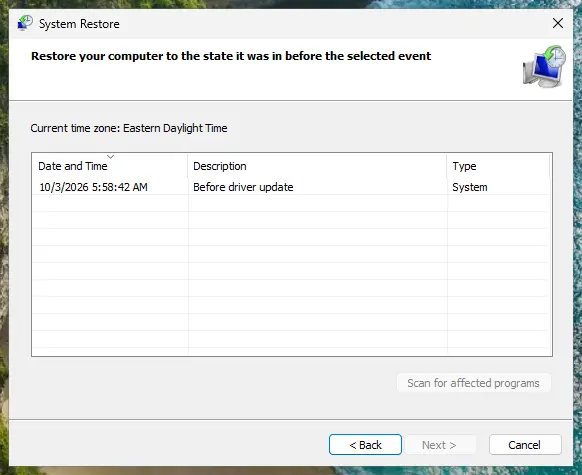
- Press Win + R, type
rstruiand press Enter. - Select Choose a different restore point and pick one from before the error.
- Select Scan for affected programs to see which ASUS parts change, then Next and Finish.
Full steps with pictures: Undo recent changes with System Restore
Armoury Crate may install the same update again. After the restore, run Fix 1 so the fixed version replaces the broken one.
It worked if: Windows restarts and the AacAmbientLighting.exe window is gone.
If not: If there is no restore point from before the error, go to Fix 8.
Fix 8. Repair Windows system files with DISM and SFC
20 minutesNo riskOther programs crash too, or Fixes 1 to 7 did not help.
This error is an ASUS program fault, so a Windows repair rarely changes it. It is here for PCs where more than one program fails, which points to damaged Windows files.
- Open Terminal or Command Prompt as administrator.
- Run DISM, then SFC, as shown in the procedure below, and restart.
- Install Armoury Crate once more (Fix 2).
Step by step: Run DISM and SFC to repair Windows system files
It worked if: SFC reports no problems or repaired files, and Armoury Crate installs and runs without the crash window.
If not: Collect the evidence in "Still broken" below and contact ASUS support.
If the AacAmbientLighting.exe error is still there: where to look and what to send
The crash window shows only the file name. These places hold the details that ASUS support needs:
| What to check | Where | What it tells you |
|---|---|---|
| Crash history | Press Win + R, type perfmon /rel and press Enter (Reliability Monitor) | Each red cross marked AacAmbientLighting.exe is one crash, with the date. You see whether it began with an update. |
| Crash details | Event Viewer: Windows Logs > Application, source Application Error, event ID 1000 | Faulting application name, version, exception code (0xe0434352 in the known cases) and the file path. |
| .NET reason | Event Viewer: Windows Logs > Application, source .NET Runtime, event ID 1026 | The exception text, for example the socket error 10048 that users posted. |
| Uninstall log | The Armoury Crate Uninstall Tool folder, file ACUTLog_ with date and time | Why the removal failed, if it did. |
The Armoury Crate installer also has a Package Log button that collects a log file for ASUS support. Send ASUS the exact window title, the Armoury Crate version, your PC or motherboard model, the Windows version and what you already tried.
The ambient lighting helper crashing is a software fault. If the PC also freezes, restarts or shows blue screens with Armoury Crate removed, the cause lies elsewhere. Test the memory with How to test your RAM with Windows Memory Diagnostic and check temperatures before blaming the ASUS app.
How to keep the AacAmbientLighting.exe error from coming back
- Install Armoury Crate updates from its own Update Center and restart afterwards.
- Use the Armoury Crate Uninstall Tool before every reinstall, as ASUS asks.
- Keep a restore point before large ASUS updates.
- Download Armoury Crate only from the ASUS support site.
- Make sure your antivirus or optimizer does not block Armoury Crate processes, as ASUS advises.
- Do not download AacAmbientLighting.exe from file or DLL sites. It comes only with Armoury Crate.
- Do not rename or delete files in
AacAmbientHalby hand; it leads to "Windows cannot find" errors and blocks the fix. - Do not turn off Microsoft Defender to stop the window.
- Do not install old Armoury Crate versions from unofficial links.
Frequently asked questions
What is AacAmbientLighting.exe?
AacAmbientLighting.exe is a helper of ASUS Armoury Crate that runs ambient lighting effects on ASUS keyboards, motherboards, fans and other Aura Sync devices. It lives in C:\Program Files\ASUS\AacAmbientHal and belongs to the package ASUSAmbientHAL64. It is not a Windows file, and Windows runs fine without it. If you remove Armoury Crate, the helper goes too, and only the ASUS lighting effects stop.
Is AacAmbientLighting.exe a virus?
No, not when it sits in C:\Program Files\ASUS\AacAmbientHal on a PC with ASUS software, and carries an ASUS signature in its Properties. The crash window is an ASUS bug, not a sign of infection. A file of the same name in your user folder, in Temp or on a PC without any ASUS software is not the ASUS helper. Scan it with Microsoft Defender as Fix 6 shows.
Why did the AacAmbientLighting.exe error start suddenly?
Because Armoury Crate updates its components in the background. The big wave of reports began on 16 December 2023, after Armoury Crate 5.7.9 and the ASUS Windows Dynamic Lighting Plug-in 1.9.0.0 arrived. ASUS released a fixed update on 29 December 2023. If your error starts after an ASUS update today, the same steps apply: update again (Fix 1) or reinstall cleanly (Fix 2).
Can I download AacAmbientLighting.exe to replace a missing one?
Do not. The file comes only with Armoury Crate, and a copy from a download site may be outdated, unsigned or harmful. It also needs the other files in its folder and the matching ASUS services. When the file is missing, install Armoury Crate from the ASUS support site with ArmouryCrateInstallTool (Fix 2), which puts back the helper and everything it needs.
Can I uninstall Armoury Crate to stop the error?
Yes. Run the official Armoury Crate Uninstall Tool and restart, and the helper is gone with it (Fix 3). You lose ASUS lighting effects and, on laptops, the Armoury Crate switches for performance and GPU modes. Many forum users removed Armoury Crate until ASUS fixed the bug, then installed it again. Do not just delete the folder: that causes the "Windows cannot find" message.
What does "Windows cannot find AacAmbientLighting.exe" mean?
It means the file is gone, but an ASUS service or start entry still tries to start it. This happens after a partial uninstall, a failed update, or when the files were renamed to stop the crashes. Rename any files back, then either reinstall Armoury Crate or finish the removal with a second run of the ASUS Uninstall Tool. Fix 4 has the steps.
Does the AacAmbientLighting.exe fix differ on Windows 10?
No. ASUS lists Windows 10 version 1903 or later and Windows 11 as supported for Armoury Crate, and the file, the folder and the fixes are the same on both. Windows 10 left Microsoft support on 14 October 2025, so a Windows 10 PC gets no new Windows security fixes. Windows 10 22H2 still meets the Armoury Crate requirement.
What are AacAmbientSetup.exe and AacSetup.exe?
They carry the same "Aac" prefix as the lighting helper and appear with ASUS Armoury Crate lighting components. From their names they are setup programs for those parts, but ASUS does not document them and we could not confirm exactly what each installs. If one of them shows an error, treat it like this page: update Armoury Crate first, then reinstall it cleanly with the Uninstall Tool.
Is the error a sign of failing hardware?
Almost never. Exception code 0xe0434352 is a .NET program crash, and the socket error in the logs is a software conflict over a local port. The lights may stop following effects, but the hardware is fine. Suspect hardware only when crashes, freezes or blue screens continue with Armoury Crate removed; then test memory and temperatures.
This page is in English. What is this error in other languages?
People also search "what is this", "wirus?" and "co to oznacza" next to this file name. The answer is the same in every language: AacAmbientLighting.exe is the ASUS Armoury Crate lighting helper, not a virus when it sits in the ASUS folder, and its Application Error is fixed by updating or cleanly reinstalling Armoury Crate.
Sources
- ASUS: [ASUS Armoury Crate] Armoury Crate FAQ (install, Uninstall Tool, troubleshooting) (asus.com)
- ASUS ROG Forum: Faulting application AacAmbientLighting.exe and Armoury Crate v5.7.9 (admin answer, user logs) (rog-forum.asus.com)
- ASUS ROG Forum: "AacAmbientLighting.exe" error in the stability monitor at every start (solved thread) (rog-forum.asus.com)
Did this fix work?
One click, no account. It tells the next reader which guides are worth their time.
Questions and experiences: fix AacAmbientLighting.exe - Application error in Windows
Still broken, or found a fix we did not cover? Ask here: members and our editors answer. Reading is open; writing needs a free account.
…