
How to fix the ACE-BASE.sys blue screen (BSOD) in Windows

Prefer to fix it yourself? The manual steps follow.
- 6methods
- 10 to 60 minutes
- Intermediate
Applies to Windows 11 and Windows 10 PCs with a game that uses Tencent's Anti-Cheat Expert (ACE)
6 methods in this guide
I have a system crash problem whenever I play games. The PC suddenly freezes and then shows a BSOD with the message that ACE.BASE.sys failed. What can I do to fix this?
ACE-BASE.sys is the kernel driver of Anti-Cheat Expert (ACE), the Tencent anti-cheat that games such as Delta Force, Arena Breakout: Infinite and Wuthering Waves install. When the stop screen names it, the anti-cheat crashed Windows, not a Windows file. Update and repair the game that installed it first.
The crash comes from Anti-Cheat Expert, the anti-cheat of a game on your PC. Close the game, update it and verify its files so ACE gets a fresh driver (Fix 1). If you no longer play that game, uninstall it (Fix 2). If the blue screen returns, remove the leftover ACE services and files and let the game install them again (Fix 3).
| Error | A stop screen (blue, or black on Windows 11 24H2 and later) with What failed: ACE-BASE.sys. The stop code above it varies from crash to crash. |
|---|---|
| Where it appears | While a game that uses Anti-Cheat Expert loads or runs, sometimes while it installs. The PC freezes, shows the stop screen and restarts. |
| Main cause | A fault inside the ACE kernel driver itself: a damaged or outdated copy, or a clash with another low-level driver on the PC. |
| Fastest fix | Update the game and verify its files, then start it with administrator approval (Fix 1). |
| Also written as | ACE.BASE.sys, ACE_BASE.sys, ace base sys, ace-base. Sister files: ACE-GAME.sys, ace-game-0.sys, ACE-ADVT.sys, ACE-SSC-DRV64.sys. |
| Who makes it | Anti-Cheat Expert, a Tencent product since 2005, formerly called TenProtect. The file is not part of Windows. |
| Affects | Windows 11 and Windows 10. Windows 10 left support on 14 October 2025, so ACE updates for it are not guaranteed. |
| Vendor status | No public fix list. A privilege flaw in version 1.0.2202.6217 of the driver is published as CVE-2024-22830. Crashes are handled by each game's support. |
| Where the cause is logged | C:\Windows\Minidump, one .dmp file per crash. WinDbg's !analyze -v names the driver. |
| Time to fix | 10 minutes for Fix 1 or 2. 20 to 30 minutes for the manual clean-up in Fix 3. |
Facts checked on 14 October 2026. Steps written for Windows 11 (25H2 and 26H2) and Windows 10 22H2.
What ACE-BASE.sys is and why it can stop Windows
ACE-BASE.sys is a Windows kernel driver from Anti-Cheat Expert (ACE), the game security product of Tencent. ACE started in 2005 as protection for one Chinese online game and was renamed from TenProtect to Anti-Cheat Expert in 2021. Today dozens of PC games ship it, many of them published by Tencent's Level Infinite or built by Chinese studios.
A kernel driver runs with the same rights as Windows itself, which is what lets an anti-cheat see cheat tools. The price is that a mistake in the driver cannot be caught by Windows. It stops the whole PC with a bug check, the screen Microsoft calls a stop code error, and writes What failed: with the driver's file name under the code.
| File or name | What it is | Where you meet it |
|---|---|---|
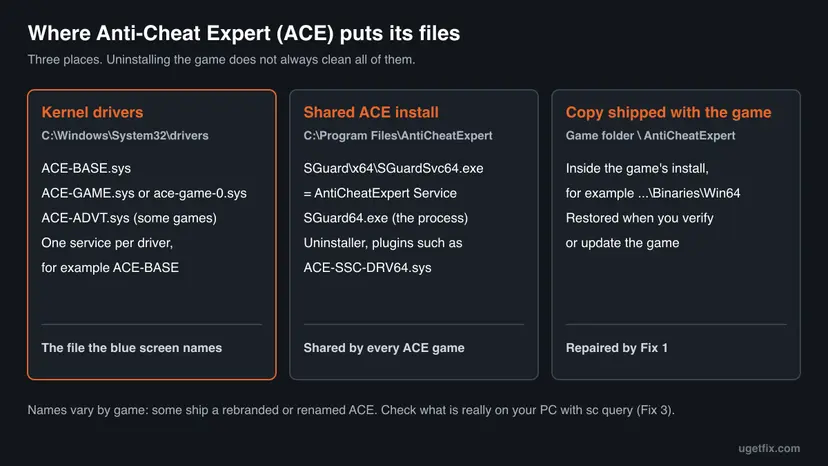
ACE-BASE.sys | The base kernel driver of ACE | Stop screen, crash dumps, C:\Windows\System32\drivers |
ACE-GAME.sys, ace-game-0.sys | The game-side kernel driver. A numbered copy such as ace-game-0.sys appears on some PCs | Crash dumps, scan logs that say file not found |
ACE-ADVT.sys | Another ACE kernel driver, installed by some games | Stop screens and driver lists |
ACE-SSC-DRV64.sys | A plug-in driver under the shared ACE folder | Scan logs and driver lists |
SGuard64.exe, SGuardSvc64.exe | The ACE processes. The service appears as AntiCheatExpert Service | Task Manager and services.msc |
| ACE-BASE in a pop-up | The ACE service as other games see it | "Please close ACE-BASE before starting the game" |
ACE-BASE.sys, ACE.BASE.sys, ACE_BASE.sys and "ace base" all mean the same driver. Crash tools print it as ACE_BASE. A different anti-cheat from NetEase is called NACE: it is not the same product.
Which games install Anti-Cheat Expert
You usually find ACE-BASE.sys on a PC because one game put it there. PCGamingWiki lists 44 titles with ACE in October 2026. The ones readers meet most often in crash reports are below. Some games ship a renamed or modified ACE, so the driver name can differ.
- Shooters: Delta Force, Arena Breakout: Infinite, Strinova, ARC Raiders, The Finals, CrossFire.
- Gacha and adventure games: Wuthering Waves, Arknights: Endfield, Infinity Nikki, Goddess of Victory: Nikke, Duet Night Abyss, Neverness to Everness.
- Other online games: Blue Protocol: Star Resonance, Mecha Break, Tarisland, Dungeonborne, Synced, Terminull Brigade.
- Formerly: Honkai: Star Rail and Honkai Impact 3rd used ACE in the past, so an old copy can still sit on a PC that played them.
Several ACE games on one PC share the same drivers and the same AntiCheatExpert Service. Repairing or removing ACE for one game touches all of them. They install it again on their next start.
Why ACE-BASE.sys crashes: the causes, most common first
Kernel analysts on the Sysnative forum, reading real dumps from a Delta Force player, found the same thing in every crash: the ACE driver read a memory address that was not valid. They judged a fault in the driver much more likely than bad RAM, because bad memory would crash other programs too. That points to these causes.
| How often | Cause | Sign | Fix |
|---|---|---|---|
| Most often | An outdated or damaged ACE driver from the game | Crashes only in one game, often after an update or an interrupted install | Fix 1 |
| Often | ACE left behind by a game you no longer play | Crashes with no ACE game running, or other games say "Please close ACE-BASE" | Fix 2, then Fix 3 |
| Often | A broken or half-removed ACE install | The crash returns after a reinstall; scan logs show ace-game-0.sys as missing | Fix 3 |
| Less often | A clash with another kernel driver: security suites, backup tools, RGB, fan and overclocking utilities | Crashes stop in a clean boot | Fix 4 |
| Rarely | Unstable hardware: overclock, memory profile, old BIOS, failing RAM | Crashes also in games without ACE, or random stop codes | Fix 5 |
| Rarely | Damaged Windows system files | SFC reports files it could not repair | Fix 6 |
Renaming ACE-BASE.sys stops the crash only because the driver no longer loads. The game then refuses to start or installs the driver again. Fix 3 removes ACE the clean way and lets the game put back a working copy.
Check that ACE really caused the crash
Microsoft's stop screen shows the stop code and, when Windows knows it, the module that was running. On Windows 11 24H2 and later that screen is black instead of blue. If it flashed past, the crash dump keeps the same answer.
- Open File Explorer and go to
C:\Windows\Minidump. Windows writes one small dump per crash there and names each file by date. - Install Microsoft's debugger: open Terminal and run
winget install Microsoft.WinDbg. - Start WinDbg as administrator and open the newest
.dmpfile from the Minidump folder. - Type
!analyze -vin the command box and press Enter. Wait until the analysis ends. - Read the lines IMAGE_NAME and MODULE_NAME.
ACE-BASE.sys,ACE_BASE,ACE-GAME.sysorace-game-0.sysconfirm ACE.
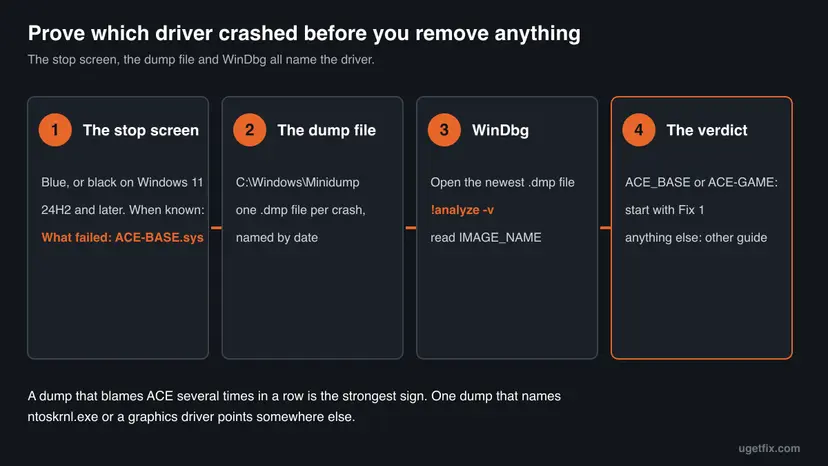
If the dumps blame ntoskrnl.exe, a graphics driver or a storage driver, ACE may only have been running at that moment. Fixes 4 and 5 still apply, but also check the driver the dump names.
Is ACE-BASE.sys a virus, and is it safe to keep
The genuine file is signed. Scan logs posted on malware-removal forums show the ACE drivers signed by Tencent Technology (Shenzhen) Company Limited or by Microsoft's hardware compatibility publisher for ANTICHEATEXPERT.COM. You can check your own copy in a minute.
- Open
C:\Windows\System32\driversin File Explorer. - Right-click
ACE-BASE.sysand select Properties. - Open the Digital Signatures tab and read the signer's name.
- If the tab is missing or names another company, scan the PC with Microsoft Defender: How to scan for malware with Microsoft Defender.
Safe to run is a separate question. In May 2024 a flaw in ACE-BASE.sys version 1.0.2202.6217 was published as CVE-2024-22830: the driver did not check access properly, so a local program could raise itself to System rights. The advisory lists no fixed version. Keeping the game updated is the only way to get newer ACE builds.
How to fix the ACE-BASE.sys blue screen
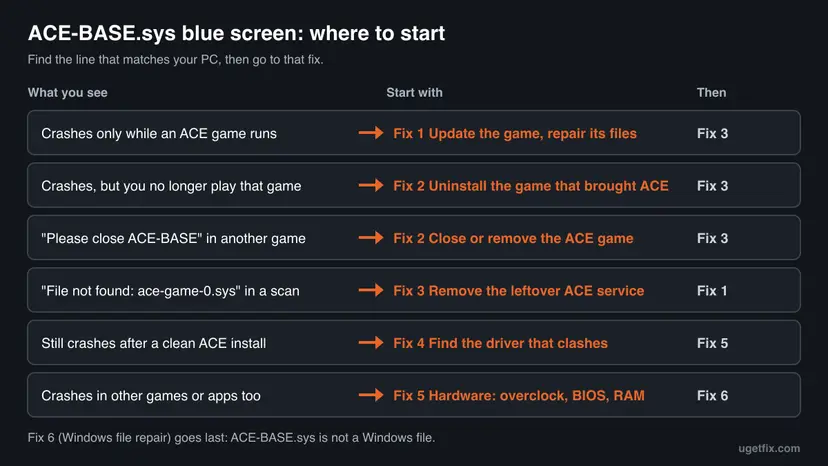
Start with Fix 1 if you still play the game, or with Fix 2 if you do not. Fix 3 is the full clean-up for crashes that come back. Fixes 4 to 6 are for PCs where ACE itself is healthy but something around it is not.
| What you see | Start with | Then |
|---|---|---|
| The blue screen comes only while one ACE game loads or runs | Fix 1 | Fix 3 |
| The crash happens, but you no longer play the game that installed ACE | Fix 2 | Fix 3 |
| Fortnite or another game says "Please close ACE-BASE before starting the game" | Fix 2 | Fix 3 |
A scan or log says file not found for ace-game-0.sys | Fix 3 | Fix 1 |
| ACE was reinstalled cleanly and the blue screen still returns | Fix 4 | Fix 5 |
| Blue screens also happen in games without ACE | Fix 5 | Fix 6 |
Fix 1. Update the game, repair its files and let ACE start normally
10 minutesNo riskYou still play the game and the crash happens while it loads or runs.
Each game carries its own copy of ACE and refreshes the drivers when it updates or repairs itself. A damaged or old driver is the most common reason the base driver touches memory it should not.
- Close the game and its launcher completely, then restart the PC so the ACE driver is unloaded.
- Open the launcher (Steam, Epic Games, the game's own launcher) and install every pending update for the game.
- Verify or repair the game's files. Step by step for each launcher: How to verify game files in Steam, Epic Games, Xbox app, EA app, Battle.net and GOG Galaxy
- Start the game. When User Account Control asks to allow changes, select Yes. One developer's fix note warns that ACE does not work properly when this prompt is refused.
- If the game says its security component is abnormal, press Win + R, type
services.mscand press Enter. - Find AntiCheatExpert Service. If its startup type is Disabled, open it, set Startup type to Manual and select OK.
- Start the game again and play long enough to reach the point where it used to crash.
In its official fix note for ACE errors, the Myth of Empires team lists the same checks. Allow the UAC prompt, make sure the ACE service is not disabled and that no antivirus blocks the SGuard processes. As a last step it deletes C:\Program Files\AntiCheatExpert and starts the game again.
It worked if: The game passes the loading screen and the point where it used to crash, and no new file appears in C:\Windows\Minidump.
If not: If you rarely play this game, go to Fix 2. If you need it, go to Fix 3 for a full clean ACE install.
Fix 2. Uninstall the game that brought ACE if you no longer play it
10 minutesLow riskYou see the crash or an ACE-BASE pop-up, but you do not play the game that installed ACE.
ACE keeps its service and drivers registered after you stop playing, so a forgotten game can still load ACE-BASE.sys. On Microsoft Q&A, an advisor who read a user's dump found the Tencent anti-cheat at fault and advised removing the game first.
This is also the fix for Please close ACE-BASE before starting the game in Fortnite, Rocket League and other games with their own anti-cheat. Epic Games says ACE is not compatible with Fortnite and must not run beside it. Epic advises exiting the ACE game, then a clean boot, then asking that game's support how to turn the ACE service off.
- Exit every game and launcher. In Task Manager, end
SGuard64.exeonly if a game you just closed left it running. - Open Settings > Apps > Installed apps (Apps & features on Windows 10) and look for the ACE games listed earlier in this guide.
- Uninstall the game you no longer play. All the ways to remove a program: Uninstall a program or app in Windows
- Restart the PC.
- Right-click Start, select Terminal (Admin) (on Windows 10: Windows PowerShell (Admin)) and run
sc.exe query ACE-BASE. - If the answer is The specified service does not exist as an installed service, ACE is gone. If it still shows STATE, continue with Fix 3.

In PowerShell, which Terminal opens by default, sc is a short name for another command. Type sc.exe in full, as Microsoft's own documentation does.
It worked if: sc.exe query ACE-BASE reports that the service does not exist, and the other game starts without the ACE-BASE message.
If not: The ACE service survived the uninstall. Remove it by hand in Fix 3.
Fix 3. Remove the leftover ACE services and drivers, then let the game reinstall ACE
25 minutesRead the warningThe crash returns after Fix 1, ACE survived the game's removal, or a scan reports ace-game-0.sys as missing.
A half-removed ACE leaves service entries that point at old or missing driver files, which is exactly the ace-game-0.sys file not found line. Deleting the services and files gives the next game start a clean slate.
This removes ACE for every game on the PC and deletes service entries from the registry. No saves or game files are lost, and each game reinstalls ACE on its next start. Create a restore point first, and read Back up the registry before editing it if you want a registry backup too.
- Close all ACE games and launchers. If
C:\Program Files\AntiCheatExpertcontains an uninstaller, run it first. - Right-click Start and select Terminal (Admin), or Windows PowerShell (Admin) on Windows 10.
- List every ACE service and driver on this PC. Write down each SERVICE_NAME that the command prints.
sc.exe query type= all state= all | findstr /i "ACE AntiCheatExpert" - Check where each one points before you remove it. The BINARY_PATH_NAME line must lead to an ACE file.
sc.exe qc ACE-BASE - Stop and delete each ACE entry. Repeat for the other names you wrote down, such as
ACE-GAME,ace-game-0orACE-ADVT. Put names with spaces in quotes.sc.exe stop ACE-BASE sc.exe delete ACE-BASE sc.exe delete "AntiCheatExpert Service" - Restart the PC. A service that was running is only marked for deletion until then.
- Delete the
ACE-*.sysfiles fromC:\Windows\System32\drivers, then the foldersC:\Program Files\AntiCheatExpertand, if present,C:\ProgramData\AntiCheatExpert(a hidden folder). - Start the game you play. It installs a fresh ACE and asks for administrator approval. Select Yes.
- Service names users report
ACE-BASE,ACE-GAME,ace-game-0,ACE-ADVT,AntiCheatExpert Service,AntiCheatExpert Protection. Trust your ownsc.exe querylist over this one.- ace-game-0.sys file not found
- A service entry named
ace-game-0still exists but its file is gone.sc.exe delete ace-game-0removes the dead entry. - Access denied on a file
- The driver is still loaded. Restart once more after the
sc.exe deletecommands, then delete the file.
It worked if: After the restart sc.exe query ACE-BASE finds nothing, and after the game's first start it lists a fresh, running ACE service while the game plays without a blue screen.
If not: If the crash returns with a fresh ACE, something else on the PC clashes with it. Go to Fix 4.
Fix 4. Find the driver that clashes with ACE
30 minutesLow riskACE was reinstalled cleanly and the blue screen still comes back in the same game.
ACE hooks deep into Windows, and so do security suites, backup tools and hardware utilities. In the Sysnative case the dumps showed an Acronis protection driver and a Bitdefender traffic driver active beside ACE.
Typical neighbours of ACE in crash dumps are third-party antivirus and backup products, RGB and fan control suites, GPU overclocking tools, hardware monitors that load their own driver, and other anti-cheats left by old games. A clean boot tells you whether one of them is involved.
- Start Windows with only Microsoft services and no startup apps. Step by step: How to perform a clean boot in Windows
- Restart and play the ACE game until the point where it used to crash.
- If it no longer crashes, turn the other services back on in groups of five, restarting and playing after each group.
- When the crash returns, the last group holds the culprit. Narrow it down to one program.
- Uninstall that program or update it to its newest version. Disabling its service is not enough when it also loads a kernel driver.
- To test a third-party antivirus, pause it for one session and turn it back on afterwards: Turn off Microsoft Defender protection for a moment
- Return to a normal start in System Configuration when you are done.

It worked if: The game runs through a full session in the clean boot, and after you remove the one program it also runs in a normal start.
If not: If the crash happens even in a clean boot, the clash is not with a service. Go to Fix 5 for the hardware checks.
Fix 5. Rule out unstable hardware: overclocks, BIOS and memory
60 minutes or moreLow riskBlue screens also happen outside ACE games, or every software fix above has failed.
An anti-cheat driver reads a great deal of memory, so it is often the first to hit an unstable CPU or RAM setting. The Sysnative analysts asked for a memory test and a BIOS update before blaming ACE alone.
- Reset every overclock to default in the tools you use, and switch off the memory profile (XMP or EXPO) in the BIOS for the test.
- Download the newest BIOS and chipset driver from your PC or motherboard maker's support page, and read its release notes before you install it.
- Update the graphics and chipset drivers, or roll back a graphics driver that arrived just before the crashes: Update, roll back or reinstall a driver
- Test the RAM with the tool built into Windows: How to test your RAM with Windows Memory Diagnostic
- Play the ACE game again with the default settings.
Errors in the memory test, crashes with many different stop codes, or crashes in programs without any anti-cheat point to hardware. ACE then only reveals the fault, and replacing or reseating the part is the fix.
It worked if: The memory test finds no errors and the game survives a long session at default clocks with the new BIOS.
If not: If the memory test reports errors, the RAM needs replacing. If not, run the Windows file repair in Fix 6 and then read the section on reporting the crash.
Fix 6. Repair Windows system files as a last check
20 minutesNo riskSFC has never run on this PC, or the dumps also name Windows files.
ACE-BASE.sys is not a Windows file, so this repair cannot fix the driver. It rules out damaged Windows components that the driver calls into, which is why it comes last.
DISM fetches clean copies of Windows components and SFC replaces damaged system files. Step by step with screenshots: Run DISM and SFC to repair Windows system files
In Terminal (Admin), one after the other:
DISM.exe /Online /Cleanup-Image /RestoreHealth
sfc /scannow
It worked if: SFC reports that it found no integrity violations or that it repaired them, and the next game session ends without a stop screen.
If not: Collect the dumps and contact the game's support as described in the next section.
Still crashing: what to send and to whom
Only the developer can fix a bug inside ACE-BASE.sys. The Sysnative analysts reached the same verdict and told the user to send the dumps to ACE. Give the support team what they need to reproduce the crash.
- The three newest
.dmpfiles fromC:\Windows\Minidump, zipped. - Your Windows edition and version from Settings > System > About.
- The game version, the launcher, and the exact moment of the crash (loading, a match, the menu).
- Any security, backup or hardware tools that load drivers, from Fix 4.
| Where to report | When |
|---|---|
| The support site of the game that installed ACE | Always first: they ship the ACE build |
[email protected], the address on the ACE website | If the game's support cannot help |
| Your PC maker or a hardware shop | Memory test errors or crashes outside games |
How to keep the ACE-BASE.sys blue screen from coming back
- Update ACE games through their own launcher before you play, so ACE gets its newest drivers.
- Allow the UAC prompt when an ACE game starts.
- Uninstall ACE games you stopped playing, then check with
sc.exe query ACE-BASE. - Keep the BIOS, chipset and graphics drivers current.
- Rename or delete ACE files while a game still uses them.
- Run several kernel anti-cheats and overclocking tools at the same time.
- Turn off memory integrity or other Windows protections to make the crash stop.
- Download ACE driver files from DLL or driver sites.
Windows 10 left support on 14 October 2025. Game studios may stop testing ACE on it, so a PC that can run Windows 11 has better odds of staying crash-free.
Frequently asked questions
What is ACE-BASE on my PC?
ACE-BASE is the base part of Anti-Cheat Expert, the anti-cheat that Tencent sells to game studios. A game you installed put it there, together with a service called AntiCheatExpert Service and processes named SGuard64.exe and SGuardSvc64.exe. It runs while an ACE game is open and is meant to detect cheat tools. It is not part of Windows and does nothing for the PC itself. Questions in other languages, such as "ace base是什么", ask the same thing.
Is ACE-BASE.sys a virus?
No, the genuine file is a signed anti-cheat driver, not malware. Check it yourself: right-click the file in C:\Windows\System32\drivers, select Properties and open Digital Signatures. The signer should be Tencent or Microsoft's hardware publisher for ANTICHEATEXPERT.COM. It does carry a published security flaw, CVE-2024-22830, in version 1.0.2202.6217, which is a reason to keep the game updated or remove ACE when you stop playing.
How do I find ACE-BASE in Task Manager?
Open Task Manager with Ctrl + Shift + Esc. On the Processes tab, look under Background processes for SGuard64.exe or SGuardSvc64.exe On the Services tab, look for AntiCheatExpert Service. The driver ACE-BASE.sys itself does not appear in Task Manager, because kernel drivers are not processes. To see it, run sc.exe query ACE-BASE in Terminal.
How do I stop ACE-BASE or close it before starting another game?
Exit the ACE game and its launcher, then restart the PC: ACE normally stops when no ACE game runs. If another game still says Please close ACE-BASE before starting the game, uninstall the ACE game you no longer use (Fix 2). If you still play it, set AntiCheatExpert Service to Manual in services.msc and restart before you play the other game. Epic Games also suggests a clean boot and asking the ACE game's support how to turn the service off.
Can I just delete or rename ACE-BASE.sys?
You can, but it rarely solves anything on its own. The service entry stays behind, scan tools then report a missing driver, and the next start of an ACE game installs the file again or refuses to run. Delete the services first with sc.exe delete, restart, then delete the files, as in Fix 3. That leaves no broken entries and lets the game install a working copy.
Does uninstalling the game remove Anti-Cheat Expert?
Not always. PCGamingWiki notes that the ACE driver files in C:\Windows\System32\drivers are not deleted when the game is uninstalled, and many players report the service staying behind. Several ACE games also share one ACE install, so a remaining game keeps it. After uninstalling, run sc.exe query ACE-BASE in Terminal (Admin): if the service still exists, remove it as in Fix 3.
What does file not found ace-game-0.sys mean?
It means Windows still has a service called ace-game-0 registered, but the driver file it points to is gone. Scan tools such as FRST print it as a missing file. It usually stays after a crash or a half-finished ACE removal. It is harmless but untidy. Delete the dead entry with sc.exe delete ace-game-0 in Terminal (Admin) and restart. If you play an ACE game, start it once afterwards so it installs a clean copy.
Should I turn off memory integrity to stop the ACE crash?
No. Turning off memory integrity or other Windows protections is not a fix for this blue screen and leaves the PC less protected. PCGamingWiki reports that some ACE games demand virtualization features be off before they start, which is a launch requirement, not a crash fix. If a game insists on it, ask its support. Fixes 1 to 4 address the crash without weakening Windows.
Does Honkai: Star Rail use ACE-BASE.sys?
Not any more. PCGamingWiki lists Honkai: Star Rail and Honkai Impact 3rd among games that formerly used Anti-Cheat Expert. Players who installed those games when they used ACE may still have the old driver and service. If you see ACE-BASE.sys and play neither those games nor another ACE title, check with sc.exe query ACE-BASE and remove the leftover as in Fix 3.
What is ace-advt.sys?
ACE-ADVT.sys is another kernel driver of Anti-Cheat Expert, signed for ANTICHEATEXPERT.COM according to scan logs posted on malware-removal forums. Some games install it beside ACE-BASE.sys. It can be named on a stop screen in the same way, and the same fixes apply: update and repair the game, or remove the ACE service named ACE-ADVT with sc.exe delete as in Fix 3.
Sources
- Microsoft Support: Troubleshooting Windows unexpected restarts and stop code errors (support.microsoft.com)
- Microsoft Learn: How to read the small memory dump file (learn.microsoft.com)
- Microsoft Learn: Install the Windows debugger (WinDbg) (learn.microsoft.com)
Did this fix work?
One click, no account. It tells the next reader which guides are worth their time.
Questions and experiences: fix the ACE-BASE.sys blue screen (BSOD) in Windows
Still broken, or found a fix we did not cover? Ask here: members and our editors answer. Reading is open; writing needs a free account.
…