
How to fix "BITS service failed to start. Error 0x80004015" in Windows?

Prefer to fix it yourself? The manual steps follow.
- 9methods
- 2 minutes to check, 5 to 30 minutes to fix
- Intermediate
Applies to Windows 11, Windows 10
9 methods in this guide
- What the error means
- Causes, most likely first
- The fixes
- 1. Check and start BITS
- 2. Fix the startup type
- 3. Start the dependencies
- 4. Restore the registry setting
- 5. Reset the service settings
- 6. Scan for malware
- 7. Reset Windows Update
- 8. Repair system files
- 9. Restore or repair install
- If it is still broken
- Prevent it
- FAQ
Hello. I can't manage to install any Windows updates because the system is giving me the "BITS service failed to start. Error 0x80004015". Is there a solution to this?
The BITS service failed to start with error 0x80004015 is an Event Viewer entry from the BITS client, Event ID 16392. Often BITS runs fine a moment later and nothing is broken. If BITS stays stopped and updates fail, start it by hand to see the real error, then fix that.
Run sc query bits in an administrator Command Prompt. If BITS shows RUNNING, or starts with net start bits, and Windows Update installs updates, the 0x80004015 entry was a one-off and needs no repair (Fix 1). If BITS will not start, the error net start shows decides the fix: a Disabled startup type (Fix 2), a stopped dependency (Fix 3) or damaged service settings (Fix 4 and Fix 5).
| Error | "The BITS service failed to start. Error 0x80004015.", logged with Event ID 16392 by the source Microsoft-Windows-Bits-Client. |
|---|---|
| Where it appears | In Event Viewer and in log reports made by repair tools, usually around sign-in or startup. Programs that use BITS may also say "A new BITS job could not be created". |
| Main cause | A program asked for BITS before the service could be reached. When BITS really stays stopped: a Disabled startup type, a stopped dependency (RpcSs, EventSystem) or damaged service settings. |
| Fastest fix | sc query bits, then net start bits in an administrator Command Prompt, and read what it answers (Fix 1). |
| Also written as | BITS service failed to start, problem with BITS service, bits-client error, and the Russian text "Не удалось запустить службу BITS. Ошибка: 0x80004015." |
| Service | Background Intelligent Transfer Service, service name BITS, file qmgr.dll, runs as Local System. Default startup type in Microsoft's service list: Manual. |
| What depends on it | Windows Update and other programs that download in the background. With BITS off, they cannot download updates. |
| Microsoft's status | No Microsoft article covers 0x80004015 for BITS. Microsoft's "Issues with BITS" page lists the start errors and the default settings used below. |
| Time to fix | 2 minutes to check. 5 minutes for a startup type or a dependency, up to 30 minutes for a system file repair. |
Facts checked on 15 October 2026. Steps written for Windows 11 (25H2 and 26H2) and Windows 10 22H2.
What "The BITS service failed to start. Error 0x80004015" means
BITS, the Background Intelligent Transfer Service, downloads files in the background with idle network bandwidth. Windows Update is its best known user. Programs do not call the service directly: a small client part in the program's own process connects to it. When that connection fails, the client writes Event ID 16392 to the log with the error it got back.
0x80004015 is a COM error, not a BITS error. The Windows SDK names it CO_E_WRONG_SERVER_IDENTITY: the class is set to run as a different security identity than the caller. We could not find a Microsoft page that explains it for BITS, so read it as "the program could not reach BITS at that moment", not as proof that BITS is broken.
How the entry looks in Event Viewer
Source:   Microsoft-Windows-Bits-Client
Event ID: 16392
Level:    Error
The BITS service failed to start. Error 0x80004015.Many PCs show this entry now and then, often at startup, while BITS works. If sc query bits shows RUNNING or the service starts by hand, and Windows Update installs updates, you can leave it. Repair only when BITS stays stopped or updates fail.
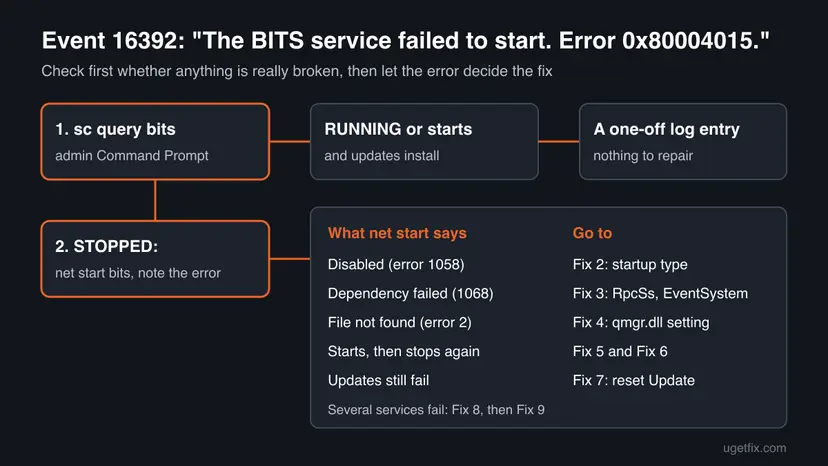
Why the BITS service fails to start, most common cause first
Most often there is no fault: a program asked for BITS while Windows was still starting or shutting down, and the next try worked. The causes below matter only when BITS really does not run.
| Cause | How it looks | Fix |
|---|---|---|
| A one-off failure at startup or sign-in. | One or a few 16392 entries; sc query bits shows RUNNING or BITS starts by hand; updates install. | Fix 1, nothing more |
| BITS is set to Disabled, often by a tweak tool or a "disable services" list. | net start bits answers system error 1058; Services shows Disabled. | Fix 2 |
| A dependency, Remote Procedure Call (RPC) or COM+ Event System, is stopped or disabled. | net start bits answers system error 1068. | Fix 3 |
| The BITS registry settings are damaged or missing. | net start bits answers system error 2, "The system cannot find the file specified". | Fix 4 |
| The service account or other settings were changed. | BITS starts and stops again, or fails with an access error. | Fix 5 |
| Malware changed or abused the service. | BITS goes back to Disabled after you fix it. | Fix 6 |
| A damaged BITS download queue or Windows Update cache. | BITS runs, but updates fail or "A new BITS job could not be created". | Fix 7 |
| Damaged Windows files. | Several Windows services fail with different errors. | Fix 8, Fix 9 |
How to fix "The BITS service failed to start. Error 0x80004015"
Fix 1 tells you in two minutes whether anything needs repair and, if so, which error BITS really has. The table sends you to the fix for that error.
| What Fix 1 shows or what you see | Go to |
|---|---|
| BITS is RUNNING or starts by hand, and updates install. | Nothing to repair |
net start bits answers 1058, or Services shows Disabled. | Fix 2 |
net start bits answers 1068, a dependency failed. | Fix 3 |
net start bits answers error 2, the file cannot be found. | Fix 4 |
| BITS starts and then stops, or shows an access error. | Fix 5, then Fix 6 |
| BITS runs, but Windows Update still fails. | Fix 7 |
| Several Windows services fail, or nothing above matches. | Fix 8, then Fix 9 |
Fix 1. Check BITS with sc query and start it with net start
2 minutesNo riskEveryone who sees the 0x80004015 entry, before changing anything.
The log entry says that one program could not reach BITS once. sc query shows whether the service is running now, and starting it by hand makes Windows show the error that really stops it.
- Type
cmdin search, right-click Command Prompt and select Run as administrator. - Run
sc query bitsand look at the STATE line. - If it shows 4 RUNNING, BITS works. Go to Settings > Windows Update and select Check for updates.
- If it shows 1 STOPPED, run
net start bits. - If BITS starts, check for updates as in step 3.
- If
net start bitsshows "System error" with a number, write the number down and use the table above.
Command Prompt as administrator
sc query bits
net start bits- In PowerShell or Terminal, type
sc.exe query bits. In PowerShell,scis a short name for another command. - "The requested service has already been started" means BITS is running. That is the result you want.
- STOPPED with no error is normal when no program needs BITS. With a Manual startup type, Windows starts it when a download begins.
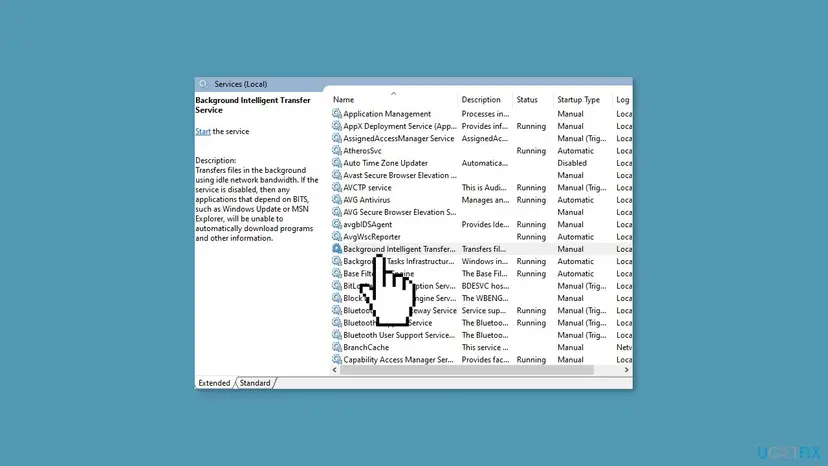
It worked if: BITS shows RUNNING or starts, and Windows Update finds and installs updates. Then the 0x80004015 entry was a one-off.
If not: Use the number net start bits gave: 1058 is Fix 2, 1068 is Fix 3, 2 is Fix 4. If BITS starts and stops again, go to Fix 5.
Fix 2. Set the BITS startup type back to Manual
5 minutesLow risknet start bits answered system error 1058, or Services shows Disabled for Background Intelligent Transfer Service.
A disabled service can never start, so every program that asks for BITS fails. Microsoft's "Issues with BITS" page lists ERROR_SERVICE_DISABLED (0x80070422) as a start error with one fix: enable the service. Microsoft's service list gives Manual as the default.
- Press Win + R, type
services.mscand press Enter. - Double-click Background Intelligent Transfer Service.
- Set Startup type to Manual. Automatic (Delayed Start) also works.
- Select Apply, then Start, and wait until Service status shows Running.
- Select OK and check for updates.
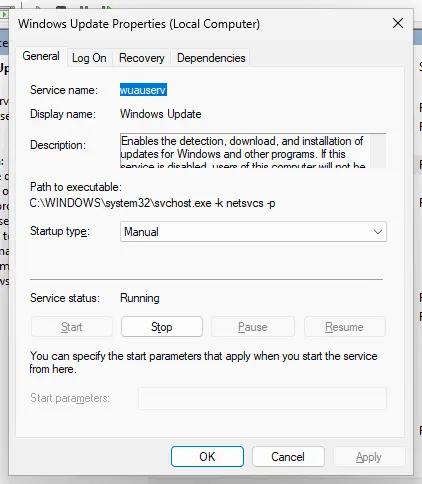
The same from an administrator Command Prompt, with a space after start=: sc config bits start= demand, then net start bits. Opening Services and changing a startup type: Check and restart Windows services
It worked if: Service status shows Running, and sc query bits shows RUNNING.
If not: If the startup type is grey or goes back to Disabled after a restart, go to Fix 6. If net start bits now answers 1068, go to Fix 3.
Fix 3. Start the services BITS depends on: RPC and COM+ Event System
5 minutesLow risknet start bits answered system error 1068, "The dependency service or group failed to start".
BITS starts only after its dependencies run. Microsoft lists them as RpcSs (Remote Procedure Call) and EventSystem (COM+ Event System). If one is stopped or the list is wrong, BITS cannot start.
- In an administrator Command Prompt, run
sc qc bitsand read the DEPENDENCIES lines. They should beRpcSsandEventSystem. - Run
sc query EventSystemandsc query RpcSs. Both should show RUNNING. - If COM+ Event System is stopped, open it in Services, set Startup type to Automatic and select Start.
- If the dependency list is wrong, run
sc config bits depend= RpcSs/EventSystem. - Run
net start bitsagain.
Command Prompt as administrator
sc qc bits
sc query RpcSs
sc query EventSystem
sc config EventSystem start= auto
net start EventSystem
net start bitsRpcSs must always run; Windows does not work without it. If it shows anything but RUNNING, Windows itself is damaged: go to Fix 8. Microsoft marks COM+ Event System "Don't disable" because services that depend on it fail to start.
If COM+ Event System fails too, its own dependency is the cause. Finding it step by step: error 1068: the dependency service or group failed to start.
It worked if: Both dependencies show RUNNING and BITS starts.
If not: If BITS still fails with a different number, go back to the table in the methods intro. If the dependencies are fine and BITS answers error 2, go to Fix 4.
Fix 4. Restore the BITS Parameters key and qmgr.dll in the registry
10 minutesRead the warningnet start bits answered system error 2, "The system cannot find the file specified".
BITS runs from qmgr.dll inside a shared service host. Windows finds that file through the ServiceDll value in the BITS Parameters key. Microsoft's start error table says that when this key is missing, BITS fails with ERROR_FILE_NOT_FOUND (0x80070002).
A wrong change in the registry can stop Windows from starting. Change only the one value below, and save a backup before you start: Back up the registry before editing it
- Check that the file exists: in File Explorer, open
C:\Windows\System32and look forqmgr.dll. If it is missing, go to Fix 8. - Press Win + R, type
regeditand press Enter. - Go to
HKEY_LOCAL_MACHINE\SYSTEM\CurrentControlSet\Services\BITS. - If there is no Parameters key under BITS, right-click BITS, select New > Key and name it
Parameters. - In Parameters, open ServiceDll, or create it with New > Expandable String Value.
- Set its value to
%SystemRoot%\System32\qmgr.dlland select OK. - Restart the PC and run
net start bits.
The key and value Microsoft gives
HKEY_LOCAL_MACHINE\SYSTEM\CurrentControlSet\Services\BITS\Parameters
ServiceDll  (REG_EXPAND_SZ) = %SystemRoot%\System32\qmgr.dll
It worked if: After the restart BITS starts without error 2.
If not: If the BITS key itself is missing, sc query bits answers 1060 and the service is not installed: go to Fix 9. Otherwise try Fix 5.
Fix 5. Put back the default BITS service settings with sc config
10 minutesLow riskBITS starts and stops again, fails with an access error, or a tool changed its settings.
Microsoft's "Issues with BITS" page says BITS must run under the Local System account and gives sc commands to enter its configuration again. A changed account, program path or service type stops BITS whatever its startup type is.
- Open Command Prompt as administrator.
- Run the commands below one by one. Each should answer [SC] ChangeServiceConfig SUCCESS.
- Restart the PC.
- Run
net start bitsand check for updates.
Command Prompt as administrator (keep the space after each equal sign)
sc config bits obj= LocalSystem
sc config bits binpath= "%SystemRoot%\System32\svchost.exe -k netsvcs"
sc config bits depend= RpcSs/EventSystem
sc config bits start= demand
sc config bits error= normalMicrosoft's page also sets service privileges and a service type. Its privilege line has a misspelled privilege name, and the page was written for Windows Vista. We did not include those lines; use Fix 8 and Fix 9 if the commands above do not help.
It worked if: Every command answers SUCCESS, and after the restart BITS starts and stays available.
If not: If the settings change back after a restart, go to Fix 6. If the commands fail with Access is denied, check that the window says Administrator.
Fix 6. Scan for malware when BITS settings keep changing
15 to 30 minutesNo riskBITS goes back to Disabled or loses its settings after you fixed it, or other security services are off too.
BITS can download files in the background, so it is a known target for malware, and some malware turns off update services to block security updates. If something keeps changing BITS, fixing the setting again will not last.
- Run a full scan with Windows Security, and the offline scan if the full scan finds anything.
- Remove what it finds and restart.
- Repeat Fix 2 or Fix 5.
- Check after the next restart that BITS keeps its startup type.
Full and offline scan step by step: How to scan for malware with Microsoft Defender
It worked if: The scan is clean or the threat is removed, and BITS keeps its settings after a restart.
If not: If Windows Security will not open or scan, go to Fix 8 and then Fix 9.
Fix 7. Reset Windows Update components and the BITS queue
15 minutesLow riskBITS runs, but Windows Update still fails, or a program says "A new BITS job could not be created".
BITS keeps its list of downloads in qmgr*.dat files. If that queue or the Windows Update cache is damaged, BITS can run and still fail every new download. The reset stops the services, clears the queue and the cache, and starts them again.
- Open Command Prompt as administrator. Type cmd in the search box, right-click Command Prompt and select Run as administrator. Select Yes when Windows asks for permission.
- Stop the update services. Type the commands below and press Enter after each one. If Windows says that other services depend on Cryptographic Services, it stops them too. A message that a service is not started is fine.
net stop wuauserv net stop bits net stop cryptsvc - Delete the download queue files. This clears the list of downloads that the Background Intelligent Transfer Service keeps. If Windows says it cannot find the files, continue.
del "%ALLUSERSPROFILE%\Application Data\Microsoft\Network\Downloader\qmgr*.dat" - Rename the update cache folders. Renaming keeps a copy in case you need it; Windows creates new, empty folders when the services start again. If you get Access is denied, a service is still running: repeat the previous step.
ren %systemroot%\SoftwareDistribution SoftwareDistribution.old ren %systemroot%\System32\catroot2 catroot2.old - Start the services again. Type the commands below and press Enter after each one. The requested service has already been started is fine: Windows started it on its own.
net start cryptsvc net start bits net start wuauserv - Restart and check for updates. Restart the PC. Then select Start > Settings > Windows Update > Check for updates. The first check can take longer than usual because everything is downloaded again.
These steps were written for Windows 11 and Windows 10 (the steps are the same). The full page with the other versions and what each result means: Reset Windows Update components
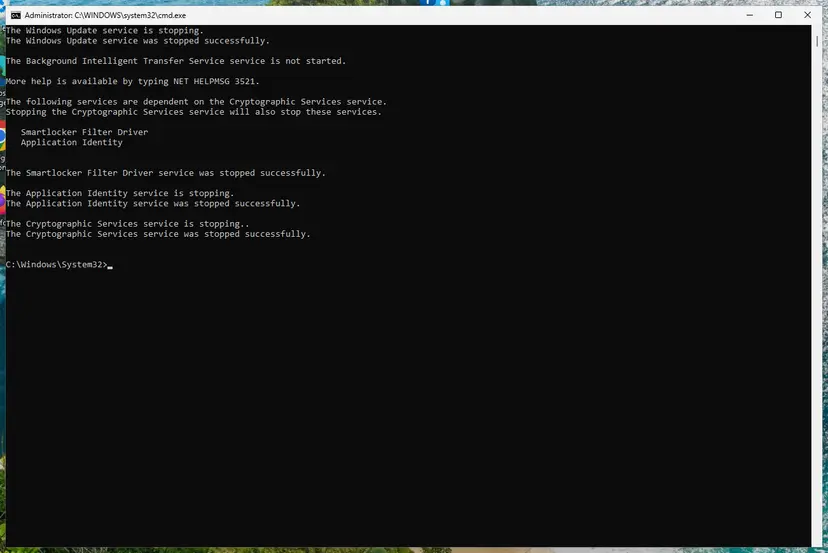
It worked if: After the restart, Check for updates finds and installs updates. The first check can take longer than usual.
If not: If updates still fail with their own code, search for that code. If BITS itself fails again, go to Fix 8.
Fix 8. Repair Windows system files with DISM and SFC
15 to 30 minutesNo riskSeveral Windows services fail, qmgr.dll is missing, or Remote Procedure Call is not running.
When qmgr.dll or the COM files BITS uses are damaged, BITS fails whatever its settings are. DISM repairs the store of Windows components, and SFC puts damaged system files back from it.
- Open an elevated command window. Right-click Start and select Terminal (Admin), or type cmd in the search box, right-click Command Prompt and select Run as administrator. Select Yes when Windows asks for permission.
- Run DISM first. Type the command below and press Enter. DISM downloads clean copies of damaged components from Windows Update, so it can take several minutes. Wait until it says The operation completed successfully.
DISM.exe /Online /Cleanup-Image /RestoreHealth - Run System File Checker. In the same window, type the command below and press Enter. Do not close the window until the verification reaches 100%.
sfc /scannow - Read the result and restart. Compare the last message with the table below this guide, then restart the PC so that repaired files are loaded.
These steps were written for Windows 11 24H2 and 25H2. The full page with the other versions and what each result means: Run DISM and SFC to repair Windows system files

It worked if: SFC reports no integrity violations or says it repaired them, and BITS starts after a restart.
If not: If BITS still fails, go to Fix 9.
Fix 9. Go back to a restore point or reinstall Windows over itself
30 to 90 minutesRead the warningNothing above worked, or BITS is not installed at all (sc query bits answers 1060).
System Restore puts back the service settings of an earlier day. A repair install replaces every Windows file and restores the default Windows services, BITS included, while it keeps your files and apps.
Your documents stay. Programs, drivers and updates installed after the restore point are removed. Back up important files first, especially before a repair install: Back up your files (Windows Backup, File History, Time Machine)
- Press Win + R, type
rstruiand press Enter. - Choose a restore point from before BITS stopped working and select Scan for affected programs.
- Select Next and Finish, and let the PC restart.
- With no usable restore point, reinstall Windows while you keep your files and apps.
System Restore step by step: Undo recent changes with System Restore Repair install: Reinstall Windows without losing files
It worked if: BITS starts and Windows Update installs updates again.
If not: Collect the details in the next section before you ask Microsoft support for help.
If BITS still fails to start: what to read and what to collect
With this error the useful facts are whether BITS runs and which error it gives when you start it by hand. Collect these before you post in Microsoft's forum or contact support.
- The output of
sc query bits,sc qc bitsandnet start bits. - The System log. In Event Viewer, open Windows Logs > System and filter by the sources Bits-Client and Service Control Manager. Note the time of the 16392 entries and what is logged right next to them.
- The BITS log. Open Applications and Services Logs > Microsoft > Windows > Bits-Client > Operational to see which program's download failed.
- What changed. Run
perfmon /relto open Reliability Monitor, which lists installs, updates and removals by day. - Your Windows version and build. Press Win + R, type
winverand note both.
| Sign | What it means |
|---|---|
| One or a few 16392 entries, and updates install. | A program could not reach BITS once. Nothing to repair. |
| BITS shows STOPPED with no error and Manual startup. | Normal. Windows starts it when a download begins. |
| Only one program's downloads fail, others work. | The problem is that program or its server. Repair or update the program. |
| Downloads fail on every service, not just BITS. | The internet connection, a proxy or a VPN. How to check your internet connection in Windows |
Windows 10 left support on 14 October 2025. A Windows 10 PC that cannot download updates gets no security fixes either way, so a repair install is a good moment to plan the move to Windows 11.
How to keep BITS working
- Leave BITS on Manual and COM+ Event System on Automatic, the Microsoft defaults.
- Note a service's startup type before a guide or tool changes it.
- Keep System Protection on for drive C:, so a restore point exists before big changes.
- Check Windows Update once a month to see that updates still install.
- Do not use "disable unneeded services" lists or tweak tools that turn off BITS.
- Do not set BITS to Disabled to stop background downloads; Windows Update needs it.
- Do not delete registry keys of services to "clean" the registry.
- Do not repair BITS each time a single 16392 entry appears in the log.
Frequently asked questions
What does "The BITS service failed to start. Error 0x80004015" mean?
It means a program tried to use the Background Intelligent Transfer Service and the connection to it failed at that moment. The BITS client writes it to the log as Event ID 16392. The code 0x80004015 is a COM error that the Windows SDK names CO_E_WRONG_SERVER_IDENTITY. Microsoft does not explain it for BITS. Check with sc query bits whether BITS runs now. If it does and updates install, the entry was a one-off.
Is Event ID 16392 from Bits-Client harmful?
The entry itself does no harm. It only records that one connection to BITS failed. It matters when BITS stays stopped, because then Windows Update and other programs cannot download in the background. Run sc query bits and net start bits in an administrator Command Prompt, and check for updates in Settings. If both work, you can ignore the entry. If BITS does not start, the error number net start gives leads to the right fix.
How do I start or restart BITS?
Open Command Prompt as administrator and run net start bits to start it, or net stop bits and then net start bits to restart it. Microsoft's own page uses sc stop bits and sc start bits, which do the same. In Services, find Background Intelligent Transfer Service, right-click it and select Start or Restart. If Windows says the requested service has already been started, BITS is running.
What is the default startup type of BITS?
Microsoft's list of Windows services gives Manual as the default startup type of the Background Intelligent Transfer Service. Windows starts it when a program begins a download, and it can show as stopped the rest of the time. Automatic (Delayed Start) also works. Disabled stops Windows Update from downloading updates, so do not choose it. The service runs under the Local System account and depends on Remote Procedure Call and COM+ Event System.
What does "A new BITS job could not be created" mean?
A program that uses BITS, such as an updater, could not add a new download. Most often BITS is stopped or disabled, so start with Fix 1 and Fix 2. If BITS runs and the message stays, the download queue may be damaged: the Windows Update reset in Fix 7 clears the qmgr data files where BITS keeps its jobs. If only one program shows the message, repair or reinstall that program.
Is there a BITS repair tool for Windows 10 and Windows 11?
Windows has no separate BITS repair program. Some versions list a Background Intelligent Transfer Service troubleshooter under Settings > System > Troubleshoot > Other troubleshooters, and Windows 10 has it under Troubleshoot in Control Panel. It checks the same things as Fix 1 to Fix 3. The commands in Fix 1 and Fix 5 do the same job and show you what they changed. Avoid download sites that offer a BITS fix tool.
Why does BITS keep stopping?
With a Manual startup type, BITS stops by itself when no download needs it, which is normal. If it stops while Windows Update is downloading, or its startup type changes back to Disabled, something changes it. Common reasons are tweak tools, "speed up Windows" scripts and malware. Set it back with Fix 2, then run the malware scan in Fix 6 and check whether the setting stays after a restart.
The Russian message "Не удалось запустить службу BITS. Ошибка: 0x80004015" is on my PC. Is it the same?
Yes. It is the same Event ID 16392 entry on a Russian copy of Windows, and the fixes are the same. The related message "Служба BITS завершена из-за ошибки: Не удается найти указанный файл" means the BITS service stopped with error 2, the file cannot be found. Microsoft ties that to a missing Parameters key, which Fix 4 restores.
I searched for "bit data failed to load". Is that this error?
No. This page is about BITS, the Windows download service, and its Event ID 16392 entry. "Bit data failed to load" is a different message that some programs and games show when their own data does not load. It has nothing to do with BITS. Search for the full message together with the name of the program that shows it.
Does this error appear on Windows 11 and Windows 10?
Yes. The Event ID 16392 entry and the BITS settings are the same on Windows 11 and Windows 10, and so are the fixes on this page. Older logs from Windows 7 show the same text. Windows 10 left support on 14 October 2025, so a Windows 10 PC no longer gets security updates even when BITS works.
Sources
- Microsoft Learn: Issues with BITS (sc query bits, Local System account, start errors 0x80070422, 0x8007042C, 0x80070002, dependencies RpcSs and EventSystem, ServiceDll qmgr.dll) (learn.microsoft.com)
- Microsoft Learn: Guidance on disabling system services (Background Intelligent Transfer Service default Manual; COM+ Event System Automatic, do not disable) (learn.microsoft.com)
Did this fix work?
One click, no account. It tells the next reader which guides are worth their time.
Questions and experiences: fix "BITS service failed to start. Error 0x80004015" in Windows
Still broken, or found a fix we did not cover? Ask here: members and our editors answer. Reading is open; writing needs a free account.
…