
How to fix error code 0xc0000242 when Windows will not start

Prefer to fix it yourself? The manual steps follow.
- 7methods
- 15 to 90 minutes
- Intermediate
Applies to Windows 11 and Windows 10 PCs that stop at Your PC/Device needs to be repaired with error code 0xc0000242
7 methods in this guide
Hello. My Windows PC fails to boot up with error 0xc0000242. What do I do?
Error code 0xc0000242 appears on a blue Recovery screen when Windows cannot load a driver it needs to start. The screen names the file, and that file is damaged, not the boot configuration. Note the File line, then run Startup Repair and repair the file from the recovery Command Prompt.
0xc0000242 is Microsoft's STATUS_BAD_COMPRESSION_BUFFER: Windows read a driver file and found ill-formed data. Your personal files are usually fine. Write down the file named on the screen, open the recovery screen and run Startup Repair (Fix 1). If the file is a Windows driver, repair it with an offline SFC scan (Fix 2). If it belongs to another program, remove that program from Safe Mode (Fix 4).
| Error | A blue Recovery screen: "Your PC/Device needs to be repaired. The operating system couldn't be loaded because a critical system driver is missing or contains errors." Then a File: line and Error code: 0xc0000242. |
|---|---|
| Where it appears | After the PC maker's logo, at the Windows logo, every time the PC starts. It comes from the Windows OS loader, the step that loads the drivers the kernel needs. |
| Main cause | The driver file on the File line is damaged: a Windows driver hit by a power loss or a disk error, or a broken driver of an antivirus or other program. |
| Fastest fix | Startup Repair from the recovery screen (Fix 1), then an offline SFC scan from the recovery Command Prompt (Fix 2). |
| Also written as | 0xC0000242, error 242, 0000242, Boot BCD error 0xc0000242, critical system driver is missing or contains errors. |
| What the code means | 0xC0000242 is STATUS_BAD_COMPRESSION_BUFFER, "The specified buffer contains ill-formed data", in Microsoft's list of NTSTATUS values. |
| Files people report | mountmgr.sys, SgrmAgent.sys, Wdf01000.sys (Windows) and aswVmm.sys (a third-party driver). Any .sys file can appear. |
| Affects | Windows 11 and Windows 10, desktops and laptops. Windows 10 left support on 14 October 2025. |
| Vendor status | No Microsoft known issue for this code. Microsoft documents the status code and the general startup repair steps only. |
| Time to fix | 15 to 30 minutes for Fix 1 and Fix 2. An hour or more with a disk check or a reinstall. |
Facts checked on 15 October 2026. Steps written for Windows 11 (25H2 and 26H2) and Windows 10 22H2.
What error code 0xc0000242 means at startup
The screen that carries this code is the Windows Recovery screen. Users on Microsoft Q&A and Reddit quote it the same way: "Your PC/Device needs to be repaired. The operating system couldn't be loaded because a critical system driver is missing or contains errors." Under it come a File: line with the path of a .sys driver and Error code: 0xc0000242.
Microsoft's list of NTSTATUS values names the code STATUS_BAD_COMPRESSION_BUFFER, with the text "The specified buffer contains ill-formed data". Put simply: Windows read the driver from the disk and the data did not make sense. Microsoft's startup troubleshooting guide says the Windows OS loader loads the drivers the kernel needs and then starts the kernel, so a damaged driver stops the start right there.
Many pages, including the old version of this one, call 0xc0000242 a Boot BCD error. The screen itself points at a driver file, not at the Boot Configuration Data. Rebuild the BCD only when the File line really says \Boot\BCD (Fix 6).
Why 0xc0000242 appears: the causes, most common first
The code says the file is damaged, so the question is what damaged it. In the Microsoft Q&A thread the error came after a 12 year old desktop was unplugged and moved while the desk was cleaned. In other reports the File line names an antivirus driver.
| How often | Cause | Sign | Fix |
|---|---|---|---|
| Most often | A Windows driver file damaged by a power loss, a forced shutdown or a failed update | The File line names a Windows driver such as mountmgr.sys or Wdf01000.sys | Fix 1, Fix 2 |
| Often | Disk errors that corrupt what Windows reads | The PC was moved, lost power, or the disk is old or slow; the file name changes between starts | Fix 3 |
| Often | A broken driver of an antivirus, VPN, disk or game tool | The File line names a file you do not recognise as part of Windows, such as aswVmm.sys | Fix 4, Fix 5 |
| Less often | Damaged Boot Configuration Data | The File line says \Boot\BCD instead of a driver | Fix 6 |
| Rarely | A failing disk, cable or memory | Fixes 1 to 3 help only for a day, or CHKDSK finds bad sectors | Fix 3, then hardware checks |
Where the cause is written
The error stops Windows before it can write a crash dump, so look in these places instead:
- The File line on the Recovery screen: take a photo of it. It is the most useful fact you have.
C:\Windows\System32\Logfiles\Srt\SrtTrail.txt: the log Startup Repair writes in Fix 1. It says what it tested and what it found.- The SFC result in Fix 2: whether Windows found corrupt files and repaired them.
- Event Viewer > Windows Logs > System: once Windows starts again, look for Disk, Ntfs and Kernel-Power events around the first failed start.
How to fix error code 0xc0000242
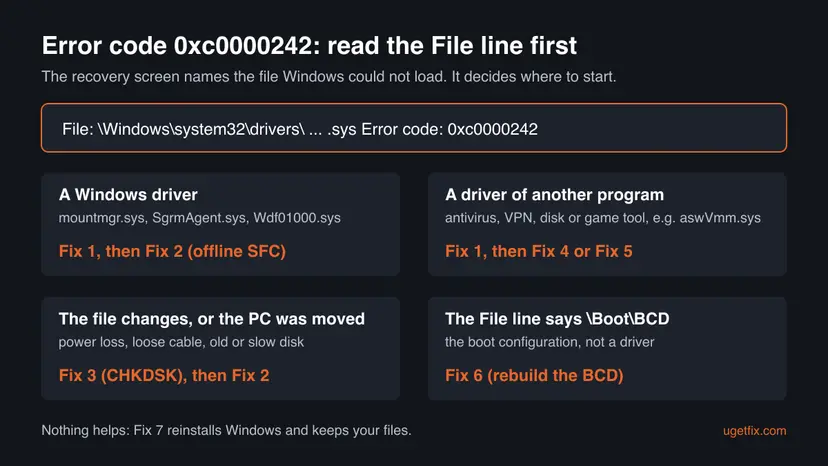
Every fix starts from the Windows recovery screen. Fix 1 and Fix 2 repair most Windows drivers. Fix 3 checks the disk, Fix 4 and Fix 5 deal with a driver of another program, Fix 6 is only for the BCD, and Fix 7 is the last resort.
| What the File line says or what happened | Start with | Then |
|---|---|---|
A Windows driver, for example mountmgr.sys, SgrmAgent.sys or Wdf01000.sys | Fix 1 | Fix 2 |
A driver of an antivirus, VPN or other program, for example aswVmm.sys | Fix 1 | Fix 4 |
| The PC lost power, was moved or the disk is old | Fix 3 | Fix 2 |
| You installed a program, driver or update just before the error | Fix 5 | Fix 4 |
The File line says \Boot\BCD | Fix 6 | Fix 1 |
Fix 1. Note the file and run Startup Repair from the recovery screen
20 minutesLow riskEveryone, first. It needs no commands and touches no personal files.
Startup Repair checks the files Windows needs to start and replaces what it can. It runs from the recovery environment, which does not load the damaged driver. A Microsoft Q&A answer to this error starts here.
- Take a photo of the Recovery screen so you have the exact File: line.
- Turn the PC on and, while the Windows logo and the spinning dots show, hold the power button for 5 to 10 seconds. Do this twice; the third start opens the recovery screen.
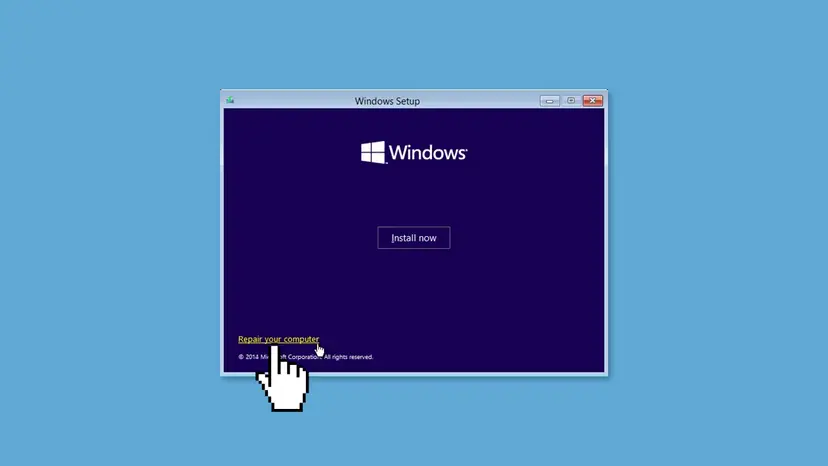
- If the recovery screen never opens, make a Windows 11 USB drive with the Media Creation Tool on another PC, boot from it and select Repair your computer.
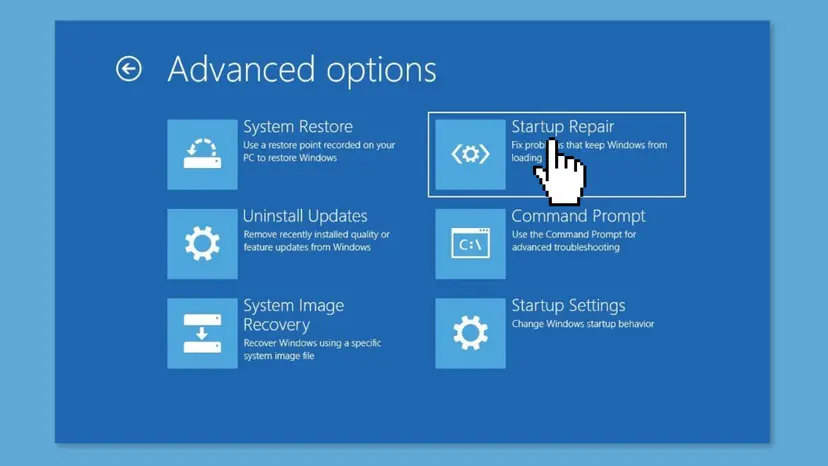
- Select Troubleshoot > Advanced options > Startup Repair. Step by step: Run Startup Repair
- Pick your account if asked, wait until it finishes and restart.
The recovery screen may ask for a BitLocker recovery key. With a Microsoft account, the key is listed at account.microsoft.com/devices/recoverykey. Look it up on a phone or another PC.
It worked if: Startup Repair reports that it repaired the PC, and the next start reaches the sign-in screen.
If not: If it says it could not repair the PC and the file is a Windows driver, run the offline SFC scan in Fix 2.
Fix 2. Repair the damaged Windows driver with an offline SFC scan
20 to 30 minutesLow riskThe File line names a Windows driver, or Startup Repair could not fix the PC.
SFC compares Windows files with Microsoft's stored copies and replaces a damaged one. Microsoft's startup guide gives the offline form, which works on the installed Windows from the recovery Command Prompt while it is not running.
- Open Troubleshoot > Advanced options > Command Prompt from the recovery screen.
- Find the Windows drive letter: type
dir C:\Windows, thendir D:\Windows, until one lists the folder. In recovery it is often notC:. - Run
sfc /scannow /offbootdir=C:\ /offwindir=C:\Windowswith that letter in both places. - Wait until the scan reaches 100 % and read the result.
- Type
exit, select Continue and see whether Windows starts.
In the recovery Command Prompt (replace C: with your Windows drive):
dir C:\Windows
sfc /scannow /offbootdir=C:\ /offwindir=C:\Windows
The online version of this scan, with DISM, is for a Windows that still starts: Run DISM and SFC to repair Windows system files. Run it once more after the PC starts again.
It worked if: SFC reports that it found corrupt files and repaired them, and the next start passes the Windows logo.
If not: If SFC reports it could not repair some files, or the file name changes from start to start, check the disk in Fix 3.
Fix 3. Check the system disk for errors with CHKDSK
30 to 90 minutesLow riskThe PC lost power or was moved, the disk is old or slow, or SFC could not repair the file.
Ill-formed data in a driver file often means the disk returned bad data. CHKDSK repairs the file system and, with /r, finds bad sectors, so the SFC scan in Fix 2 can then write a good copy.
- Shut the PC down. On a desktop that was moved, check that the disk's data and power cables are pushed in firmly.
- Open the recovery Command Prompt as in Fix 2 and find the Windows drive letter.
- Run
chkdsk C: /f /rwith that letter. The/rpass can take an hour or more on a large disk. - Read the result, then run the SFC scan from Fix 2 again.
- Type
exitand select Continue. Step by step: Check a disk for errors (chkdsk)
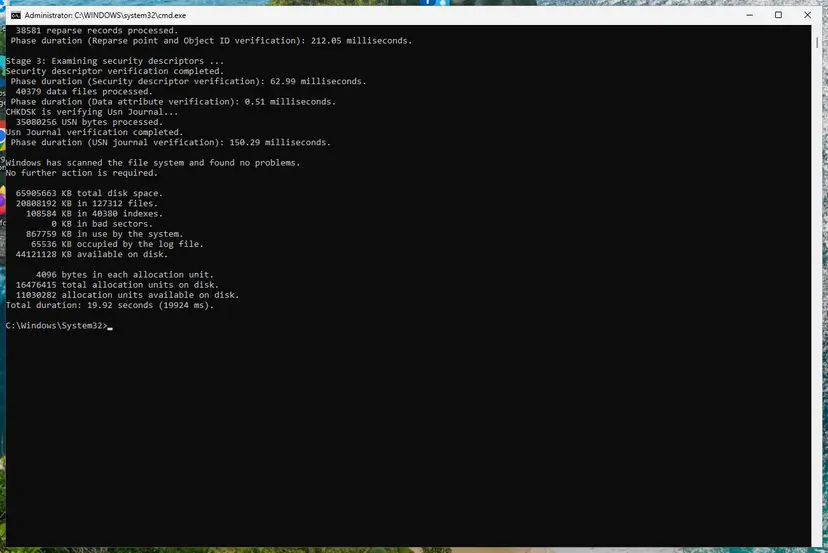
It worked if: CHKDSK reports that it made corrections or found no problems, and SFC and the next start succeed.
If not: If CHKDSK reports bad sectors, copy your files off and plan to replace the disk. If it is clean and the file belongs to another program, go to Fix 4.
Fix 4. Start in Safe Mode and remove the program that owns the driver
20 minutesLow riskThe File line names a driver that is not part of Windows, for example aswVmm.sys from an antivirus.
SFC repairs only Windows files, so it cannot fix another maker's driver. Safe Mode starts Windows with a minimal set of drivers; if it starts, you can remove the program and install a fresh copy later.
- Search the file name on another device to find which program installed it. We could not confirm the owner of every file people report, so check the maker's own site.
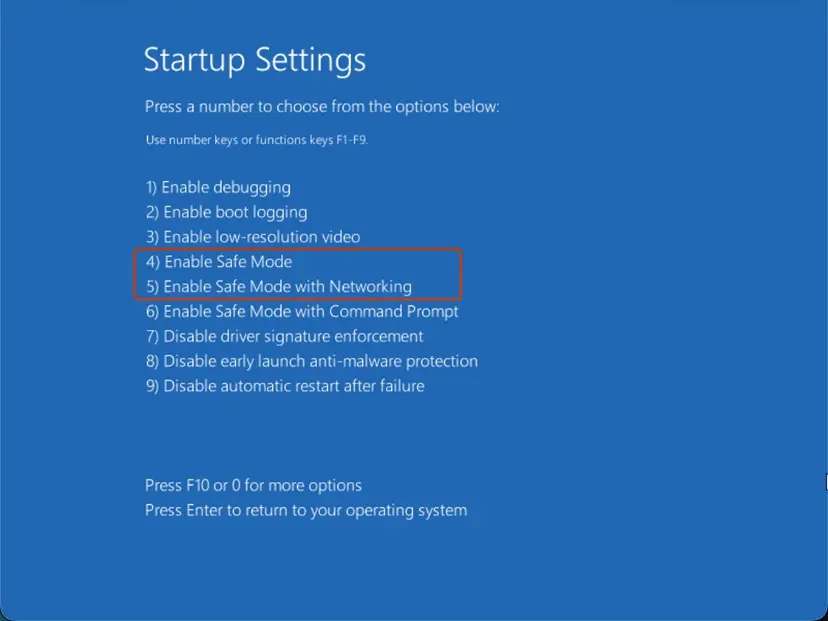
- In the recovery screen, select Troubleshoot > Advanced options > Startup Settings > Restart.
- After the restart, press 4 for Safe Mode or 5 for Safe Mode with Networking. Step by step: Start Windows or a Mac in Safe Mode
- If Windows starts, back up your important files first.
- Open Settings > Apps > Installed apps and uninstall the program. Full method: Uninstall a program or app in Windows
- Restart normally. Install the newest version from the maker only after Windows starts cleanly.
Microsoft Defender turns itself on again when a third-party antivirus is removed, so the PC stays protected. Some antivirus makers offer a removal tool for when the normal uninstall fails; use only the one from their own site.
It worked if: Safe Mode reaches the desktop, the program uninstalls, and the next normal start has no Recovery screen.
If not: If Safe Mode shows the same error, the driver loads even there. Use System Restore in Fix 5.
Fix 5. Return Windows to an earlier state with System Restore
20 minutesRead the warningThe error began after you installed a program, a driver or an update, and System Protection was on.
A restore point brings back the drivers and system files from before the change, including the driver on the File line. Microsoft's startup guide recommends a restore point for a Windows that cannot load its system files.
System Restore does not touch your documents and photos. It removes apps, drivers and updates installed after the restore point. Note them so you can install them again.
- Open the recovery screen as in Fix 1 and select Troubleshoot > Advanced options > System Restore.
- Pick your account and enter its password.
- Select a restore point dated before the first failed start, then Next and Finish.
- Do not turn the PC off while it restores. Step by step: Undo recent changes with System Restore
It worked if: Windows reports that System Restore completed successfully and starts to the sign-in screen.
If not: If there is no restore point or the restore fails, reinstall Windows with your files kept in Fix 7.
Fix 6. Rebuild the BCD when the File line says \Boot\BCD
15 minutesLow riskOnly when the Recovery screen names \Boot\BCD instead of a driver file.
The Boot Configuration Data tells the boot manager where Windows is. Microsoft's startup guide rebuilds it with bootrec after saving a copy, which is the right repair when this file and not a driver is damaged.
- Open the recovery Command Prompt as in Fix 2.
- Run
bootrec /ScanOSand restart once to see whether that alone helps. - If not, run the four commands below one by one, answering Y when bootrec asks to add the Windows installation.
- Type
exitand select Continue.
From Microsoft's startup troubleshooting guide (on a UEFI PC the BCD lives on the EFI partition, so Startup Repair in Fix 1 is the easier route):
bcdedit /export c:\bcdbackup
attrib c:\boot\bcd -r -s -h
ren c:\boot\bcd bcd.old
bootrec /rebuildbcd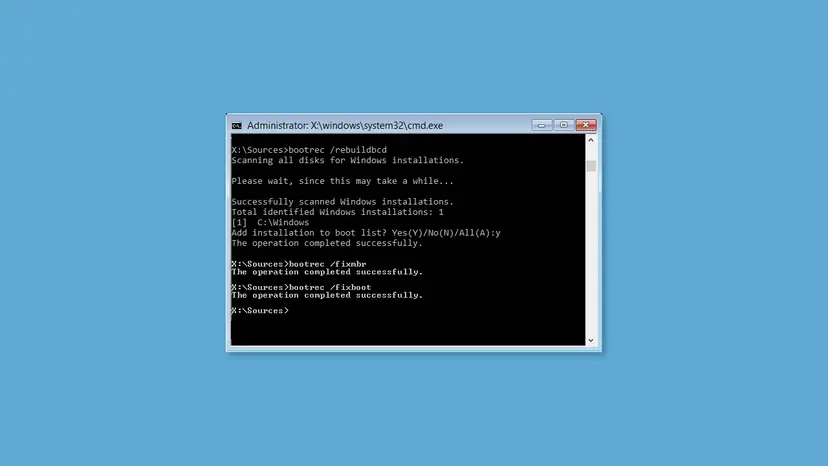
It worked if: bootrec reports The operation completed successfully, and the next start passes the Windows logo.
If not: If the error now names a driver file, go back to Fix 2. If nothing changes, go to Fix 7.
Fix 7. Reinstall Windows and keep your files
60 to 90 minutesRead the warningEvery fix above failed and CHKDSK found the disk healthy.
A reinstall writes a fresh copy of every Windows driver and boot file. The Microsoft Q&A answer to this error ends with Reset this PC, which can keep your personal files.
Reset this PC with Keep my files keeps documents, pictures and the desktop, but removes the apps you installed. If Windows does not start, copy your files first from Safe Mode, a Windows USB drive or by connecting the disk to another PC: Back up your files (Windows Backup, File History, Time Machine)
- In the recovery screen, select Troubleshoot > Reset this PC > Keep my files.
- Choose Cloud download for fresh files from Microsoft, or Local reinstall.
- If the reset cannot start, boot from the Windows USB drive from Fix 1 and install Windows from there.
- After the reinstall, install the chipset and storage drivers from your PC maker first. Full method: Reinstall Windows without losing files
It worked if: Windows starts to a fresh desktop with your files in place, and the Recovery screen does not come back.
If not: If the error comes back soon after a clean reinstall, the disk or memory is at fault. See the next section.
It didn't work: when 0xc0000242 keeps coming back
If every fix ran and the Recovery screen returns, or it returns days after a repair, the disk is the most likely cause. A disk that returns bad data damages whatever file Windows reads next, so the file name often changes.
- Copy your files off the disk now, before more repairs write to it.
- Test the disk with its maker's tool from another PC, and test the memory with How to test your RAM with Windows Memory Diagnostic once Windows starts.
- Note the exact File line, the code, your PC model and the disk model, and what happened before the first failure.
- Keep the text of
SrtTrail.txtfrom Fix 1 and the SFC and CHKDSK results from Fix 2 and Fix 3.
| Where to ask | When |
|---|---|
| The maker of the program that owns the driver | The File line names their driver and the error came back after you installed it again |
| Your disk's maker or a repair shop | CHKDSK reports bad sectors, or the disk disappears from the BIOS |
| Your PC maker or Microsoft Support | The hardware tests are clean and a fresh Windows still fails |
How to keep 0xc0000242 from coming back
- Shut Windows down from the Start menu, and let updates finish before you turn the PC off.
- Use a UPS on a desktop where power cuts are common.
- Keep System Protection on for the system drive so a restore point exists.
- Keep a recent backup of your files on another disk or in the cloud.
- Unplug or move a desktop while it is running or going to sleep.
- Run two antivirus programs or several low level tools that install their own drivers.
- Ignore a disk that is suddenly slow or makes noises.
- Turn Secure Boot off or the antivirus off for good as a fix.
Windows 10 left support on 14 October 2025. A Windows 10 PC gets fixes for drivers and startup only through Extended Security Updates, so moving to Windows 11 keeps them coming.
Frequently asked questions
What is error code 0xc0000242?
It is a Windows status code that Microsoft names STATUS_BAD_COMPRESSION_BUFFER: the specified buffer contains ill-formed data. At startup it means Windows read a driver file from the disk and the data was damaged, so it stopped and showed the Recovery screen. The file is named on the File line just above the code. Fix that one file and Windows usually starts again.
Is 0xc0000242 a Boot BCD error?
Usually not. Many guides call it a Boot BCD error, but the screens users report name a driver file such as mountmgr.sys, SgrmAgent.sys or aswVmm.sys, not the Boot Configuration Data. Rebuilding the BCD does not repair a driver file. Only if the File line says \Boot\BCD should you rebuild it, as Fix 6 shows.
Do I lose my files with error 0xc0000242?
Usually not. The error stops Windows from loading one driver, but your documents and photos are normally still on the disk. Fixes 1 to 4 and Fix 6 do not touch personal files. System Restore removes only apps and drivers installed after the restore point, and Reset this PC with Keep my files keeps personal files. If CHKDSK reports bad sectors, copy your files off before anything else.
Why did 0xc0000242 appear after I moved or unplugged my PC?
In the Microsoft Q&A thread the error appeared right after a user unplugged everything to clean the desk. A desktop that loses power while running, or a disk cable that moves, can leave a driver file half written or make the disk return bad data. Check the cables, then run CHKDSK (Fix 3) and the offline SFC scan (Fix 2).
The File line names aswVmm.sys or another non-Windows file. What now?
Then the damaged driver belongs to another program, and SFC cannot repair it because it only knows Windows files. Users link aswVmm.sys to Avast antivirus; we could not confirm every file name on the makers' sites. Start in Safe Mode, uninstall that program and install a fresh copy from its maker later (Fix 4). If Safe Mode fails too, use System Restore (Fix 5).
Does 0xc0000242 happen on Windows 11 and Windows 10?
Yes. Both use the same OS loader and the same Recovery screen, so the message, the code and the fixes are the same. Newer Windows 11 builds may show Quick machine recovery on the recovery screen, but Startup Repair, Command Prompt, Startup Settings and System Restore are still under Advanced options. Windows 10 left support on 14 October 2025.
I cannot reach the recovery screen. How do I start the fixes?
Interrupt the start twice: while the Windows logo and the spinning dots show, hold the power button for 5 to 10 seconds. On the third start Windows should open the recovery screen. If it does not, make a Windows 11 USB drive with the Media Creation Tool on another PC, boot from it with the boot menu key and select Repair your computer.
Startup Repair said it couldn't repair my PC. What next?
Look at the File line again. If it is a Windows driver, run the offline SFC scan from the recovery Command Prompt (Fix 2), and if SFC fails, run CHKDSK (Fix 3) and then SFC again. If it is another program's driver, go to Safe Mode (Fix 4). The log at C:\Windows\System32\Logfiles\Srt\SrtTrail.txt says what Startup Repair found.
I searched это что or اي الحل for this code. What is the solution?
This page is about the Windows startup error 0xc0000242, which shows Your PC/Device needs to be repaired with a driver file name. The solution in short: note the file on the screen, run Startup Repair from the recovery screen, then repair Windows files with an offline SFC scan. The page is in English; a browser's translate feature can show it in Russian or Arabic.
Sources
- Microsoft Learn: [MS-ERREF] NTSTATUS Values (learn.microsoft.com)
- Microsoft Learn: Windows startup issues troubleshooting (learn.microsoft.com)
- Microsoft Q&A: Error Code: 0xc0000242 (learn.microsoft.com)
Did this fix work?
One click, no account. It tells the next reader which guides are worth their time.
Questions and experiences: fix error code 0xc0000242 when Windows will not start
Still broken, or found a fix we did not cover? Ask here: members and our editors answer. Reading is open; writing needs a free account.
…