
How to fix Corel VideoStudio not opening in Windows?

Prefer to fix it yourself? The manual steps follow.
- 8methods
- 5 to 40 minutes
- Easy
Applies to Corel VideoStudio 2023 Pro and Ultimate on Windows 11 and Windows 10; the reset, repair and clean reinstall also apply to VideoStudio 2022 and older
8 methods in this guide
Hello. Since yesterday, when I try to open Corel VideoStudio on Windows, it just won't launch. Is there anything I can do?
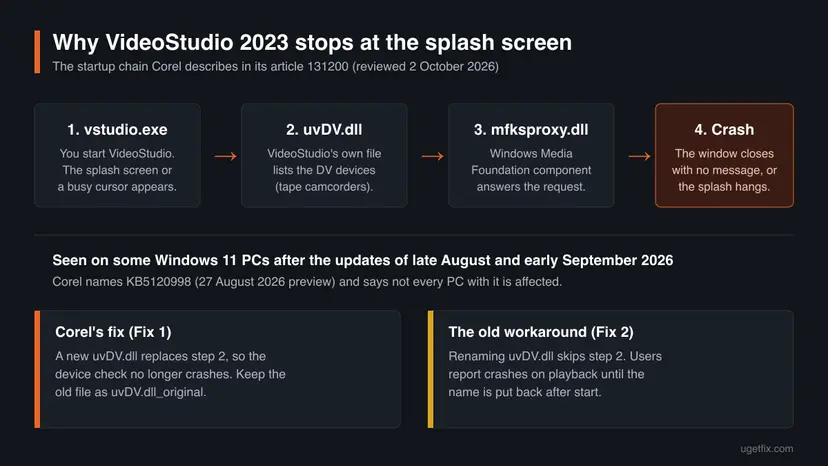
Since late August 2026, Corel VideoStudio 2023 fails to start on some Windows 11 PCs: a busy cursor or the splash screen appears, then nothing. Corel traced it to its own file uvDV.dll, which crashes inside a Windows Media Foundation component while it looks for DV camcorders, and it now offers a replacement file. Install that hotfix first; the other fixes below cover older versions and other causes.
VideoStudio 2023 shows a busy cursor or the splash screen and then disappears with no message? End every vstudio.exe in Task Manager. Then download the hotfix from Corel's article 131200 and put its new uvDV.dll into C:\Program Files\Corel\Corel VideoStudio 2023, keeping the old file renamed (Fix 1). Without the hotfix, renaming uvDV.dll makes it start (Fix 2). Other versions start with a settings reset (Fix 3).
| Error | No error message in most cases. VideoStudio does not open, shows a busy cursor for a moment, or stays on the splash screen and closes. A rarer case shows We have encountered an error. Contact Technical Support. |
|---|---|
| Where it appears | Right after you start VideoStudio, before the editor window opens. A leftover vstudio.exe process often stays in Task Manager. |
| Main cause | VideoStudio 2023 on Windows 11: its file uvDV.dll checks for DV devices at startup and crashes in the Windows Media Foundation component mfksproxy.dll (Corel article 131200). |
| Fastest fix | Corel's hotfix: a new uvDV.dll copied into C:\Program Files\Corel\Corel VideoStudio 2023 (Fix 1, about 5 minutes). |
| Also searched as | uvdv.dll, VideoStudio 2023 not opening, VideoStudio will not start, VideoStudio keeps crashing, VideoStudio Ultimate 2023 not launching. |
| Affects | Corel names VideoStudio 2023 on some Windows 11 PCs after the updates of late August to early September 2026. Settings, runtime and install problems can stop any version. |
| Corel's status | Hotfix published in article 131200 (last reviewed 2 October 2026). The earlier rename workaround is replaced by it. |
| Microsoft's status | Corel links the crash to KB5120998 (27 August 2026 preview). Microsoft's page for that update did not list VideoStudio among its known issues when we read it on 14 October 2026. |
| Time to fix | 5 minutes for the hotfix. 15 to 40 minutes for a reset, repair or clean reinstall. |
Facts checked on 14 October 2026. Steps written for Windows 11 (25H2 and 26H2) and Windows 10 22H2.
What it means when VideoStudio does not open, and what uvDV.dll is
You start VideoStudio and one of three things happens: nothing at all, a busy cursor for a second or two, or the splash screen that stays for a while and then disappears. In most cases Windows shows no error. Corel lists exactly these symptoms for VideoStudio 2023 in its article 131200, and adds that the program may seem to hang on the splash screen.
uvDV.dll is a file of VideoStudio itself, not of Windows. It sits in the program folder, C:\Program Files\Corel\Corel VideoStudio 2023. Corel's engineers found that during startup VideoStudio lists the DV devices on the PC (DV is the format of tape camcorders), and on affected PCs that step crashes inside mfksproxy.dll, a Windows Media Foundation component. That is why a file name few people had heard of became the most searched part of this problem.
The only safe sources of this file are your own VideoStudio installation and Corel's hotfix. A uvDV.dll from a download site can be the wrong version or carry malware. If the file is missing, repair or reinstall VideoStudio instead (Fix 4 and Fix 6).
- Nothing happens (the reports read "nothing happens" in many languages): the process starts and dies before a window can appear. Check Task Manager for a leftover vstudio.exe.
- Splash screen, then gone: the classic VideoStudio 2023 case on Windows 11 since late August 2026. Start with Fix 1.
- We have encountered an error. Contact Technical Support: a different problem. Corel ties this message to broken Visual C++ components after a Windows update (Fix 5).
- Opens, then closes when you play or render a project: not a startup problem. See the FAQ about crashes during playback.
Why VideoStudio will not start: the causes, most common first
Most of the searches for this page arrived after late August 2026, when the uvDV.dll crash began. Before that, the reports on Corel's knowledge base were about damaged settings, Visual C++ components and half-finished installs. The table ranks the causes and ties each one to the fix that answers it.
| How often | Cause | Typical sign | Fix |
|---|---|---|---|
| Most often (2023 on Windows 11) | uvDV.dll crashes in the Windows Media Foundation component mfksproxy.dll while listing DV devices | Busy cursor or splash screen, then nothing, since late August or September 2026 | Fix 1, or Fix 2 |
| Often | Damaged settings or Library data in the user profile | Started after a crash, a power cut or a forced shutdown | Fix 3 |
| Less often | Damaged or missing program files | Missing file message, or a failed update or install | Fix 4 |
| Less often | Microsoft Visual C++ components left broken after a Windows update | We have encountered an error. Contact Technical Support | Fix 5 |
| Rarely | Leftovers of an earlier version or of a failed uninstall | A repair and a normal reinstall change nothing | Fix 6 |
| Rarely | A Windows update itself, when no hotfix helps | Stopped working the day an update was installed | Fix 7 |
| Rarely | Another program or plug-in loading into VideoStudio | Works for another Windows user or after a clean boot | Fix 8 |
Corel writes that the crash was observed on some PCs after Windows 11 update KB5120998 and that it does not occur on every PC with that update. In a Microsoft Q&A thread, one user reports the same crash on a PC that never had KB5120998. Treat the update as a trigger, not as the whole cause.
Corel VideoStudio 2023 startup failure: what Corel and Microsoft have said
VideoStudio 2023 is the version Corel's own pages still describe, and it is the one named in the startup failure article. The timeline below is built from Corel's article, Microsoft's release notes and the dates of the user reports in Microsoft's Q&A forum.
| Date | What happened | Source |
|---|---|---|
| 27 August 2026 | Microsoft released KB5120998, an optional preview update for Windows 11 24H2 and 25H2 (OS builds 26100.9278 and 26200.9278). | Microsoft release notes |
| 2 to 11 September 2026 | Users report on Microsoft Q&A that VideoStudio 2023 no longer starts; one writes that it stopped after the KB5120998 preview. | User reports |
| 8 September 2026 | Microsoft released KB5124008, which fixed other problems of KB5120998. VideoStudio is not mentioned. | Microsoft release notes |
| Late September 2026 | Corel publishes article 131200 with a temporary workaround: rename uvDV.dll. | Corel, user reports |
| By 2 October 2026 | Corel replaces the workaround with a hotfix: a new uvDV.dll. The article title now starts with [Fixed]. | Corel article 131200 |
- The crash happens while VideoStudio 2023 lists DV devices, inside mfksproxy.dll (Corel).
- Corel's hotfix replaces uvDV.dll and needs no other change (Corel).
- KB5120998 is a preview update released on 27 August 2026 (Microsoft).
- That Microsoft has acknowledged the VideoStudio crash. Its known issues list did not name it on 14 October 2026.
- That VideoStudio 2022 or older versions have the same crash. Corel's article names only 2023.
- That a later Windows update fixes it on every PC. One user reports the September preview did not.
How to fix Corel VideoStudio not opening
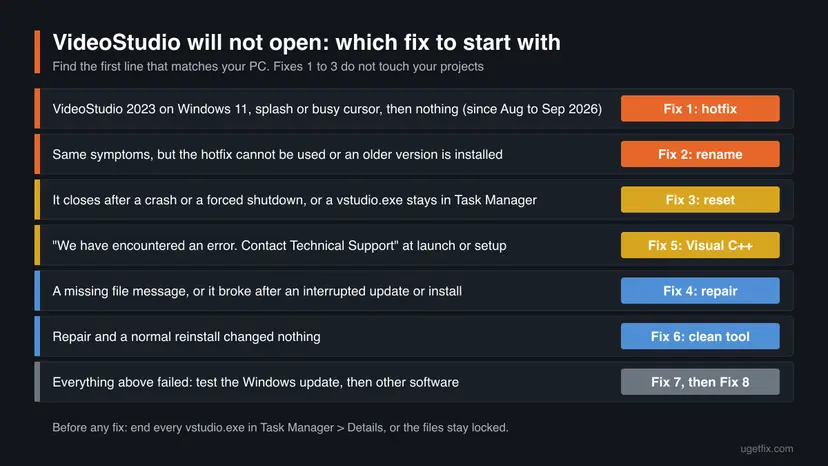
Fixes 1 and 2 are for the VideoStudio 2023 startup crash on Windows 11 and solve most cases since late August 2026. Fixes 3 to 6 repair VideoStudio itself and apply to every version. Fixes 7 and 8 test Windows and other software when nothing else helped.
| What you see or have | Start with |
|---|---|
| VideoStudio 2023 on Windows 11: busy cursor or splash screen, then nothing, no error. | Fix 1 |
| The same, but you cannot download the hotfix, or the hotfix did not change anything. | Fix 2, then Fix 3 |
| Any version, it stopped after a crash, a power cut or a forced shutdown. | Fix 3 |
| A message about a missing file, or an update or install that did not finish. | Fix 4 |
| The message We have encountered an error. Contact Technical Support. | Fix 5 |
| Repair and a normal reinstall did not change anything. | Fix 6 |
| It stopped the day a Windows update arrived and Fixes 1 to 6 failed. | Fix 7, then Fix 8 |
Fix 1. Install Corel's uvDV.dll hotfix for VideoStudio 2023
5 minutesLow riskVideoStudio 2023 on Windows 11 shows a busy cursor or the splash screen and then nothing, with no error message.
Corel changed the component that crashes while it lists DV devices. The new uvDV.dll no longer triggers the crash in mfksproxy.dll, so VideoStudio starts normally and you do not need the rename workaround.
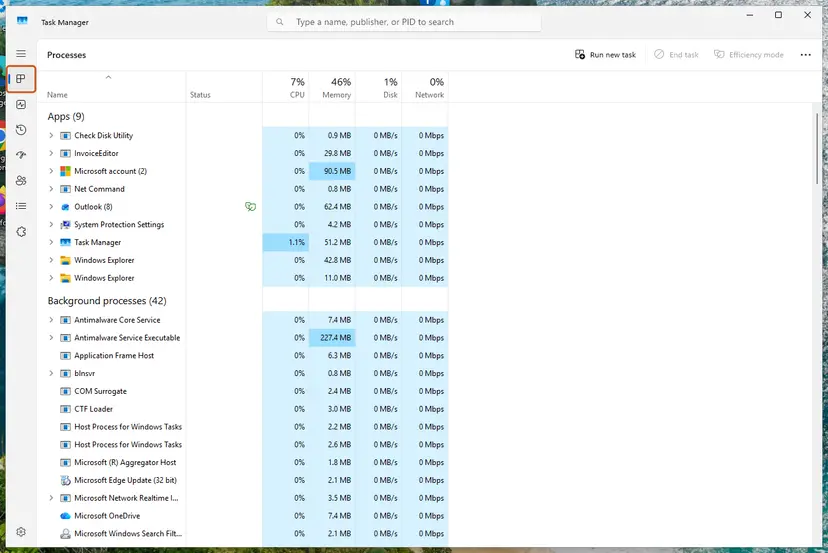
- Close VideoStudio. Press Ctrl + Shift + Esc, open the Details page of Task Manager and look for vstudio.exe.
- Right-click each vstudio.exe you find and select End task. A splash screen that hung often leaves one behind. Step by step: Close a frozen app (Task Manager, Force Quit)
- Open Corel's article VideoStudio 2023 Startup Failure on Windows 11 and select Download the VideoStudio 2023 hotfix. The link leads to a ZIP file on Corel's OneDrive.
- Right-click the downloaded ZIP file, select Extract All, then open the extracted folder. It holds one file: uvDV.dll.
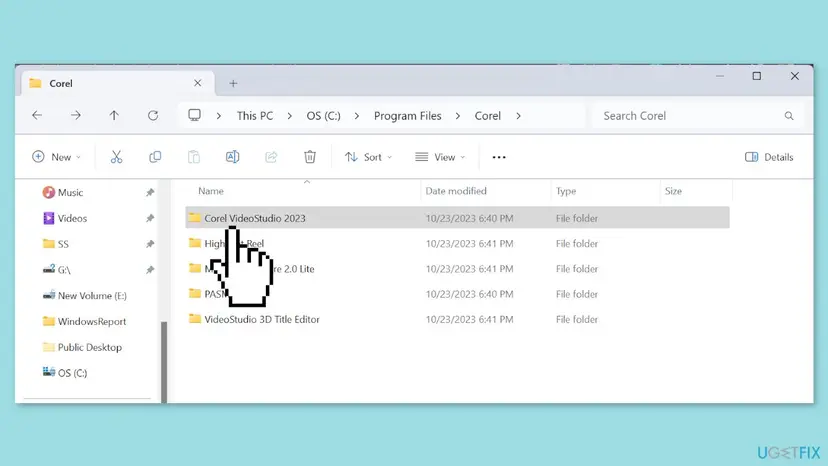
- Press Win + E and go to
C:\Program Files\Corel\Corel VideoStudio 2023. - Right-click the existing uvDV.dll, select Rename and name it
uvDV.dll_original. If that name already exists, useuvDV.dll_backupinstead. Do not delete it. - Copy the new uvDV.dll from the extracted folder and paste it into the VideoStudio 2023 folder. Select Continue when Windows asks for administrator permission.
- Check that
C:\Program Files\Corel\Corel VideoStudio 2023\uvDV.dllis there, then start VideoStudio 2023 normally.
Corel says: if uvDV.dll is not in the folder because you renamed it earlier, leave that renamed file as it is and just paste the new uvDV.dll. You do not need to rename anything back.
A user in the Microsoft Q&A thread writes that Windows Search said the file did not exist although it was there. Open the folder by its path in File Explorer instead of searching for the file.
It worked if: VideoStudio 2023 opens to the editor window and stays open, and you can play a project on the timeline.
If not: Check that the new uvDV.dll really is in the folder and no vstudio.exe was still running, then use Fix 3. If it still fails, Corel asks you to contact its technical support.
Fix 2. Rename uvDV.dll as a temporary workaround
3 minutesLow riskYou have the VideoStudio 2023 startup crash and cannot get the hotfix right now, or you want to test the cause.
Without uvDV.dll VideoStudio skips the DV device check that crashes, so it starts. This was Corel's temporary workaround before the hotfix. Users report that a project then crashes during playback, which is why the name is put back once the program is open.
- End every vstudio.exe on the Details page of Task Manager, as in Fix 1.
- Press Win + E and go to
C:\Program Files\Corel\Corel VideoStudio 2023. For another version, open the folder with its name underC:\Program Files\Corel. - Right-click uvDV.dll, select Rename and add
-oldto the name, so it readsuvDV-old.dll. Select Continue if Windows asks for permission. - Start VideoStudio and wait until the editor window is open.
- Keep VideoStudio open, go back to the folder and rename
uvDV-old.dlltouvDV.dllagain. - Work as usual. Repeat steps 3 to 5 each time you start VideoStudio until you install the hotfix.
The file handles DV devices. While it is renamed, capturing from a DV tape camcorder is not possible, and users in the Microsoft Q&A thread report that projects close a few seconds into playback. Rename it back as soon as VideoStudio is open, and replace the workaround with Fix 1 when you can.
It worked if: VideoStudio opens within a few seconds instead of hanging on the splash screen.
If not: The crash is not in uvDV.dll. Rename the file back to uvDV.dll and go to Fix 3.
Fix 3. Reset VideoStudio to its factory settings
10 minutesRead the warningAny VideoStudio version that stopped opening after a crash, a forced shutdown or a power cut.
VideoStudio reads its preferences, workspace and Library list from your user profile and the registry before the window opens. If that data is damaged, it can close at the splash screen. Corel's reset renames it, so VideoStudio writes fresh settings at the next start.
Corel warns that this resets the program Library, so you may have to import your videos, pictures and music into the Library again. Your media files and saved projects stay where they are. Back up the registry before you rename the keys: Back up the registry before editing it
- End every vstudio.exe in Task Manager.
- Press Win + R, type
regeditand press Enter. Select File > Export, set Export range to All and save the backup. - Go to
HKEY_CURRENT_USER\Software\Corel\VSPro, right-click VSPro, select Rename and name itVSProOLD. - Rename
HKEY_CURRENT_USER\Software\UleadtoUleadOLDandHKEY_CURRENT_USER\Software\Ulead SystemstoUlead SystemsOLDthe same way. Skip a key that is not there. - Close Registry Editor. Press Win + R, type
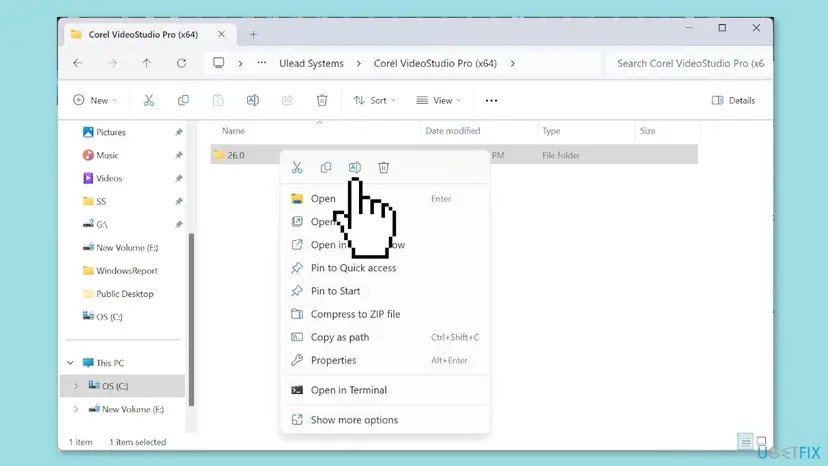
%APPDATA%and press Enter. - Right-click the Ulead Systems folder, select Rename and name it
Ulead Systems_Old. - Start VideoStudio. It opens with the default layout and settings.
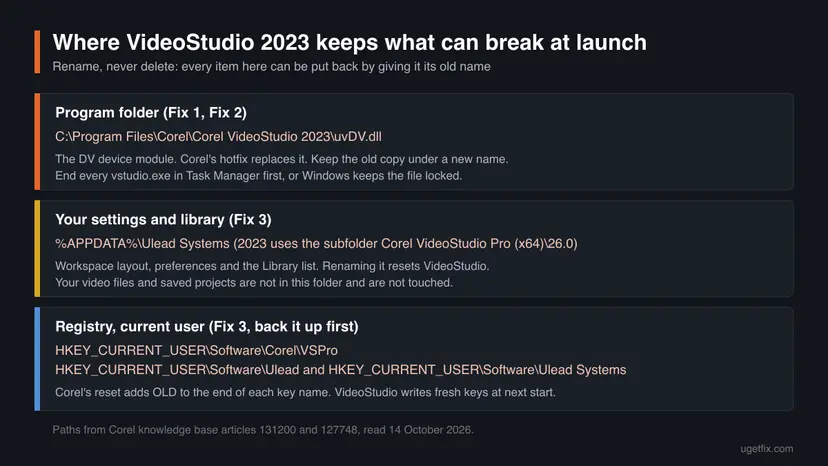
It worked if: VideoStudio opens with an empty Library and the default workspace, and a new Ulead Systems folder appears in AppData.
If not: To undo, delete the new folder and keys and remove the OLD and _Old endings from the old ones. Then repair the program with Fix 4.
Fix 4. Repair the VideoStudio installation
10 minutesLow riskWindows reports a missing file, or an update or install of VideoStudio was interrupted.
The VideoStudio setup has a Repair option that, in its own words, fixes missing or corrupt files, shortcuts and registry entries. It rewrites the program files without touching your projects or media.
- End every vstudio.exe in Task Manager.
- Press Win + I and open Apps > Installed apps. On Windows 10 open Apps > Apps & features.
- Find Corel VideoStudio 2023 (or your version), select the three dots next to it, then Uninstall. On Windows 10 select the entry, then Uninstall.
- In the VideoStudio window Modify, repair, or remove the program, choose Repair and select Next.
- Wait for the repair to finish, restart the PC and start VideoStudio.
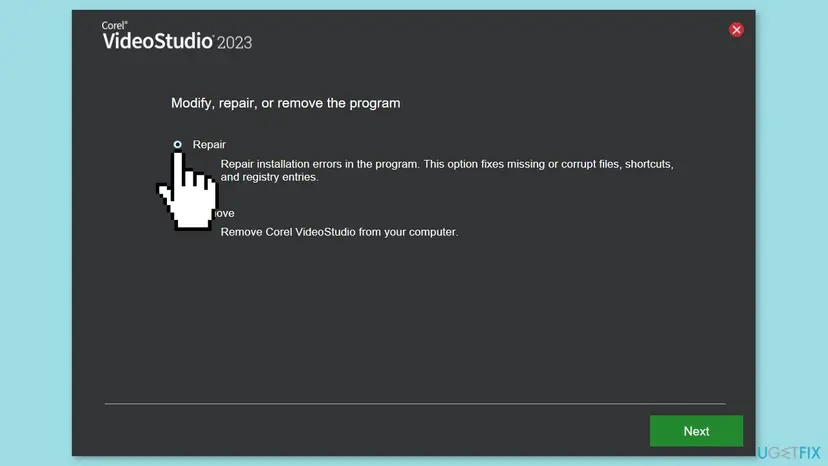

It worked if: The setup reports that the repair is complete, and VideoStudio opens after the restart.
If not: If the setup itself shows We have encountered an error. Contact Technical Support, go to Fix 5. Otherwise go to Fix 6.
Fix 5. Repair the Visual C++ components VideoStudio uses
15 minutesLow riskYou see We have encountered an error. Contact Technical Support when you start or install VideoStudio.
Corel's article 128832 says this message usually follows a Windows update that leaves the Microsoft Visual C++ 2019 components misconfigured, so the VideoStudio window cannot load. Repairing or reinstalling them gives it working runtime files again.
Repair every Microsoft Visual C++ entry first and install the current v14 package for both x64 and x86. Step by step: How to repair Microsoft Visual C++ Redistributable and .NET Framework
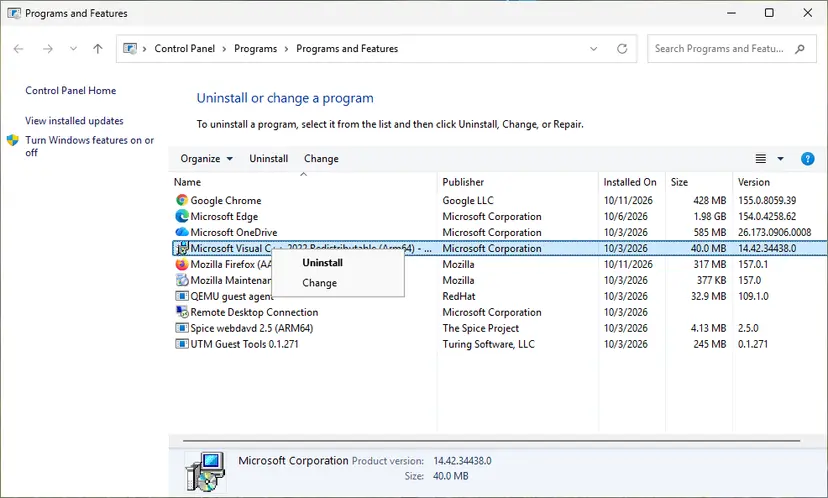
If the message stays, Corel's full procedure removes the 2019 runtime and two Windows compatibility entries before you install again:
- Press Win + R, type
appwiz.cpland press Enter. Uninstall the Visual C++ 2019 entries, both the x86 and the x64 one. On current PCs they are usually listed as Microsoft Visual C++ 2015-2022 Redistributable or v14. - Press Win + R, type
regeditand press Enter. Select Computer, then File > Export, and save a full registry backup. - Go to
HKEY_CURRENT_USER\Software\Microsoft\Windows NT\CurrentVersion\AppCompatFlags\Compatibility Assistant\Store. - Delete only the two values whose names end in
\VC_redist.x86.exeand\VC_redist.x64.exeunderC:\ProgramData\Package Cache. - Restart the PC, install the current Visual C++ v14 package (x64 and x86) from Microsoft, then run the VideoStudio installer again.
It worked if: The setup runs without the Contact Technical Support message and VideoStudio opens.
If not: Import the registry backup if anything else broke, then use the clean reinstall in Fix 6.
Fix 6. Remove VideoStudio with Corel's cleanup tool and reinstall it
30 minutesRead the warningRepair and a normal reinstall did not help, or an older VideoStudio version was on the PC before.
A normal uninstall leaves settings, registry keys and shared components behind, and a new install picks them up again. Corel publishes a cleanup tool for each VideoStudio version that removes the program and its remnants.
You need your VideoStudio serial number or Corel account and the installer for your version to install again. Your saved projects and media files are not removed, but copy the project folder you work in to another drive first. Settings and the Library list are lost.
- Uninstall VideoStudio in Settings > Apps > Installed apps and choose Remove in its setup. Step by step: Uninstall a program or app in Windows
- Open Corel's article Cleanup Tools for difficult uninstalls and download the ZIP for your version, for example VS2023_Cleanup.zip.
- Extract the ZIP, run the tool inside it and let it finish.
- Restart the PC.
- Download your version from Corel and install it, signing in or entering the serial number when asked.
- Before you start VideoStudio 2023, install the uvDV.dll hotfix again (Fix 1). A reinstall can put the original file back.
It worked if: The fresh install opens to the editor window on the first start.
If not: The cause is outside VideoStudio. Go to Fix 7 if a Windows update arrived just before the problem, otherwise Fix 8.
Fix 7. Uninstall the Windows update that came before the problem
15 minutesLow riskVideoStudio stopped the day a Windows update was installed, and the hotfix and the repairs above failed.
Corel saw the 2023 crash after Windows 11 update KB5120998. Removing a recent update shows whether it is the trigger on your PC, but it also removes that update's fixes, so this is a test, not a permanent state.
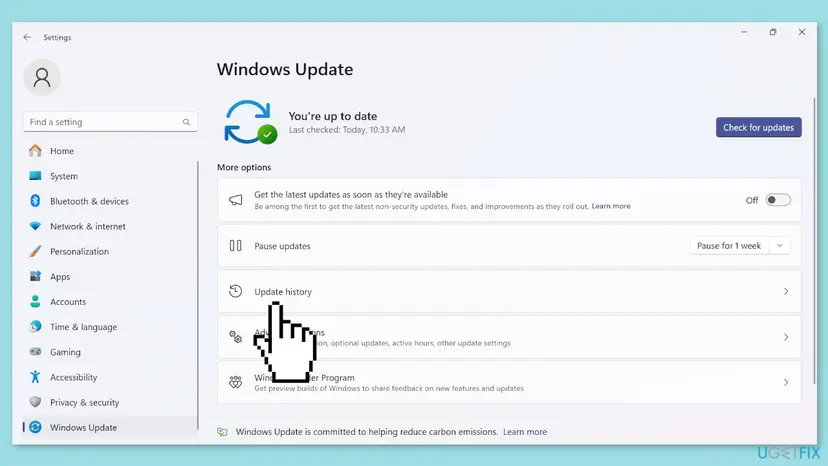
- Open Settings > Windows Update > Update history and note the KB number and date of the latest update.
- Compare the date with the day VideoStudio stopped opening.
- Under Related settings select Uninstall updates and uninstall that update. Step by step: How to uninstall a Windows update
- Restart the PC and start VideoStudio.
- If it works, pause updates for a week and check Corel's article 131200 again before you let the update return.
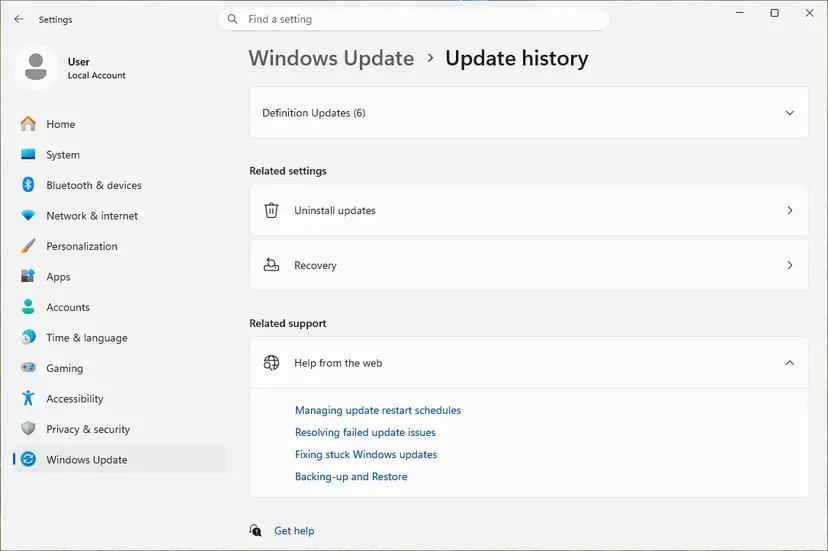
A cumulative update is sometimes missing from the Uninstall updates list. One user in the Microsoft Q&A thread reports that KB5120998 could not be removed that way. In that case use the hotfix in Fix 1; do not try to force the removal.
It worked if: VideoStudio opens after the update is removed and the PC restarted.
If not: The update is not the trigger on your PC. Reinstall it with Check for updates and go to Fix 8.
Fix 8. Start Windows with a clean boot to find a conflicting program
20 minutesLow riskNothing above helped, or VideoStudio opens for another Windows user account but not for yours.
Video capture drivers, screen recorders, codec packs and plug-ins can load into VideoStudio when it starts. A clean boot starts Windows with only Microsoft services, so if VideoStudio opens then, one of the disabled programs is the cause.
- Make a clean boot: hide all Microsoft services in System Configuration, disable the rest and turn off the startup apps. Step by step: How to perform a clean boot in Windows
- Restart and start VideoStudio.
- If it opens, turn the disabled services back on in halves, restarting each time, until VideoStudio fails again.
- Update or remove the program you found, then return Windows to a normal start.

It worked if: VideoStudio opens in the clean boot, which shows that a third-party program blocks it in a normal start.
If not: Return to a normal start and collect the crash record described below, then contact Corel's technical support.
VideoStudio still does not open: read the crash record and contact Corel
Windows writes a record each time a program crashes, and it names the file the crash happened in. That one line tells you which fix fits and is what Corel's support needs to see.
- Right-click Start and select Event Viewer.
- Open Windows Logs > Application.
- Look for an Error with source Application Error (event ID 1000) or Application Hang at the time you started VideoStudio.
- Open it and read Faulting application name and Faulting module name on the General tab.
| Faulting module name | What it points to | Next step |
|---|---|---|
| mfksproxy.dll, with vstudio.exe | The VideoStudio 2023 DV device crash Corel describes | Fix 1 (check the new uvDV.dll is in place) |
| uvDV.dll | The VideoStudio DV component itself | Fix 1, then Fix 4 |
| msvcr or vcruntime files | Visual C++ runtime | Fix 5 |
| ntdll.dll | A general crash with many possible causes | Fix 3, then Fix 8 |
| A file of another company | A plug-in, codec or capture driver | Fix 8, then update or remove that program |
- Send Corel support: your VideoStudio version and build (Help > About once it opens, or the name in Installed apps), your Windows version, the event text, and which fixes you already tried.
- If every fix failed and the event names mfksproxy.dll even with the hotfix, say so: Corel's article asks users in that case to contact technical support.
- If no event is written at all and the PC also freezes or restarts in other programs, the cause may be the graphics driver or the hardware, not VideoStudio.
How to keep VideoStudio opening after Windows updates
The 2023 crash came with an optional preview update. Windows 11 installs those early only when you ask for them, so a few settings and habits keep an editing PC out of the first wave of a new problem.
- Keep Get the latest updates as soon as they're available turned off in Settings > Windows Update on a PC you edit on. Security updates still arrive every month.
- Keep a copy of
uvDV.dllfrom Corel's hotfix. After any repair or reinstall of VideoStudio 2023, paste it in again. - Check Help > Check for Updates in VideoStudio. Corel says update notifications appear by default and can be checked there by hand.
- Save your projects and keep the media folder on a drive you back up. A settings reset or a reinstall then costs only the Library list.
- Close VideoStudio normally. A forced shutdown in the middle of a save is one way the settings get damaged.
- Windows 10 left support on 14 October 2025. VideoStudio 2023 still lists Windows 10 as supported, but Windows 10 no longer gets fixes for new problems.
Frequently asked questions
What is uvDV.dll in Corel VideoStudio?
uvDV.dll is a file of VideoStudio itself, stored in the program folder, for example C:\Program Files\Corel\Corel VideoStudio 2023. Corel's engineers describe it as the part that lists DV devices, the tape camcorders VideoStudio can capture from. Since late August 2026 that check crashes on some Windows 11 PCs, which is why the file name is searched so often. It is not a Windows file and not a virus. Get it only from your VideoStudio installation or from Corel's hotfix, never from a DLL download site.
Why is Corel VideoStudio 2023 not opening on Windows 11?
Since late August 2026 the most common reason is the crash Corel describes in article 131200. At startup VideoStudio 2023 lists DV devices, and on some PCs that step crashes inside the Windows Media Foundation component mfksproxy.dll. Corel saw it after Windows 11 update KB5120998, but not on every PC with that update. The fix is Corel's new uvDV.dll (Fix 1). If VideoStudio stopped after a crash or a forced shutdown instead, reset its settings (Fix 3).
Does renaming uvDV.dll break anything?
VideoStudio starts, but without uvDV.dll it cannot capture from DV devices. Users in Microsoft's Q&A forum also report that projects close a few seconds into playback while the file is renamed. Their workaround is to rename it, start VideoStudio, then give the file its name back while the program is open. Corel has since replaced this workaround with a hotfix, so install the new uvDV.dll (Fix 1) and keep the renamed file as a backup.
Why does Corel VideoStudio keep crashing after it opens?
A crash during playback or rendering is a different problem from a failed start. Corel's article 127575 points to damaged media: a video clip with broken frames or a damaged photo can stop VideoStudio every time it reaches that spot. Play the project and note where it stops, then trim the damaged frames with the Multi-trim tool or replace the picture. If it crashes on any project after you renamed uvDV.dll, install Corel's hotfix instead (Fix 1).
VideoStudio still does not start after I reinstalled it. Why?
A reinstall of VideoStudio 2023 can put the original uvDV.dll back, and then the DV device crash returns. Reports in several languages say exactly this: reinstalled, still nothing. Install Corel's hotfix after the reinstall (Fix 1). A reinstall also keeps your old settings in the user profile and registry, so a damaged setting survives it. Reset them (Fix 3) or remove everything with Corel's cleanup tool for your version before you install again (Fix 6).
I tried everything and nothing happens. What else can I do?
Searches for this page include "nothing happens", "I did that and nothing" and "none of these have worked" in many languages. First check Task Manager: a vstudio.exe left from an earlier attempt can block every new start, so end it and try again. Then read the crash record in Event Viewer as described above. If it names mfksproxy.dll even with the new uvDV.dll in place, contact Corel's technical support, as Corel's article asks.
The folder from the guide does not exist on my PC. Where is it?
The program folder carries the version name. VideoStudio 2023 installs to C:\Program Files\Corel\Corel VideoStudio 2023; other versions use their own name under C:\Program Files\Corel. The settings folder is hidden: type %APPDATA% in the Run box (Win + R) instead of browsing to it, and look for Ulead Systems. If there is no Corel folder in Program Files at all, VideoStudio may be installed on another drive. Right-click its shortcut and select Open file location.
Can I fix an MP4 problem in VideoStudio the same way?
Not with these fixes. They are for a program that does not start. When VideoStudio opens but an MP4 file will not import or play, the format inside the file matters. Corel's system requirements say HEVC (H.265) video needs Windows 10 or 11, supporting hardware or graphics card, and Microsoft's HEVC Video Extension installed. Phones and newer cameras often record MP4 files in HEVC. Install the extension from the Microsoft Store, or convert the clip to H.264.
Does this also fix VideoStudio 2022, 2021 or Pro X7?
Corel's hotfix is for VideoStudio 2023 only, and its article does not name older versions. The reset (Fix 3), the repair (Fix 4), the Visual C++ repair (Fix 5) and the cleanup tools (Fix 6) work for older versions too, and Corel publishes cleanup tools back to VideoStudio X4. We could not confirm whether older versions have the same uvDV.dll crash. Corel's support pages do not say whether VideoStudio Pro X7 runs on Windows 11.
Is KB5120998 the cause, and should I remove it?
Corel observed the crash after KB5120998, the optional Windows 11 preview update of 27 August 2026, and says it does not happen on every PC with it. Microsoft's page for that update did not list VideoStudio as a known issue when we checked. One user reports the crash on a PC without it. Install Corel's hotfix first. Remove the update only as a test if the hotfix fails (Fix 7), and let Windows install it again later.
Sources
- Microsoft Support: August 27, 2026, KB5120998 (OS Builds 26200.9278 and 26100.9278) Preview (support.microsoft.com)
- Microsoft Learn: The application or service crashing behavior troubleshooting guidance (learn.microsoft.com)
- Microsoft Q&A: I can not Launch Corel VideoStudio 2023 (user reports only) (learn.microsoft.com)
Did this fix work?
One click, no account. It tells the next reader which guides are worth their time.
Questions and experiences: fix Corel VideoStudio not opening in Windows
Still broken, or found a fix we did not cover? Ask here: members and our editors answer. Reading is open; writing needs a free account.
…