
How to fix "could not allocate sufficient memory" DirectX error in Windows?

Prefer to fix it yourself? The manual steps follow.
- 7methods
- 5 to 30 minutes
- Easy
Applies to PC games and 3D programs that use Direct3D 11 or 12 on Windows 11 and Windows 10, most often EA titles such as Battlefield 2042, Battlefield 6 and EA Sports FC
7 methods in this guide
Hello. When I try to play video games, they crash and I get a DirectX error saying "Direct3D could not allocate sufficient memory to complete the call". Is there a way I can fix this?
"Direct3D could not allocate sufficient memory to complete the call" is how Windows spells the DirectX code E_OUTOFMEMORY. The game asked for video memory or system memory that was not there, so it closed. Lower the game's texture and ray tracing settings first, then let Windows manage the page file and reinstall the graphics driver.
The message is the DirectX return code E_OUTOFMEMORY: Direct3D asked for memory and got none. On most PCs the game wants more video memory than the card has. Lower Texture Quality, turn Ray Tracing off and close the browser while you play (Fix 1). If it still crashes, let Windows manage the page file (Fix 2) and do a clean reinstall of the graphics driver (Fix 3).
| Error | A box titled DirectX Error that ends with E_OUTOFMEMORY and the text "Direct3D could not allocate sufficient memory to complete the call." The game closes when you select OK. |
|---|---|
| Where it appears | At launch, while a map loads or in the middle of play, mostly in DirectX 12 games. Forum threads name Battlefield 2042, Battlefield 6, EA Sports FC and Plants vs. Zombies most often. |
| Main cause | The game ran out of video memory (VRAM) on the graphics card, or Windows reached its commit limit, which is RAM plus the page file. |
| Fastest fix | Lower texture quality and turn off ray tracing in the game (Fix 1). It takes five minutes and costs some image quality. |
| Also written as | directx could not allocate sufficient memory, direct3d could not allocate sufficient memory, DirectX function failed with E_OUTOFMEMORY, could not allocate sufficient memory to complete the call. |
| Microsoft's meaning | Microsoft's Direct3D 12 return codes page lists E_OUTOFMEMORY with exactly this text: Direct3D could not allocate sufficient memory to complete the call. |
| Affects | Windows 11 and Windows 10 with any NVIDIA, AMD or Intel graphics. It is not tied to one Windows build or one driver version. |
| Vendor status | Neither Microsoft nor EA lists it as a known bug. EA's help says DirectX errors can mean a driver problem and asks you to check the minimum requirements first. |
| Time to fix | 5 minutes for the settings, 15 to 30 minutes for the page file, a clean driver install and a file check. |
Facts checked on 15 October 2026. Steps written for Windows 11 (25H2 and 26H2) and Windows 10 22H2, DirectX 12 games on Steam and the EA app.
What "Direct3D could not allocate sufficient memory to complete the call" means
Direct3D is the graphics part of Microsoft DirectX. Every time a game asks it to create a texture, a buffer or a command list, Direct3D answers with a return code. Microsoft's own list of Direct3D 12 return codes gives E_OUTOFMEMORY the text "Direct3D could not allocate sufficient memory to complete the call." So the box is the game reading that code back to you.
The code does not say which memory ran out. A game can fail to get room in the card's video memory, or Windows can refuse it more system memory. Both end in the same box, which is why one PC fixes it with lower textures and another with the page file.
| What you see | What it means |
|---|---|
| DirectX Error as the window title | The game's own crash box, not a Windows message. The game closes after it. |
DirectX function "..." failed with E_OUTOFMEMORY | The quoted name is the Direct3D call that failed, for example CreateCommittedResource (making a texture or buffer) or GetDeviceRemovedReason (checking why the card stopped). It hints at the moment, not at a different error. |
| "Direct3D could not allocate sufficient memory to complete the call" | Microsoft's description of E_OUTOFMEMORY, word for word. |
| "directx could not allocate sufficient memory" | The same error, typed in a shorter form. |
DXGI_ERROR_DEVICE_HUNG or a device removed error | A different code: the graphics card stopped responding. Some of the fixes below help, but it is not this error. |
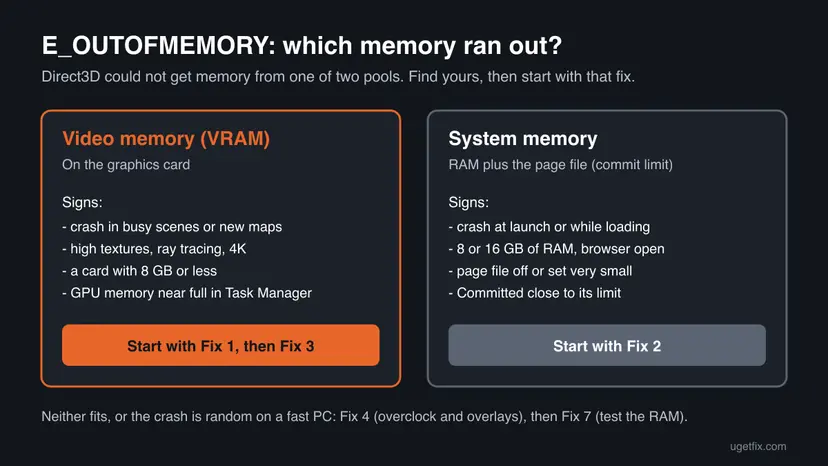
Why DirectX cannot allocate sufficient memory, most common cause first
The ranking below follows Microsoft's description of how Windows hands out memory, EA's advice for DirectX errors and what players report in the EA and Steam forums. Each cause is tied to the fix that removes it.
| How often | Cause | How to spot it | Fix |
|---|---|---|---|
| Most often | The game's settings need more video memory than the card has | Crashes in big scenes or new maps, with high textures, ray tracing or a high resolution on a card with 8 GB or less | Fix 1 |
| Often | Windows reached its commit limit (RAM plus page file) | Crashes at launch or while loading; 8 or 16 GB of RAM; the page file is off, fixed small or on a nearly full drive | Fix 2 |
| Often | A damaged or freshly broken graphics driver | Several games crash, or it began after a driver update | Fix 3 |
| Sometimes | An overclock, undervolt or overlay that hooks into the game | Random crashes on a strong PC; MSI Afterburner, RivaTuner or another overlay runs | Fix 4 |
| Sometimes | A damaged DirectX shader cache | It began after a driver or game update, often with stutter before the crash | Fix 5 |
| Sometimes | Damaged or missing game files | Only one game crashes, after a patch or a stopped download | Fix 6 |
| Rarely | Faulty RAM | Other programs crash too, or you also get blue screens | Fix 7 |
Microsoft explains that the system commit limit is the sum of physical memory and all page files. If the memory promised to programs reaches that limit, processes may not get more, and Microsoft names crashing as one result. A PC with 16 GB of RAM and no page file has a lower limit than one with 8 GB and a page file Windows manages.
How to fix the "could not allocate sufficient memory" DirectX error
Fixes 1 and 2 give the game more room in video memory and in system memory, and they solve most cases. Fix 3 follows EA's advice on drivers. Fixes 4 to 6 are for crashes that come back on a PC that should run the game. Fix 7 tests the RAM itself.
| What you see or what your PC has | Start with |
|---|---|
| Crashes in busy scenes, high textures or ray tracing, a card with 8 GB or less | Fix 1 |
| Crashes at launch or while loading, 8 or 16 GB of RAM, or you turned the page file off | Fix 2 |
| It began after a driver update, or other games crash too | Fix 3 |
| MSI Afterburner, RivaTuner, an overclock or an undervolt is in use | Fix 4 |
| Stutter and crashes after a driver or game update | Fix 5 |
| Only one game crashes, after a patch | Fix 6 |
| Crashes in many programs, or blue screens too | Fix 7 |
Fix 1. Lower the game's video memory use and close other programs
5 minutesNo riskEveryone first, and above all players with high textures, ray tracing, 4K or a card with 8 GB of video memory or less.
Texture quality, resolution and ray tracing decide most of what a game asks the card to hold. When the request is larger than the free video memory, the Direct3D call returns E_OUTOFMEMORY. A browser or a video app open at the same time also takes video memory.
- Close the browser, Discord, video players and other programs you do not need while you play.
- Start the game and open its graphics settings.
- Lower Texture Quality one step. If the game shows a video memory estimate, keep it below your card's total.
- Turn Ray Tracing off and lower Shadow Quality one step.
- Turn on DLSS, FSR or XeSS, or lower the resolution scale, if the game offers it.
- Restart the game, because many games apply texture changes only after a restart.
- Play the scene that crashed before. If it holds, raise one setting at a time.
To see how close you are to the limit, press Ctrl + Shift + Esc, open Performance and select your graphics card. Dedicated GPU memory shows how much video memory is in use against the card's total while the game runs.
If the game runs on the built-in graphics, it has far less video memory. Open Settings > System > Display > Graphics, select the game and set it to High performance. On Windows 10 the same page is Settings > System > Display > Graphics settings.
It worked if: The game passes the scene that crashed before, and Dedicated GPU memory stays below the card's total.
If not: If it crashes even on low settings, give Windows more system memory to work with in Fix 2.
Fix 2. Let Windows manage the page file, or make it larger
10 minutesLow riskCrashes at launch or while loading, PCs with 8 or 16 GB of RAM, and anyone who turned the page file off or set a fixed small size.
Microsoft says the system commit limit is RAM plus all page files, and that reaching it can cause crashes. A page file that Windows manages grows up to three times the RAM or 4 GB, whichever is larger, but never past one eighth of the drive. So a missing or small page file is a common reason a game cannot get memory.
- Press Win + R, type
sysdm.cpland press Enter. - Open the Advanced tab and select Settings under Performance.
- In Performance Options, open the Advanced tab and select Change under Virtual memory.
- Tick Automatically manage paging file size for all drives, then select OK.
- If the box was already ticked, untick it, select drive C:, choose System managed size, select Set and then OK.
- Restart the PC, because page file changes take effect after a restart.
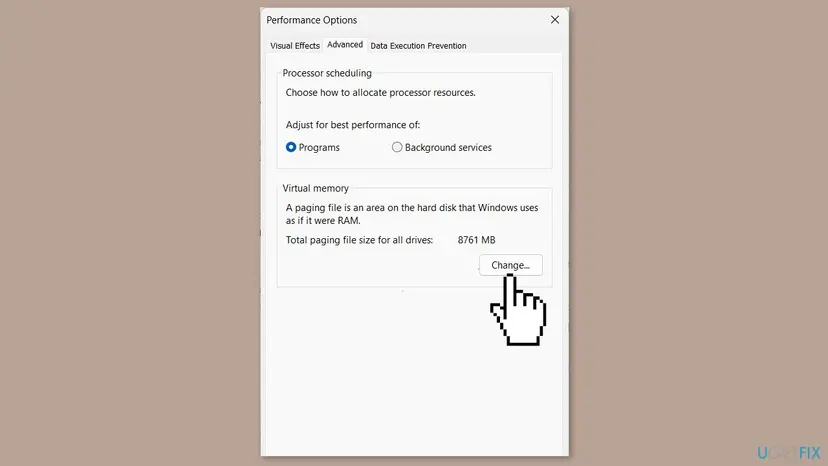
A system managed page file needs free space to grow. Keep at least a few gigabytes free on drive C:; Microsoft notes the growth assumes enough free disk space. Step by step with Windows 11 screens: Free up disk space and delete temporary files.
If you prefer a fixed size, choose Custom size and set both numbers to at least one and a half times your RAM in MB. We could not find a Microsoft figure for games, so treat this as a starting point and go back to system managed if the crashes stay.
It worked if: After the restart, Task Manager's Memory page shows Committed with a higher second number, and the game loads without the box.
If not: If the commit limit is high and the game still crashes, reinstall the graphics driver in Fix 3.
Fix 3. Do a clean reinstall of the graphics driver
15 to 20 minutesLow riskSeveral games crash, the error began after a driver update, or Fixes 1 and 2 did not help.
Video memory is handed out by the graphics driver. EA's help for DirectX errors says they can mean an issue with your drivers, and for AMD errors it asks you to install the latest driver and remove the old one first.
Download the current driver from NVIDIA, AMD or Intel first. Then remove the old driver in Device Manager with Attempt to remove the driver for this device ticked, restart and install the new one. Step by step: Update, roll back or reinstall a driver.
- Open Device Manager. Right-click Start and select Device Manager.
- Open the device's Driver tab. Expand the category (for example Display adapters), right-click the device, select Properties and open the Driver tab. Driver Date and Driver Version show what is installed now.
These steps were written for Windows 11 24H2 and later. The full page with the other versions and what each result means: Update, roll back or reinstall a driver
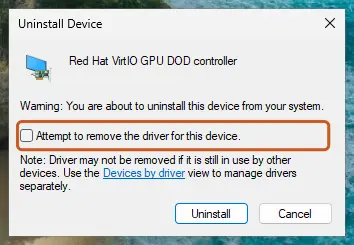
- If the crashes began right after a new driver, install the previous version from the maker's site instead.
- Restart Windows after the install, so the card starts with the new driver.
- Check that your PC meets the game's minimum requirements, as EA asks. A card below the minimum video memory will hit this error on any driver.
It worked if: Device Manager shows your card with the new driver version, and the game passes the point where it crashed.
If not: If the PC is overclocked or runs an overlay, go to Fix 4.
Fix 4. Remove the overclock and keep overlays out of the game
10 minutesLow riskRandom crashes on a PC that should run the game easily, with MSI Afterburner, RivaTuner Statistics Server, a GPU overclock or an undervolt in use.
An overclock or undervolt that passes other games can fail under a new load, and the card then stops answering Direct3D. Overlays such as RivaTuner hook into the game's DirectX calls. Players often report this error with Afterburner running, so we treat it as a test, not a sure cause.
- Open MSI Afterburner or your tuning tool and select Reset to return the card to default clocks.
- Select the gear icon to open MSI Afterburner properties and go to the On-Screen Display tab.
- Select More at the bottom to open RivaTuner Statistics Server.
- Hold Shift and select the green Add button at the bottom left to open Add exclusion.
- Pick the game's .exe file and select OK.
- Close Afterburner and start the game.
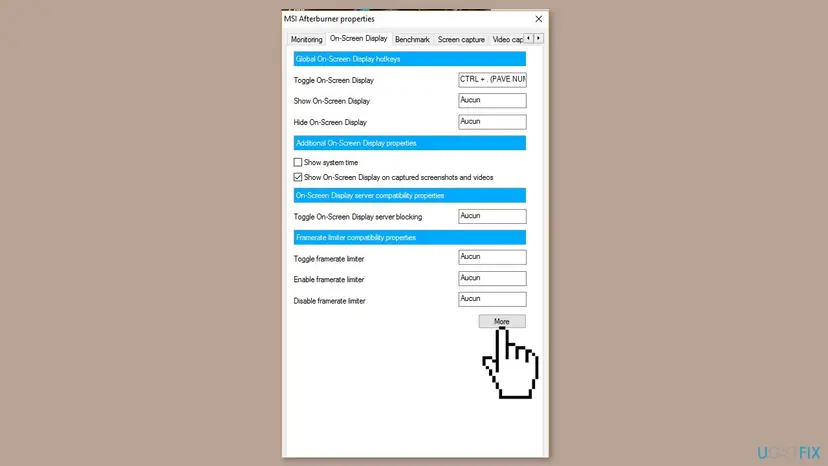
Turn off other overlays one at a time too: Steam, Discord, the NVIDIA app or AMD Software, and Xbox Game Bar. If the memory runs a profile such as XMP or EXPO, set it to default in the BIOS as a test and turn it back on if it made no difference.
It worked if: The game runs longer than before without the box, or stops crashing.
If not: Put your settings back and clear the DirectX shader cache in Fix 5.
Fix 5. Clear the DirectX shader cache
5 minutesNo riskThe error began after a driver or game update, often with stutter before it.
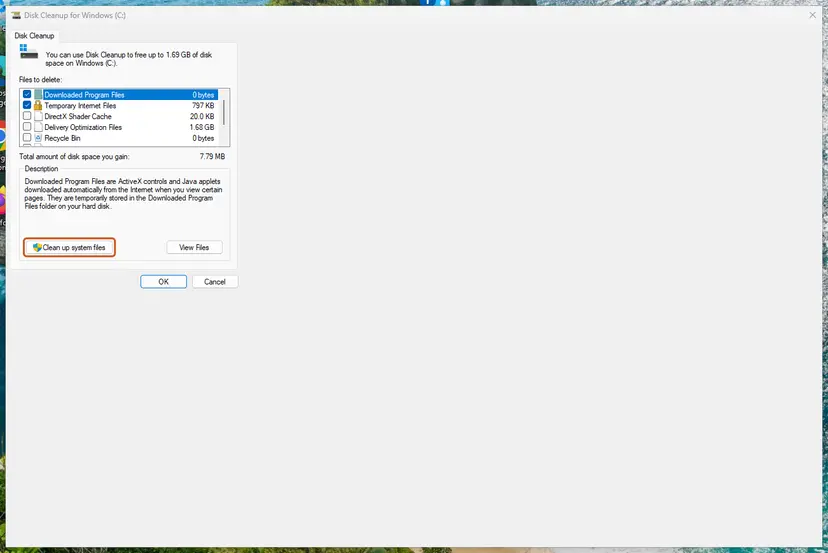
Windows keeps compiled shaders in the DirectX shader cache so games load faster. After a driver change, old entries can be rebuilt badly. Deleting them is safe: Windows and the game build them again, so the first start is a little slower.
- Close the game and its launcher.
- Select Start, type
disk cleanupand select Run as administrator. - Choose drive C: and select OK.
- Untick everything except DirectX Shader Cache.
- Select OK, then Delete Files.
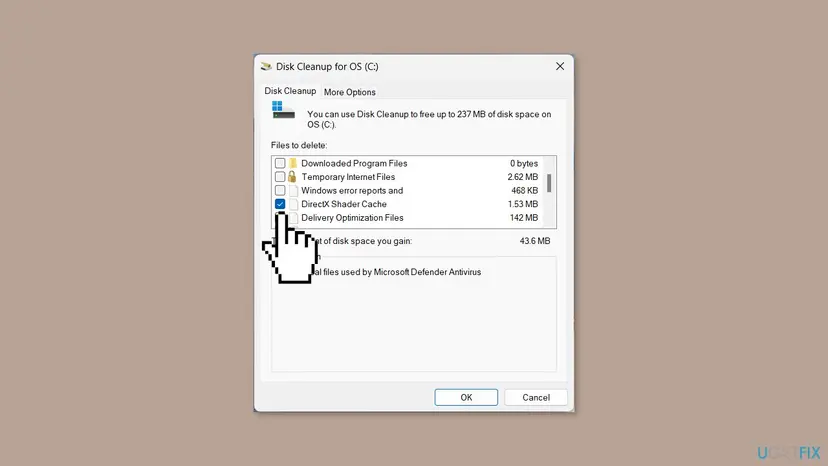
What the cache holds and where it lives: what DXCache is and how to delete it.
It worked if: The first start takes a little longer while shaders build again, then the game runs without the error.
If not: If only this one game crashes, repair its files in Fix 6.
Fix 6. Verify or repair the game files
5 to 20 minutesNo riskOnly one game shows the error, especially after a patch, a stopped download or a full drive.
A damaged texture or shader file can make the game ask for a broken or oversized resource when it loads that area. The launcher compares each file with its own copy and downloads only what does not match. EA's help lists repairing the game for errors it cannot name.
In the EA app, open the game's menu and select Repair. In Steam, open Properties > Installed Files and select Verify integrity of game files. Every launcher, step by step: How to verify game files in Steam, Epic Games, Xbox app, EA app, Battle.net and GOG Galaxy.
- Open your library. Launch the EA app and go to your Library.
- Open the game's menu. Find the game and select the three-dot menu on its tile.
- Repair the game. Select Repair.
- Start the game. When the repair has finished, try to launch the game again.
These steps were written for EA app on Windows. The full page with the other versions and what each result means: How to verify game files in Steam, Epic Games, Xbox app, EA app, Battle.net and GOG Galaxy
It worked if: The launcher reports the check is done or downloads the few files that failed, and the game starts.
If not: If the files were fine and other programs also crash, test the RAM in Fix 7.
Fix 7. Test the RAM with Windows Memory Diagnostic
20 minutes to a few hoursLow riskSeveral programs crash, you also get blue screens, or nothing above helped.
Faulty memory can make allocations fail or return bad data, and a game is often the first program to show it. Windows Memory Diagnostic tests the RAM before Windows loads and writes the result to the System log.
The test runs before Windows loads, so the PC cannot be used meanwhile. Step by step, with where to find the result: How to test your RAM with Windows Memory Diagnostic.
- Save your work and close all programs, because the PC restarts.
- Press Win + R, type
mdsched.exeand select OK. - Choose Restart now and check for problems (recommended).
- Let the test finish; the PC starts Windows again by itself.
- Read the result in the notification after you sign in.

If the test finds errors, remove any memory profile in the BIOS and test again. If errors stay at default speed, one memory stick is likely faulty: test them one at a time or ask the PC maker.
It worked if: The notification after the restart says no memory errors were detected, so the RAM is not the cause.
If not: Read the section below on what to collect and when it is hardware.
Still crashing with E_OUTOFMEMORY: what to check and send
The box itself names the Direct3D call that failed, so take a photo or a screenshot of it before you select OK. Then collect what the game's support needs to see your hardware.
- Press Win + R, type
dxdiagand press Enter. - Select Save All Information and save
DxDiag.txt. It lists your card, its memory and the driver version. - Press Ctrl + Shift + Esc, open Performance > Memory and note Committed while the game runs.
- Note the game, the map or moment and the settings when it crashes.
- Send the box text,
DxDiag.txtand your notes to the game's support. For EA games, use Contact Us at the bottom of the EA Help page.
- The card has less video memory than the game's minimum: no setting will fix it for good. Lowest settings may run, but the card is the limit.
- Other demanding games crash too, at default clocks: test the RAM with How to test your RAM with Windows Memory Diagnostic and watch the card's temperature.
- The PC restarts or shows a blue screen instead of the box: that is a system crash, so look at the power supply, temperatures and memory.
How to keep DirectX from running out of memory again
- Keep the game's video memory estimate below your card's total, with room left for Windows.
- Leave the page file system managed and keep free space on drive C:.
- Close browsers and video apps before long gaming sessions.
- Install graphics drivers from the card maker and restart after each install.
- Test any overclock, undervolt or memory profile in more than one demanding game.
- Keep Windows updated. Windows 10 left support on 14 October 2025, so move to Windows 11 if the PC allows it.
Frequently asked questions
What is this error: "Direct3D could not allocate sufficient memory to complete the call"?
It is the DirectX return code E_OUTOFMEMORY, which Microsoft describes with exactly these words. The game asked Direct3D for memory to create a texture, buffer or command list, and none was free. It is not a virus warning and not a fault in DirectX itself. The memory that ran out is either the graphics card's video memory or Windows' system memory, which is RAM plus the page file. Lower the game's settings first, then check the page file.
How do I fix this error quickly?
Lower Texture Quality, turn off Ray Tracing and close your browser before you start the game. That cuts video memory use and fixes the error for many players in five minutes. If it comes back, open sysdm.cpl, go to Advanced > Performance Settings > Advanced > Change and tick Automatically manage paging file size for all drives. Restart the PC. If it still crashes, do a clean reinstall of the graphics driver.
Is E_OUTOFMEMORY a Microsoft error or a game error?
Both, in a way. E_OUTOFMEMORY is a Microsoft return code, and the text in the box is Microsoft's official description of it on the Direct3D 12 return codes page. The box itself is drawn by the game, which reads the code and closes. So searching Microsoft for "E_OUTOFMEMORY direct3d could not allocate sufficient memory official" leads to that list, but the fix is on your PC: video memory, the page file or the driver.
Why do I get it with 16 GB or 32 GB of RAM?
Because the game may have run out of video memory, not RAM. The graphics card has its own memory, often 6 to 12 GB, and high textures or ray tracing can fill it whatever RAM you have. A second reason is the page file: Microsoft says the commit limit is RAM plus page files. If the page file is turned off, the limit is lower than you think. Check both in Task Manager under Performance.
Does increasing virtual memory fix the DirectX memory error?
It fixes the cases where Windows ran out of commit space, not those where the card ran out of video memory. Microsoft says a system managed page file grows up to three times the RAM or 4 GB, but not past one eighth of the drive. For most PCs, ticking Automatically manage paging file size for all drives is enough. A huge fixed page file does not add video memory and does not help if the card is full.
How do I fix it in EA Sports FC 26 or FC 24?
The error is the same, so the fixes are the same. Lower texture and other graphics settings in the game, close the browser and let Windows manage the page file. Then reinstall the graphics driver and repair the game in the EA app through the game's menu and Repair. EA asks you to check that your PC meets the game's minimum requirements, because a card below them can hit this error on any setting.
How do I fix it in Battlefield 6 or Battlefield 2042?
Start with the video memory settings: lower texture quality and turn off ray tracing if your card has 8 GB or less. Then make sure the page file is system managed. EA's Battlefield 6 help says DirectX errors can mean a driver issue and asks you to check the minimum requirements. If the crash names DXGI_ERROR_DEVICE_HUNG instead, EA advises a full restart of the system, because a background app is stuck.
Can MSI Afterburner cause the could not allocate sufficient memory error?
It can be part of it. Afterburner applies overclocks and undervolts, and its RivaTuner overlay hooks into the game's DirectX calls. An unstable clock can make the card stop answering, and players often report the error with Afterburner running. Reset the card to default clocks and add the game as an exclusion in RivaTuner as Fix 4 shows. If the error stops, the overclock or overlay was the cause.
Is it safe to delete the DirectX shader cache?
Yes. The DirectX Shader Cache in Disk Cleanup holds shaders Windows and games compiled earlier, so they load faster next time. Deleting it removes no settings, saves or game files. The next start of each game takes a little longer while the shaders are built again. Clear it after a driver change or when stutter and crashes begin after an update.
The error is in my language, or I asked "what is this" in another language. Is it the same?
Yes. Questions such as "porque me da ese error", "o que houve?" or "а это что такое" about this box point to the same DirectX code, E_OUTOFMEMORY. This page is in English, but the steps work the same on any language version of Windows. In short: lower texture quality and ray tracing in the game, let Windows manage the page file, then reinstall the graphics driver.
Sources
- Microsoft Learn: Direct3D 12 Return Codes (learn.microsoft.com)
- Microsoft Learn: Introduction to page files (learn.microsoft.com)
- EA Help: Troubleshoot error messages in Battlefield 6 (help.ea.com)
Did this fix work?
One click, no account. It tells the next reader which guides are worth their time.
Questions and experiences: fix "could not allocate sufficient memory" DirectX error in Windows
Still broken, or found a fix we did not cover? Ask here: members and our editors answer. Reading is open; writing needs a free account.
…