
How to fix "Could not call proc" error in Windows?

Prefer to fix it yourself? The manual steps follow.
- 8methods
- 5 to 30 minutes
- Easy
Applies to Windows 11, Windows 10; installers and uninstallers built with Inno Setup (GOG games and GOG Galaxy, Malwarebytes, PDFCreator and many others); Winlator and Wine
8 methods in this guide
- What the error means
- Why it appears
- Winlator and Wine
- The fixes
- 1. Fresh copy of the installer
- 2. Local folder and Temp
- 3. Check security blocks
- 4. Error while uninstalling
- 5. Repair Visual C++
- 6. Administrator or compatibility
- 7. Repair system files
- 8. Pause security software
- Still broken: setup log
- Keep it from coming back
- FAQ
Hi. I was trying to install a game on my Windows 11 and, to my surprise, I wasn't able to do that. The installation begins and after selecting language, I get Runtime Error "Could not call proc." What does this mean?
"Could not call proc" is a runtime error of Inno Setup, the tool behind many game and program installers. The setup script tried to call a function in a DLL and the call failed, so the problem sits in the setup file, not in the game. Download a fresh copy from the publisher and run it from a local folder first.
The installer's script could not call a function in a DLL, usually because the setup file is damaged, incomplete or blocked. Delete the file, download it again from the publisher's own site (Fix 1), copy it to a local folder such as C:\Setup and run it from there (Fix 2). If the error appears when you uninstall, reinstall the same version first and remove it after that (Fix 4).
| Error | Runtime error (at X:Y): Could not call proc. X and Y are two numbers, for example 53:3765 or 314:845. |
|---|---|
| Where it appears | In a small window titled Setup or Uninstall, most often right after the Select Setup Language window, or when you remove or update a program. |
| Main cause | The installer's script calls a function in a DLL, and Windows cannot load that DLL or find the function in it. A damaged or modified setup file is the usual reason. |
| Fastest fix | A new copy of the installer from the publisher, run from a folder on the internal drive (Fix 1 and Fix 2). |
| Also written as | runtime error could not call proc, run time error could not call proc, error could not call proc, "Cuold not call proc". |
| Comes from | Pascal Script, the script engine inside Inno Setup. The text "Runtime error (at %d:%d)" is written by Inno Setup's own code. |
| Affects | Windows 11 and Windows 10, and Windows programs run on Android with Winlator or on Linux with Wine. It is not a Windows error code. |
| Vendor status | No fix from Microsoft is needed or planned. The publisher of the installer is the one who can correct its script or its DLL. |
| Time to fix | About 10 minutes for a new download. Longer for a large game. |
| Where the cause is logged | In a setup log you create with the /LOG switch, saved in your Temp folder. See "If the error is still there". |
Facts checked on 15 October 2026. Steps written for Windows 11 (25H2 and 26H2) and Windows 10 22H2.
What "Runtime error: Could not call proc" means
The window is small, titled Setup or Uninstall, and shows two lines, for example "Runtime error (at 53:3765):" and under it "Could not call proc." The only button is OK, and the installer closes after you select it.
The wording comes from Inno Setup, a free tool many publishers use to build their setup files. Its installers run a small Pascal script. The message "Could not call proc" means the script tried to run a procedure that lives outside the script, usually a function in a DLL file that the installer unpacks for itself, and that call failed.
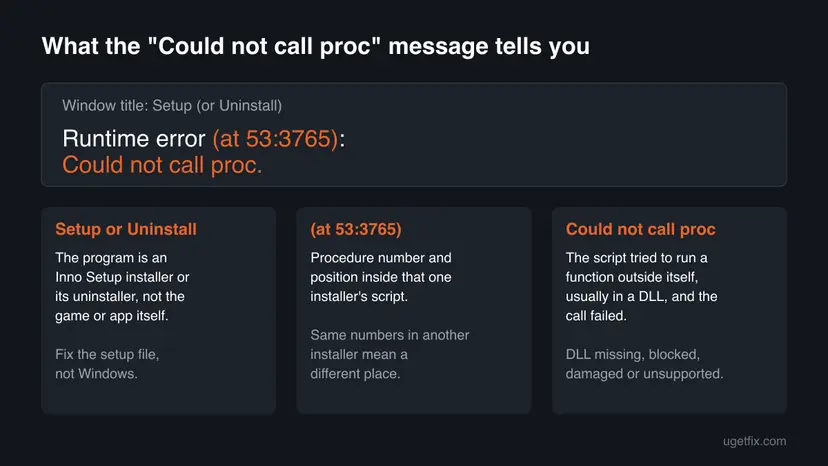
- The two numbers are the procedure number and the position inside that one installer's compiled script. They help the publisher find the line. The same numbers in another installer point to a different place, so searching for "runtime error at 314 845" only finds people with the same setup file.
- "Setup" in the title bar means the installer failed. "Uninstall" means the uninstaller, usually
unins000.exein the program's folder, failed. - After the language window: the script's first code runs right after you pick the language, so a broken DLL call stops the installer at that point, before any file is copied.
When the error shows before the install starts, nothing has been installed. Windows is fine. What failed is the setup file you ran, so the fixes start with that file.
Why the installer could not call the procedure
We read the code of Pascal Script, the engine that raises the message. The call fails when Windows cannot load the DLL that the script names, when the DLL does not contain the function the script asks for, or when the object the script works with does not exist. In practice that gives the causes below, most common first.
| Cause | How often | How to tell | Fix |
|---|---|---|---|
| The setup file is damaged, incomplete or was changed after the publisher built it. | Most often | The file came from a mirror, a torrent or a repack, or the download stopped once. | Fix 1 |
| The installer cannot unpack its DLL to the Temp folder, or runs from a network, cloud or removable drive. | Often | The setup file sits on a USB stick, a NAS or in a synced OneDrive folder, or the C: drive is nearly full. | Fix 2 |
| Security software removed or blocked the DLL while the installer unpacked it. | Sometimes | Windows Security or another antivirus shows an entry at the time of the error. | Fix 3 |
| The uninstaller's DLL or files are gone from the program folder. | Sometimes | The error appears only when you uninstall or update the program. | Fix 4 |
| A DLL of the installer needs another DLL, such as a Visual C++ runtime, that is missing. | Rarely | Other programs from the same publisher also fail to start. | Fix 5 |
| Windows itself or the emulator cannot run the DLL. | Rarely on Windows, often on Winlator and Wine | The same file installs on another Windows PC. | Fix 6, Fix 7, Winlator section |
Many reports on forums come from repacks of pirated games, which replace the publisher's installer with their own script and unpacking DLLs. Those files are not supported by anyone, and we do not cover them. A copy bought from the store comes with the publisher's installer.
"Could not call proc" in Winlator, Wine and other emulators
Winlator is an Android app that runs Windows x86_64 programs with Wine and Box86 or Box64. Wine supplies its own versions of Windows DLLs. When an installer's script calls a function that the Wine build in your container does not provide, or that fails under emulation, Pascal Script reports the same message, for example "Runtime error (at 38:711)". Your Android phone is not damaged, and the Windows fixes below do not apply to it.
- Install on a Windows PC and copy the folder. Run the installer on a Windows PC, then copy the finished game folder to the phone and start the game's
.exein Winlator. The installer's script does not run again. - Use the store's own installer. GOG offers offline backup installers in your library on gog.com. A file that installs on Windows but not in Winlator points at the emulator, not at the file.
- Try another container preset. Winlator's own instructions suggest changing the Box64 preset under Container Settings > Advanced when programs are unstable.
- Repacks are the most common source of these reports. They use extra unpacking DLLs that Wine often cannot run. Use a legitimate copy instead.
We could not find advice from the Winlator developer for this message, so the list above is the general route, not a confirmed fix for every container. The same applies to Wine on Linux and Mac.
How to fix the "Could not call proc" runtime error
Fixes 1 to 3 repair the setup file and the place it runs from, and solve most cases. Fix 4 is for the error during an uninstall or an update. Fixes 5 to 8 are short general checks for what is left.
| What you see or have | Start with |
|---|---|
| The error appears while installing a game or program you downloaded. | Fix 1, then Fix 2 |
| The setup file is on a USB stick, a network drive or in a cloud folder. | Fix 2 |
| Windows Security or your antivirus showed a warning at the same time. | Fix 3 |
| The error appears when you uninstall, repair or update a program. | Fix 4 |
| Several programs from different publishers fail with the same message. | Fix 5, then Fix 7 |
| You run the installer in Winlator or Wine. | The Winlator section above |
Fix 1. Download a fresh copy of the installer from the publisher
10 minutesNo riskThe error appears while installing, and the setup file came from anywhere but the publisher's own site or store.
The DLL that the script calls is packed inside the setup file. A download that broke off, a damaged archive or a file someone modified gives the script a DLL it cannot load, and a clean copy replaces all of it at once.
- Delete the setup file and every file that came with it, such as
.binparts in the same folder. - Open the publisher's own download page, or the store where you bought the program.
- For a GOG game, open your library on gog.com, select the game and download its offline backup installer, or install it through GOG Galaxy.
- Wait until the download has finished completely, then check that the file size matches the size shown on the download page.
- Right-click the new file and select Run as administrator, then Yes.
- Choose the language and continue.
Reports on GOG's forum show this error in the GOG Galaxy installer and in game installers. GOG staff there send users to GOG support when a fresh download still fails, so do that with the numbers from the message.
It worked if: The installer passes the language window and shows its welcome or licence page.
If not: Keep the new file and go on to Fix 2, which changes where it runs from.
Fix 2. Run the installer from a local folder and clear its old Temp folders
5 minutesNo riskThe setup file sits on a USB stick, network drive or cloud folder, or the C: drive is nearly full.
Inno Setup unpacks its helper files to a folder named like IS-xxxxx.tmp inside your Temp folder and loads the DLL from there. If that folder cannot be written, or the setup file is read from a slow or synced location, the DLL never loads.
- Create a folder on the internal drive, for example
C:\Setup. - Copy the setup file and every file that belongs to it into that folder.
- Press Win + R, type
%temp%and press Enter. - Delete the folders whose names start with
is-and end with.tmp. Windows skips any file that is still in use. - Open Settings > System > Storage and check that drive C: has several gigabytes free.
- Run the setup file from
C:\Setupagain.
If the drive is short of space, these steps show what you can remove safely: Free up disk space and delete temporary files
It worked if: The installer starts without the runtime error and shows its next page.
If not: Check whether security software blocked a file during the attempt, in Fix 3.
Fix 3. Check whether Windows Security or your antivirus blocked the installer
5 minutesLow riskA security warning appeared around the time of the error, or you use an antivirus other than Microsoft Defender.
The installer unpacks a DLL to Temp and loads it straight away. If security software quarantines or blocks that DLL in between, the script's call fails and you see this message instead of a clear warning.
- Open Windows Security from the Start menu.
- Select Virus & threat protection > Protection history.
- Look for an entry at the time of the error that names the setup file or a
.dllin anis-Temp folder. - If the file came from an unofficial site, do not restore it. Delete it and get the publisher's copy (Fix 1).
- If the file came from the publisher, report it as a false detection to the publisher and to Microsoft, and wait for an answer before you restore it.
- Open App & browser control > Smart App Control settings and note whether it is on.
- Do the same check in the history or quarantine of any other antivirus you use.
Smart App Control blocks unsigned files, including DLLs and installers. Microsoft says there is no way to let one app through, and recommends asking the developer to sign the app. Ask the publisher for a signed installer instead of turning the protection off.
It worked if: You find the blocked file and get a clean, signed copy, or you see that nothing was blocked and can rule this cause out.
If not: If nothing was blocked, the security software is not the cause. For an uninstall go to Fix 4, otherwise to Fix 5.
Fix 4. Fix the error when you uninstall or update a program
15 minutesLow riskThe window is titled Uninstall, or the error appears while you remove, repair or update an installed program.
The uninstaller runs from the program's own folder and calls its DLLs there. If a cleaner, an antivirus or a half-finished update removed those files, the uninstaller cannot call them. Installing the same version again puts the files back.
- Download the installer of the same version that is installed now, from the publisher.
- Install it into the same folder as before, over the existing installation.
- Restart Windows.
- Open Settings > Apps > Installed apps, select the three dots next to the program and select Uninstall.
- If the error comes back, start Windows in Safe Mode and uninstall the program there: Start Windows or a Mac in Safe Mode
- If it still fails, run Microsoft's Program Install and Uninstall troubleshooter, choose Uninstalling and pick the program from the list.
- Use the publisher's own removal tool if it has one. For Malwarebytes, its staff on the forum use the Clean button under Advanced in the Malwarebytes Support Tool.
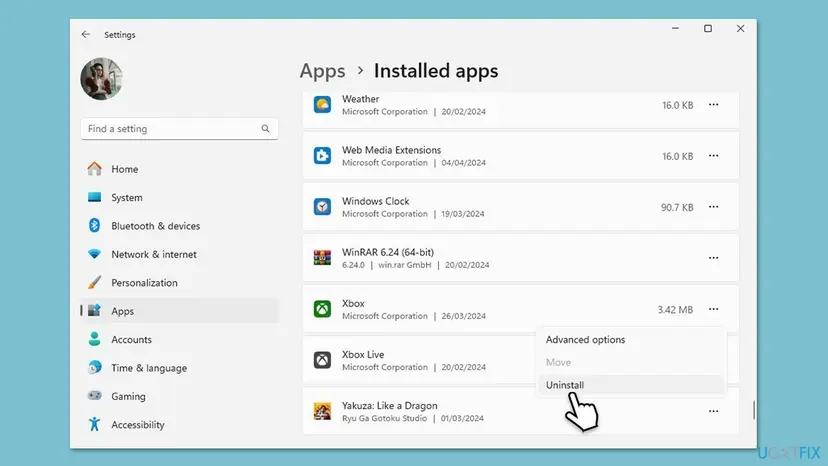
Microsoft's troubleshooter repairs damaged registry entries that block an uninstall and removes the program's entry when nothing else works. On Windows 10 the list of programs sits in a different place in Settings: Uninstall a program or app in Windows
It worked if: The uninstaller runs to the end and the program is gone from the Installed apps list.
If not: Run the uninstaller with a log as described under "If the error is still there" and send it to the publisher.
Fix 5. Repair the Microsoft Visual C++ runtimes
10 minutesNo riskSeveral programs fail to install or start on this PC, or the installer is for a program built with Visual C++.
A DLL that the installer unpacks can depend on other DLLs. Inno Setup's own documentation explains how a script loads such dependent DLLs. If the Visual C++ runtime one of them needs is missing or damaged, Windows refuses to load the first DLL and the script's call fails.
- Open Programs and Features. Type control panel in the search box on the taskbar and select Control Panel. Select Programs > Programs and Features.
- Find the installed versions. Look for the entries that start with Microsoft Visual C++. Each one shows a year and an architecture, x64 or x86. Several entries side by side are normal: older versions stay installed next to newer ones.
- Repair each Visual C++ entry. Right-click an entry and select Change, then select Repair in the window that opens. Do the same for every Microsoft Visual C++ entry.
- Install the latest supported version. Download the latest Visual C++ v14 Redistributable from Microsoft: Visual C++ Redistributable latest supported downloads and run it. On a 64-bit PC install both X64 and X86, because 32-bit programs need the x86 package. On an ARM64 PC install ARM64. This one version serves programs built with Visual Studio 2017 to 2026.
These steps were written for Windows 11 25H2 and 26H2, Windows 10 22H2. The full page with the other versions and what each result means: How to repair Microsoft Visual C++ Redistributable and .NET Framework
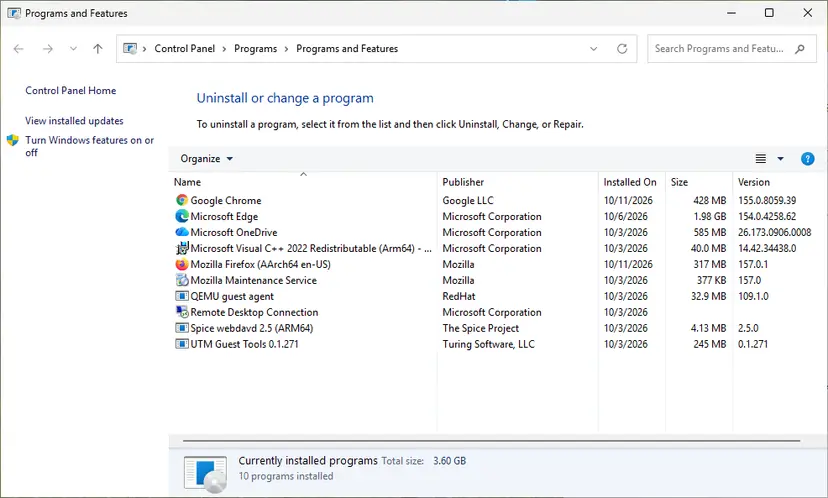
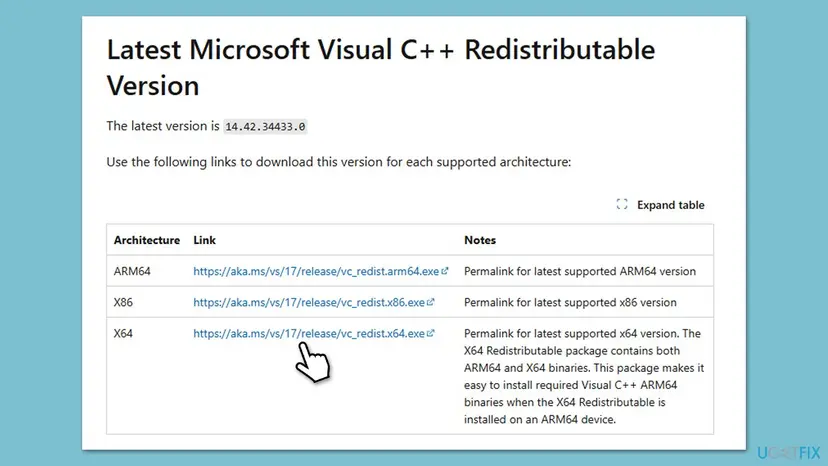
Install both the x64 and the x86 package on 64-bit Windows, because many installers are 32-bit programs. A guide on the most common missing runtime file: VCRUNTIME140_1.dll was not found.
It worked if: Programs and Features lists the current Visual C++ 2015 to 2022 package for x64 and x86, and the installer passes the language window.
If not: Go on to Fix 6 and run the installer with full rights.
Fix 6. Run the installer as administrator or in compatibility mode
5 minutesNo riskThe installer is old, was made for Windows 7 or earlier, or installs into Program Files.
An old setup script may call Windows functions in a way newer Windows versions treat differently. Compatibility mode makes Windows report an older version to the installer, and administrator rights let it write where it expects to.
- Run the program as administrator once. Right-click the program in the Start search results, or right-click its shortcut, and select Run as administrator. Select Yes when Windows asks for permission. If the program now works, it only needed administrator rights.
- Open the program's properties. If the program still fails, right-click its shortcut or its .exe file and select Properties.
- Open the Compatibility tab. Select the Compatibility tab. Every setting on this tab applies to this one program only.
- Turn on compatibility mode. Select the Run this program in compatibility mode for check box. In the list below it, select the version of Windows the program was made for.
These steps were written for Windows 11 25H2 and 26H2. The full page with the other versions and what each result means: How to run a program as administrator or in compatibility mode
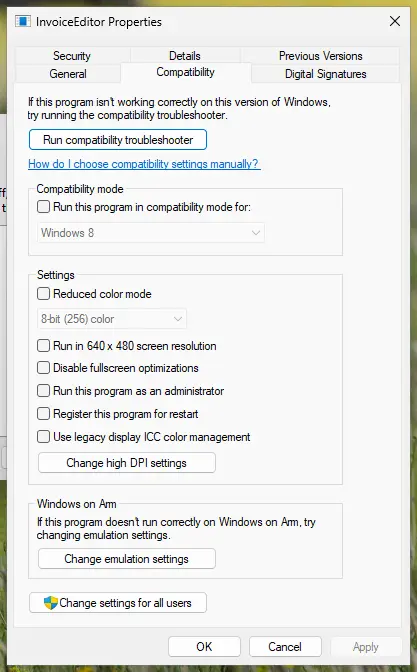
It worked if: The installer passes the language window and starts copying files.
If not: Remove the compatibility setting again so it does not affect the installed program, then try Fix 7.
Fix 7. Repair Windows system files
20 minutesNo riskMany different installers fail with this or similar errors, and Fixes 1 to 6 did not help.
Installer scripts also call functions in Windows' own DLLs. Damaged system files are a rare cause of this message, but when several unrelated installers fail, a system file check rules it out.
- Open a command window as administrator. The procedure linked below shows how on Windows 11 and Windows 10.
- Run the command below, wait until it reaches 100 percent, then restart the PC.
sfc /scannow
The full procedure with the DISM commands that belong to it: Run DISM and SFC to repair Windows system files
It worked if: The scan reports that it found no integrity violations or that it repaired the files it found.
If not: Try Fix 8 once, then collect a setup log as described below.
Fix 8. Pause third-party security software for one attempt
5 minutesLow riskYou use an antivirus other than Microsoft Defender, its history showed nothing, and every fix above failed.
Some security programs block a DLL from loading without writing an entry that you can find. One attempt with protection paused shows whether that is the case here.
- Make sure the setup file is the publisher's own copy from Fix 1.
- Pause the real-time protection of your antivirus for the shortest time it offers.
- Run the installer straight away.
- Turn the protection back on as soon as the installer has finished or failed.
Do this only with a file from the publisher, and never leave protection off as the fix. If the installer works only with protection paused, report the false detection to the antivirus maker. How to pause and restart protection: Turn off Microsoft Defender protection for a moment
It worked if: The installer completes while protection is paused, which shows the security program was blocking it.
If not: Turn protection back on. Collect the setup log as described below and send it to the publisher.
If the error is still there: create a setup log
Inno Setup installers and uninstallers accept the /LOG switch. It writes a log file to your Temp folder, or to a path you choose, with every step taken up to the failure. The publisher's support can read the failed call from the log and the two numbers in the message.
- Open the folder that holds the setup file, for example
C:\Setup. - Click the address bar, type
cmdand press Enter. A command window opens in that folder. - Type the command below with the name of your setup file and press Enter.
- Let the installer fail, then open the log file in Notepad and read the last lines.
- For the uninstaller, run the second command with the path of the program's folder.
Setup and uninstaller with a log
setup.exe /LOG="C:\Setup\setup-log.txt"
"C:\Program Files\Program name\unins000.exe" /LOG="C:\Setup\uninstall-log.txt"- What to send to the publisher: a screenshot of the message with both numbers, the log file, the name and version of the setup file and your Windows version from Settings > System > About.
- What the log tells you: the last lines show how far the installer got. We could not confirm that every installer writes the name of the failed DLL into the log.
- When it is hardware: if setup files copied from the same USB stick or disk keep failing on several PCs, check that drive for errors: Check a disk for errors (chkdsk)
- When there is no fix: an installer whose DLL does not work on your Windows version needs a new release from the publisher. Nothing in Windows can replace its DLL.
How to keep "Could not call proc" from coming back
- Download installers from the publisher's site or the store where you bought the program.
- Copy setup files to a local folder on the internal drive before you run them.
- Keep a copy of the installer of the version you use. You may need it to uninstall or repair the program later.
- Uninstall programs through Settings, so the uninstaller finds its own files.
- Do not run repacks or modified installers. They are the most common source of this message.
- Do not delete files from a program's folder by hand, and do not let cleaning tools remove
unins000.datorunins000.exe. - Do not switch off Smart App Control or your antivirus to get an installer through.
The uninstaller keeps its data in the files named unins in the program's folder. Inno Setup's documentation says Setup must find them to update or remove the program later, which is why a cleaned or half-deleted folder leads to the error during an uninstall.
Frequently asked questions
What does "Runtime error: Could not call proc" mean?
It means an installer or uninstaller built with Inno Setup tried to call a procedure outside its own script and failed. Most often the procedure is a function in a DLL that the installer unpacks for itself, and Windows could not load that DLL or find the function in it. The error is not a Windows error code and does not mean Windows is damaged. In most cases the setup file is incomplete, modified or blocked, so a fresh download from the publisher, run from a local folder, is the first thing to try.
What do the numbers like (at 314:845) or (at 99:1273) mean?
They are the procedure number and the position inside the compiled script of that one installer. Inno Setup adds them to every runtime error so the publisher can find the line that failed. The numbers do not describe the cause, and they mean something different in every installer. That is why a search for "runtime error at 314 845" or "at 38 711" only finds people who ran the same setup file. Note them down and send them to the publisher with a setup log.
Why does the error appear right after I select the language?
Because the installer's script starts running right after the Select Setup Language window. Publishers put their own checks there, for example a check of the Windows version, of free space or of a licence, and these checks often call a DLL. If that DLL cannot be loaded, the call fails at once and you see the error before any file is copied. Nothing has been installed at that point, so you can simply delete the setup file and get a new copy.
How do I fix "Could not call proc" when uninstalling a program?
Install the same version of the program again over the existing installation, restart Windows and uninstall it through Settings. The reinstall puts back the uninstaller's files that were removed or damaged. If it still fails, uninstall in Safe Mode, then try Microsoft's Program Install and Uninstall troubleshooter, which can remove the program's entry. Some publishers, such as Malwarebytes, also have their own removal tool. Fix 4 on this page lists the steps.
How do I fix "Could not call proc" in Winlator?
In Winlator the installer's DLL call fails inside Wine and Box64, not in Windows, so the Windows fixes do not help. The most reliable way is to run the installer on a Windows PC and copy the installed game folder to the phone, then start the game's exe in Winlator. You can also try another Box64 preset in Container Settings, which Winlator's own instructions suggest for unstable programs. Most reports come from repacks, which use extra DLLs that often fail under Wine.
Why do I get "Could not call proc" with a GOG installer or GOG Galaxy?
Users on GOG's forum report the message both in the GOG Galaxy installer and in game installers, for example at 53:3765 and at 99:1273. Download the installer again from your library on gog.com, run it from a folder on the internal drive and check that your Windows version is supported. GOG staff in those threads ask users to contact GOG support when a fresh download still fails. Send them the numbers from the message and a setup log.
Will installing Visual C++ fix the error?
Only when the installer's DLL depends on a missing or damaged Visual C++ runtime, which is a less common cause. The error itself does not name Visual C++. Start with a fresh copy of the installer and a local folder, which solve most cases. If several programs from different publishers fail on the same PC, repair or install the current Visual C++ 2015 to 2022 Redistributable, both x64 and x86, from Microsoft's site. Fix 5 shows how to check which versions you have.
Is "Could not call proc" a virus?
No, the message itself is a normal error of the Inno Setup installer. It does not mean your PC is infected. It can, however, appear when your security software has blocked a file that it considers harmful, and setup files from unofficial sites sometimes contain unwanted extras. If the installer did not come from the publisher, delete it and scan the PC with Microsoft Defender. Check Protection history in Windows Security to see whether something was blocked at the time of the error.
The message is in another language or I searched in Russian. Is it the same error?
Yes. Inno Setup does not translate this message, so it reads "Runtime error (at X:Y): Could not call proc." on every Windows language, even when the rest of the installer is in Russian, Polish or Indonesian. A search such as "could not call proc при установке", which means "during installation", describes the same error. This page is in English and uses the English names of menus, but the steps and the order of fixes are the same in every language.
Sources
- Inno Setup source code: Setup.ScriptRunner.pas (the "Runtime error (at %d:%d)" text) (github.com)
- RemObjects Pascal Script source code: uPSRuntime.pas and uPSR_dll.pas (the "Could not call proc" message and DLL loading) (github.com)
- Microsoft Support: Smart App Control Frequently Asked Questions (support.microsoft.com)
Did this fix work?
One click, no account. It tells the next reader which guides are worth their time.
Questions and experiences: fix "Could not call proc" error in Windows
Still broken, or found a fix we did not cover? Ask here: members and our editors answer. Reading is open; writing needs a free account.
…