
How to fix ctfmon.exe system error in Windows?

Prefer to fix it yourself? The manual steps follow.
- 9methods
- 5 to 60 minutes
- Easy
Applies to Windows 11, Windows 10; PCs with more than one keyboard language, an input method (IME), a touch screen or pen, or keyboard and mouse software
9 methods in this guide
- What the error means
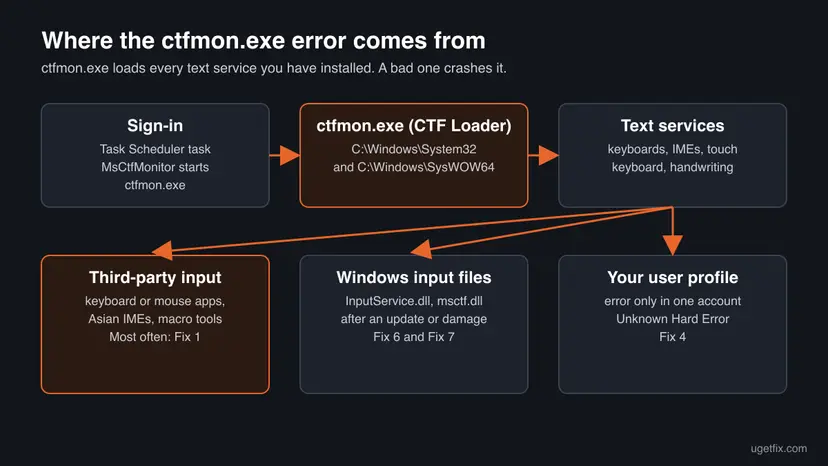
- What ctfmon.exe is
- Causes, most common first
- The fixes
- 1. Remove extra input software
- 2. Restart CTF Loader
- 3. Check the MsCtfMonitor task
- 4. Test a new account
- 5. Check the file is genuine
- 6. Repair Windows files
- 7. Update or roll back Windows
- 8. Clean boot
- 9. Reinstall Windows, keep files
- Still broken
- Prevent it
- FAQ
Hello. I changed the keyboard language in Windows and instantly received a ctfmon.exe system error. What does it mean? Any suggestions would be appreciated.
ctfmon.exe is the Windows host for keyboards, input methods, the touch keyboard and handwriting, so its System Error means one of those text services crashed it. Most often the trigger is a third-party keyboard app or input method. Remove the one you added last, then restart CTF Loader.
A ctfmon.exe - System Error window means the CTF Loader process crashed while it loaded a text service. Remove the keyboard app, macro tool or input method (IME) you added last, and the extra keyboard layouts you do not use (Fix 1). Then restart CTF Loader (Fix 2). If the window says Unknown Hard Error at every sign-in, test a new user account (Fix 4) and repair Windows files (Fix 6).
| Error | ctfmon.exe - System Error, with "The system detected an overrun of a stack-based buffer in this application" or with Unknown Hard Error. |
|---|---|
| Where it appears | A small Windows window at sign-in, when you switch the keyboard language, or while you type. Users report it also in Safe Mode. |
| Main cause | A text service that ctfmon.exe loads crashes it: most often a third-party keyboard app, an input method (IME) or a damaged Windows input file. |
| Fastest fix | Remove the keyboard software or input method you added last (Fix 1), then restart CTF Loader (Fix 2). |
| The file | C:\Windows\System32\ctfmon.exe (64-bit) and C:\Windows\SysWOW64\ctfmon.exe (32-bit). Task Manager lists it as CTF Loader. |
| Also written as | ctfmon error, ctfmon exe system error, cftmon.exe, ctfmon.exe application error, ctfmon.exe unknown hard error, ctfmon.exe Systemfehler. |
| Exception code | 0xc0000409 in Event Viewer: Windows stopped the process on purpose because memory on its stack was overwritten. |
| Affects | Windows 11 (25H2 and 26H2) and Windows 10 22H2. The window and the fixes are the same on both. |
| Vendor status | Microsoft has no general article on this window. Microsoft support staff on Microsoft Q&A point to third-party software that uses the input interfaces, damaged system files and damaged user profiles. |
| Time to fix | 5 minutes for Fix 1 and Fix 2; 20 to 60 minutes for the Windows repairs. |
Facts checked on 15 October 2026. Steps written for Windows 11 (25H2 and 26H2) and Windows 10 22H2.
What the ctfmon.exe System Error means
The window title is ctfmon.exe - System Error. It comes in two forms. The first reads: "The system detected an overrun of a stack-based buffer in this application. This overrun could potentially allow a malicious user to gain control of this application." The second shows only Unknown Hard Error.
Both say that the process crashed, not that a file is missing. The first form is Windows protecting itself: code inside ctfmon.exe wrote past the end of a memory buffer, so Windows ended the process at once. That code is often not Microsoft's own, because ctfmon.exe loads text services from other publishers too.
People search for the same window in many spellings:
- ctfmon error, ctfmon exe system error and ctfmon.exe error all mean this window.
- cftmon.exe and ctfmone.exe are typing variants; the real name is ctfmon.exe.
- ctfmon.exe Systemfehler is the German title of the same window.
- ctfmon.exe unknown hard error and ctfmon hard error are the second form, without the buffer text.
- ctfmon.exe application error and ctfmon exe exception processing message are crash reports of the same process. The same fixes apply.
- The system detected an overrun of a stack-based buffer belongs to exception code
0xc0000409, which Event Viewer shows for the crash.
No. The words "a malicious user" are part of the standard Windows text for any buffer overrun. They say what could happen if nobody stopped the crash, not that an attack took place. Fix 5 shows how to check that the file is the real one.
What is ctfmon.exe, and do you need it?
Microsoft's developer documentation says that ctfmon.exe manages the Text Services Framework (TSF) on the desktop and provides the language bar. TSF is the part of Windows that lets keyboards, input methods for Chinese, Japanese and Korean, speech, handwriting and the touch keyboard send text to any app.
- Name in Task Manager
- CTF Loader. CTF stands for Collaborative Translation Framework, the older name of TSF.
- Location
C:\Windows\System32\ctfmon.exe. On 64-bit Windows a second, 32-bit copy runs fromC:\Windows\SysWOW64.- Two processes
- Microsoft says 64-bit Windows runs a 32-bit and a 64-bit ctfmon.exe at the same time, one for each kind of text service. Two CTF Loader entries are normal.
- How it starts
- At sign-in, through the task MsCtfMonitor under Microsoft > Windows > TextServicesFramework in Task Scheduler.
- Needed?
- Yes. Without it you cannot switch keyboard languages, input methods stop, and users report that typing in Start search and Settings stops too.
So ctfmon.exe is a Windows file, not a program you can uninstall. Microsoft support staff on Microsoft Q&A note that deleting it stops input methods from working. The fixes below repair what it loads instead.
What causes the ctfmon.exe System Error, most common first
Microsoft has not published one cause for this window. The order below follows from what ctfmon.exe loads, from Microsoft support staff answers on Microsoft Q&A and from what users report.
| Cause | How often | Start with |
|---|---|---|
| A third-party text service: keyboard or mouse software with extra functions, a macro tool, or an input method from another publisher. Microsoft support staff named gaming keyboard software in one case. | Most often | Fix 1 |
| A new keyboard language or IME that you just added, as in the reader's question above. | Often | Fix 1, then Fix 2 |
| ctfmon.exe or the touch keyboard service is stuck after sleep or an update. | Often | Fix 2 |
| A damaged user profile: the error appears in one account only, often as Unknown Hard Error. | Sometimes | Fix 4 |
Damaged Windows input files such as InputService.dll or msctf.dll, or a faulty Windows update. | Sometimes | Fix 6, then Fix 7 |
| Malware that uses the name ctfmon.exe from another folder. | Rarely | Fix 5 |
In one Microsoft Q&A case on Windows 11, Event Viewer named InputService.dll as the faulting module with exception code 0xc0000409. InputService.dll is a Windows file, so that case points to Fix 6 and Fix 7, not to a third-party app.
How to fix the ctfmon.exe System Error
Fix 1 and Fix 2 solve the cases caused by input software and take five minutes. Fix 3 brings typing back when ctfmon.exe no longer starts. Fixes 4 to 7 repair the profile and Windows itself, and Fixes 8 and 9 are for what is left.
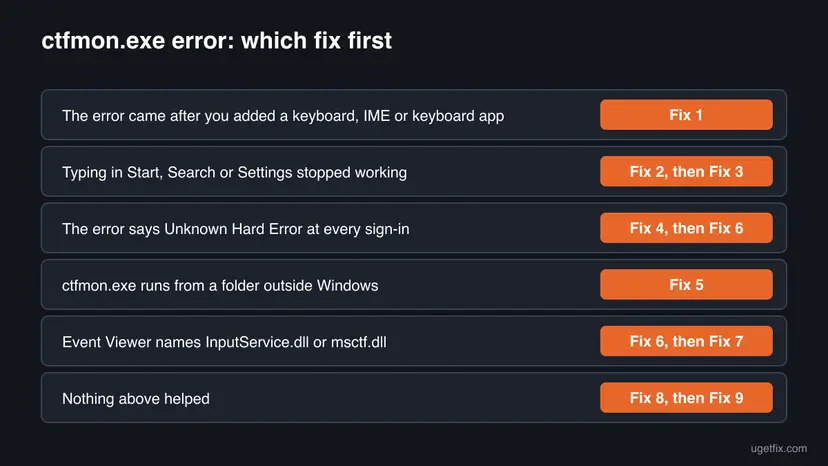
| What you see or have | Start with |
|---|---|
| The error began after you added a keyboard language, an IME or keyboard or mouse software. | Fix 1 |
| Typing in Start, Search or Settings stopped working, or the language switcher is gone. | Fix 2, then Fix 3 |
| The window says Unknown Hard Error at every sign-in. | Fix 4, then Fix 6 |
ctfmon.exe runs from a folder other than C:\Windows\System32 or C:\Windows\SysWOW64. | Fix 5 |
Event Viewer names InputService.dll or msctf.dll as the faulting module. | Fix 6, then Fix 7 |
| Nothing above helped. | Fix 8, then Fix 9 |
Fix 1. Remove the keyboard software or input method you added last
5 minutesLow riskThe error began after you added a keyboard language or IME, or installed keyboard, mouse or macro software.
ctfmon.exe loads every text service on the PC into its own process. If one of them has a bug, the whole process crashes, and Windows shows the buffer overrun window. Microsoft support staff advised removing gaming keyboard software in one such case, because ctfmon.exe itself rarely fails on its own.
- Press Win + I and open Apps > Installed apps (Windows 10: Apps > Apps & features).
- Uninstall keyboard or mouse software, macro tools and input methods from other publishers that you installed shortly before the error began.
- Open Time & language > Language & region (Windows 10: Time & Language > Language).
- Select the three dots next to your language and choose Language options (Windows 10: select the language and Options).
- Under Keyboards, remove the layouts and input methods you do not use. Keep at least one.
- Restart the PC and type in the Start search box to test.
Removing a program step by step: Uninstall a program or app in Windows
If you need the input method, add it back after the restart, one layout at a time. When the error returns right after one of them, that one is the cause. Check its publisher's site for a newer version.
It worked if: No ctfmon.exe window appears after the restart, and Win + Space switches between the keyboards you kept.
If not: If the error stays, or typing does not work in Start, go to Fix 2.
Fix 2. Restart CTF Loader and the Touch Keyboard and Handwriting Panel Service
3 minutesNo riskThe error appeared once or after sleep, or typing in Start, Search or Settings stopped.
A crashed ctfmon.exe does not always start again by itself. Starting it by hand and restarting the service that runs the touch keyboard and handwriting panel gives the text services a clean start without a reboot.
- Press Ctrl + Shift + Esc to open Task Manager and open the Details tab.
- Right-click each ctfmon.exe and select End task. Skip this if none is listed.
- Press Win + R, type
ctfmonand press Enter. Nothing opens, but CTF Loader starts again. - Press Win + R, type
services.mscand press Enter. - Right-click Touch Keyboard and Handwriting Panel Service and select Restart (or Start if it is stopped).
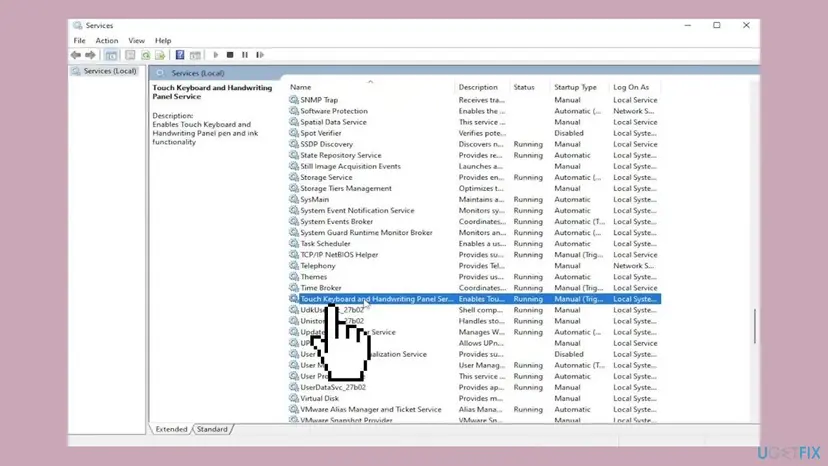
Finding, restarting and checking a service: Check and restart Windows services
Do not set this service to Disabled, as some guides suggest. It runs the touch keyboard and handwriting panel, and users report that typing in Start search stops without it. If you changed it before, set Startup type back to Manual in its Properties.
It worked if: The language switcher shows on the taskbar again and you can type in Start search. The window does not come back.
If not: If ctfmon.exe stops again after the next sign-in, go to Fix 3. If the window returns, go to Fix 4.
Fix 3. Turn on the MsCtfMonitor task that starts ctfmon.exe at sign-in
3 minutesLow riskctfmon.exe is not starting automatically: after every sign-in you have to run it again by hand.
Windows does not start ctfmon.exe from a startup entry. A scheduled task named MsCtfMonitor starts it at every sign-in. If a cleanup tool or an earlier fix turned that task off, CTF Loader no longer runs and input breaks.
- Press Win + R, type
taskschd.mscand press Enter. - In the left pane, open Task Scheduler Library > Microsoft > Windows > TextServicesFramework.
- Select MsCtfMonitor in the middle pane and read the Status column.
- If it says Disabled, right-click it and select Enable.
- Right-click it again and select Run, then restart the PC to test it.
Some guides add ctfmon.exe to the Run key in the registry instead. You do not need that when MsCtfMonitor is on, and two starts at once do not help.
It worked if: After the restart, Task Manager lists CTF Loader without your help, and the keyboard switcher works.
If not: If the task is enabled and ctfmon.exe still crashes, go to Fix 4.
Fix 4. Test a new Windows user account
10 minutesLow riskThe window says Unknown Hard Error at every sign-in, or the error shows in one account only.
Keyboard layouts, input methods and text service settings are kept per user. Microsoft support staff suggest a new account as a test: if the error does not appear there, the old profile is damaged, not Windows.
- Create a new local account with administrator rights, as the procedure below shows.
- Sign out and sign in to the new account.
- Use the PC for a few minutes, switch the keyboard language and type in Start search.
- If the error does not appear, move your files to the new account and keep using it.
- Open Other users. Open Settings > Accounts > Other users. You can also press Windows key + R and run the command below.
ms-settings:otherusers - Add an account. Next to Add other user, select Add account.
- Skip the Microsoft account. Select I don't have this person's sign-in information.
- Choose a local account. Select Add a user without a Microsoft account.
- Name the account. Type a user name and, if you want one, a password. If you set a password, Windows also asks for answers to security questions. Select Next.
- Make it an administrator (optional). Back in Other users, select the new account, then Change account type next to Account options. Choose Administrator and select OK. For testing a problem, a standard account is usually enough.
- Sign in to the new account. Open Start, select your account picture and choose the new account. The first sign-in takes a few minutes while Windows sets up the profile.
These steps were written for Windows 11 24H2, 25H2 and 26H2. The full page with the other versions and what each result means: Create a new user account to test a problem
The same in Terminal or Command Prompt as administrator (replace the name and password):
net user NewUser Password123 /add
net localgroup administrators NewUser /add
It worked if: The new account signs in with no ctfmon.exe window. That confirms a damaged profile; Microsoft Support's article on fixing a corrupted user profile describes moving your data.
If not: If the error appears in the new account too, the cause is in Windows. Go to Fix 5 and Fix 6.
Fix 5. Check that ctfmon.exe is the real Windows file and scan it
10 minutesNo riskctfmon.exe runs from an unusual folder, or the error came with other strange behavior.
Malware sometimes uses the name of a known Windows process. The real ctfmon.exe sits only in C:\Windows\System32 and C:\Windows\SysWOW64 and is signed by Microsoft.
- Open Task Manager with Ctrl + Shift + Esc and open the Details tab.
- Right-click ctfmon.exe and select Open file location.
- The folder must be
C:\Windows\System32orC:\Windows\SysWOW64. - If it is any other folder, such as your user folder,
AppDataorTemp, run a full scan with Microsoft Defender.
Full scan and Protection history: How to scan for malware with Microsoft Defender
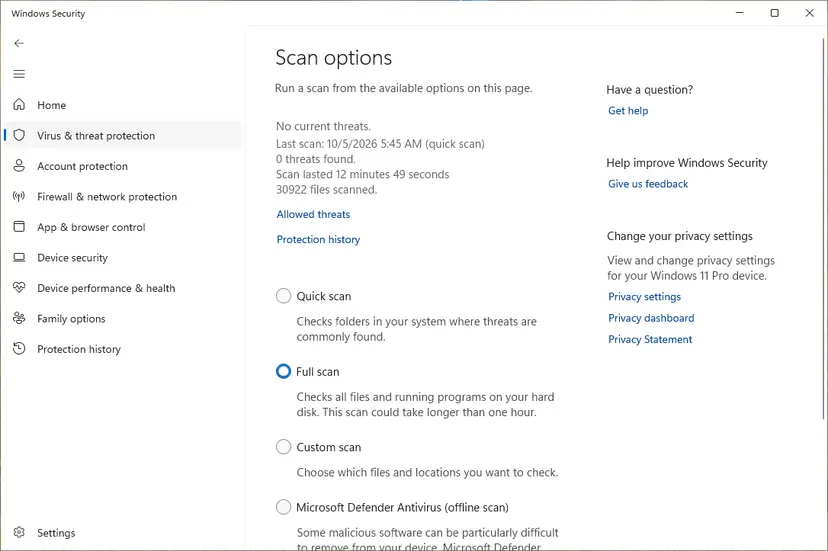
It worked if: Both copies sit in the Windows folders, or Defender found and removed the fake one.
If not: If the file is genuine and the window stays, go to Fix 6.
Fix 6. Repair Windows input files with DISM and SFC
20 minutesNo riskEvent Viewer names InputService.dll or msctf.dll, the error appears in every account, or Fix 1 to 4 did not help.
ctfmon.exe, msctf.dll and InputService.dll are Windows files. DISM repairs the Windows image they come from, and SFC then puts damaged protected files back. Microsoft support staff list this first for the InputService.dll crash.
- Open Terminal or Command Prompt as administrator.
- Run
DISM /Online /Cleanup-Image /RestoreHealthand wait until it reaches 100 %. - Run
sfc /scannow. - Restart the PC.
Step by step: Run DISM and SFC to repair Windows system files

It worked if: SFC reports that it found no integrity violations or that it repaired them, and the window does not come back.
If not: If SFC finds nothing and the error stays, go to Fix 7.
Fix 7. Install the latest Windows update, or remove the one that started it
20 minutesLow riskThe error began right after a Windows update, or your Windows is several months behind.
The Windows input files change with monthly updates. A newer update can replace a faulty InputService.dll; if the error began on the day an update installed, removing that update brings the old files back.
- Press Win + I, open Windows Update and select Check for updates. Install everything offered and restart.
- If the error began right after an update, open Windows Update > Update history.
- Note the date and KB number of the last quality update.
- Select Uninstall updates and remove that update, then restart.
- Open Windows Update. Select Start > Settings > Windows Update.
- Open the update history. Under More options, select Update history. Note the KB number and the date of the update you suspect.
- Open the list of removable updates. Scroll down to Related settings and select Uninstall updates.
- Uninstall the update. Find the update in the list and select Uninstall next to it. If the update is not in the list, Windows does not allow it to be removed this way.
- Pause updates. Go back to Settings > Windows Update and select Pick a date on the Pause updates control. If your PC shows a list there instead, select the pause length you prefer. Without a pause Windows downloads the same update again.
These steps were written for Windows 11 25H2 and 26H2. The full page with the other versions and what each result means: How to uninstall a Windows update
Windows 10 left support on 14 October 2025. A Windows 10 22H2 PC without Extended Security Updates gets no new fixes for its input files, so Fix 6 and Fix 9 matter more there.
It worked if: After the update or the removal, the PC signs in without the window.
If not: If you removed an update, pause updates for a week and check whether a newer one fixes it. Then go to Fix 8.
Fix 8. Find the program behind it with a clean boot
30 minutesLow riskThe error stays after Fix 1 to 7, and you have many programs that start with Windows.
A text service can come with programs you would not connect to typing, such as screen readers, translators or remote access tools. A clean boot starts Windows with Microsoft services only, so you can see whether one of them crashes ctfmon.exe.
- Open System Configuration. Select Search on the taskbar, type msconfig and select System Configuration from the results.
- Hide Microsoft services. On the Services tab, select the Hide all Microsoft services check box. Only services from other companies stay in the list.

With Hide all Microsoft services ticked, only third-party services stay in the list. Screenshot: Windows 11 26H2. - Disable the remaining services. Select Disable all, then select Apply.
- Open Task Manager. On the Startup tab of System Configuration, select Open Task Manager.

The Startup tab only links to Task Manager. Screenshot: Windows 11 26H2. - Disable the startup apps. On the Startup apps tab in Task Manager, select each item whose status is Enabled and select Disable. Write down or take a screenshot of the items you disable: you need the list to turn them back on.

Select an app, then Disable. Screenshot: Windows 11 26H2.
These steps were written for Windows 11 25H2 and 26H2. The full page with the other versions and what each result means: How to perform a clean boot in Windows
If the error is gone in the clean boot, turn the services and startup apps back on in small groups until it returns. The last group holds the cause. Full steps: How to perform a clean boot in Windows
It worked if: In the clean boot the window does not appear, and the group test points to one program.
If not: If the error appears even in a clean boot, go to Fix 9.
Fix 9. Reinstall Windows and keep your files
1 to 2 hoursRead the warningEvery fix above failed, the error shows in every account and SFC cannot repair the files.
A repair install replaces every Windows file, ctfmon.exe and the input files included, and keeps your files and apps. Microsoft support staff suggest it as the last step for this error.
Your files and most apps are kept, but back up your documents first in case setup stops halfway. Some settings and drivers can return to their defaults.
- Open Recovery in Settings. Open Settings > System > Recovery. Next to Fix problems using Windows Update, select Reinstall now. This keeps your apps, files and settings.
- Start the reinstall. Choose whether the PC may restart on its own 15 minutes after the installation, then select OK.
- Wait and restart. Windows Update downloads and installs a repair copy of your current Windows version. Keep the PC plugged in and online, and restart it when asked.
- If that did not help: Reset PC. Back in Settings > System > Recovery, next to Reset this PC, select Reset PC. This keeps your personal files but removes installed apps and settings.
- Choose Keep my files. Select Keep my files. Do not select Remove everything.
- Choose where Windows comes from. Select Cloud download to download a fresh copy of Windows, or Local reinstall to use the files already on the PC (faster, but may not include the latest updates).
- Reset. Review the summary and select Reset. The PC restarts several times.
These steps were written for Windows 11 22H2 and later. The full page with the other versions and what each result means: Reinstall Windows without losing files
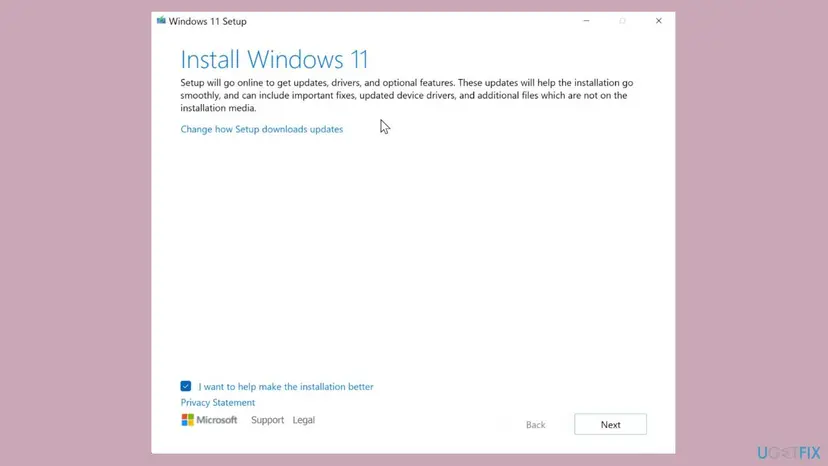
It worked if: Windows starts with fresh system files and the ctfmon.exe window is gone.
If not: If the error returns after you add your keyboard software again, that software is the cause; see Fix 1.
If the ctfmon.exe error is still there: where to look and what to send
The window tells you little. Windows writes the details of each crash in two places:
| What to check | Where | What it tells you |
|---|---|---|
| The crash entry | Event Viewer: Windows Logs > Application, source Application Error, Event ID 1000 | Faulting module name names the file that crashed ctfmon.exe. A third-party DLL: Fix 1. InputService.dll or msctf.dll: Fix 6 and Fix 7. |
| The exception code | Same entry, Exception code | 0xc0000409 is the stack buffer overrun from the window. |
| The crash report | C:\ProgramData\Microsoft\Windows\WER\ReportArchive, folders whose names start with AppCrash_ctfmon.exe | The report Windows sends to Microsoft, with the module version. |
| Your input methods | Settings > Time & language > Language & region, each language's Language options | Every keyboard and IME that ctfmon.exe loads for your account. |
| The Windows build | Press Win + R, type winver | Which update you have, to compare with the day the error began. |
When you ask Microsoft support or a keyboard maker for help, send the window text, the Faulting module name and its version from Event Viewer, your Windows build, the list of input methods and what you already tried.
If other programs also crash at random, the PC restarts on its own or you see blue screens, ctfmon.exe may just be the first victim of bad memory. Run Windows Memory Diagnostic with How to test your RAM with Windows Memory Diagnostic before you reinstall anything.
How to keep the ctfmon.exe error from coming back
- Keep only the keyboard layouts and input methods you use.
- Get keyboard and mouse software only from the device maker, and keep it updated.
- Add one input method at a time, so you know which one caused a problem.
- Install Windows updates every month.
- Do not delete ctfmon.exe or rename it. Input methods stop working without it.
- Do not download ctfmon.exe,
msctf.dllorInputService.dllfrom file download sites. - Do not disable the Touch Keyboard and Handwriting Panel Service or the MsCtfMonitor task to hide the window.
- Do not run
regsvr32 ctfmon.exe. It is not a DLL and cannot be registered.
If typing in the Start menu fails with its own error window, see also our guide to the StartMenuExperienceHost.exe error.
Frequently asked questions
What is ctfmon.exe?
ctfmon.exe is the Windows process that runs the Text Services Framework and the language bar. Task Manager lists it as CTF Loader. It lets keyboards, input methods, speech, handwriting and the touch keyboard send text to apps. It lives in C:\Windows\System32, with a 32-bit copy in C:\Windows\SysWOW64, and starts at sign-in through the MsCtfMonitor task.
Is ctfmon.exe a virus?
No, not when it runs from C:\Windows\System32 or C:\Windows\SysWOW64. Two CTF Loader entries in Task Manager are normal on 64-bit Windows, one 32-bit and one 64-bit. A file with the same name anywhere else is not the Windows one: scan it with Microsoft Defender as Fix 5 shows. The words "malicious user" in the error window do not mean you have malware.
How do I fix the ctfmon.exe system error on Windows 11?
Remove the keyboard software or input method you added last and the keyboard layouts you do not use (Fix 1). Then end ctfmon.exe in Task Manager, start it again with Win + R and ctfmon, and restart the Touch Keyboard and Handwriting Panel Service (Fix 2). If it says Unknown Hard Error, test a new account (Fix 4). Windows 10 uses the same steps.
What does ctfmon.exe Unknown Hard Error mean?
It means ctfmon.exe crashed and Windows could not turn the error into a readable message. It usually appears at every sign-in. Because input settings are stored per user, test a new user account first (Fix 4). If the new account shows it too, repair Windows files with DISM and SFC (Fix 6) and check for a faulty update (Fix 7).
Is it safe to disable ctfmon.exe?
We do not recommend it. Without ctfmon.exe you cannot switch keyboard languages, input methods stop working, and users report that typing in Start search and Settings stops as well. Disabling it hides the error and breaks typing. Remove the text service that crashes it instead (Fix 1), and keep the MsCtfMonitor task turned on (Fix 3).
Why does ctfmon.exe not start automatically?
Windows starts it with the scheduled task MsCtfMonitor in Task Scheduler Library > Microsoft > Windows > TextServicesFramework. If that task is disabled, often by a cleanup or tuning tool, CTF Loader does not run after sign-in. Enable the task and run it once (Fix 3). Until then you can start it by hand: press Win + R, type ctfmon and press Enter.
Why does the ctfmon.exe error appear in Safe Mode?
Safe Mode still signs you in to your own profile, and ctfmon.exe still loads the input methods set for that profile. So the error can appear in Safe Mode even when no third-party program starts. Users report this on Windows 11. Remove the extra input methods (Fix 1), then test a new user account (Fix 4).
Can I replace ctfmon.exe with a copy from another PC or a download site?
No. ctfmon.exe and the files it uses belong to your exact Windows build, and a copy from a download site is unsigned and may hide malware. A copy from another PC can come from a different build. Let Windows restore its own files with DISM and SFC (Fix 6), or reinstall Windows with your files kept (Fix 9).
What is the ctfmon.exe application error?
It is the same crash reported in a different window or in Event Viewer as Application Error, Event ID 1000, with ctfmon.exe as the faulting application. Read the Faulting module name in that entry. A file from another publisher points to Fix 1; InputService.dll or msctf.dll points to Fix 6 and Fix 7.
I searched in another language. Is this the right page?
Yes, if the window names ctfmon.exe. The German title ctfmon.exe Systemfehler and other translations are the same System Error. This guide is written in English; Windows menu names are translated on your PC, but the file names ctfmon.exe, msctf.dll and InputService.dll stay the same in every language, so every fix here works the same way.
Sources
- Microsoft Learn: 64-Bit Considerations, Text Services Framework (Dual Ctfmon.exe Processes) (learn.microsoft.com)
- Microsoft Q&A: ctfmon.exe error every 22 seconds (InputService.dll, 0xc0000409), Microsoft Community support answer (learn.microsoft.com)
- Microsoft Q&A: ctfmon.exe system error in Safe Mode (stack-based buffer), Microsoft Community support answers (learn.microsoft.com)
Did this fix work?
One click, no account. It tells the next reader which guides are worth their time.
Questions and experiences: fix ctfmon.exe system error in Windows
Still broken, or found a fix we did not cover? Ask here: members and our editors answer. Reading is open; writing needs a free account.
…