
How to fix StartMenuExperienceHost.exe error in Windows?

Prefer to fix it yourself? The manual steps follow.
- 8methods
- 1 to 60 minutes
- Medium
Applies to Windows 11 and Windows 10 (version 1903 and later): Start menu that does not open, closes by itself or crashes, with Application Error events for StartMenuExperienceHost.exe from the Microsoft.Windows.StartMenuExperienceHost package
8 methods in this guide
- What the file is
- What the error means
- Causes, ranked
- The fixes
- 1. Restart the Start process
- 2. Register the Start package
- 3. Remove Start add-ons
- 4. Check the required service
- 5. Update or roll back Windows
- 6. Test a new user account
- 7. Repair registry permissions
- 8. Repair Windows itself
- Still there: what to check
- Keep it from coming back
- FAQ
Hello. I was hit with an issue where StartMenuExperienceHost.exe keeps on crashing, sometimes when I'm not even using the Start menu. It started after installing Windows updates. What should I do?
StartMenuExperienceHost.exe is the Windows process that draws the Start menu, one copy per signed-in user. When it crashes or stops running, Start does not open or closes by itself, and Event Viewer logs an Application Error for it. End the process in Task Manager first: Windows starts it again at once.
StartMenuExperienceHost.exe is a genuine part of Windows when it runs from C:\Windows\SystemApps. Open Task Manager > Details, right-click it and select End task; Windows restarts it (Fix 1). If Start still fails, check with Get-AppxPackage that the Start package is registered for your account and register it again (Fix 2). Then remove Start menu add-ons and read Event ID 1000.
| Error | Start does not open, opens blank or closes, and Event Viewer logs "Faulting application name: StartMenuExperienceHost.exe", most often with exception code 0xc0000409. |
|---|---|
| Where it appears | When you press Start or Win, sometimes minutes later with no Start use at all. The crash is often silent: only the Application log shows it. |
| Main cause | The Start package is not registered for your account, a Start or taskbar changer injects into it, or a Windows update left a broken Start component. |
| Fastest fix | End StartMenuExperienceHost.exe in Task Manager (Fix 1, one minute). Then register the Start package again from a normal PowerShell window (Fix 2, five minutes). |
| Also written as | startmenuexperiencehost, start menu experience host.exe, Windows Start Experience Host stopped working, Microsoft.Windows.StartMenuExperienceHost, StartMenuExperienceHost.exe not running, missing or not found. |
| Where the file is | C:\Windows\SystemApps\Microsoft.Windows.StartMenuExperienceHost_cw5n1h2txyewy\StartMenuExperienceHost.exe |
| Affects | Windows 10 version 1903 and later and every Windows 11 version. Windows 10 1809 and earlier used ShellExperienceHost.exe for Start. Windows 10 left support on 14 October 2025. |
| Microsoft's status | No single known issue. Microsoft's Start menu guide lists the checks: package registered, process running, Event IDs 1000 and 1001, Background Tasks Infrastructure Service, recent updates and policies. |
| Time to fix | 1 to 10 minutes for Fixes 1 to 4. Up to an hour for a repair install of Windows (Fix 8). |
Facts checked on 15 October 2026. Steps written for Windows 11 (25H2 and 26H2) and Windows 10 22H2.
What is StartMenuExperienceHost.exe (Windows Start Experience Host)?
StartMenuExperienceHost.exe is the process that shows the Start menu. Microsoft moved Start out of Explorer and out of ShellExperienceHost.exe into this separate process, so a Start crash no longer takes the taskbar and the desktop down with it. People search for it as start menu experience host, Windows Start Experience Host or by its package name Microsoft.Windows.StartMenuExperienceHost.
- File
StartMenuExperienceHost.exe, a Microsoft Windows component, not a program you install- Real location
C:\Windows\SystemApps\Microsoft.Windows.StartMenuExperienceHost_cw5n1h2txyewy\StartMenuExperienceHost.exe- Package
Microsoft.Windows.StartMenuExperienceHost, a system app package registered for each user account- How many copies
- One per signed-in user. Microsoft says each user should have a StartMenuExperienceHost process in their session.
- Windows 10 1809 and earlier
- Start was part of
Microsoft.Windows.ShellExperienceHost(ShellExperienceHost.exe)
The process runs even when you do not touch Start, because Windows keeps it ready so the menu opens at once. A copy in the SystemApps folder above is Microsoft's own file. A file with this name in Downloads, Temp or AppData is not where Windows puts it and should be scanned with Microsoft Defender: How to scan for malware with Microsoft Defender
What the StartMenuExperienceHost.exe error means
There is rarely a pop-up. You see the symptom (Start does not open, opens empty, or closes by itself) and Windows writes the details to the Application log. Microsoft's Start menu guide says to look there for Event ID 1000 (the crash) and Event ID 1001 (the error report). A typical entry, as posted on Microsoft Q&A by a Windows 10 22H2 user, reads:
Faulting application name: StartMenuExperienceHost.exe, version: 0.0.0.0
Faulting module name: ucrtbase.dll, version: 10.0.19041.3636
Exception code: 0xc0000409
Faulting application path: C:\WINDOWS\SystemApps\Microsoft.Windows.StartMenuExperienceHost_cw5n1h2txyewy\StartMenuExperienceHost.exe
Faulting package full name: Microsoft.Windows.StartMenuExperienceHost_10.0.19041.4239_neutral_neutral_cw5n1h2txyewy| What you see | What it means | Start with |
|---|---|---|
| Exception code: 0xc0000409 | STATUS_STACK_BUFFER_OVERRUN: the process ended itself on purpose after a check failed. The faulting module tells you which part failed. | Fix 3 or Fix 5, by module |
Faulting module StartDocked.dll | A file of the Start menu itself failed. In a 2025 report on Windows 11 25H2 this happened with a taskbar changer installed. | Fix 3 |
Faulting module ucrtbase.dll or KERNELBASE.dll | A Windows library reported the failure, not the real cause. These reports usually follow a Windows update. | Fix 5 |
| No StartMenuExperienceHost process at all | Start is not registered or not activated for your account. | Fix 2 |
| "Package was not found" or "Element not found" in the TWinUI log | Microsoft lists these as signs that Start is not activated correctly. | Fix 2, then Fix 8 |
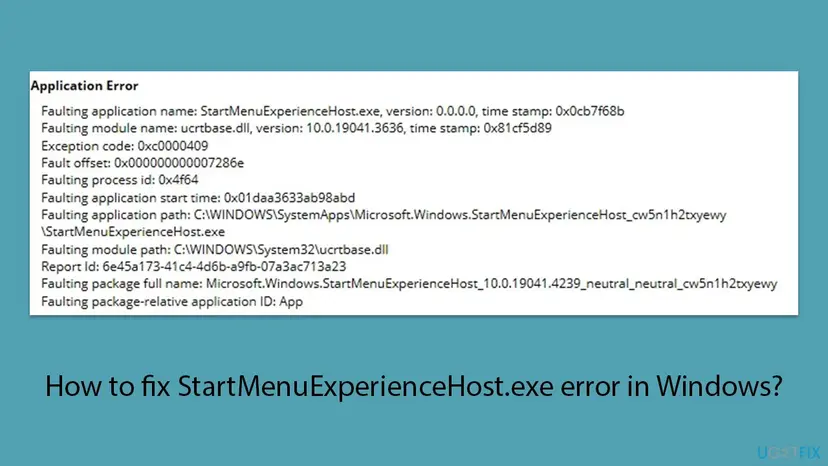
"Windows Start Experience Host stopped working" is the same crash described in plain words, as Reliability Monitor and some error reports show it. The Windows 10 user on Microsoft Q&A also found that the process crashed exactly ten minutes after each Start use and was restarted at once, so the crash may go unnoticed.
Why StartMenuExperienceHost.exe crashes or does not run, most likely first
- Most often: the process hangs after sleep, an update or a long session. Ending it makes Windows start a fresh copy (Fix 1).
- Often: the Start package is not registered for your account. Microsoft's first check is
Get-AppxPackage; if it returns nothing, Start cannot start for you (Fix 2). - Often on PCs with Start or taskbar changers: tools that hook into the shell break after Windows updates. The ExplorerPatcher report on Windows 11 25H2 (build 26200.7171) shows a
StartDocked.dllcrash (Fix 3). - Sometimes: a Windows update. Microsoft's checklist asks first whether the issue began right after an update. The reader in our question saw it after updates too (Fix 5).
- Rarely: a required service is off. Microsoft names the Background Tasks Infrastructure Service as required for a stable Start menu (Fix 4).
- Rarely: one user profile or its registry permissions are damaged (Fix 6, Fix 7), or Windows files are damaged and Start is gone for every user (Fix 8).
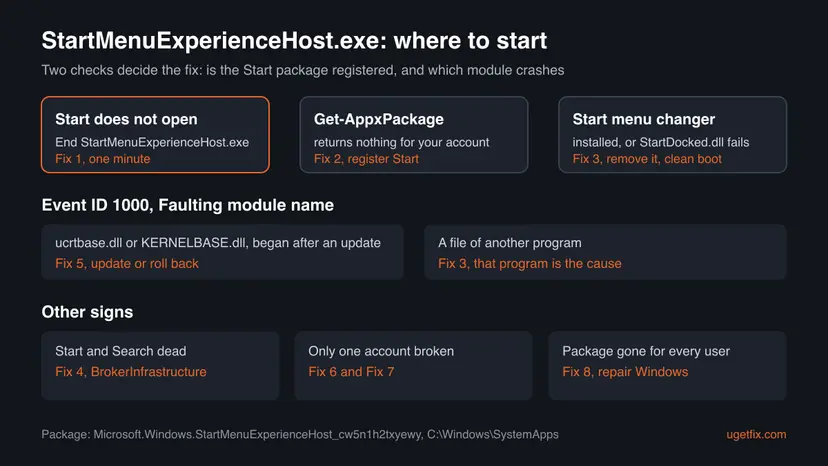
This error is not a virus when the file sits in C:\Windows\SystemApps. It is also not something you can fix by deleting or replacing the file: Microsoft states that no method is supported to install Start AppX files by hand.
How to fix the StartMenuExperienceHost.exe error
Do Fix 1 first: it takes a minute and often brings Start back. Then follow the chooser: the result of Get-AppxPackage and the faulting module in Event ID 1000 tell you which fix comes next.
| What you see or what your PC has | Start with |
|---|---|
| Start stopped opening, no other change on the PC | Fix 1 |
Get-AppxPackage -Name Microsoft.Windows.StartMenuExperienceHost returns nothing, or the process is not running | Fix 2 |
ExplorerPatcher or another Start or taskbar changer is installed, or the faulting module is StartDocked.dll | Fix 3 |
| Start and Search both do not respond | Fix 4 |
It began right after a Windows update, faulting module ucrtbase.dll or KERNELBASE.dll | Fix 5 |
| Start works for another account on the same PC | Fix 6, then Fix 7 |
| The Start package is missing for every user | Fix 8 |
Fix 1. Restart StartMenuExperienceHost.exe in Task Manager
1 minuteNo riskStart stopped opening or freezes, and nothing else on the PC changed.
StartMenuExperienceHost.exe runs on its own, separate from Explorer. When you end it, Windows starts a new copy at once, which clears a hung state without a restart or a sign-out.
- Press Ctrl + Shift + Esc to open Task Manager. Start is not needed for this.
- Select Details in the left column on Windows 11 or the Details tab on Windows 10.
- Find StartMenuExperienceHost.exe, right-click it and select End task, then End process.
- Wait a few seconds. A new StartMenuExperienceHost.exe appears in the list.
- Press Win to test Start. If the taskbar is frozen too, restart Windows Explorer: Restart File Explorer
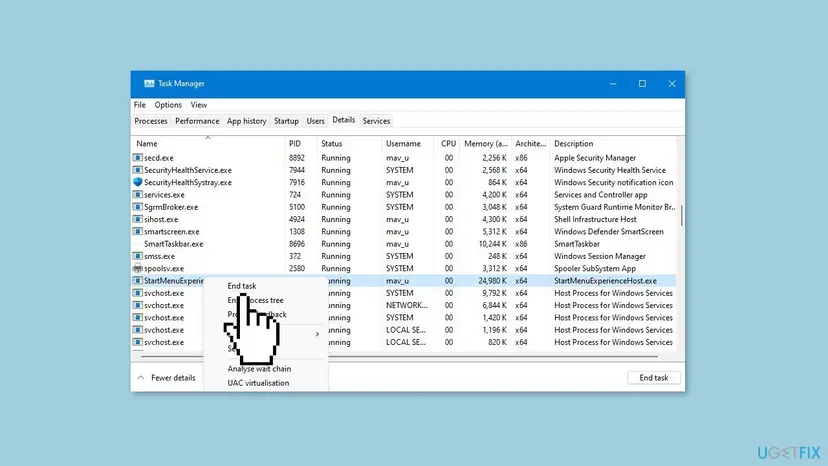
The general steps for ending a stuck process are here: Close a frozen app (Task Manager, Force Quit). Signing out and back in does the same for your whole session and is a good second try.
It worked if: Start opens normally and a fresh StartMenuExperienceHost.exe with a new PID shows in Task Manager.
If not: If the process does not come back, or Start fails again within minutes, use Fix 2.
Fix 2. Check that the Start package is registered and register it again
5 minutesLow riskStartMenuExperienceHost.exe is not running for you, Start never opens, or Fix 1 did not last.
Start is an app package registered per user. If the registration is missing or broken for your account, the process cannot start. Microsoft's own guide gives these exact commands to check the package and register it again.
- Press Win + R, type
powershelland press Enter. Use a normal window, not an administrator one. - Check whether Start is registered for your account. If it is, you see the package name, version and install location.
Get-AppxPackage -Name Microsoft.Windows.StartMenuExperienceHost - Register Start for your account from the same normal window.
Add-AppxPackage -Path "C:\Windows\SystemApps\Microsoft.Windows.StartMenuExperienceHost_cw5n1h2txyewy\AppxManifest.xml" -Register -DisableDevelopmentMode - Sign out and sign in again, then press Win.
- If step 2 returned nothing and step 3 failed, check in an administrator PowerShell whether any user still has the package.
Get-AppxPackage *StartMenu* -AllUsers - To check that the process now runs for your account, use an administrator PowerShell window.
Get-Process StartMenuExperienceHost -IncludeUserName
Microsoft warns that Add-AppxPackage from an elevated prompt registers the package to the administrator, not to you. Many older guides, ours included, used an administrator window and the old ShellExperienceHost package, which only applies to Windows 10 1809 and earlier.
Do not use Remove-AppxPackage on Start. A user on Microsoft Q&A tried it and got error 0x80073CFA: "This app is part of Windows and cannot be uninstalled on a per-user basis." Re-registering is the supported way. The general method for other Store apps is How to re-register Microsoft Store apps with PowerShell.
It worked if: Get-AppxPackage shows the package, Get-Process shows StartMenuExperienceHost under your user name, and Start opens.
If not: If no user has the package (step 5 returns nothing), go to Fix 8. If the package is there but Start still crashes, use Fix 3.
Fix 3. Remove Start menu changers and test with a clean boot
15 minutesLow riskYou use ExplorerPatcher or another tool that changes Start or the taskbar, or the faulting module is StartDocked.dll or a file of another program.
Shell changers load their own code into Explorer and the Start process. After a Windows update their hooks can stop matching, and StartMenuExperienceHost.exe crashes. Microsoft's guide tells you to rule out third-party software with Safe Mode or msconfig.
- Open Settings > Apps > Installed apps and look for Start menu, taskbar or theme tools you installed.
- Use the tool's own option to restore default settings, then uninstall it: Uninstall a program or app in Windows
- Restart the PC and test Start.
- If you are not sure which program is to blame, start Windows with only Microsoft services: How to perform a clean boot in Windows
- If Start works in the clean boot, turn services and startup apps back on in halves until the crash returns. The last group you turned on holds the cause.

In the ExplorerPatcher report, the user confirmed the crash did not happen without the tool, and uninstalling it left a broken taskbar until its leftovers were cleaned up. Such a tool may need its developer's removal steps, not only Uninstall. Safe Mode is a quicker test with the same idea: Start Windows or a Mac in Safe Mode
It worked if: Start opens in the clean boot or after removing the tool, and no new Event ID 1000 for StartMenuExperienceHost.exe appears.
If not: If Start fails even in a clean boot or Safe Mode, the cause is in Windows itself: use Fix 4 and Fix 5.
Fix 4. Check the Background Tasks Infrastructure Service
5 minutesNo riskStart does not respond at all, often together with Search or the notification center.
Microsoft documents a case where Start does not respond because the Background Tasks Infrastructure Service (BrokerInfrastructure) is not started. That service needs the Power Dependency Coordinator driver (pdc), so both are checked.
- Right-click Start and select Terminal (Admin) on Windows 11 or Windows PowerShell (Admin) on Windows 10. If Start does not react, use Task Manager > Run new task, type
cmd, tick Create this task with administrative privileges and select OK. - Check the service. It must be running and set to start automatically.
sc query BrokerInfrastructure sc qc BrokerInfrastructure - Check the driver it depends on. Microsoft shows the healthy result as STATE 4 RUNNING.
sc query pdc - If both run, this is not your cause: go on to Fix 5.
- If either one is stopped, disabled or missing, do not edit them by hand. Microsoft says to restore them from a backup or the installation media (Fix 8).
Microsoft notes that BrokerInfrastructure is an automatic service that you cannot stop while the PC runs. A disabled or deleted pdc driver usually points to a cleanup or tuning tool. The general way to look at services is here: Check and restart Windows services
It worked if: Both report RUNNING. If one did not and you repaired Windows, Start responds again after a restart.
If not: If both run and Start still crashes, check whether an update started it (Fix 5).
Fix 5. Install the latest update, or remove the one that started the crash
15 to 30 minutesLow riskThe crashes began right after a Windows update, or the faulting module is a Windows library such as ucrtbase.dll or KERNELBASE.dll.
Microsoft's checklist asks two questions first: is the latest cumulative update installed, and did the issue start right after an update? A newer update may carry the fix; removing the last one returns the Start files to the version that worked.
- Press Win + R, type
winverand press Enter. Note the version and build, for example 25H2 build 26200. - Open Settings > Windows Update, select Check for updates and install everything offered, including optional quality updates. Restart.
- If the crash continues and it began with the last update, open Settings > Windows Update > Update history > Uninstall updates.
- Uninstall the newest quality update, restart and test Start. Step by step: How to uninstall a Windows update
- If that fixed it, pause updates for a few weeks and install the next monthly update when it arrives.
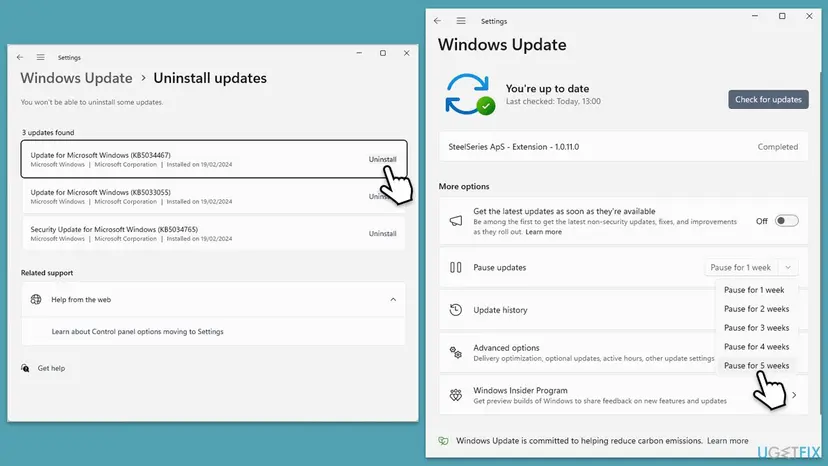
Microsoft points to the Windows release health dashboard for the latest known Start menu issues. Our old guide named three 2024 updates that users blamed; we could not confirm those links, so check the dashboard for your build instead.
It worked if: No new Event ID 1000 for StartMenuExperienceHost.exe after a day of normal use.
If not: If the crash stays after both steps, test another account (Fix 6).
Fix 6. Test Start in a new user account
10 minutesLow riskUpdates and a clean boot did not help, or you suspect only your profile is affected.
Start is registered and run per user, so a damaged profile breaks Start for one account only. A Microsoft support engineer on Microsoft Q&A suggested exactly this test for the crash.
- Create a new local account with administrator rights: Create a new user account to test a problem
- Sign out and sign in to the new account. Wait until the first sign-in finishes.
- Open Start several times and wait at least ten minutes, because some crashes come late.
- Open Event Viewer and check whether a new Event ID 1000 for StartMenuExperienceHost.exe appeared under the new account's time.
If Start works in the new account, the problem is your old profile. Try Fix 7 on it, or move your files to the new account and keep using it. If Start fails in the new account too, the cause is Windows itself and Fix 8 is next.
It worked if: Start works in the new account, which proves the cause is in your old profile.
If not: If it fails in both accounts, go to Fix 8.
Fix 7. Repair the permissions of the User Shell Folders registry key
10 minutesRead the warningStart fails in your account only (Fix 6) and works in a new one.
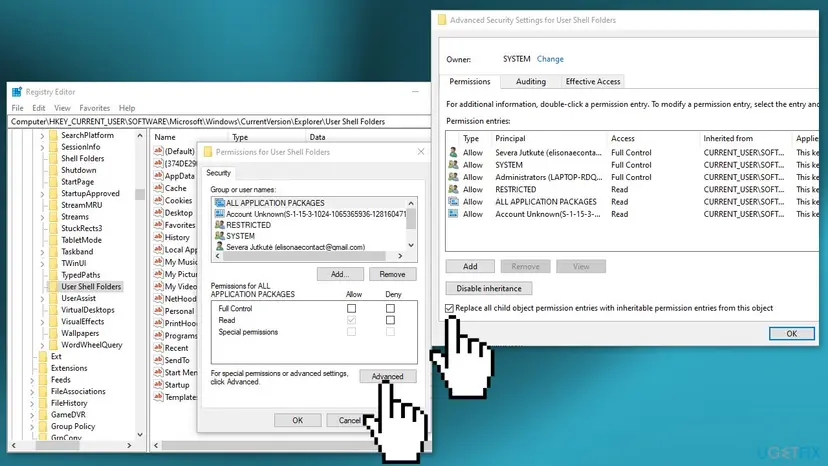
Microsoft's checklist names changed permissions on registry keys as a cause of Start problems. Start reads your folder locations from this key, and restoring inherited permissions undoes a broken permission change.
A wrong permission change can stop other parts of Windows from reading your folders. Export the key before you change it, so you can import it back: Back up the registry before editing it. We could not find this exact fix in Microsoft documentation; it comes from our old guide and touches only your own account's key.
- Press Win + R, type
regeditand press Enter. Select Yes. - Go to this key:
HKEY_CURRENT_USER\Software\Microsoft\Windows\CurrentVersion\Explorer\User Shell Folders - Right-click User Shell Folders, select Export and save the file.
- Right-click User Shell Folders again and select Permissions, then Advanced.
- If you see Enable inheritance, select it.
- Tick Replace all child object permission entries with inheritable permission entries from this object and select OK twice.
- Restart the PC and test Start.
It worked if: Start opens in your own account after the restart.
If not: To undo, double-click the exported .reg file. If Start still fails, keep the new account from Fix 6 or go to Fix 8.
Fix 8. Repair Windows files, restore or do a repair install
20 to 60 minutesRead the warningStart fails in every account, the Start package is missing for every user, or the service checks in Fix 4 failed.
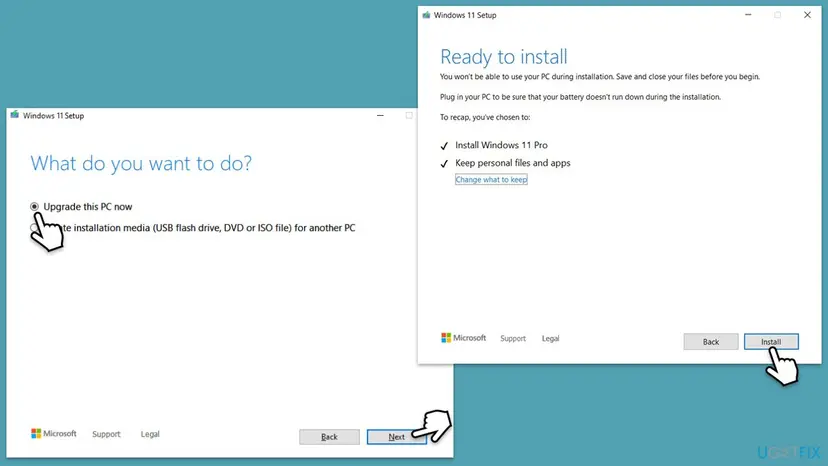
Microsoft states that if StartMenuExperienceHost is not installed for any user, the quickest fix is to return to a known-good state: roll back the update, restore or reset Windows. A repair install replaces every system file, Start included.
A repair install keeps files and apps when you choose to, and System Restore keeps files, but a failed install can still cost data. Copy your documents to an external drive or the cloud first: Back up your files (Windows Backup, File History, Time Machine)
- Repair system files with DISM and SFC and restart: Run DISM and SFC to repair Windows system files
- If a restore point from before the crashes exists, use it: Undo recent changes with System Restore
- If neither helped, run a repair install with the Windows 11 or Windows 10 setup and choose Keep personal files and apps: Reinstall Windows without losing files

It worked if: After the repair, Get-AppxPackage -Name Microsoft.Windows.StartMenuExperienceHost shows the package and Start opens.
If not: Collect the details listed under "Still there" and contact Microsoft support.
Still seeing StartMenuExperienceHost.exe crash: where the details are
- Press Win + R, type
eventvwr.mscand press Enter. - Open Windows Logs > Application, select Filter Current Log and enter
1000,1001. - Open the entries that name StartMenuExperienceHost.exe and note the Faulting module name, the Exception code and the package version.
- Open Applications and Services Logs > Microsoft > Windows > TWinUI > Operational and search for "Package was not found", "Invalid value for registry", "Element not found" or "Package could not be registered".
- Error reports: Microsoft lists
C:\ProgramData\Microsoft\Windows\WER\ReportArchiveandC:\ProgramData\Microsoft\Windows\WER\ReportQueueas the places for crash reports. ProcDump can capture a dump for Microsoft Support. - What to send to Microsoft support or Microsoft Q&A: your build from
winver, the Event ID 1000 text, any TWinUI messages, installed shell tools, and the fixes you tried. - When it is not software: if many programs crash with different modules, test your memory with Windows Memory Diagnostic and check the disk with Check a disk for errors (chkdsk).
How to keep the StartMenuExperienceHost.exe error from coming back
- Install the monthly cumulative update; Microsoft fixes known Start issues there.
- Update or remove Start and taskbar changers before a Windows feature update.
- Keep System Restore on, so you have a restore point from before each update.
- On business PCs, test Start layout files and policies on one machine first, as Microsoft advises.
- Do not delete or replace files in
C:\Windows\SystemApps; no method is supported to install Start files by hand. - Do not run
Remove-AppxPackageon Start; it fails with 0x80073CFA and fixes nothing. - Do not download StartMenuExperienceHost.exe from a DLL or EXE site.
- Do not use registry cleaners or tuning tools that disable services such as BrokerInfrastructure or the pdc driver.
Microsoft also warns that group policies meant for older Windows versions, and policies that restrict access to folders or registry keys, can break Start. If your PC is managed by work or school, ask the administrator before you change anything listed here.
Frequently asked questions
What is StartMenuExperienceHost.exe?
StartMenuExperienceHost.exe is the Windows process that shows the Start menu on Windows 10 version 1903 and later and on Windows 11. It belongs to the system package Microsoft.Windows.StartMenuExperienceHost and lives in C:\Windows\SystemApps\Microsoft.Windows.StartMenuExperienceHost_cw5n1h2txyewy. Each signed-in user has one copy running. People who ask "startmenuexperiencehost.exe que es", "was ist das" or "what is it" are asking about this Microsoft component. It is safe and needed when it runs from that folder.
Is StartMenuExperienceHost.exe a virus?
No, not when it runs from C:\Windows\SystemApps\Microsoft.Windows.StartMenuExperienceHost_cw5n1h2txyewy. To check, open Task Manager, select Details, right-click StartMenuExperienceHost.exe and select Open file location. A file with this name in Downloads, Temp, AppData or another folder is not part of Windows and should be scanned with Microsoft Defender. Its activity showing in your account's activity history is normal too: it is the Start menu that you or Windows opened.
Can I disable StartMenuExperienceHost.exe?
No, not in a supported way, and you would lose the Start menu. If you end it in Task Manager, Windows starts it again at once. Removing it with Remove-AppxPackage fails with error 0x80073CFA, because Windows says the app is part of Windows and cannot be uninstalled per user. Its memory use is small and it does nothing while Start is closed. If it uses CPU or crashes, fix the cause with Fix 1 to Fix 3 instead of trying to turn it off.
Why does StartMenuExperienceHost.exe crash when I am not using Start?
Windows keeps the Start process ready in the background, so it can fail at any time. A Windows 10 22H2 user on Microsoft Q&A measured that it crashed exactly ten minutes after each Start use, with exception 0xc0000409 in ucrtbase.dll, and Windows restarted it at once. Such crashes are often noticed only in Event Viewer. Install the latest update or roll back the one that started it (Fix 5), and remove Start menu changers (Fix 3).
What does exception code 0xc0000409 mean for StartMenuExperienceHost.exe?
0xc0000409 is STATUS_STACK_BUFFER_OVERRUN. In practice it means the process stopped itself on purpose after an internal check failed, so it is a symptom, not a cause. The faulting module name in the same Event ID 1000 entry is the useful part. StartDocked.dll points to the Start menu's own code, often with a shell changer installed (Fix 3). ucrtbase.dll or KERNELBASE.dll point to a broken update or damaged files (Fix 5, Fix 8).
Why is StartMenuExperienceHost.exe not running?
Usually the Start package is not registered for your account, or it crashed and could not start again. Run Get-AppxPackage -Name Microsoft.Windows.StartMenuExperienceHost in a normal PowerShell window. If it returns nothing, register it again with the Add-AppxPackage command in Fix 2. Microsoft also says to check Get-Process StartMenuExperienceHost -IncludeUserName from an administrator window, because every signed-in user should have their own copy. If the process is registered but never runs, check the Background Tasks Infrastructure Service (Fix 4).
What if StartMenuExperienceHost.exe is missing or not found?
First check whether any account still has the package with Get-AppxPackage *StartMenu* -AllUsers in an administrator PowerShell. If it is there, register it for your account (Fix 2). If no user has it, the files are gone or damaged. Microsoft says there is no supported way to install Start files by hand and that you should return to a known-good state: roll back the update, use System Restore, reset the PC or do a repair install (Fix 8). Never download the file from a DLL site.
Does this happen on Windows 11 too?
Yes. StartMenuExperienceHost.exe is the Start process on every Windows 11 version as well. Reports from Windows 11 often name the faulting module StartDocked.dll, as in an ExplorerPatcher report on Windows 11 25H2 build 26200.7171. The same order of fixes applies: restart the process, register the package, remove shell changers, then check updates. The paths in this guide are the same on Windows 11 and Windows 10 22H2. Windows 10 left support on 14 October 2025, so it no longer gets Start fixes.
Is Windows Start Experience Host the same as the Microsoft Start Experiences app?
No. Windows Start Experience Host is the plain name for StartMenuExperienceHost.exe, the Start menu process this guide is about. The Microsoft Start Experiences app is a separate app package for web content such as news. We could not confirm from Microsoft documentation what the second app does on every Windows version, so check Settings > Apps > Installed apps before removing anything. Never try to remove the Start menu package itself.
Sources
- Microsoft Learn: Start menu troubleshooting guidance (package checks, Event IDs 1000 and 1001, TWinUI log, BrokerInfrastructure) (learn.microsoft.com)
- Microsoft Q&A: StartMenuExperienceHost crashes (Event ID 1000 details, 0xc0000409, Remove-AppxPackage error 0x80073CFA) (learn.microsoft.com)
- GitHub, ExplorerPatcher issue 4746: StartMenu not loading in 25H2 (user report, StartDocked.dll crash) (github.com)
Did this fix work?
One click, no account. It tells the next reader which guides are worth their time.
Questions and experiences: fix StartMenuExperienceHost.exe error in Windows
Still broken, or found a fix we did not cover? Ask here: members and our editors answer. Reading is open; writing needs a free account.
…