
How to fix "D3D11-compatible GPU is required" error in Windows when launching games?

Prefer to fix it yourself? The manual steps follow.
- 6methods
- 5 to 30 minutes
- Easy
Applies to Unreal Engine games such as Fortnite, Valorant, Marvel's Midnight Suns, Hogwarts Legacy and Palworld on Windows 11 and Windows 10
6 methods in this guide
Hi, I have a problem with a game. Everything worked fine until about two days ago, when I tried to continue playing Marvel's Midnight Suns and received an error: "A D3D11-compatible GPU (Feature Level 11.0, Shader Model 5.0) is required to run the engine."
"A D3D11-compatible GPU (Feature Level 11.0, Shader Model 5.0) is required to run the engine" comes from Unreal Engine games such as Fortnite and Valorant. The engine asked the graphics adapter for Direct3D 11 and got no answer. Check dxdiag first, then make the game use your real card with its maker's driver.
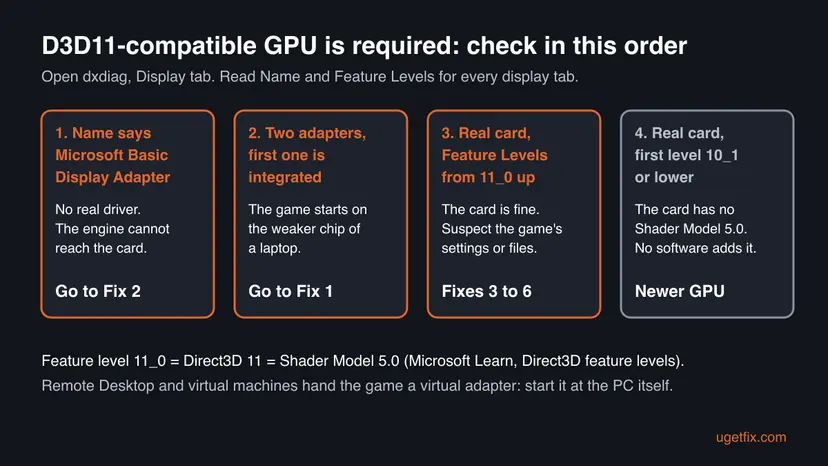
The game's engine could not create a Direct3D 11 device on the graphics adapter it got. Open dxdiag and read Name and Feature Levels on the Display tab. If the name is your real card and the list starts at 11_0 or higher, the card is fine: set the game to High performance (Fix 1) and install the card maker's driver (Fix 2). Below 11_0, only a newer card helps.
| Error | "A D3D11-compatible GPU (Feature Level 11.0, Shader Model 5.0) is required to run the engine." A small box titled Message with one OK button. |
|---|---|
| Where it appears | The moment you start the game, before its window opens. It is shown by the Unreal Engine inside the game, not by Windows or the graphics driver. |
| Main cause | The game starts on an adapter that cannot give it Direct3D 11: the integrated chip of a laptop, a card running on Microsoft Basic Display Adapter, or a card made before DirectX 11. |
| Fastest fix | Set the game to High performance in Windows graphics settings (Fix 1), then install the driver from NVIDIA, AMD or Intel (Fix 2). |
| Also written as | D3D11-compatible GPU is required to run the engine; D3D feature level 11.0 is required; D3D_FEATURE_LEVEL_11_0 is required; a D3D11 error. |
| What 11.0 and 5.0 mean | Microsoft defines feature level 11_0 as the Direct3D 11 feature set, and its shader model is 5.0. Both numbers describe the same hardware check. |
| Affects | Windows 11 and Windows 10 PCs running Unreal Engine 4 and 5 games. Players also report it on mini PCs, over Remote Desktop and in virtual machines. |
| Vendor status | Not a Windows bug and not a missing download. DirectX 11 is part of Windows 10 and 11; the check is about the graphics adapter. |
| Time to fix | 5 minutes for the GPU setting, 10 to 15 minutes for a driver, longer for a Windows update. |
Facts checked on 15 October 2026. Steps written for Windows 11 (25H2 and 26H2) and Windows 10 22H2.
What "A D3D11-compatible GPU (Feature Level 11.0, Shader Model 5.0) is required to run the engine" means
An Unreal Engine game picks a rendering interface when it starts: Direct3D 12, Direct3D 11 or Vulkan. For Direct3D 11 it asks the graphics adapter for a device at feature level 11_0. Microsoft's documentation says that if creating the device works, the hardware has that level, and if it fails, the program can try a lower level or exit.
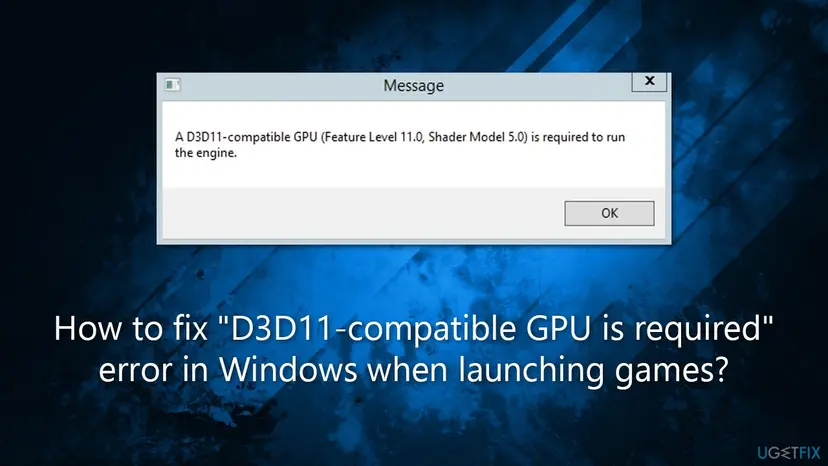
The Unreal Engine does not go lower. It shows the box and closes. So the message does not mean DirectX is missing from Windows. It means the adapter the game was handed could not open a Direct3D 11 device, and that is very often not your real graphics card.
| Part of the message | What it is | What it tells you |
|---|---|---|
| D3D11 | Direct3D 11, the graphics part of DirectX 11 | The engine tried its Direct3D 11 path. |
| Feature Level 11.0 | Microsoft's name for the set of GPU functions of Direct3D 11, written 11_0 in dxdiag | The adapter must list 11_0 or higher in Feature Levels. |
| Shader Model 5.0 | The shader version that comes with feature level 11_0 | Same check. A card at 10_1 has Shader Model 4.x and fails. |
| Required to run the engine | The engine stops instead of trying a lower level | No setting inside the game can get past it. |
Other engines and games word the same check differently. People search for "D3D feature level 11.0 is required", "D3D_FEATURE_LEVEL_11_0 is required" and "A hardware graphics adapter with support for D3D feature level 11.0 is required". The meaning and the fixes are the same.
Every NVIDIA GeForce, AMD Radeon and Intel graphics chip of the last decade reaches feature level 11_0. When such a PC shows this box, the game is talking to the wrong adapter or to a generic driver. Fixes 1 and 2 solve that far more often than any DirectX repair.
Why the D3D11-compatible GPU error appears, most common cause first
The table ranks the causes by how often they come up in player reports, with the fix for each. The first two cover most PCs whose graphics card is newer than about 2010.
| How often | Cause | How to spot it | Fix |
|---|---|---|---|
| Most often | The game starts on the integrated GPU of a laptop instead of the dedicated card | dxdiag lists Intel or AMD integrated graphics first; on a desktop, the monitor cable is in the motherboard | Fix 1 |
| Often | The graphics card has no proper driver after a Windows update, a driver crash or a reinstall | dxdiag or Device Manager shows Microsoft Basic Display Adapter, or the card has a down arrow icon | Fix 2 |
| Sometimes | The game's saved graphics settings point to an interface or adapter that no longer works | It worked before on the same PC and broke after a driver or hardware change | Fix 3, Fix 4 |
| Sometimes | The card really was made before DirectX 11 | Feature Levels in dxdiag starts at 10_1, 10_0 or 9_3 | A newer card |
| Rarely | Windows is missing updates, or game files are damaged | Windows Update shows pending updates, or the error came right after a game patch | Fix 5, Fix 6 |
Users also report the box when they start a game through Remote Desktop, inside a virtual machine or on some mini PCs with a very old integrated chip. Remote sessions and virtual machines give the game a virtual adapter, not the real card. Start the game at the PC itself before you try anything else.
Check whether your GPU supports D3D feature level 11 with dxdiag
The DirectX Diagnostic Tool is built into Windows and answers "what is a D3D11-compatible GPU" for your own PC in one minute. Read Feature Levels, not the DirectX version on the first tab.
- Press Win + R, type
dxdiagand press Enter. If Windows asks whether to check that drivers are digitally signed, select Yes. - Ignore DirectX Version on the System tab. It shows DirectX 12 on every Windows 10 and 11 PC and says nothing about the card.
- Open the Display tab (on some PCs Display 1). Read Name under Device: it must be your real graphics card, not Microsoft Basic Display Adapter.
- Under Drivers, read Feature Levels. The first value is the highest level your card reaches.
- If the first value is 11_0, 11_1 or any 12_x, the card is D3D11-compatible. If it is 10_1 or lower, it is not.
- If there is a Display 2 or Render tab, check it too. On a laptop the dedicated card often sits there.
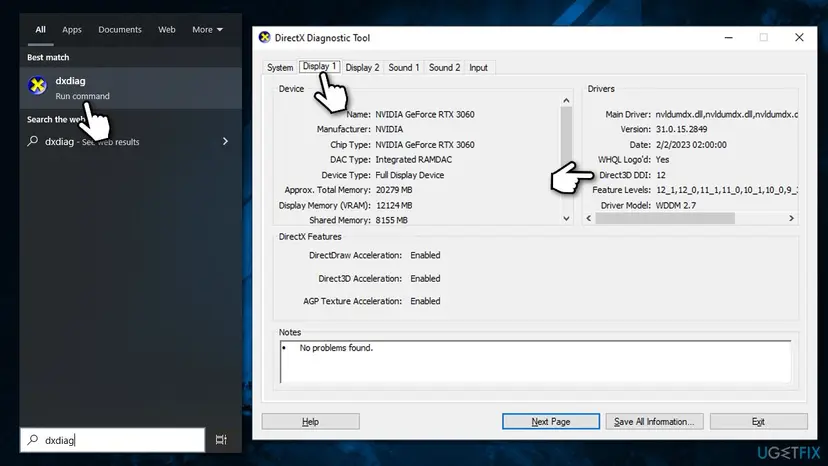
Microsoft's feature level documentation says the DirectX 12 API only goes down to feature level 11_0. So a real card that shows Direct3D DDI 12 reaches at least 11_0 and Shader Model 5.0.
How to fix "A D3D11-compatible GPU is required to run the engine"
Start with Fix 1 on a laptop or any PC with two graphics chips, and with Fix 2 if dxdiag showed Microsoft Basic Display Adapter. Fixes 3 to 6 are for PCs where dxdiag already shows the real card at 11_0 or higher.
| What you see or what your PC has | Start with |
|---|---|
| A laptop, or a desktop with both integrated and dedicated graphics | Fix 1 |
| dxdiag shows Microsoft Basic Display Adapter, or the card is missing or disabled in Device Manager | Fix 2 |
| The NVIDIA warning about known driver issues in D3D11 or D3D12 | Fix 2 |
| It worked before on the same PC, then broke after a driver or hardware change | Fix 3 |
| Real card at 11_0 or higher, Steam or Epic game, still fails | Fix 4 |
| Windows has pending updates, or the error came after a game patch | Fix 5, Fix 6 |
| Feature Levels start at 10_1 or lower | Still broken section: hardware limit |
Fix 1. Make the game run on the dedicated graphics card
5 minutesNo riskLaptops with integrated and dedicated graphics, and desktops whose monitor may be plugged into the motherboard.
Windows picks a GPU per app on PCs with two graphics chips. If the engine starts on an old integrated chip, it can fail the 11_0 check while the dedicated card would pass it easily.
- Close the game and its launcher. Open Settings with Win + I.
- Go to System > Display > Graphics. On Windows 10 it is System > Display > Graphics settings.
- Find the game under Custom options for apps. If it is missing, select Browse next to Add desktop app and choose the game's .exe file.
- Select the game, then Options.
- Under Graphics preference, select High performance. Your dedicated card's name shows next to it.
- Select Save and start the game again.
Many Unreal games start a second .exe from a Binaries\Win64 folder inside the game folder. If the setting does not help, add that .exe as well. With an NVIDIA card, NVIDIA Control Panel > Manage 3D settings > Preferred graphics processor > High-performance NVIDIA processor does the same for all games.
Plug the monitor into the ports on the graphics card, not the ones on the motherboard. The motherboard ports run on the processor's integrated graphics, and a game started there can show this box.
It worked if: The game window opens. In Task Manager, the GPU engine column (right-click the column headers to add it) shows the game on the dedicated card.
If not: If High performance lists the same integrated chip, Windows does not see the dedicated card. Go to Fix 2.
Fix 2. Enable the graphics card and install its maker's driver
10 to 15 minutesLow riskdxdiag shows Microsoft Basic Display Adapter, the card is disabled or missing in Device Manager, the error came after a driver crash, or you see the NVIDIA known issues warning.
Microsoft Basic Display Adapter is the generic driver Windows uses when the card's own driver is missing. The engine cannot reach the card's Direct3D 11 hardware through it, so it reports the GPU as not compatible.
- Right-click Start and select Device Manager.
- Expand Display adapters. If your card has a small down arrow on its icon, right-click it and select Enable device.
- If the list shows only Microsoft Basic Display Adapter, download the current driver from the card maker: NVIDIA, AMD or Intel. For a laptop, the laptop maker's support page has the version tested for that model.
- For a clean start, right-click the card, select Uninstall device, tick Delete the driver software for this device (on some builds Attempt to remove the driver for this device) and select Uninstall.
- Restart the PC and run the driver installer you downloaded.
- Open dxdiag again and confirm that Name shows your card and Feature Levels starts at 11_0 or higher.
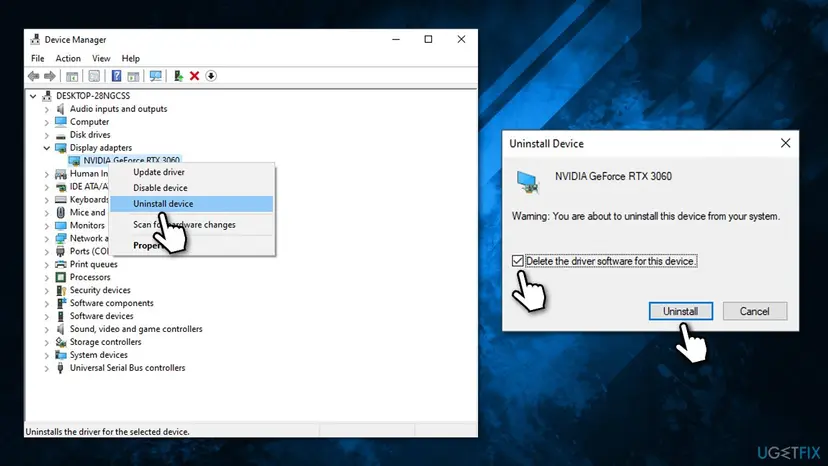
Device Manager can also update or roll back a driver. Step by step: Update, roll back or reinstall a driver.
- Open Device Manager. Right-click Start and select Device Manager.
- Open the device's Driver tab. Expand the category (for example Display adapters), right-click the device, select Properties and open the Driver tab. Driver Date and Driver Version show what is installed now.
- Update the driver. Select Update Driver and let Windows search automatically. To use a driver you downloaded from the device maker, select Browse my computer for drivers instead and point to the unpacked folder.
These steps were written for Windows 11 24H2 and later. The full page with the other versions and what each result means: Update, roll back or reinstall a driver
It worked if: dxdiag shows the real card name with Feature Levels from 11_0 up, and the game starts.
If not: If the driver installer says no compatible hardware was found, the card may be too old for current drivers. Read the still-broken section. Otherwise go to Fix 3.
Fix 3. Reset the game's saved graphics settings (GameUserSettings.ini)
5 minutesLow riskThe game worked on this PC before and broke after a new driver, a new card or a change of graphics mode in the game's menu.
Unreal games save their graphics choices, including the preferred rendering interface, in a file called GameUserSettings.ini. If that file points to something the PC no longer offers, the engine fails at start. Renaming it makes the game create a fresh one.
- Close the game and its launcher completely.
- Press Win + R, type
%LOCALAPPDATA%and press Enter. - Open the folder named after the game, then Saved > Config, then Windows, WindowsClient or WindowsNoEditor. Fortnite, for example, uses the FortniteGame folder.
- Right-click GameUserSettings.ini, select Rename and add
.oldto the end of the name. - Start the game. It writes a new file with default settings.
The game folder and the last folder name are set by each game. We could not confirm them for every title. If you cannot find the file, search for GameUserSettings.ini in File Explorer inside %LOCALAPPDATA%.
It worked if: The game starts with default graphics settings. Your key bindings and saves stay, because they are kept elsewhere.
If not: Rename the .old file back if you want your old settings, and go to Fix 4.
Fix 4. Force DirectX 11 or DirectX 12 with a launch option
3 minutesNo riskdxdiag shows your real card at 11_0 or higher and the game runs from Steam or the Epic Games Launcher.
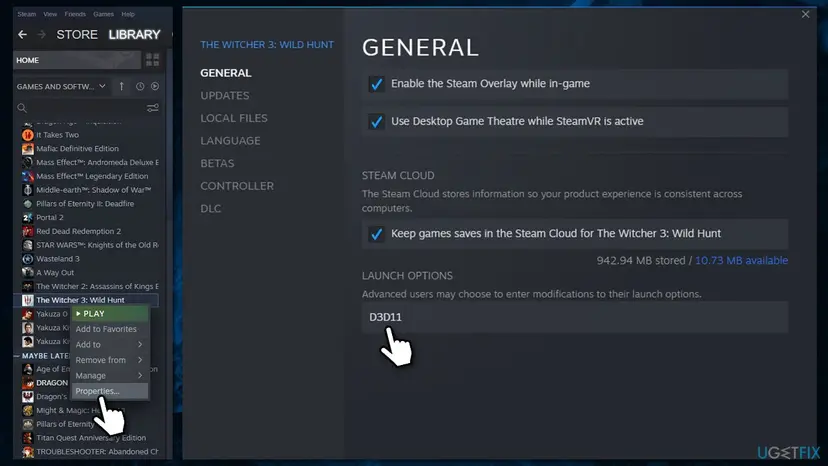
Epic's command-line reference lists dx11 as "Use DX11 for RHI" and dx12 as "Use DX12 for RHI". Users report that forcing the other interface gets past the start check when the automatic choice fails.
- In Steam, right-click the game in Library and select Properties.
- On the General tab, find Launch Options and type
-dx11(with the dash). - Close the window and start the game. If the box comes back, replace
-dx11with-dx12and try once more. - In the Epic Games Launcher, open Settings, expand the game near the bottom and tick Additional Command Line Arguments. Type
-dx11in the field.
If dxdiag shows Feature Levels below 11_0, no launch option helps. Remove the option again when you are done testing, so the game can choose by itself after the next driver update.
It worked if: The game opens. If it opens only with -dx11 or only with -dx12, keep that option.
If not: Clear the launch option and go to Fix 5.
Fix 5. Install all Windows updates
15 to 60 minutesLow riskA fresh Windows install, a PC that was offline for months, or Windows Update showing failed updates.
Direct3D 11 is part of Windows 10 and 11 and is updated through Windows Update. Updates also bring the display driver Windows offers for your card when no maker driver is installed.
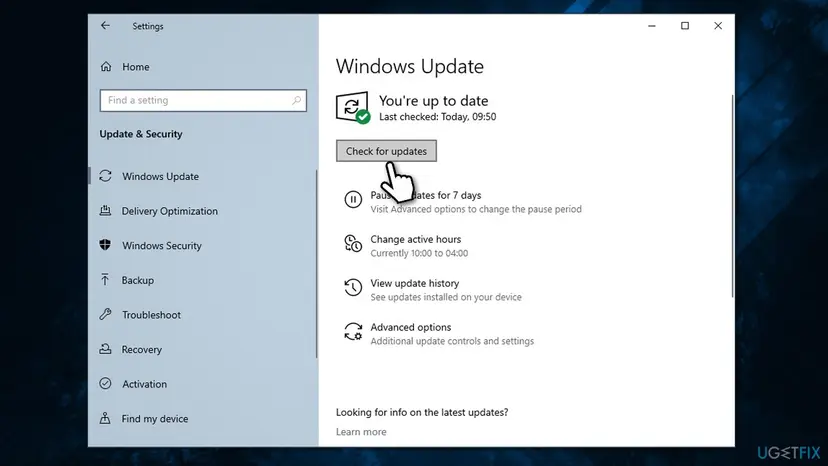
- On Windows 11, open Settings > Windows Update and select Check for updates.
- On Windows 10, open Settings > Update & Security > Windows Update and select Check for updates.
- Install everything offered. Under Advanced options > Optional updates, install any display driver listed for your card.
- Restart the PC and start the game.
Windows 10 reached the end of support on 14 October 2025, and 22H2 is its last version. If Windows Update refuses to install, the manual route is here: Install an update from the Microsoft Update Catalog.
It worked if: Windows Update says you are up to date, and the game opens after the restart.
If not: If Windows is current and dxdiag looks right, check the game's files in Fix 6.
Fix 6. Verify the game's files
5 to 20 minutesNo riskThe game ran before on this PC and the box appeared after a patch, a moved install folder or a crash during an update.
A damaged engine file can make the start check fail even on a good card. The launcher's file check compares every file with the server and downloads what is broken.
Steam, the Epic Games Launcher, the EA app, Ubisoft Connect and the Xbox app all have a file check. Step by step for each launcher: How to verify game files in Steam, Epic Games, Xbox app, EA app, Battle.net and GOG Galaxy.
- Restart and open Steam. Restart your computer and launch Steam.
- Open the game's menu. Right-click the game in your Library, or open the game's Library page and select the gear icon on the far right.
- Open Properties. Select Properties in the menu.
- Verify the files. Select the Installed Files tab and select Verify integrity of game files.
- Wait for the result. Steam checks the game's files. This can take several minutes.
These steps were written for Steam on Windows. The full page with the other versions and what each result means: How to verify game files in Steam, Epic Games, Xbox app, EA app, Battle.net and GOG Galaxy
It worked if: The launcher reports that all files were validated or that it replaced some, and the game starts.
If not: Collect the dxdiag report as described below and send it to the game's support.
Still broken: when the GPU really lacks feature level 11.0
If dxdiag shows your real card with its maker's driver and Feature Levels starts at 10_1, 10_0 or 9_3, the card was built before DirectX 11. Microsoft's table gives feature level 10_1 Shader Model 4.x, and the engine needs 5.0.
- No download adds the features. DirectX 11 is already part of Windows 10 and 11. What is missing is in the chip itself.
- Your options are a newer graphics card, a cloud gaming service that offers the game, or a game with lower requirements.
- Before you buy, compare the game's minimum graphics line on its store page with the new card.
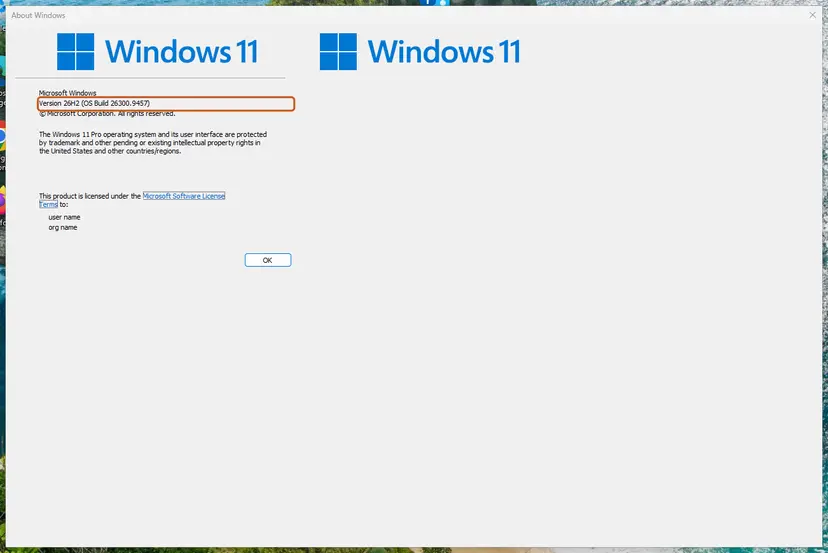
If the card does reach 11_0 and the box still appears, collect evidence for the game's support. In dxdiag select Save All Information and keep the text file. Add your Windows version from winver and say whether you start the game through Remote Desktop, a virtual machine or a streaming tool.
There is no D3D11 download that turns an old card into a compatible one. Sites that offer one are not offering Microsoft's DirectX, and the file can carry unwanted software.
How to avoid the D3D11 error with the next game
Most cases come back after a driver reset or a Windows reinstall. A few habits stop that.
- Install the GPU maker's driver right after every Windows reinstall, before the first game.
- On a laptop, set each new game to High performance in Windows graphics settings.
- Plug the monitor into the graphics card, not the motherboard.
- Compare the store page's graphics line with dxdiag's Name and Feature Levels before you buy.
- Do not trust the DirectX version on dxdiag's System tab as proof that your card is ready.
- Do not install DirectX packages or driver updaters from third-party sites.
- Do not start games through Remote Desktop and expect the real card to be used.
Frequently asked questions
What is a D3D11-compatible GPU?
It is a graphics card or chip that reaches Direct3D feature level 11_0. Microsoft defines that level as the functions of Direct3D 11, with Shader Model 5.0. In dxdiag, open the Display tab and read Feature Levels: if the list starts at 11_0, 11_1 or any 12_x value, the GPU is D3D11-compatible. Almost every NVIDIA, AMD and Intel graphics chip of the last ten years qualifies. Cards built before DirectX 11 stop at 10_1 or lower.
Is there a D3D11-compatible GPU download?
No. Feature level 11.0 is a property of the graphics hardware, not a file you can install. DirectX 11 is already part of Windows 10 and Windows 11 and is updated through Windows Update. What you can install is the card maker's driver, which lets the game reach a card that already supports 11_0 (Fix 2). If dxdiag shows your card below 11_0, only a newer card or a cloud gaming service helps. Avoid sites that offer a D3D11 download.
What does D3D feature level 11 mean?
D3D is short for Direct3D, the 3D graphics part of DirectX. A feature level is a fixed set of GPU functions that Microsoft names after a Direct3D version. Feature level 11_0, also written 11.0 or D3D_FEATURE_LEVEL_11_0, is the Direct3D 11 set and includes Shader Model 5.0. A game that needs it asks the card for a device at that level. If the card cannot give it, the game shows a message such as this one and exits.
Why does the error appear when my GPU is new?
Because the game is not using your new GPU. Laptops start many programs on the integrated chip next to the dedicated card. A missing driver makes even a new card show up as Microsoft Basic Display Adapter. Remote Desktop and virtual machines give the game a virtual adapter. Set the game to High performance (Fix 1), install the maker's driver (Fix 2), and start the game at the PC itself.
Why did the error appear when the game worked two days ago?
Something changed between the PC and the card. The most common changes are a Windows update that replaced the graphics driver, a driver crash that left the card on Microsoft Basic Display Adapter, or a game update that reset which GPU it starts on. Open dxdiag first. If it shows the generic adapter, reinstall the maker's driver (Fix 2). If it shows your card at 11_0 or higher, reset the game's settings file (Fix 3).
What does "The installed version of the NVIDIA graphics driver has known issues in D3D11" mean?
It is a related warning from Unreal Engine games, not the feature level check. The engine looks at your NVIDIA driver version and warns when it is one with known problems. Your card is fine. Download the current driver from NVIDIA, or the version recommended by your laptop maker, and install it (Fix 2). After a restart, the warning should go away. The same warning exists for D3D12.
What does "GPU does not support DirectX 11.0 which is required" mean?
It is the same hardware check in other words. The "11.0" is feature level 11_0, the Direct3D 11 feature set. Read Name and Feature Levels in dxdiag, set the game to High performance on a laptop, and install the card maker's driver. If you see a box that says "Your graphics card does not support DirectX 11 features", our guide Your graphics card does not support DirectX 11 features covers that wording.
What does "This title requires a graphics device compatible with DirectX 11" mean?
It is another wording of the same requirement: the game needs a graphics device at Direct3D feature level 11_0 and did not get one. The fixes are the same as on this page. Check dxdiag, move the game to the dedicated GPU, install the maker's driver and update Windows. If your card starts below 11_0, the game cannot run on it, whatever setting you change.
What does "Could not find compatible Direct3D devices" mean?
That message comes from older games, not from the Unreal Engine check described here, so this page only partly applies. The causes overlap: a disabled card or a generic driver hides the GPU from the game. Check Display adapters in Device Manager and install the maker's driver (Fix 2). Very old games can also need compatibility mode; step by step: How to run a program as administrator or in compatibility mode.
Sources
- Microsoft Learn: Direct3D feature levels (learn.microsoft.com)
- Epic Games Developers: Unreal Engine Command-Line Arguments Reference (dev.epicgames.com)
Did this fix work?
One click, no account. It tells the next reader which guides are worth their time.
Questions and experiences: fix "D3D11-compatible GPU is required" error in Windows when launching games
Still broken, or found a fix we did not cover? Ask here: members and our editors answer. Reading is open; writing needs a free account.
…