
How to fix DDraw.dll missing or not found error in Windows?

Prefer to fix it yourself? The manual steps follow.
- 8methods
- 10 to 40 minutes
- Intermediate
Applies to Windows 11 and Windows 10; older games and programs that draw with DirectDraw
8 methods in this guide
- What the error means
- Causes, ranked
- Do not download the DLL
- The fixes
- 1. Check the game folder copy
- 2. Compatibility troubleshooter
- 3. Repair or reinstall it
- 4. Repair Windows, DISM, SFC
- 5. Scan for malware
- 6. Install all updates
- 7. Install legacy DirectX
- 8. Reinstall Windows, keep files
- Still there: what to check
- Keep it from coming back
- FAQ
Hi, I keep getting a DDraw.dll error whenever I attempt to launch an older game. I am using the latest version of Windows 10. Any advice on how to fix this would be appreciated.
ddraw.dll is DirectDraw, the part of DirectX that older games use to draw 2D graphics, and Windows 10 and 11 ship it themselves. When a game says it is missing, the cause is more often a wrapper or mod copy in the game folder, a damaged install or damaged Windows files than a file that was never there. Check the game folder first, then repair.
Open the game's own folder and look for a ddraw.dll next to the game's .exe file. If one is there and it is not signed by Microsoft, rename it to ddraw.dll.bak and start the game again (Fix 1). If there is none, run the compatibility troubleshooter, repair the game, then repair Windows with DISM and SFC. Do not download ddraw.dll from a DLL site.
| Error | "The code execution cannot proceed because ddraw.dll was not found. Reinstalling the program may fix this problem." Older wording: "The program can't start because ddraw.dll is missing from your computer." |
|---|---|
| Where it appears | In a small System Error window the moment an older game or program starts. The title bar names the program's .exe file. |
| Main cause | A ddraw.dll in the game folder that does not fit the game, damaged files of the game itself, or damaged Windows system files. |
| Fastest fix | Look for a ddraw.dll in the game's own folder and rename it if Microsoft did not sign it (Fix 1), then try the compatibility troubleshooter (Fix 2). |
| Also written as | DDraw.dll, ddraw dll, ddraw, draw.dll, "ddraw.dll not found", "ddraw.dll error". |
| The file | C:\Windows\System32\ddraw.dll (64-bit) and C:\Windows\SysWOW64\ddraw.dll (32-bit). A Windows file, signed by Microsoft. |
| Affects | Windows 11 and Windows 10, mostly older games written for DirectX 7 or earlier. |
| Vendor status | Not a known Windows bug. Microsoft says the DirectX runtime is part of Windows and cannot be installed or uninstalled on its own. |
| Do not | Download ddraw.dll or a ddraw.rar archive, copy the file from another PC, or drop one into System32, SysWOW64 or the game folder by hand. |
| Time to fix | About 10 minutes for the game folder check and the troubleshooter. Up to 40 minutes when DISM and SFC have to repair Windows. |
Facts checked on 16 October 2026. Steps written for Windows 11 (25H2 and 26H2) and Windows 10 22H2.
What ddraw.dll is and what the DDraw.dll missing error means
ddraw.dll holds DirectDraw, the part of Microsoft DirectX that handles 2D graphics: drawing images, switching display modes and basic screen operations. Games and programs written for DirectX 7 or earlier call it when they start. Newer games use other graphics interfaces, so you meet this error mostly with older titles.
- Full name
- DirectDraw, a component of the DirectX programming interface.
- Who installs it
- Windows itself. Microsoft says the DirectX runtime is included in Windows and cannot be installed or uninstalled separately.
- Who uses it
- Older games and programs written for DirectX 7 or earlier, and display wrappers or mod loaders that borrow its name.
- Where it lives
- System32 for 64-bit programs and SysWOW64 for 32-bit programs, on a 64-bit Windows.
When a program reports ddraw.dll missing, Windows found no usable copy in any folder it searched, or the copy it found would not load. Windows looks in the program's own folder before the system folder, so a wrong file next to the game can cause the same window as a missing one. The text of the window tells you which case you have.
| What the window says | What it tells you |
|---|---|
| "The code execution cannot proceed because ddraw.dll was not found. Reinstalling the program may fix this problem." | Windows found no ddraw.dll the program could use. This is the current wording. |
| "The program can't start because ddraw.dll is missing from your computer." | The same error in the wording of older Windows versions and older guides. |
| "ddraw.dll failed to load" or a Bad Image window naming ddraw.dll | A copy was found but would not load. Most often a wrapper or mod loader copy that does not fit the game or Windows. |
| The game opens a black window or closes without a message | Not this error. A compatibility problem with the display. Fix 2 can still help. |
This window shows no number. The hidden status behind "was not found" is STATUS_DLL_NOT_FOUND (0xC0000135), which Windows defines with the same sentence. A Bad Image window carries 0xC000007B instead. Neither code says which folder was searched, so the file name in the window is your best clue.
What causes ddraw.dll to be missing or not found, from most to least common
Windows 10 and 11 carry their own ddraw.dll, so a truly absent file is rare. Most often the game folder holds a copy that does not fit, or the game's own install is damaged. Less often Windows' files are damaged, or malware has replaced the file.
| Cause | How often | How to tell | Fix |
|---|---|---|---|
| A ddraw.dll from a wrapper, mod loader or patch in the game's folder. | Often | The game has mods or a widescreen or compatibility patch. A ddraw.dll sits next to its .exe and is not signed by Microsoft. | Fix 1 |
| An older game that Windows treats as incompatible. | Often | The game ran on an earlier Windows and fails right at start. | Fix 2 |
| Damaged or incomplete files of the game or program. | Sometimes | No extra ddraw.dll in its folder, other old games start. | Fix 3 |
| Damaged Windows system files. | Sometimes | Several programs fail, or System32 has no ddraw.dll. | Fix 4 |
| Malware that damaged or replaced files. | Rarely | Odd behaviour elsewhere, a ddraw.dll with no signature in a system folder. | Fix 5 |
| Missing updates. | Rarely | Windows Update shows pending or optional updates. | Fix 6 |
A fresh copy from a DLL site is not on this list because it is not a fix. The next section explains why.
ddraw.dll download: why a DLL site or a ddraw.rar is the wrong place for this file
Searches for the file lead first to sites that offer single DLLs and to archives such as ddraw.rar. Microsoft does not publish ddraw.dll on its own. It reaches your PC inside Windows, and the DirectX End-User Runtime page says the DirectX runtime is part of the operating system and cannot be installed or uninstalled by that package.
- It lands in the wrong place. A ddraw.dll dropped next to a game is loaded before the genuine file and becomes exactly the kind of wrapper that breaks games.
- Unknown builder. A DLL or archive from a website was taken from somebody's PC or built by somebody else, and it runs inside the game with your rights.
- Wrong build. A 32-bit file for a 64-bit game, or one from another Windows version, turns the missing window into a Bad Image window.
- Copying from another PC has the same flaws. The other PC may run another build of Windows, and a manual copy into System32 skips the checks that Windows itself makes.
- The genuine route is free. DISM and SFC restore the file from Windows' own store, as in Fix 4.
Mod loaders use winmm.dll the same way. Our guide to the winmm.dll missing or not found error explains how Windows picks which copy of a system DLL loads, and how to tell a loader's copy from Windows' own file.
How to fix DDraw.dll missing or not found in Windows
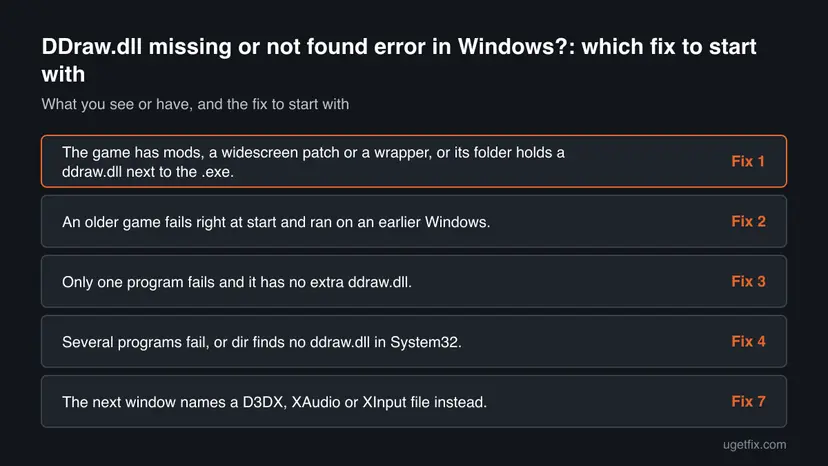
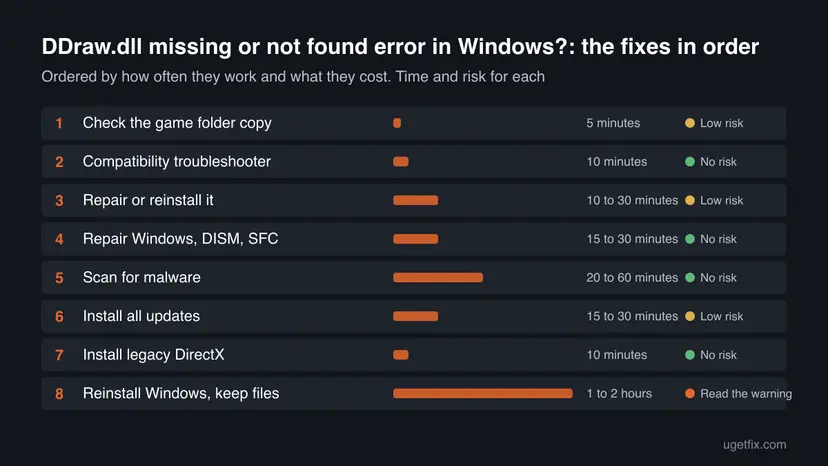
Fix 1 looks at the game folder, which is where the error most often starts. Fix 2 uses Microsoft's compatibility troubleshooter for older games. Fix 3 repairs the game and Fix 4 repairs Windows. Fixes 5 to 8 cover malware, updates, the legacy DirectX runtime and a Windows repair install.
| What you see or have | Start with |
|---|---|
| The game has mods, a widescreen patch or a wrapper, or its folder holds a ddraw.dll next to the .exe. | Fix 1 |
| An older game fails right at start and ran on an earlier Windows. | Fix 2 |
| Only one program fails and it has no extra ddraw.dll. | Fix 3 |
Several programs fail, or dir finds no ddraw.dll in System32. | Fix 4 |
| The next window names a D3DX, XAudio or XInput file instead. | Fix 7 |
Fix 1. Remove or replace the ddraw.dll that a wrapper or mod loader put in the game folder
5 minutesLow riskThe failing game has mods, a widescreen or compatibility patch, or a display wrapper, or you see a ddraw.dll beside its .exe.
Windows loads a DLL from the program's own folder before the system folder. Mod loaders such as Ultimate ASI Loader can be named ddraw.dll, and its project lists the ddraw.dll build for 32-bit games only. A copy of the wrong kind, or a leftover after an update, stops the game.
- Right-click the game's shortcut or its entry in the launcher and open its local files or file location.
- Look for
ddraw.dllin the same folder as the game's.exefile. - Right-click it, select Properties and open Digital Signatures. Windows' own file shows Microsoft Windows as the signer. A wrapper's copy has no such tab or another signer.
- If it is not Microsoft's, rename it to
ddraw.dll.bakinstead of deleting it. The game then loads Windows' own file. - Start the game. If it runs, the extra copy was the cause.
- To keep your mod, download the current build from the mod's own project page and put it back under the name its instructions give.
powershell -command "Get-AuthenticodeSignature 'C:\Windows\System32\ddraw.dll' | Format-List Status,SignerCertificate"The command above shows the signature of Windows' own copy for comparison. Replace the path with the game folder's file to check that one: a status of NotSigned or a signer other than Microsoft means it is not Windows' file.
A ddraw.dll that came with a cracked game or a repack is closed code from an unknown builder. We do not help make such files work. Remove it, reinstall the game from its store, and scan the PC with Microsoft Defender (Fix 5).
It worked if: The game starts after the extra ddraw.dll is renamed, or after the current build of the mod loader replaces it.
If not: If no extra ddraw.dll is there, or renaming it did not help, go on to the compatibility troubleshooter in Fix 2.
Fix 2. Run the Program Compatibility Troubleshooter for the older game
10 minutesNo riskAn older game fails at start, it ran on an earlier Windows, and its folder has no extra ddraw.dll.
Microsoft says apps can stop working after an upgrade because the operating system changed, and its own answer for an app without updates is the Program Compatibility Troubleshooter. DirectDraw games are among the oldest programs Windows still runs.
- Check the game maker's website or the store for a newer version or a patch for Windows 10 and 11. Install it first if there is one.
- On Windows 11 select Start > Settings > System > Troubleshoot > Other troubleshooters. On Windows 10 select Start > Settings > Update & Security > Troubleshoot > Additional troubleshooters.
- Find Program Compatibility Troubleshooter and select Run.
- Pick the game from the list, or browse to its .exe file, then follow the on-screen steps and test the settings it suggests.
- Start the game again and note whether the ddraw.dll window is gone.
For the manual route with the Compatibility tab and administrator rights, use this step by step guide: How to run a program as administrator or in compatibility mode
It worked if: The troubleshooter applies compatibility settings to the game and it starts without the ddraw.dll window.
If not: If the window comes back with every setting, the game's files are the likely cause: repair or reinstall it with Fix 3.
Fix 3. Repair or reinstall the game or program that shows the error
10 to 30 minutesLow riskOne program fails, it has no mods, and other older programs start normally.
The window itself says reinstalling the program may fix the problem. A damaged install can lack its own graphics files or bring a broken copy of ddraw.dll, and a store's file check or a clean install replaces them without touching Windows.
For a game in Steam, the EA app, Ubisoft Connect, the Epic Games Launcher or GOG Galaxy, let the launcher check its files first. Step by step: How to verify game files in Steam, Epic Games, Xbox app, EA app, Battle.net and GOG Galaxy
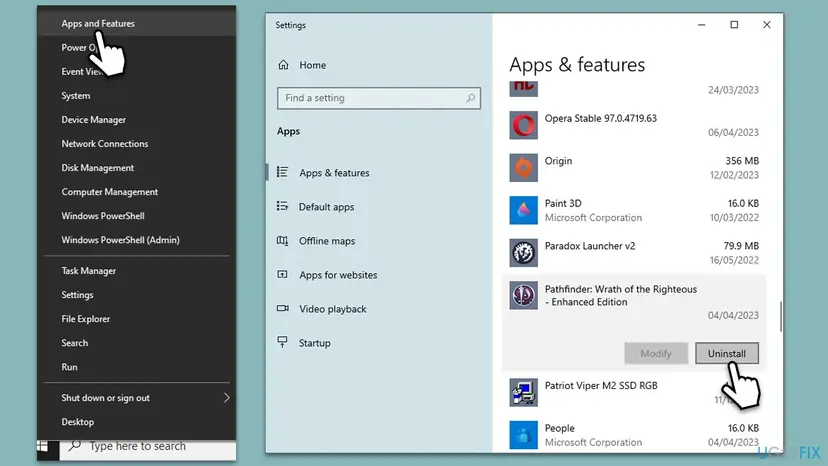
- If the check finds nothing, uninstall the program: Uninstall a program or app in Windows
- Restart the PC.
- Install the current version from its maker or store, not from an old setup file.
- Start it once as a normal user.
It worked if: The launcher reports repaired or verified files, or the fresh install starts without the ddraw.dll window.
If not: If a fresh install shows the same window, Windows' own copy is the likely cause: run Fix 4.
Fix 4. Repair Windows' own ddraw.dll with DISM and SFC
15 to 30 minutesNo riskSeveral programs fail, or System32 has no ddraw.dll.
ddraw.dll is a Windows file, so Windows can rebuild it from its own store. DISM repairs that store, then System File Checker replaces damaged or missing system files.
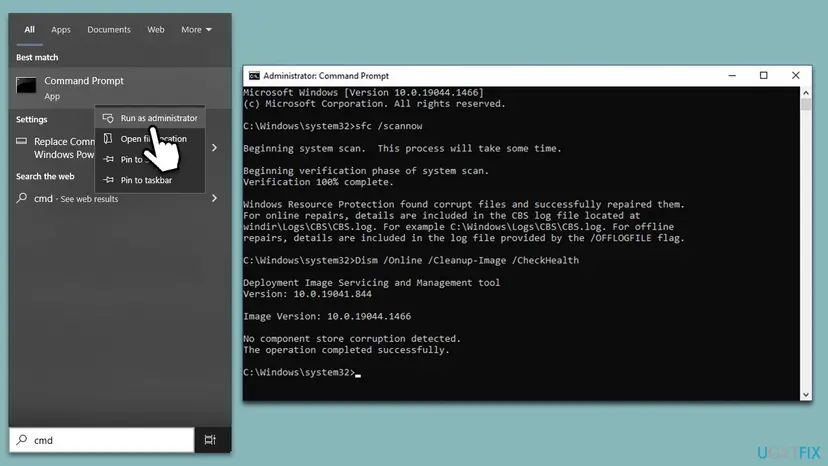
- Open an elevated command window. Right-click Start and select Terminal (Admin), or type cmd in the search box, right-click Command Prompt and select Run as administrator. Select Yes when Windows asks for permission.
- Run DISM first. Type the command below and press Enter. DISM downloads clean copies of damaged components from Windows Update, so it can take several minutes. Wait until it says The operation completed successfully.
DISM.exe /Online /Cleanup-Image /RestoreHealth - Run System File Checker. In the same window, type the command below and press Enter. Do not close the window until the verification reaches 100%.
sfc /scannow - Read the result and restart. Compare the last message with the table below this guide, then restart the PC so that repaired files are loaded.
These steps were written for Windows 11 24H2 and 25H2. The full page with the other versions and what each result means: Run DISM and SFC to repair Windows system files
- After the scan, check that both of Windows' copies are back. Each command should list one ddraw.dll.
dir C:\Windows\System32\ddraw.dll dir C:\Windows\SysWOW64\ddraw.dll - Restart the PC so programs load the repaired file.
- Start the game again.
It worked if: SFC reports no integrity violations or a successful repair, both dir commands list the file, and the game starts.
If not: If dir still finds no file, run DISM again with the internet connected and then SFC, or go on to Fix 8.
Fix 5. Scan for malware with Microsoft Defender
20 to 60 minutesNo riskFiles seem to vanish or change, the game folder holds a ddraw.dll from an unknown source, or the earlier fixes did nothing.
Malicious software can damage or replace DLL files, and an offline scan runs before Windows starts, so it can see files that hide while Windows is running.
- Open Windows Security. Select Start, type Windows Security and open the app.
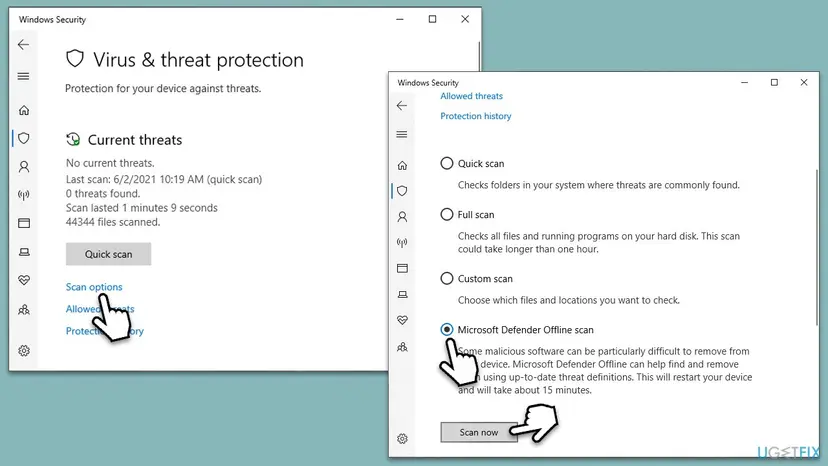
- Open Virus & threat protection. Select Virus & threat protection. Under Current threats you see when the last scan ran, how long it took and how many files it checked.
- Run a quick scan. Select Quick scan. If Windows Security thinks a deeper scan is needed, it tells you when the quick scan is done.
- Open Scan options. If the quick scan finds nothing and you still suspect an infection, select Scan options under Current threats.
- Run a full scan. Select Full scan and start it. It checks every file and program on the device, so it takes much longer than a quick scan. Leave the PC on until it ends.
- Or scan one folder. To check only a download or a USB drive, select Custom scan in Scan options and choose the folder. You can also right-click a file or folder in File Explorer and select Scan with Microsoft Defender. On Windows 11 you may have to select Show more options first.
- Read Protection history. Go back to the first page of Windows Security and select Protection history. Select a card to expand it and see the details.
These steps were written for Windows 11 25H2 and 26H2, Windows 10 22H2. The full page with the other versions and what each result means: How to scan for malware with Microsoft Defender
Microsoft Safety Scanner is a free on-demand tool from Microsoft that you can also use for a second opinion; download it from Microsoft's own site only.
It worked if: The scan finishes with no threats, or it removes what it found, and the game starts after the restart.
If not: If the scan removes threats, rerun SFC from Fix 4, since malware may have damaged system files.
Fix 6. Install Windows updates, optional updates included
15 to 30 minutesLow riskWindows Update shows pending or optional updates, or the error began after an upgrade.
Microsoft says the DirectX runtime comes with Windows and is updated with Windows. Pending updates can bring repaired system files that DISM could not fetch.
- Press Win + I, open Windows Update and select Check for updates.
- Install everything offered. Open Advanced options > Optional updates and install the driver and quality updates listed there.
- Restart the PC when Windows asks.
- Start the game again.
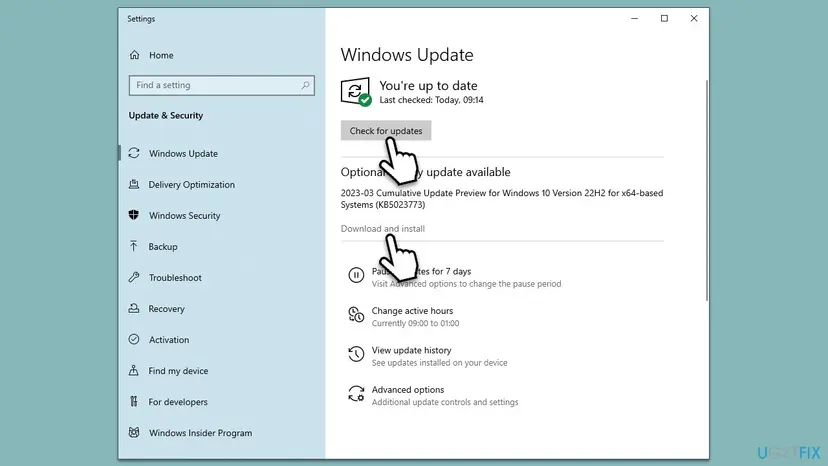
Windows 10 22H2 left support on 14 October 2025. It still gets updates only through Microsoft's Extended Security Updates program, so on an unenrolled PC the list may be short.
It worked if: Windows Update shows that you are up to date and the game starts after the restart.
If not: If the PC is up to date and the window stays, the game or Windows files are the cause: use Fix 3 or Fix 4.
Fix 7. Install the DirectX End-User Runtime when the game names other legacy files
10 minutesNo riskAfter the ddraw.dll window is gone, the game complains about a D3DX, XAudio, XInput or XACT file.
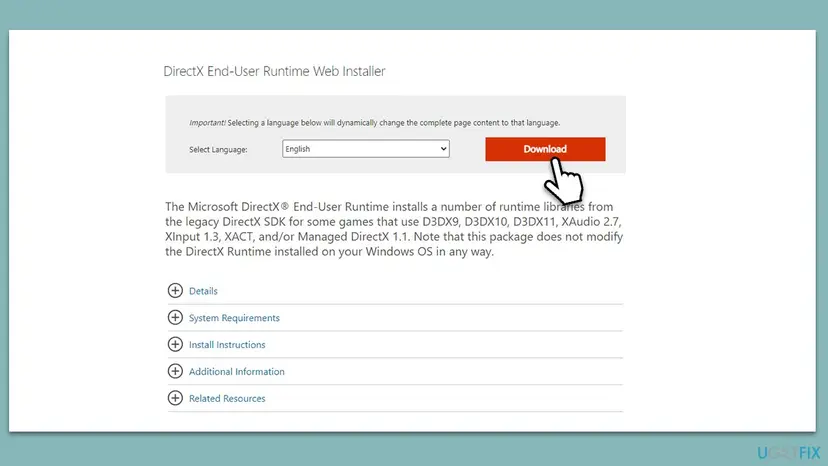
Microsoft says the End-User Runtime installs libraries from the legacy DirectX SDK for games that use D3DX9 to D3DX11, XAudio 2.7, XInput 1.3, XACT or Managed DirectX 1.1. It does not change the DirectX runtime in Windows, so it does not restore ddraw.dll itself.
- Open Microsoft's own download page for the DirectX End-User Runtime Web Installer and select your language.
- Select Download and run dxwebsetup.exe when it finishes.
- Follow the prompts, then Restart the PC if setup asks.
- Start the game again.
It worked if: Setup finishes and games that named a D3DX, XAudio or XInput file start.
If not: If the ddraw.dll window itself is unchanged, this fix was not meant for it: return to Fix 1 to Fix 4.
Fix 8. Reinstall Windows and keep your files when nothing else repairs ddraw.dll
1 to 2 hoursRead the warningFixes 1 to 7 did not help, and DISM and SFC cannot restore Windows' own copy.
A repair install puts a fresh copy of every Windows file in place, ddraw.dll included, while it keeps your files and most apps. It is the last step, after every repair that changes less.
A repair install keeps personal files and apps when you choose to keep them, but something can still go wrong. Copy important files to an external drive or cloud storage before you start: Back up your files (Windows Backup, File History, Time Machine)
- Open Recovery in Settings. Open Settings > System > Recovery. Next to Fix problems using Windows Update, select Reinstall now. This keeps your apps, files and settings.

Fix problems using Windows Update reinstalls the current version and keeps apps, files and settings. Screenshot: Windows 11 26H2. - Start the reinstall. Choose whether the PC may restart on its own 15 minutes after the installation, then select OK.
- Wait and restart. Windows Update downloads and installs a repair copy of your current Windows version. Keep the PC plugged in and online, and restart it when asked.
- If that did not help: Reset PC. Back in Settings > System > Recovery, next to Reset this PC, select Reset PC. This keeps your personal files but removes installed apps and settings.
- Choose Keep my files. Select Keep my files. Do not select Remove everything.
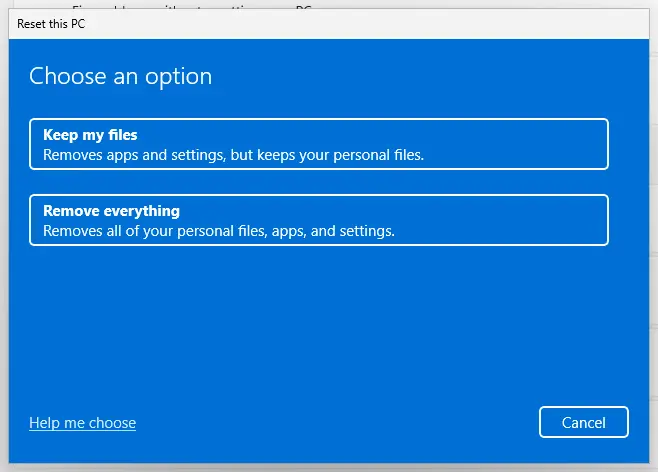
Keep my files removes apps and settings but keeps personal files. Screenshot: Windows 11 26H2. - Choose where Windows comes from. Select Cloud download to download a fresh copy of Windows, or Local reinstall to use the files already on the PC (faster, but may not include the latest updates).
- Reset. Review the summary and select Reset. The PC restarts several times.
These steps were written for Windows 11 22H2 and later. The full page with the other versions and what each result means: Reinstall Windows without losing files
It worked if: Windows starts with your files in place, dir C:\Windows\System32\ddraw.dll lists the file, and the game starts.
If not: If the error survives a repair install, collect the details under "If the DDraw.dll error is still there" and contact the game's support.
If the DDraw.dll error is still there: what to check and what to send
When the window survives the fixes that fit your PC, stop changing things and collect facts. These help the game's support, a forum or a technician find the cause quickly.
- The exact message: the full text of the window and its title bar, which names the program's .exe file.
- Your Windows version: from Settings > System > About, and whether the game is 32-bit or 64-bit.
- The game folder: whether a ddraw.dll, an
.asifile or ascriptsorpluginsfolder sits next to the .exe. - The Windows log: open Event Viewer > Windows Logs > Application and find Application Error entries at the time of the window. The faulting module line names the file that failed.
- What you tried: each fix from this page and its result, such as the SFC message.
If SFC repairs files and they are damaged again days later, check the disk with Check a disk for errors (chkdsk) and the memory with How to test your RAM with Windows Memory Diagnostic. Files that keep breaking point to hardware, not to the game.
How to keep the DDraw.dll error from coming back
- Install mod loaders and wrappers only from their own project pages and update them when the game updates.
- Keep a note of which files a mod adds to the game folder, so you can remove them later.
- Install Windows updates and keep the graphics driver current.
- Keep Microsoft Defender or another real-time protection switched on.
- Do not download ddraw.dll or a ddraw.rar from a DLL site.
- Do not copy DLL files into System32, SysWOW64 or a game folder by hand.
- Do not run cleanup tools that delete DLL files they call unused.
- Do not switch off Windows Security to make a blocked file load.
If you play older games often, keep each one in its own folder and never mix wrapper files between games. A ddraw.dll that suits one game can break another, and a separate folder keeps the damage to one title.
Frequently asked questions
What is ddraw.dll?
ddraw.dll is the DirectDraw library, a Windows file that older games and programs use for 2D graphics such as drawing images and switching display modes. It belongs to the DirectX family of Microsoft interfaces and is mostly used by software written for DirectX 7 or earlier. It ships with Windows in System32 and SysWOW64. The genuine file is signed by Microsoft. A ddraw.dll in a game folder is usually a wrapper or mod loader copy, not Windows' own file.
Where can I download ddraw.dll safely?
Nowhere as a single file, because Microsoft does not publish one. ddraw.dll comes with Windows, and Microsoft says the DirectX runtime cannot be installed or uninstalled on its own. If the file is damaged, DISM and SFC restore it from Windows' own store, as in Fix 4. A copy from a DLL site has an unknown builder, may be the wrong build, and loads before Windows' file when placed next to a game.
Why does a game say ddraw.dll is missing when the file is in System32?
Windows searches the program's own folder before System32. If a wrong or broken ddraw.dll sits next to the game, Windows uses that one and the genuine file is never reached. A 32-bit copy offered to a 64-bit game can also fail. Open the game folder, look for ddraw.dll beside the .exe, and rename it if Microsoft did not sign it, as in Fix 1. If there is none, the problem is the game's compatibility or its install.
What is draw.dll? Is it the same file?
Almost always a typo. There is no standard Windows file called draw.dll, and the file behind the error is ddraw.dll, with two d letters, which stands for DirectDraw. Check the exact spelling in the error window. If it really says draw.dll, the file belongs to a program of its own, so reinstall that program instead of following the DirectX fixes.
Is there an error code for the ddraw.dll error?
The window shows no number. Behind "was not found" is the status STATUS_DLL_NOT_FOUND, 0xC0000135, which Windows defines with the sentence in the window. A Bad Image window carries 0xC000007B instead, meaning a copy was found but it is not valid for this program. The number does not say which folder was searched, so the file name and the game folder are more useful clues.
Does the DirectX End-User Runtime restore ddraw.dll?
No. Microsoft says the package installs libraries from the legacy DirectX SDK for games that use D3DX9 to D3DX11, XAudio 2.7, XInput 1.3, XACT or Managed DirectX 1.1, and does not change the DirectX runtime in Windows. Use it when a game names one of those files, as in Fix 7. For ddraw.dll itself, check the game folder, then repair the game and Windows.
What is a ddraw.rar file and should I open it?
It is an archive that some sites offer in place of the DLL. Do not open it. Its contents are not from Microsoft, you cannot tell what it holds without running it, and a ddraw.dll placed next to a game loads before Windows' own file. If a mod's instructions tell you to extract a ddraw.dll, take the archive from the mod's own project page only.
My game is GTA Vice City and a mod asks for ddraw.dll. Is that normal?
It can be. Mods for older games are often installed with an ASI loader, and the Ultimate ASI Loader project lists ddraw.dll among the names the loader can use, as a 32-bit build only. Follow the mod's own instructions, and use the build that matches the game. If the game fails after the mod, rename its ddraw.dll to ddraw.dll.bak, as in Fix 1, to see if the game starts without it.
Can I fix ddraw.dll by registering it with regsvr32?
None of the Microsoft pages we read tell you to register ddraw.dll, and the loading problem is usually the wrong file in the wrong folder, which registering does not change. If Windows' own file is damaged, DISM and SFC repair it from the component store. Use those first, as in Fix 4, before running commands you cannot undo.
Is ddraw.dll safe, or could it be a virus?
The genuine file in System32 and SysWOW64 is a Microsoft system file and is signed by Microsoft. A ddraw.dll elsewhere is a different file with the same name. Wrappers and mod loaders are normal, but malware can also use a well known file name. Check the Digital Signatures tab, as in Fix 1, and scan with Microsoft Defender, as in Fix 5, if the source of the file is unknown.
Sources
- Microsoft Download Center: DirectX End-User Runtime Web Installer, what the package installs and that the DirectX runtime is part of Windows (microsoft.com)
- Microsoft Support: Make older apps or programs compatible with the latest version of Windows (support.microsoft.com)
- Ultimate ASI Loader README (ddraw.dll among the supported proxy names, 32-bit only) (github.com)
Did this fix work?
One click, no account. It tells the next reader which guides are worth their time.
Questions and experiences: fix DDraw.dll missing or not found error in Windows
Still broken, or found a fix we did not cover? Ask here: members and our editors answer. Reading is open; writing needs a free account.
…