
How to fix winmm.dll missing or not found error in Windows?

Prefer to fix it yourself? The manual steps follow.
- 7methods
- 5 to 30 minutes
- Intermediate
Applies to Windows 11 and Windows 10, 64-bit and 32-bit programs and games that use the Windows Multimedia API
7 methods in this guide
- What the error means
- Where the file belongs
- Causes, ranked
- Do not download the DLL
- The fixes
- 1. Check which copy loads
- 2. Fix the copy next to the game
- 3. Repair the program
- 4. Repair Windows with DISM, SFC
- 5. Blocked or foreign copy
- 6. Error at start-up
- 7. Reinstall Windows, keep files
- Still there: what to check
- Keep it from coming back
- FAQ
I've been experiencing the "winmm.dll missing" error for quite a while now. It all started when I upgraded to Windows 11. Is there something I can do?
winmm.dll is the Windows Multimedia library, a file that ships with Windows itself in System32 and SysWOW64. When a program reports it missing or broken, the culprit is usually a different winmm.dll sitting next to the program, placed there by a mod loader, a game patch or a crack. Check that folder first, then repair Windows' own copy with DISM and SFC.
Read the title and the path in the error window. If it points to a game or program folder, that folder holds its own winmm.dll: check it (Fix 1) and remove it or reinstall the mod loader that put it there (Fix 2). If several programs fail, repair Windows' copy with DISM and SFC (Fix 4). Never download winmm.dll from a DLL site: Windows is its only genuine source.
| Error | "The code execution cannot proceed because WINMM.dll was not found", or a Bad Image window: "WINMM.dll is either not designed to run on Windows or it contains an error". |
|---|---|
| Where it appears | In a small window the moment a program or game starts. The title bar names the program, the text names the file and often its full path. |
| Main cause | A winmm.dll in the program's own folder that is not Windows' file: a mod loader, a game patch or a crack. Less often, Windows' own copy is damaged. |
| Fastest fix | Check the winmm.dll next to the program (Fix 1), then remove it or reinstall its mod loader (Fix 2). |
| Also written as | WINMM.dll, winmm dll, winmm.dl, winm.dll, winmmm.dll, winnmm.dll, wimm.dll, ..\winmm.dll in a shortened path. |
| The file | C:\Windows\System32\winmm.dll (64-bit) and C:\Windows\SysWOW64\winmm.dll (32-bit). A Windows component, signed by Microsoft. |
| Affects | Windows 11 and Windows 10. Microsoft's API pages list winmm.dll for functions supported since Windows 2000. |
| Microsoft's status | Not a known Windows bug. Microsoft publishes no separate download of the file: it comes only with Windows and its updates. |
| Do not | Download winmm.dll from a DLL site, copy it into System32, or run regsvr32 on it. |
| Time to fix | About 5 minutes for a stray copy next to a game. Up to 30 minutes when DISM and SFC have to repair Windows. |
Facts checked on 14 October 2026. Steps written for Windows 11 (25H2 and 26H2) and Windows 10 22H2.
What winmm.dll is and what the winmm.dll error means
winmm.dll is the library behind the Windows Multimedia API, one of the oldest parts of Windows. Programs call it to play a system sound, read a joystick, talk to MIDI devices, play wave audio and run precise timers. Microsoft's reference pages for these functions, for example timeBeginPeriod, name Winmm.dll as the DLL and Winmm.lib as the library a developer links against.
- Full name
- Windows Multimedia library. In NirSoft's report of the Windows 10 System32 folder its description reads "MCI API DLL", company Microsoft Corporation.
- What it does
- Exports about 190 functions, such as
PlaySound,timeGetTime,timeBeginPeriod,waveOutOpen,midiOutOpen,joyGetPosExandmciSendString. - Who installs it
- Windows itself. There is no Microsoft redistributable package for it, unlike Visual C++ runtime files.
- Who uses it
- Games, music and audio apps, emulators, old multimedia programs, and parts of Windows. NirSoft's report counts 42 other files in System32 that link to it.
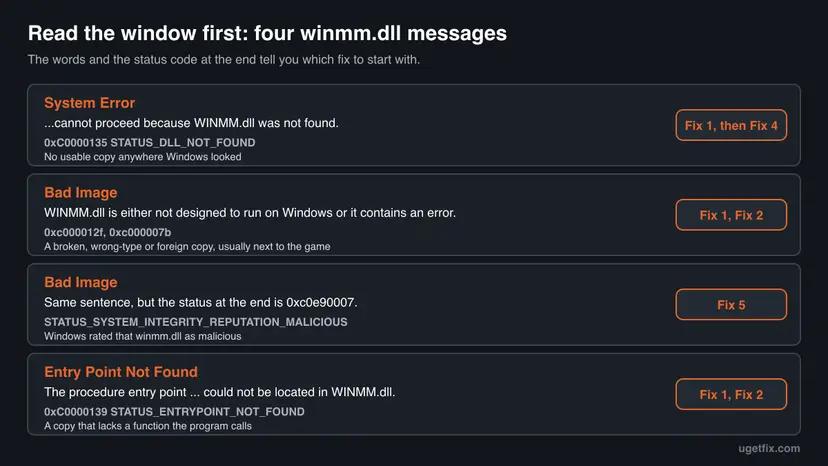
Because the file is part of Windows, it is almost never really missing. The error usually means that a program found the wrong winmm.dll, or that Windows refused to load the one it found. The words of the window and the status code at its end tell you which case you have.
| What the window says | Status and Microsoft's name | What it tells you |
|---|---|---|
| "The code execution cannot proceed because WINMM.dll was not found. Reinstalling the program may fix this problem." | 0xC0000135 STATUS_DLL_NOT_FOUND | Windows found no usable winmm.dll in any folder it searched. Rare for a file that ships with Windows. |
| "WINMM.dll is either not designed to run on Windows or it contains an error." (title Bad Image) | 0xC000007B STATUS_INVALID_IMAGE_FORMAT, or 0xC000012F STATUS_INVALID_IMAGE_NOT_MZ | The file it found is damaged, of the wrong type (32-bit for a 64-bit game or the reverse) or not a real program file. |
The same Bad Image sentence, ending in 0xc0e90007 | STATUS_SYSTEM_INTEGRITY_REPUTATION_MALICIOUS in Microsoft's Windows SDK metadata | Windows' reputation check rated that winmm.dll as malicious and blocked it. |
| "The procedure entry point (name) could not be located in the dynamic link library WINMM.dll." | 0xC0000139 STATUS_ENTRYPOINT_NOT_FOUND | The copy that loaded lacks a function the program calls: typical of a proxy or an old copy. |
- Same file, other spellings: WINMM.dll, winmm dll, winmm.dl, winm.dll, winmmm.dll, winmmdll, winnmm.dll and wimm.dll in searches all mean this one file. Windows does not care about upper or lower case.
- A shortened path: the window may show
..\winmm.dllor.. winmm.dll. Windows cut the start of a long path. The full path tells you which folder holds the file: a game folder or a Windows folder. - Older wording: "The program can't start because winmm.dll is missing from your computer" is the same
STATUS_DLL_NOT_FOUNDcase in the wording of older Windows versions. - In another language: the Spanish window says "winmm.dll no está diseñado para ejecutarse en Windows o contiene un error". It is the Bad Image message above.
- Not a Windows message: "winmm.dll is not patched" comes from the program itself, not from Windows. See the FAQ.
Where winmm.dll belongs: System32, SysWOW64 and why a game folder copy wins
A 64-bit Windows keeps two copies of winmm.dll. The 64-bit one is in C:\Windows\System32, the 32-bit one in C:\Windows\SysWOW64. The names are confusing on purpose: Microsoft's file system redirector silently sends a 32-bit program that asks for System32 to SysWOW64, so each program gets the copy that matches it.
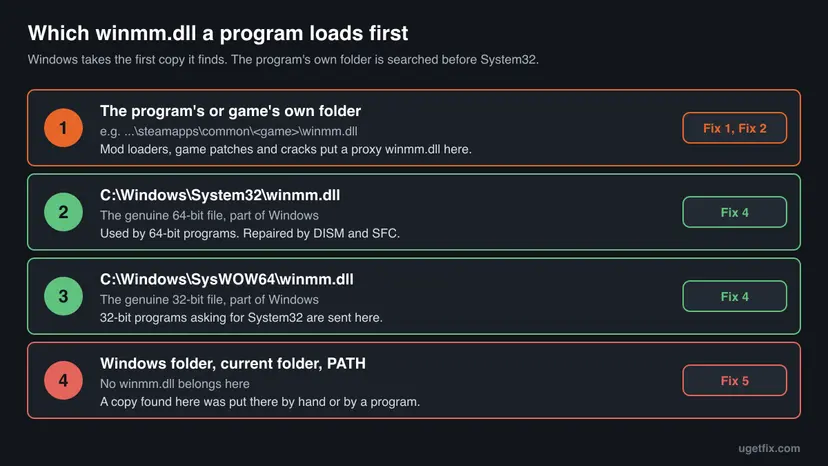
Microsoft's page on the DLL search order lists the folder the program was loaded from before the system folder. Only DLLs on the Known DLLs list skip that search and always come from Windows. Mod loaders rely on winmm.dll not being on that list: a file with this name placed next to a game is loaded instead of Windows' own, then passes the real calls on to it. Such a file is called a proxy DLL.
| Project | What its documentation says | Games named by users |
|---|---|---|
| Ultimate ASI Loader | A proxy DLL that loads .asi plugins. Its README lists winmm.dll among the supported names, in a 32-bit and a 64-bit build. | Many older and newer PC games with ASI mods |
| GDWeave | "You should end up with a GDWeave folder and winmm.dll next to the game files." The project is archived and no longer maintained. | WEBFISHING, through Thunderstore and r2modman |
| Shin Ryu Mod Manager | A user in Valve's Proton tracker reports that it needs both dinput8 and winmm to load. | Like a Dragon Gaiden, Judgment (user report) |
| Cracks and unofficial online patches | No documentation. A notices file on GitHub describes an Online-Fix winmm.dll as a closed-source runtime loader. | Users report the file in Resident Evil 4 repacks and Online-Fix packages |
Microsoft says the list for the running Windows is in the registry. Open Command Prompt and run reg query "HKLM\SYSTEM\CurrentControlSet\Control\Session Manager\KnownDLLs". If winmm.dll is not among the values, a copy in a program's folder is loaded before the one in System32. That is the whole reason this error is so often about one game and not about Windows.
Security researchers know the same behaviour from the other side. The HijackLibs project lists winmm.dll as a DLL that several Windows programs, and once Zoom, load from their own folder. Its expected locations are only %SYSTEM32% and %SYSWOW64%, and its detection rule treats every winmm.dll loaded from elsewhere, or not signed by Microsoft Windows, as worth a look.
What causes the winmm.dll missing or not found error, from most to least common
Most often a winmm.dll next to the program is broken, the wrong build, blocked or left behind by a mod loader after an update. Less often Windows' own copy or the files it depends on are damaged, and then several programs or Windows itself fail. Rarely somebody copied a winmm.dll from a DLL site into a Windows folder.
| Cause | How often | How to tell | Fix |
|---|---|---|---|
| A proxy winmm.dll from a mod loader or patch no longer fits the game, for example after a game update. | Most often | One game fails. Its folder holds a winmm.dll that is not signed by Microsoft. | Fix 1, then Fix 2 |
| Antivirus or Smart App Control blocked or removed that proxy. | Often | Bad Image with 0xc0e90007, or a Windows Security alert naming the game folder. | Fix 5 |
| The program's own files are incomplete or damaged. | Sometimes | No extra winmm.dll in its folder, Windows' copy is fine, other programs start. | Fix 3 |
| Windows' own winmm.dll, or a file it depends on, is damaged. | Sometimes | Several programs fail, or a Windows part such as a settings app shows the box. | Fix 4 |
| A winmm.dll from a DLL site was copied into System32, SysWOW64 or the Windows folder. | Rarely | The box changed after you copied a file, or a copy fails the signature check. | Fix 5, then Fix 4 |
| Windows itself is damaged so badly that the error appears at sign-in. | Rarely | The box appears before the desktop is usable, or Windows does not finish starting. | Fix 6, Fix 7 |
Three tips keep being repeated. Updating audio drivers does not bring back a library file: winmm.dll is part of Windows, not of a driver package. Registering it with regsvr32 cannot work, because that tool calls a registration function that winmm.dll does not export. And replacing the file in System32 with a downloaded copy trades a known problem for an unknown file inside every program that plays a sound.
The reader's question at the top of this page, an error that began with the upgrade to Windows 11, fits the first row well. An upgrade keeps installed programs and their folders. A mod loader or an old patch that worked on Windows 10 can stop loading on the new build, or be newly blocked by its security checks, while Windows' own winmm.dll is perfectly fine.
winmm.dll download: why a DLL site is the wrong place for a Windows file
Searching for the file leads first to sites that offer single DLLs. For winmm.dll that route is wrong for a simpler reason than for most DLLs: Microsoft never publishes this file on its own. It reaches your PC only inside Windows and its updates, so any downloadable winmm.dll was taken from somebody's Windows, or built by somebody else.
- It does not replace anything. Windows' copy in System32 is protected and repaired by Windows itself. A downloaded file there is either refused or replaced again by the next repair or update.
- It gets loaded in the wrong place. Dropped next to a game, a downloaded winmm.dll becomes exactly the kind of proxy that causes this error, and it is loaded before the genuine file.
- Unknown builder. Microsoft's guidance on the DLL search order warns that a planted copy in a searched folder runs with the program's rights. HijackLibs lists winmm.dll as a DLL abused this way.
- Wrong build. A site may hand you a 32-bit file for a 64-bit game or a file from another Windows version. The result is the Bad Image window with
0xc000007b. - Not like Visual C++ files. Runtime files such as vcruntime140_1.dll come from a Microsoft redistributable you can install. winmm.dll has no such package; its only repair is DISM and SFC.
If the window names vcruntime140.dll, vcruntime140_1.dll or msvcp140.dll, the cure is different: Microsoft's Visual C++ Redistributable. Our guide to the VCRUNTIME140_1.dll was not found error covers that family step by step. Some mod loaders, GDWeave among them, need that runtime too.
How to fix the winmm.dll missing or not found error
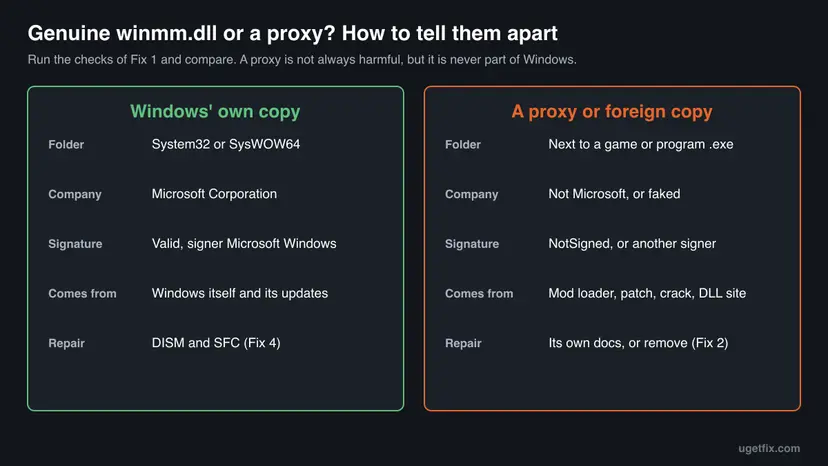
Fix 1 shows which winmm.dll the program really loads, and Fix 2 deals with a copy next to a game or program, the most common case. Fix 3 repairs the program itself. Fix 4 repairs Windows' own copy, and Fix 5 handles a file that Windows blocked or that was copied in by hand. Fixes 6 and 7 are for a Windows that is damaged beyond a file repair.
| What you see or have | Start with |
|---|---|
| The window's title names a game or one program, and its path points into that program's folder. | Fix 1, then Fix 2 |
| You installed mods, a mod manager such as r2modman or Thunderstore, an ASI loader or a game patch. | Fix 2 |
| Only one program fails, and its folder has no winmm.dll of its own. | Fix 3 |
| Several programs fail, or the window comes from a part of Windows. | Fix 4 |
Bad Image ending in 0xc0e90007, a Windows Security alert, or you once copied winmm.dll from a website. | Fix 5 |
| The window appears at start-up and Windows does not reach a usable desktop. | Fix 6 |
| DISM and SFC cannot repair the file, and System Restore did not help. | Fix 7 |
Fix 1. Find out which winmm.dll the program loads and whose it is
5 minutesNo riskEvery reader, before changing anything: it takes five minutes and decides the next fix.
Windows takes the first winmm.dll it finds, and the program's folder is searched before System32. Whether that first copy is Windows' own file or somebody else's decides whether you repair Windows, the program or a mod. The commands below only read and change nothing.
- Before you close the error window, note its title (the program) and the full path in its text. Take a photo of the screen if the path is long.
- Open the program's folder. In Steam, right-click the game and select Manage > Browse local files. For other programs, right-click the shortcut and select Open file location.
- Look for
winmm.dllnext to the program's .exe file. Switch on View > Show > File name extensions in File Explorer so you see the full name. - Open Command Prompt and confirm that Windows' own copies are present. Each command should list one winmm.dll.
dir C:\Windows\System32\winmm.dll dir C:\Windows\SysWOW64\winmm.dll - Open Windows PowerShell and check the signature of Windows' copy. Status should be
Validand the signer should name Microsoft Windows.Get-AuthenticodeSignature C:\Windows\System32\winmm.dll | Format-List Status, SignerCertificate - Run the same check on the copy in the program's folder. Replace the path with the real one.
Get-AuthenticodeSignature "C:\Games\GameName\winmm.dll" | Format-List Status, SignerCertificate - Read who made that copy. A proxy usually shows an empty company field or the name of a mod project.
(Get-Item "C:\Games\GameName\winmm.dll").VersionInfo | Format-List FileDescription, CompanyName, FileVersion
| What you find | What it means | Next |
|---|---|---|
A winmm.dll next to the program, NotSigned or another signer | A proxy or a copy from a DLL site. It is loaded before Windows' file. | Fix 2, or Fix 5 for a file you did not put there on purpose |
No winmm.dll next to the program, Windows' copies present and Valid | Windows' file is fine. The program is the problem. | Fix 3 |
A copy in System32 or SysWOW64 is missing or not Valid | Windows' own file is damaged or was replaced. | Fix 4 |
The path in the window points to C:\Windows itself or a folder in PATH | A copy that does not belong there. | Fix 5 |
Microsoft does not document the exact signer name shown for winmm.dll. The HijackLibs detection rule expects CN=Microsoft Windows, O=Microsoft Corporation, and Windows system files are normally signed through a catalog rather than inside the file. A Valid status with a Microsoft signer is what counts.
It worked if: You know whether the program loads Windows' own winmm.dll or a copy from its own folder, and which fix comes next.
If not: If PowerShell refuses to run or the path is unclear, go straight to Fix 2 when you use mods, and to Fix 4 otherwise.
Fix 2. Remove the winmm.dll next to the game, or reinstall the mod loader that put it there
5 to 10 minutesLow riskFix 1 found a winmm.dll in the program's or game's folder that is not signed by Microsoft.
A proxy winmm.dll is loaded instead of Windows' file. If it is broken, built for another version of the game or the wrong bitness, the game fails before it starts. Taking it out lets Windows' own copy load again, and reinstalling it from its project restores a working proxy.
- Close the game and its launcher, including the icon near the clock.
- In the game's folder, rename
winmm.dlltowinmm.dll.old. Renaming keeps the file in case you need it back. - If a mod manager installed it, also turn off or uninstall the mod loader there, so it does not copy the file back at the next start.
- Start the game without mods. If it now starts, the proxy was the cause.
- To keep using mods, download the mod loader again from its official release page, not from a mirror, and install it exactly as its README says.
- Make sure the build matches the game: a 64-bit game needs the 64-bit build of the loader, a 32-bit game the 32-bit one.
- Start the game again. If the box returns with the new loader, check the loader's issue tracker for the game's latest update.
| Loader | Where its winmm.dll belongs | Notes from its own pages |
|---|---|---|
| Ultimate ASI Loader | In the game folder, next to the .exe. It usually works as dinput8.dll and can be renamed to another supported name such as winmm.dll. | Separate Win32 and x64 builds. Setting DebugLog=1 in global.ini writes a log next to the loader. |
| GDWeave (WEBFISHING) | Next to the game files, with a GDWeave folder. | Archived and no longer maintained. May need .NET 8 and the Visual C++ 2015-2022 x64 runtime. |
| Any other loader | Only where its README says. | If the project does not document winmm.dll, do not assume it needs one. |
Verifying a game's files puts back game files that are missing or changed: How to verify game files in Steam, Epic Games, Xbox app, EA app, Battle.net and GOG Galaxy. We could not confirm from Valve's pages that the check also removes an extra file such as a proxy winmm.dll. Rename or move that file yourself first.
- Thunderstore and r2modman. A Reddit thread about WEBFISHING reports that starting the game through the mod manager adds the file again. Start the game from Steam to test it without mods.
- Proton and Steam Deck. GDWeave's README says Linux users need the launch option
WINEDLLOVERRIDES="winmm=n,b" %command%. That is not a Windows fix: on Windows the file in the game folder loads by itself. - A file you did not put there. If nobody installed mods on this PC, do not just rename the file. Treat it as unknown and follow Fix 5.
It worked if: The game starts without the box, either without mods or with a fresh, matching build of its loader.
If not: If the game fails even with no winmm.dll in its folder, repair the game itself with Fix 3.
Fix 3. Repair or reinstall the program or game that shows the error
10 to 30 minutesLow riskFix 1 found no extra winmm.dll in the program's folder, Windows' copy is fine, and only one program fails.
When Windows' winmm.dll is intact and nothing stands in front of it, the program's own files are damaged or incomplete. A program can also keep a winmm.dll in a subfolder or load one from a path it sets itself. A repair or a clean installation puts back what its installer meant to be there.
| The program came from | What to do |
|---|---|
| Steam, Epic Games, the EA app, Battle.net, GOG or the Xbox app | Verify or repair the game files in the launcher: How to verify game files in Steam, Epic Games, Xbox app, EA app, Battle.net and GOG Galaxy |
| The Microsoft Store | Use Repair, then Reset, in the app's advanced options: How to repair or reset an app in Windows |
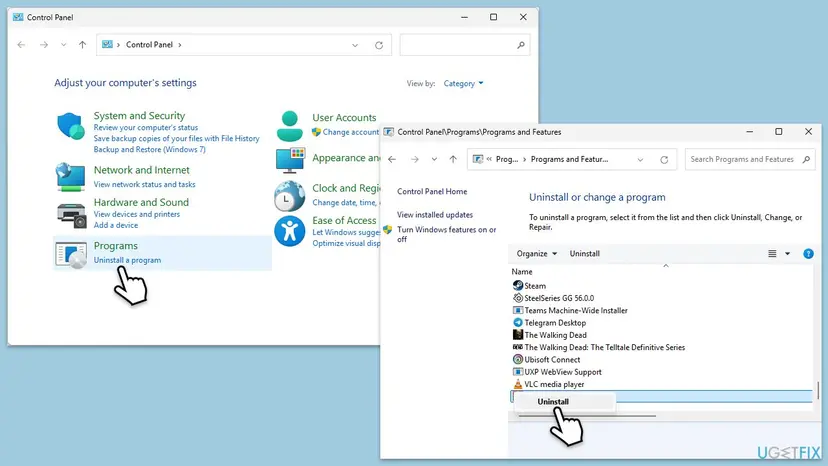
| A setup file from the vendor's website | Uninstall it, restart, and install the current version from the vendor: Uninstall a program or app in Windows |
- Close the program completely.
- Repair or verify it by the route in the table.
- If that does not help, uninstall it and restart the PC.
- Download the current version from the vendor or the launcher and install it.
- Start the program before you add any mods, plugins or patches again.
A launcher's file check keeps saves. A full uninstall may not, depending on the game. If you are unsure where the saves are, copy the game's data folder first: Back up your files (Windows Backup, File History, Time Machine)
It worked if: The program starts, and its folder holds only the files its own installer placed there.
If not: If the box comes back in a fresh installation, or other programs start failing too, repair Windows' copy with Fix 4.
Fix 4. Repair Windows' own winmm.dll with DISM and SFC
15 to 30 minutesNo riskSeveral programs show the box, a part of Windows does, or Fix 1 found Windows' copy missing or not Valid.
winmm.dll is a protected Windows file, so Windows can rebuild it. DISM repairs the component store that holds the clean copies, then System File Checker compares every protected file with that store and replaces damaged ones, in System32 and SysWOW64 alike.
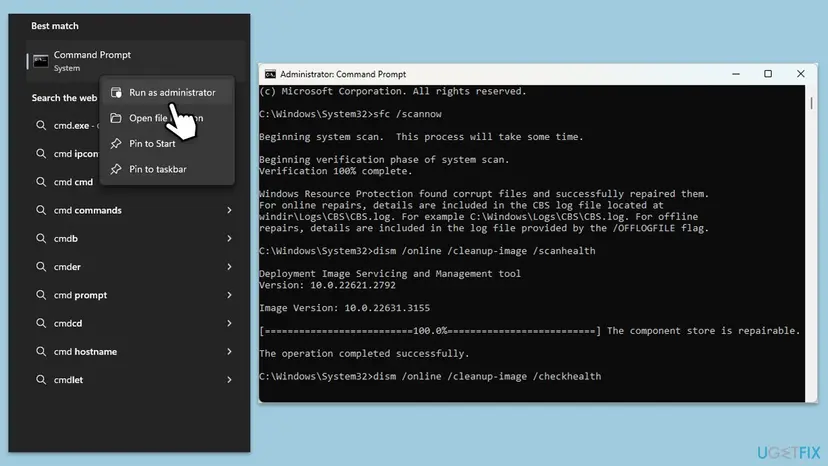
- Open an elevated command window. Right-click Start and select Terminal (Admin), or type cmd in the search box, right-click Command Prompt and select Run as administrator. Select Yes when Windows asks for permission.
- Run DISM first. Type the command below and press Enter. DISM downloads clean copies of damaged components from Windows Update, so it can take several minutes. Wait until it says The operation completed successfully.
DISM.exe /Online /Cleanup-Image /RestoreHealth - Run System File Checker. In the same window, type the command below and press Enter. Do not close the window until the verification reaches 100%.
sfc /scannow - Read the result and restart. Compare the last message with the table below this guide, then restart the PC so that repaired files are loaded.
These steps were written for Windows 11 24H2 and 25H2. The full page with the other versions and what each result means: Run DISM and SFC to repair Windows system files
- After the scan, write the SFC entries of the log to a text file on the desktop. This is Microsoft's own command.
findstr /c:"[SR]" %windir%\Logs\CBS\CBS.log >"%userprofile%\Desktop\sfcdetails.txt" - Open
sfcdetails.txtand search forwinmm. A line with Repairing or Repaired shows that SFC replaced the file. - Restart the PC so programs load the repaired file.
- Run the
dirandGet-AuthenticodeSignaturechecks from Fix 1 again on both Windows copies.
| Message | Next |
|---|---|
| Windows Resource Protection did not find any integrity violations. | Windows' winmm.dll is intact. The cause is in the program's folder: Fix 1 to Fix 3. |
| Windows Resource Protection found corrupt files and successfully repaired them. | Restart and test the program. |
| Windows Resource Protection found corrupt files but was unable to fix some of them. | Run DISM again with Windows Update reachable, then SFC once more. If winmm.dll stays on the list, go to Fix 7. |
| Windows Resource Protection could not perform the requested operation. | Microsoft says to run the scan in safe mode: Start Windows or a Mac in Safe Mode |
Microsoft's SFC article describes taking ownership of a system file and copying in a good copy, but only from another PC with the same Windows version, after SFC failed. A file from a DLL site is never such a copy. If SFC cannot repair winmm.dll, use Fix 7 instead.
It worked if: SFC reports no violations or a successful repair, and both copies of winmm.dll are present and Valid after the restart.
If not: If SFC repaired the file and the box returns after a while, something replaces it: check for a stray copy and a block with Fix 5.
Fix 5. Deal with a winmm.dll that Windows blocked or that was copied in by hand
15 to 60 minutesLow riskThe Bad Image window ends in 0xc0e90007, Windows Security warned about a winmm.dll, or a copy came from a website.
Status 0xc0e90007 means Windows' reputation check judged the file malicious, and a copy from a DLL site has no known builder. In both cases the right answer is to remove that file and check the PC, not to get the file past the check.
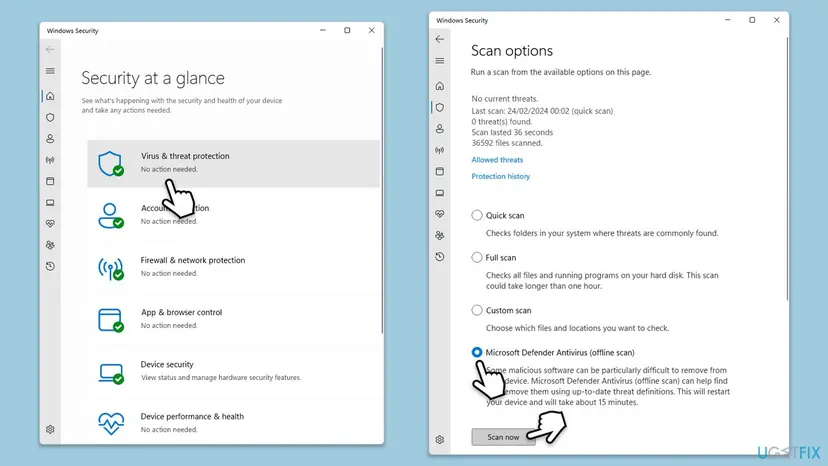
- Open Windows Security > Virus & threat protection > Protection history and read the card that names winmm.dll: the detection name and the full path.
- If the path is in a game folder and you did not install that loader yourself, let Windows Security remove the file.
- If you put a winmm.dll into System32, SysWOW64 or
C:\Windowsby hand, run DISM and SFC as in Fix 4. They put Windows' genuine file back. - Run a full scan, and an offline scan if you got files from a crack or a DLL site: How to scan for malware with Microsoft Defender
- Restart and run the checks from Fix 1 again.
- Repair or reinstall the game from its launcher, as in Fix 3, so its folder is clean.
- 0xc0e90007 in a pirated game. Users report this exact window for Resident Evil 4 repacks, where the crack is a winmm.dll. We do not help to run cracked software. Windows blocked a file it rates as malicious, and the safe end is to remove it.
- A mod loader flagged by Defender. Users of GDWeave report Microsoft Defender detections of its winmm.dll, which they consider false positives. Whether to allow a detected file is your decision. Do it only for a file from the project's official release, and never for a file from an unknown source.
- Smart App Control. On Windows 11 it blocks files it does not trust, and Microsoft says there is no way to allow one app past it. Our guide to Bad Image error 0xc0e90002 explains these policies and their logs.
Turning off real-time protection or Smart App Control to load a winmm.dll that Windows rated as malicious puts the whole PC at risk, because this file runs inside every program that loads it. If a scan needs a pause of protection for a test, turn it back on right after: Turn off Microsoft Defender protection for a moment
It worked if: Protection history shows the file removed, the full scan finds nothing, and Fix 1 shows only Windows' signed copies.
If not: If the scan keeps finding new files, or Windows' own copies fail the check after SFC, go to Fix 6 or Fix 7.
Fix 6. Repair Windows from the recovery environment when the error appears at start-up
20 to 45 minutesRead the warningThe winmm.dll box appears while Windows starts, and you cannot reach a working desktop.
If Windows itself cannot load its multimedia library, parts of the desktop fail before you can run any tool. The recovery environment runs outside the damaged Windows, so Startup Repair, an offline SFC scan and System Restore can still reach the files.
System Restore keeps your documents, photos and other personal files. It removes programs, drivers and updates installed after the restore point you pick. Use Scan for affected programs to see the list before you confirm. If your files are not backed up and the PC still starts in some form, copy them first: Back up your files (Windows Backup, File History, Time Machine)
- Open the recovery environment. If you reach the sign-in screen, hold Shift and select Power > Restart. Otherwise, interrupt the start of Windows twice, and it opens by itself.
- Select Troubleshoot > Advanced options > Startup Repair: Run Startup Repair
- If that does not help, open Command Prompt from Advanced options and run SFC offline against the Windows drive, as shown in the recovery tab of Run DISM and SFC to repair Windows system files
- If the error is still there, go back to Advanced options and select System Restore. Pick a restore point from before the error began: Undo recent changes with System Restore
- Restart and check whether Windows reaches the desktop without the box.
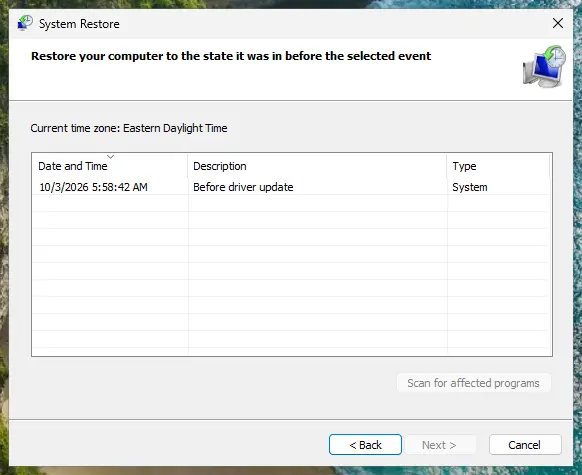
A user on the Tom's Hardware forum reports this case after a freeze: RadeonSettings.exe complained about winmm.dll at every start on a PC with no AMD hardware, and Windows did not finish loading. The answer marked as the solution pointed to the recovery environment and System Restore, which is the order above.
It worked if: Windows starts to a working desktop, and the checks from Fix 1 show both copies of winmm.dll present and Valid.
If not: If no restore point helps, reinstall Windows over itself with Fix 7.
Fix 7. Reinstall Windows and keep your files when nothing else repairs winmm.dll
1 to 2 hoursRead the warningSFC cannot repair winmm.dll, the box appears in many programs, and System Restore did not help.
winmm.dll comes only with Windows, so a fresh copy of Windows is the last genuine source of the file. A repair installation replaces every system file while keeping your personal files, which is what a damaged component store needs.
Fix problems using Windows Update keeps your files, apps and settings. Reset this PC with Keep my files keeps personal files but removes installed apps and settings. Copy your important files to another drive or to the cloud first: Back up your files (Windows Backup, File History, Time Machine)
- Back up your personal files.
- On Windows 11, open Settings > System > Recovery and select Reinstall now next to Fix problems using Windows Update.
- Keep the PC plugged in and online until it restarts and finishes.
- If the box is still there, use Reset this PC with Keep my files in the same Recovery page.
- After Windows is back, install the programs you need and test them before you add any mods. Full steps with pictures: Reinstall Windows without losing files

Windows 10 has no Fix problems using Windows Update button, so Reset this PC in Settings > Update & Security > Recovery is the route there. Windows 10 left support on 14 October 2025, so a reset is also a good moment to consider the move to Windows 11 if the PC qualifies.
It worked if: After the reinstall, the checks from Fix 1 show both copies of winmm.dll Valid, and programs start without the box.
If not: If even a fresh Windows shows the box at once, test the disk and memory, as described under "If the winmm.dll error is still there".
If the winmm.dll error is still there: what to check and what to send
When the box survives the fixes that fit your case, stop changing things and collect facts. Four places hold them: the window itself, the program's folder, the SFC log and the Windows logs.
- Write down the full text of the window, its title and the status code at the end.
- List every winmm.dll in the program's folder and its subfolders. Replace the path with the real one.
dir /s /b "C:\Games\GameName\winmm.dll" - Keep
sfcdetails.txtfrom Fix 4 and note whether it mentions winmm. - Open Event Viewer, go to Windows Logs > Application, and look for Application Error entries at the time of the box. The entry names the faulting module and its path.
- For blocks, open Applications and Services Logs > Microsoft > Windows > CodeIntegrity > Operational. Entries there name the file and the policy that refused it.
- What to send to a mod project: the game version, the loader version and build (32-bit or 64-bit), the status code, and the loader's own log if it writes one. Ultimate ASI Loader writes one with
DebugLog=1. - What to send to a game or program vendor: the window text, your Windows version, the result of the
dircommand and a statement that the folder holds no extra winmm.dll. - When it is the program, not your PC: Windows' copies are Valid, other programs that use sound start, and the same program fails on a second PC. Then the vendor has to fix it.
- When it is not this error any more: a window that names a different DLL, such as
winmmbase.dllor a Visual C++ file, is a new problem with its own cause.
A library that SFC repairs and that is damaged again after some days, without any mod or cleanup tool involved, points at the disk or the memory. Check the drive with Check a disk for errors (chkdsk) and the memory with How to test your RAM with Windows Memory Diagnostic before you reinstall Windows a second time.
How to keep the winmm.dll error from coming back
- Install mod loaders only from their official release pages, in the build that matches the game.
- Update or remove a mod loader before or right after a game update, when proxies stop fitting most often.
- Keep a note of which games have a winmm.dll, dinput8.dll or similar file you added.
- Install Windows updates. They service Windows' own winmm.dll.
- Keep restore points switched on for the Windows drive, so Fix 6 has something to restore.
- Do not download winmm.dll or any other Windows file from a DLL site.
- Do not copy files into System32, SysWOW64 or the Windows folder by hand.
- Do not switch off Smart App Control or real-time protection to make a blocked winmm.dll load.
- Do not run cleanup tools that delete DLL files they call orphaned.
- Do not follow advice to run
regsvr32 winmm.dll; it cannot register this file.
The reason behind most of these rules is the search order from the start of this page. Any winmm.dll in a program's folder is loaded before Windows' file, so that folder is where problems begin. Keep it to the files the program and the mod projects you trust put there, and Windows' own copy takes care of itself.
Frequently asked questions
What is winmm.dll?
winmm.dll is the Windows Multimedia library, a system file that ships with Windows. It lives in C:\Windows\System32 for 64-bit programs and in C:\Windows\SysWOW64 for 32-bit programs. Programs call it to play sounds with PlaySound, run precise timers with timeBeginPeriod and timeGetTime, play wave audio, use MIDI devices and read joysticks. Microsoft's reference pages for these functions name Winmm.dll as the DLL. It is not part of any single program and not a driver, so a missing or broken winmm.dll is repaired by Windows' own tools, DISM and SFC, or by removing a wrong copy from a program's folder.
Is winmm.dll a virus, and is it safe?
The genuine file is safe and should never be deleted: it is part of Windows and signed by Microsoft. Copies with the same name are another matter. Mod loaders, game patches and cracks place a winmm.dll next to a game so that it loads first, and malware uses the same trick. Check a copy with Get-AuthenticodeSignature as shown in Fix 1. The copies in System32 and SysWOW64 should be Valid with a Microsoft signer. A copy elsewhere that is unsigned is not Windows' file. If Windows Security or the status 0xc0e90007 flags it, follow Fix 5.
Where can I download winmm.dll safely?
Nowhere as a single file, because Microsoft does not publish one. winmm.dll comes only with Windows and its updates. If Windows' copy is missing or damaged, run DISM and then SFC as in Fix 4: they restore the genuine file from Windows' component store or from Windows Update. If that fails, a repair reinstall of Windows that keeps your files brings it back, as in Fix 7. A winmm.dll from a DLL site has an unknown builder and an unknown version, and placed next to a game it becomes the very kind of file that causes this error.
Why does my mod manager or Thunderstore add a winmm.dll to the game folder?
Because the mod loader is a proxy DLL. Windows loads a winmm.dll from the game's folder before its own copy, so a loader with that name starts inside the game and then passes the normal multimedia calls on to Windows. GDWeave, the mod loader for WEBFISHING, says in its README that you should end up with a GDWeave folder and winmm.dll next to the game files. Ultimate ASI Loader can use the same name. That file is expected while you use mods. If the game fails after an update, remove it or install the loader's current build, as in Fix 2.
What is the winmm.dll online fix?
Online-Fix is the name of unofficial patches that let pirated copies of games play online. Users report that these packages place a winmm.dll and an OnlineFix64.dll in the game folder, and a notices file on GitHub describes that winmm.dll as a closed-source loader. We do not give help to run cracked software. What matters for your PC is that such a winmm.dll is not Microsoft's file, is often flagged by antivirus, and is loaded inside the game with your rights. Remove it, scan the PC as in Fix 5 and use a legitimate copy of the game.
What does winmm.dll no está diseñado para ejecutarse en Windows mean?
It is the Spanish text of the Bad Image window: winmm.dll is either not designed to run on Windows or it contains an error. Microsoft's list of status codes gives this message for STATUS_INVALID_IMAGE_FORMAT, 0xC000007B. It means the winmm.dll that loaded is damaged or of the wrong type, for example a 32-bit file for a 64-bit game. Read the path in the window. If it points into a game folder, the copy there is the problem: Fix 1 and Fix 2. If it points into System32 or SysWOW64, repair Windows with Fix 4. This page is in English, but the steps are the same in every language.
Can I fix winmm.dll errors with regsvr32?
No. Microsoft's reference describes regsvr32 as a tool that registers DLL files as components in the registry, and it works by calling a registration function inside the DLL. The file winmm.dll does not export such a function, and the list of its exports in NirSoft's report shows none. Windows finds winmm.dll by searching folders, not through the registry, so there is nothing to register. The earlier version of this guide listed regsvr32 as a fix, and so do many answers online. Use Fix 1 to find the copy that really loads, and Fix 4 to repair Windows' own file.
What is winmm.lib, and do I need to download it?
winmm.lib is not something a user ever needs. It is the import library that a developer links a program against when the program calls Windows Multimedia functions. Microsoft's reference pages list Winmm.lib as the library and Winmm.dll as the DLL for functions such as timeBeginPeriod. The library comes with the Windows SDK and Visual Studio. When a program runs, only winmm.dll matters, and that file is already part of Windows. Developers who see an Unable to load DLL winmm error in their own code should check the file name: one Microsoft Q&A case was a typo, winmm.d11 with ones instead of Ls.
What does winmm.dll is not patched mean?
That message does not come from Windows. A user on Microsoft Q&A reported it from a piano app with pre-rendered audio, which asked to patch winmm.dll for the best results. Such a message is the app's own check, usually for a timer or audio change it expects in winmm.dll. Do not patch or replace Windows' file to satisfy it. Read the app's documentation or ask its developer what the message wants. The answers in that thread suggested reinstalling the app and running DISM and SFC, which keeps Windows' file intact. Replacing the file in System32, as one answer there suggested, is not advisable.
Sources
- Microsoft Learn: timeBeginPeriod function (Library Winmm.lib, DLL Winmm.dll) (learn.microsoft.com)
- Microsoft Learn: Dynamic-link library search order (Known DLLs, application folder before system folder) (learn.microsoft.com)
- Microsoft Learn: [MS-ERREF] NTSTATUS values (0xC0000135, 0xC000007B, 0xC000012F, 0xC0000139) (learn.microsoft.com)
Did this fix work?
One click, no account. It tells the next reader which guides are worth their time.
Questions and experiences: fix winmm.dll missing or not found error in Windows
Still broken, or found a fix we did not cover? Ask here: members and our editors answer. Reading is open; writing needs a free account.
…