
How to fix "DllRegisterServer failed with error code 0x80070715" error in Windows?

Prefer to fix it yourself? The manual steps follow.
- 7methods
- 1 minute to 2 hours
- Easy
Applies to Windows 11 and Windows 10: the RegSvr32 window "The module was loaded but the call to DllRegisterServer failed with error code 0x80070715", and the related codes 0x80070005, 0x8002801C and 0x80070716
7 methods in this guide
How do I fix the "DllRegisterServer failed with error code 0x80070715" error? I was trying to access Windows Defender when I got this error.
DllRegisterServer failed with error code 0x80070715 is a RegSvr32 message: the DLL loaded, but its own registration code could not find a resource it needs inside the file. It usually appears when an old repair list runs regsvr32 on Windows files such as swprv.dll. Close it, then test the feature you were really fixing.
Code 0x80070715 is Windows error 1813, ERROR_RESOURCE_TYPE_NOT_FOUND: regsvr32 loaded the file, but the file's registration code did not find a resource it looked for. With swprv.dll or vss_ps.dll from an old shadow copy repair list, close the message and test restore points or Windows Security (Fix 1). For code 0x80070005, run the command as administrator (Fix 2). For real damage, run DISM and SFC (Fix 6).
| Error | RegSvr32: "The module "swprv.dll" was loaded but the call to DllRegisterServer failed with error code 0x80070715." The file name changes with the DLL you register. |
|---|---|
| Where it appears | In a RegSvr32 window, right after regsvr32 <file>.dll runs from a Command Prompt, a script, a repair tool or a program's setup. |
| Main cause | Error 1813 (0x715): "The specified resource type cannot be found in the image file." The DLL's own registration code looked for a resource that is not in the file. |
| Fastest fix | If the DLL is a Windows file from an old Volume Shadow Copy repair list, close the message and test the feature (Fix 1). Do not download DLLs. |
| Also written as | 0x80070715, 800715, error 1813, ERROR_RESOURCE_TYPE_NOT_FOUND, call to DllRegisterServer failed, DllRegisterServer failed with error code |
| Close relatives | 0x80070005 (access denied, needs an administrator window), 0x8002801C (registry access for type libraries), 0x80070716 (error 1814, resource name not found) |
| Affects | Windows 11, Windows 10 and older. Windows 10 left support on 14 October 2025. |
| Vendor status | Not a known Windows bug. Microsoft documents 0x80070005 as a missing administrator right; 0x80070715 is a generic Win32 resource error with no dedicated Microsoft article. |
| Time to fix | 1 minute to close and test. 10 minutes for services or the Windows Security reset. 20 to 30 minutes for DISM and SFC. 1 to 2 hours for a repair install. |
Facts checked on 16 October 2026. Steps written for Windows 11 (25H2 and 26H2) and Windows 10 22H2.
What "DllRegisterServer failed with error code 0x80070715" means
The window title is RegSvr32, the Windows tool that registers DLL files as components in the registry. Microsoft's command reference says that, without the /n switch, regsvr32 calls a function inside the file named DllRegisterServer. That function is written by whoever made the DLL, and it writes the file's registry entries.
The full text of the RegSvr32 window (example with swprv.dll)
The module "swprv.dll" was loaded but the call to DllRegisterServer failed with error code 0x80070715.

For more information about this problem, search online using the error code as a search term.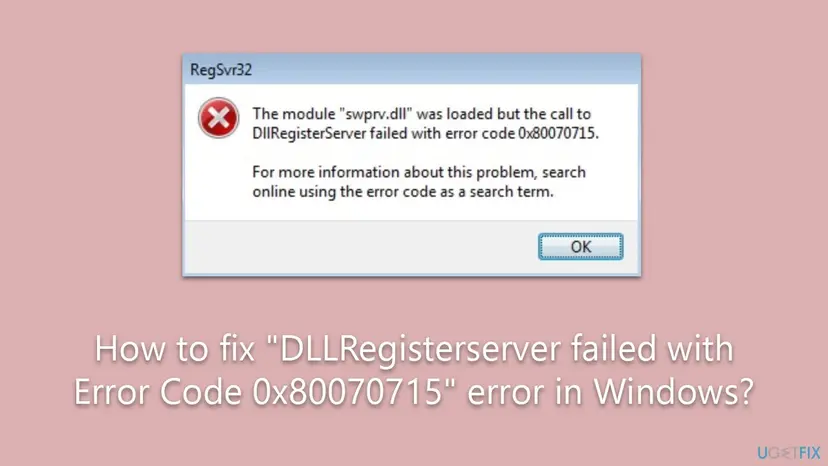
- "Was loaded" means the file exists and Windows could open it as a DLL. It is not missing.
- "The call to DllRegisterServer failed" means the registration code inside the file ran and returned an error.
- 0x80070715 is a Windows error wrapped in an HRESULT. The last four digits, 0x715, are error 1813, which Microsoft lists as ERROR_RESOURCE_TYPE_NOT_FOUND. Its text: "The specified resource type cannot be found in the image file."
- In plain words: the DLL looked inside itself for a block of data of a certain type, such as the data it uses to write its registry entries, and that block was not there.
- 0x80070715
- Error 1813, ERROR_RESOURCE_TYPE_NOT_FOUND: the resource type is not in the file
- 0x80070716
- Error 1814, ERROR_RESOURCE_NAME_NOT_FOUND: "The specified resource name cannot be found in the image file"
- 0x80070005
- Access denied: Microsoft says the account had no administrator rights to write to the registry or System32
- Entry point not found
- A different message: the file has no DllRegisterServer at all and cannot be registered
Why regsvr32 shows error 0x80070715, ranked
Most often the command itself is the problem: someone ran a list of regsvr32 lines meant for older Windows. Shadow copy repair lists from the Windows XP and Server 2003 era include swprv.dll, vss_ps.dll and ole32.dll, and the older version of this page did too. Less often the file is from another program or another Windows build, or it is damaged.
| Cause | How often | How to tell | Fix |
|---|---|---|---|
| An old repair list registers Windows DLLs that today's Windows does not register this way. | Most often | You typed or pasted a block of regsvr32 lines. The named file is in C:\Windows\System32. | Fix 1 |
| The window was not elevated, so registry writes were refused. | Often, with 0x80070005 or 0x8002801C | The title bar of the Command Prompt does not start with Administrator. | Fix 2 |
| The real problem is a shadow copy service that is Disabled. | Sometimes | Creating a restore point or a backup fails with its own error. | Fix 3 |
| The real problem is the Windows Security app. | Sometimes | Windows Security does not open, opens blank or closes at once. | Fix 4 |
| The DLL or OCX belongs to another program, and the copy is wrong for your system or incomplete. | Sometimes | The file is in the program's own folder, not in System32. | Fix 5 |
| A Windows file was replaced or damaged. | Rarely | SFC reports repairs, or several Windows features fail. | Fix 6, Fix 7 |
Error 0x80070715 does not mean the file is missing: the message says it was loaded. A copy from a DLL download site can be the wrong version or carry malware. Windows files are restored with DISM and SFC (Fix 6); a program's files come back when you reinstall the program (Fix 5).
How to fix DllRegisterServer failed with error code 0x80070715
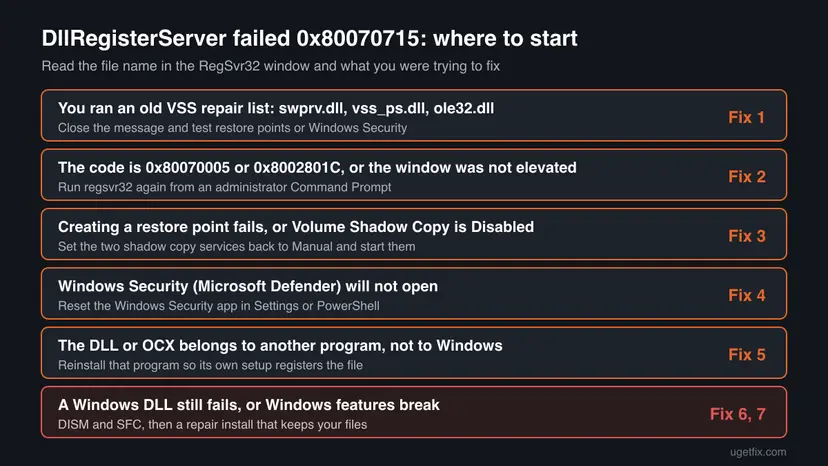
Fix 1 is enough for most readers, because the message comes from a registration step Windows does not need. Fix 2 covers the access denied variants. Fix 3 to Fix 5 fix the feature you were really working on. Fix 6 and Fix 7 are the generic repairs, last.
| What you see or what your PC has | Start with |
|---|---|
| You ran a list of regsvr32 lines with swprv.dll, vss_ps.dll or ole32.dll | Fix 1 |
| The code is 0x80070005 or 0x8002801C instead of 0x80070715 | Fix 2 |
| Creating a restore point or a backup fails | Fix 3 |
| Windows Security or Microsoft Defender will not open | Fix 4 |
| The DLL or OCX is in a program's folder, not in System32 | Fix 5 |
| Windows files fail in several places, or SFC finds damage | Fix 6, then Fix 7 |
Fix 1. Close the RegSvr32 message and test the feature you were fixing
2 to 5 minutesNo riskThe file in the message is a Windows DLL such as swprv.dll, vss_ps.dll or ole32.dll, and you ran regsvr32 because a guide or a script told you to.
Error 1813 says the registration code did not find a resource in the file, so it stopped. Windows registers its own components during setup and updates, and a failed manual call does not undo that. What matters is whether restore points or Windows Security work.
- Select OK in the RegSvr32 window.
- Do not run the same regsvr32 line again. The result will be the same.
- If you were fixing restore points, type Create a restore point in the Start search, open it and select Create on the System Protection tab.
- Type a name, select Create and wait for The restore point was created successfully.
- If you were fixing Microsoft Defender, open Windows Security from the Start menu and check that Virus & threat protection opens.
It worked if: The restore point is created, or Windows Security opens normally. The RegSvr32 message was only a side effect of the old command list.
If not: If the restore point fails, go to Fix 3. If Windows Security does not open, go to Fix 4. If the code was 0x80070005, go to Fix 2.
Fix 2. Run regsvr32 from an administrator Command Prompt
2 minutesLow riskThe message shows 0x80070005 or 0x8002801C, or you need to register a program's DLL and the window was not elevated.
Microsoft's support article on regsvr32 says an account without administrator rights cannot write to the registry or change files in System32, so registration fails with 0x80070005. The fix Microsoft gives is to register the DLL as an administrator.
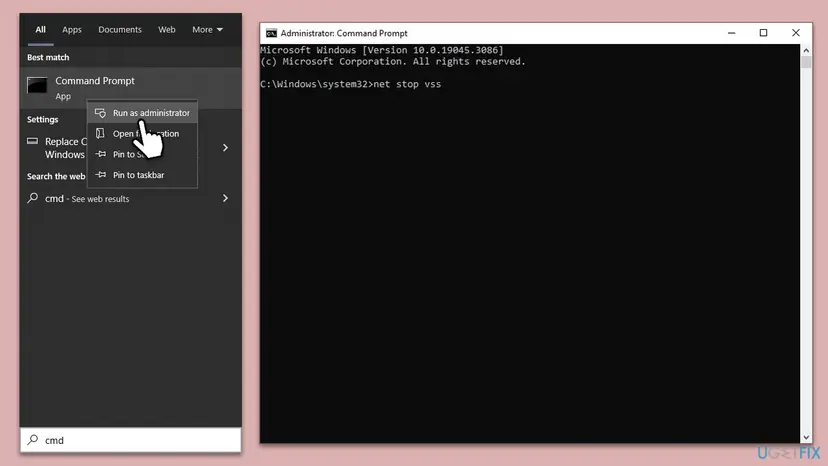
- Type cmd in the Start search.
- Right-click Command Prompt and select Run as administrator, then select Yes in User Account Control.
- Check that the title bar reads Administrator: Command Prompt.
- Register the file with its full path in quotes, then press Enter.
- Read the RegSvr32 window. DllRegisterServer in ... succeeded means it worked.
Example: register a program's DLL with its full path
regsvr32 "C:\Program Files\Example App\example.ocx"Step by step, with pictures: How to run a program as administrator or in compatibility mode
This code belongs to the type library part of COM and also points to the registry. We did not find a Microsoft page for it today, so treat it like 0x80070005 first: an administrator window. If it still fails, reinstall the program that owns the file (Fix 5).
It worked if: RegSvr32 reports that DllRegisterServer succeeded, and the program that needed the DLL starts.
If not: If an administrator window still shows 0x80070715, the problem is inside the file, not your rights: go to Fix 5 for a program's DLL or Fix 6 for a Windows DLL.
Fix 3. Check the Volume Shadow Copy services if restore points fail
5 minutesLow riskYou saw the error while trying to repair System Restore, a backup or the Volume Shadow Copy service, and creating a restore point still fails.
Restore points and many backups rely on the Volume Shadow Copy service (VSS) and the Microsoft Software Shadow Copy Provider service (swprv, the swprv.dll in the message). If either one was set to Disabled, re-registering DLLs does not help, but the startup type does.
- Open Services. Press Windows+R, type the command below and press Enter. You can also type Services in the search box on the taskbar and open the app.
services.msc - Find the service. The list is sorted by Name. Click any row and type the first letter of the service to jump to it. Check the Status column (Running or empty) and the Startup Type column.
- Restart the service. Right-click the service and select Restart. If the service is not running, select Start instead. Wait until the progress window closes.
- Open its properties to change the startup type. Only if your guide says so: double-click the service. The General tab shows the Service name (used in commands), the Startup type and the Service status.
These steps were written for Windows 11 and Windows 10 (the steps are the same). The full page with the other versions and what each result means: Check and restart Windows services
- In Services, find Volume Shadow Copy and check its Startup Type.
- If it says Disabled, open it, set Startup type to Manual, select Apply, then Start.
- Do the same for Microsoft Software Shadow Copy Provider.
- Close Services and create a restore point again, as in Fix 1.
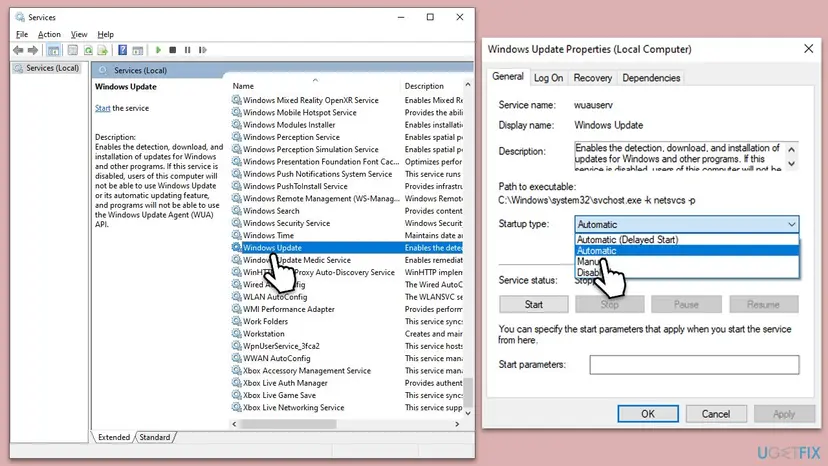
Both shadow copy services start on demand, so Manual with an empty Status column is fine. The older version of this page told readers to set them to Automatic; that is not needed.
It worked if: Both services show Manual, and creating a restore point ends with a success message.
If not: If the restore point still fails with its own error code, run DISM and SFC (Fix 6). The full error is in Event Viewer, under Windows Logs, Application, source VSS.
Fix 4. Reset the Windows Security app if Microsoft Defender will not open
5 minutesLow riskYou saw the error while trying to open Windows Security or Microsoft Defender, as the reader above did.
When Windows Security does not open, the cause is usually the app package, not a missing COM registration. Resetting the package rebuilds its data without touching Defender's protection settings.
- Open Installed apps. Select Start > Settings > Apps > Installed apps.
- Open the app's advanced options. Find the app in the list, select the three dots next to it and select Advanced options. Some apps do not have this option: for those, see the section about desktop programs below.
- Repair first. On the page that opens, select Repair if it is there. The app's data stays. Open the app and check whether it works.
- Reset if Repair did not help. Select Reset. This deletes the app's data on this PC, including sign-in details and settings. Open the app and set it up again.
These steps were written for Windows 11 25H2 and 26H2. The full page with the other versions and what each result means: How to repair or reset an app in Windows
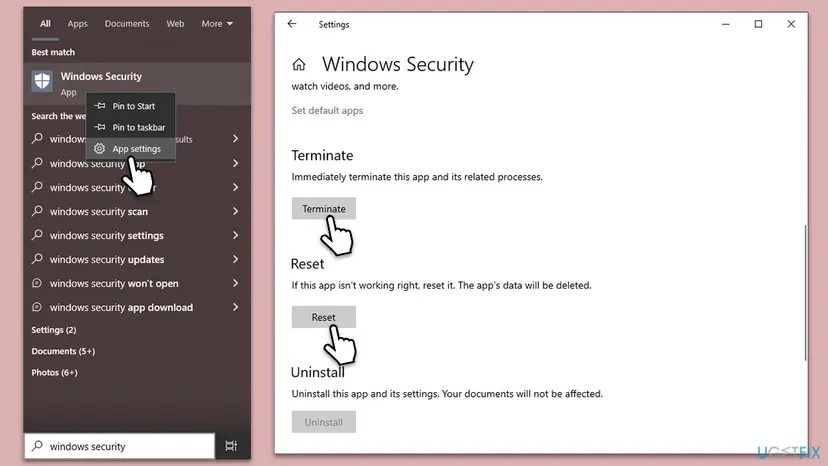
If the Settings page does not offer Reset, do it in PowerShell. Right-click Start, open Terminal (Admin) on Windows 11 or Windows PowerShell (Admin) on Windows 10, and run:
PowerShell as administrator
Get-AppxPackage Microsoft.SecHealthUI -AllUsers | Reset-AppxPackageRestart the PC and open Windows Security again.
It worked if: Windows Security opens and shows the Virus & threat protection page.
If not: If it still does not open, repair the Windows files with Fix 6.
Fix 5. Reinstall the program that owns a third-party DLL or OCX
10 to 20 minutesLow riskThe file in the message is in a program's folder, such as C:\Program Files, and that program reports a missing or unregistered component.
Error 1813 means the file lacks a resource its own code expects. A partial copy, a file from another version of the program or a file moved without its companions can cause that. The program's setup puts the matching files in place and registers them in the right order.
- Uninstall from the Start menu. Select Start > All apps and find the app. Right-click it (or press and hold) and select Uninstall.
- Or uninstall in Settings. Select Start > Settings > Apps > Installed apps. Find the app, select More (the three dots) > Uninstall, and confirm.
- Or uninstall from Control Panel. Some programs can only be removed here. Type Control Panel in the search box on the taskbar and open it, then select Programs > Programs and Features. Right-click the program and select Uninstall or Uninstall/Change, then follow the program's own uninstaller.
These steps were written for Windows 11 24H2 and 25H2. The full page with the other versions and what each result means: Uninstall a program or app in Windows
- Restart the PC after the uninstall.
- Download the current installer from the program's own website.
- Right-click the installer and select Run as administrator, then finish the setup.
- Start the program before you try any regsvr32 command yourself.
It worked if: The program starts without a component error, and you never need to run regsvr32 by hand.
If not: If the vendor's installer shows the same 0x80070715 message, send it to the vendor's support with the file name and your Windows version (see below).
Fix 6. Repair Windows DLLs with DISM and SFC
20 to 30 minutesNo riskA Windows DLL still fails in an administrator window, or Windows features such as restore points and Windows Security both misbehave.
If a Windows DLL was replaced by a copy from another build, it can lack the resource its code looks for. DISM repairs the component store, and SFC then replaces protected files with the copies that match your Windows version.
- Open an elevated command window. Right-click Start and select Terminal (Admin), or type cmd in the search box, right-click Command Prompt and select Run as administrator. Select Yes when Windows asks for permission.

Search for cmd and choose Run as administrator. Screenshot: Windows 11 26H2. - Run DISM first. Type the command below and press Enter. DISM downloads clean copies of damaged components from Windows Update, so it can take several minutes. Wait until it says The operation completed successfully.
DISM.exe /Online /Cleanup-Image /RestoreHealth
DISM /RestoreHealth running. Screenshot: Windows 11 26H2. - Run System File Checker. In the same window, type the command below and press Enter. Do not close the window until the verification reaches 100%.
sfc /scannow
sfc /scannow at 100%. Screenshot: Windows 11 26H2. - Read the result and restart. Compare the last message with the table below this guide, then restart the PC so that repaired files are loaded.

The result line tells you what SFC did. Screenshot: Windows 11 26H2.
These steps were written for Windows 11 24H2 and 25H2. The full page with the other versions and what each result means: Run DISM and SFC to repair Windows system files
Run DISM first, then sfc /scannow, then restart. SFC writes its details to C:\Windows\Logs\CBS\CBS.log; search it for the DLL name from the RegSvr32 message to see whether that file was replaced.
It worked if: SFC reports that it found no integrity violations, or that it repaired files, and the feature you were fixing works after a restart.
If not: If SFC could not repair some files, go to Fix 7.
Fix 7. Reinstall Windows in place and keep your files and apps
1 to 2 hoursRead the warningSFC could not repair files, or restore points and Windows Security still fail after Fix 1 to Fix 6.
A repair install replaces every Windows file and registers every Windows component again, the shadow copy and Windows Security parts included, without the old regsvr32 lists.
A repair install keeps files and apps when you choose to keep them, but a power cut or a wrong choice can cost data. Copy your documents to an external drive or the cloud first: Back up your files (Windows Backup, File History, Time Machine)
- Open Recovery in Settings. Open Settings > System > Recovery. Next to Fix problems using Windows Update, select Reinstall now. This keeps your apps, files and settings.

Fix problems using Windows Update reinstalls the current version and keeps apps, files and settings. Screenshot: Windows 11 26H2. - Start the reinstall. Choose whether the PC may restart on its own 15 minutes after the installation, then select OK.
- Wait and restart. Windows Update downloads and installs a repair copy of your current Windows version. Keep the PC plugged in and online, and restart it when asked.
- If that did not help: Reset PC. Back in Settings > System > Recovery, next to Reset this PC, select Reset PC. This keeps your personal files but removes installed apps and settings.
- Choose Keep my files. Select Keep my files. Do not select Remove everything.
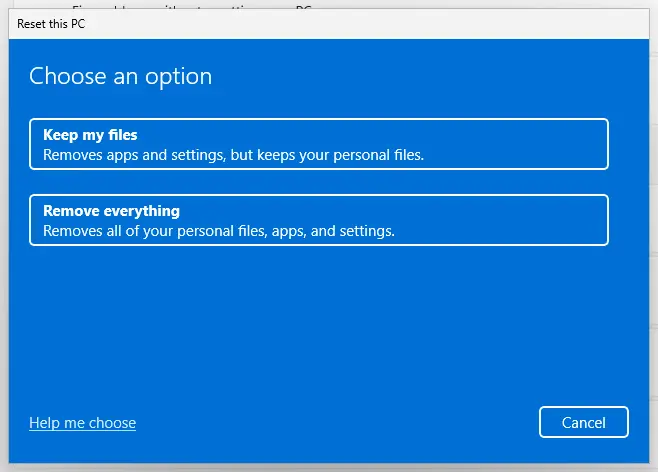
Keep my files removes apps and settings but keeps personal files. Screenshot: Windows 11 26H2. - Choose where Windows comes from. Select Cloud download to download a fresh copy of Windows, or Local reinstall to use the files already on the PC (faster, but may not include the latest updates).
- Reset. Review the summary and select Reset. The PC restarts several times.
These steps were written for Windows 11 22H2 and later. The full page with the other versions and what each result means: Reinstall Windows without losing files
It worked if: Windows starts after several restarts, your files and apps are still there, and restore points and Windows Security work.
If not: If the same feature still fails on a fresh Windows, read the next section.
If nothing works: what to check and what to send
Stop running regsvr32 lines and collect the facts. The RegSvr32 message is rarely the real problem; the failing feature has its own log entry.
- Write down the exact RegSvr32 text: the file name and the code.
- Press Win + R, type
eventvwr.mscand press Enter. Open Windows Logs > Application and look for Error entries from VSS, SecurityHealthService or the program you were fixing. - Press Win + R, type
winverand press Enter. Note the version and OS build. - Send these to the program's vendor for a third-party DLL, or ask on Microsoft Q&A for a Windows file.
- A program's own installer fails with 0x80070715. The installer package itself may be damaged or built for another system. Download it again from the vendor, and ask the vendor if it still fails.
- When it is hardware. If files keep getting damaged after repairs and other programs crash too, check the disk with Check a disk for errors (chkdsk) and the memory with How to test your RAM with Windows Memory Diagnostic.
How to avoid DllRegisterServer errors next time
- Do not paste old regsvr32 lists. Lists written for Windows XP or Server 2003 register files that Windows 10 and 11 set up during installation and updates.
- Register only what a vendor tells you to. A program's setup or its support page names the files, in the order they need.
- Never replace Windows DLLs by hand. A file from another build can lack the resources its code expects, which is exactly error 1813.
- Keep restore points on. They let you undo a bad change with Undo recent changes with System Restore.
- Keep Windows updated. Updates replace system files with matching versions.
If you still run Windows 10, plan the move to Windows 11 or an extended security option: Windows 10 left support on 14 October 2025.
Frequently asked questions
What is DllRegisterServer?
DllRegisterServer is a function inside a DLL or OCX file that writes the file's own entries into the Windows registry, so other programs can find it as a component. You do not run it directly: regsvr32 file.dll loads the file and calls it for you, and Microsoft's command reference notes that the /n switch stops regsvr32 from calling it. Not every DLL has this function. Files without it give a different message, "the entry-point DllRegisterServer was not found".
What does error code 0x80070715 mean?
It is Windows error 1813 packed into an HRESULT: the 0x8007 prefix marks a Win32 error and 0x715 is 1813 in decimal. Microsoft's list of system error codes names it ERROR_RESOURCE_TYPE_NOT_FOUND. Its text reads: "The specified resource type cannot be found in the image file." In a RegSvr32 window it means the DLL's registration code looked inside the file for a type of resource that is not there. People also write it as 800715 or error 1813.
How do I fix "DllRegisterServer failed with error code 0x80070005"?
Run the command again from an administrator Command Prompt. Microsoft's support article for this code says it appears when the account has no administrator rights, because such an account cannot write to the registry or change files in the System32 folder. Type cmd in the Start search, right-click Command Prompt, select Run as administrator and run regsvr32 with the full path of the file (Fix 2). If you are already an administrator, check that the title bar says Administrator.
What does "DllRegisterServer failed with error code 0x8002801c" mean?
It is a COM type library error that also points to registry access. We could not read a Microsoft page for this exact code today, so we do not quote its official text. In practice, start the same way as with 0x80070005: an administrator Command Prompt (Fix 2). If it still fails, the program's own setup usually registers the file correctly, so reinstall the program that owns it (Fix 5).
What is error 0x80070716?
It is the next code in the same family. 0x716 is Windows error 1814, ERROR_RESOURCE_NAME_NOT_FOUND. Its text reads: "The specified resource name cannot be found in the image file." With 0x80070715 the whole type of resource is missing; with 0x80070716 the type exists but the named item is not there. The fixes are the same: do not re-register Windows files from old lists (Fix 1), reinstall a program's files with its setup (Fix 5), or repair Windows files (Fix 6).
Is "DllRegisterServer failed" dangerous?
The message itself is not. RegSvr32 stopped and reported the error; it did not delete or break the file. If Windows works and the feature you were fixing works, nothing more is needed. It deserves attention in two cases. A RegSvr32 window appears by itself at sign-in, which means a script or startup item runs it: scan with Microsoft Defender. Or a program you need will not start without the file: reinstall that program (Fix 5).
What is the difference between "DllRegisterServer failed" and "DllRegisterServer was not found"?
"Was not found" means the DLL has no DllRegisterServer function at all, so it can never be registered with regsvr32. "Failed with error code" means the function exists, ran and returned an error, and the code tells you why. Searches such as "dll registry server not found" are usually about the first case, which we cover in the ExplorerFrame.dll DllRegisterServer guide.
Should I re-register all DLL files to fix Windows?
No. Commands that loop regsvr32 over every DLL in System32 are old forum advice. Most Windows DLLs either have no DllRegisterServer or fail like this one, so the loop fills the screen with errors and can change registry entries you did not mean to touch. Windows registers its own components during setup and updates. To repair Windows files, use DISM and SFC (Fix 6), or a repair install that keeps your files (Fix 7).
Can I download swprv.dll or vss_ps.dll to fix it?
No. The message says the module was loaded, so the file is already there. Both are Windows files for the Volume Shadow Copy service and must match your exact Windows build. A copy from a DLL site can be the wrong version, which can itself cause resource errors like 0x80070715, or carry malware. If you think a Windows file is damaged, DISM and SFC restore the right copy (Fix 6).
What if nothing works (et si rien ne marche)?
This page is in English, but the answer is the same in any language. Stop running regsvr32 commands and look at the feature that is really broken. Write down the RegSvr32 text and the Windows build from winver, then read the Error entries in Event Viewer under Windows Logs, Application. With those details, ask the program's vendor or Microsoft Q&A. A repair install that keeps your files (Fix 7) is the last step on your side.
Sources
- Microsoft Learn: System Error Codes (1700-3999), entries 1813 ERROR_RESOURCE_TYPE_NOT_FOUND and 1814 ERROR_RESOURCE_NAME_NOT_FOUND (learn.microsoft.com)
- Microsoft Learn: You receive 0x80070005 error when you try to register a DLL by using Regsvr32.exe (KB 827659) (learn.microsoft.com)
- Microsoft Learn: regsvr32 command reference (learn.microsoft.com)
Did this fix work?
One click, no account. It tells the next reader which guides are worth their time.
Questions and experiences: fix "DllRegisterServer failed with error code 0x80070715" error in Windows
Still broken, or found a fix we did not cover? Ask here: members and our editors answer. Reading is open; writing needs a free account.
…