
How to fix "Do Not Disturb" constantly turning itself on in Windows?

Prefer to fix it yourself? The manual steps follow.
- 8methods
- 2 minutes for the automatic rules, 10 minutes for the policy check
- Beginner
Applies to Do not disturb in Windows 11 and Focus assist in Windows 10
8 methods in this guide
Why does "Do Not Disturb" in Windows keep switching on automatically even after I've turned it off in the settings? I didn't even know it could be turned on until it started happening by itself. How can I permanently keep "Do Not Disturb" off in Windows?
When Do not disturb keeps turning on by itself in Windows, it is almost never a bug. Windows switches it on by rule: at set times, in games and full-screen apps, when you duplicate the display, after a feature update or during a Focus session. Untick those rules first, then check Focus and policies.
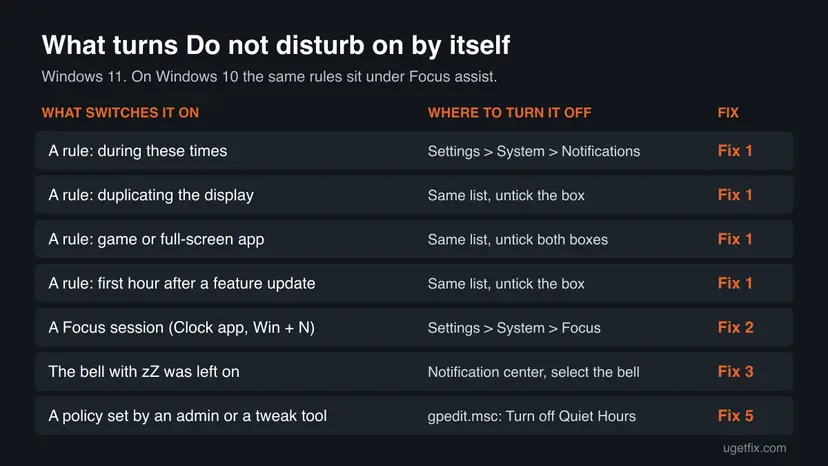
Windows turns Do not disturb on by rule, not at random. Open Settings > System > Notifications, expand Turn on do not disturb automatically and untick every box: the times, duplicating the display, games, full-screen apps and the first hour after a feature update (Fix 1). If it still comes back, a Focus session (Fix 2) or a Group Policy (Fix 5) is switching it on.
| Error | No error message. The bell icon at the clock shows zZ, banners stop appearing and notifications go quietly to the notification center, again and again after you turn it off. |
|---|---|
| Where it appears | Windows 11: the bell next to the clock and Settings > System > Notifications. Windows 10: Focus assist in the action center and Settings > System > Focus assist. |
| Main cause | An automatic rule under Turn on do not disturb automatically: a time window, duplicating the display, playing a game, a full-screen app or the first hour after a feature update. |
| Fastest fix | Untick every automatic rule in Settings > System > Notifications (Fix 1). Two minutes, nothing to lose. |
| Also written as | DND, Do Not Disturb mode, Focus assist (Windows 10), Quiet Hours (the old name, still used by Group Policy), Focus (Windows 11 sessions). |
| Affects | Windows 11 (all versions) and Windows 10. Windows 10 left support on 14 October 2025. |
| Microsoft's status | Not a known issue. Microsoft documents the automatic rules and says that during a Focus session do not disturb turns on automatically. |
| Locked by policy? | Possible on work PCs or after a tweak tool. The policy Turn off Quiet Hours set to Disabled forces Quiet Hours on and stops users from changing it (Fix 5). |
| Time to fix | 2 minutes for Fix 1, about 10 minutes when a policy is involved. |
Facts checked on 15 October 2026. Steps written for Windows 11 (25H2 and 26H2) and Windows 10 22H2, with the settings read from Microsoft Support's pages on Do not disturb and Focus and the policy from Microsoft Learn.
What Do not disturb is in Windows and why it switches itself on
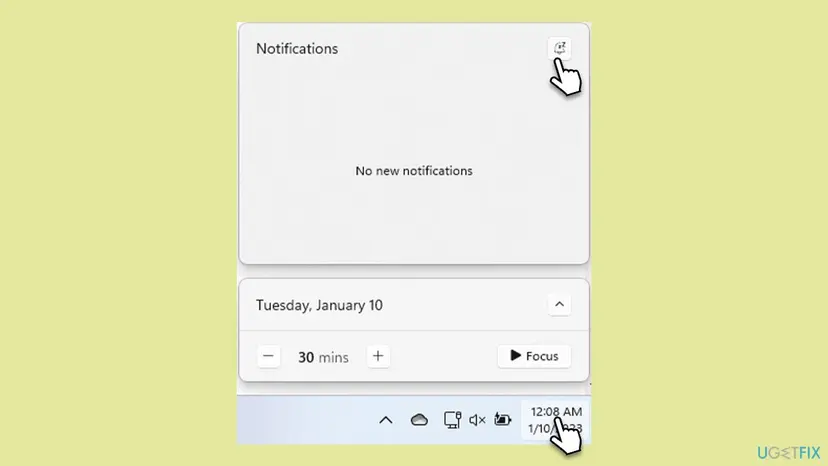
Do not disturb silences notification banners. Microsoft says that with it on you only receive banners for alarms, reminders and apps you chose; everything else goes straight to the notification center until you turn it off. You turn it on or off by hand with the bell icon with zZ in the notification center, which opens with Win + N or a click on the clock.
Windows can also switch it on for you. Microsoft lists five automatic conditions in Windows 11 and adds Focus sessions, which turn on do not disturb by default. So when it "keeps turning on", one of those switches is usually doing exactly what it was set to do. Windows 10 calls the same feature Focus assist, and Group Policy still uses the older name Quiet Hours.
| Name | Where | What it is |
|---|---|---|
| Do not disturb | Windows 11, bell icon and Settings > System > Notifications | The on and off switch and its automatic rules. |
| Focus | Windows 11, Settings > System > Focus, Clock app | A timed session. By default it turns do not disturb on, hides taskbar badges and flashing. |
| Focus assist | Windows 10, Settings > System > Focus assist | Windows 10's version, with Off, Priority only and Alarms only and its own automatic rules. |
| Quiet Hours | Group Policy and the registry | The older name the policies still use, for example Turn off Quiet Hours. |
Why Do not disturb keeps turning on, from most to least common
Microsoft publishes no numbers, so the order follows what its own pages describe as the default behaviour. Most often an automatic rule is ticked. Often it is a Focus session. Less often the switch was simply left on, or a second screen or a full-screen window keeps a rule firing. Rarely a policy locks it.
| Cause | How often | How to tell | Fix |
|---|---|---|---|
| An automatic rule: a time window, a game, a full-screen app, duplicating the display or the first hour after a feature update. | Most often | It turns on at the same hour, when you start a game or video, or when a TV or projector is connected. | Fix 1 |
| A Focus session started from the clock, Settings or the Clock app. | Often | A Focus timer shows on screen, or it began after you selected Focus under the calendar. | Fix 2 |
| The bell was turned on by hand and never off. Microsoft notes that if it was on before a Focus session, it stays on after the session. | Sometimes | The bell shows zZ all the time, not only at certain moments. | Fix 3 |
| A screen kept in Duplicate mode or an app that stays full screen. | Sometimes | It turns on whenever a second display is connected or a browser is in full screen. | Fix 4 |
| A Group Policy or a tweak tool sets Quiet Hours. | Rarely | The switches are grey, or the PC belongs to a school or company. | Fix 5 |
| A stuck taskbar or damaged system files. | Rarely | The bell does not react, or the setting flips back at once. | Fix 6 to Fix 8 |
How to stop Do not disturb from turning itself on in Windows
Fix 1 solves most cases in two minutes. Fix 2 to Fix 4 cover Focus sessions, the manual switch and second screens. Fix 5 is for PCs where a policy forces it. Fix 6 to Fix 8 are general repairs for a switch that will not react.
| What you see or have | Start with |
|---|---|
| It turns on at the same time every day or night. | Fix 1 |
| It turns on when you play a game, watch full-screen video or present. | Fix 1, then Fix 4 |
| It turned on after you selected Focus under the calendar. | Fix 2 |
| The bell shows zZ all the time. | Fix 3 |
| It turns on whenever a TV, projector or second monitor is connected. | Fix 4 |
| The switches are grey or the PC belongs to work or school. | Fix 5 |
| The bell or the switch does not react at all. | Fix 6 |
| Nothing above changed anything. | Fix 7, then Fix 8 |
Fix 1. Untick every rule under Turn on do not disturb automatically
2 minutesNo riskEveryone. It is the whole fix for most readers.
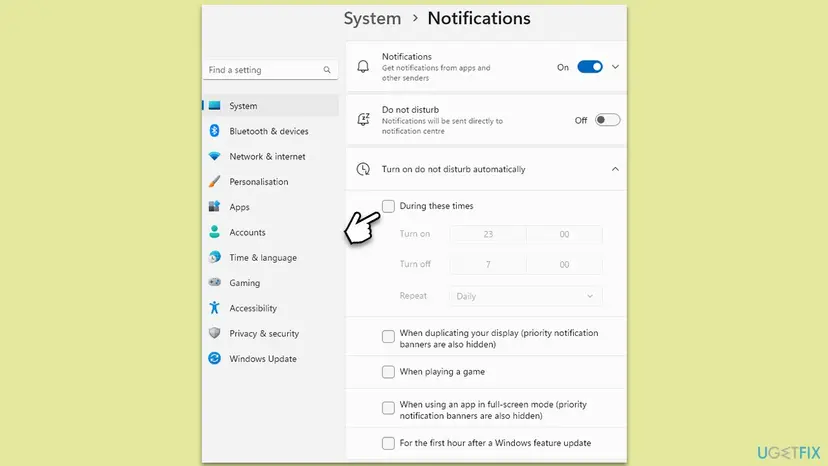
Microsoft lists five conditions that switch do not disturb on by themselves: certain times of day, duplicating the display, playing a game, using an app in full-screen mode and the first hour after a Windows feature update. Turning it off by hand does not untick them, so the next time a condition is met it turns on again.
- Press Win + I to open Settings.
- Select System, then Notifications.
- Check that the Do not disturb switch is Off.
- Expand Turn on do not disturb automatically.
- Untick During these times.
- Untick When duplicating your display, When playing a game and When using an app in full-screen mode.
- Untick For the first hour after a Windows feature update.
- Close Settings. The change is saved at once.
Open Settings > System > Focus assist, set it to Off and turn off every switch under Automatic rules. Microsoft says Focus assist is set by default to turn on when you duplicate the display, play a game or use an app in full screen.
Want to keep one rule, for example during games? Leave that box ticked and untick the rest. You can also keep do not disturb but let important senders through: under Set priority notifications, allow calls, reminders and the apps you choose.
It worked if: The bell no longer shows zZ after a game, a video, the evening hour or a feature update.
If not: If it still turns on, look for a Focus timer on screen and go to Fix 2.
Fix 2. Stop Focus sessions from turning on do not disturb
2 minutesNo riskYou or an app start Focus sessions, or a Focus timer appears on screen.
Microsoft says that when a Focus session starts, do not disturb turns on automatically, and that this is the default. The Focus button sits right under the calendar, so one click on the clock area can start a session without you noticing.
- If a Focus timer is on screen, open it and end the session.
- Press Win + I and open System > Focus.
- Under Focus, untick Turn on do not disturb.
- Untick Hide badges on taskbar apps and Hide flashing on taskbar apps too if you want sessions to change nothing about notifications.
- Open the notification center with Win + N and check that the bell no longer shows zZ.
Microsoft notes that if do not disturb was on before a Focus session, it remains on after the session has finished. End the session, then turn the bell off by hand (Fix 3).
It worked if: Focus sessions still run the timer, but notifications keep showing as banners.
If not: If you never use Focus and it still turns on, go to Fix 3 and Fix 4.
Fix 3. Turn do not disturb off by hand in the notification center
1 minuteNo riskThe bell shows zZ all the time, not only at certain moments.
Microsoft says that do not disturb turned on by hand silences notifications until you manually turn it off. No rule turns it off for you, so a single accidental click on the bell keeps it on for days.
- Select the clock or the bell icon on the taskbar, or press Win + N.
- At the top of the notification center, select the bell icon with zZ.
- Check that the icon on the taskbar changes back to a plain bell.
- Open the notification center again to read what arrived while it was on.
The same switch is in Settings > System > Notifications: set Do not disturb to Off. On Windows 10, open the action center with Win + A and select Focus assist until it reads off.
It worked if: Banners appear again for new notifications and the bell has no zZ.
If not: If the bell lights up with zZ again later, a rule or a session turned it on: repeat Fix 1 and Fix 2, then check Fix 4.
Fix 4. Stop a second screen or full-screen window from firing a rule
3 minutesNo riskYou want to keep the game or full-screen rule, or it turns on whenever a TV, projector or second monitor is plugged in.
Two of Microsoft's automatic conditions depend on the screen: duplicating your display and using an app in full-screen mode. A monitor left in Duplicate mode, or a browser or player stuck in full screen, keeps that condition true, so do not disturb keeps coming back.
- Press Win + P to open the projection menu.
- Select Extend instead of Duplicate if you do not need the same picture on both screens.
- Leave full-screen mode in the browser or video player with F11 or Esc.
- Close games and full-screen apps you are not using, including ones minimised to the taskbar.
- Check the bell with Win + N.
If you do want quiet while presenting, keep When duplicating your display ticked. Microsoft notes in Settings that this rule also hides priority notification banners.
It worked if: With Extend selected and no full-screen window, do not disturb stays off.
If not: If it turns on with one screen and nothing in full screen, check for a policy in Fix 5.
Fix 5. Check that no Group Policy forces Quiet Hours on
10 minutesRead the warningThe switches are grey, the PC belongs to work or school, or a tweak tool was used.
Microsoft's policy Turn off Quiet Hours works the other way round from what many expect. Set to Disabled, it suppresses toast notifications during the Quiet Hours window and stops users from changing any Quiet Hours setting. Set to Enabled, notifications are not suppressed. Not configured, users can turn it off themselves.
On a work or school PC this policy may be set by your IT department and will be applied again; ask them instead. On your own PC, back up the registry first: Back up the registry before editing it. The old version of this page said to select Disabled, which does the opposite of what you want.
Pro, Enterprise and Education have the Group Policy Editor. How to open it and find a policy: Open the Local Group Policy Editor.
- Press Win + R, type
gpedit.mscand select OK. - Go to User Configuration > Administrative Templates > Start Menu and Taskbar > Notifications.
- Double-click Turn off Quiet Hours.
- If it says Disabled, change it to Not Configured or Enabled. Never pick Disabled.
- Check Set the time Quiet Hours begins each day and Set the time Quiet Hours ends each day and set both to Not Configured.
- Select OK and restart the PC.
Windows Home has no Group Policy Editor, but a tweak tool can still write the same policy into the registry. Check from a Command Prompt whether the policy key Microsoft documents exists:
Command Prompt: does a Quiet Hours policy exist?
reg query HKCU\Software\Policies\Microsoft\Windows\CurrentVersion\QuietHoursIf Windows answers that it cannot find the key, no policy is set and you can skip the rest. If it lists values such as Enable, and you did not set them on purpose, delete the key so the policy is back to not configured, then restart:
Command Prompt: remove the Quiet Hours policy (after a registry backup)
reg delete HKCU\Software\Policies\Microsoft\Windows\CurrentVersion\QuietHours /fIt worked if: After the restart the switches in Settings > System > Notifications are no longer grey and stay where you put them.
If not: If the key comes back after a restart, a management tool or a domain policy writes it: ask whoever manages the PC. If there was no key, go to Fix 6.
Fix 6. Restart Windows Explorer when the bell does not react
1 minuteNo riskClicking the bell or the switch does nothing, or the taskbar icon does not match the setting.
Windows Explorer draws the taskbar, the clock area and the bell. If it hangs, the icon can show a stale state and clicks on the bell are lost. We found no Microsoft note that links this to do not disturb, so treat it as a quick test, not a known fix.
- Open Task Manager. Press Ctrl + Shift + Esc. The Processes page opens.
- Select Windows Explorer. Find Windows Explorer in the list and select it. If it is not under Apps, look under Windows processes further down.
- Restart it. Select Restart task at the top of the window. The taskbar disappears for a moment and comes back. If you do not see Restart task, right-click Windows Explorer and select Restart.
These steps were written for Windows 11 26H2 (build 26300). The full page with the other versions and what each result means: Restart File Explorer
It worked if: The taskbar disappears for a moment, comes back, and the bell shows the real state.
If not: If it still flips back, restart the PC once, then go to Fix 7.
Fix 7. Install Windows updates
20 to 40 minutesLow riskWindows has not installed updates for months.
Do not disturb, Focus and the notification center are part of Windows and change only through Windows updates. We found no update that names this problem, so this is a general repair. Note that a feature update can itself turn do not disturb on for the first hour if that rule is ticked (Fix 1).
- Press Win + I and select Windows Update (Windows 10: Update & Security > Windows Update).
- Select Check for updates and install everything offered.
- Restart when Windows asks.
- Check Settings > System > Notifications again: the automatic rules should still be unticked.
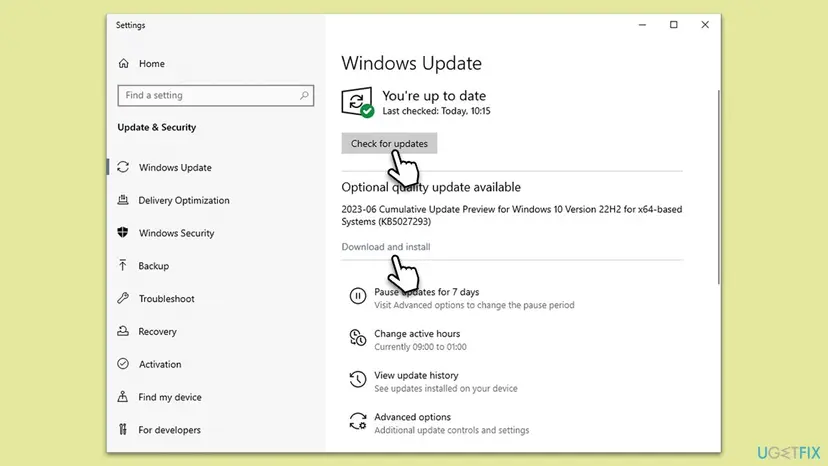
Windows 10 left support on 14 October 2025. Only PCs enrolled in Extended Security Updates still get fixes, so on Windows 10 this step may change nothing.
It worked if: Windows is up to date and do not disturb stays off after the restart.
If not: If updates fail, see Reset Windows Update components. If they install and nothing changes, go to Fix 8.
Fix 8. Repair Windows system files with SFC and DISM
20 minutesNo riskThe settings flip back by themselves with no rule, session or policy set, and other parts of Windows misbehave too.
The notification settings live in Windows system components. If they are damaged, Settings may fail to save or reload the switch. SFC and DISM replace damaged files with good copies.
- Open an elevated command window. Right-click Start and select Terminal (Admin), or type cmd in the search box, right-click Command Prompt and select Run as administrator. Select Yes when Windows asks for permission.
- Run DISM first. Type the command below and press Enter. DISM downloads clean copies of damaged components from Windows Update, so it can take several minutes. Wait until it says The operation completed successfully.
DISM.exe /Online /Cleanup-Image /RestoreHealth - Run System File Checker. In the same window, type the command below and press Enter. Do not close the window until the verification reaches 100%.
sfc /scannow - Read the result and restart. Compare the last message with the table below this guide, then restart the PC so that repaired files are loaded.
These steps were written for Windows 11 24H2 and 25H2. The full page with the other versions and what each result means: Run DISM and SFC to repair Windows system files
It worked if: SFC reports that it repaired files or found no integrity violations, and the setting stays put after a restart.
If not: Read the still broken section below.
Do not disturb still turns itself on: what to check next
If every rule is unticked, Focus no longer turns it on, no policy exists and the system files are fine, narrow it down before you reinstall anything. Microsoft documents no log for do not disturb, so you test instead.
- Note the moment: write down when it turns on. The same hour points to a time rule; a game, video or meeting points to the full-screen or duplicate rule; a fresh sign-in after an update points to the feature update rule.
- A second account: create a new local account (Create a new user account to test a problem) and sign in. Notification settings are per user, so if the new account behaves, the problem sits in your profile.
- A clean boot: some apps start Focus sessions or go full screen in the background. A clean boot shows whether one of them is involved: How to perform a clean boot in Windows.
- Feedback Hub: press Win + F and report it with your build number from
winver. - Repair install: as the last step, reinstall Windows over itself and keep your files and apps: Reinstall Windows without losing files.
Do not disturb is a software setting. A connected TV or projector can trigger the duplicate rule, but nothing about this points to failing hardware.
How to keep Do not disturb off for good
- Recheck Turn on do not disturb automatically after each Windows feature update, in case a rule was ticked again.
- Untick Turn on do not disturb under Settings > System > Focus if you use Focus sessions.
- Use Extend rather than Duplicate in Win + P unless you are presenting.
- Do not set Turn off Quiet Hours to Disabled in Group Policy, and be wary of tweak tools that change notification policies.
- If you want quiet only sometimes, use priority notifications so calls, reminders and key apps still get through.
Frequently asked questions
Why does my Do not disturb keep turning on in Windows 11?
Because one of its automatic rules is ticked. Microsoft lists five: during certain times of the day, when duplicating the display, when playing a game, when using an app in full-screen mode and for the first hour after a Windows feature update. Switching it off by hand does not untick them, so it returns the next time a condition is met. A Focus session also turns it on by default. Open Settings > System > Notifications, expand Turn on do not disturb automatically, untick every box (Fix 1), then check Settings > System > Focus (Fix 2).
Why is my Do not disturb not turning off in Windows?
Either a rule turns it straight back on, or it is locked. If the switch moves to off and returns later, a time, game, full-screen, duplicate display or feature update rule is firing (Fix 1), or a Focus session is running (Fix 2). If the switch is grey or will not move, a policy may be set: Microsoft says that when Turn off Quiet Hours is set to Disabled, users cannot change any Quiet Hours setting (Fix 5). If the bell does not react at all, restart Windows Explorer (Fix 6).
How do I turn off Do not disturb on Windows 11?
Press Win + N or select the clock to open the notification center, then select the bell icon with zZ at the top. You can also open Settings > System > Notifications and set Do not disturb to Off. To keep it off, expand Turn on do not disturb automatically on the same page and untick every condition, and in Settings > System > Focus untick Turn on do not disturb so Focus sessions do not switch it on again.
How do I turn on Do not disturb in Windows?
In Windows 11, open the notification center with Win + N or a click on the clock and select the bell icon with zZ. It stays on until you select it again. To have it turn on by itself, open Settings > System > Notifications, expand Turn on do not disturb automatically and tick the conditions you want, such as certain times or games. In Windows 10 the feature is called Focus assist: open Settings > System > Focus assist and pick Priority only or Alarms only.
Where is Do not disturb in Windows 10?
Windows 10 calls it Focus assist. Open Settings > System > Focus assist to choose Off, Priority only or Alarms only and to change the Automatic rules. Microsoft says Focus assist is set by default to turn on when you duplicate your display, play a game or use an app in full screen, which is why it seems to switch on by itself. You can also toggle it from the action center with Win + A. Windows 10 left support on 14 October 2025.
Can I disable Do not disturb in Windows 11 with the registry?
Microsoft documents no registry value that simply switches do not disturb off for a user, and we could not confirm the value the old version of this page suggested, so it is no longer here. What Microsoft does document is the policy key HKCU\Software\Policies\Microsoft\Windows\CurrentVersion\QuietHours, used by the Turn off Quiet Hours policy. If that key exists and you did not set it, deleting it after a registry backup returns the policy to not configured (Fix 5). The normal switch is in Settings.
Does Focus turn on Do not disturb?
Yes, by default. Microsoft says that when you start a Focus session, do not disturb turns on automatically, taskbar badges and flashing are hidden and a timer appears. You can stop that in Settings > System > Focus by unticking Turn on do not disturb. Microsoft also notes that if do not disturb was already on before a Focus session, it stays on after the session ends, so you have to turn it off by hand.
Why does Do not disturb turn on when I play a game or watch a video?
Two automatic rules cover exactly that: When playing a game and When using an app in full-screen mode. A YouTube video or a browser in full screen counts as a full-screen app. Untick both in Settings > System > Notifications under Turn on do not disturb automatically. If you want quiet during games only, keep the game rule and untick the full-screen one. Microsoft notes that the full-screen rule also hides priority notification banners.
Is it safe to keep Do not disturb off?
Yes. Do not disturb only decides whether banners pop up; turning it off changes nothing about security or performance. Microsoft says that with it on, you still get alarms, reminders and the apps you allow, and the rest waits in the notification center. With it off, every app you allow to notify can show a banner. If that is too much, turn off single apps under Notifications from apps and other senders instead of using do not disturb all day.
Sources
- Microsoft Support: Notifications and Do Not Disturb in Windows (support.microsoft.com)
- Microsoft Support: Focus, stay on task without distractions in Windows (support.microsoft.com)
- Microsoft Learn: ADMX_WPN Policy CSP (Turn off Quiet Hours) (learn.microsoft.com)
Did this fix work?
One click, no account. It tells the next reader which guides are worth their time.
Questions and experiences: fix "Do Not Disturb" constantly turning itself on in Windows
Still broken, or found a fix we did not cover? Ask here: members and our editors answer. Reading is open; writing needs a free account.
…