
How to fix ELEX II crashing on startup in Windows 11 and 10

Prefer to fix it yourself? The manual steps follow.
- 7methods
- 5 to 30 minutes
- Easy
Applies to ELEX II for PC (Steam and GOG) on Windows 11 and Windows 10, DirectX 11 and DirectX 12 versions
7 methods in this guide
I have recently finished Elex, and I was truly excited to jump into the second game, Elex II. Earlier today, I played the game for hours with no problems. I came back now and tried to continue, but it keeps crashing on startup non-stop, and I have no clue why this is happening. Any advice for me?
ELEX II crashing on startup usually means the DirectX 12 version, the default since the November 2022 patch, fails on your graphics card, or a settings file in the ELEX2 Config folder went bad. Start the DirectX 11 version first, then reset the Config folder if it still closes.
Start ELEX II in its DirectX 11 version (Fix 1). Since the November 2022 patch the game has two versions, and DirectX 12 is the default; Intel confirms that ELEX II crashes in DirectX 12 on Intel Arc cards and starts in DirectX 11. If DirectX 11 crashes too, rename the %LOCALAPPDATA%\ELEX2\Config folder so the game builds fresh settings (Fix 2).
| Error | Usually no error message. A black screen or the Piranha Bytes logo shows, then the game closes back to the desktop. |
|---|---|
| Where it appears | At launch, during or right after the logo videos, before the main menu. Steam shows the game as running for a moment, then as stopped. |
| Main cause | The DirectX 12 version failing on the graphics card or driver, and settings or cache files in %LOCALAPPDATA%\ELEX2\Config that no longer fit the PC. |
| Fastest fix | Start the DirectX 11 version (Fix 1), then rename the Config folder (Fix 2). |
| Also written as | ELEX 2 crashing on startup, ELEX 2 not launching, ELEX 2 black screen after the logo, ELEX 2 crash to desktop, ELEX 2 DirectX 11 or 12. |
| Affects | ELEX II on PC since the DirectX 12 patch of November 2022, on Windows 11 and Windows 10. The game first came out in March 2022. |
| Vendor status | Intel lists the DirectX 12 crash on Intel Arc A-Series cards as a known issue with no fix yet (article 000095930, last reviewed December 2023). THQ Nordic has promised no further patches. |
| Settings folder | C:\Users\<your name>\AppData\Local\ELEX2\Config, with files such as ConfigUser, Application and ActionMap.bin. |
| Time to fix | 2 minutes for Fixes 1 and 2, up to 30 minutes for a driver update or a reinstall. |
Facts checked on 15 October 2026. Steps written for Windows 11 (25H2 and 26H2) and Windows 10 22H2, with the Steam version of ELEX II.
What ELEX II crashing on startup means on Windows 11 and 10
ELEX II is the 2022 open world RPG by Piranha Bytes, published by THQ Nordic. In November 2022 a patch added a DirectX 12 version next to the original DirectX 11 one. Since then both versions sit in the game folder, which roughly doubles the install size, and you can choose between them when you start the game.
DirectX 12 is the default. That matters, because most startup crashes since then happen in the DirectX 12 version only. The game closes before it can show an error box, so there is no code to search for, only the crash itself.
- Crash on every start since the first day, on an Intel Arc card or another new GPU: the DirectX 12 version (Fix 1, then Fix 3).
- It played fine for hours yesterday and crashes today: most often the settings and cache files in the Config folder (Fix 2), less often a driver or game update in between (Fix 3 and Fix 4).
- A black screen with an overlay or recorder running: Steam, Discord or Game Bar hooking into the game (Fix 5).
- A message about your Windows version: the DirectX 12 version needs a newer Windows build (Fix 6).
Windows 10 left Microsoft support on 14 October 2025. The fixes on this page work the same way on Windows 10 22H2 and on Windows 11.
Why ELEX II crashes at startup, most common cause first
The table ranks the causes we could tie to a source or to many player reports, and links each one to the fix that deals with it.
| How often | Cause | How to spot it | Fix |
|---|---|---|---|
| Most often | The DirectX 12 version fails on the graphics card or driver | Intel Arc card, or the crash happens only when DirectX 12 is chosen | Fix 1, Fix 3 |
| Often | Bad settings or DirectX 12 cache files in the ELEX2 Config folder | The game worked before; crash right after the logo videos | Fix 2 |
| Sometimes | Missing or damaged game files after an update or a stopped download | Crash started after a Steam update, or you deleted a game folder | Fix 4 |
| Sometimes | An overlay or recording tool hooks into the game | Black screen, then the desktop, with Discord, Steam overlay or Game Bar active | Fix 5 |
| Rarely | A Windows build too old for the DirectX 12 version | An error message about Windows when DirectX 12 starts | Fix 6 |
| Rarely | A broken install that a verify cannot repair | Nothing else helped | Fix 7 |
The patch notes add more. The November 2022 follow-up patch fixed a crash when switching to full screen, and stopped cards without DirectX 12 support from trying to start the DirectX 12 mode. If you have not updated the game since, Fix 4 brings those fixes in.
How to fix ELEX II crashing on startup
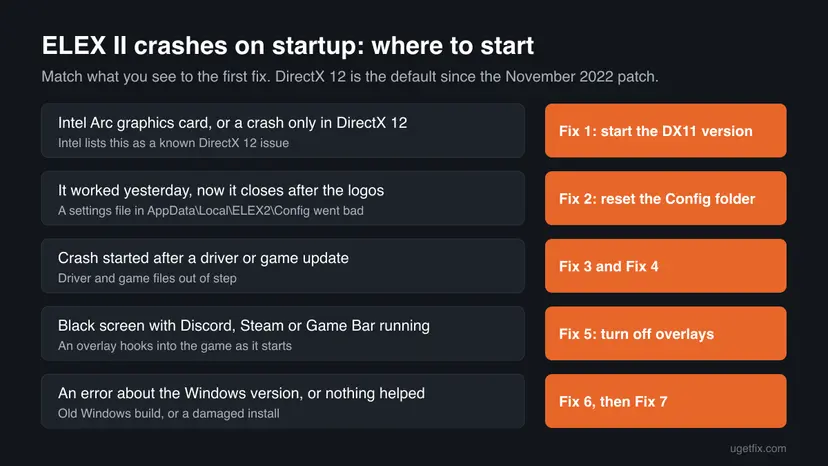
Fixes 1 and 2 are specific to ELEX II and take two minutes each. Fixes 3 and 4 bring the driver and the game files up to date. Fixes 5 to 7 cover overlays, an old Windows build and a full reinstall.
| What you see or what your PC has | Start with |
|---|---|
| An Intel Arc card, or the crash happens only in DirectX 12 | Fix 1 |
| The game worked yesterday and now closes after the logo videos | Fix 2 |
| The crash began after a new graphics driver or a game update | Fix 3, then Fix 4 |
| A black screen while Discord, a recorder or the Steam overlay runs | Fix 5 |
| A message about your Windows version when the game starts | Fix 6 |
| Nothing above helped | Fix 7, then the log in the Still crashing section |
Fix 1. Start the DirectX 11 version of ELEX II instead of DirectX 12
2 minutesNo riskEveryone, first. It is the main fix on Intel Arc cards and on any PC where the crash happens only in DirectX 12.
Intel confirms that ELEX II crashes when it starts with its default API, DirectX 12, and launches correctly with DirectX 11. The DirectX 11 version is the original 2022 build, so it avoids every DirectX 12 bug at once.
- Open Steam and go to Library.
- Select ELEX II and select Play.
- When Steam asks which version to start, choose the DirectX 11 option and confirm.
- If Steam does not ask, right-click ELEX II and select Manage > Browse local files.
- Open the
ELEX2DX11folder and start the game's.exefile there. - Play to the main menu and load your save.
Some players report fixing the crash by copying the files from the DirectX 11 folder over the DirectX 12 files. That simply turns the DirectX 12 version into the DirectX 11 one. Starting DirectX 11 directly gives the same result without overwriting anything.
DirectX 11 runs a little slower on some PCs, as the DirectX 12 patch raised performance when the graphics card is the limit. A stable game at a slightly lower frame rate is the better deal until a driver fixes DirectX 12 on your card.
It worked if: The game passes the logo videos and reaches the main menu, and your saves are there.
If not: If DirectX 11 crashes too, the cause is not the DirectX 12 build. Reset the settings in Fix 2.
Fix 2. Rename the ELEX2 Config folder so the game builds fresh settings
2 minutesLow riskThe game worked before and now closes right after the logo videos, in DirectX 11, DirectX 12 or both.
Players report that invalid settings in the ini and xml files in %LOCALAPPDATA%\ELEX2\Config crash the game right after the logos. The folder also holds the DirectX 12 .pipelinelibrary cache files, which a driver update can make stale. Without the folder, the game writes new default files.
- Close ELEX II and make sure it no longer runs in Task Manager.
- Press Win + R, type
%LOCALAPPDATA%\ELEX2and press Enter. - Right-click the Config folder and select Rename (the rename icon on Windows 11).
- Name it
Config.oldand press Enter. - Start the game, set the graphics options again in its menu, and play.
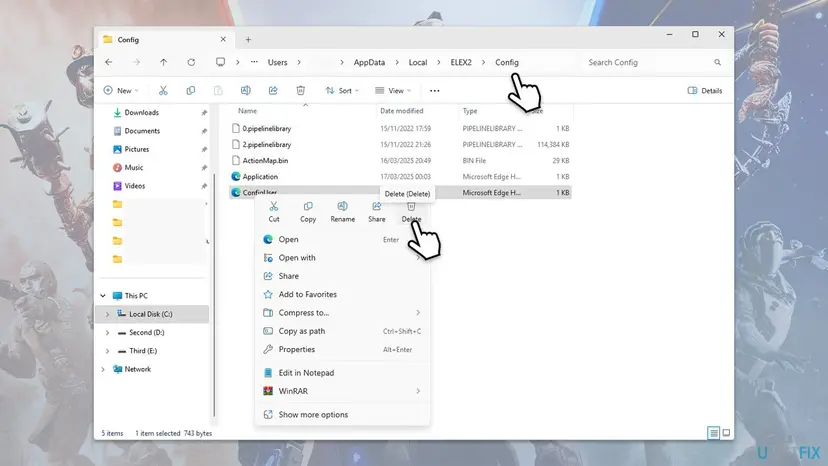
Deleting just ConfigUser resets your graphics and game options and keeps the rest. It is the smaller step, but it leaves the DirectX 12 cache in place. Renaming the folder covers both, and you can rename it back if nothing changes.
It worked if: The game starts with default settings and a new Config folder appears next to Config.old.
If not: Delete the new Config folder and rename Config.old back to Config to keep your settings. Then update the driver in Fix 3.
Fix 3. Install the newest graphics driver from the card maker
10 to 15 minutesLow riskYou have an Intel Arc card, or the crash began after a new driver or a Windows update changed the driver.
The DirectX 12 crash on Intel Arc is a driver issue that Intel itself tracks, and its answer is to check back later. A newer driver is the only route to a working DirectX 12 version, and a clean install also clears a broken one.
Get the driver from the card maker's own site or app (NVIDIA, AMD or Intel), not only from Windows Update, which often offers an older one. The library steps show both ways:
- Open Device Manager. Right-click Start and select Device Manager.

Device Manager lists devices by category; a yellow warning sign marks a device with a problem. Screenshot: Windows 11 26H2. - Open the device's Driver tab. Expand the category (for example Display adapters), right-click the device, select Properties and open the Driver tab. Driver Date and Driver Version show what is installed now.
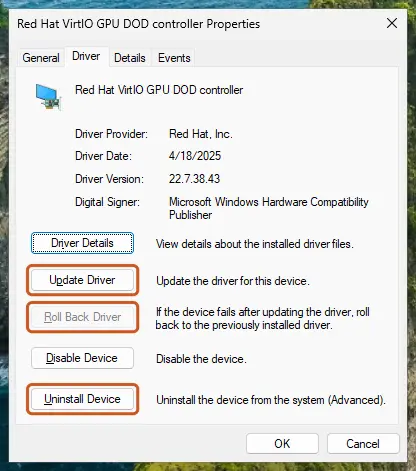
The Driver tab holds all three actions: update, roll back, uninstall. Screenshot: Windows 11 26H2. - Update the driver. Select Update Driver and let Windows search automatically. To use a driver you downloaded from the device maker, select Browse my computer for drivers instead and point to the unpacked folder.
- Or roll back the driver. If the problem started after a driver update, select Roll Back Driver, choose a reason and select Yes. The button is greyed out when Windows has no earlier driver to return to.
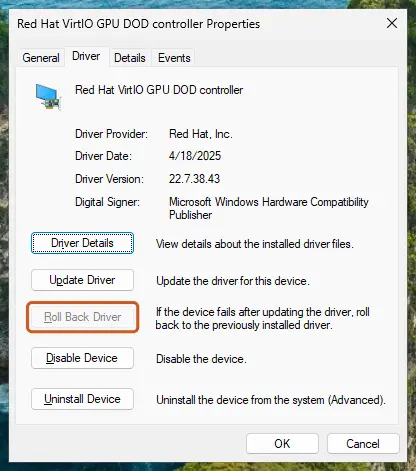
Roll Back Driver is greyed out here because there is no earlier driver. Screenshot: Windows 11 26H2. - Or reinstall the driver. Select Uninstall Device. Tick Attempt to remove the driver for this device only if you want Windows to delete the driver package too, then select Uninstall.
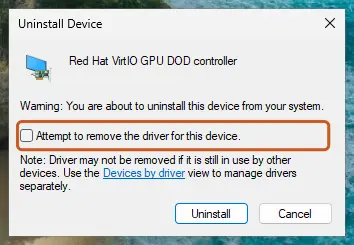
Tick the checkbox only to delete the driver package as well. Screenshot: Windows 11 26H2. - Restart. Restart the PC. Windows detects the device again and installs a driver for it.
- Check optional driver updates. Open Settings > Windows Update > Advanced options > Optional updates. If driver updates are listed, tick the ones you need and select Download & install.
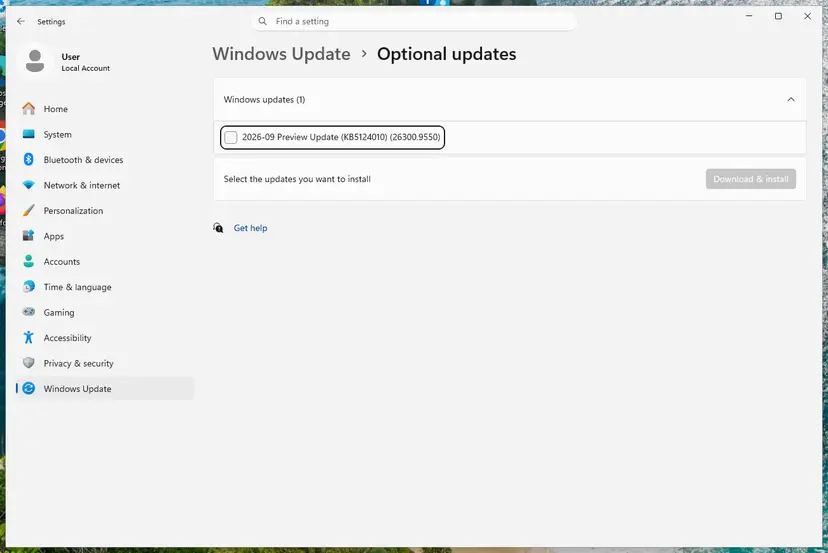
Optional updates on our test PC; driver updates appear here when Windows Update has any for your hardware. Screenshot: Windows 11 26H2.
These steps were written for Windows 11 24H2 and later. The full page with the other versions and what each result means: Update, roll back or reinstall a driver
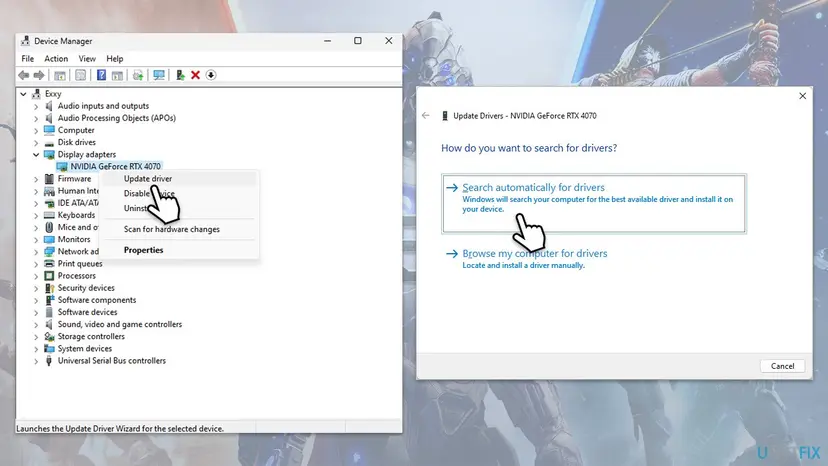
It worked if: Device Manager shows the new driver version, and DirectX 12 starts. If you have Intel Arc, keep using DirectX 11 until a driver note names ELEX 2.
If not: If the crash started right after a driver update, roll back to the previous driver with the same procedure, then go to Fix 4.
Fix 4. Verify the ELEX II game files in Steam or GOG
5 to 15 minutesNo riskThe crash began after a game update, a download stopped, or you deleted a folder such as ELEX2DX11 on someone's advice.
ELEX II keeps its DirectX 11 and DirectX 12 versions as separate sets of files. A verify checks both and downloads any that are missing or damaged, and it also brings in the 2022 fixes if your copy is older.
- Open Steam and go to Library.
- Right-click ELEX II and select Properties.
- Open Installed Files and select Verify integrity of game files.
- Wait until Steam reports the result, then start the game again.
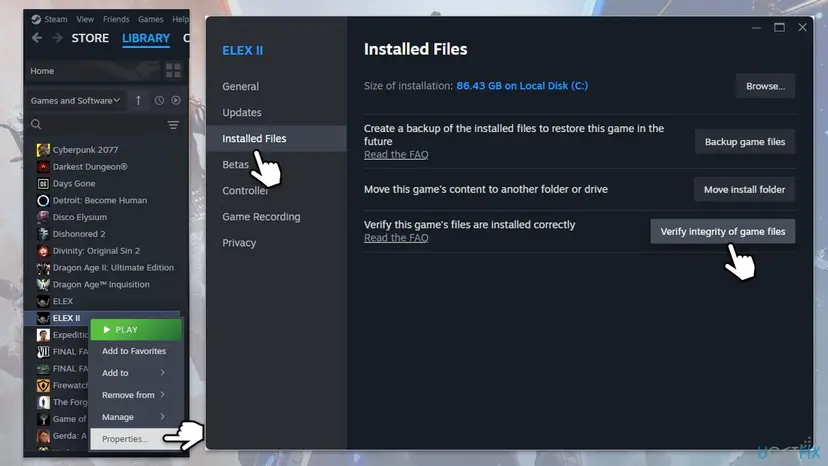
On GOG GALAXY, select ELEX II, open the settings button next to Play and choose Manage installation > Verify / Repair. Steps for other launchers: How to verify game files in Steam, Epic Games, Xbox app, EA app, Battle.net and GOG Galaxy.
It worked if: Steam says all files were validated, or downloads the failed ones, and the game reaches the main menu.
If not: If the files are fine and the game still closes, turn off overlays in Fix 5.
Fix 5. Turn off the Steam, Discord and Game Bar overlays
5 minutesNo riskThe screen stays black and the game closes while Discord, a recorder, the Steam overlay or Xbox Game Bar is active.
An overlay draws on top of the game by hooking into its DirectX output as it starts. With two DirectX versions in one game, that hook is one more thing that can fail before the menu.
- In Steam, right-click ELEX II, select Properties and, on the General page, turn off Enable the Steam Overlay while in-game.
- In Discord, open User Settings and turn off the in-game overlay under Game Overlay.
- Close recording and monitoring tools such as MSI Afterburner or the NVIDIA overlay before you start the game.
- Press Win + I, open Gaming, and turn off the Game Bar shortcut there if you do not use it.
- Start the game. If it works, turn the overlays back on one at a time to find the one that causes it.
To stop other programs from running in the background while you test, How to perform a clean boot in Windows starts Windows with only Microsoft services, and you undo it with the same steps.
It worked if: The game passes the black screen and reaches the menu with the overlays off.
If not: If the game crashes with every overlay off, update Windows in Fix 6.
Fix 6. Update Windows so the DirectX 12 version can run
10 to 30 minutesLow riskYou see a message about your Windows version when you start DirectX 12, or Windows has not been updated for a long time.
The DirectX 12 version uses Microsoft's DirectX 12 Agility SDK, which very old Windows 10 builds do not support. The November 2022 patch added an error message for exactly this case, so the message means Windows, not the game, is too old.
- Press Win + I and open Windows Update.
- Select Check for updates and install everything offered.
- Restart the PC, even if Windows does not ask you to.
- Start ELEX II in DirectX 12 again.
If Windows Update itself fails, Run the Windows Update troubleshooter repairs it. On a PC that cannot move past an old build, keep playing in DirectX 11 (Fix 1), which does not need the newer Windows.
It worked if: Settings shows You're up to date, and the DirectX 12 version starts without the message.
If not: If it still crashes on an up to date PC, reinstall the game in Fix 7.
Fix 7. Uninstall and reinstall ELEX II
20 to 40 minutes, depending on your connectionRead the warningFixes 1 to 6 did not help, or a verify keeps finding damaged files.
A reinstall replaces every game file in both versions and clears files a verify does not check, such as leftovers from mods. It is slow, which is why it comes last.
Uninstalling can remove local data. Before you start, check that Steam shows Cloud Status: Up to date on the ELEX II page, and keep the renamed Config.old folder from Fix 2 if you want your settings back.
- In Steam, right-click ELEX II and select Manage > Uninstall, then confirm.
- Restart Steam.
- Select ELEX II in the Library and select Install.
- When the download ends, start the DirectX 11 version first to test.
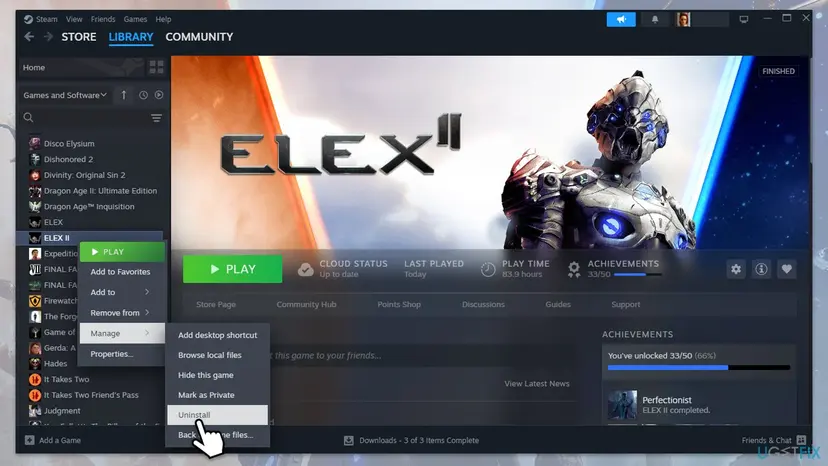
It worked if: The fresh install reaches the main menu and Steam Cloud brings back your saves.
If not: Read the crash entry in Event Viewer, as the next section shows.
ELEX II still crashes on startup: read the crash in Event Viewer
If none of this helps, Windows has still recorded each crash of the game. The entry names the file that failed, and that tells you where to look next.
- Press Win + X and select Event Viewer.
- Open Windows Logs > Application.
- Find the newest Error with the source Application Error at the time the game closed.
- Read Faulting application name and Faulting module name.
- The module is a graphics driver file (names starting with
nv,ati,amdorigd): the driver, Fix 3, and DirectX 11 in Fix 1 meanwhile. - The module is
d3d12.dllordxgi.dll: DirectX 12 or Windows, Fix 1 and Fix 6. - The module belongs to an overlay or recorder: that program, Fix 5.
- No entry at all: something else closed the game, such as security software. Check its log, and if you pause it for one test, turn it back on right after: Turn off Microsoft Defender protection for a moment.
If the whole PC freezes or restarts, or other games crash too, that points at the driver, overheating or hardware rather than ELEX II. When you ask in the Steam discussions or contact THQ Nordic support, include the Event Viewer entry, your graphics card and driver version, and which DirectX version you started.
How to keep ELEX II from crashing at startup again
Most repeat crashes come from changes made between two play sessions. A few habits keep the game in the state it last worked in.
- Stay on the version that works. If DirectX 11 is stable on your PC, choose it every time instead of the default.
- Keep a copy of a good Config folder. After a session that went well, copy
%LOCALAPPDATA%\ELEX2\Configsomewhere safe, so you can put it back in a minute. - Test after a driver update. Start the game once after every new graphics driver, before a long session, and roll back if it breaks.
- Remove mods before updates. Take out added files before Steam updates the game, then verify (Fix 4).
- Leave Steam Cloud on for ELEX II, so a reinstall never costs you your saves.
Frequently asked questions
Should I play ELEX II on DirectX 11 or DirectX 12?
Choose DirectX 12 if it starts and runs without problems on your PC, because the patch that added it raised performance when the graphics card is the limit. Choose DirectX 11 if DirectX 12 crashes on startup, if you have an Intel Arc card, or if you see graphics bugs. DirectX 11 is the original version of the game and is the safer choice. You can switch at any time when you start the game, and your saves work in both.
Why does ELEX II crash on startup when it worked yesterday?
Something changed between the two sessions. Most often it is the settings and cache files in %LOCALAPPDATA%\ELEX2\Config, which can go bad after a crash, a driver update or a changed setting. Rename that folder to Config.old (Fix 2) and start again. If a new graphics driver arrived overnight through Windows Update, that is the second suspect: test DirectX 11 first and roll the driver back if needed.
Does ELEX II work on Intel Arc graphics cards?
Yes, in DirectX 11. Intel lists ELEX 2 crashing at launch in DirectX 12 as a known issue on Intel Arc A-Series cards, and says the game launches correctly with DirectX 11. Its article gives no fix yet and was last reviewed in December 2023. Start the DirectX 11 version (Fix 1), keep the Intel driver current, and try DirectX 12 again only after a driver note mentions the game.
Should I delete the ELEX2DX11 folder to fix the crash?
We do not advise it. That folder holds the DirectX 11 version of the game, which is the version most likely to work when DirectX 12 crashes. Deleting it does not touch the DirectX 12 files or your settings. If you already deleted it, verify the game files in Steam or GOG (Fix 4) and it is downloaded again. To reset settings, rename the Config folder in AppData instead (Fix 2).
Will renaming the Config folder delete my ELEX II saves?
No. The Config folder holds settings, key bindings and DirectX 12 cache files, such as ConfigUser, Application, ActionMap.bin and .pipelinelibrary files. Saves are not among them. Renaming the folder only makes the game build fresh settings, and you lose your graphics and control choices until you set them again. Because you renamed it instead of deleting it, you can put the old folder back at any time.
Is there an official patch for the ELEX II startup crash?
Not one that fixes every case. The November 2022 patches fixed a crash when switching to full screen and stopped cards without DirectX 12 support from trying to start the DirectX 12 mode. THQ Nordic said it knew of further problems but could not promise more patches or a timeline. Intel tracks the Arc crash on its side. So the fixes on this page are the practical answer.
Does this guide help with ELEX 1 crashing?
Partly. This page is about ELEX II. The first ELEX from 2017 has only a DirectX 11 version, so Fix 1 does not apply to it. The general steps still help: rename its settings folder in AppData, update the graphics driver, verify the files in Steam and turn off overlays. Check the folder name in %LOCALAPPDATA% first, as it differs from the ELEX2 folder used here.
Do these fixes work for the GOG version of ELEX II?
Yes. The game files, both DirectX versions and the %LOCALAPPDATA%\ELEX2\Config folder are the same. Only the launcher steps differ: in GOG GALAXY you find the files through the settings button next to Play, and you repair the install with Manage installation > Verify / Repair instead of the Steam verify. The driver, overlay and Windows Update fixes do not depend on the store.
What if none of these fixes help?
Then read the crash entry in Event Viewer under Windows Logs > Application and look at the faulting module, as the Still crashing section shows. It tells you whether the driver, DirectX, an overlay or the game itself failed. If other games also crash or the PC restarts, suspect the driver, overheating or hardware. Send the entry, your graphics card and driver version to THQ Nordic support or the Steam discussions.
Sources
Did this fix work?
One click, no account. It tells the next reader which guides are worth their time.
Questions and experiences: fix ELEX II crashing on startup in Windows 11 and 10
Still broken, or found a fix we did not cover? Ask here: members and our editors answer. Reading is open; writing needs a free account.
…