
How to fix error 0xc0000141 "The application was unable to start correctly" in Windows?

Prefer to fix it yourself? The manual steps follow.
- 8methods
- 5 minutes to find the program, 10 to 30 minutes for the fix
- Easy
Applies to Windows 11, Windows 10, desktop programs and games
8 methods in this guide
- What the error means
- Causes, most common first
- Find out what changed
- The fixes
- 1. Find the failing program
- 2. Update or reinstall it
- 3. Repair runtimes
- 4. Admin and compatibility mode
- 5. Stop the startup entry
- 6. Clean boot test
- 7. Remove the latest update
- 8. Repair system files
- If it still appears
- Keep it from returning
- FAQ
Hello, I have a problem with opening a program on my Windows 11 PC. I always get an error saying "Application was unable to start correctly" and the error code is 0xc0000141. Could you help me, please?
Error 0xc0000141 means Windows stopped a program while it was loading, before its window opened, and the code names no missing file. The fix depends on which program it is, so read the name in the title bar of the error window first. Then update or reinstall that program from its maker.
0xc0000141 is a start-up failure of one program, not a Windows fault. Read the program name in the error window's title bar (Fix 1). If it is a program you open yourself, install its newest version from its maker over the old one (Fix 2). If the window pops up on its own every few minutes, find and remove the startup entry that launches it (Fix 5). Repairing Windows itself comes last.
| Error | The application was unable to start correctly (0xc0000141). Click OK to close the application. |
|---|---|
| Where it appears | A small window titled with the program file name and Application Error, right after you start a program, or on its own when something launches a program in the background. |
| Main cause | The program fails while Windows loads it: an outdated build that does not run on a newer Windows, a damaged install, or a missing runtime. Microsoft documents no single cause for this code. |
| Fastest fix | Install the newest version of the named program from its maker over the old one (Fix 2). |
| Code meaning | 0xC0000141 is STATUS_INVALID_ADDRESS in Microsoft's NTSTATUS list: "The address handle that was given to the transport was invalid." The text does not name a file. |
| Also written as | 0xC0000141, 0xc0000141, error 0xc0000141, "Application was unable to start correctly 0xc0000141". Decimal form: 3221225793. |
| Sister codes | 0xc0000142 (STATUS_DLL_INIT_FAILED) and 0xc0000135 (STATUS_DLL_NOT_FOUND) show the same kind of window and share most fixes. |
| Affects | Windows 11 and Windows 10. A Microsoft Q&A thread from October 2024 with more than 200 "same question" votes came mostly from Windows 11. Windows 10 left support on 14 October 2025. |
| Microsoft's status | No known issue entry and no fix release for this code. In the Q&A thread, the independent advisor first asked which program fails and what changed before it started. |
| Time to fix | 5 minutes to identify the program. 10 to 30 minutes to reinstall it or repair its runtimes. |
Facts checked on 15 October 2026. Steps written for Windows 11 (25H2 and 26H2) and Windows 10 22H2.
What error 0xc0000141 "The application was unable to start correctly" means
The full message reads: The application was unable to start correctly (0xc0000141). Click OK to close the application. Windows shows it when a program's process is created but dies during its own start-up, before it can draw a window. Selecting OK only closes the message; the program does not run.
The title bar of that small window holds the most useful fact on the screen: the file name of the program that failed, for example RegSvcs.exe - Application Error. That name, not the code, decides which fix on this page applies to you.
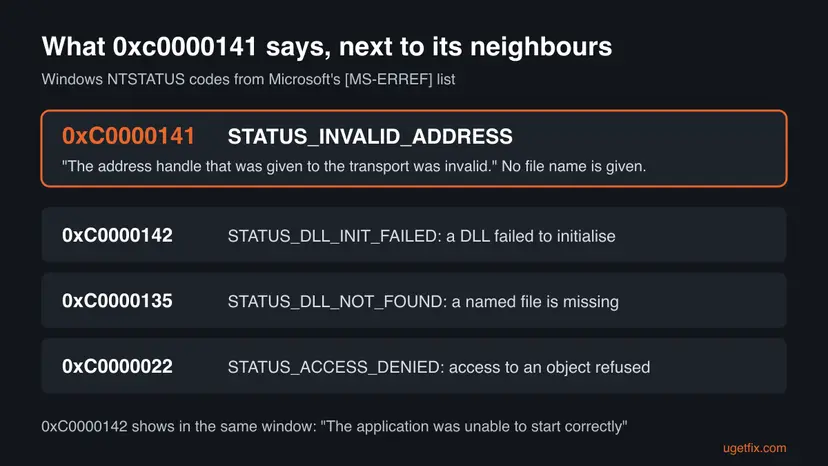
- 0xC0000141 is
STATUS_INVALID_ADDRESS. Microsoft's [MS-ERREF] list describes it as an invalid address handle given to the transport, a network-layer status. It says nothing about which file is wrong. - Its neighbour 0xC0000142 is
STATUS_DLL_INIT_FAILED, a library that failed to initialise, and 0xC0000135 isSTATUS_DLL_NOT_FOUND. Those are the codes you normally get when a program cannot load its parts. - What that means for you: the code is a symptom, not a diagnosis. The program name and the moment the error began tell you more than the code does.
- It is not a virus warning and not a hardware alarm. It is the generic window Windows uses when a process fails at start.
Users report it in Microsoft Q&A for very different programs: the EEP17 railway simulator, game launchers from Deutschland spielt (Load Helper), a Realtek Bluetooth app, a screensaver file called QuantumLink.scr and explorer.exe. On Reddit, one user saw it for RegSvcs.exe, a .NET Framework tool, after a system update.
Why a program fails to start with error 0xc0000141
Microsoft has published no cause for this code, so the order below follows the reports in the Microsoft Q&A thread and what the error itself shows. Most reports name one program and say it worked before a Windows update or upgrade.
| How often | Cause | Signs | Fix |
|---|---|---|---|
| Most often | An older build of one program no longer starts on the current Windows 11 release. | One program fails; it began after a Windows feature update. Other programs work. | Fix 2, then Fix 4 |
| Often | The program's install or its runtime (Visual C++ or .NET Framework) is damaged or missing. | The program fails after a crash, a disk clean-up or a half-finished update. | Fix 2, Fix 3 |
| Less often | A startup entry or scheduled task keeps launching a program that no longer works, or one you never installed. | The window pops up by itself every few minutes, or names a .scr or .exe file you do not know. | Fix 5 |
| Less often | Software that injects itself into every program (security suites, overlays, encryption tools) breaks the start of some programs. | Several programs fail, and they start in a clean boot. | Fix 6 |
| Rarely | A Windows update or damaged Windows files break programs, including Windows parts. | explorer.exe or many programs fail at once, right after an update. | Fix 7, Fix 8 |
Updating graphics or network drivers and running the Microsoft Store troubleshooter appear in many guides for this error. We found no report where either fixed it, and the code names no device. Use them only if the failing program is a driver tool, such as the Realtek Bluetooth app.
When did 0xc0000141 start: the question that saves the most time
The advisor in the Microsoft Q&A thread asked two things before suggesting any fix: which program fails, and what happened on the PC just before. You can answer both in a minute, and the answers point straight at one fix.
| What happened before | Most likely cause | Start with |
|---|---|---|
| Windows installed a feature update (for example, to a new Windows 11 version) | The program build is too old for the new Windows | Fix 2 |
| You installed a security suite, a game overlay or a disk encryption tool | Injected software breaks the start | Fix 6 |
| A disk clean-up tool or a forced shutdown | Damaged program files or runtimes | Fix 2, Fix 3 |
| Nothing you remember, and the window appears on its own | A leftover startup entry | Fix 5 |
To see your Windows version, press Win + R, type winver and select OK. Write down the version line, for example Version 25H2, so you can compare it with the program maker's supported list.
How to fix error 0xc0000141 "The application was unable to start correctly"
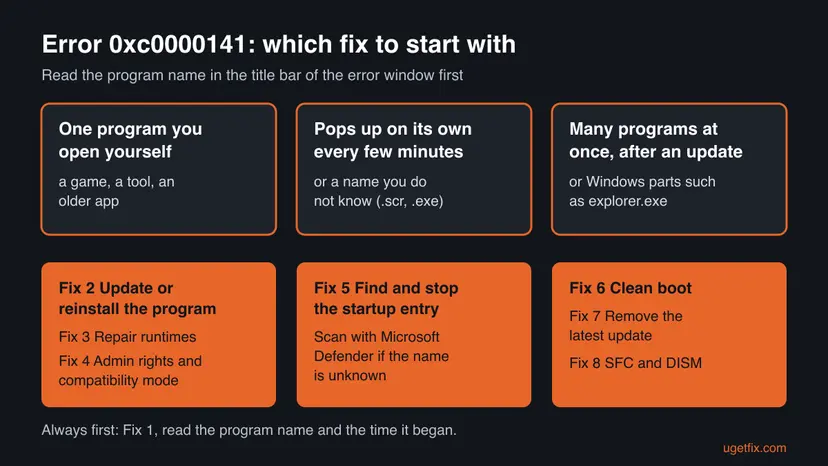
Fix 1 tells you which of the others to run. Fixes 2 to 5 deal with one program and fix most cases. Fixes 6 to 8 are for many failing programs at once. Test the program after each fix.
| What you see or have | Start with |
|---|---|
| You do not yet know which program fails | Fix 1 |
| One program you open yourself fails, often after a Windows update | Fix 2 |
| The program's maker says its newest version needs Visual C++ or .NET | Fix 3 |
| An old program that has no newer version | Fix 4 |
| The window pops up on its own, or names a file you do not know | Fix 5 |
| Several programs fail since you installed a security or overlay tool | Fix 6 |
| Many programs or Windows parts fail right after a Windows update | Fix 7, then Fix 8 |
Fix 1. Find the program that fails and when it started
5 minutesNo riskEveryone. The rest of the page depends on the answer.
The code 0xc0000141 names no file, but the error window and Windows' own history record which program failed and when. A failing game needs a different fix from a startup entry that nobody uses.
- Read the title bar of the error window. It shows the file name, such as
EEP.exe - Application Error. Write it down before you select OK. - Press Win + R, type
perfmon /reland select OK to open Reliability Monitor. - Look for red crosses on the days the error appeared and select one. The list below shows the failed program and the time.
- Select View technical details on a matching line to see the full path of the program file.
- Compare the first day of the errors with Informational entries such as Successful Windows Update on the same or the day before.
- If the file name is one you do not know, right-click Start, select Task Manager, open Startup apps and look for the same name.
The path tells you who owns the file. C:\Program Files\<maker> is an installed program. A file in C:\Windows\Microsoft.NET is part of .NET Framework. A file in a Temp or AppData folder that you did not put there deserves a malware scan (Fix 5).
It worked if: You know the program's file name and path, and whether the error began after a Windows update or a new install.
If not: If Reliability Monitor shows nothing, use the title bar name alone and go to Fix 2. If the error appears on its own, go to Fix 5.
Fix 2. Install the newest version of the program over the old one
10 to 20 minutesLow riskOne program you start yourself fails, especially since a Windows feature update.
Most reports in the Microsoft Q&A thread are older programs that stopped starting on a newer Windows 11. A current build from the maker replaces the program files and the parts it loads at start, which is where the failure happens.
- Open the maker's official website or the store you bought the program from (Steam, Microsoft Store, the game's own launcher).
- Check the release notes or support page for the Windows versions it supports, and download the newest version.
- Run the installer over the existing program. Most installers keep your settings and saved files.
- If the newest version still fails, open Settings > Apps > Installed apps, select the three dots next to the program and select Uninstall.
- Restart the PC, then install the newest version again and start it.
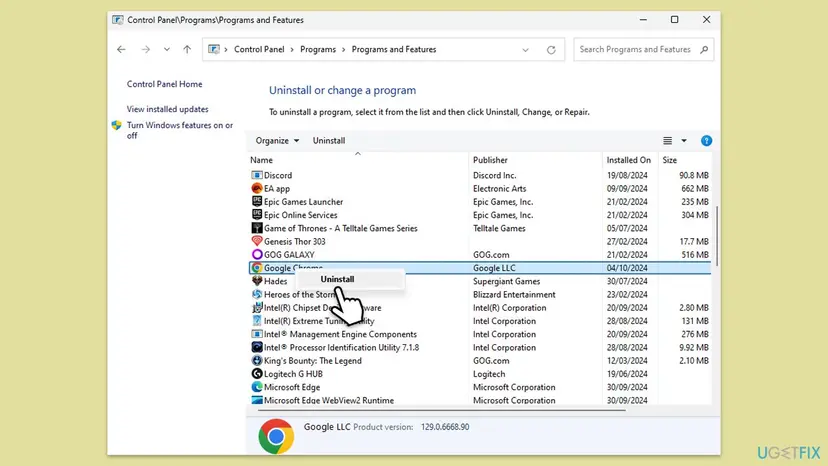
For a Microsoft Store app, use Repair first, then Reset: How to repair or reset an app in Windows. For a full uninstall step by step: Uninstall a program or app in Windows.
Some programs keep projects, maps or save games inside their own folder, and an uninstall can remove them. Copy that folder to another drive first. Get the installer only from the maker; a copy from a download site can bring back the same problem or worse.
It worked if: The program starts and opens its window. Reliability Monitor shows no new failure for it.
If not: If the newest version fails the same way, repair its runtimes in Fix 3. If there is no newer version, try Fix 4.
Fix 3. Repair Visual C++ and .NET Framework
15 minutesLow riskThe program was reinstalled and still fails, or the failing file belongs to .NET Framework, such as RegSvcs.exe.
Many programs load Visual C++ or .NET libraries in the first moments of their start. If those shared parts are damaged, every program that uses them can fail before its window appears, and a reinstall of the program alone does not touch them.
- Open Programs and Features. Type control panel in the search box on the taskbar and select Control Panel. Select Programs > Programs and Features.
- Find the installed versions. Look for the entries that start with Microsoft Visual C++. Each one shows a year and an architecture, x64 or x86. Several entries side by side are normal: older versions stay installed next to newer ones.
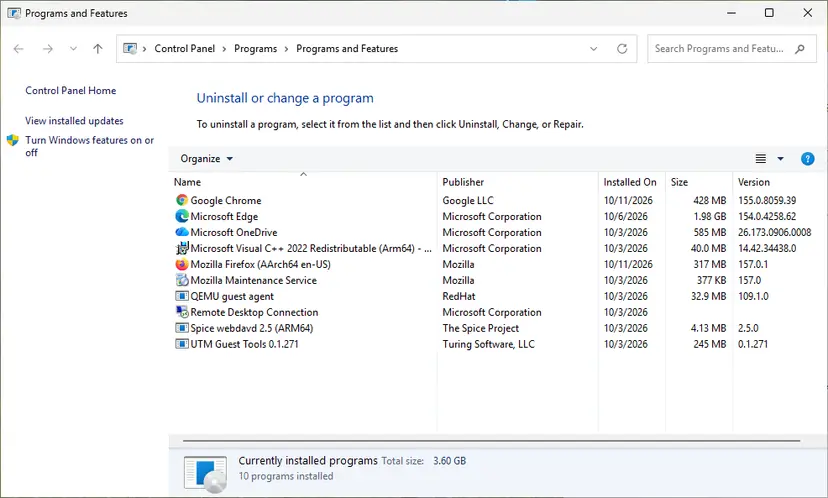
Each Visual C++ version is its own entry in Programs and Features. Screenshot: Windows 11 26H2. - Repair each Visual C++ entry. Right-click an entry and select Change, then select Repair in the window that opens. Do the same for every Microsoft Visual C++ entry.
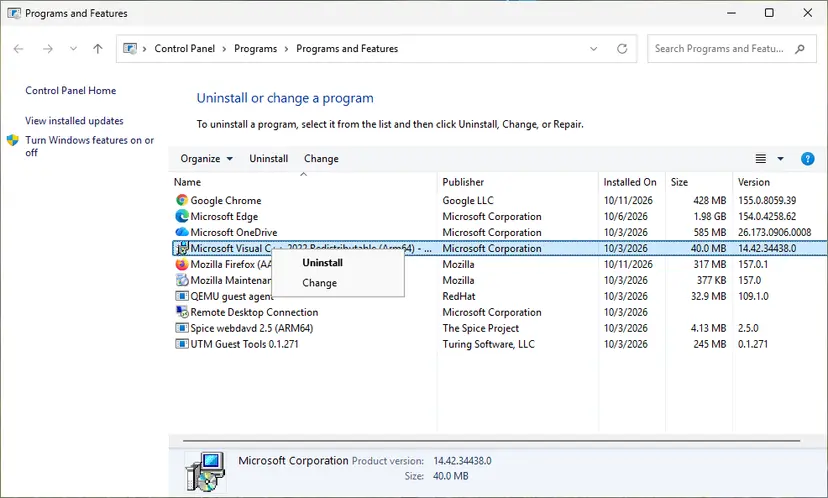
Right-click the entry and select Change to reach the repair option. Screenshot: Windows 11 26H2. - Install the latest supported version. Download the latest Visual C++ v14 Redistributable from Microsoft: Visual C++ Redistributable latest supported downloads and run it. On a 64-bit PC install both X64 and X86, because 32-bit programs need the x86 package. On an ARM64 PC install ARM64. This one version serves programs built with Visual Studio 2017 to 2026.
- Run the .NET Framework Repair Tool. Download the Microsoft .NET Framework Repair Tool and run NetFxRepairTool.exe. The wizard looks for setup problems, asks for your consent before it applies fixes, then repairs the installed .NET Framework versions. The tool is in English only.
- Turn on .NET Framework 3.5 if a program asks for it. Select Start, search for Windows Features and open it. In Turn Windows features on or off, select the .NET Framework 3.5 (includes .NET 2.0 and 3.0) check box and select OK. Windows downloads the files, so stay online.
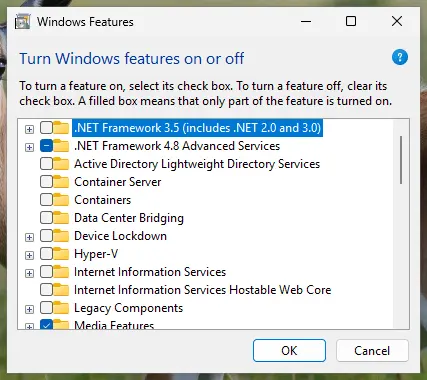
.NET Framework 3.5 is turned on in Windows Features. Screenshot: Windows 11 26H2. - Restart and test. Restart the PC and start the program that showed the error.
These steps were written for Windows 11 25H2 and 26H2, Windows 10 22H2. The full page with the other versions and what each result means: How to repair Microsoft Visual C++ Redistributable and .NET Framework
Repair every Visual C++ Redistributable in the list, both x86 and x64, because a 64-bit PC runs 32-bit programs too. Restart before you test the program.
It worked if: The repair ends with a success message for each package, and the program starts after the restart.
If not: If it still fails and the program is old, go to Fix 4. If several programs fail, go to Fix 6.
Fix 4. Run the program as administrator or in compatibility mode
5 minutesLow riskAn old program that its maker no longer updates, or one built for Windows 7 or 8.
Compatibility mode makes Windows apply fixes for older programs at start, and administrator rights let a program write where newer Windows blocks it. For an old program with no update, these are the only changes you can make on your side.
- Right-click the program's shortcut or its .exe file and select Run as administrator. Select Yes. If it starts, the program needs rights it does not get by default.
- If it still fails, right-click the file again and select Properties.
- Open the Compatibility tab and tick Run this program in compatibility mode for.
- Choose the Windows version the program was made for, such as Windows 8 or Windows 7.
- Tick Run this program as an administrator if the first step helped, then select Apply and OK.
- Start the program. If it fails, try the next older Windows version in the list.
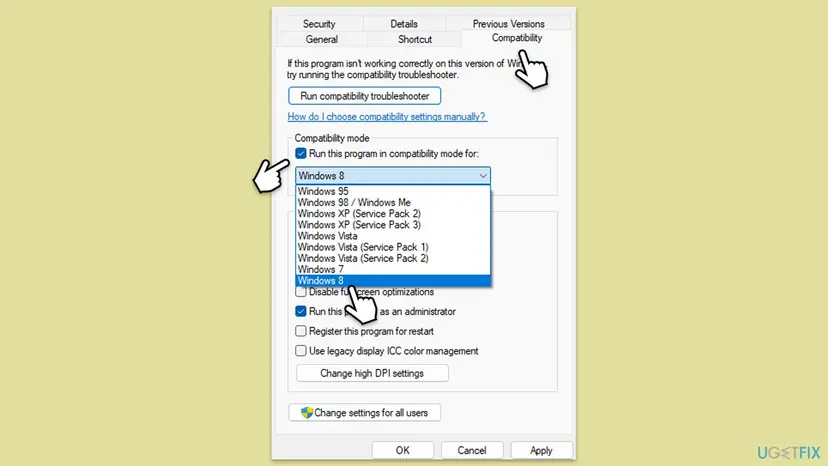
Step by step with screenshots: How to run a program as administrator or in compatibility mode.
It worked if: The program opens. Windows keeps the setting, so it starts the same way next time.
If not: If no compatibility setting helps, clear the ticks again with Apply so they do not hide other problems, and go to Fix 6.
Fix 5. Find and stop the startup entry that launches the failing program
10 minutesLow riskThe error window appears on its own every few minutes or at sign-in, or it names a file you do not know.
In the Microsoft Q&A thread the first poster got the error every 2 to 3 minutes without opening anything. That pattern means something keeps launching a program that cannot start: a startup entry, a scheduled task or a leftover from an uninstalled program.
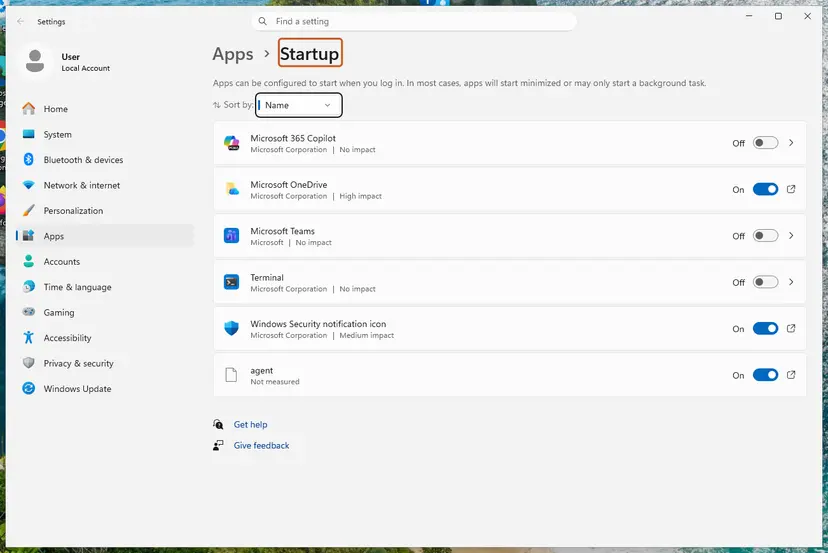
- Right-click Start, select Task Manager and open Startup apps. Look for the file name from the error title bar.
- If you find it and do not need it, right-click it and select Disable.
- If it is not there, press Win + R, type
taskschd.mscand select OK to open Task Scheduler. - Select Task Scheduler Library and sort by Last Run Time. Look for a task that runs every few minutes and whose Actions tab starts the same file.
- Right-click that task and select Disable. Do not delete tasks whose author is Microsoft.
- Restart the PC and wait 15 minutes to see if the window returns.
A .scr or .exe file in a Temp or AppData folder that starts by itself and fails can be the remains of unwanted software. Run a full scan before you delete anything: How to scan for malware with Microsoft Defender. Disabling a task can be undone; deleting it cannot.
It worked if: No error window appears after the restart, and the program you use daily still works.
If not: If the window still appears, note the time it shows and match it with Reliability Monitor (Fix 1), then try a clean boot in Fix 6.
Fix 6. Start Windows with a clean boot to find software that breaks other programs
20 minutesLow riskSeveral programs fail with 0xc0000141 or its sister 0xc0000142, often since you installed a security suite, an overlay or an encryption tool.
Some software loads itself into every program you start. In a Microsoft mimalloc report about the sister code 0xc0000142 on Windows 11, the common factor was an endpoint security module and an encryption tool hooking program loading. A clean boot starts Windows without them.
- Open System Configuration. Select Search on the taskbar, type msconfig and select System Configuration from the results.
- Hide Microsoft services. On the Services tab, select the Hide all Microsoft services check box. Only services from other companies stay in the list.

With Hide all Microsoft services ticked, only third-party services stay in the list. Screenshot: Windows 11 26H2. - Disable the remaining services. Select Disable all, then select Apply.
- Open Task Manager. On the Startup tab of System Configuration, select Open Task Manager.

The Startup tab only links to Task Manager. Screenshot: Windows 11 26H2. - Disable the startup apps. On the Startup apps tab in Task Manager, select each item whose status is Enabled and select Disable. Write down or take a screenshot of the items you disable: you need the list to turn them back on.

Select an app, then Disable. Screenshot: Windows 11 26H2. - Confirm the changes. Close Task Manager. On the Startup tab of System Configuration, select OK.
- Restart and test. Restart the PC. Windows now starts in a clean boot environment: try again the thing that failed (run the app, install the update, uninstall the program).
These steps were written for Windows 11 25H2 and 26H2. The full page with the other versions and what each result means: How to perform a clean boot in Windows
If the program starts in the clean boot, turn the services back on in groups of a few at a time until the error returns. The last group holds the conflicting tool. Update it, or ask its maker for a version that supports your Windows release.
It worked if: The failing program starts in the clean boot, and you find the tool that blocks it.
If not: If it fails in a clean boot as well, the cause is in the program or in Windows. Go to Fix 7.
Fix 7. Remove the Windows update that came right before the errors
15 minutesRead the warningMany programs or Windows parts such as explorer.exe started failing the day a Windows update installed.
Reports on Reddit and Facebook describe the error right after a system update. If the dates in Reliability Monitor match, removing that one update is a quick test of whether it is the cause.
Removing an update also removes its security fixes until Windows installs it again. Use it as a test, then reinstall the update once the program maker or Microsoft releases a fix.
- Open Windows Update. Select Start > Settings > Windows Update.
- Open the update history. Under More options, select Update history. Note the KB number and the date of the update you suspect.
- Open the list of removable updates. Scroll down to Related settings and select Uninstall updates.
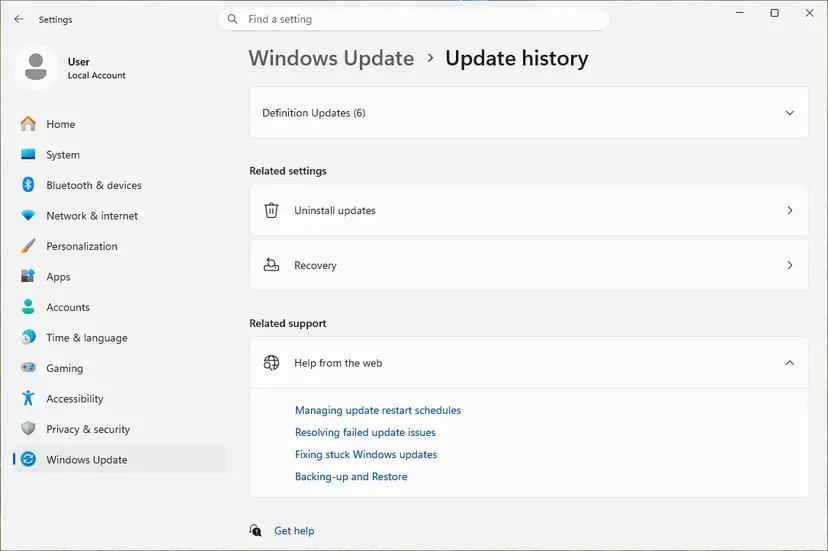
Uninstall updates is under Related settings. Screenshot: Windows 11 26H2. - Uninstall the update. Find the update in the list and select Uninstall next to it. If the update is not in the list, Windows does not allow it to be removed this way.
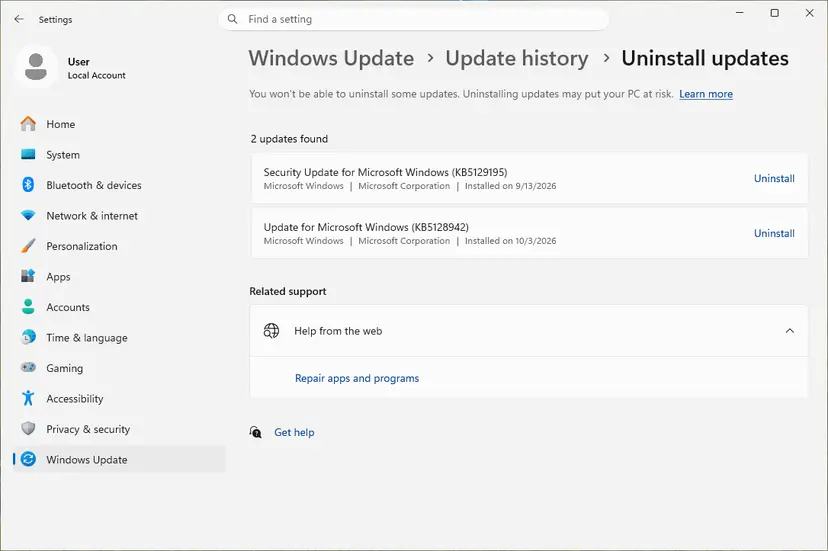
Each removable update has its own Uninstall link. Screenshot: Windows 11 26H2. - Pause updates. Go back to Settings > Windows Update and select Pick a date on the Pause updates control. If your PC shows a list there instead, select the pause length you prefer. Without a pause Windows downloads the same update again.
These steps were written for Windows 11 25H2 and 26H2. The full page with the other versions and what each result means: How to uninstall a Windows update
It worked if: After the restart, the programs start without the error.
If not: If nothing changes, install the update again through Windows Update and repair Windows files in Fix 8.
Fix 8. Repair Windows system files with SFC and DISM
20 to 30 minutesNo riskWindows parts fail too, or nothing above helped.
If the files Windows uses to load every program are damaged, no program reinstall can repair them. DISM repairs the Windows image and SFC replaces damaged system files from it. On a healthy PC it changes nothing, so it comes last.
- Open an elevated command window. Right-click Start and select Terminal (Admin), or type cmd in the search box, right-click Command Prompt and select Run as administrator. Select Yes when Windows asks for permission.

Search for cmd and choose Run as administrator. Screenshot: Windows 11 26H2. - Run DISM first. Type the command below and press Enter. DISM downloads clean copies of damaged components from Windows Update, so it can take several minutes. Wait until it says The operation completed successfully.
DISM.exe /Online /Cleanup-Image /RestoreHealth
DISM /RestoreHealth running. Screenshot: Windows 11 26H2. - Run System File Checker. In the same window, type the command below and press Enter. Do not close the window until the verification reaches 100%.
sfc /scannow
sfc /scannow at 100%. Screenshot: Windows 11 26H2. - Read the result and restart. Compare the last message with the table below this guide, then restart the PC so that repaired files are loaded.

The result line tells you what SFC did. Screenshot: Windows 11 26H2.
These steps were written for Windows 11 24H2 and 25H2. The full page with the other versions and what each result means: Run DISM and SFC to repair Windows system files
It worked if: SFC reports that it found and repaired damaged files, or found no integrity violations. Restart and test the program.
If not: If the error remains, read "If error 0xc0000141 still appears" below.
If error 0xc0000141 still appears
When one program still fails after Fixes 2 to 6, the problem is almost always between that program and your Windows version, and only its maker can fix it. Send them the facts, not only the code.
- Open Reliability Monitor (
perfmon /rel) and select View technical details on the newest failure of the program. - Copy the program name, its version, the exception code and the time.
- Run
winverand copy the Windows version and OS build. - Send these to the program's support or post them in its official forum. Ask whether your Windows version is supported.
- On a work or school PC, a security product managed by your IT department may block the program. Ask them before you change anything.
- Disk errors (Disk or Ntfs entries in Event Viewer's System log) point to a failing drive. Check it with Check a disk for errors (chkdsk) and back up your files.
- A related failure: if Windows' own security app fails with a bad image message, our guide to Microsoft Security App error 0xc0e90002 covers that case.
How to keep error 0xc0000141 from coming back
You cannot stop every old program from breaking on a new Windows release, but you can see it coming and avoid the leftovers that cause pop-ups.
- Check the program maker's supported Windows list before a Windows feature update.
- Keep the programs you use every day on their newest version.
- Uninstall programs through Installed apps, so their startup entries go too.
- Keep a restore point or a backup before big updates.
- Download program files or DLLs from random sites to fix a start error.
- Turn off your antivirus for good to get one program running.
- Delete scheduled tasks you do not recognise without checking who made them.
- Reinstall Windows because of one failing program.
Frequently asked questions
What does error 0xc0000141 mean?
It means a program failed during its own start-up, so Windows closed it and showed The application was unable to start correctly. In Microsoft's NTSTATUS list, 0xC0000141 is STATUS_INVALID_ADDRESS, an invalid address handle given to the transport. That description does not name a file, so the code alone cannot tell you what is broken. The program name in the window's title bar and the date the error began tell you much more.
How do I fix this error?
Start by reading the program name in the title bar of the error window. If it is a program you open yourself, install its newest version from its maker over the old one. If that fails, repair Visual C++ and .NET Framework, then try compatibility mode. If the window appears on its own, disable the startup entry or scheduled task that launches it. Repairing Windows with SFC and DISM is the last step, not the first.
Is error 0xc0000141 a virus?
No, the error itself is not a virus warning. It is the generic window Windows shows when any program fails at start. It becomes worth a malware scan only when it names a file you never installed, especially one in a Temp or AppData folder that starts by itself every few minutes. In that case run a full Microsoft Defender scan before you delete anything.
Why did it start after a Windows update?
A feature update changes parts of Windows that every program loads at start. Older programs, and tools that hook into other programs, can fail on the new release until their makers ship an update. In the Microsoft Q&A thread from October 2024, most people with this error were on Windows 11 and named one older program. Install the program's newest version first; remove the update only as a test.
What is the difference between 0xc0000141 and 0xc0000142?
Both show the same window, The application was unable to start correctly, with a different code. 0xc0000142 is STATUS_DLL_INIT_FAILED: a library the program loads failed to initialise. 0xc0000141 is STATUS_INVALID_ADDRESS and names no library. The fixes on this page work for both, because both happen in the same first moments of a program's start.
Does this error appear on Windows 10?
Yes, the same window and code can appear on Windows 10, and the fixes are the same. Most recent reports come from Windows 11, because Windows 10 left support on 14 October 2025 and gets no new feature releases. If an old program works only on Windows 10, compatibility mode on Windows 11 (Fix 4) is the first thing to try before you keep an unsupported system.
Can I fix it by downloading a missing DLL?
No. The code 0xc0000141 does not name a missing DLL, and DLL files from download sites are often the wrong version or carry malware. Install the program again from its maker, or repair Visual C++ and .NET Framework from Microsoft. Those put the right files in the right places, with the versions the program expects.
What is "fatal application error 1141"?
It is not this error. 0xc0000141 is a hexadecimal code, and its last digits do not mean error number 1141. A message with a different number comes from a different program or check, so search for its exact text and the program that shows it. This page is about the window The application was unable to start correctly with the code 0xc0000141.
Will reinstalling Windows fix 0xc0000141?
It might, but it is almost never needed and costs hours. The error belongs to one program in most cases, and a reinstall of that program, its runtimes or a change to a startup entry fixes it in minutes. If Windows parts such as explorer.exe fail and SFC and DISM do not help, an in-place repair that keeps your files is the next step: Reinstall Windows without losing files.
Sources
- Microsoft Learn: [MS-ERREF] NTSTATUS Values (0xC0000141 STATUS_INVALID_ADDRESS, 0xC0000142 STATUS_DLL_INIT_FAILED, 0xC0000135 STATUS_DLL_NOT_FOUND) (learn.microsoft.com)
- Microsoft Q&A: Fix Error (0xc0000141) Application Was Unable To Start Correctly (Windows 11 reports, affected programs, advisor's questions) (learn.microsoft.com)
- Microsoft mimalloc on GitHub, issue 957: startup error on Windows 11 24H2 (sister code 0xc0000142, injected security and encryption modules) (github.com)
Did this fix work?
One click, no account. It tells the next reader which guides are worth their time.
Questions and experiences: fix error 0xc0000141 "The application was unable to start correctly" in Windows
Still broken, or found a fix we did not cover? Ask here: members and our editors answer. Reading is open; writing needs a free account.
…