
How to fix error code 0x8007000d on Windows 10?
Prefer to fix it yourself? The manual steps follow.
7 methods in this guide
Hello. For some reason, I cannot install any Windows updates. My last attempt was to upgrade Windows 10 to the latest version, but what I received is an error code 0x8007000d. After that, I’ve rebooted the system because that’s the only solution I could come up with. Could you please provide fixes for this?
Microsoft ships all Windows systems with an automatic update feature enabled, which means that all users should receive new security updates automatically. The updates not only provide significant performance improvements but also fix major bugs within the operating systems and patch software vulnerabilities that could otherwise be exploited by malicious actors.
Unfortunately, some users are unable to receive these stability and security improvements due to update error 0x8007000d. People who encountered the problem claim that once they launch the update, it either proceeds to 100%, hangs, and then fails with the error code. In other cases, the update simply does not launch at all. The error reads as follows:
Windows Update
Error encountered
Some update files are missing of have problems. We'll try to download the update again later. Error code: (0x8007000d).
However, it is not the only issue that users experience. Some people claimed that they also encountered numerous slowdowns and various bugs that come along 0x8007000d error. Without a doubt, this behavior can create a rather frustrating user experience for many, all while trying to work or attend online classes from home during the global pandemic.
While this error was prevalent over the years among users, recently, the problem flared up with the release of the Windows 10 2004 version (in particular, KB4592438). Hundreds of users flooded the IT forums to find out how to fix 0x8007000d, as all attempts to do that failed. Luckily, there are several things you can try in order to successfully remove the error and install the latest Windows updates (note that some users might also encounter the same error when trying to upgrade to Windows 10).
Windows update errors are extremely common (examples include 0x80070002, 0x80242016, or 0x8007371B) and are triggered due to many different factors. Therefore, there is no universal fix for everybody. However, in this case, the error code indicates that there is invalid data within the relevant files.
Below you will find several methods that provide an error code 0x8007000d fix. This repair software is capable of replacing damaged or corrupted Windows components in just a few minutes.
Method 1. Run Windows update and program compatibility troubleshooter
Troubleshooters are great for diagnosing and fixing Windows problems. Since this particular error might also be caused by software conflicts, you should also Program Compatibility troubleshooter.
- Right-click on Start and select Settings
- Pick Update & Security
- Select Troubleshoot (left side of the window)
- If you can't see troubleshooters listed on the left, click Additional troubleshooters
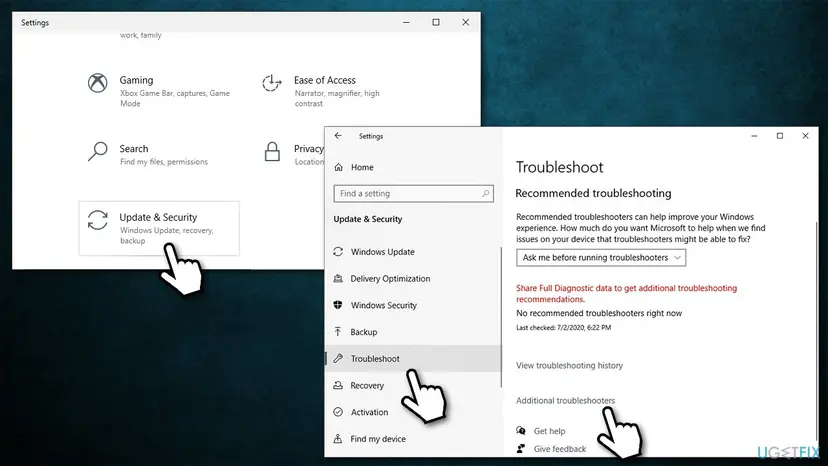
How to fix error code 0x8007000d on windows troubleshoot - Select Windows update and click on Run the troubleshooter
- After the scan has finished, scroll down to find Program Compatibility troubleshooter and run it as well.
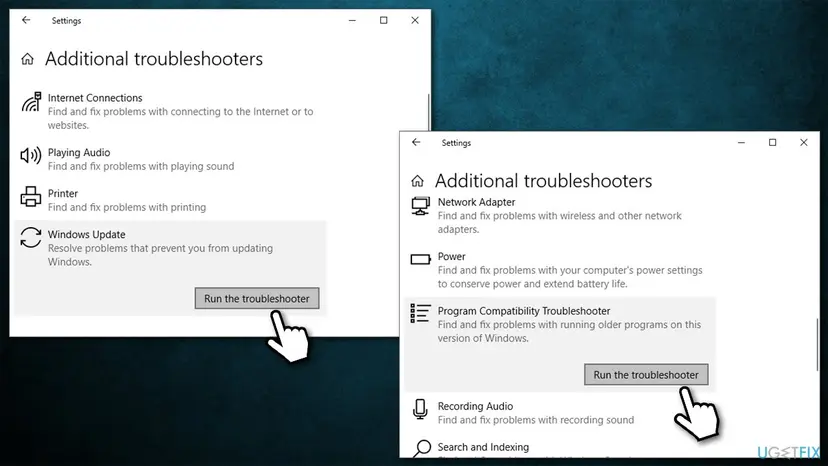
How to fix error code 0x8007000d on windows run windows update andprogram compatibility troubleshooters
Method 2. Disable all third-party antivirus software
When it comes to Windows update errors, overly-aggressive third-party software is often one of the main reasons for the problem to occur. Therefore, if you are using a third-party security tool, you should temporarily disable it and update Windows.
Note that staying unprotected (security software disabled) is dangerous and could result in malware attacks. In order to avoid it, try using a different security application or rely on the built-in Windows Defender.
Method 3. Run System File Checker
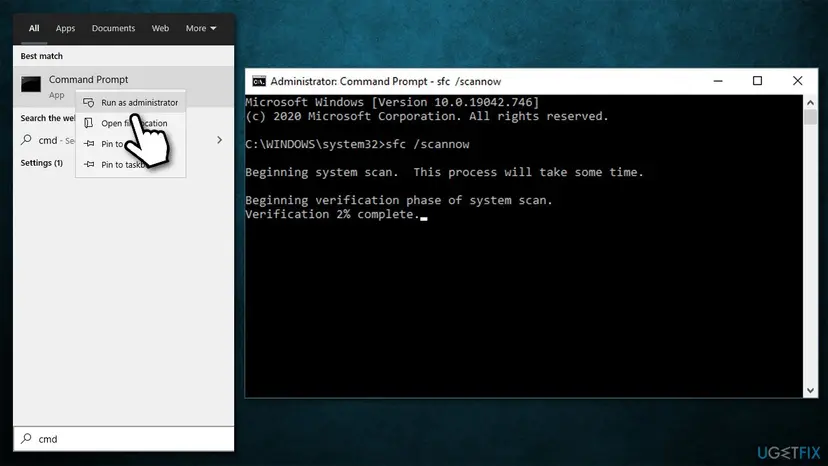
- Type cmd in Windows search box
- Right-click on Command Prompt search result and pick Run as administrator
- Once the new window shows up, type in the following command and press Enter:
sfc /scannow
- Wait till Windows finishes the scan and reports findings
- Reboot your PC.
How to fix error code 0x8007000d on windows run sfc scan
Method 4. Run DISM
DISM can repair Windows image files. You need to run Command Prompt again to use it:
- Open Command Prompt (Admin) as explained above
- Type in the following commands, pressing Enter after each:
Dism /Online /Cleanup-Image /CheckHealth
Dism /Online /Cleanup-Image /ScanHealth
Dism /Online /Cleanup-Image /RestoreHealth - Once complete, reboot your computer.
Method 5. Delete the contents of Software Distribution folder
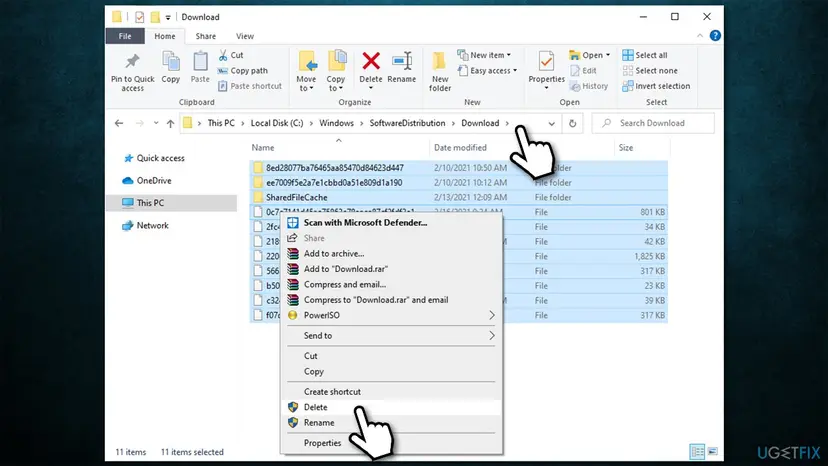
- Press Win + E to open File Explorer
- Navigate to the following location:
C:\\Windows\\SoftwareDistribution\\Download
- Delete all the contents within the folder
How to fix error code 0x8007000d on windows delete software distribution folder - Now open Command Prompt again, and type in the following command, pressing Enter after:
wuauclt.exe /updatenow
- Launch Windows update and check whether error code 0x8007000d appears.
Method 6. Try Group Policy Editor
- Press Win key + R, type gpedit.msc, and press Enter
- Select Computer Configuration and then Administrative Templates
- After that, click on System once
- On the right side of the window, double-click on the Specify Settings for optional component installation and component repair
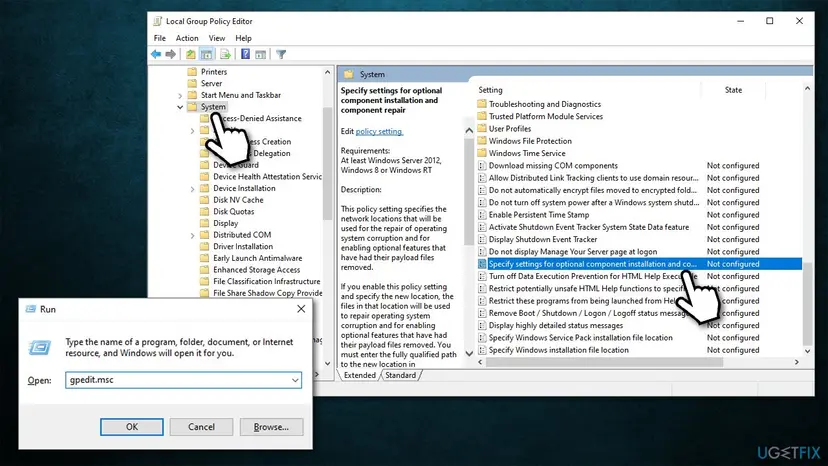
How to fix error code 0x8007000d on windows edit group policy - Choose Enabled option
- Finally, click Apply and OK, reboot your PC, and check for Windows updates.
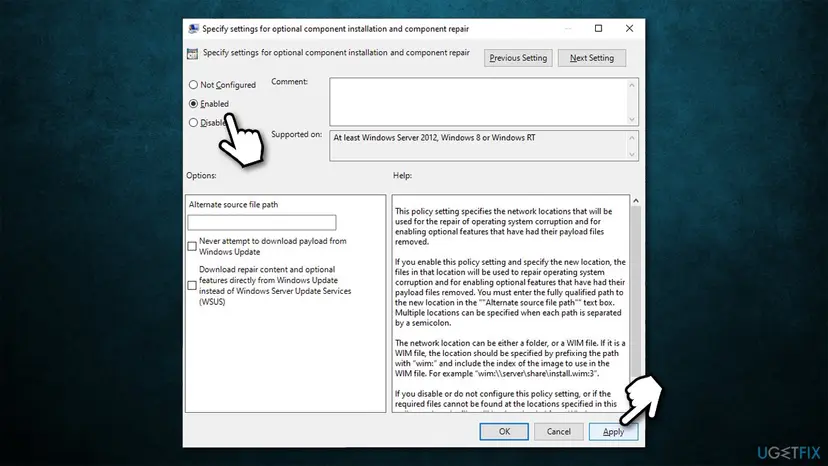
How to fix error code 0x8007000d on windows edit group policy2
Method 7. Reset Windows
If none of the above methods helped you, many people said they were able to solve the Windows update problem after resetting Windows. Don't worry, you will not lose any personal files, although you might have to relog into all your accounts and install some applications anew. For more options, please check our “How to reset Windows to factory settings” article.
- Right-click on Start and pick Settings
- Go to Update & Security
- Select Recovery
- Under Reset this PC, select Get Started
- Pick Keep my files > Cloud download to finalize the process.
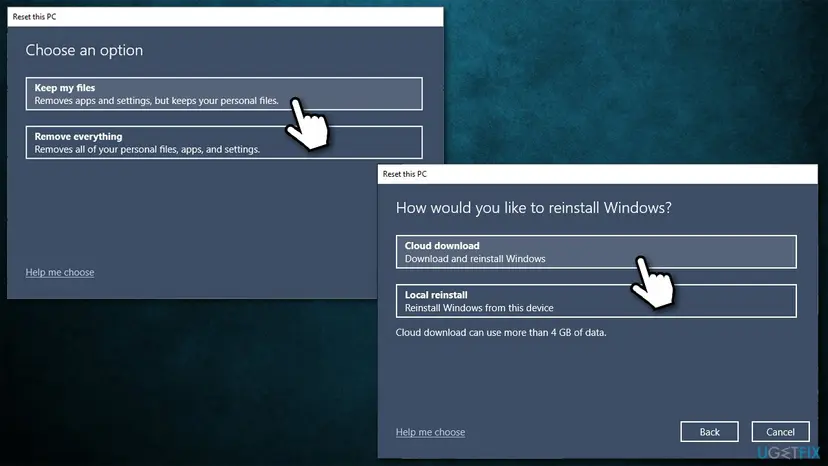
How to fix error code 0x8007000d on windows reset windows
Did this fix work?
One click, no account. It tells the next reader which guides are worth their time.
Questions and experiences: fix error code 0x8007000d on Windows 10
Still broken, or found a fix we did not cover? Ask here: members and our editors answer. Reading is open; writing needs a free account.
…