
How to fix Fatal D3D Error in Resident Evil 4 Remake?

Prefer to fix it yourself? The manual steps follow.
- 7methods
- 5 to 30 minutes
- Easy
Applies to Resident Evil 4 (2023), also called RE4 Remake or RE4R, on Steam for Windows 11 and Windows 10
7 methods in this guide
Hi, I have been randomly getting a Fatal D3D Error while playing Resident Evil 4 Remake. I've got a powerful system (RTX 3080, Ryzen 9 5950X), so this is a mystery to me. Sometimes I can go on for hours without crashes, and other times several crashes happen almost in a row. Any idea what to do?
The Fatal D3D error in Resident Evil 4 Remake means the game's DirectX 12 renderer lost the graphics card and closed. Most often the game asked for more video memory (VRAM) than the card has, usually with ray tracing on. Turn ray tracing off and lower texture quality first, then reset the settings file and reinstall the graphics driver.
The RE4 Fatal D3D error is a graphics crash: the game's DirectX 12 renderer stopped talking to the graphics card. On most PCs the trigger is video memory. Turn Ray Tracing off and lower Texture Quality until the game's VRAM estimate is below your card's total (Fix 1). If it still crashes, restore the default settings file (Fix 2) and do a clean reinstall of the graphics driver (Fix 3).
| Error | A Windows box titled "re4.exe - Fatal Application Exit" with the game's path, a line ending in renderdevicedx12.cpp and the text Fatal D3D error with a number, most often (25), (6) or (1). |
|---|---|
| Where it appears | In the middle of play, often in busy scenes or right after a cutscene, sometimes at launch. The game closes when you select OK. |
| Main cause | The game ran out of video memory or the graphics driver stopped responding. Ray tracing and high texture settings on 8 GB and 10 GB cards are the usual case. |
| Fastest fix | Turn ray tracing off and lower texture quality and shadows (Fix 1). It takes two minutes and costs some image quality. |
| Also written as | re4 fatal d3d error, re4r fatal d3d error, re4.exe fatal d3d error, Fatal D3D error (25), Fatal D3D error (6), fatal 3d3 error, D3D out of memory. |
| Affects | The Steam version of Resident Evil 4 (2023) on Windows 11 and Windows 10. The same box appears in other Capcom games on the RE Engine, such as Resident Evil 2 (2019). |
| Minimum PC | Steam lists a GTX 1050 Ti or RX 560 with 4 GB VRAM and DirectX 12 as the minimum, and an RTX 2060 or RX 6700 XT for ray tracing. |
| Vendor status | Capcom has a general troubleshooting page for RE4 on Steam, last updated 2026/07/20. It does not name the Fatal D3D error or say what the numbers mean. |
| Where the cause is logged | The CrashReport folder inside the game folder, by default C:\Program Files (x86)\Steam\steamapps\common\RESIDENT EVIL 4 BIOHAZARD RE4. |
| Time to fix | 2 minutes for the settings, 15 to 30 minutes for a clean driver reinstall and a file check. |
Facts checked on 15 October 2026. Steps written for Windows 11 (25H2 and 26H2) and Windows 10 22H2, Steam version of Resident Evil 4 (2023).
What the Fatal D3D error in Resident Evil 4 Remake means
D3D is short for Direct3D, the graphics part of Microsoft DirectX. Resident Evil 4 (2023) runs only on DirectX 12; the Steam page lists DirectX: Version 12 for both the minimum and the recommended PC. When the game's renderer gets an answer from the graphics card it cannot handle, it stops and Windows shows a box titled Fatal Application Exit.
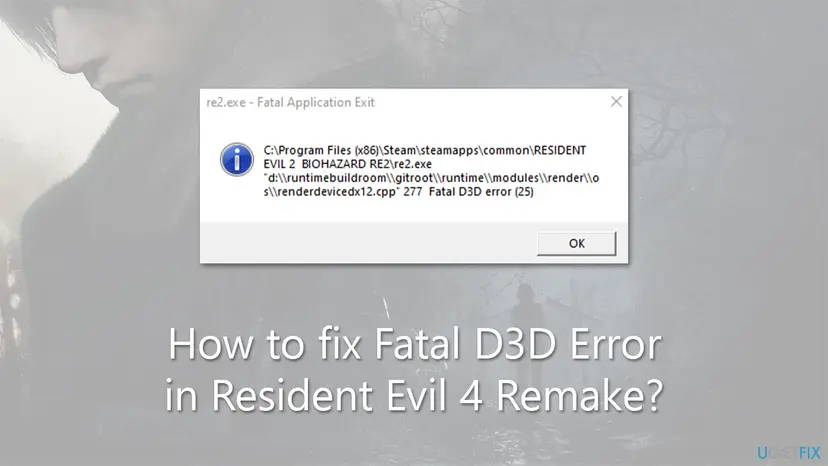
The line with renderdevicedx12.cpp is the part of Capcom's RE Engine that talks to DirectX 12. So the box tells you two things: it was a graphics crash, not a save or a launcher problem, and the number in brackets is an internal code. Capcom does not publish what the numbers mean, so treat them as hints, not as a diagnosis.
| What you see | What it most likely means |
|---|---|
| Fatal D3D error (25) | The most reported number. Users tie it to ray tracing and running out of VRAM. Start with Fix 1. |
| Fatal D3D error (6) | Also reported mid-game. Users report it after driver updates and with overclocked cards. Fix 1, then Fix 3 and Fix 6. |
| Fatal D3D error (1) | Reported at launch, often on PCs below the minimum or on laptops that start the game on the built-in graphics. Fix 4. |
| Fatal D3D error with out of memory | The game says itself that memory ran out. Fix 1 first, then check the page file as the FAQ explains. |
| "fatal 3d3 error" or "d3d fatal error" | The same message, typed in a different order. Same fixes. |
No Capcom or Microsoft page we read explains the numbers after Fatal D3D error. The table above follows what players report on the Steam forum and what reviewers found, so use it to choose where to start, not as a fact about your PC.
Why Resident Evil 4 crashes with a Fatal D3D error, most common cause first
The causes below are ranked by how often they come up in Capcom's advice, in the press tests of the PC version and in player reports. A strong PC is no protection: a reviewer found the crashes tied to VRAM use, with 8 GB and 10 GB cards struggling. The RTX 3080 in the reader's question has 10 GB.
| How often | Cause | How to spot it | Fix |
|---|---|---|---|
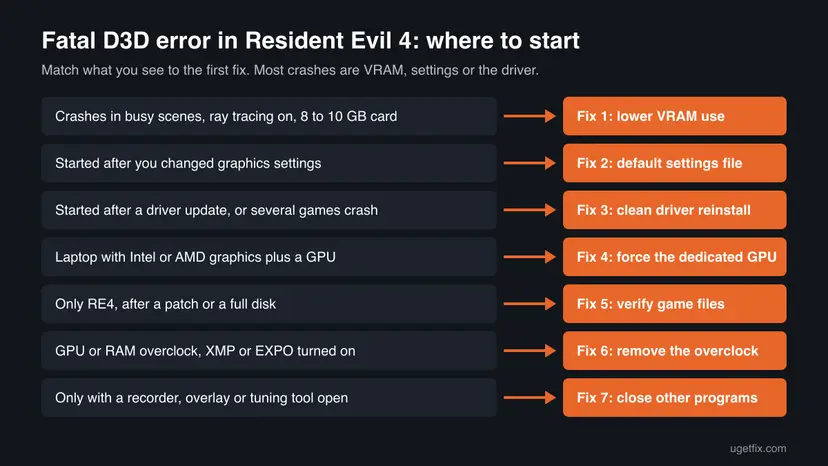
| Most often | The settings need more video memory than the card has | Crashes after some minutes, in busy scenes, with ray tracing or high textures on | Fix 1 |
| Often | A broken or too ambitious settings file | It began after you changed graphics options, a monitor or the resolution | Fix 2 |
| Often | A damaged, old or freshly broken graphics driver | Several games crash, or it began after a driver update | Fix 3 |
| Sometimes | The game runs on the built-in graphics of a laptop | Laptop with Intel or AMD graphics and a separate NVIDIA or AMD card; very low frame rate before the crash | Fix 4 |
| Sometimes | Damaged or missing game files | Only RE4 crashes, after a patch, a stopped download or a full disk | Fix 5 |
| Sometimes | An unstable overclock of the card or the memory, including XMP or EXPO | Random crashes, as in the question above; other heavy games crash now and then too | Fix 6 |
| Rarely | A recorder, overlay or tuning program that hooks into the game | It crashes only when that program runs | Fix 7 |
Many pages tell you to type D3D11 or -dx11 into the Steam launch options. Resident Evil 4 (2023) lists only DirectX 12 in its requirements, and no Capcom source we read mentions a DirectX 11 mode for it. We could not confirm that the option does anything in this game, so it is not one of the fixes here.
How to fix the Fatal D3D error in Resident Evil 4 Remake
Fixes 1 and 2 change the game's own settings and fix most crashes in minutes. Fixes 3 to 5 follow Capcom's troubleshooting page: the graphics driver, laptops with two graphics chips and the game files. Fixes 6 and 7 are for random crashes on PCs that should run the game easily.
| What you see or what your PC has | Start with |
|---|---|
| Crashes in busy scenes, ray tracing on, a card with 8 to 12 GB of VRAM | Fix 1 |
| It began after you changed graphics settings, the resolution or a monitor | Fix 2 |
| It began after a driver update, or other games crash too | Fix 3 |
| A laptop with built-in graphics and a separate NVIDIA or AMD card | Fix 4 |
| Only RE4 crashes, and it began after a patch | Fix 5 |
| The card or the memory is overclocked, or XMP or EXPO is on | Fix 6 |
| It crashes only while a recorder, overlay or tuning tool runs | Fix 7 |
Fix 1. Turn off ray tracing and lower texture quality to cut video memory use
5 minutesNo riskEveryone, and first of all players with ray tracing on or a card with 8 to 12 GB of VRAM.
A press test of the PC version found its crashes tied to VRAM use and advised turning ray tracing off, or lowering texture quality and shadows to keep it. When the game asks the card for more memory than it has, the DirectX 12 device fails and the Fatal D3D box appears.
- Start the game and open Options > Graphics.
- Set Ray Tracing to Off. The Steam page says ray tracing needs at least an RTX 2060 or RX 6700 XT.
- Lower Texture Quality one step at a time. The game shows how much video memory your settings need next to your card's total; keep the first number below the second.
- Lower Shadow Quality one step and turn off the hair strands option if your card has 8 GB or less.
- Restart the game. Capcom notes that most graphics changes take effect only after a restart.
- Play the scene where it crashed before. If it holds, raise one setting at a time.
Turn texture quality and shadows down instead, as the reviewer suggests. Players also report fewer crashes with a frame rate cap of 60 and V-sync set the other way round from before, but no source we read confirms those two.
Some players report crashes with the VRAM estimate well below the card's total. If that is you, keep the lower settings for now and go on to Fix 2, which removes settings you may have changed in other places.
It worked if: The game runs through the scene that crashed before, with the VRAM estimate below your card's total.
If not: If it still crashes with ray tracing off and low textures, restore the default settings file in Fix 2.
Fix 2. Restore the default settings file local_config.ini
5 minutesLow riskThe crash began after you changed graphics options, a resolution, a refresh rate or a monitor, or the game crashes before you reach the menu.
Resident Evil 4 keeps its graphics settings in local_config.ini in the game folder and ships a clean copy called local_config_default.ini. Capcom's own page gives this swap for unstable play. If a setting cannot run on your PC, the game hits it at every start.
- Close the game fully.
- In Steam, right-click Resident Evil 4 in the Library and select Manage > Browse local files.
- Rename
local_config.initolocal_config_backup.ini. - Copy
local_config_default.iniand paste it in the same folder. - Rename the copy to
local_config.ini. - Select Play in Steam and set the graphics again, with ray tracing off at first.
Your saves are not in this file, so nothing is lost. To undo, delete the new local_config.ini and rename local_config_backup.ini back.
It worked if: The game starts with default graphics settings and no longer crashes in the same place.
If not: If it crashes with default settings too, do a clean reinstall of the graphics driver in Fix 3.
Fix 3. Do a clean reinstall of the graphics driver
15 to 20 minutesLow riskSeveral games crash, the crash began after a driver update, or Fixes 1 and 2 did not help.
The Fatal D3D box means the driver stopped answering the game's DirectX 12 calls. Capcom's page says old drivers cause problems from graphics glitches to the game not starting, and advises a clean install that removes old driver files and game profiles.
Download the current driver from NVIDIA, AMD or Intel first, so it is ready. Then remove the old driver in Device Manager with Attempt to remove the driver for this device ticked, restart, and install the new one. Step by step, with Windows 11 screens: Update, roll back or reinstall a driver.
- Open Device Manager. Right-click Start and select Device Manager.
- Open the device's Driver tab. Expand the category (for example Display adapters), right-click the device, select Properties and open the Driver tab. Driver Date and Driver Version show what is installed now.
These steps were written for Windows 11 24H2 and later. The full page with the other versions and what each result means: Update, roll back or reinstall a driver
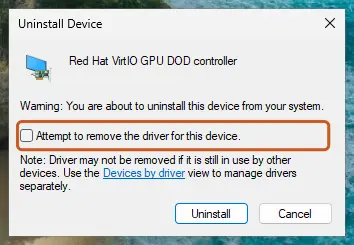
- Capcom also names Display Driver Uninstaller (DDU), a free third party tool many players use for a fuller clean. Device Manager is enough for most PCs.
- Restart Windows after the install. Capcom marks this step as important, so the card starts with the new driver.
- If the crashes began right after a new driver, install the previous version from the maker's site instead.
Capcom also suggests running Microsoft's DirectX End-User Runtime installer. It adds older DirectX files some games use; Windows 11 and Windows 10 already keep DirectX 12 current through Windows Update.
It worked if: Device Manager shows your card's name with the new driver version, and the game passes the scene that crashed.
If not: On a laptop, check that the game uses the right graphics chip in Fix 4. On a desktop, verify the game files in Fix 5.
Fix 4. Make the game use the dedicated graphics card on a laptop
5 minutesNo riskA laptop with built-in Intel or AMD graphics and a separate NVIDIA or AMD card. Desktops can skip this fix.
Capcom warns that on laptops with two graphics chips, the built-in one can take over from the dedicated card. Built-in graphics have little video memory of their own, so the DirectX 12 device fails much sooner.
- Plug the laptop into its charger. Capcom lists this first.
- Right-click the desktop and open the NVIDIA Control Panel.
- Select Manage 3D settings, then the Program Settings tab.
- Pick Resident Evil 4 in the list, or select Add and choose
re4.exefrom the game folder. - Set the preferred graphics processor to High-performance NVIDIA processor and Power management mode to Prefer maximum performance.
- Select Apply, close the panel and start the game.
On AMD laptops, set the game to high performance in AMD Software, under its switchable graphics settings. Windows has the same choice too: Settings > System > Display > Graphics, select the game and set it to High performance.
It worked if: The game's graphics menu shows your NVIDIA or AMD card, not the built-in chip, and the frame rate is clearly higher.
If not: If the right card is in use and it still crashes, verify the game files in Fix 5.
Fix 5. Verify the game files in Steam
5 to 20 minutesNo riskOnly Resident Evil 4 crashes, especially after a patch, a stopped download or a full disk.
A damaged texture or shader file can make the renderer fail when the game loads that area. Steam compares each file with its own copy and downloads only what does not match. Capcom lists this step for every RE4 problem.
In Steam, right-click the game, select Properties > Installed Files and Verify integrity of game files. Step by step: How to verify game files in Steam, Epic Games, Xbox app, EA app, Battle.net and GOG Galaxy.
- Restart and open Steam. Restart your computer and launch Steam.
- Open the game's menu. Right-click the game in your Library, or open the game's Library page and select the gear icon on the far right.
- Open Properties. Select Properties in the menu.
- Verify the files. Select the Installed Files tab and select Verify integrity of game files.
- Wait for the result. Steam checks the game's files. This can take several minutes.
These steps were written for Steam on Windows. The full page with the other versions and what each result means: How to verify game files in Steam, Epic Games, Xbox app, EA app, Battle.net and GOG Galaxy
Capcom notes that one or more files may fail to verify. Those are local configuration files that Steam does not replace, and the message can be ignored.
It worked if: Steam reports that all files were checked, or downloads the few that failed, and the game starts.
If not: If no game files were broken and the crashes are random, check for an overclock in Fix 6.
Fix 6. Return the graphics card and memory to default speeds
10 minutesLow riskRandom crashes on a strong PC, as in the question above, with a GPU overclock, a factory or manual memory profile (XMP on Intel, EXPO on AMD) or an undervolt.
An overclock that passes other games can still fail under the heavy, changing load of RE4. A small error in the card or in memory makes the DirectX 12 device stop, which the game reports as a Fatal D3D error. This is a test: if the crashes stop, the overclock was the cause.
- Reset any overclock or undervolt in your tuning tool, such as MSI Afterburner or AMD Software, to the default profile.
- Restart the PC and press the key your motherboard shows to open the BIOS, usually Del or F2.
- Find the memory profile setting, often under OC, Overclocking or Ai Tweaker, named XMP, A-XMP, EXPO or DOCP.
- Set it to Disabled, then save and exit, usually with F10.
- Play Resident Evil 4 for as long as it took to crash before.
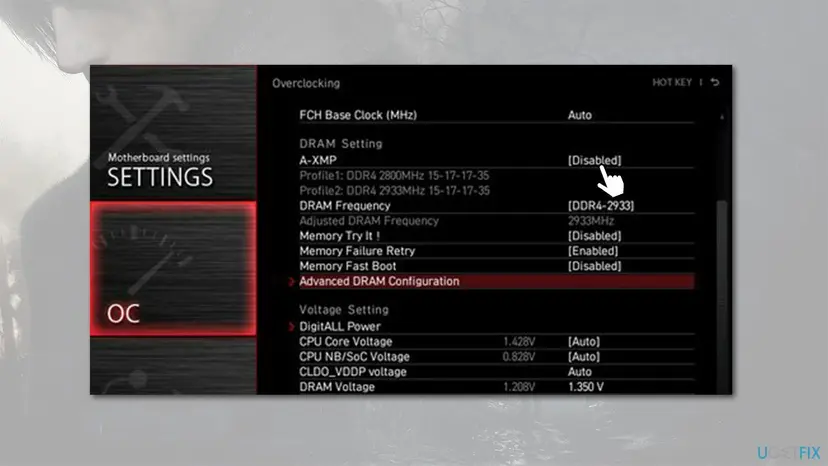
With XMP or EXPO off, the memory runs slower than its rated speed, so the PC loses a little speed. If the game is stable now, turn the profile on again and ask your motherboard maker about a BIOS update or a slightly lower memory speed, rather than leaving it off for good.
It worked if: The game runs for longer than it used to between crashes, or stops crashing at all.
If not: If nothing changed, put your profile back and look for a conflicting program in Fix 7.
Fix 7. Close recorders and overlays, and run Steam as administrator
20 minutesLow riskThe crash happens only on some days, only with a recorder or overlay running, or nothing above helped.
Capcom says recording software can hurt the game's stability by using a lot of CPU, GPU and memory. Overlays and tuning tools also hook into the game's DirectX calls. Capcom adds that some players get the game running by starting Steam as administrator.
- Close screen recorders, streaming apps, RGB lighting tools and GPU monitors before you start the game.
- Turn off in-game overlays one at a time: Steam, Discord, NVIDIA app or AMD Software, Xbox Game Bar.
- Right-click Steam, select Run as administrator, and start the game from there. If that alone does not help, run
re4.exefrom the game folder as administrator too.
To test every program at once, start Windows with only Microsoft services and turn the others back on in groups. Step by step: How to perform a clean boot in Windows.
- Open System Configuration. Select Search on the taskbar, type msconfig and select System Configuration from the results.
- Hide Microsoft services. On the Services tab, select the Hide all Microsoft services check box. Only services from other companies stay in the list.
- Disable the remaining services. Select Disable all, then select Apply.
- Open Task Manager. On the Startup tab of System Configuration, select Open Task Manager.
- Disable the startup apps. On the Startup apps tab in Task Manager, select each item whose status is Enabled and select Disable. Write down or take a screenshot of the items you disable: you need the list to turn them back on.
- Confirm the changes. Close Task Manager. On the Startup tab of System Configuration, select OK.
- Restart and test. Restart the PC. Windows now starts in a clean boot environment: try again the thing that failed (run the app, install the update, uninstall the program).
These steps were written for Windows 11 25H2 and 26H2. The full page with the other versions and what each result means: How to perform a clean boot in Windows
It worked if: The game runs in a clean boot. Turning programs back on one group at a time shows which one makes it crash.
If not: If it crashes even in a clean boot, collect the crash report as described below.
Still crashing: read the RE4 crash report and contact Capcom
Capcom says that when the game crashes, it creates a folder named CrashReport in the game folder, by default C:\Program Files (x86)\Steam\steamapps\common\RESIDENT EVIL 4 BIOHAZARD RE4. Capcom support asks for these files when you report a crash.
- In Steam, right-click the game and select Manage > Browse local files, then open
CrashReport. - Note the newest .zip file by date; it belongs to the last crash.
- Press Win + R, type
dxdiagand press Enter. Select Save All Information to saveDxDiag.txt, which lists your card, its VRAM and driver version. - Copy the text of
local_config.inifrom the game folder; it holds your graphics settings. - Send the .zip files,
DxDiag.txt, the settings and when the crash happens to Capcom support.
- The PC restarts or shows a blue screen instead of the box: that is a system crash, not a game crash. Look at the power supply, temperatures and memory.
- Other demanding games crash too, with default clocks: test the memory with How to test your RAM with Windows Memory Diagnostic and watch the card's temperature while you play.
- The PC is below the minimum on the Steam page: Capcom says it does not provide technical support for PCs that do not meet the minimum requirements.
How to keep Resident Evil 4 from crashing again
- Keep the VRAM estimate in the graphics menu below your card's total, with some room left for Windows and the browser.
- Change one graphics setting at a time and keep a copy of
local_config.inithat works. - Install graphics drivers from the card maker and restart after each install.
- Let Steam finish game updates before you play, and keep some free space on the game drive.
- Test any overclock, undervolt or memory profile in more than one demanding game before you trust it.
- Keep Windows updated. Windows 10 left support on 14 October 2025, so move to Windows 11 if the PC allows it.
Frequently asked questions
What is the RE4 Fatal D3D error?
It is the crash box of Resident Evil 4 (2023) when its DirectX 12 renderer fails. The title reads "re4.exe - Fatal Application Exit", and the text ends with Fatal D3D error and a number. It is not a Windows fault and not a virus warning. Most often the game ran out of video memory or the graphics driver stopped answering. Turning ray tracing off and lowering texture quality fixes it for many players; a clean driver reinstall comes next.
How do I fix Fatal D3D error (25) in Resident Evil 4?
Error (25) is the number players report most, and they tie it to ray tracing and to VRAM running out. Turn Ray Tracing off, lower Texture Quality until the VRAM estimate in the graphics menu is below your card's total, and restart the game. If it comes back, restore local_config_default.ini as Fix 2 explains and do a clean driver reinstall. Capcom does not publish what the number means, so we could not confirm the link beyond player reports.
What does Fatal D3D error (6) mean in RE4?
Capcom does not explain the numbers, so we could not confirm what (6) means. Players report it mid-game, after driver updates and on overclocked cards. The fixes are the same as for other numbers: lower video memory use first (Fix 1), then a clean reinstall of the graphics driver (Fix 3), and return any overclock or memory profile to default as a test (Fix 6). If you see (6) on a laptop, check that the game uses the dedicated card (Fix 4).
Why does RE4 Remake crash with Fatal D3D error on an RTX 3080?
Because the RTX 3080 has 10 GB of VRAM, and a press test of the PC version found its crashes tied to VRAM use, with 8 GB and 10 GB cards struggling. High textures plus ray tracing can ask for more than that. A fast card does not help when the memory runs out. Turn ray tracing off or lower texture quality and shadows. Random crashes on such a PC can also come from an unstable overclock or memory profile.
How do I fix the RE4 Fatal D3D error out of memory?
The out of memory version means the game says itself that memory ran out. Lower video memory use first, as in Fix 1. Then check that Windows manages the page file: open Settings > System > About > Advanced system settings, select Settings under Performance, open Advanced and select Change under Virtual memory. Tick Automatically manage paging file size for all drives. Close browsers and other large programs while you play.
Does the D3D11 launch option fix the RE4 Fatal D3D error?
We could not confirm that it does. Resident Evil 4 (2023) lists only DirectX 12 in its Steam requirements, and the crash box points to the game's DirectX 12 code. No Capcom source we read mentions a DirectX 11 mode for this game, so the launch option may simply be ignored. If you added D3D11 or -dx11 to the launch options earlier, you can remove it from Properties > General > Launch Options in Steam and use Fixes 1 to 3 instead.
Is the RE2 Remake Fatal D3D error the same problem?
It is the same kind of crash box. Resident Evil 2 (2019) and Resident Evil 4 (2023) both run on Capcom's RE Engine, and both show Fatal Application Exit with a renderdevicedx12.cpp line when the DirectX 12 renderer fails. The picture at the top of this page is the RE2 version. The fixes are similar: lower video memory use, reset the settings, reinstall the driver. RE2 has its own settings, so read Capcom's page for that game.
Can a crashing RE4 damage my save files?
It is unlikely. A Fatal D3D error closes the game at once, so progress since the last save or checkpoint is lost, but earlier saves stay. Steam keeps saves in its cloud when Steam Cloud is on for the game. None of the fixes on this page touch save files: local_config.ini holds only settings, and verifying files does not replace your saves. Do not delete the whole game folder by hand unless you know where your saves are.
ارور d3d: what does this error mean?
That query, in Persian, asks about the D3D error. This page is in English. In short: the Fatal D3D error in Resident Evil 4 is a crash of the game's DirectX 12 graphics part, usually because the game ran out of video memory or the graphics driver stopped. Turn off ray tracing and lower texture quality first, then restore the default settings file and reinstall the graphics driver. The steps work the same on any language version of Windows.
Will Capcom fix the Fatal D3D error in a patch?
Capcom has not named the Fatal D3D error as a known issue. Its RE4 troubleshooting page for Steam, last updated 2026/07/20, gives general steps and asks players with crashes to send their crash report, DxDiag file and settings. Keep the game updated through Steam, and if the crash stays with default settings, a clean driver and no overclock, send those files to Capcom support as the section above explains.
Sources
- Capcom Support: Resident Evil 4 (2023) General Troubleshooting Guide (Steam) (capcom-support.com)
- Steam: Resident Evil 4 store page, system requirements (store.steampowered.com)
- Wccftech: Resident Evil 4 PC has Image Quality and Ray Tracing Issues (wccftech.com)
Did this fix work?
One click, no account. It tells the next reader which guides are worth their time.
Questions and experiences: fix Fatal D3D Error in Resident Evil 4 Remake
Still broken, or found a fix we did not cover? Ask here: members and our editors answer. Reading is open; writing needs a free account.
…