
How to fix Final Fantasy 16 low FPS, stuttering or crashing on PC?

Prefer to fix it yourself? The manual steps follow.
- 9methods
- 2 to 5 minutes for Fix 1 and Fix 2, up to an hour when the 170 GB game must be verified
- Easy
Applies to Final Fantasy XVI on Windows PC, bought on Steam, the Epic Games Store or the Microsoft Store
9 methods in this guide
I was looking forward to playing Final Fantasy XVI, which finally got released on PC, but I keep getting game crashes. They are not consistent: sometimes the game crashes during a cutscene, and in other cases while I am simply walking. Do you have any tips for me?
Final Fantasy XVI on PC crashes most often with frame generation turned on or on an overclocked graphics card, and it runs slower than many PCs expect because it is a heavy DirectX 12 game. Square Enix fixed several crashes and frame drops in updates 1.01 and 1.02. Turn off frame generation first.
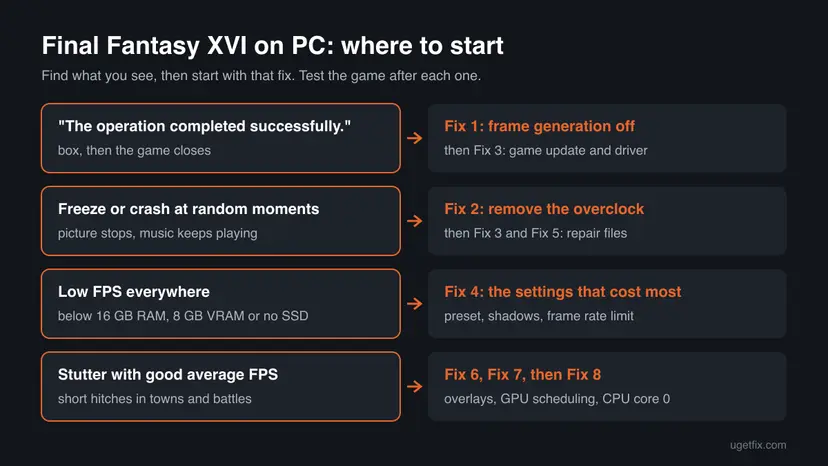
If Final Fantasy XVI is crashing on PC with a box that says "The operation completed successfully.", turn off frame generation in System > Graphics Settings (Fix 1). If it freezes at random, reset any GPU or CPU overclock (Fix 2). Then install the latest game update and graphics driver (Fix 3). For low FPS, lower the preset, shadows and frame rate limit (Fix 4).
| Error | Final Fantasy XVI crashing on PC, low FPS or stuttering. The crash often shows a box with the text "The operation completed successfully.", or the picture freezes while the music keeps playing. |
|---|---|
| Where it appears | In play, in cutscenes or in battles, on Steam, Epic Games Store and Microsoft Store copies. The game file is ffxvi.exe. |
| Main cause | Frame generation and unstable GPU overclocks for crashes, as players and Intel support report. For low FPS, a PC near the minimum: 16 GB RAM and 8 GB of video memory are required. |
| Fastest fix | Turn off frame generation and test (Fix 1). Reset any overclock to stock clocks (Fix 2). |
| Also written as | FF16 crashing PC, FFXVI crashing PC, Final Fantasy 16 keeps crashing, FF16 the operation completed successfully, FF16 stuttering, FF16 low FPS, FF16 fps drops, FF16 freeze. |
| Affects | The PC version released on 17 September 2024, on 64-bit Windows 10 and Windows 11. The game needs a CPU with AVX2 and a DirectX 12 graphics card. |
| Square Enix's status | Update 1.01 (26 September 2024) fixed a frame rate drop and unexpected closes. Update 1.02 (17 October 2024) fixed "unexpected crashes with select hardware setups" and tuned performance settings. |
| Minimum PC | AMD Ryzen 5 1600 or Intel Core i5-8400, 16 GB RAM, GeForce GTX 1070, Radeon RX 5700 or Arc A580 with 8 GB VRAM, 170 GB of space. That targets 720p at 30 FPS. |
| Time to fix | 2 to 5 minutes for the settings fixes. Up to an hour to verify the game files. |
Facts checked on 15 October 2026. Steps written for Windows 11 (25H2 and 26H2) and Windows 10 22H2, with the game facts read from Square Enix's update notes, PCGamingWiki and Intel Community support.
What Final Fantasy XVI crashing, low FPS and stuttering on PC mean
FF16 crashing on PC shows up in three ways. A small Windows box appears with the text "The operation completed successfully." and the game closes. Or the picture freezes while the music keeps playing, so you must close ffxvi.exe in Task Manager. Or the game simply drops to the desktop with no message.
The text of that box sounds like good news, but it is the standard Windows text for code 0, which means "no error". The game crashed and handed Windows no real error code, so Windows printed the text for success. Players on Steam and Reddit tie this crash to DLSS or FSR frame generation.
| What you see | What it usually means | Start with |
|---|---|---|
| "The operation completed successfully." and the game closes | A graphics crash, most often reported with frame generation on | Fix 1 |
| Picture freezes, music keeps playing | The graphics card stopped responding; an overclock is a common trigger | Fix 2 |
| Crash at the same story moment every time | A game bug or an unstable GPU at that load | Fix 2, then Fix 3 |
| Low FPS everywhere | A PC near the minimum, or settings above what the card can hold | Fix 4 |
| 30 FPS in cutscenes only | Normal: the game caps cutscenes and photo mode at 30 FPS | Not a fault |
| Short hitches with a good average FPS | Stutter from overlays, GPU scheduling or CPU core use | Fix 6 to Fix 8 |
Intel support reproduced the same FPS drops on an Arc B570 and on a GeForce RTX 4060 and called it a matter of the game's optimization. Some scenes run slower on every PC, so set your target by the minimum and recommended specs, not by other games.
Why Final Fantasy 16 is crashing on PC, from the most common cause to the rarest
Most often the crash comes from frame generation or from a graphics card that is overclocked or undervolted. Less often an old game version or graphics driver is the cause, because Square Enix fixed crashes in updates 1.01 and 1.02. Rarely the cause is damaged files, an overlay or a PC below the minimum.
| Cause | How common | Fix |
|---|---|---|
| DLSS or FSR frame generation turned on | Most common for the "operation completed successfully" box | Fix 1 |
| GPU or CPU overclock, undervolt or factory boost profile | Common for freezes | Fix 2 |
| Game older than 1.02 or an old graphics driver | Common on copies not started for a while | Fix 3 |
| Settings too high for the card, or less than 8 GB of video memory | Common for low FPS | Fix 4 |
| Damaged or incomplete game files | Less common | Fix 5 |
| Steam, Discord or Xbox Game Bar overlay | Less common | Fix 6 |
| Hardware-accelerated GPU scheduling on or off | Rare, it helps some PCs and hurts others | Fix 7 |
| CPU core parking and core 0 load | Rare, mostly stutter | Fix 8 |
| Fullscreen optimizations or missing permissions | Rare | Fix 9 |
The game needs 64-bit Windows 10 or 11, a CPU with AVX2 (Intel Haswell or AMD Ryzen 1000 and newer), 16 GB of RAM and a DirectX 12 card with 8 GB of video memory. An NVMe SSD is recommended because the game uses DirectStorage 1.2.
How to fix Final Fantasy XVI crashing, low FPS and stuttering on PC
The fixes are ordered by how often they help and how little they cost. Test the game after each one in the scene that crashed or stuttered. Fix 1 to Fix 4 are in the game and your graphics tools; the Windows changes come later.
| What you see or what your PC has | Start with |
|---|---|
| "The operation completed successfully." box, then the game closes | Fix 1 |
| Freezes with sound still playing, or any GPU tuning tool installed | Fix 2 |
| You have not updated the game or the driver since 2024 | Fix 3 |
| Low FPS everywhere, 8 GB of video memory or less | Fix 4 |
| Crash at launch or missing textures after an update | Fix 5 |
| Stutter while Discord, Steam overlay or recording tools run | Fix 6, then Fix 7 and Fix 8 |
Fix 1. Turn off frame generation and test another Super Resolution mode
2 minutesNo riskThe game closes with "The operation completed successfully.", or it crashes soon after you turned on DLSS or FSR frame generation.
Frame generation adds frames made by the driver between real frames, and it is the setting players tie to this crash box most often. PCGamingWiki notes frame generation needs its upscaler on, so changing Super Resolution changes it too.
- Start Final Fantasy XVI and open the main menu, then System.
- Open the Graphics Settings tab (the picture icon).
- Find the frame generation option for DLSS or FSR and turn it off.
- Select Super Resolution. If the crash comes back, try another mode: NVIDIA DLSS 3, AMD FSR 3, Intel XeSS 1.3, Legacy (TSCMAA + AMD FSR 1) or Disabled.
- Play the scene that crashed for 10 to 15 minutes before you judge the result.
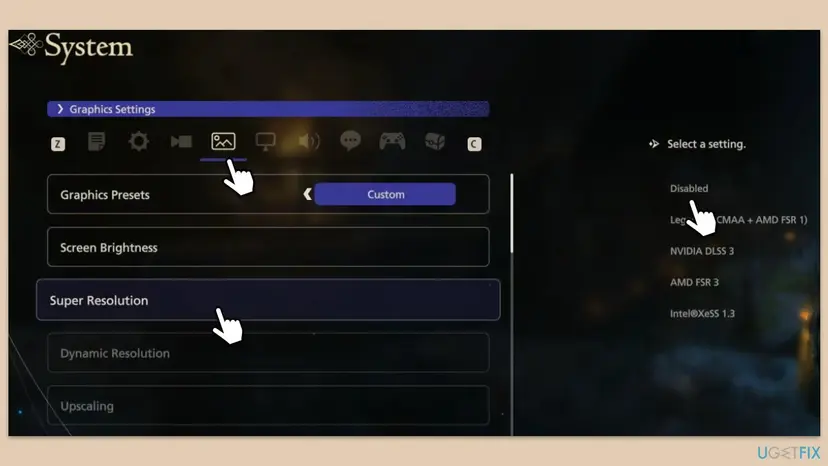
If V-Sync is on, test once with it off, and once the other way round. Players report that the frame generation crash is less frequent with a fixed frame rate limit, which Fix 4 sets.
It worked if: The game runs past the point where it closed before, and no "The operation completed successfully." box appears.
If not: If it still crashes with frame generation off, go to Fix 2.
Fix 2. Reset any GPU or CPU overclock and undervolt to stock settings
5 minutesLow riskThe picture freezes while sound plays on, the PC has MSI Afterburner, AMD Software tuning or a factory OC mode, or the crash comes at the same heavy scene.
Final Fantasy XVI loads the graphics card harder than most games, so a clock that is stable elsewhere can fail here. In an Intel Community case, the crashes in FF16 stopped once the player removed the GPU overclock.
- Close Final Fantasy XVI.
- Open the tool you used to tune the graphics card, such as MSI Afterburner, AMD Software: Adrenalin Edition or the card maker's own app.
- Reset the core clock, memory clock, voltage curve and power limit to their defaults, then apply.
- If the card has a factory OC mode switch or app profile, set it to the standard or silent mode.
- If you enabled CPU overclocking or memory XMP or EXPO profiles in the BIOS for the first time recently, test once with them off.
- Start the game and play the scene that crashed.
Write down your tuned values before you reset them, so you can go back to them in small steps if the game stays stable at stock.
It worked if: The game runs through the scene that froze before, at stock clocks.
If not: If it still freezes at stock settings, update the game and driver with Fix 3.
Fix 3. Install the latest Final Fantasy XVI update and graphics driver
15 minutesLow riskThe game or the graphics driver has not been updated for months, or you play an offline copy.
Square Enix's update 1.01 fixed a frame rate drop and two kinds of unexpected closes, and 1.02 fixed "unexpected crashes with select hardware setups". A new driver adds the game profile and fixes the driver crash that freezes the picture.
- In Steam or the Epic Games Launcher, open the library and let Final Fantasy XVI download any update it shows. Microsoft Store copies update in the Xbox app or the Microsoft Store library.
- Check the version on the title screen: it should be 1.02 or newer.
- Download the current driver for your card from NVIDIA, AMD or Intel, install it and restart Windows.
- Open Device Manager. Right-click Start and select Device Manager.
- Open the device's Driver tab. Expand the category (for example Display adapters), right-click the device, select Properties and open the Driver tab. Driver Date and Driver Version show what is installed now.
- Update the driver. Select Update Driver and let Windows search automatically. To use a driver you downloaded from the device maker, select Browse my computer for drivers instead and point to the unpacked folder.
These steps were written for Windows 11 24H2 and later. The full page with the other versions and what each result means: Update, roll back or reinstall a driver

Device Manager often finds no newer driver, so the maker's site is the better source. If the crashes started right after a new driver, roll it back with step 4 of Update, roll back or reinstall a driver.
It worked if: The title screen shows version 1.02 or newer and the driver version is new on the Driver tab.
If not: If crashes or low FPS remain, lower the heavy settings with Fix 4.
Fix 4. Lower the graphics settings that cost the most FPS
5 minutesNo riskLow FPS, FPS drops in battles and towns, or a card with 8 GB of video memory or less.
The minimum specs only target 720p at 30 FPS and the recommended ones 1080p at 60 FPS. Square Enix's update 1.02 says low or medium shadow quality now also lowers cloud quality, which should improve performance.
- Open System > Graphics Settings and set Graphics Presets one step lower.
- Set shadow quality to low or medium.
- Turn on Dynamic Resolution, so the game lowers the render resolution in heavy scenes.
- Pick an upscaler in Super Resolution (DLSS, FSR or XeSS) rather than Disabled, at a quality level that suits your screen.
- In the display settings, set the frame rate limit to 60 or to a value your PC holds. The game allows a limit of up to 240 FPS.
- Play for a few minutes in a town and in a battle to compare.
| Minimum | Recommended | |
|---|---|---|
| Target | 720p at 30 FPS | 1080p at 60 FPS |
| CPU | AMD Ryzen 5 1600 or Intel Core i5-8400 | AMD Ryzen 7 5700X or Intel Core i7-10700 |
| Graphics | GTX 1070, RX 5700 or Arc A580, 8 GB VRAM | Radeon RX 6700 XT or GeForce RTX 2080 |
| RAM and storage | 16 GB RAM, 170 GB | NVMe SSD recommended |
Cutscenes and photo mode are capped at 30 FPS by the game, so a drop to 30 there is not a fault. If the game sits on an HDD, move it to an SSD; loading and hitches suffer on a hard drive.
It worked if: The FPS counter holds your limit in towns and battles, with fewer drops.
If not: If the FPS is fine but the game crashes at launch or shows broken textures, go to Fix 5.
Fix 5. Verify the Final Fantasy XVI game files in Steam or Epic
15 to 60 minutesLow riskThe game crashes at launch, after an update, or after a move to another drive.
The game is about 170 GB. An update cut short or a drive error leaves damaged files that crash it at the moment they load, and the launcher replaces only those files.
- Steam: right-click FINAL FANTASY XVI in the library, select Properties, open Installed Files and select Verify integrity of game files.
- Epic Games Store: open Library, select the three dots on the game, choose Manage and select Verify next to Verify Files.
- Wait until the launcher says it has finished, then start the game.
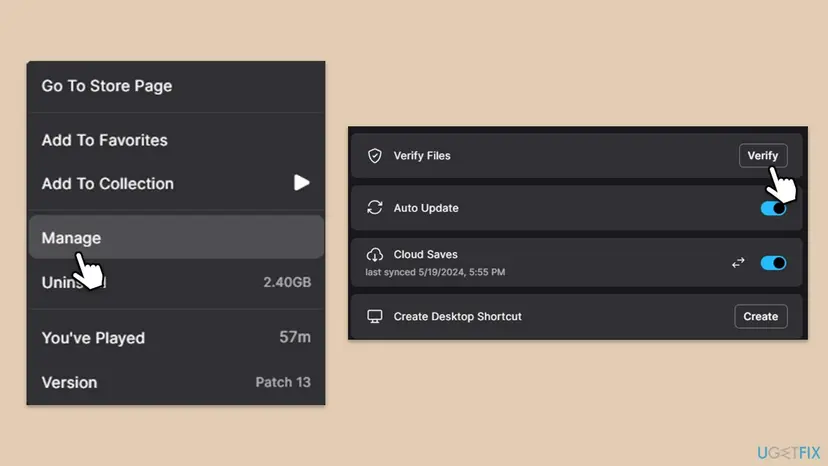
The steps for every launcher, including the Xbox app for Microsoft Store copies: How to verify game files in Steam, Epic Games, Xbox app, EA app, Battle.net and GOG Galaxy.
It worked if: The launcher finishes and reports the files are fine or were downloaded again.
If not: If the game still crashes, turn off overlays with Fix 6.
Fix 6. Turn off the Steam, Discord and Xbox Game Bar overlays
5 minutesNo riskStutter or crashes while Discord, the Steam overlay, Xbox Game Bar or a recording tool runs.
An overlay draws into the game's DirectX 12 frames. On a game that already loads the card hard, that extra hook can add hitches or crash it.
- Steam: open Steam > Settings > In Game and turn off Enable the Steam Overlay while in-game.
- Discord: open User Settings, go to Game Overlay under Activity Settings and turn off Enable in-game overlay.
- Xbox Game Bar: press Win + I, open Gaming > Game Bar and turn it off.
- Close MSI Afterburner, RivaTuner and other FPS counters, then start the game.
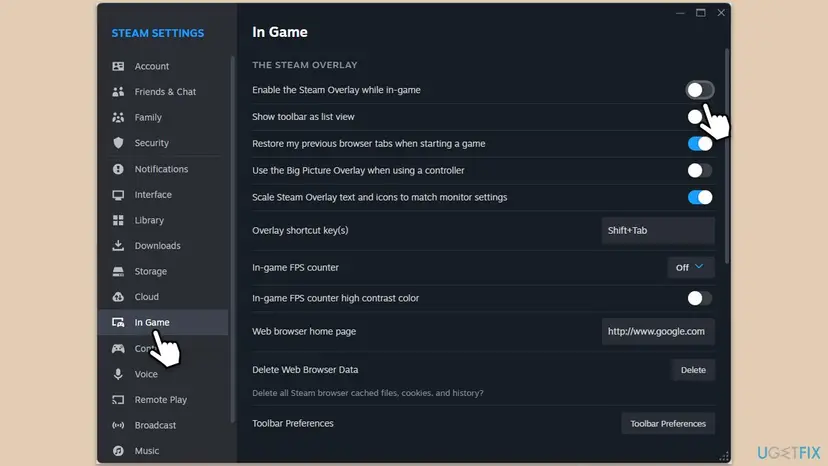
It worked if: The game runs without the overlay and the stutter or crash is gone.
If not: Turn the overlays back on if they did not matter, then try Fix 7.
Fix 7. Switch Hardware-accelerated GPU scheduling the other way
5 minutesLow riskStutter or crashes remain after the fixes above.
This Windows setting moves part of the video memory management to the graphics card. Some PCs run this game smoother with it on and others with it off, so test the opposite of what you have.
- Press Win + I and open System > Display > Graphics.
- Select Change default graphics settings. On Windows 10 the switch sits directly on the Graphics settings page.
- Switch Hardware-accelerated GPU scheduling to the opposite state.
- Restart Windows, then test the game.
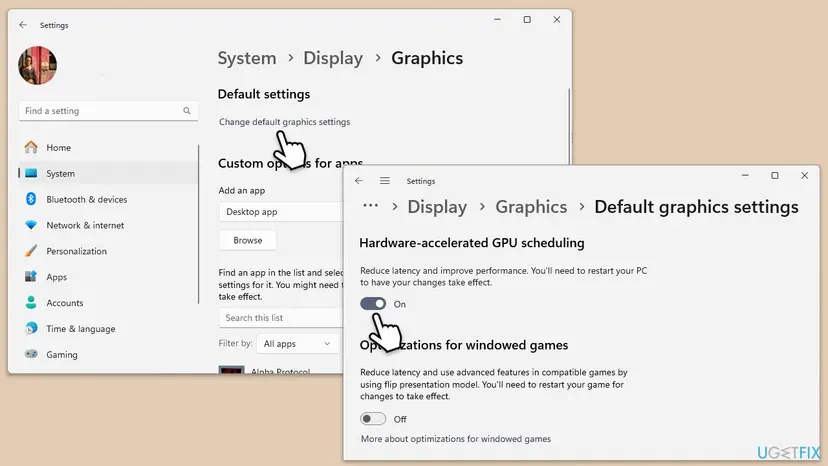
It worked if: After the restart the game runs with fewer hitches.
If not: If nothing changed, put the switch back and try Fix 8.
Fix 8. Keep ffxvi.exe off CPU core 0 to reduce stuttering
3 minutesLow riskStutter with a good average FPS, mostly in towns and when new areas load.
PCGamingWiki lists unparking CPU cores and taking core 0 away from ffxvi.exe as a way to fix or reduce Final Fantasy XVI stuttering. Windows and drivers do much of their work on core 0.
- Start Final Fantasy XVI, then press Alt + Tab to the desktop.
- Press Ctrl + Shift + Esc to open Task Manager and select Details.
- Right-click ffxvi.exe and select Set affinity.
- Clear the box for CPU 0 only and select OK.
- Return to the game and play where it stuttered.
Task Manager forgets this change when the game closes, so repeat it after each start; nothing needs undoing. PCGamingWiki pairs it with turning off CPU core parking, which needs a third-party tool, so we leave that out.
It worked if: Fewer hitches in towns and when areas load.
If not: If stutter or crashes remain, try Fix 9.
Fix 9. Disable fullscreen optimizations and run ffxvi.exe as administrator
3 minutesLow riskEvery fix above failed, or the game crashes when you switch screen mode or Alt + Tab.
Fullscreen optimizations change how Windows presents the game's frames. Turning them off makes Windows use the old fullscreen path, which some players report steadier. Running as administrator rules out blocked writes to the game folder.
- Open the game folder: in Steam, right-click the game, select Manage > Browse local files.
- Right-click
ffxvi.exeand select Properties. - Open the Compatibility tab and tick Disable fullscreen optimizations.
- Tick Run this program as an administrator, select Apply and OK.
- Start the game from the launcher.
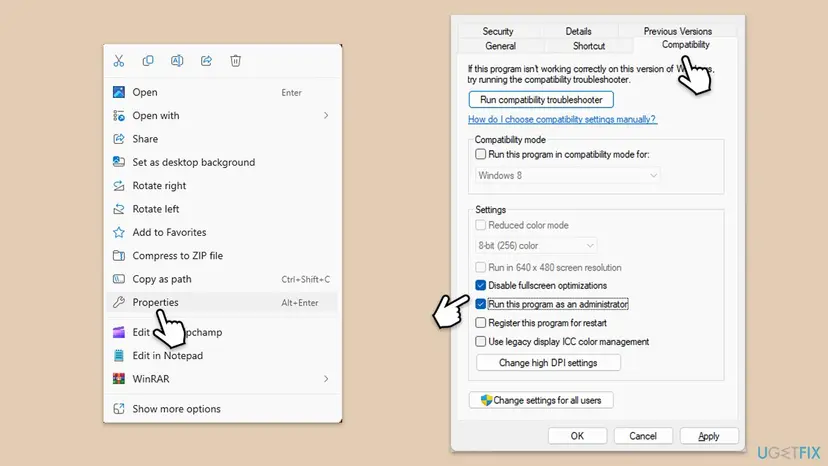
More about this tab: How to run a program as administrator or in compatibility mode. If nothing changes, clear both boxes again.
It worked if: The game starts after a User Account Control prompt and runs without the earlier crash.
If not: Read where the crash is written, as the next section explains, and contact Square Enix support.
If Final Fantasy 16 keeps crashing on PC: where the real cause is written
Windows records each crash of ffxvi.exe and each driver reset. Read them before you reinstall 170 GB, because they show whether the game, the graphics driver or the hardware failed.
| Where to look | What to look for |
|---|---|
| Event Viewer, Windows Logs > Application | An Application Error entry for ffxvi.exe with the faulting module, for example a graphics driver file |
| Event Viewer, Windows Logs > System | Display driver entries such as nvlddmkm, amdkmdag or igfx at the time of the freeze |
%USERPROFILE%\Documents\My Games\FINAL FANTASY XVI | The settings and saves; back them up before a reinstall |
| Your GPU tool's log | Clocks and temperature at the moment of the freeze |
If Event Viewer shows NVIDIA display driver events at each freeze, the guide to nvlddmkm events explains what they mean.
- Send to Square Enix support: the game version, your GPU and driver version, the scene where it crashes, and the faulting module from Event Viewer.
- Signs of hardware: other heavy games crash too, the card runs very hot, or crashes stay at stock clocks with a fresh driver. Check cooling and the power supply.
- Signs of a game limit: the same scene runs slow on every setting. Intel support saw the same drops on two different cards, so a later patch is the only real fix.
How to keep Final Fantasy XVI running smoothly
- Keep the game on update 1.02 or newer and the graphics driver from NVIDIA, AMD or Intel up to date.
- Test new GPU tuning in Final Fantasy XVI itself, as it loads the card harder than most games.
- Set a frame rate limit your PC can hold, so frame times stay even.
- Back up
Documents\My Games\FINAL FANTASY XVIbefore big changes.
- Do not turn frame generation back on after a crash until a new game or driver update.
- Do not download "performance fix" files from unknown sites: they replace game files and can carry malware.
- Do not turn off Windows Security or your antivirus to make the game run.
- Do not judge FPS in cutscenes, which the game caps at 30.
Windows 10 left support on 14 October 2025. The game still lists Windows 10 and 11, and every step on this page works on both.
Frequently asked questions
Why is Final Fantasy XVI crashing on PC?
Most often frame generation or an overclocked graphics card is behind it. Players tie the box that says "The operation completed successfully." to DLSS or FSR frame generation, and an Intel support case ended when the player removed a GPU overclock. Older game versions crashed more too: Square Enix fixed unexpected closes in update 1.01 and crashes on some hardware in 1.02. Turn off frame generation, reset clocks to stock, and update the game and driver, in that order.
What does "The operation completed successfully" mean in FF16?
It is the standard Windows text for code 0, which means no error. Final Fantasy XVI crashed but passed Windows no real error code, so Windows showed the text for success. The box is not a message from Square Enix and says nothing about the cause. Players report it mostly with DLSS or FSR frame generation on, and some with the old demo installed. Turn off frame generation first (Fix 1), then update the game and the graphics driver (Fix 3).
How do I fix Final Fantasy 16 stuttering on PC?
First lower the settings and set a frame rate limit your PC can hold, so frame times stay even. Then turn off overlays such as Discord, the Steam overlay and Xbox Game Bar. Next, switch Hardware-accelerated GPU scheduling the other way and restart. PCGamingWiki also lists taking CPU core 0 away from ffxvi.exe and unparking cores. Square Enix fixed a stuttering issue in the demo before release, so make sure the full game is on update 1.02 or newer.
Why is my FPS low in Final Fantasy 16 on a good PC?
The game is heavy. The recommended specs, a Ryzen 7 5700X or Core i7-10700 with an RX 6700 XT or RTX 2080, target only 1080p at 60 FPS. Intel support saw the same FPS drops on an Arc B570 and an RTX 4060 and called it game optimization. Use an upscaler in Super Resolution, turn on Dynamic Resolution, lower shadows and install the game on an SSD. Cutscenes are capped at 30 FPS on purpose.
Did Square Enix fix the PC crashes in Final Fantasy XVI?
Partly. PC update 1.01 on 26 September 2024 fixed a frame rate drop and two kinds of unexpected closes. Update 1.02 on 17 October 2024 fixed unexpected crashes with select hardware setups, adjusted the graphics fidelity settings for performance and made shadow quality include cloud quality at every level. The update notes do not mention the frame generation crash box. If your copy is older than 1.02, update it before you try anything else.
What does "the GPU will not respond to more commands" mean in FF16?
Players who search for this describe a crash where the game reports that the graphics card could not run a command sent to it. It means the card or its driver stopped responding during play, the same kind of failure as a freeze with sound still playing. In the Intel Community case, an overclocked Arc B570 caused it, and the crashes stopped at stock clocks. Reset any overclock (Fix 2), then install a clean, current driver (Fix 3).
Can my PC run Final Fantasy XVI?
Check four things. The CPU must support AVX2, which means Intel Haswell or AMD Ryzen 1000 and newer; without it the game will not start. You need 16 GB of RAM and a DirectX 12 card with 8 GB of video memory, such as a GTX 1070, RX 5700 or Arc A580. The game needs 170 GB of space, and an NVMe SSD is recommended. That minimum aims at 720p and 30 FPS.
Is it safe to use mods or fix files to stop FF16 crashing?
Community fixes exist, and PCGamingWiki lists one that removes the 30 FPS cutscene cap and allows frame generation in cutscenes. They are not from Square Enix and change how the game runs, so they can cause new crashes after a game update. Do not take fix files from unknown download sites, because they replace game files and can carry malware. Try every fix on this page first, and remove mods before you send a crash report.
Why does Final Fantasy XVI freeze during cutscenes?
Cutscenes switch to a 30 FPS cap and load new scenes, so a weak spot in the graphics driver, an overclock or frame generation often shows there. Players report freezes at fixed story moments, and in one Intel case it happened when a boss reached a set health level. Turn off frame generation, reset clocks to stock and verify the game files. If one scene always freezes at stock settings, send the save and scene name to Square Enix support.
Sources
- Square Enix: Update to FINAL FANTASY XVI (PC version updates 1.01 and 1.02, demo updates) (square-enix-games.com)
- PCGamingWiki: Final Fantasy XVI (system requirements, settings, file locations, stuttering) (pcgamingwiki.com)
- Intel Community: Final Fantasy 16 crashing (Intel support technician answers) (community.intel.com)
Did this fix work?
One click, no account. It tells the next reader which guides are worth their time.
Questions and experiences: fix Final Fantasy 16 low FPS, stuttering or crashing on PC
Still broken, or found a fix we did not cover? Ask here: members and our editors answer. Reading is open; writing needs a free account.
…