
How to fix "The description for Event ID 0 from source nvlddmkm cannot be found"?

Prefer to fix it yourself? The manual steps follow.
- 7methods
- 10 minutes to read the log, 15 to 40 minutes for most fixes
- Intermediate
Applies to Windows 11, Windows 10, NVIDIA GeForce graphics cards
7 methods in this guide
Hi, I have noticed that many games are crashing very soon after I launch and play them. I have checked the Event Viewer logs and I noticed every crash was marked with the following error: "The description for Event ID 0 from source nvlddmkm cannot be found." Please advise on further actions, thanks.
"The description for Event ID 0 cannot be found" means Event Viewer has no message text for that event number from that source. It is not proof that anything is missing or corrupted. When the source is nvlddmkm, the NVIDIA display driver, the useful part is the line under the boilerplate, and it usually sits next to a graphics driver timeout that Windows had to recover from.
The sentence about a missing or corrupted component is Windows boilerplate: the NVIDIA driver logged an event number that has no text in its message table. Do not reinstall Windows for it. List the nvlddmkm events with their extra line and the crashes around them (Fix 1). Then remove every overclock (Fix 2), install the current driver cleanly (Fix 3), or go back one version if it began after an update (Fix 4). Crashes that survive all of this point to heat, power or memory.
| Error | "The description for Event ID 0 from source nvlddmkm cannot be found. Either the component that raises this event is not installed on your local computer or the installation is corrupted." Level: Error. |
|---|---|
| Where it appears | In Event Viewer under Windows Logs > System, source nvlddmkm, usually in a group logged within the same second as a game crash, a black screen or a flicker. |
| Main cause | Two different things. The missing description: the driver's message table has no text for that ID. The events themselves: the graphics card stopped answering in time and Windows reset the driver (TDR). |
| Fastest fix | Read the line after "The following information was included with the event" and the crash entries next to it (Fix 1), then run everything at default clock speeds (Fix 2). |
| Also written as | Event ID 0 nvlddmkm, nvlddmkm Event ID 13, 14 or 153, "source nvlddmkm cannot be found", "\Device\Video3 Error occurred on GPUID: 100", "Reset TDR occurred on GPUID:100". |
| Logged together with | The message "Display driver stopped responding and has recovered", LiveKernelEvent 117 or 141 in Reliability Monitor, or the blue screen VIDEO_TDR_FAILURE (0x116). |
| Affects | Windows 11 and Windows 10 with an NVIDIA graphics card, desktop or laptop. The same boilerplate appears for any other source that has no message text. |
| Vendor status | Neither Microsoft nor NVIDIA lists it as a known bug. We found no NVIDIA page that documents these event numbers. The current Game Ready driver on the day of checking is 617.42 (6 October 2026). |
| Where the cause is written | The extra line of each nvlddmkm event, Reliability Monitor (perfmon /rel), %SystemRoot%\LiveKernelReports, %SystemRoot%\Minidump and %LOCALAPPDATA%\CrashDumps. |
| Time to fix | 10 minutes to read the log. A driver reinstall takes about 15 minutes. A hardware cause takes a part swap or a warranty claim. |
Facts checked on 14 October 2026. Steps written for Windows 11 (25H2 and 26H2) and Windows 10 22H2 with an NVIDIA GeForce graphics card.
What "the description for Event ID 0 cannot be found" means
A program that writes to the Windows event log does not store a full sentence. It stores its name (the source), an event number and a few raw values. Event Viewer builds the readable text later: it looks up the source in the registry, opens the message file registered there and takes the sentence that belongs to that number.
Microsoft documents this under event sources. Each source has a key under HKEY_LOCAL_MACHINE\SYSTEM\CurrentControlSet\Services\EventLog, inside the log it writes to, and the value EventMessageFile holds the path to its message file. When the source has no such file, Microsoft's own words are that Event Viewer "cannot map any event identifiers or event categories to a description string, and will display an error". That error is the text you are reading.
The full entry as users post it (here with ID 153; ID 0, 13 and 14 look the same)
The description for Event ID 153 from source nvlddmkm cannot be found. Either the component that raises this event is not installed on your local computer or the installation is corrupted. You can install or repair the component on the local computer.

If the event originated on another computer, the display information had to be saved with the event.

The following information was included with the event:

\Device\Video3
Error occurred on GPUID: 100

The message resource is present but the message was not found in the message table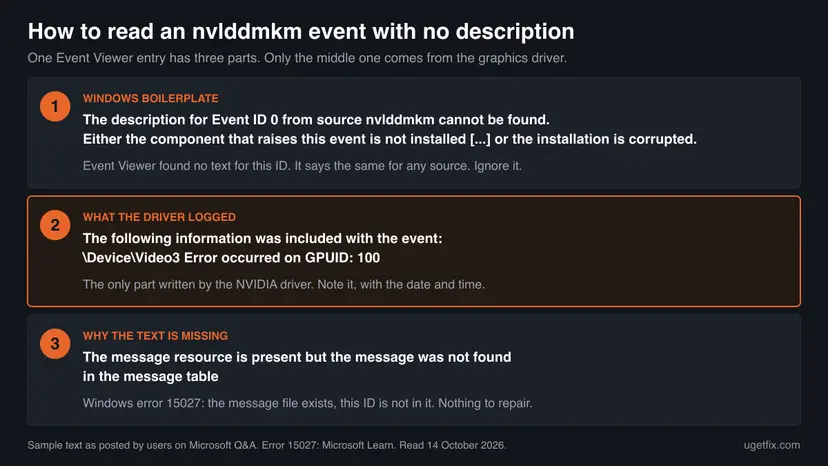
- Event ID 0 is only a number. Microsoft says each event source defines its own numbered events. A program that never numbers its events writes all of them with 0. The number carries no meaning across programs: 0 from one source and 0 from another are unrelated.
- "Not installed or corrupted" is a guess by Windows. The sentence is the same for every source and every number. It lists the two reasons Windows can think of. It has not checked the NVIDIA driver.
- The last line settles it. "The message resource is present but the message was not found in the message table" is Windows error 15027 (
ERROR_EVT_MESSAGE_NOT_FOUND). It says the message file was found and opened, and this number is simply not in it. - The middle is the real content. Everything after "The following information was included with the event" are the raw values the driver stored. Event Viewer shows them unformatted because it has no sentence to put them in.
Only the publisher of a program can add text for an event number. Reinstalling Windows, running a system file check or "repairing the component" does not add it. On a PC where the NVIDIA driver works perfectly, its events still open with this boilerplate. What you can fix is the reason the driver logged an error at all.
What nvlddmkm is and what its events 0, 13, 14 and 153 tell you
nvlddmkm is the kernel part of the NVIDIA graphics driver, the file nvlddmkm.sys. Microsoft's debugging pages show it as the module named in the stop error VIDEO_TDR_FAILURE on PCs with an NVIDIA card. In Event Viewer it appears as a source in the System log, because device drivers log there.
NVIDIA publishes no list of these Windows event numbers that we could find, so nobody outside NVIDIA can decode an ID with certainty. What can be read is the extra line. The table shows the lines users post most often on Microsoft Q&A, together with what was happening on their PCs. Treat the right column as reports, not as a vendor definition.
| Event ID | Extra line users post | What was reported with it |
|---|---|---|
| 0 | \Device\Video and a number, then a short driver text or codes | Game crashes soon after launch, sometimes a whole group of entries in the same second |
| 13 | Graphics Exception: MISSING_MACRO_DATA or Graphics Exception: ESR followed by two hexadecimal values | Picture errors and a crash in a game or a 3D program |
| 14 | A line of register names and hexadecimal values after \Device\Video | The screen goes black for a moment, the game closes, the desktop returns |
| 153 | Error occurred on GPUID: 100, Reset TDR occurred on GPUID:100 | A driver reset: black screen, then recovery or a restart |
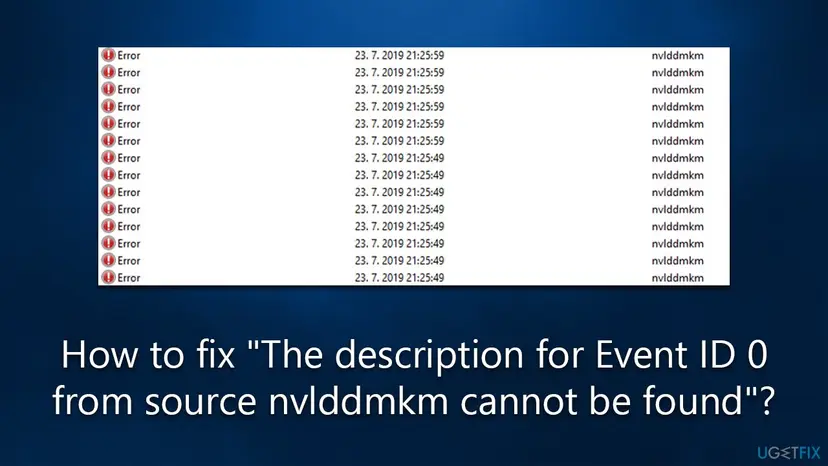
- Count incidents, not entries. A single crash often leaves five to fifteen nvlddmkm entries with the same time stamp.
- The number after
\Device\Videodiffers between PCs. We could not confirm from Microsoft or NVIDIA what it encodes, so do not read a fault into Video3 or Video5. - The same line every time suggests one repeating failure. Lines that change from crash to crash are more typical of unstable hardware.
- No symptom, no problem. If the entries do not line up with any flicker, black screen or crash, there is nothing to repair. The missing description alone is harmless.
What Windows does when the graphics card stops answering (TDR)
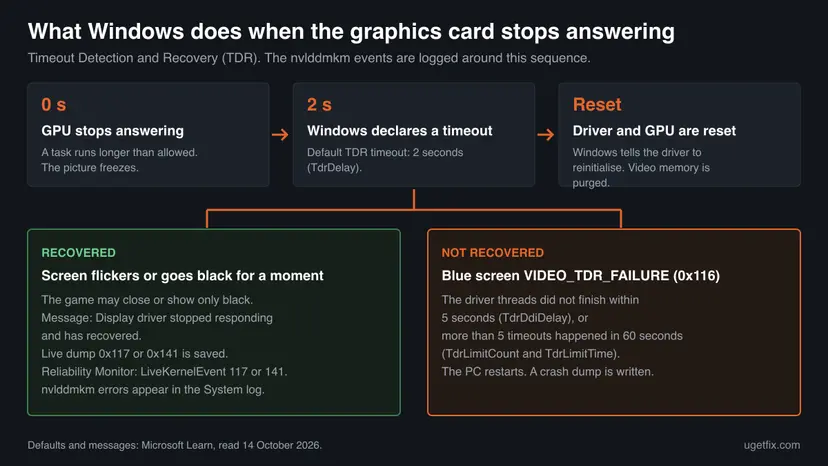
The crashes that come with these events are almost always a timeout. Windows watches the graphics card. If the card takes too long with one task, Windows declares it frozen, resets the driver and the card, and tries to give you the desktop back. Microsoft calls this Timeout Detection and Recovery, TDR.
| What Microsoft documents | Value |
|---|---|
| Time the card gets before Windows declares a timeout | 2 seconds by default |
| What you see when the recovery works | A screen flicker and the message "Display driver stopped responding and has recovered" |
| What can happen to the game | Older DirectX programs may show only black afterwards and must be restarted |
| Report saved after a recovered timeout | A live dump with the code 0x117 (VIDEO_TDR_TIMEOUT_DETECTED) or 0x141 (VIDEO_ENGINE_TIMEOUT_DETECTED). These are not blue screens |
| When Windows gives up | When the driver's threads do not finish within 5 seconds, or after more than five timeouts within one minute: blue screen VIDEO_TDR_FAILURE (0x116) |
This explains the names you meet next to the nvlddmkm events. LiveKernelEvent 141 in Reliability Monitor is the live dump 0x141: one engine of the card did not answer in time and was reset. LiveKernelEvent 117 is the timeout of the whole adapter. VIDEO_TDR_FAILURE means the reset itself failed or the timeouts came too fast.
TDR tells you that the card did not answer. It does not say why. Microsoft's own list of reasons has three groups: a display driver that needs an update, hardware trouble (overclocking, memory settings, cooling, power, defective parts) and a PC slowed down by too many programs.
The causes behind nvlddmkm errors, in the order to rule them out
Nobody publishes how often each cause occurs, so we do not invent percentages. The order below is the order in which NVIDIA's support asks you to rule things out before it accepts a crash report, which is also the order from cheapest to most expensive.
| # | Cause | How it shows | Fix |
|---|---|---|---|
| 1 | Overclocked graphics card, processor or memory (including XMP and EXPO profiles) | Crashes in some games and not others, different extra lines in the events | Fix 2 |
| 2 | A driver installed badly, or over leftovers of an old one | Problems since an install that ran while other programs were open | Fix 3 |
| 3 | A fault in one driver version | It began on the day of a driver update | Fix 4 |
| 4 | Heat | Crashes after minutes of load, loud fans, a dusty case | Fix 5 |
| 5 | Power or a loose card | Black screen under heavy load, crashes when the load jumps, a riser cable in the build | Fix 5 |
| 6 | Faulty or wrongly configured memory | Crashes outside games too, stop errors that name other drivers | Fix 6 |
| 7 | A changed TDR registry value | Whole system freezes or blue screens after a "TDR fix" from a video | Fix 7 |
| 8 | A failing graphics card | Crashes at default speeds, with a clean driver, in every game, and in another PC as well | See the section after the fixes |
NVIDIA's troubleshooting page starts with the game: a recent patch can make one title unstable. If only one game crashes, check its publisher's known issues and verify its files first: How to verify game files in Steam, Epic Games, Xbox app, EA app, Battle.net and GOG Galaxy. If every 3D program crashes, the cause is in the driver or the hardware.
How to fix the crashes behind Event ID 0 from source nvlddmkm
Start with Fix 1 in every case: it takes ten minutes and tells you which of the others you need. The fixes are ordered from free and reversible to those that open the PC case. Stop as soon as the crashes stop.
| What you see | What it points to | Start with |
|---|---|---|
| Event ID 0 from a source other than nvlddmkm | A program with no message text. Not a fault by itself | The section on what the message means |
| nvlddmkm events, but no flicker, black screen or crash at those times | Nothing to repair | Fix 1, to be sure |
| The screen goes black for a moment and the game closes | A GPU timeout that Windows recovered from | Fix 1, then Fix 2 |
| It began right after a driver update | The new driver version | Fix 4 |
| The card, processor or memory is overclocked, or XMP or EXPO is on | Unstable clock speeds | Fix 2 |
| Crashes come after some minutes of load, fans are loud | Heat or power | Fix 5 |
| Blue screen VIDEO_TDR_FAILURE that names nvlddmkm.sys | The reset failed or timeouts repeated | Fix 3, then Fix 5 |
| You added TdrDelay, TdrLevel or a similar value earlier | A tweak that hides or worsens the problem | Fix 7 |
Fix 1. Read the nvlddmkm events and the crash entries next to them
10 minutesNo riskEveryone. Do this before you change anything.
The event text is useless, but three facts are not: the extra line of each event, how many separate incidents there were, and whether Windows recorded a recovered timeout or a blue screen at the same minute. They decide which fix to use.
- Right-click Start and select Terminal (Admin). On Windows 10, open PowerShell as administrator instead.
- Paste this command and press Enter. It lists the last 50 events of the NVIDIA driver with the raw values the driver stored.
Get-WinEvent -FilterHashtable @{ LogName='System'; ProviderName='nvlddmkm' } -MaxEvents 50 | Select-Object TimeCreated, Id, LevelDisplayName, @{ n='Data'; e={ $_.Properties.Value -join ' ' } } | Format-List - Group the entries by time. Entries within the same few seconds are one incident. Write down the date, the time, the Id and the Data line of each incident.
- Press Win + R, type
perfmon /reland press Enter to open Reliability Monitor. - Select the days of your incidents and open the technical details of each critical entry. A recovered timeout carries the problem event name LiveKernelEvent with the code 141 or 117. We could not confirm the exact wording of the entry title from Microsoft.
- Open File Explorer and look into
%SystemRoot%\LiveKernelReportsand%SystemRoot%\Minidump. Dump files dated at the time of an incident confirm a timeout or a blue screen.
PowerShell reports an error when no event matches. On a PC with an NVIDIA card that means the driver has logged nothing recently, and your crash has another cause. The Data column was written from Microsoft's documentation and was not run on a test PC by us: if it stays empty, open one event in Event Viewer and read the Details tab.
| What you found | What it means | Go to |
|---|---|---|
| nvlddmkm entries, nothing in Reliability Monitor, no symptom | The driver logged something and recovered silently | No fix needed |
| LiveKernelEvent 141 or 117 at the same minute | A recovered GPU timeout | Fix 2, then Fix 3 |
| A stop error 0x116 or a file in the Minidump folder | The reset failed or timeouts repeated | Fix 3, then Fix 5 |
| Incidents began on the date of a driver install | The driver version or its installation | Fix 4 |
| The PC restarted with no dump at all | Loss of power rather than a driver fault | Fix 5 |
It worked if: You have a short list of incidents with dates, the extra line of each, and you know whether Windows recorded a recovered timeout or a blue screen.
If not: If Event Viewer shows no nvlddmkm entries at the time of the crashes, the graphics driver is probably not the cause: read the Application log for the game's own error instead.
Fix 2. Put the graphics card, the processor and the memory back to default speeds
10 to 20 minutesLow riskAny part is overclocked, a tuning tool is installed, or an XMP or EXPO memory profile is on. Also worth ten minutes when you are not sure.
NVIDIA asks for exactly this before it looks at a crash: its support article says some programs are more sensitive to overclocking than others, so a setting that survives one game can time out in another. Microsoft lists over-clocked components first among the hardware reasons for a GPU timeout.
- Close every tuning tool for the graphics card, set its clock, voltage and fan curves back to default, and stop it from starting with Windows: Stop apps from opening at startup.
- Open the NVIDIA app, go to System and then Advanced, and turn on Debug Mode. NVIDIA's article says the same switch is in the menu bar of the NVIDIA Control Panel, without naming the menu.
- Restart the PC and enter the firmware setup (BIOS or UEFI). The key is shown at start-up and differs between makers.
- Set the memory profile from XMP (Intel) or EXPO (AMD) to Default, as NVIDIA's article describes, and remove any manual processor overclock.
- Save, start Windows and play the game that crashed, for at least as long as it used to take to fail.
NVIDIA describes it in one sentence: it forces the graphics card to run at NVIDIA reference clock speeds. A card maker may ship a card above those reference speeds, so this can test the card below the speed it was sold with. It is a test. Turn it off again when you have your answer.
- Stable now: one of the settings was the cause. Turn them back on one at a time, memory profile first, and test after each.
- Stable only with Debug Mode on: the card cannot hold its factory overclock any more. That is a warranty matter for the card maker.
- Still crashing: the clock speeds are ruled out. Leave everything at default while you continue, so the next tests are clean.
It worked if: The game runs past the point where it used to crash, and no new nvlddmkm entries appear in the System log for that session.
If not: Keep the defaults and go on to Fix 3. An unstable overclock and a broken driver install can exist together.
Fix 3. Install the current NVIDIA driver with a clean installation
15 minutesLow riskThe crashes did not begin with a specific driver update, or the driver was installed while games and other programs were running.
NVIDIA's support article gives the reason: when a driver is installed while other programs run in the background, some processes may not be released properly, which leads to installation problems. A clean installation replaces the files and resets the driver's settings to defaults.
- Open NVIDIA's driver download page and pick your graphics card and your Windows version. On the day of checking the newest Game Ready driver was 617.42, released on 6 October 2026.
- Download the installer. Do not start it yet.
- Close games, launchers, browsers, recording and monitoring tools. Check the notification area for programs that still run.
- Start the installer. When it asks for the kind of installation, select Custom (Advanced).
- Tick Perform a clean installation and continue. These are the two labels NVIDIA's support article names.
- Restart the PC when the installer finishes, even if it does not ask.
A clean installation puts the NVIDIA settings back to their defaults. Note or screenshot any per-game, colour or display settings you changed, so you can set them again. Games and saved files are not touched.
- Which cards the current driver supports. The 617.42 release notes list desktop GeForce cards from the GTX 16 series to the RTX 50 series. If your card is older, the download page offers the last driver made for it.
- Laptops. NVIDIA's release notes say notebook issues can be system-specific. If the NVIDIA driver keeps failing on a laptop, try the graphics driver from the laptop maker's support page.
- A deeper clean. NVIDIA's article also names the third-party tool Display Driver Uninstaller as a way to remove all NVIDIA software before installing. NVIDIA calls it a tool for advanced users who know Safe Mode. It is not an NVIDIA product.
It worked if: Device Manager shows the new driver version, the game runs without a black screen, and no new nvlddmkm burst is logged.
If not: If the crashes began with a driver update, go to Fix 4. Otherwise continue with Fix 5: a clean current driver that still times out points away from software.
Fix 4. Go back to the driver that worked
10 minutesLow riskThe first incident in your list from Fix 1 is on or just after the date of a driver update.
A single driver version can break one game or one family of cards, and NVIDIA's release notes list such faults as fixed in later versions. Going back one version tests this directly: if the crashes stop, the driver was the cause and the hardware is fine.
- Open Device Manager. Right-click Start and select Device Manager.
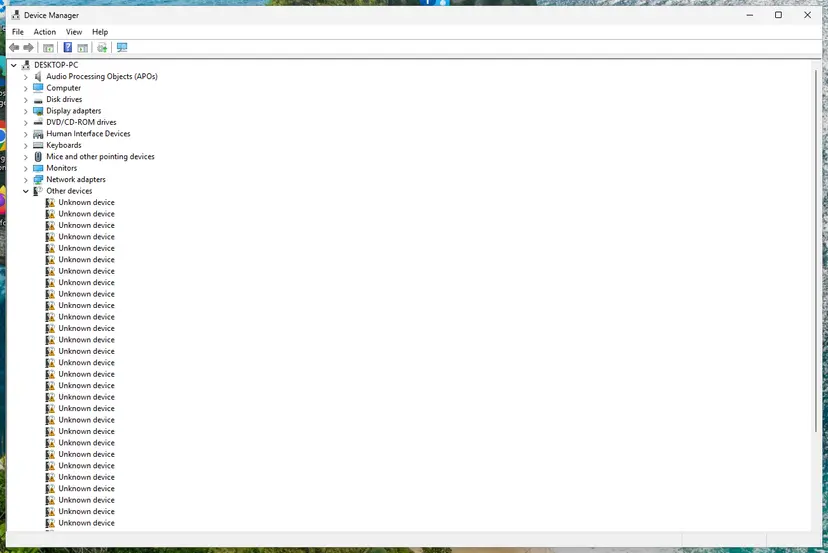
Device Manager lists devices by category; a yellow warning sign marks a device with a problem. Screenshot: Windows 11 26H2. - Open the device's Driver tab. Expand the category (for example Display adapters), right-click the device, select Properties and open the Driver tab. Driver Date and Driver Version show what is installed now.
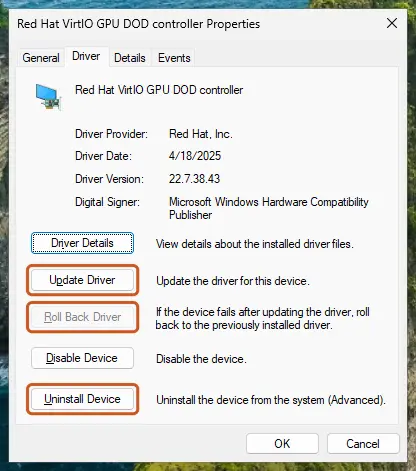
The Driver tab holds all three actions: update, roll back, uninstall. Screenshot: Windows 11 26H2. - Update the driver. Select Update Driver and let Windows search automatically. To use a driver you downloaded from the device maker, select Browse my computer for drivers instead and point to the unpacked folder.
- Or roll back the driver. If the problem started after a driver update, select Roll Back Driver, choose a reason and select Yes. The button is greyed out when Windows has no earlier driver to return to.
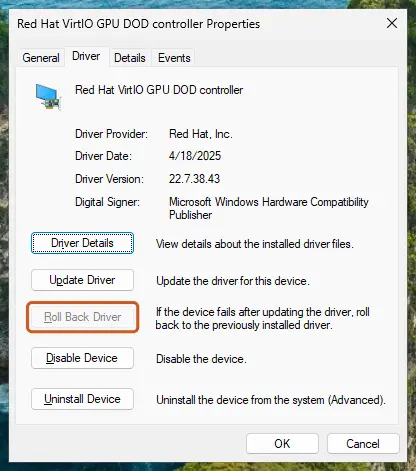
Roll Back Driver is greyed out here because there is no earlier driver. Screenshot: Windows 11 26H2.
These steps were written for Windows 11 24H2 and later. The full page with the other versions and what each result means: Update, roll back or reinstall a driver
The button is greyed out when Windows has no earlier driver to return to. In that case download an older version from NVIDIA's driver page, where earlier releases stay available, and install it with Custom (Advanced) and Perform a clean installation as in Fix 3.
- Read the release notes before you update again. Each driver has a PDF with *Fixed Issues* and *Open Issues*. The notes for 617.42, for example, list as fixed a crash to desktop in one game that appeared after updating to driver 616.56.
- Check that the old version stays. Look at Driver Version on the Driver tab again after a few days. If a newer version is back, the crashes can return with it.
- Tell NVIDIA. A fault in a version only gets fixed when it is reported. The address NVIDIA gives for driver feedback is
[email protected].
It worked if: The Driver tab shows the earlier version and the game that crashed runs through a full session.
If not: If the older driver crashes in the same way, the version is not the cause. Install the current one again (Fix 3) and go to Fix 5.
Fix 5. Check the temperature, the power cables and the seating of the card
20 to 40 minutesLow riskCrashes come after minutes of load, the PC restarts with no dump, the build uses a riser cable, or the fixes above changed nothing.
Microsoft names insufficient cooling and insufficient power among the hardware reasons for a GPU timeout. NVIDIA's support asks you to check that the card has not come loose and that its power cables are fully inserted before you send a crash dump.
- Press Ctrl + Shift + Esc to open Task Manager and select Performance. A dedicated graphics card shows its temperature in degrees Celsius next to its entry in the list.
- For a running log, open Terminal and start NVIDIA's own command-line tool, which comes with the driver. It prints a table with the temperature, the fan speed and the power draw every 5 seconds. If Windows does not find the command, use Task Manager only.
nvidia-smi -l 5 - Start the game in windowed mode and watch the values until the crash. Note the last temperature and whether the power draw jumped just before it.
- Shut down the PC, switch off the power supply and unplug it.
- Open the case. Press the graphics card firmly into its slot and check that its bracket screws are tight.
- Unplug each power cable of the card and plug it in again until it clicks, at the card and at the power supply.
- If the card sits on a riser cable, plug it straight into the motherboard slot for the test. NVIDIA warns that riser cards can introduce stability problems.
- Blow the dust out of the card's cooler and the case fans, then close the case and test again.
Unplug the PC and touch a bare metal part of the case before you touch a component. If the PC is under a warranty that forbids opening it, or it is a laptop, do only the measuring steps and leave the hardware to the maker's service.
- What temperature is too high? It depends on the card, and we give no number we cannot source. What matters is the pattern: a temperature that climbs steadily to the same value before every crash points to cooling.
- The power supply. NVIDIA's troubleshooting page notes that wattage is not the whole story and that other properties of a power supply can prevent it from working with a card. A crash at the moment the load jumps is the typical sign.
- Ventilation. NVIDIA also names a PC placed in a closed desk compartment as a cause of overheating. Test with the side panel off: if that cures it, the case airflow is the problem.
It worked if: The temperature levels off under load, the game no longer crashes, and no new LiveKernelEvent appears in Reliability Monitor.
If not: Go to Fix 6. If you can borrow another power supply or put the card into another PC, that test is worth more than any setting.
Fix 6. Test the memory
30 minutes or moreNo riskCrashes also happen outside games, stop errors name different drivers, or the PC became stable in Fix 2 only after the memory profile was set to Default.
The graphics driver keeps its data in system memory like every other driver, so a bad memory cell can make nvlddmkm fail without any fault in the card. Microsoft lists memory configuration and timings, and defective memory modules, among the reasons for a display driver timeout.
The command that opens Windows Memory Diagnostic
mdsched.exe- Open Windows Memory Diagnostic. Press Windows + R, type mdsched.exe and select OK. You can also search for Windows Memory Diagnostic and open it from the results.
- Choose when to test. Select Restart now and check for problems (recommended) to test right away. Select Check for problems the next time I start my computer if you want to finish your work first: the test then runs at the next start.
- Let the test run. The PC restarts into a blue screen that shows the progress of the test. You do not have to do anything. When the test ends, the PC restarts by itself and Windows loads.
- Look for the notification. Sign in. After a short while Windows shows a notification with the result, also when no errors were found. If you missed it, read the result in Event Viewer.
- Open the System log. Press Windows + R, type eventvwr and select OK. In Event Viewer, expand Windows Logs and select System.
- Find the result. Right-click System and select Find. Type MemoryDiagnostics-Results and press Enter. Select the event that is found: its text says whether the test detected errors.
These steps were written for Windows 11 25H2 and 26H2, Windows 10 22H2. The full page with the other versions and what each result means: How to test your RAM with Windows Memory Diagnostic
A test that finds errors is a clear result: remove one module at a time to find the bad one, or return the memory under warranty. A test that finds nothing is weaker evidence, because short tests miss faults that show only when the memory is warm. If the PC is stable with the memory profile at Default and unstable with XMP or EXPO, stay on Default or choose a slower profile.
It worked if: The result says no memory errors were detected, or it names errors and you know which part to replace.
If not: With clean memory, a clean driver and default speeds, read the section on what to do when the crashes continue: the remaining suspects are the card and the power supply.
Fix 7. Remove TDR registry changes instead of adding them
5 minutesLow riskYou, a tuning tool or a video guide added TdrDelay, TdrDdiDelay, TdrLevel or a similar value, or you are about to.
Many guides present a longer TDR delay as the cure. It is not one: it only changes how long Windows waits before it resets a card that has already stopped answering. Microsoft states that end users should not change these values, and a wrong value turns a recoverable flicker into a frozen PC or a blue screen.
| Value | What it does | Default |
|---|---|---|
TdrDelay | Seconds the card may hold up the scheduler before Windows declares a timeout | 2 |
TdrDdiDelay | Seconds Windows waits for driver threads to finish during a reset, then stops with VIDEO_TDR_FAILURE | 5 |
TdrLevel | 0 turns detection off. 1 makes every timeout a blue screen with no recovery. 3 recovers | 3 |
TdrLimitCount | Number of timeouts allowed within TdrLimitTime before Windows stops with a blue screen | 5 |
TdrLimitTime | The time window for TdrLimitCount, in seconds | 60 |
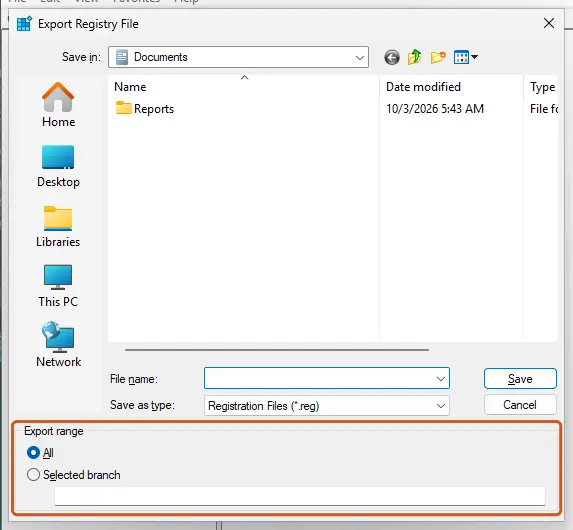
You are about to delete registry values. Export the key before you touch it, so that one double-click restores it: Back up the registry before editing it. Delete only the values named in the table and nothing else under this key.
- Press Win + R, type
regeditand press Enter. Select Yes. - Paste this path into the address bar of Registry Editor and press Enter:
HKEY_LOCAL_MACHINE\SYSTEM\CurrentControlSet\Control\GraphicsDrivers - Select File > Export and save the key as a backup.
- In the right pane, look for values whose names begin with Tdr.
- Right-click each one, select Delete and confirm. Windows then uses its defaults.
- Restart the PC.
- When a longer delay is legitimate. NVIDIA's knowledge base suggests a higher timeout for one case: a rendering job that honestly needs more than two seconds per task. Its first suggestion even there is to reduce the workload. A game that crashes is a different case.
- Why NVIDIA itself sets TdrLevel to 1. Its support uses that value for a short time to force a full memory dump for analysis, and its article tells you to remove it afterwards. It is a diagnostic step.
- What a longer delay looks like. The picture stays frozen for the whole delay before anything happens. If the card has truly hung, you only wait longer for the same reset.
It worked if: No value beginning with Tdr is left under the GraphicsDrivers key, and a timeout again ends in a short flicker instead of a long freeze or a blue screen.
If not: The values were not your cause. Leave them deleted, since the defaults are what Microsoft and NVIDIA test against, and read the next section.
If the crashes continue: what to collect and when it is the hardware
After Fixes 1 to 7 you have a PC at default speeds, with a cleanly installed current driver, checked cables, tested memory and default TDR values. If it still logs nvlddmkm bursts with crashes, software is an unlikely cause. NVIDIA's own troubleshooting page gives the deciding test: put the card into another computer.
| Result of the swap test | Conclusion |
|---|---|
| The card crashes in the second PC too | The graphics card is faulty. Claim the warranty from the card maker or the shop, not from NVIDIA, unless NVIDIA made the card |
| The card is stable in the second PC | The fault is in your PC: power supply, motherboard slot, memory or processor. NVIDIA notes that these can look like a graphics card problem under load |
| Another card crashes in your PC | Same conclusion: the PC, not the card |
| You cannot swap anything | Collect the evidence below and contact the support of the card or PC maker |
- Signs that speak for hardware: crashes at default speeds in every 3D program, a PC that restarts with no dump, and extra lines in the events that differ each time.
- Signs that speak for software: one game only, a clear start date that matches a driver, a game patch or a Windows update, and stability after a rollback.
- Application crash dumps:
%LOCALAPPDATA%\CrashDumps. NVIDIA says the file is usually named after the program, likeApplicationName.exe.1234.dmp. - Recovered timeouts:
%SystemRoot%\LiveKernelReports. Blue screens:%SystemRoot%\MinidumpandC:\Windows\memory.dmp. - What to send: the list of incidents from Fix 1 with their extra lines, the driver version, the card model, the power supply model and the dump files. Dumps are large, so NVIDIA asks for a link to a file-sharing service instead of an attachment.
NVIDIA's article offers registry files that switch Windows to full user-mode dumps and, as a last step, turn TDR recovery off to force a complete memory dump. Use them only when a support agent asks, and apply the file that restores the defaults when you are done.
How to keep nvlddmkm errors from coming back
- Close games and monitoring tools before you install a graphics driver.
- Read the *Open Issues* list in the driver's release notes when a game you play is new or freshly patched.
- Keep the previous driver installer until the new version has run for a week.
- Clean the dust from the card and the case fans a few times a year.
- Test an XMP or EXPO profile with a memory test before you trust it.
- Do not raise TdrDelay or set TdrLevel to hide a crash. The card still hangs.
- Do not judge stability by one game. NVIDIA says some programs are more sensitive to overclocking than others.
- Do not reinstall Windows because of the words "not installed or corrupted". They are boilerplate.
- Do not leave Debug Mode or a dump setting switched on after a test is over.
- Do not count Event Viewer entries. Count incidents with a symptom.
One more habit helps with any future fault: note the date whenever you change a driver, a firmware setting or a part. The System log tells you when the first nvlddmkm burst appeared, and a dated change next to it is the shortest way to the cause.
The same method works for every Event Viewer entry: find the events logged around it and read them as one story. Our guide to Event ID 6008 shows it for unexpected shutdowns.
Frequently asked questions
What is Event ID 0 in Windows, including Windows 11?
Event ID 0 is not a Windows error code. Every program that writes to the event log numbers its own events, and Microsoft's documentation says the number only has a meaning together with the source. A program that does not number its events writes all of them with 0. Windows 11 and Windows 10 behave the same here. To learn what an Event ID 0 entry is about, look at the Source column and at the text after "The following information was included with the event". The number tells you nothing by itself.
Is my NVIDIA driver really not installed or corrupted?
No, the sentence does not prove that. Event Viewer shows it for any event whose text it cannot find, whatever the source. In the nvlddmkm entries the closing line usually reads "The message resource is present but the message was not found in the message table". That is Windows error 15027 and it means the driver's message file was found and opened. Only this one number has no sentence in it. A driver that is truly missing shows up elsewhere: the Driver tab of the card in Device Manager then names no NVIDIA driver, and games do not start at all.
What do Event ID 13, 14 and 153 from source nvlddmkm mean?
NVIDIA does not publish their meaning, so only the extra line can be read. In logs that users post, event 13 carries a "Graphics Exception" line, event 14 carries register names with hexadecimal values, and event 153 carries "Error occurred on GPUID: 100" or "Reset TDR occurred on GPUID:100". All of them are reported together with a driver timeout: a black screen for a moment, a closed game, or a restart. They are handled exactly like Event ID 0 from the same source: find the incident, then work through the fixes on this page.
Will sfc /scannow or DISM fix this error?
Almost never. System File Checker and DISM repair files that belong to Windows. The NVIDIA driver is not one of them, and the missing description is not a damaged file in the first place. The old version of this guide listed the system file check as the first method, and we removed it for that reason. It does no harm, and it is a reasonable step when the PC also shows faults that have nothing to do with graphics. If you want to run it anyway, the steps are here: Run DISM and SFC to repair Windows system files.
Does increasing TdrDelay fix nvlddmkm crashes?
No. TdrDelay is the number of seconds Windows waits before it declares the graphics card frozen. The default is 2. A higher value does not make the card answer: it makes Windows wait longer in front of a frozen picture before the same reset. Microsoft writes that these registry values are for driver development and that end users should not change them. NVIDIA suggests a longer timeout only for heavy rendering work that needs more than two seconds per task. If you already added the value, Fix 7 shows how to remove it.
What is LiveKernelEvent 141, and is it a blue screen?
It is not a blue screen. LiveKernelEvent 141 is the name Reliability Monitor gives to a live dump with the code 0x141, VIDEO_ENGINE_TIMEOUT_DETECTED. Microsoft says this code is never used for a real stop error and only identifies live dumps: one engine of the graphics card did not answer in time, Windows reset it and saved a report while the system kept running. Code 117 is the same for the whole adapter. The files are in the LiveKernelReports folder inside the Windows folder. Many of them in a short time lead to the real blue screen, VIDEO_TDR_FAILURE.
Does this error mean my graphics card is dying?
Not by itself. The same events come from an overclock that is slightly too high, a memory profile, one faulty driver version, dust, a loose power cable or a weak power supply. A failing card becomes likely only when the crashes continue at default speeds, with a cleanly installed driver, in every 3D program, and above all when the card also fails in another PC. That swap is the test NVIDIA itself recommends. If the card passes in another PC, look at the power supply, the memory and the motherboard of your own.
I see Event ID 0 from another source, such as gupdate or OVRServiceLauncher. Is it the same problem?
It is the same Windows behaviour and a different program. Any source that logs without a registered message text gets the sentence "The description for Event ID 0 from source [name] cannot be found". It has nothing to do with NVIDIA or with graphics. Read the text after "The following information was included with the event": that is what the program wanted to say, often a plain status line and no error at all. This page covers the nvlddmkm case only. If the entry has the level Information and nothing misbehaves, you can ignore it.
Can I make Event Viewer show the real description?
No. The sentence for each event number lives in a message file that the program's publisher ships, and the nvlddmkm entries end with the note that the message was not found in that file's table. Nothing on your PC is missing that you could restore. A new driver version could add the text, but we found no NVIDIA statement about it. You lose little: the values the driver logged are shown in full after "The following information was included with the event", and on the Details tab of the event.
Sources
- Microsoft Learn: Event Sources (the EventLog registry key and EventMessageFile) (learn.microsoft.com)
- Microsoft Learn: Message Files (how an event viewer obtains description strings) (learn.microsoft.com)
- Microsoft Learn: Event Identifiers (learn.microsoft.com)
Did this fix work?
One click, no account. It tells the next reader which guides are worth their time.
Questions and experiences: fix "The description for Event ID 0 from source nvlddmkm cannot be found"
Still broken, or found a fix we did not cover? Ask here: members and our editors answer. Reading is open; writing needs a free account.
…