
How to fix Grounded "Hosting Game Error" in Windows?

Prefer to fix it yourself? The manual steps follow.
- 8methods
- 5 to 40 minutes
- Intermediate
Applies to Grounded and Grounded 2 on Windows 11 and Windows 10, bought on Steam, in the Xbox app or played with PC Game Pass
8 methods in this guide
I tried to invite a friend to play Grounded together, but I received a "Hosting Game Error" with the message "There was an issue hosting a multiplayer game. Check your connection and try again." This also happens when I try to host the game.
Grounded shows "Hosting Game Error" when your PC cannot open an online co-op session through Xbox services, and friends trying to join you may see "Invalid Host User ID" instead. Your internet can work fine while it happens. Check the game and Xbox status first, then make sure the host is signed in to a Microsoft account inside the game, also on Steam.
Grounded and Grounded 2 run their multiplayer on Xbox services, on Steam too. Check the Xbox status page and Obsidian's issue tracker, then quit to the main menu and host again (Fix 1). If it stays, sign in to your Microsoft account inside Grounded and link it on Steam (Fix 2), and make sure every player runs the same game version (Fix 3). The clock and the Xbox network checks on the PC come next.
| Error | Hosting Game Error: "There was an issue hosting a multiplayer game. Check your connection and try again." |
|---|---|
| Where it appears | When you start or open a multiplayer world, or invite a friend, in Grounded or Grounded 2 on a Windows PC (Steam or the Xbox app). |
| Main cause | The game could not create an online session through Xbox services: an outage, a missing Xbox sign-in (often on Steam), or a game version that differs between players. |
| Fastest fix | Check the Xbox status page and the Grounded issue tracker, then restart the game and host again (Fix 1). Next, sign in to Xbox inside the game (Fix 2). |
| Also written as | "there was an issue hosting a multiplayer game", "grounded hosting game error", "Invalid Host User ID" (seen by the player who joins), "lost connection to host". |
| Affects | Grounded (2020) and Grounded 2 (Game Preview and Early Access since 29 July 2025) on Windows 11 and Windows 10, Steam and Xbox app versions. |
| Vendor status | Obsidian does not document this message as one bug. Its issue tracker lists multiplayer problems as they come, and Obsidian says Steam players must link a Microsoft account for cross-platform play. |
| Not the cause | Your graphics card or system requirements. A PC that runs the game alone can still fail to host. |
| Time to fix | 5 minutes for an outage or a missing sign-in. 20 to 40 minutes when the Xbox network on the PC must be checked. |
Facts checked on 15 October 2026. Steps written for Windows 11 (25H2 and 26H2) and Windows 10 22H2.
What the Grounded "Hosting Game Error" means
In Grounded, the host does not run a dedicated server. The host's game creates an online session on Xbox services, and friends join that session. Obsidian's own FAQ for Grounded 2 lists only online multiplayer and co-op: local or offline co-op is not supported. So every co-op game needs the host's PC, the Xbox sign-in and the online services to work together.
"Hosting Game Error" with the line "There was an issue hosting a multiplayer game. Check your connection and try again." means that the session could not be created. The text blames the connection, but in practice the internet often works: what failed is the request to Xbox services. The same steps apply to Grounded and to Grounded 2, because both games use the same Xbox network on PC.
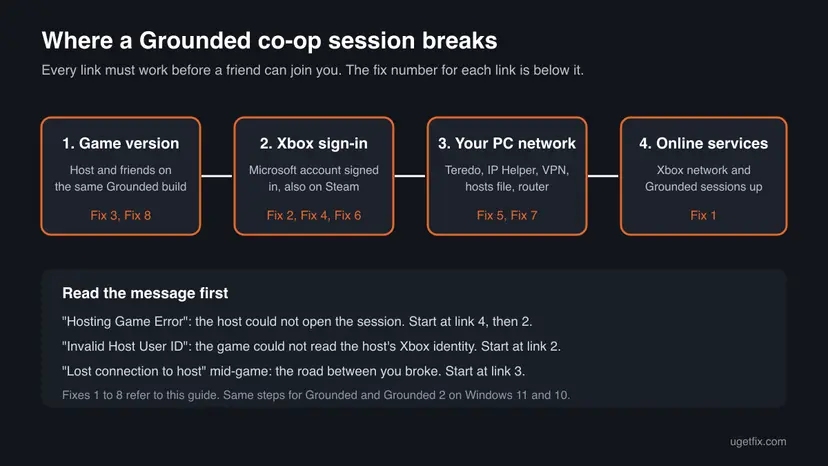
| What you see | Who sees it | What it most likely means |
|---|---|---|
| "Hosting Game Error" with "There was an issue hosting a multiplayer game. Check your connection and try again." | The host | The game could not create the online session. |
| "Invalid Host User ID" | The player who joins | The game could not read a valid Xbox user for the host. Obsidian does not explain this message; we read it from what players report. |
| "Lost connection to host" | The player who joined | The session started, then the connection between the two PCs broke. |
| "The game you are trying to join no longer exists" | The player who joins | The host's session closed or was never published. The host should quit to the menu and host again. |
Why Grounded cannot host a multiplayer game: causes, most common first
Obsidian names no single cause. The order below follows how Grounded's multiplayer is built, what Obsidian and Xbox Support publish about it, and what players report in the game's forums.
| How often | Cause | Sign | Fix |
|---|---|---|---|
| Most often | An outage or a known multiplayer bug on the Xbox or Obsidian side | It started suddenly, friends on other PCs have the same problem | Fix 1 |
| Often | The host is not signed in to a Microsoft account inside the game, or the Steam copy is not linked | Steam version, the friend sees "Invalid Host User ID", no gamertag in the game's menu | Fix 2 |
| Often | Different game versions between host and friends | One player updated today, the other did not | Fix 3 |
| Less often | A wrong clock on the host PC | The taskbar clock differs from your phone | Fix 4 |
| Less often | The Xbox network on the PC is blocked: Teredo, IP Helper service, a VPN, a hosts file entry, the router | Single player works, every Xbox multiplayer game fails | Fix 5 |
| Rarely | Damaged Xbox app, Gaming Services or Microsoft Store (Xbox app version) | The Xbox app also shows errors or will not sign in | Fix 6 |
| Rarely | A damaged network stack, or damaged game files | Other online apps misbehave too, or the game crashes | Fix 7, Fix 8 |
How to fix the Grounded Hosting Game Error in Windows 11 and Windows 10
Fix 1 is for everyone and costs a few minutes. Fixes 2 and 3 solve most of the remaining cases. Fixes 4 and 5 are for a PC where every Xbox multiplayer game fails, and Fixes 6 to 8 are for the error that survives all of that. The host should do the fixes first, because the host's PC creates the session. Steps are written for Windows 11, with the Windows 10 path where it differs. Windows 10 left support on 14 October 2025.
| What you see or have | Start with |
|---|---|
| Hosting worked yesterday and fails today for you and for friends. | Fix 1 |
| You play on Steam, or your friend sees "Invalid Host User ID". | Fix 2 |
| The game updated recently, or a friend says your world is a different version. | Fix 3 |
| Single player works, but no Xbox multiplayer game works on this PC. | Fix 4, then Fix 5 |
| You play through the Xbox app or PC Game Pass and the Xbox app shows errors too. | Fix 6 |
| Everything above checked, or the game also crashes. | Fix 7, then Fix 8 |
Fix 1. Check the Grounded and Xbox status, then restart the session
5 minutesNo riskEveryone, first, and above all when the error started suddenly for several players.
Hosting creates a session on Xbox services. If those services or the game's own multiplayer have a problem, nothing on your PC fixes it. Obsidian keeps a public issue tracker for each game, and Xbox Support points players to it before they report a bug.
- Open the Xbox status page and look for an alert on any service, above all multiplayer and account sign-in. If one shows an alert, wait until it is cleared.
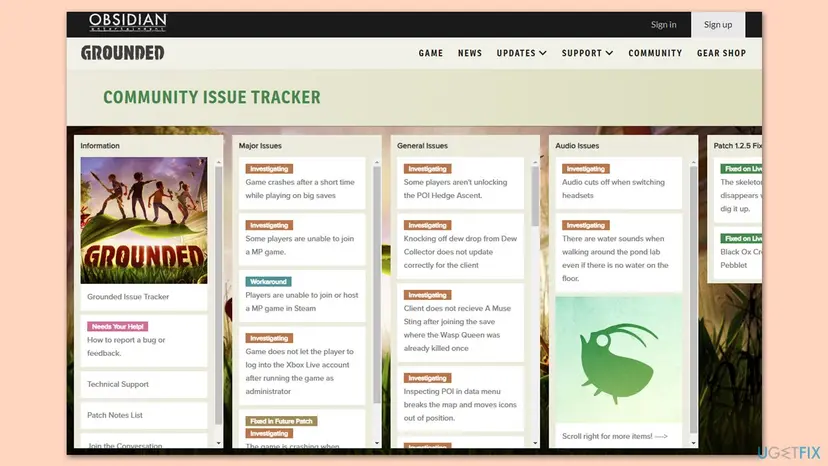
- Open Obsidian's issue tracker: Grounded or Grounded 2. Look for a card about joining or hosting a multiplayer game.
- If a card has a Workaround label, open it and follow it. If it says Investigating, the problem is known and a patch is the real fix.
- If nothing is listed, quit Grounded fully. On Steam, also check Task Manager (Ctrl + Shift + Esc) and end any Grounded process that still runs.
- Start the game, load the world and host again. Ask your friend to restart the game too before joining.
It worked if: The world loads as a hosted game, the invite goes out and your friend joins without an error.
If not: If the status page is green and the tracker shows nothing new, go to Fix 2.
Fix 2. Sign in to Xbox inside Grounded and link your Microsoft account on Steam
5 minutesNo riskYou play on Steam, the friend who joins sees "Invalid Host User ID", or the game's menu shows no gamertag.
Grounded's multiplayer and cross-play go through Xbox accounts. Obsidian's FAQ says Steam players must link their Microsoft accounts for cross-platform play. When the host has no Xbox user in the game, the session cannot carry a valid host ID.
- Start Grounded and watch the main menu. When the game asks you to sign in to a Microsoft account, accept and sign in. Do not skip it.
- Check that your gamertag shows in the game's menu. If it does not, quit the game, start it again and sign in when asked.
- Sign in with the same Microsoft account every time. A second account starts with a different gamertag and friends list.
- Add your friend as a friend on Xbox, or send the invite from inside the game, so both players see each other's gamertag.
- Start the game normally from Steam or the Xbox app. Do not use Run as administrator for Grounded.
- On the Xbox app version, open the Xbox app and Microsoft Store and check that both are signed in with the account that owns the game or pays for Game Pass.
Obsidian's Grounded issue tracker listed, in 2023, a known issue where the game did not let the player sign in to the Xbox account after it was started as administrator. If you set Grounded or Steam to always run as administrator, turn that off in the program's Properties > Compatibility tab.
It worked if: Your gamertag shows in Grounded, the world opens as a hosted game and your friend no longer sees "Invalid Host User ID".
If not: If the sign-in itself fails with a code, see our guide to Xbox app error 0x89235106. Otherwise go to Fix 3.
Fix 3. Update Grounded on every PC so all players run the same version
5 to 15 minutesNo riskThe game was patched recently, or one player plays on Steam and the other in the Xbox app or on a console.
A hosted world can only be joined by a game of the same build. After a patch, Steam and the Xbox app can roll it out at different times, and a player who has not restarted still runs the old build.
- Steam: open Library, select Grounded and wait for the update to finish. If you see Update instead of Play, select it.
- Xbox app: open the Xbox app, select My Library or the game, and install any update it offers. Microsoft Store > Library > Get updates does the same.
- Check the version on the game's title screen and compare it with your friend's.
- Restart the game after the update. Both players should restart, not only the host.
- Host the world again and send a fresh invite.
Microsoft Store updates also refresh the Xbox app, Gaming Services and Xbox Identity Provider, which the Xbox sign-in uses. Run Get updates even if you play on Steam.
It worked if: Both players see the same version number and the friend joins the hosted world.
If not: If only your PC fails while friends can host each other, go to Fix 4.
Fix 4. Set the clock and time zone automatically
5 minutesNo riskThe taskbar clock differs from your phone, or the PC was off for long, had its battery changed or dual-boots another system.
Xbox sign-in tokens are tied to time. A clock that is off makes the online services reject the request even though the internet works, and the game then reports a connection problem.
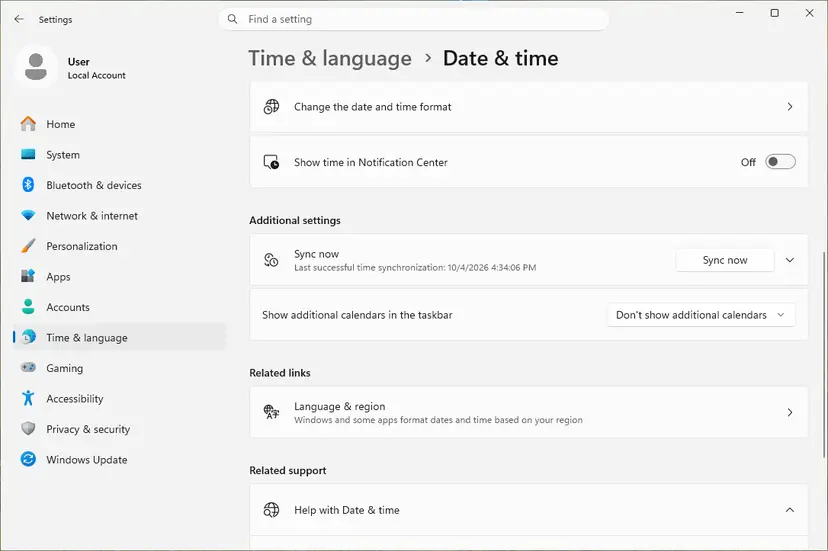
- Press Win + I and open Time & language > Date & time.
- Turn on Set time automatically and Set time zone automatically.
- Under Additional settings, select Sync now.
- Restart Grounded and host again.
When Sync now fails or the clock drifts again: How to fix the date and time in Windows
It worked if: The clock matches your phone to the minute and the hosting error is gone.
If not: If the clock was right, go to Fix 5.
Fix 5. Check the Xbox network on the PC: Teredo, IP Helper, VPN and hosts file
15 to 30 minutesLow riskSingle player works, but you cannot host or join any multiplayer game that uses the Xbox network.
Xbox Support says select games use the Teredo protocol for Xbox multiplayer on Windows, and lists what breaks it: a disabled Teredo adapter, the IP Helper service, a hosts file entry, a router that blocks it, or a VPN. We could not confirm from Obsidian that Grounded uses Teredo, so treat this as a check, not a certain fix.
- Windows 10: open Settings > Gaming > Xbox Networking. If NAT type says "Teredo is unable to qualify", select Fix it. Xbox Support says this button exists on Windows 10 only.
- Disconnect any VPN and close its app. Xbox Support lists a connected VPN, and even an installed VPN network adapter, as a Teredo blocker.
- Press Win + R, type
services.mscand press Enter. Find IP Helper, check that it is Running, and set its startup type back to Automatic if a tool changed it. - Open
C:\Windows\System32\drivers\etc\hostsin Notepad as administrator and look for lines withteredoorxboxlive. Copy the file first, then put#in front of such lines and save. - Restart the PC and try to host again.
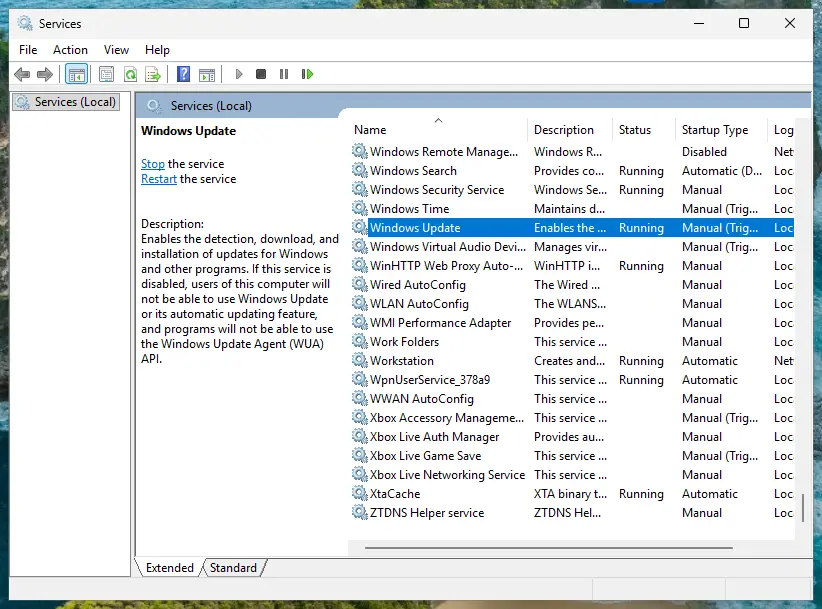
- Opening and restarting services, with screenshots: Check and restart Windows services
- Windows 11: Xbox Support's Teredo page has a separate Windows 11 section, and the Xbox Networking page in Settings is gone there. We could not confirm the exact Windows 11 screen today, so follow Xbox Support's Teredo page for it.
- The router: Xbox Support notes that some home routers block Teredo when they detect an IPv6 connection. A test on a phone hotspot shows quickly whether the router is the cause.
- Do not turn off Windows Defender Firewall to make hosting work. It weakens the PC and is not what Xbox Support asks for.
It worked if: Xbox Networking (Windows 10) no longer shows "Teredo is unable to qualify", IP Helper runs, and hosting works.
If not: If it works on a phone hotspot but not at home, the block is in the router. Otherwise go to Fix 6 for the Xbox app version or Fix 7 for Steam.
Fix 6. Repair or reset the Xbox app, Gaming Services and Microsoft Store
10 minutesLow riskYou play through the Xbox app or PC Game Pass, and the Xbox app itself shows errors or will not sign in.
The Xbox app version of Grounded depends on the Xbox app, Gaming Services and Microsoft Store for sign-in and online play. A damaged one of these breaks the session before the game can host.
- Press Win + I and open Apps > Installed apps (Windows 10: Apps > Apps & features).
- Find Xbox, select the three dots and Advanced options.
- Select Terminate, then Repair. Test the game.
- If it still fails, select Reset. It signs you out of the app and clears its data. Installed games stay.
- Do the same for Gaming Services and Microsoft Store, then restart the PC and sign in again.
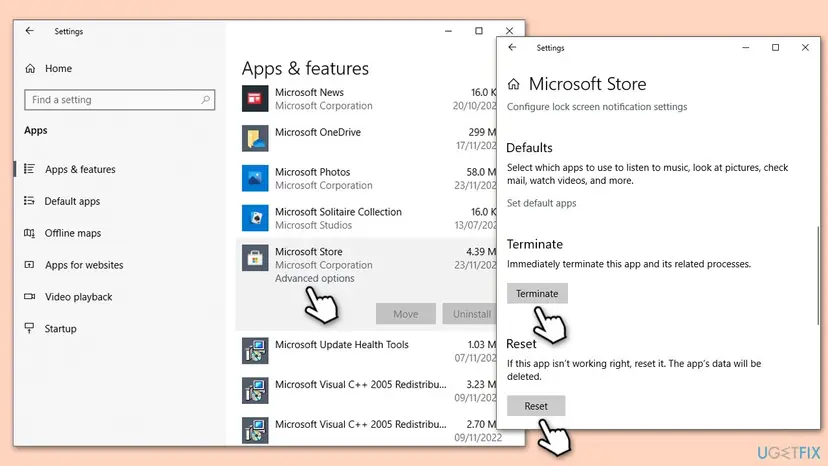
The general steps with Windows 11 screenshots: How to repair or reset an app in Windows
It worked if: The Xbox app signs in and shows Grounded, and the game hosts without the error.
If not: If the Xbox app works but Grounded still cannot host, go to Fix 7 and reset the network stack.
Fix 7. Reset the Windows network stack
10 minutes plus a restartRead the warningFixes 1 to 6 did not help, or other online games and apps on this PC also have trouble.
Old DNS answers, a damaged Winsock catalog or adapter settings left by removed VPN or tuning software can block the connection the game needs while websites still open.
Network reset reinstalls every network adapter and removes saved Wi-Fi networks, their passwords and VPN adapters. Write down your Wi-Fi password and VPN settings first. The three commands alone do not remove saved networks.
Run in Terminal or Command Prompt as administrator, one line at a time
ipconfig /flushdns
netsh winsock reset
netsh int ip reset- Right-click Start and select Terminal (Admin). On Windows 10, open Command Prompt as administrator.
- Run the three commands above and restart the PC.
- Try to host. If it still fails, open Settings > Network & internet > Advanced network settings > Network reset (Windows 10: Network & Internet > Status > Network reset).
- Select Reset now, confirm, and let the PC restart. Connect to Wi-Fi again and host.

Every command explained: Reset the network and flush DNS
It worked if: After the restart the PC is online and Grounded hosts the world.
If not: If hosting still fails after the restart, go to Fix 8 and verify the game files.
Fix 8. Verify the Grounded game files
10 to 20 minutesNo riskEverything above failed, or the game also crashes or loads slowly.
A damaged or half-updated install can report as a different build or fail when it creates the session. Verifying downloads only the files that do not match the originals, and your save files are not touched.
- Steam: right-click Grounded in Library, select Properties > Installed Files > Verify integrity of game files.
- Xbox app: right-click Grounded in My Library, select Manage > Files > Verify and repair.
- Wait until it finishes, start the game and host again.
Every launcher, step by step: How to verify game files in Steam, Epic Games, Xbox app, EA app, Battle.net and GOG Galaxy
It worked if: The launcher reports the files as verified or repairs a few, and hosting works.
If not: Report the problem to Obsidian with the details listed in the next section.
If Grounded still cannot host: what to check and what to send Obsidian
Grounded writes no log that Obsidian documents for this error. What helps support is a clear picture of where the session stops. Xbox Support sends Grounded players to Obsidian's issue tracker first and to Obsidian Support for anything not listed.
- Who can host: can your friend host and you join? If yes, the cause is on your PC or network.
- Which store: Steam or the Xbox app, and which game: Grounded or Grounded 2, with the version from the title screen.
- The sign-in: does your gamertag show in the game's menu?
- The network test: does hosting work on a phone hotspot? On Windows 10, what does Xbox Networking show next to NAT type?
- The exact screen: a screenshot of the message.
Search the issue tracker for Grounded or Grounded 2 and upvote a matching card. Obsidian says you need an Obsidian account to upvote. If nothing matches, contact Obsidian Support with the facts above.
How to keep the Hosting Game Error from coming back
- Sign in to the same Microsoft account in Grounded every time, on Steam too.
- Let Steam or the Xbox app update the game before you play, and agree with friends to restart after a patch.
- Keep Set time automatically on.
- Check the issue tracker after a big patch before you change anything on your PC.
- Do not skip the Microsoft account sign-in when the game asks for it.
- Do not run Grounded as administrator.
- Do not leave a VPN connected while you host.
- Do not turn off Windows Defender Firewall to make multiplayer work.
Frequently asked questions
What does "There was an issue hosting a multiplayer game" mean in Grounded?
It means the host's game could not create an online co-op session. Grounded has no dedicated servers for players: the host's PC opens a session on Xbox services and friends join it. The message tells you to check your connection, but the internet usually works. More often the Xbox sign-in is missing, the services have a problem, or the players run different game versions. Start with Fix 1 and Fix 2.
What is "Invalid Host User ID" in Grounded and how do I fix it?
It is the message the joining player sees when the game cannot read a valid Xbox user for the host. Obsidian does not explain the message, so this is our reading of what players report. The fix is on the host's side: the host signs in to a Microsoft account inside Grounded, links it on Steam, checks that the gamertag shows in the menu, then hosts again and sends a new invite (Fix 2).
Are the Grounded servers down?
Check two places. The Xbox status page at support.xbox.com shows whether any Xbox service, multiplayer and sign-in included, has an alert. Obsidian's issue tracker for Grounded or Grounded 2 shows known multiplayer bugs and workarounds. Grounded's official social accounts also post when they know about a connectivity issue. If both pages look normal and friends can host each other, the cause is on your PC (Fixes 2 to 5).
Why can't my friend join my Grounded game?
Most often one of three things. The host is not signed in to Xbox inside the game, so the session has no valid host. The two players run different game versions after a patch. Or one PC cannot use the Xbox network for multiplayer because of a VPN, a hosts file entry, a disabled IP Helper service or the router. Ask your friend to host as a test: if that works, fix your PC first.
Do I need a Microsoft account to play Grounded multiplayer on Steam?
For cross-platform play, yes. Obsidian's Grounded 2 FAQ says Steam players must link their Microsoft accounts to use cross-platform features, and Grounded's multiplayer runs on Xbox services on PC. When the game asks you to sign in to a Microsoft account at start, accept it. Use the same account every time, so your gamertag and friends list stay the same.
Why do I get "lost connection to host" in Grounded?
The session started, then the connection between the host and you broke. A host with a weak Wi-Fi link, a VPN on either side, or a router that blocks the protocol the Xbox network uses can cause it. Use a cable for the host if you can, disconnect VPNs and go through Fix 5 on both PCs. If it happens only after a patch, check that both players restarted the game.
Does the Grounded 2 Hosting Game Error have the same fix?
Yes. Grounded 2 uses the same Xbox services for co-op on PC, so the same fixes apply. Grounded 2 has been in Game Preview and Steam Early Access since 29 July 2025, so it is patched often and version mismatches are common: make sure every player has updated and restarted (Fix 3). Obsidian keeps a separate issue tracker for Grounded 2.
What does "error searching for games" mean in Grounded?
Obsidian does not document it. Most likely the game could not list sessions from Xbox services, which makes it the joining side of the same problem. Check the Xbox status page, make sure you are signed in to a Microsoft account inside the game and that your version matches your friend's. If it stays, go through the network checks in Fix 5 on your PC.
Can I fix Grounded multiplayer on a phone, Android or a console with these steps?
No, this page is about Windows PCs. Grounded is not an Android app. On a phone you can play it through Xbox Cloud Gaming with Game Pass Ultimate, which runs the game on Microsoft's servers, so your phone's settings rarely cause a hosting error there: check the Xbox status page. On Xbox consoles, use the console's network settings instead of the Windows steps.
What causes the hosting error in Grounded, in short?
In short: an outage or known bug on the Xbox or Obsidian side, a missing Xbox sign-in in the game, or a different game version between players. Less often a wrong PC clock, a blocked Xbox network on the PC (VPN, hosts file, IP Helper, router), damaged Xbox apps or a damaged network stack. This answers the question asked in Thai and Russian searches for this page too: the steps are the same in any language.
Sources
- Obsidian Support: Grounded 2 FAQ (platforms, online-only multiplayer, Microsoft account link for Steam) (support.obsidian.net)
- Xbox Support: Grounded 2 support and known issues (issue tracker and reporting) (support.xbox.com)
- Xbox Support: NAT type on Windows displays "Teredo is unable to qualify" (support.xbox.com)
Did this fix work?
One click, no account. It tells the next reader which guides are worth their time.
Questions and experiences: fix Grounded "Hosting Game Error" in Windows
Still broken, or found a fix we did not cover? Ask here: members and our editors answer. Reading is open; writing needs a free account.
…