
How to fix high CPU usage by Conhost.exe (Console Window Host)?

Prefer to fix it yourself? The manual steps follow.
- 8methods
- 5 minutes to find the parent app, 15 to 30 minutes for a scan or a clean boot
- Intermediate
Applies to Console Window Host (conhost.exe) on Windows 11 and Windows 10
8 methods in this guide
Hello. For the past week, I have noticed that my PC has gotten slow. I was checking the Task Manager to find the culprit, and I noticed several instances of Conhost.exe, with some of them really spiking my CPU. I don't think this is normal. Any tips on how to deal with this?
Console Window Host (conhost.exe) is the Windows process that serves every command-line program. When it uses a lot of CPU, it is almost always working for another app: a script, a console window full of scrolling text or a background helper of a driver tool. Find that parent app first, then close, update or remove it.
Do not end or delete conhost.exe: it is a Windows file, and every console program needs it. Its CPU use belongs to the app it serves. Find that parent app with the PowerShell command in Fix 1, then close the busy console window (Fix 2) or update or remove the tool behind it (Fix 3). If the file is not in C:\Windows\System32, scan the PC (Fix 6).
| Error | No error message. Task Manager shows one or more Console Window Host lines (conhost.exe on the Details tab) high in the CPU column, and the PC feels slow or the fans run. |
|---|---|
| Where it appears | Task Manager on Windows 11 and Windows 10, under Processes (often under Background processes) and as conhost.exe on the Details tab. |
| Main cause | A console program attached to it is busy: a script or command printing a lot of text, or a background helper of a driver, mouse, RGB, audio or network tool. |
| Fastest fix | Find the parent app with the PowerShell command in Fix 1, then close it (Fix 2) or update or remove it (Fix 3). |
| Also written as | Console Window Host, Console Windows Host, Console Host Window, conhost, conhost.exe, Windows Console Host. |
| What it is | Microsoft: the Windows Console Host is the server for all Windows Console APIs and the classic window for command-line apps. It was split out of csrss.exe for security and isolation. |
| Real file location | C:\Windows\System32\conhost.exe, digitally signed by Microsoft Windows. A copy anywhere else is not the Windows file. |
| Many copies running | Normal. Each console program gets its own conhost.exe, so ten background helpers mean ten Console Window Host lines. |
| Time to fix | 5 minutes to find and close the parent app; 15 to 30 minutes for a malware scan or a clean boot. |
Facts checked on 15 October 2026. Steps written for Windows 11 (25H2 and 26H2) and Windows 10 22H2, with the role of conhost.exe read from Microsoft's Windows Console documentation.
What Console Window Host (conhost.exe) is and why it shows up in Task Manager
Console Window Host, file name conhost.exe, is a built-in part of Windows. Microsoft's console documentation describes it as both the server for all of the Windows Console APIs and the classic window that shows command-line programs. Those programs, such as cmd.exe, PowerShell, scripts and many small helper tools, do not draw their own window: they hand their text to conhost.exe, and conhost.exe answers their console calls and shows the result.
This is why Console Window Host appears in Task Manager even when you did not open a command prompt. Drivers, game launchers and peripheral tools often run small console helpers in the background, and each one gets its own conhost.exe. With Windows Terminal, the window itself is drawn by the terminal, but conhost.exe still runs behind it to translate the program's console calls.
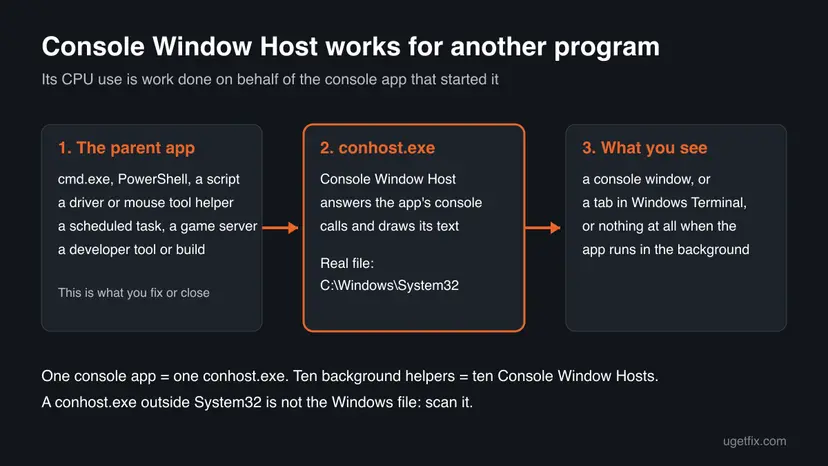
| What you see | Where | What it is |
|---|---|---|
| Console Window Host | Task Manager, Processes tab | The friendly name of conhost.exe. It can appear under the app that uses it or alone under Background processes. |
conhost.exe | Task Manager, Details tab | The process itself, with its PID and the user it runs as. |
| Windows Command Processor with Console Window Host inside | Task Manager, Processes tab | A cmd.exe window or script and the conhost.exe that serves it. |
| Several Console Window Host lines | Task Manager | One for each console program running. Not a sign of malware on its own. |
When a console program starts, runs a command or prints text, conhost.exe does work for it. A spike of a few seconds is that work. A Console Window Host that stays high for minutes means the program behind it is stuck in a loop or printing without a break.
Why Console Window Host uses high CPU, from most to least common
Most often the console app behind it is busy: a command or script prints a flood of text, or a helper loops. Less often a background helper of a driver or peripheral tool keeps restarting, or a scheduled task starts a console program again and again. Rarely the file is a fake copy, or Windows system files are damaged. Microsoft publishes no statistics, so this order comes from how conhost.exe works and from user reports we read.
| Cause | How often | How to tell | Fix |
|---|---|---|---|
| A console window or script prints a lot of text or loops: a log tail, a build, a game or mod server, a download tool. | Most often | A console window is open and text scrolls fast in it. The load ends when you close it. | Fix 1, Fix 2 |
| A background helper of a driver, mouse, RGB, audio, VPN or network tool. A Microsoft Q&A thread traced 13 conhost.exe copies to Razer, NVIDIA, SteelSeries, MSI and Killer tools. | Often | No window is visible. Fix 1 shows a program from that maker as the parent. | Fix 3, Fix 4 |
A scheduled task or startup entry that runs cmd.exe or PowerShell again and again. | Sometimes | The parent is cmd.exe or powershell.exe that you did not start, often with a black window flashing. | Fix 5 |
| A fake file using the conhost.exe name, such as a coin miner. | Rarely | The file is not in C:\Windows\System32, is not signed by Microsoft, or its parent sits in a temp or AppData folder. | Fix 6 |
| A conflict with another program, or damaged system files. | Rarely | No single parent stands out, the load disappears in a clean boot, or other Windows processes misbehave too. | Fix 7, Fix 8 |
The old version of this page named four malware families that start conhost.exe. We found no current source for them today and left the names out. The check in Fix 6 works whatever a fake copy is called.
How to fix Console Window Host (conhost.exe) high CPU usage
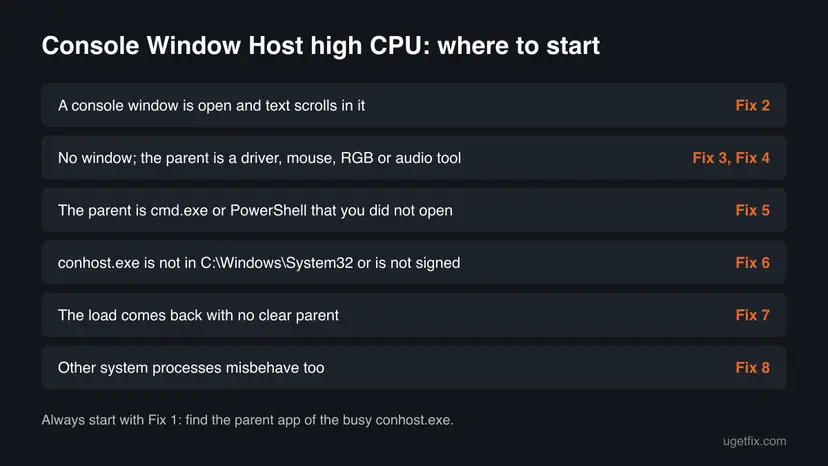
Fix 1 takes three minutes and tells you which program the busy conhost.exe works for. Fix 2 to Fix 5 deal with that program and solve most cases. Fix 6 is the check for a fake copy. Fix 7 and Fix 8 are the general repairs for when no parent stands out.
| What you see or have | Start with |
|---|---|
| A console window is open and text scrolls in it. | Fix 2 |
| No window; the parent is a driver, mouse, RGB, audio or network tool. | Fix 3, then Fix 4 |
| The parent is cmd.exe or PowerShell that you did not open, a black window flashes now and then. | Fix 5 |
conhost.exe is not in C:\Windows\System32, or it is not signed by Microsoft. | Fix 6 |
| The load comes back and no parent app stands out. | Fix 7 |
| Other Windows processes misbehave too. | Fix 8 |
Fix 1. Find which program the busy conhost.exe is working for
3 minutesNo riskEveryone, before changing anything. It tells you which program to deal with and shows the file path for the check in Fix 6.
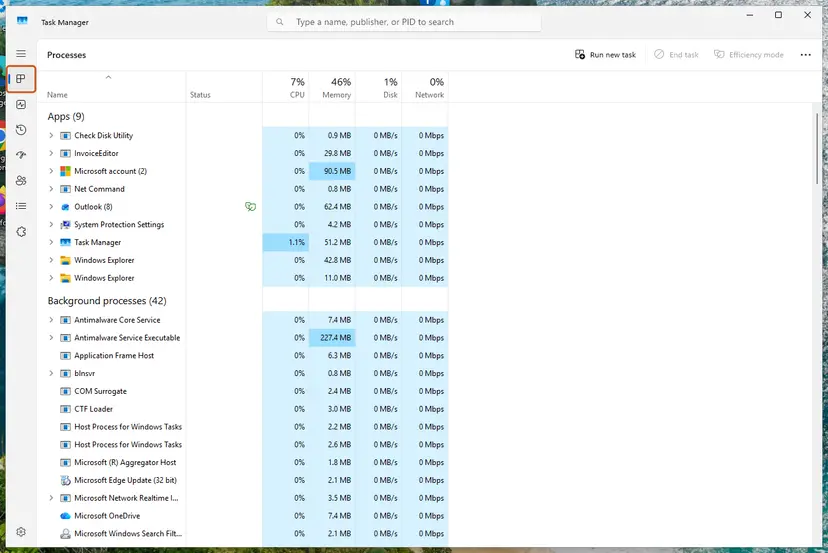
conhost.exe only does what its console program asks. Task Manager does not show the parent of a process, so a short PowerShell command lists every conhost.exe with its CPU time, its own path and the path of the program that started it.
- Press Ctrl + Shift + Esc to open Task Manager. On Windows 10, select More details if you see a short list.
- On the Processes tab, select the CPU column header so the busiest process is on top.
- If Console Window Host sits under an app group, expand that group: the app's name is the parent. If it stands alone under Background processes, go on.
- Open the Details tab and note the PID of the busy
conhost.exe. - Right-click Start, select Terminal (Admin) on Windows 11 or Windows PowerShell (Admin) on Windows 10.
- Paste the command below and press Enter.
- Find the PID you noted. The Parent column names the program behind it; CPU is its total CPU time in seconds.
PowerShell (administrator)
Get-CimInstance Win32_Process -Filter "Name='conhost.exe'" | Select-Object ProcessId, @{n='CPU';e={[int](Get-Process -Id $_.ProcessId -ErrorAction SilentlyContinue).CPU}}, ExecutablePath, @{n='Parent';e={(Get-Process -Id $_.ParentProcessId -ErrorAction SilentlyContinue).Path}} | Sort-Object CPU -Descending | Format-Table -AutoSize| Parent of the busy conhost.exe | Go to |
|---|---|
cmd.exe, powershell.exe or a tool whose window you can see | Fix 2 |
| A program from a driver or device maker, a launcher or a VPN | Fix 3 |
cmd.exe or powershell.exe that you never opened | Fix 5 |
ExecutablePath is not C:\Windows\System32\conhost.exe, or the parent is in a Temp or AppData folder | Fix 6 |
| Parent is empty | The parent has already closed. Run the command again while the load is high; if it stays empty, go to Fix 7. |
It worked if: You know the name and folder of the program behind the busy Console Window Host.
If not: If no conhost.exe is busy when you look, the load comes and goes with a task. Leave Task Manager open, wait for the next spike and run the command again, or go to Fix 5.
Fix 2. Close the console window or stop the command that floods it with text
2 minutesLow riskFix 1 shows cmd.exe, PowerShell or a tool with a visible window, or you left a command, log or server running.
Every line a console program prints passes through conhost.exe. A command that prints thousands of lines a second, or a window that keeps a very long history, keeps conhost.exe busy for as long as it runs. Stopping the command ends the work.
- Switch to the console window. Look at what it is doing: text scrolling fast, a progress bar, a server log.
- If the work is not needed, press Ctrl + C to stop the command, then type
exitand press Enter. - If the work is needed, let it finish, or run it with its output sent to a file instead of the screen, for example
yourcommand > log.txt. - If the window does not respond, open Task Manager, right-click the app group that holds Console Window Host and select End task.
- Watch the CPU column for a minute.
Ending a console program that copies, installs or updates something stops it halfway. Let installers and updates finish, and end only a task you recognise.
Closing a stuck program in Task Manager, step by step: Close a frozen app (Task Manager, Force Quit).
It worked if: The Console Window Host line disappears from Task Manager or drops to near 0% CPU.
If not: If the window closes but the load stays, a different conhost.exe is busy. Run the Fix 1 command again. If no window was visible at all, go to Fix 3.
Fix 3. Update, repair or remove the tool behind a background conhost.exe
10 minutesLow riskFix 1 names a program from a driver, mouse, keyboard, RGB, audio, VPN, network or game launcher maker, and no window is visible.
Many vendor tools run console helpers in the background. A Microsoft Q&A user traced 13 conhost.exe copies to Razer, NVIDIA, SteelSeries, MSI and Killer software. A helper that loops or crashes and restarts keeps its conhost.exe busy; a newer version of the tool usually replaces it.
- Note the full path from the Parent column in Fix 1. The folder name usually tells you the maker and the product.
- Open that program and use its own update check, or download the newest version from the maker's website.
- Restart the PC and run the Fix 1 command again.
- If the load stays and you do not need the tool, press Win + I and open Apps > Installed apps (Windows 10: Apps > Apps & features).
- Find the program, select ... (Windows 10: select it) and choose Modify or Repair if it is offered; otherwise Uninstall.
- Restart and check Task Manager.
How to remove a program completely: Uninstall a program or app in Windows.
It worked if: After the update or removal, the conhost.exe that belonged to that tool is gone or stays near 0% CPU.
If not: If you need the tool and the new version still loads the CPU, keep it from starting with Windows (Fix 4) and report the problem to its maker with the path from Fix 1.
Fix 4. Stop the program from starting with Windows
5 minutesLow riskThe busy conhost.exe belongs to a tool that starts with Windows and you only need it now and then.
A tool that starts with Windows brings its console helpers and their conhost.exe with it. Turning the startup entry off stops the load without removing the tool; you can still open it when you need it.
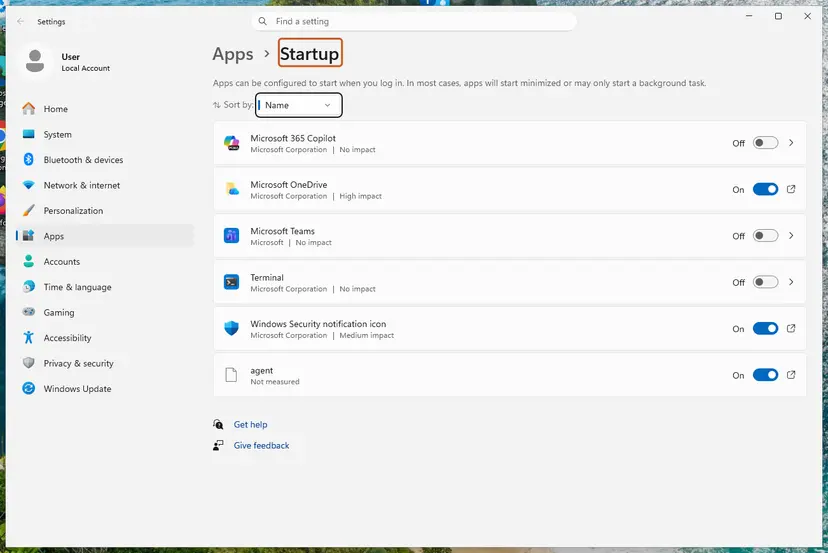
- Open the Startup settings. Select Start > Settings > Apps > Startup.
- Turn apps off. Set the switch of each app you do not need at sign-in to Off. Use Sort by to put the apps with the highest impact first.
- Or use Task Manager. Right-click Start, select Task Manager, then Startup apps. Select an app and select Disable. Task Manager shows the same list with more detail, such as the publisher.
- Restart to check. Restart the PC. The apps you turned off no longer open by themselves.
These steps were written for Windows 11 24H2, 25H2 and 26H2. The full page with the other versions and what each result means: Stop apps from opening at startup
It worked if: After a restart, that Console Window Host does not appear until you open the tool yourself.
If not: If it still starts, the tool runs as a service or a scheduled task. Go to Fix 5, or find it with a clean boot in Fix 7.
Fix 5. Find the scheduled task that starts cmd.exe or PowerShell
10 minutesLow riskThe parent in Fix 1 is cmd.exe or powershell.exe that you did not open, the load comes in waves, or a black window flashes.
A scheduled task that runs a command every few minutes starts a new console program each time, and each one gets a conhost.exe. Task Scheduler shows what runs, when and which file it starts.
- Press Win + R, type
taskschd.mscand press Enter. - Select Task Scheduler Library on the left.
- Select the column header Next Run Time or Last Run Time and look for tasks that run every few minutes.
- Select a task and open the Actions tab below. Note the program, for example
cmd.exeorpowershell.exe, and its arguments. - If the task belongs to a program you no longer use, right-click it and select Disable. Do not delete it yet.
- Restart the PC and check Task Manager again.
Leave the tasks under Microsoft > Windows alone. Look at tasks in the top level of the library and under other makers' folders.
Our guide to a cmd.exe window that keeps popping up shows more ways to find which program starts it, including Autoruns and process auditing.
It worked if: With the task disabled, the waves of conhost.exe CPU use and the flashing windows stop.
If not: If the task points to a file in a Temp or AppData folder with a random name, do not just disable it: go to Fix 6 and scan the PC.
Fix 6. Check that conhost.exe is the real Windows file, then scan for malware
5 minutes, plus 15 minutes or more for the scanNo riskThe path in Fix 1 is not C:\Windows\System32\conhost.exe, the parent sits in a Temp or AppData folder, or the CPU stays high with nothing open.
Malware sometimes uses familiar process names so it blends into Task Manager; coin miners in particular want steady CPU. The real conhost.exe has only one home and a Microsoft signature, so the location and the signature tell you more than the name.
- In Task Manager, open the Details tab and right-click the busy
conhost.exe. - Select Open file location. File Explorer must open
C:\Windows\System32withconhost.exeselected. - Right-click that file, select Properties and open the Digital Signatures tab. The signer must be Microsoft Windows.
- Check the parent path from Fix 1 as well. A random name in
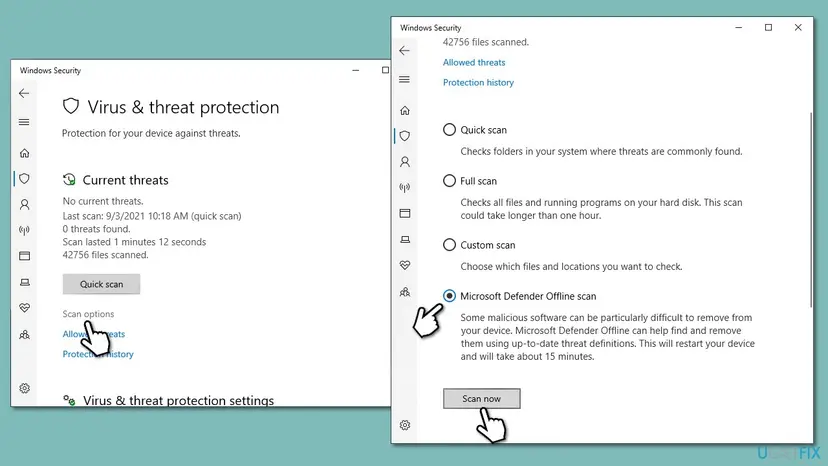
%TEMP%or%AppData%is a warning sign even when conhost.exe itself is real. - If anything does not match, run a full scan with Microsoft Defender: How to scan for malware with Microsoft Defender.
- If Defender finds a threat, or you still have doubts, run Microsoft Defender Offline scan, which restarts the PC and scans before Windows loads.
It worked if: The file is in System32, signed by Microsoft Windows, and Defender finds no threats. The load then comes from a real program: go back to Fix 2 to Fix 5.
If not: If Defender removes a threat, restart and run the Fix 1 command again. If it finds nothing but the file is outside System32, upload it to the Microsoft Security Intelligence submission page or ask a malware removal forum before you delete it.
Fix 7. Find a conflicting program with a clean boot
15 minutesLow riskThe load keeps coming back and Fix 1 shows no clear parent, or the parent closes too fast to catch.
A clean boot starts Windows with only Microsoft services and no startup apps. If Console Window Host stays quiet then, one of the programs you turned off starts the busy console helper, and you can find it by turning them back on in halves.
- Open System Configuration. Select Search on the taskbar, type msconfig and select System Configuration from the results.
- Hide Microsoft services. On the Services tab, select the Hide all Microsoft services check box. Only services from other companies stay in the list.
- Disable the remaining services. Select Disable all, then select Apply.
- Open Task Manager. On the Startup tab of System Configuration, select Open Task Manager.
- Disable the startup apps. On the Startup apps tab in Task Manager, select each item whose status is Enabled and select Disable. Write down or take a screenshot of the items you disable: you need the list to turn them back on.
- Confirm the changes. Close Task Manager. On the Startup tab of System Configuration, select OK.
- Restart and test. Restart the PC. Windows now starts in a clean boot environment: try again the thing that failed (run the app, install the update, uninstall the program).
These steps were written for Windows 11 25H2 and 26H2. The full page with the other versions and what each result means: How to perform a clean boot in Windows
It worked if: In the clean boot Console Window Host stays near 0% CPU, which proves another program caused the load. Turn services back on in halves until it returns.
If not: If conhost.exe is busy even in a clean boot, the parent is part of Windows or a driver. Run the Fix 1 command again and go to Fix 8.
Fix 8. Repair Windows system files with SFC and DISM
20 minutesNo riskOther Windows processes misbehave too, or the parent in Fix 1 is a Windows component that keeps failing.
conhost.exe and the console parts of Windows are system files. If they or the component store are damaged, console programs can fail and restart in a loop. SFC and DISM replace damaged system files with good copies.
- Open an elevated command window. Right-click Start and select Terminal (Admin), or type cmd in the search box, right-click Command Prompt and select Run as administrator. Select Yes when Windows asks for permission.
- Run DISM first. Type the command below and press Enter. DISM downloads clean copies of damaged components from Windows Update, so it can take several minutes. Wait until it says The operation completed successfully.
DISM.exe /Online /Cleanup-Image /RestoreHealth - Run System File Checker. In the same window, type the command below and press Enter. Do not close the window until the verification reaches 100%.
sfc /scannow - Read the result and restart. Compare the last message with the table below this guide, then restart the PC so that repaired files are loaded.
These steps were written for Windows 11 24H2 and 25H2. The full page with the other versions and what each result means: Run DISM and SFC to repair Windows system files
It worked if: SFC reports that it repaired corrupt files or found no integrity violations, and Console Window Host settles after a restart.
If not: If SFC cannot repair some files even after DISM, read the section below on what to check next.
Console Window Host still uses high CPU: what to check next
If conhost.exe is genuine, the scan is clean and the load still returns, collect evidence before you reinstall anything. conhost.exe writes no log of its own; what matters is which program starts it and when.
- The parent path: run the Fix 1 command while the load is high and save the output. It is the single most useful fact for the maker of that program or a support forum.
- Reliability Monitor: type reliability in Start and open View reliability history. A red cross on the day the load began often names the app or update behind it.
- Event Viewer: press Win + R, type
eventvwr.mscand open Windows Logs > Application. Repeated Application Error entries for the parent program show that it crashes and restarts. - Repair install: as a last step, reinstall Windows over itself and keep your files and apps: Reinstall Windows without losing files.
High CPU in Console Window Host does not mean a failing processor. It is software work. If the whole PC is slow even when conhost.exe is quiet, look at the other processes in Task Manager instead.
How to keep Console Window Host from using high CPU again
- Close console windows when the work is done, instead of leaving logs, servers or watch commands running in the background.
- Send long command output to a file (
> log.txt) rather than to the screen. - Keep driver, peripheral and launcher tools up to date, and remove the ones you no longer use. Each brings its own background console helpers.
- Review Settings > Apps > Startup now and then and turn off tools you do not need at every start.
- Do not end, delete or replace conhost.exe. Windows needs it for every command-line program, and a copy from a download site is a risk.
Frequently asked questions
What is Console Window Host in Task Manager?
It is conhost.exe, a built-in Windows process. Microsoft describes the Windows Console Host as the server for all Windows Console APIs and the classic window for command-line programs. Programs such as cmd.exe, PowerShell and many background helpers hand their text to it, and it answers their console calls and shows the result. That is why it appears in Task Manager even when you have no command prompt open: some program on the PC is a console program, and conhost.exe runs for it. It used to be part of csrss.exe and was split out for security and isolation.
Why is Console Window Host running when I did not open a command prompt?
Because many programs use the console without showing a window. Drivers, mouse and RGB tools, audio and network utilities, launchers and scheduled tasks often run small console helpers in the background, and each one gets its own conhost.exe. A Microsoft Q&A user who found 13 copies traced them to Razer, NVIDIA, SteelSeries, MSI and Killer software, a wireless helper and similar tools. Fix 1 shows which program each copy belongs to. Several copies are normal; the question is only whether one of them stays busy.
Why does Console Window Host use high CPU?
Because the program it serves keeps it busy. Every line a console program prints and every console call it makes goes through conhost.exe, so a script printing a flood of text, a looping helper or a tool that crashes and restarts shows up as Console Window Host CPU. Most often the cure is to close, update or remove that program, not to touch conhost.exe. Rarely the file is a fake copy using the name; Fix 6 shows the check for that.
Is conhost.exe a virus?
The real conhost.exe is not. It lives in C:\Windows\System32 and is digitally signed by Microsoft Windows. Malware can use the same name to hide in Task Manager, so check the copy that worries you: on the Details tab, right-click it, select Open file location and look at the folder, then check the Digital Signatures tab in its Properties. A conhost.exe anywhere else, or one without a Microsoft signature, is not the Windows file. Scan the PC with Microsoft Defender, then run a Defender Offline scan as in Fix 6.
Can I end or disable conhost.exe?
You can end one copy, but it ends the console program it serves as well, and Windows starts a new conhost.exe the next time that program runs. You cannot disable it: every command-line program in Windows needs it. Ending the parent program in a controlled way is the better choice, as in Fix 2. Never delete conhost.exe from System32 or replace it with a downloaded copy; that breaks every command prompt, script and console tool on the PC.
Why are there so many Console Window Host processes?
Each console program gets its own conhost.exe. If five background tools and two scripts run, Task Manager shows seven Console Window Host lines. Many copies are not a problem by themselves; each one usually uses almost no CPU and a few MB of memory. Use the command in Fix 1 to see which program owns each copy. If one copy belongs to a program you do not know, check its path and run the malware check in Fix 6.
Is it a problem when conhost.exe uses a lot of memory?
Usually it means the console window keeps a very long history, or the program behind it prints without a break. Closing that window frees the memory. If the memory keeps growing with no window open, the parent program is the one to update or remove, as in Fix 3. If no single program stands out and other Windows processes misbehave too, run SFC and DISM as in Fix 8, and check that the file is genuine as in Fix 6.
Does Windows Terminal replace conhost.exe?
Not fully. Microsoft's console documentation says terminals take over the window through a pseudoconsole, while conhost.exe stays in charge of the console API calls and their translation. So with Windows Terminal you still see Console Window Host or conhost.exe in Task Manager for each tab. Windows Terminal can be set as the default terminal application on all versions of Windows 11, and on Windows 10 22H2 after the May 23, 2023 update KB5026435.
Where is conhost.exe located?
The Windows file is C:\Windows\System32\conhost.exe, signed by Microsoft Windows. To check a running copy, open Task Manager, go to the Details tab, right-click conhost.exe and select Open file location. The ExecutablePath column of the command in Fix 1 shows the path of every copy at once. A conhost.exe in a Temp, AppData, Downloads or other user folder is not the Windows file: scan the PC as in Fix 6.
Sources
- Microsoft Learn: Windows Console and Terminal Definitions (Console Host, Pseudoconsole) (learn.microsoft.com)
- Microsoft Learn: Install and get started setting up Windows Terminal (default terminal application) (learn.microsoft.com)
- Microsoft Q&A: Multiple Conhost.exe Tasks, Potential Malware Concerns (user report and parent-process command) (learn.microsoft.com)
Did this fix work?
One click, no account. It tells the next reader which guides are worth their time.
Questions and experiences: fix high CPU usage by Conhost.exe (Console Window Host)
Still broken, or found a fix we did not cover? Ask here: members and our editors answer. Reading is open; writing needs a free account.
…