
How to fix IntelliGo Extension 100.1.4.1273 download error in Windows

Prefer to fix it yourself? The manual steps follow.
- 7methods
- 5 to 20 minutes
- Easy
Applies to PCs with IntelliGo audio whose IntelliGo driver update fails in Windows Update
7 methods in this guide
Hello. I can't figure out how to install the IntelliGo Extension 100.1.4.1273 update on Windows. Every time I receive an error code. What should I do?
The IntelliGo Extension is a driver for the voice and noise processing add-on that PC makers such as Acer and ASUS ship with the audio driver. When Windows Update shows it with a download or install error, your sound usually still works. Check what is installed first, then reset Windows Update or hide the update.
Restart the PC and check the IntelliGo version in Device Manager > Audio Processing Objects (Fix 1). With 0x80070103, the same or a newer driver is most likely installed already, so hide the update (Fix 3). With 0x80248007, Microsoft's code means the update data is missing from the Windows Update store: reset the Windows Update components (Fix 2) and check again.
| Error | intelliGo - Extension - 100.1.4.1273 shown in Windows Update with Download error - 0x80248007 or Install error - 0x80070103 |
|---|---|
| Where it appears | Settings > Windows Update, or under Advanced options > Optional updates > Driver updates, as an IntelliGo driver offered by your PC maker |
| Main cause | 0x80070103: the offered driver is already installed or not newer (as Microsoft's forum answers explain it). 0x80248007: missing data in the Windows Update store (WU_E_DS_NODATA) |
| Fastest fix | Restart and compare versions (Fix 1); reset Windows Update for 0x80248007 (Fix 2); hide the update for 0x80070103 (Fix 3) |
| Also written as | intelliGo - Extension, intelliGo - SoftwareComponent, intelliGo - AudioProcessingObject, IntelliGo Extension driver update, IntelliGo Windows Update error |
| Other versions with the same error | 100.1.4.1194, 100.1.4.1226, 100.1.4.2407, 100.1.4.2738, 100.1.4.2740, 100.1.601.2777, 100.1.601.2862: the same fixes apply |
| Where IntelliGo lives | Device Manager > Audio Processing Objects (ASUS), plus entries under Software components |
| Affects | Windows 11 (25H2 and 26H2) and Windows 10 22H2 on laptops with IntelliGo audio, mostly Acer and ASUS models |
| Vendor status | No published fix from Microsoft or the PC makers; the driver comes from the PC maker through Windows Update |
| Time to fix | 5 minutes to check and hide, 15 minutes for a Windows Update reset |
Facts checked on 15 October 2026. Steps written for Windows 11 (25H2 and 26H2) and Windows 10 22H2.
What the intelliGo - Extension driver update error means
intelliGo - Extension - 100.1.4.1273 is a driver update, not an app. IntelliGo makes voice and noise processing that PC makers build into their laptops; ASUS, for example, calls the feature AI ClearVoice and says a PC supports it when Device Manager > Audio Processing Objects lists an IntelliGo device. Windows Update delivers its drivers in three parts: an Extension, a SoftwareComponent and an AudioProcessingObject.
The error shows in Settings > Windows Update under the update's name, for example Download error - 0x80248007 or Install error - 0x80070103. Windows retries it at each check, so the same line comes back again and again. Two codes matter, and they mean different things.
- Download error - 0x80248007
- Microsoft's code list names it WU_E_DS_NODATA: the information requested isn't in the data store. Windows Update could not find what it needs for this driver in its own database. Fix 1, then Fix 2.
- Install error - 0x80070103
- Microsoft's code list does not explain it. Answers on Microsoft's Q&A forum describe it as Windows Update offering a driver that is already installed, or older than the one you have. Fix 1, then Fix 3.
- Other versions
- 100.1.4.1194, 100.1.4.1226, 100.1.4.2740, 100.1.601.2777 and others fail the same way and take the same fixes.
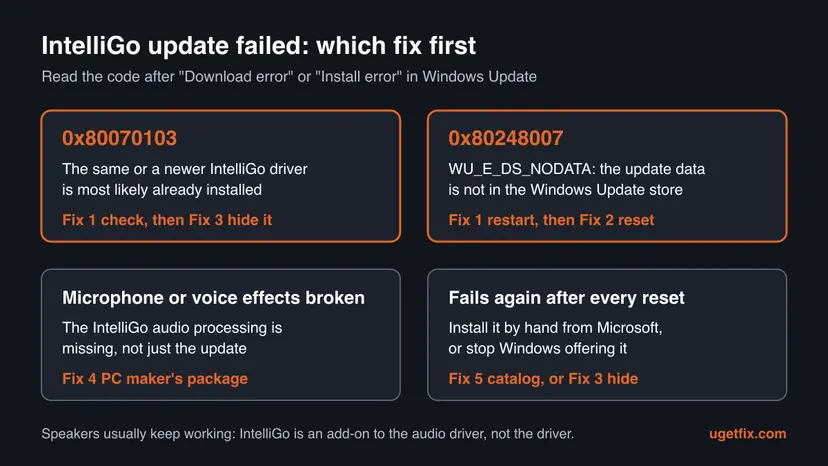
Why the IntelliGo Windows Update keeps failing, from most to least common
Most often the driver is already on the PC. The PC maker's own audio package or an earlier Windows Update installed the same IntelliGo version, and Windows Update still offers it, then refuses to install it with 0x80070103. Less often the Windows Update store on the PC is missing data for this driver, which gives 0x80248007. Rarely Windows Update itself is damaged.
| Cause | How common | What you see | Fix |
|---|---|---|---|
| Same or newer IntelliGo driver already installed | Most cases | Install error - 0x80070103, sound and microphone work | Fix 1, then Fix 3 |
| A pending restart or a half-finished download | Common | The error appears right after other updates | Fix 1 |
| Missing data in the Windows Update store | Common with 0x80248007 | Download error - 0x80248007 on every retry | Fix 2 |
| The IntelliGo package from the PC maker is missing or broken | Less common | Voice effects or noise cancelling stopped working | Fix 4 |
| Windows Update cannot fetch this one driver | Rare | The error survives a reset | Fix 5 |
| Damaged Windows Update services or system files | Rare | Other updates fail too | Fix 6 and Fix 7 |
IntelliGo adds processing on top of the audio driver from Realtek or another chip maker. A failed IntelliGo update leaves the driver you already have in place, so speakers and microphones normally keep working. Fix it to stop the repeating error, not because sound is at risk.
How to fix the IntelliGo Extension 100.1.4.1273 download error
Fix 1 takes five minutes and tells you whether there is anything to install at all. Fix 2 is for 0x80248007, Fix 3 for 0x80070103 or an error that never goes away. Fixes 4 and 5 install IntelliGo another way. Fixes 6 and 7 repair Windows Update when other updates fail too.
| What you see | Start with |
|---|---|
| Install error - 0x80070103, sound and microphone work | Fix 1, then Fix 3 |
| Download error - 0x80248007 | Fix 1, then Fix 2 |
| Voice effects, AI noise cancelling or the microphone stopped working | Fix 4 |
| The same error after a Windows Update reset | Fix 5 or Fix 3 |
| Other Windows updates fail as well | Fix 6, then Fix 7 |
Fix 1. Restart, then check which IntelliGo driver is already installed
5 minutesNo riskEveryone. It is the quickest test and shows whether the update is needed at all.
A pending restart blocks driver installs, and a restart also ends a stuck download. Comparing the installed IntelliGo version with the offered 100.1.4.1273 tells you whether 0x80070103 simply means the driver is already there.
- Restart the PC from Start > Power > Restart, not by closing the lid.
- Open Settings > Windows Update and select Check for updates or Retry next to the IntelliGo entry.
- If the error returns, right-click Start and select Device Manager.
- Expand Audio Processing Objects and look for an IntelliGo entry; also check Software components.
- Right-click the IntelliGo entry, select Properties and open the Driver tab.
- Compare Driver Version with the version in the failed update, here 100.1.4.1273.
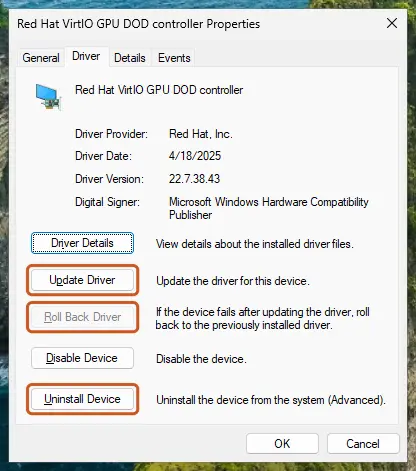
If the installed version is the same or higher, there is nothing to fix in the driver: Windows Update offers a copy it cannot use. Go to Fix 3 to hide it. If Device Manager has no IntelliGo entry at all, your PC may not need the update; Fix 3 also covers that case.
It worked if: Either the update installs after the restart, or Device Manager shows IntelliGo at 100.1.4.1273 or later.
If not: With 0x80248007, go to Fix 2. With 0x80070103 and an older installed version, go to Fix 4.
Fix 2. Reset the Windows Update components to clear 0x80248007
15 minutesLow riskReaders who see Download error - 0x80248007 after a restart.
Microsoft names 0x80248007 WU_E_DS_NODATA: the information requested is not in the data store. The data store is the database in the C:\Windows\SoftwareDistribution folder. Renaming it makes Windows build a fresh one and fetch the IntelliGo entry again.
The reset stops the update services, renames SoftwareDistribution and catroot2, and starts the services again. It removes no installed update. Step by step: Reset Windows Update components.
- Open Command Prompt as administrator. Type cmd in the search box, right-click Command Prompt and select Run as administrator. Select Yes when Windows asks for permission.
- Stop the update services. Type the commands below and press Enter after each one. If Windows says that other services depend on Cryptographic Services, it stops them too. A message that a service is not started is fine.
net stop wuauserv
net stop bits
net stop cryptsvc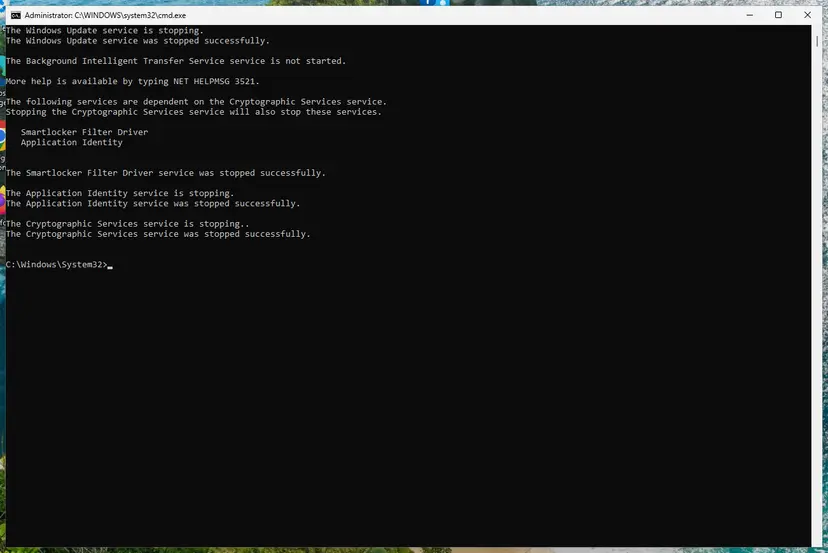
The update services are stopped. Screenshot: Windows 11 26H2. - Delete the download queue files. This clears the list of downloads that the Background Intelligent Transfer Service keeps. If Windows says it cannot find the files, continue.
del "%ALLUSERSPROFILE%\Application Data\Microsoft\Network\Downloader\qmgr*.dat" - Rename the update cache folders. Renaming keeps a copy in case you need it; Windows creates new, empty folders when the services start again. If you get Access is denied, a service is still running: repeat the previous step.
ren %systemroot%\SoftwareDistribution SoftwareDistribution.old
ren %systemroot%\System32\catroot2 catroot2.old
Both folders now end in .old. Screenshot: Windows 11 26H2. - Start the services again. Type the commands below and press Enter after each one. The requested service has already been started is fine: Windows started it on its own.
net start cryptsvc
net start bits
net start wuauserv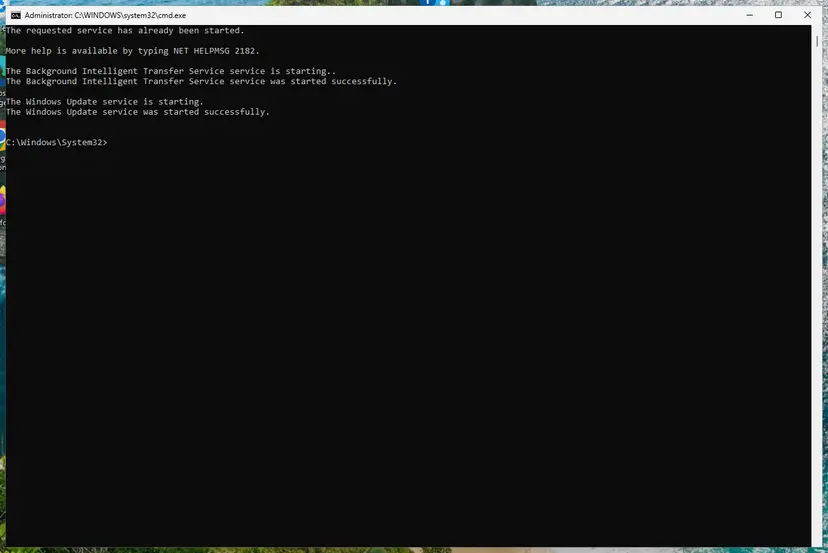
BITS and Windows Update are running again. Screenshot: Windows 11 26H2. - Restart and check for updates. Restart the PC. Then select Start > Settings > Windows Update > Check for updates. The first check can take longer than usual because everything is downloaded again.
These steps were written for Windows 11 and Windows 10 (the steps are the same). The full page with the other versions and what each result means: Reset Windows Update components
After the restart, open Settings > Windows Update, select Check for updates and wait. The first check after a reset takes longer than usual, because the update history is read again from Microsoft.
It worked if: The IntelliGo update downloads and installs, or disappears from the list because Windows sees that it is not needed.
If not: If 0x80248007 comes back, hide the update (Fix 3) or install it by hand (Fix 5).
Fix 3. Hide the IntelliGo update so Windows stops offering it
5 minutesLow riskReaders with 0x80070103, readers whose IntelliGo driver is already at the same or a newer version, and anyone tired of an error that comes back after every fix.
When the driver is already installed, the failed offer is only noise. Hiding it tells Windows Update to skip this one IntelliGo version, while other updates and newer drivers keep coming. Microsoft's forum answers suggest the same step for this error.
- Download Microsoft's Show or hide updates troubleshooter, the file
wushowhide.diagcab, from Microsoft's website only. - Open the file and select Next; it checks for updates first.
- Select Hide updates.
- Tick the IntelliGo entry, for example intelliGo - Extension - 100.1.4.1273, and select Next.
- Close the tool when it reports the update as hidden, then open Settings > Windows Update and select Check for updates.
On Windows 11 Pro and Windows 10 Pro, the Group Policy Do not include drivers with Windows Updates under Computer Configuration > Administrative Templates > Windows Components > Windows Update stops every driver from Windows Update, not only IntelliGo. Use it only if you install drivers from your PC maker yourself. How to open the editor: Open the Local Group Policy Editor.
To undo it later, run the same tool and select Show hidden updates. If a newer IntelliGo version appears, Windows offers it as a separate update; hiding one version does not block the next.
It worked if: The IntelliGo line is gone from Windows Update and the error stops coming back.
If not: If Microsoft's tool does not list the IntelliGo entry, run Fix 2 first so Windows Update sees the offer again, then repeat.
Fix 4. Install the IntelliGo audio package from your PC maker
15 minutesLow riskReaders whose voice effects, AI noise cancelling or microphone stopped working, or whose installed IntelliGo version is older than the failed one.
The IntelliGo drivers are built for each laptop model and published by its maker. The maker's support page holds the full audio package, which installs the Extension, the SoftwareComponent and the AudioProcessingObject together, without Windows Update.
- Find your exact model on the label under the laptop, or in Settings > System > About.
- Open the support page of your PC maker (Acer, ASUS or another) and enter the model.
- Under Drivers or Audio, download the newest audio, voice or IntelliGo package for your Windows version.
- Run the package, approve the administrator prompt and follow it to the end.
- Restart the PC, then check the version in Device Manager > Audio Processing Objects as in Fix 1.
ASUS controls the IntelliGo feature as AI ClearVoice in the MyASUS app under Device Settings > Audio & Visual. If the feature is there and switches on, the driver is working.
Use only the PC maker's own site. Driver download sites and links under videos often carry old or repackaged files. More about driver updates: Update, roll back or reinstall a driver.
It worked if: Device Manager shows the IntelliGo entry with the new version, and Windows Update no longer offers the old one.
If not: If the maker has no newer package, install the driver from Microsoft's catalog (Fix 5) or hide the update (Fix 3).
Fix 5. Install the IntelliGo driver from the Microsoft Update Catalog
15 minutesLow riskReaders who need this exact IntelliGo version and whose download fails after a Windows Update reset.
The Microsoft Update Catalog holds the same driver files that Windows Update would download. Installing them by hand skips the download step that throws 0x80248007.
- Open
https://www.catalog.update.microsoft.comand search forintelliGo 100.1.4.1273(or the version your PC was offered). - Select Download next to the entry that matches the failed update, and save the
.cabfile. - Create a folder, for example
C:\IntelliGo. - Open Command Prompt as administrator and unpack the file:
expand "%USERPROFILE%\Downloads\<file name>.cab" -F:* C:\IntelliGo - Install the driver:
pnputil /add-driver C:\IntelliGo\*.inf /subdirs /install - Restart the PC and check the version in Device Manager as in Fix 1.
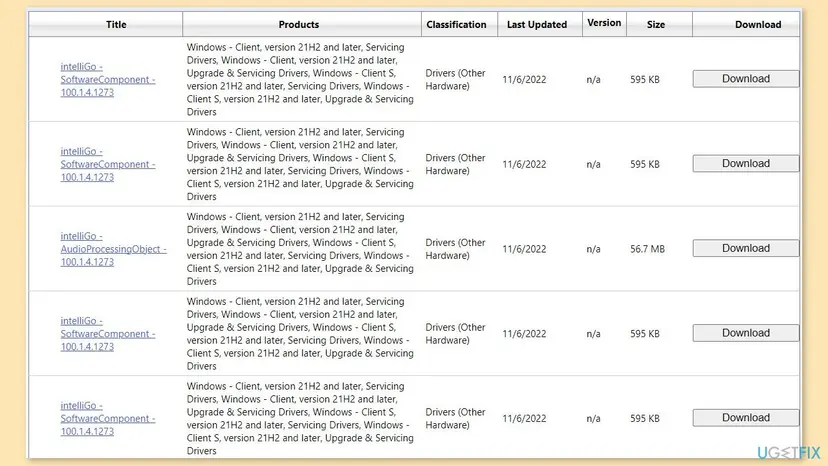
pnputil installs a driver only on a device whose hardware ID matches its .inf file, so a package for another model is stored but not used. We could not confirm that the catalog still lists 100.1.4.1273 in 2026; if it does not, use Fix 4. The old advice to run DISM /Online /Add-Package on the file is wrong for drivers: that command is for Windows update packages. General catalog steps: Install an update from the Microsoft Update Catalog.
It worked if: pnputil reports Driver package added successfully and the IntelliGo entry shows the new version after the restart.
If not: If pnputil reports that no device matched, your PC does not use this package: hide the update (Fix 3).
Fix 6. Run the Windows Update troubleshooter
5 minutesNo riskReaders whose other Windows updates also fail, not only IntelliGo.
The troubleshooter checks the update services and a pending restart in one pass. It cannot fix a driver that is already installed, but it finds a stopped service that also blocks the IntelliGo download.
- Open Troubleshoot settings. Select Start > Settings > System > Troubleshoot.
- Open the list of troubleshooters. Select Other troubleshooters.
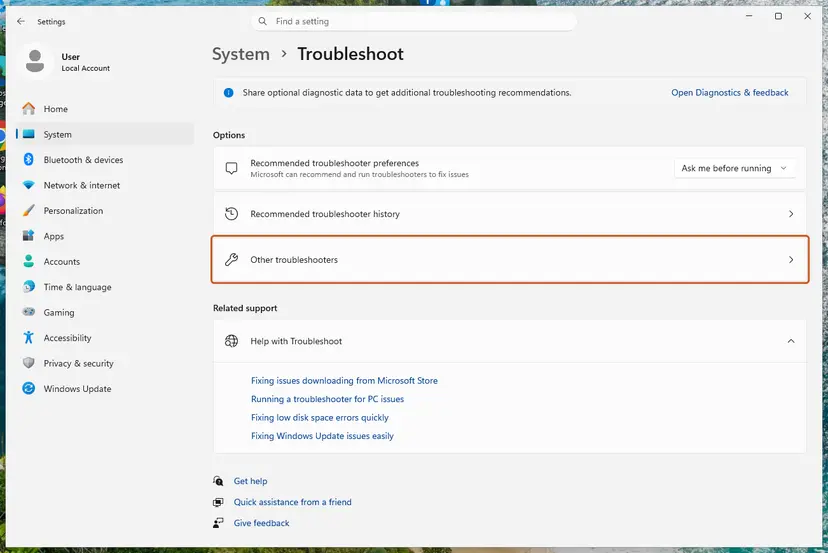
Settings, System, Troubleshoot: select Other troubleshooters. Screenshot: Windows 11 26H2. - Run the Windows Update troubleshooter. Under Most frequent, select Run next to Windows Update. The Get Help app opens and starts the checks.
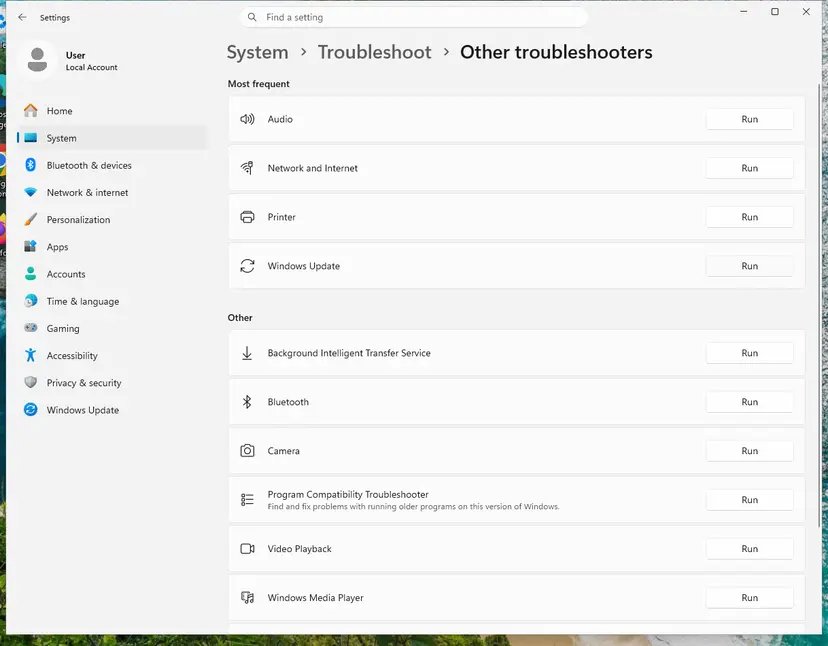
Windows Update is in the Most frequent group; select Run on its row. Screenshot: Windows 11 26H2. - Read the result. Wait until Get Help finishes. If it found and fixed a problem, it says so and asks whether this solved the problem. Answer the question so it can offer the next step.
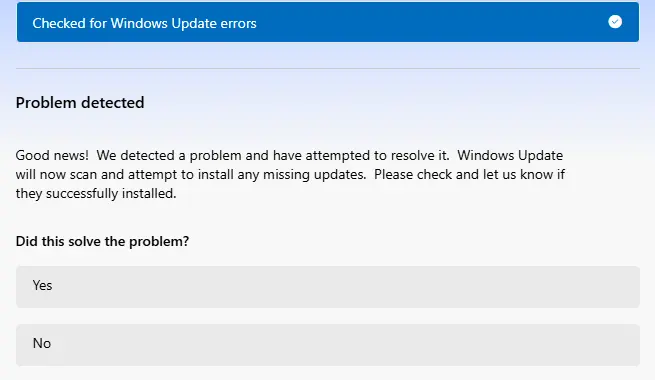
Get Help reports what it found and asks if the problem is solved. Screenshot: Windows 11 26H2. - Restart the PC. Restart when the troubleshooter finishes, even if it does not ask you to.
- Check for updates again. Select Start > Settings > Windows Update > Check for updates, and install the updates it finds.
These steps were written for Windows 11 (screenshots: 26H2). The full page with the other versions and what each result means: Run the Windows Update troubleshooter
It worked if: The troubleshooter reports a fixed problem, and the IntelliGo update downloads at the next check.
If not: If it finds nothing and other updates still fail, repair system files in Fix 7.
Fix 7. Repair Windows system files with SFC and DISM
20 minutesNo riskReaders for whom several updates fail with different codes, and the steps above did not help.
Windows Update relies on system files and the component store. If they are damaged, every update can fail, the IntelliGo one included. SFC and DISM check and repair them.
- Open an elevated command window. Right-click Start and select Terminal (Admin), or type cmd in the search box, right-click Command Prompt and select Run as administrator. Select Yes when Windows asks for permission.

Search for cmd and choose Run as administrator. Screenshot: Windows 11 26H2. - Run DISM first. Type the command below and press Enter. DISM downloads clean copies of damaged components from Windows Update, so it can take several minutes. Wait until it says The operation completed successfully.
DISM.exe /Online /Cleanup-Image /RestoreHealth
DISM /RestoreHealth running. Screenshot: Windows 11 26H2. - Run System File Checker. In the same window, type the command below and press Enter. Do not close the window until the verification reaches 100%.
sfc /scannow
sfc /scannow at 100%. Screenshot: Windows 11 26H2. - Read the result and restart. Compare the last message with the table below this guide, then restart the PC so that repaired files are loaded.

The result line tells you what SFC did. Screenshot: Windows 11 26H2.
These steps were written for Windows 11 24H2 and 25H2. The full page with the other versions and what each result means: Run DISM and SFC to repair Windows system files
It worked if: SFC reports that it found no integrity violations or repaired them, and Windows Update installs other updates again.
If not: If updates still fail, read Still broken below.
IntelliGo update still failing: what to check and what to send to support
Windows writes every update attempt to its update history. Open Settings > Windows Update > Update history and expand Driver updates: each IntelliGo attempt is listed with its date and the code. Repeated identical lines with 0x80070103 confirm that hiding the update is the right end point.
- Only IntelliGo fails and sound works: this is not a fault. Hide the update (Fix 3) and wait for the PC maker's next package.
- IntelliGo and other updates fail: the problem is Windows Update. Fix 2, Fix 6 and Fix 7 in that order.
- Voice effects stopped after an IntelliGo update: roll back the driver on the Driver tab, as in Update, roll back or reinstall a driver, then install the maker's package (Fix 4).
- No microphone at all, in every app: check Settings > Privacy & security > Microphone first; a missing microphone with no IntelliGo error is a different problem.
Give the laptop model, the Windows version and build from winver, the full failed update name and code from Update history, and the IntelliGo Driver Version from Device Manager. The PC maker's support, not Microsoft, publishes the IntelliGo drivers.
How to keep IntelliGo driver updates from failing again
- Restart the PC when Windows Update asks, before checking for more updates.
- Install audio and IntelliGo packages from the PC maker's support page for your model.
- Hide one IntelliGo version that fails with 0x80070103 instead of retrying it every day.
- Install the monthly Windows updates; they keep the update client healthy.
- Use driver updater programs or driver download sites for IntelliGo.
- Delete IntelliGo entries in Device Manager just to stop the error; the maker's voice features depend on them.
- Turn off all driver updates unless you install drivers from the maker yourself.
Windows 10 left support on 14 October 2025. On Windows 10 22H2 PC makers may stop sending new IntelliGo drivers through Windows Update, so a hidden offer there is a lasting solution.
Frequently asked questions
What is the IntelliGo Extension?
It is the extension part of a driver for IntelliGo voice and noise processing, which PC makers build into some laptops. An extension driver adds settings from the PC maker to a base driver. Windows Update ships IntelliGo in parts named intelliGo - Extension, intelliGo - SoftwareComponent and intelliGo - AudioProcessingObject. It is not malware and not a separate app you installed yourself. It comes from your PC maker through Windows Update.
What is the IntelliGo audio processing object?
An audio processing object, or APO, is a Windows audio add-on that changes sound as it passes through the audio driver, for example to cut background noise from the microphone. ASUS says a PC supports IntelliGo audio when Device Manager > Audio Processing Objects lists an IntelliGo device. The intelliGo - AudioProcessingObject driver update installs that part. If it fails, the base audio driver keeps working.
What is the IntelliGo software component?
intelliGo - SoftwareComponent is the part of the package that installs the IntelliGo software pieces linked to your audio device, and it appears in Device Manager under Software components. Windows Update offers it next to the Extension and the AudioProcessingObject, usually with the same version number. It fails and is fixed in the same way: check the installed version (Fix 1), reset Windows Update (Fix 2) or hide it (Fix 3).
Why does Windows Update keep offering the IntelliGo driver update?
Windows Update offers a driver that the PC maker has published for your hardware, then tries again at every check if the install fails. With 0x80070103 the driver is most likely already installed in the same or a newer version, so the offer can never succeed. Hiding that one version with Microsoft's Show or hide updates tool (Fix 3) ends the loop without blocking newer drivers.
Is it safe to ignore or hide the IntelliGo update?
Yes, in most cases. IntelliGo adds voice processing on top of the audio driver, so a failed update does not remove sound. Check first that IntelliGo in Device Manager is at the same or a newer version (Fix 1). If your microphone effects work and the version matches, hiding the update changes nothing on the PC. You can show it again at any time with the same tool.
The error is for 100.1.601.2777, 100.1.4.2740 or another version. Does this guide apply?
Yes. IntelliGo updates such as 100.1.4.1194, 100.1.4.1226, 100.1.4.2407, 100.1.4.2738, 100.1.4.2740, 100.1.601.2777 and 100.1.601.2862 come through the same Windows Update path and fail with the same codes. Use the version shown in your Windows Update line when you compare it in Device Manager (Fix 1) or search the Microsoft Update Catalog (Fix 5).
Is the IntelliGo driver update for Windows 11 different from Windows 10?
The IntelliGo driver itself is the same kind of package on both. Updates named for Windows 11, such as the AudioProcessingObject 100.1.4.2740 for Windows 11, are offered only to Windows 11 PCs, while older numbers were offered to both. The fixes are the same. Only the menu paths differ: optional driver updates are under Advanced options on Windows 11 and View optional updates on Windows 10.
Is there an IntelliGo audio service I can restart?
We could not confirm a single IntelliGo service name that every PC uses; it depends on the maker's package. The update error does not come from such a service, but from Windows Update. Restarting the Windows Update services is part of the reset in Fix 2. If your PC maker's app controls the IntelliGo features, as MyASUS does with AI ClearVoice, use the app instead of the services list.
Can I uninstall IntelliGo?
You can, but there is little reason to. Users report that the IntelliGo audio processing object comes back after removal, because Windows reinstalls the driver for the hardware. Removing it also turns off the maker's voice and noise features. If the problem is only the failed update, hide it (Fix 3). If a feature bothers you, turn it off in the maker's app.
Should I download the IntelliGo driver from a driver site?
No. Get IntelliGo only from Windows Update, your PC maker's support page or the Microsoft Update Catalog. Driver sites and links under videos often carry old or repackaged files. The PC maker's package is built for your model, and the catalog files are the same ones Windows Update would install.
Sources
Did this fix work?
One click, no account. It tells the next reader which guides are worth their time.
Questions and experiences: fix IntelliGo Extension 100.1.4.1273 download error in Windows
Still broken, or found a fix we did not cover? Ask here: members and our editors answer. Reading is open; writing needs a free account.
…