
How to fix Media Creation Tool error 0x80070005 - 0xA001B in Windows?

Prefer to fix it yourself? The manual steps follow.
- 8methods
- 10 minutes to 1 hour
- Intermediate
Applies to The Media Creation Tool (MediaCreationTool.exe) for Windows 11 and Windows 10, run on Windows 11 or Windows 10
8 methods in this guide
Hello, I need some help with the Media Creation Tool. Whenever I try to run it, I get this error message: "There was a problem running this tool. We're not sure what happened, but we're unable to run this tool on your PC. If you continue experiencing problems, reference the error code when contacting customer support. Error code: 0x80070005 - 0xA001B." What should I do?
Error 0x80070005 - 0xA001B means Windows denied the Media Creation Tool access to a file, folder or drive (Windows error 5, "Access is denied"). To reinstall or upgrade this PC, skip the tool and run setup.exe from Microsoft's ISO. For a USB drive, run a fresh copy of the tool as administrator from drive C, with one unlocked USB drive.
The first code, 0x80070005, means "Access is denied": something stopped the tool from writing. If you only want to reinstall or upgrade this PC, download the Windows 11 ISO, mount it and run setup.exe (Fix 1). If you need a USB drive, run a fresh copy of the tool as administrator from drive C, not from the USB drive (Fix 2), and use one unlocked, blank USB drive (Fix 3).
| Error | 0x80070005 - 0xA001B, in a window titled Windows 10 Setup or Windows 11 Setup: "There was a problem running this tool". |
|---|---|
| Where it appears | In the Media Creation Tool, at start, while it gets things ready, or partway through writing the USB drive. |
| Main cause | The first code is Windows error 5, ERROR_ACCESS_DENIED, "Access is denied." The tool lacks rights, or security software, a locked USB drive or a policy blocks the write. |
| Fastest fix | To fix this PC: download the ISO and run setup.exe (Fix 1). To make a USB drive: a fresh copy of the tool, run as administrator from drive C, with one unlocked USB drive (Fix 2 and Fix 3). |
| Also written as | 0x80070005-0xA001B, 0x80070005 0xA001B, error code 0x80070005 - 0xA001B, or just 0xA001B. |
| Same second code | 0x800703EE - 0xA001B, 0x8007000D - 0xA001B and 0x80042405 - 0xA001B: other first codes, partly other causes (see the FAQ). |
| Affects | The Windows 11 and Windows 10 Media Creation Tool. Windows 10 left support on 14 October 2025. |
| Microsoft's status | Not a documented bug. Phase A of 0xA001B is not in Microsoft's published table of Setup phases. |
| USB drive | Microsoft asks for a blank USB flash drive with at least 8 GB. Everything on it is deleted. |
| Time to fix | 10 minutes for Fix 1 to Fix 3, plus the download time. |
Facts checked on 15 October 2026. Steps written for Windows 11 25H2 and 26H2, and Windows 10 22H2, with the Windows 11 and Windows 10 Media Creation Tool.
What Media Creation Tool error 0x80070005 - 0xA001B means
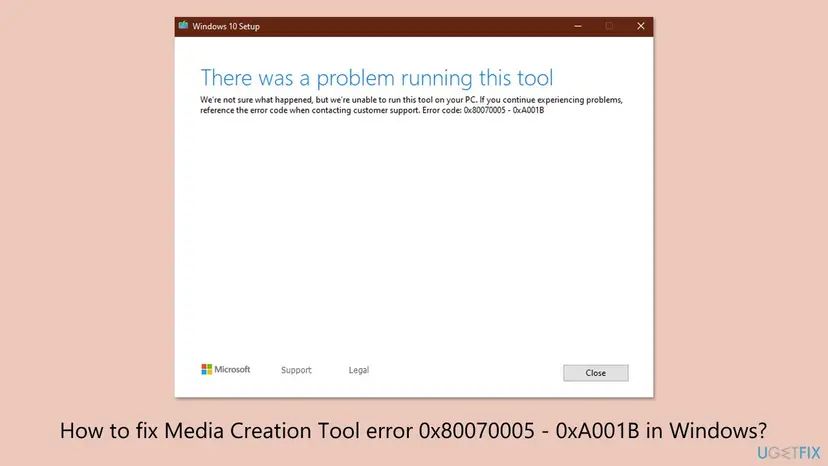
The Media Creation Tool shows a window titled with the Windows version it makes media for, for example Windows 10 Setup. The text reads: There was a problem running this tool. We're not sure what happened, but we're unable to run this tool on your PC. If you continue experiencing problems, reference the error code when contacting customer support. Error code: 0x80070005 - 0xA001B
| Part | What Microsoft's documentation says | What it tells you |
|---|---|---|
| 0x80070005 | 0x8007 marks a Windows (Win32) error. Error 5 is ERROR_ACCESS_DENIED: "Access is denied." | Windows refused the tool access to a file, folder, drive or setting it needed. |
| 0xA001B | Setup error codes have a result code and an extend code. The first digit of the extend code is the phase, the last two the operation. Microsoft's table lists phases 0 to 5 only. | Phase A is not documented, so 0xA001B only marks where the tool stopped. We could not confirm more. |
| The pair | Microsoft has no page for this exact pair. | Read the first code. Here it points to rights and blocks, not to a broken download or old hardware. |
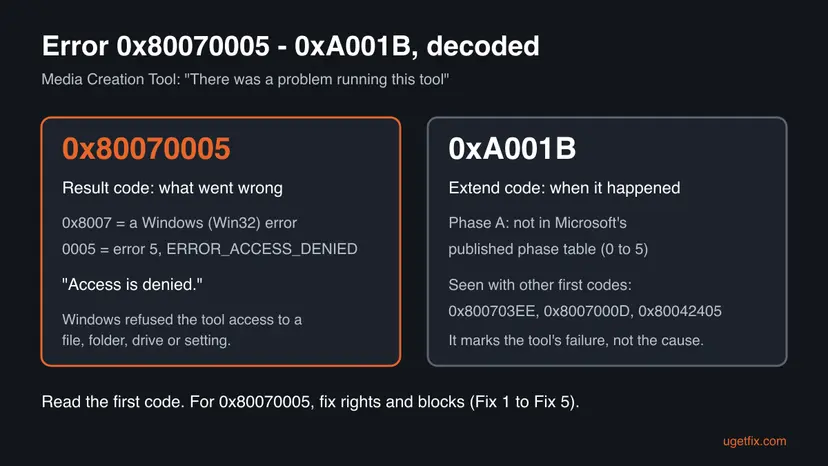
The same 0xA001B appears after other first codes, such as 0x8007000D (Windows error 13, "The data is invalid"), 0x800703EE and 0x80042405. The first code changes the cause. This page is written for 0x80070005, and the FAQ says where to start for the others.
Why the Media Creation Tool fails with 0x80070005 - 0xA001B
Microsoft does not publish a cause for this pair. The ranking below follows what "Access is denied" means and what the tool needs: full rights on this PC, a blank USB drive of 8 GB or more that it may erase, and no other program blocking its writes. Each cause points to a fix.
| Cause | How often | How to tell | Fix |
|---|---|---|---|
| The tool is not needed at all: you only want to reinstall or upgrade this PC. | Most often | Your goal is to fix the Windows you are on. | Fix 1 |
| The tool runs without administrator rights, from a synced folder, or from the USB drive it writes to. | Often | You double-clicked it, it sits in OneDrive, or you copied it onto the USB drive first. | Fix 2 |
| The USB drive refuses writes: a lock switch, a read-only flag, old partitions, or a second drive plugged in. | Often | The error comes right after you pick the USB drive, or Windows says the disk is write-protected. | Fix 3 |
| Security software blocks the writes: Microsoft Defender's Controlled folder access or another antivirus. | Sometimes | Windows Security showed an "Unauthorized changes blocked" note, or a non-Microsoft antivirus runs. | Fix 4 |
| A policy denies writes to removable drives or points Windows Update to a company server. | Less often | The PC came from a company or school, or a tuning tool changed update settings. | Fix 5 |
| Locked leftovers from an earlier run, or a nearly full drive C. | Less often | The tool failed halfway once before, or drive C shows red in File Explorer. | Fix 6 |
| Broken update services or damaged system files. | Rarely | Windows Update also fails, or SFC finds errors. | Fix 7 and Fix 8 |
This error does not say your PC fails the Windows 11 requirements. That check comes later, in Setup, with its own message. 0x80070005 stops the tool before it gets that far.
How to fix Media Creation Tool error 0x80070005 - 0xA001B
Fix 1 avoids the tool for readers who want to repair or upgrade the PC they are on. Fix 2 and Fix 3 give the tool the access it needs and solve it for most readers who need a USB drive. Fix 4 and Fix 5 remove what blocks the writes. Fix 6 to Fix 8 come last because they rarely cause an access error.
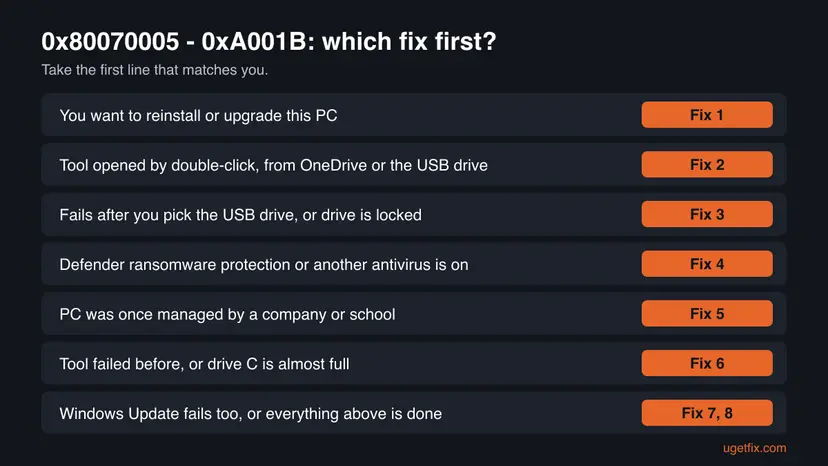
| What you see or want | Start with |
|---|---|
| You want to reinstall or upgrade Windows on this PC. | Fix 1 |
| You opened the tool by double-click, from OneDrive or from the USB drive. | Fix 2 |
| It fails after you choose the USB drive, or Windows calls the drive write-protected. | Fix 3 |
| Windows Security showed a blocked change, or you use another antivirus. | Fix 4 |
| The PC was once managed by a company or school. | Fix 5 |
| The tool failed halfway before, or drive C is almost full. | Fix 6 |
| Windows Update fails too, or everything above is done. | Fix 7, then Fix 8 |
Fix 1. Skip the tool: download the Windows 11 ISO and run setup.exe
10 minutes, plus the downloadLow riskYou want to reinstall, repair or upgrade Windows on the PC you are using now, not make media for another PC.
The ISO is a ready image of the same Windows files. Your browser downloads it and Windows opens it as a drive, so the tool never has to write to a USB drive or ask for the access that fails with 0x80070005.
- Open Microsoft's Download Windows 11 page in your browser.
- Go to the section for the disk image (ISO), choose Windows 11, then your language, and download the 64-bit ISO.
- Open Downloads in File Explorer, right-click the ISO file and select Mount.
- Open the new DVD drive that appears and double-click
setup.exe. Select Yes in User Account Control. - Follow Setup. When it asks what to keep, choose Keep personal files and apps, Keep personal files only or Nothing.
- Let the PC restart several times until you reach the sign-in screen.
Step by step, with the keep options explained: Reinstall Windows without losing files
Nothing deletes your files and apps from drive C. Even with Keep personal files and apps, copy important files to another drive first: Back up your files (Windows Backup, File History, Time Machine).
It worked if: Setup starts from the mounted ISO, checks the PC and runs without the Media Creation Tool message.
If not: If you need a USB drive for another PC, or setup.exe fails too, go to Fix 2.
Fix 2. Run a fresh copy of the Media Creation Tool as administrator from drive C
5 minutesNo riskYou need a USB drive or an ISO for another PC, and the tool was started by double-click, from a synced folder, from an old download or from the USB drive itself.
"Access is denied" most often means the tool ran with too few rights. With Run as administrator and a new copy in a local folder, it may write everywhere it needs, and no sync tool locks its files.
- Sign in with an account that is an administrator on this PC. A standard account cannot give the tool the rights it needs.
- Delete every old
MediaCreationTool.exefile you have. Microsoft notes that the name may carry a version, such asMediaCreationTool_22H2.exe. - Download the tool again from Microsoft's software download page for Windows 11, or for Windows 10 if you still need it.
- Create a folder
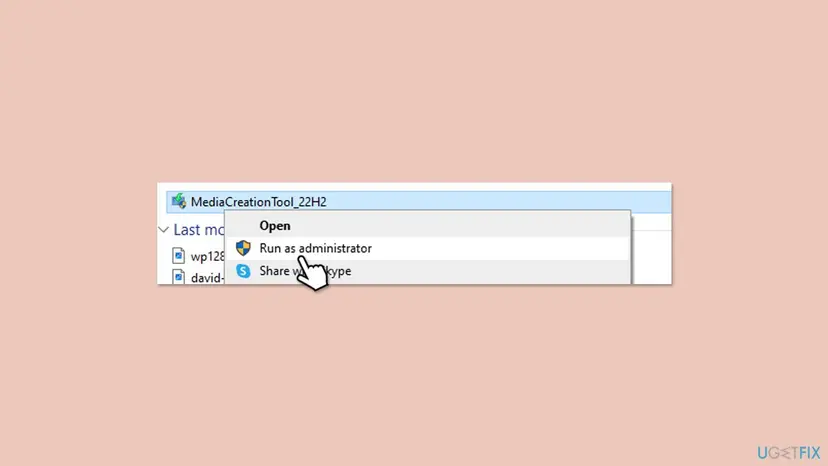
C:\MCTand move the new file there. Never start it from the USB drive you want to write, and not from OneDrive. - Right-click the file and select Run as administrator. Select Yes in User Account Control.
- Accept the licence terms, choose Create installation media, and continue.
More on administrator rights: How to run a program as administrator or in compatibility mode
It worked if: The tool passes "Getting a few things ready" and shows the choice between a USB flash drive and an ISO file.
If not: If it fails after you pick the USB drive, prepare the drive in Fix 3. If it fails at once again, go to Fix 4.
Fix 3. Unlock the USB drive and clean it with DiskPart
10 minutesRead the warningThe error comes after you choose the USB drive, Windows calls the drive write-protected, or the drive was used before for Linux, a Mac or an older installer.
The tool must erase and rewrite the whole drive. A lock switch, a read-only flag or old partitions make Windows refuse that write, which is exactly what "Access is denied" says.
Copy anything you need off the USB drive first. In DiskPart, choose the disk by its size, and stop if you are not sure: selecting the wrong disk erases your PC's drive.
- Unplug every USB drive and memory card except the one for Windows. If the drive or its adapter has a small lock switch, slide it to unlocked. Plug it into a USB port on the PC itself, not a hub.
- Right-click Start and select Terminal (Admin). Select Yes in User Account Control.
- Type
diskpartand press Enter, then typelist diskand press Enter. - Find the USB drive by its size, for example 14 GB for a 16 GB drive. Type
select disk 1, with your number instead of 1. - Type
list diskagain and check that the star is on the USB drive. - Type the commands from the code block below, one at a time, and press Enter after each.
- Run the Media Creation Tool again as administrator and pick this drive.
In DiskPart, after you selected the USB drive:
attributes disk clear readonly
clean
create partition primary
format fs=fat32 quick
assign
exit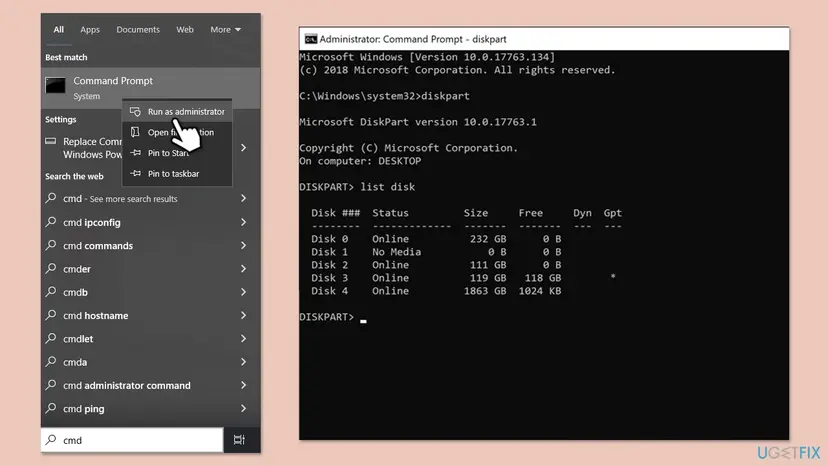
It worked if: File Explorer shows one empty USB drive with a letter, and the tool writes to it until "Your USB flash drive is ready".
If not: If clean itself says the media is write-protected, the drive is locked by hardware or a policy: try another USB drive, then Fix 5. If the tool fails on a clean drive, go to Fix 4.
Fix 4. Let Microsoft Defender and other security software allow the tool
10 to 20 minutesLow riskWindows Security showed a blocked change, Controlled folder access is on, or the PC runs a non-Microsoft antivirus.
Microsoft Defender's ransomware protection, called Controlled folder access, and other antivirus programs refuse writes from apps they do not trust. The tool then gets "Access is denied" even with administrator rights.
- Open Windows Security from Start and select Virus & threat protection.
- Under Ransomware protection, select Manage ransomware protection.
- If Controlled folder access is on, select Allow an app through Controlled folder access, then Add an allowed app and pick
C:\MCT\MediaCreationTool.exe. - If you use another antivirus, add the same file to its list of trusted or excluded apps.
- Run the tool again as administrator.
If it still fails, start Windows without other programs in a clean boot and try once more: How to perform a clean boot in Windows. As a last test only, pause Microsoft Defender for one attempt and turn it back on right after: Turn off Microsoft Defender protection for a moment.
When the USB drive is ready, delete the tool and remove it from the allowed apps list, so the exception does not stay open.
It worked if: The tool writes the USB drive to the end, and Windows Security shows no new blocked change.
If not: If it fails in a clean boot too, check the policies in Fix 5.
Fix 5. Remove leftover policies that deny writes or redirect Windows Update
10 minutesRead the warningThe PC was once managed by a company or school, or a tuning or update-blocking tool changed Windows Update settings.
A policy can deny every write to removable drives, which makes the tool's write fail as "Access is denied". Old Windows Update policies that point to a company server are another block users report for this code.
Deleting the wrong value can change how Windows updates. Back up the registry before you edit it: Back up the registry before editing it. On a PC your employer still manages, ask the IT department instead.
- On Windows Pro, open the Local Group Policy Editor: Open the Local Group Policy Editor.
- Go to Computer Configuration > Administrative Templates > System > Removable Storage Access. If Removable Disks: Deny write access is Enabled, set it to Not Configured.
- Press Win + R, type
regeditand press Enter. Select Yes in User Account Control. - Go to
HKEY_LOCAL_MACHINE\SOFTWARE\Policies\Microsoft\Windows\WindowsUpdate. - If you see WUServer and WUStatusServer on the right and the PC is not managed any more, right-click each and select Delete.
- Close the Registry Editor, restart the PC and run the tool again as administrator.
It worked if: The policy shows Not Configured, the two values are gone, and the tool writes the USB drive.
If not: If the key does not exist or the error stays, clear the setup leftovers in Fix 6.
Fix 6. Delete the leftovers of earlier Setup runs and free space on drive C
10 to 20 minutesLow riskThe tool or a Windows upgrade failed before, or drive C has little free space.
The tool downloads several gigabytes and works in hidden folders on drive C. Files left from an earlier failed run can still be locked or owned by an old process, so the new run is denied access to them.
- Open Storage settings. Select Start > Settings > System > Storage. The top of the page shows how full the drive is and what uses the space.
- Open Cleanup recommendations. Under Storage management, select Cleanup recommendations.
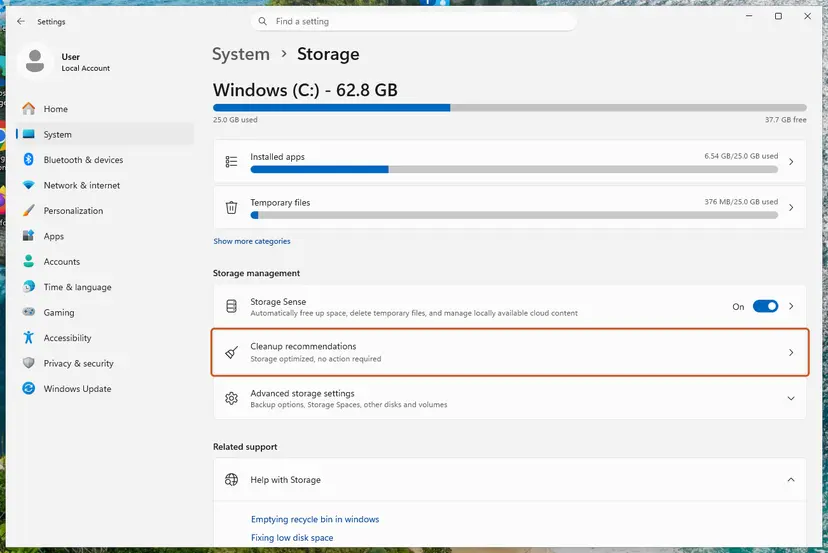
Settings, System, Storage: Cleanup recommendations is under Storage management. Screenshot: Windows 11 26H2. - Clean up what Windows suggests. Open each group (Temporary files, Large or unused files, Files synced to the cloud, Unused apps), check the items you do not need and select Clean up in that group.
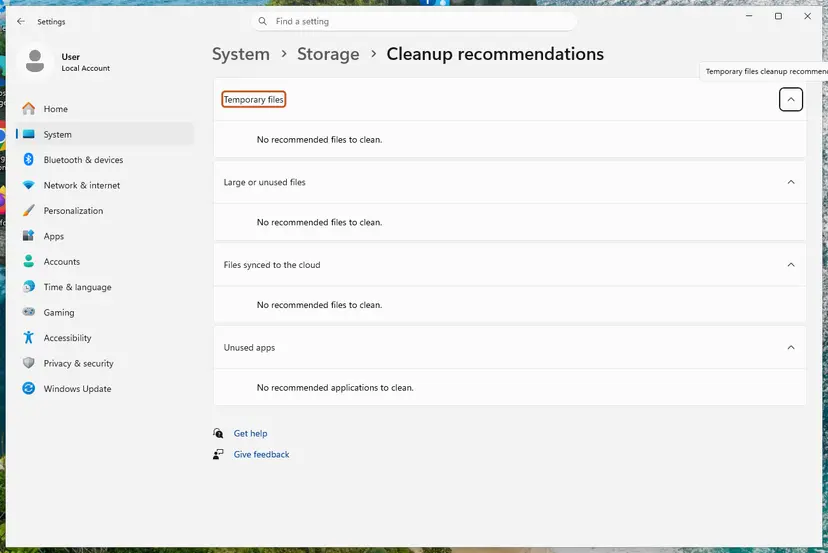
Cleanup recommendations groups the suggestions; on our test PC there was nothing to clean yet. Screenshot: Windows 11 26H2. - Delete more temporary files. Go back to Storage and select Temporary files. Windows lists the types it can remove with their size. Check the ones you do not need and remove them. Leave Downloads unchecked unless you have checked that folder.
These steps were written for Windows 11 (screenshots: 26H2). The full page with the other versions and what each result means: Free up disk space and delete temporary files
- In Disk Cleanup, select Clean up system files and tick every temporary item, including the temporary Windows installation files when they are listed.
- Restart the PC before you run the tool again, so nothing from the old run keeps a file open.
- Check in File Explorer > This PC that drive C has room left for the download.
It worked if: Disk Cleanup finishes, drive C shows more free space, and the tool starts without the error.
If not: If the error stays, reset the services the tool uses in Fix 7.
Fix 7. Reset the Windows Update and download services
10 minutesLow riskWindows Update fails too, or the tool stops while it downloads Windows.
The tool relies on Windows download services and their cache folders. If those folders have wrong permissions or the services are stuck, the tool can be denied access to its own download.
- Open Command Prompt as administrator. Type cmd in the search box, right-click Command Prompt and select Run as administrator. Select Yes when Windows asks for permission.
- Stop the update services. Type the commands below and press Enter after each one. If Windows says that other services depend on Cryptographic Services, it stops them too. A message that a service is not started is fine.
net stop wuauserv
net stop bits
net stop cryptsvc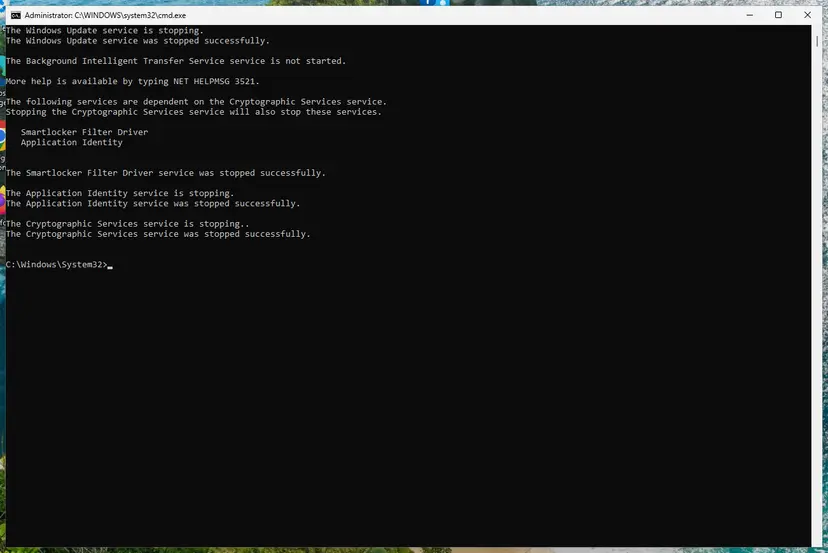
The update services are stopped. Screenshot: Windows 11 26H2. - Delete the download queue files. This clears the list of downloads that the Background Intelligent Transfer Service keeps. If Windows says it cannot find the files, continue.
del "%ALLUSERSPROFILE%\Application Data\Microsoft\Network\Downloader\qmgr*.dat" - Rename the update cache folders. Renaming keeps a copy in case you need it; Windows creates new, empty folders when the services start again. If you get Access is denied, a service is still running: repeat the previous step.
ren %systemroot%\SoftwareDistribution SoftwareDistribution.old
ren %systemroot%\System32\catroot2 catroot2.old
Both folders now end in .old. Screenshot: Windows 11 26H2. - Start the services again. Type the commands below and press Enter after each one. The requested service has already been started is fine: Windows started it on its own.
net start cryptsvc
net start bits
net start wuauserv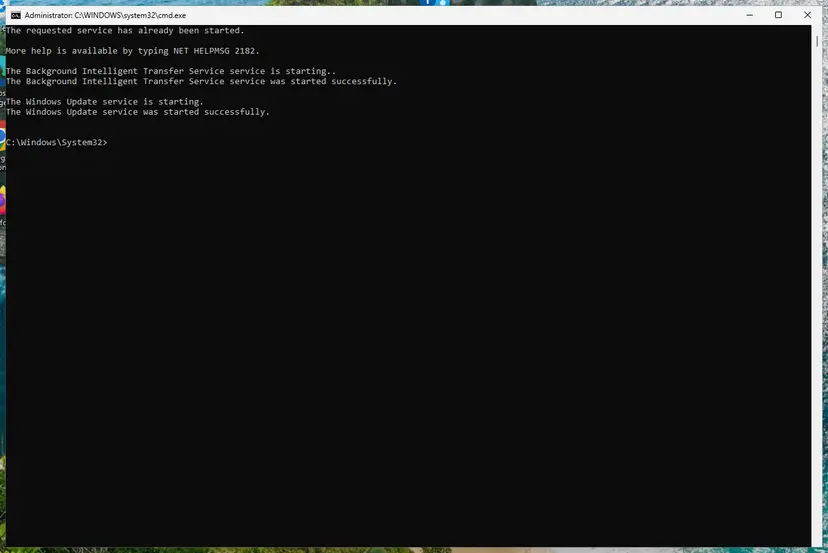
BITS and Windows Update are running again. Screenshot: Windows 11 26H2. - Restart and check for updates. Restart the PC. Then select Start > Settings > Windows Update > Check for updates. The first check can take longer than usual because everything is downloaded again.
These steps were written for Windows 11 and Windows 10 (the steps are the same). The full page with the other versions and what each result means: Reset Windows Update components
- Restart the PC after the reset.
- Run the Media Creation Tool again as administrator, as in Fix 2.
It worked if: The services run again, Windows Update checks for updates without an error, and the tool downloads Windows.
If not: If it still fails, repair the system files in Fix 8.
Fix 8. Repair Windows system files with DISM and SFC
20 to 40 minutesLow riskEverything above failed, or other Windows tools also show errors.
The tool uses Windows' own file and download components. If those are damaged, programs that rely on them can fail, and DISM and SFC restore them from Microsoft's copies.
- Open an elevated command window. Right-click Start and select Terminal (Admin), or type cmd in the search box, right-click Command Prompt and select Run as administrator. Select Yes when Windows asks for permission.

Search for cmd and choose Run as administrator. Screenshot: Windows 11 26H2. - Run DISM first. Type the command below and press Enter. DISM downloads clean copies of damaged components from Windows Update, so it can take several minutes. Wait until it says The operation completed successfully.
DISM.exe /Online /Cleanup-Image /RestoreHealth
DISM /RestoreHealth running. Screenshot: Windows 11 26H2. - Run System File Checker. In the same window, type the command below and press Enter. Do not close the window until the verification reaches 100%.
sfc /scannow
sfc /scannow at 100%. Screenshot: Windows 11 26H2. - Read the result and restart. Compare the last message with the table below this guide, then restart the PC so that repaired files are loaded.

The result line tells you what SFC did. Screenshot: Windows 11 26H2.
These steps were written for Windows 11 24H2 and 25H2. The full page with the other versions and what each result means: Run DISM and SFC to repair Windows system files
- Restart the PC when both commands have finished.
- Run the Media Creation Tool again as administrator.
It worked if: DISM says the restore operation completed, SFC finds no integrity violations or repairs them, and the tool works.
If not: If the error stays, use the ISO from Fix 1, or read the next section.
If Media Creation Tool error 0x80070005 - 0xA001B is still there
When the tool fails as administrator, on a clean drive and in a clean boot, the block is on this PC or on the drive, not in the download. You still have two ways to get Windows, and one place to look for the cause.
| Situation | What to do |
|---|---|
| You only need to fix this PC | Use the ISO and setup.exe as in Fix 1. It does not need the tool. |
| You need a USB drive | Run the tool on another Windows PC. The USB drive works on any PC that can start from USB. |
| You want the reason | Open the hidden folder C:\$Windows.~BT\Sources\Panther if it exists and read the end of setuperr.log. Look for lines with "access denied" or 0x80070005 and the file or drive they name. |
| Every USB drive is write-protected on every PC | The drives or a company policy are the cause. Ask your IT department, or use a drive that has never been managed. |
| Drive C reports errors | Check it with Check a disk for errors (chkdsk) and copy your files off before you go on. |
- What to send to Microsoft support: both codes, the Windows version you run, the Windows version you tried to make, and the step where it stopped.
- Say which USB drive you used and its size, whether it is locked, and whether the ISO option works.
- Attach
setuperr.logandsetupact.logif the Panther folder exists.
How to keep 0x80070005 - 0xA001B from coming back
- Download the tool fresh each time you need it, and run it as administrator.
- Keep the tool in a local folder on drive C, not on the USB drive and not in OneDrive.
- Use one blank, unlocked USB drive of 8 GB or more, plugged in directly.
- Use the ISO when you only want to fix the PC you are on.
- Do not unplug the USB drive or let the PC sleep while the tool works.
- Do not leave security exceptions for the tool in place afterwards.
- Do not keep two security programs installed at the same time.
- Do not stay on Windows 10: it no longer gets security fixes.
Windows 10 left support on 14 October 2025. Microsoft says the PC still works but recommends moving to Windows 11. If you make media to reinstall a Windows 10 PC, check whether it can run Windows 11 first.
Frequently asked questions
What does error code 0x80070005 - 0xA001B mean?
It means Windows refused the Media Creation Tool access to something it needed, so the tool stopped. The first code, 0x80070005, is Windows error 5, ERROR_ACCESS_DENIED, "Access is denied." The second code, 0xA001B, only marks where the tool stopped; its phase digit A is not in Microsoft's published table. The usual reasons are missing administrator rights, a locked or used USB drive, and security software. Your PC and your Windows licence are not damaged by the error.
What does 0xA001B mean on its own?
0xA001B is the extend code, the second half of the message. In Microsoft's Setup tables the first digit is the phase and the last two digits are the operation. Microsoft lists phases 0 to 5 only, so phase A is not documented and we could not confirm its exact meaning. It appears after several first codes, such as 0x80070005, 0x8007000D and 0x800703EE. That is why the first code, not 0xA001B, decides which fix to start with.
How do I fix 0x800703EE - 0xA001B?
Start with the USB drive and security software. 0x800703EE is a different first code from this page, and we did not confirm its exact meaning on Microsoft's pages today. Users who report it often see it while the tool writes to the USB drive, when another program touches the drive at the same moment. Keep only one USB drive plugged in, clean it with DiskPart (Fix 3), allow the tool in your security software or use a clean boot (Fix 4), and run a fresh copy as administrator (Fix 2).
How do I fix 0x80042405 - 0xA001B?
Move the tool off the USB drive. Users widely report 0x80042405 - 0xA001B when MediaCreationTool.exe is started from the same USB drive it is told to write, because the tool cannot erase the drive it runs from. We could not confirm the code's meaning on Microsoft's pages. Copy the tool to a folder on drive C, such as C:\MCT, run it as administrator from there (Fix 2), and pick the USB drive as the target.
How do I fix 0x8007000D - 0xA001B?
Download a fresh copy and free space first. 0x8007000D is Windows error 13, "The data is invalid," so the tool read data it could not use rather than being denied access. A damaged earlier download, leftovers of a failed run or a faulty USB drive are the likely reasons. Delete old copies and leftovers (Fix 2 and Fix 6), clean the USB drive (Fix 3), and try once more. If it repeats, use the ISO from Fix 1.
Should I format the USB drive as NTFS first?
No, it does not help with this error. The Media Creation Tool erases the USB drive and prepares it itself, so the file system you set beforehand is replaced. What matters is that Windows lets the tool write: the drive is not locked, not marked read-only, and has no old partitions it cannot remove. Fix 3 clears all three with DiskPart. Microsoft only asks for a blank USB flash drive with at least 8 GB.
Can I reinstall Windows without the Media Creation Tool?
Yes. Microsoft offers the Windows 11 disk image (ISO) for direct download. On a working Windows PC, right-click the ISO, select Mount and run setup.exe from the new drive. Setup lets you keep your files and apps, keep only your files, or keep nothing. This repairs or reinstalls Windows on the same PC, which is what many readers who see this error want. Fix 1 has the steps. Back up your files first in every case.
Do I have to turn off my antivirus to make the tool work?
No. Allowing the tool is safer than turning protection off. In Windows Security, add MediaCreationTool.exe to the apps allowed through Controlled folder access, and add it to the trusted list of any other antivirus you use (Fix 4). Only if that fails, pause Microsoft Defender for one attempt and turn it back on right after. Never leave protection off, and remove the exception once the USB drive is ready.
Do I need a product key to use the tool or the ISO?
Not on most PCs. Microsoft says a 25-character product key might be needed, but not for digital licences. Many modern PCs have the key stored in their firmware, and Setup applies it by itself when it matches the edition you install. If you reinstall the same edition that was activated on this PC, Windows activates again after you sign in. The error 0x80070005 - 0xA001B has nothing to do with the key or the licence.
Why is this happening, and what does the message mean in my language?
The codes are the same in every language, so this guide applies whatever language your Windows uses. Only the text around the code is translated, for example There was a problem running this tool in English. It happens because Windows denied the tool access, most often for missing administrator rights or a blocked USB drive. Find the two codes on your screen and use the fixes in the same order, starting with Fix 1 or Fix 2.
Sources
- Microsoft Support: Create installation media for Windows (MediaCreationTool.exe, 8 GB blank USB drive, ISO and DVD, product key, Windows 10 end of support) (support.microsoft.com)
- Microsoft Learn: Windows 10 upgrade error codes (result codes, extend codes, phase and operation tables) (learn.microsoft.com)
- Microsoft Learn: System Error Codes 0 to 499 (error 5, ERROR_ACCESS_DENIED; error 13, ERROR_INVALID_DATA) (learn.microsoft.com)
Did this fix work?
One click, no account. It tells the next reader which guides are worth their time.
Questions and experiences: fix Media Creation Tool error 0x80070005 - 0xA001B in Windows
Still broken, or found a fix we did not cover? Ask here: members and our editors answer. Reading is open; writing needs a free account.
…