
How to fix Microsoft Edge translator not working?

Prefer to fix it yourself? The manual steps follow.
- 8methods
- 1 to 15 minutes
- Easy
Applies to Microsoft Edge on Windows 11 and Windows 10 22H2; the settings are the same in Edge on macOS
8 methods in this guide
Hi, today I was trying to use the translator in Microsoft Edge, and after I entered a Spanish website, the translator was not working. Restarting the browser did not help. Is there anything else I could do?
When Edge does not translate a page, the translator is usually not broken: Edge simply decided not to offer it. It shows the Translate icon only for a language that is not in your Preferred languages list, and only while Offer to translate is on. Right-click the page and select Translate to [language] first; then fix the setting that hid the offer.
Right-click an empty spot on the page and select Translate to [language] (Fix 1). That works even when the Translate icon is missing from the address bar. The icon is hidden when the page's language is in your Preferred languages list, when Offer to translate pages that aren't in a language I read is off, or after Never translate [Language]. If Translate is missing from the right-click menu too, a policy has turned it off (Fix 5).
| Error | No message. The Translate icon does not appear in the address bar, the translate panel never opens, or the page stays in its original language. |
|---|---|
| Where it appears | In Microsoft Edge, on a webpage written in another language. The Translate icon belongs at the right end of the address bar. |
| Main cause | Edge only offers a translation when the page's language is not in your Preferred languages list. A language you added there, or one you set to Never translate, gets no offer. |
| Fastest fix | Right-click the page and select Translate to [language] (Fix 1). Then check Settings > Languages (Fix 2 and Fix 3). |
| Also written as | Edge translate page not showing, Edge translate button not showing, Microsoft Edge translate button missing, Edge translator not working. |
| Settings page | edge://settings/languages, the Offer to translate pages that aren't in a language I read switch and the Preferred languages list. |
| Vendor status | Not a known bug. Microsoft documents the behaviour: the offer is on by default and depends on your Preferred languages. Organisations can turn all built-in translation off with the TranslateEnabled policy. |
| Affects | Edge on Windows 11 and Windows 10 22H2. Windows 10 left support on 14 October 2025; Edge still runs there, but Windows gets no more security updates. |
| Time to fix | 1 minute for a manual translation. 5 to 15 minutes when a setting, a policy or a reset is needed. |
Facts checked on 15 October 2026. Steps written for Microsoft Edge on Windows 11 (screenshots of the right-click menu, the Languages settings, the About page, Clear browsing data and Reset settings). The steps were checked against Microsoft's support article and the TranslateEnabled policy reference..
Why the Edge translate button is not showing
Edge has Microsoft Translator built in. When you open a page, Edge detects its language and compares it with the Preferred languages list in Settings > Languages. Microsoft's help says a language counts as foreign only when it is not on that list. Only then does the Translate icon appear in the address bar and the translate panel open.
So a missing button is most often Edge doing what it was set to do. You may have added the page's language to your list, chosen Never translate [Language] once in the panel, or turned the offer off. The manual route through the right-click menu still works in all three cases.
| What you see | What it means |
|---|---|
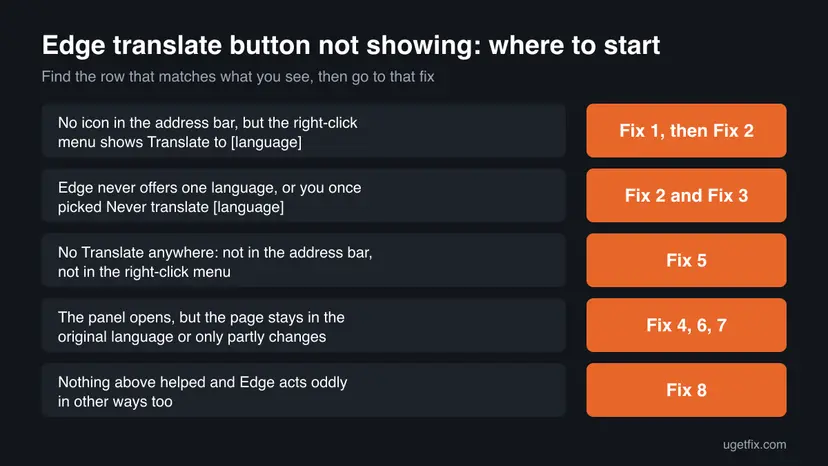
| No icon in the address bar, but the right-click menu has Translate to [language] | Translation works. Edge just does not offer it for this language. Fix 1 now, Fix 2 or Fix 3 for good. |
| No icon on any foreign page, for any language | Offer to translate pages that aren't in a language I read is probably off (Fix 2). |
| One language is never offered, others are | That language is on your Preferred languages list, or set to Never translate (Fix 2, Fix 3). |
| No Translate in the address bar and none in the right-click menu | Built-in translation is switched off, most likely by a policy (Fix 5). |
| The panel opens, but the page does not change | Edge cannot reach the translation service, or an extension or old version interferes (Fix 4, Fix 6, Fix 7). |
The reader's question above says a restart did not help. That fits: every common cause is a saved setting or a policy, and both survive a restart. Check the settings before you clear data or reset anything.
What stops Edge from translating pages, from most to least likely
Microsoft publishes no numbers for this. The order below follows how Edge decides to offer a translation, what Microsoft documents, and what people on Microsoft's own forum report. Each cause is tied to one fix.
| Cause | How you recognise it | Fix |
|---|---|---|
| The page's language is on your Preferred languages list. | One language never gets the icon. You may have added it for spell check or for a second keyboard. | Fix 1, Fix 3 |
| You chose Never translate [Language] in the panel. | The panel stopped appearing for one language after you dismissed it once. | Fix 2 |
| The Offer to translate switch is off. | No icon on any foreign page. | Fix 2 |
| An old Edge version or a damaged update. | Other features also misbehave, and About Microsoft Edge finds an update. | Fix 4 |
| The TranslateEnabled policy is set to off. | Translate is missing from the right-click menu too. Edge may say it is managed by your organisation. | Fix 5 |
| An extension, a damaged cache or the network blocks the service. | The panel works but the page does not change, or it fails only on some sites. | Fix 6, Fix 7 |
| Changed browser settings you cannot track down. | Nothing above helped. | Fix 8 |
In a thread on Microsoft Q&A, a user with the latest Edge had no translate button on English pages. An independent advisor explained that English was on the Preferred languages list, so Edge offered nothing. After the user removed English from the list, Edge translated those pages.
How to fix Microsoft Edge translator not working
Fix 1 translates the page right now. Fix 2 and Fix 3 bring the automatic offer back. Fix 4 and Fix 5 are for an Edge where translation is missing everywhere. Fix 6 to Fix 8 are for a translator that opens but does not change the page.
| What you see or have | Start with |
|---|---|
| You need this page translated now. | Fix 1 |
| No Translate icon on any foreign page. | Fix 2 |
| One language is never offered. | Fix 2, then Fix 3 |
| Translate is missing from the right-click menu too, or Edge says it is managed. | Fix 5 |
| The panel opens, but the page stays the same. | Fix 4, then Fix 6 and Fix 7 |
| Nothing above helped. | Fix 8 |
Fix 1. Translate the page by hand from the right-click menu or the address bar
1 minuteNo riskEveryone who needs the page translated now, whether the icon is missing or not.
Microsoft's help says you can translate a page manually at any time, even after you set Edge to never translate that language. The manual route skips the language check that hides the automatic offer.
- Open the page you want translated in Edge.
- Right-click an empty spot of the page, not a link or a picture.
- Select Translate to [language], for example Translate to English.
- If the Translate icon is in the address bar, you can select it instead, pick a language under Translate to and select Translate.
- To go back to the original text, select the Translate icon in the address bar and then Show original.
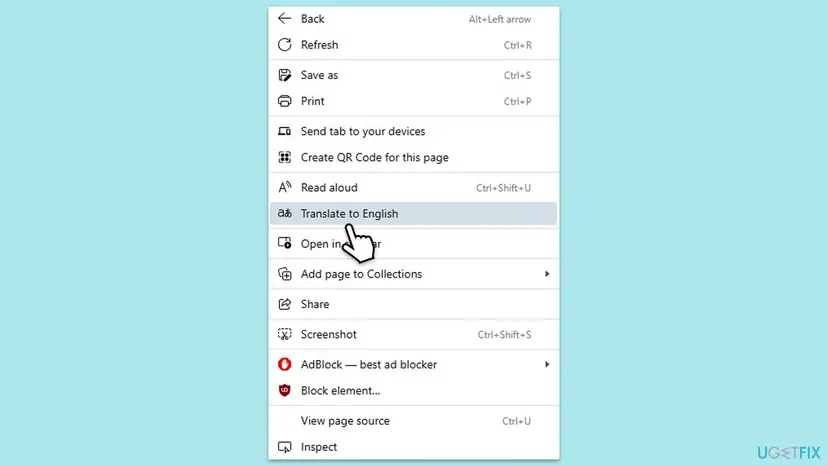
Select the text, right-click it and look for the translate option for the selection. Microsoft's policy reference says Edge can translate selected text from the right-click menu, and selected text in a PDF from the PDF toolbar.
It worked if: Edge briefly shows a translated status in the address bar and the page text changes to your language.
If not: If the right-click menu has no Translate item, go to Fix 5. If it has one but the page does not change, go to Fix 4.
Fix 2. Turn on Offer to translate and undo Never translate for the language
2 minutesNo riskEdge never shows the Translate icon, or stopped showing it for one language after you dismissed the panel.
The offer is one switch in the Languages settings, on by default. A Never translate [Language] choice in the panel stops the panel for that language only, so both have to be checked.
- Select Settings and more (the three dots at the top right), then Settings.
- Select Languages in the left menu. You can also type
edge://settings/languagesin the address bar. - Turn on Offer to translate pages that aren't in a language I read.
- Under Preferred languages, select More actions (the three dots) next to the language that is never offered and check what Edge offers for translation there.
- Open a page in the language that failed and reload it with F5.
- If the panel still does not open, select the Translate icon or use Fix 1, and in the panel do not select Never translate [Language] again.
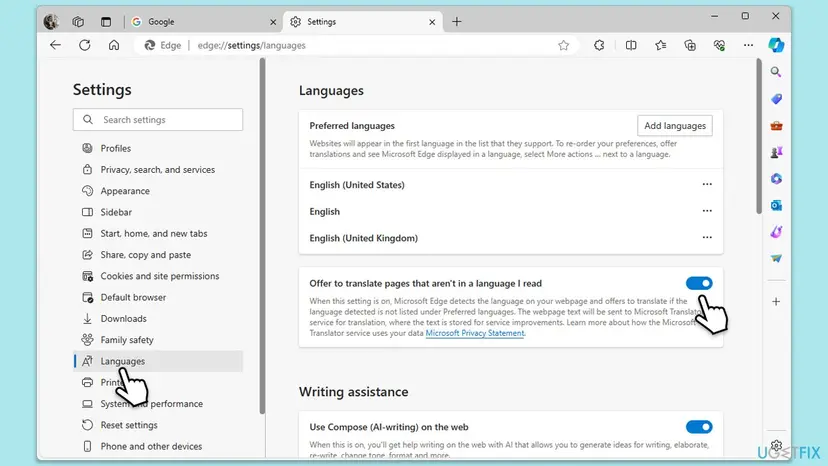
The text under the switch says that when it is on, the page text is sent to the Microsoft Translator service for translation. Translation therefore needs a working connection to that service, which Fix 7 covers.
It worked if: The Translate icon appears in the address bar on a foreign page, and the panel asks whether to translate.
If not: If the language you want is on the Preferred languages list, the offer stays hidden. Go to Fix 3.
Fix 3. Remove the page's language from Preferred languages, or keep it and translate by hand
2 minutesLow riskEdge never offers to translate one language, and that language is on your Preferred languages list.
Microsoft defines a foreign language as one not on the Preferred languages list. A language on the list is treated as one you read, so Edge never offers to translate it. Many people add a language for spell check and forget it.
- Open
edge://settings/languages. - Read the Preferred languages list. Look for the language of the page that was not offered, such as Spanish.
- If you do not read that language, select More actions (the three dots) next to it and select Remove.
- Keep at least the language you want pages translated into, and keep it at the top of the list.
- Reload the foreign page with F5 and look for the Translate icon in the address bar.
- Remove a language you added for spell check only and do not read.
- Keep your own language at the top of the list: Edge shows websites in the first language on the list that they support.
- Do not remove a language you read just to get the offer. Use Fix 1 for such pages instead.
- Do not remove the only language on the list.
It worked if: Pages in the removed language now show the Translate icon and the panel offers to translate them.
If not: If the list is correct and the offer still does not appear, update Edge in Fix 4.
Fix 4. Update Microsoft Edge from the About page
3 minutesNo riskThe panel opens but nothing happens, or Edge has not restarted for a long time.
Edge updates itself, but only finishes after a restart. An Edge left open for weeks runs an old build, and the About page both checks for and installs the newest one.
- Select Settings and more (the three dots), then Help and feedback.
- Select About Microsoft Edge. You can also type
edge://settings/helpin the address bar. - Wait while Edge checks for updates and downloads one if it finds it.
- Select Restart when Edge offers it.
- Open the foreign page again and try Fix 1.
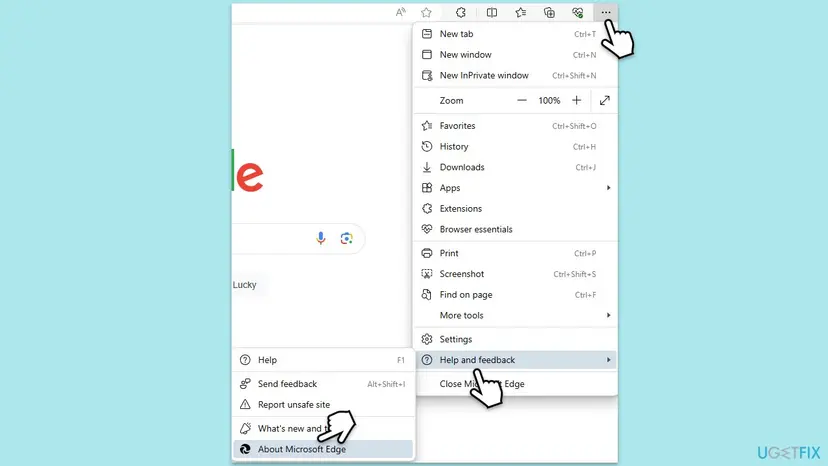
It worked if: The About page says Microsoft Edge is up to date, and the translation works after the restart.
If not: If the About page says updates are managed by your organisation, or translation is still missing everywhere, go to Fix 5.
Fix 5. Check whether a policy has turned Translate off
5 minutesRead the warningTranslate is missing from both the address bar and the right-click menu, or Edge says it is managed by your organisation.
Microsoft's TranslateEnabled policy, when disabled, turns off all built-in translate features of Edge. It is set by work and school administrators, and sometimes left behind by tweak tools or old settings on a home PC.
- Type
edge://policyin the address bar and press Enter. - Look for TranslateEnabled in the list. If its value is false, the policy has turned translation off.
- On a work or school PC, stop here and ask your administrator: the policy is their decision.
- On your own PC, open the Local Group Policy Editor. Step by step: Open the Local Group Policy Editor.
- Go to Administrative Templates > Microsoft Edge, open Enable Translate and set it to Not configured or Enabled.
- Restart Edge and open
edge://policyagain. TranslateEnabled should be gone or set to true.
Windows Home has no Group Policy Editor. There the policy is the value TranslateEnabled under SOFTWARE\Policies\Microsoft\Edge in HKEY_LOCAL_MACHINE or HKEY_CURRENT_USER. A wrong registry edit can break programs, so back up the registry first: Back up the registry before editing it. Delete only the value TranslateEnabled, or set it to 1.
Where the policy lives in the registry (value type REG_DWORD, 1 = on, 0 = off)
HKEY_LOCAL_MACHINE\SOFTWARE\Policies\Microsoft\Edge\TranslateEnabled
HKEY_CURRENT_USER\SOFTWARE\Policies\Microsoft\Edge\TranslateEnabled
It worked if: edge://policy no longer lists TranslateEnabled as false, and Translate to [language] is back in the right-click menu.
If not: If the policy returns after a restart, a management tool or a program sets it again. Ask your administrator, or look for the program in Fix 6.
Fix 6. Turn off extensions and clear the Edge cache
5 minutesLow riskThe panel opens but the page does not change, or translation fails on some sites only.
Translation extensions and page blockers change the page text that Edge sends for translation, and a damaged cached copy can keep showing the old page. Turning extensions off for one test shows which one is in the way.
- Type
edge://extensionsin the address bar and press Enter. - Turn off every extension with its switch. Note which ones were on.
- Reload the foreign page and try Fix 1.
- If it works now, turn the extensions back on one at a time and test after each. The one that breaks translation is the one to remove.
- If it still fails, clear Cached images and files in Edge. Step by step: Clear the browser cache and cookies.
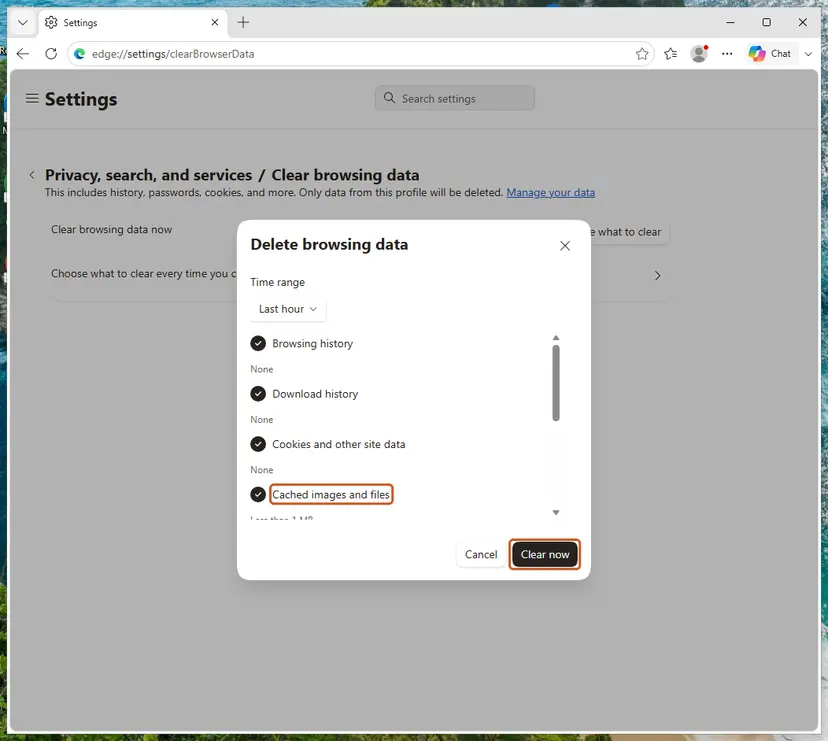
It worked if: The page translates with your extensions off or after clearing the cache.
If not: If the page still does not change, check the connection to the translation service in Fix 7.
Fix 7. Check that Edge can reach the Microsoft Translator service
5 minutesLow riskThe panel opens and you select Translate, but the page stays in its original language on every site.
Edge does not translate on your PC: it sends the page text to the Microsoft Translator service. A VPN, a proxy, a filter on the network or a broken connection can block that request while ordinary pages still load.
- Turn off a VPN or proxy for one test, then try Fix 1 again. Turn the VPN back on afterwards.
- Try another network, such as a phone hotspot, to rule out a filter on your home, school or work network.
- Check the connection itself. Step by step: How to check your internet connection in Windows.
- If the connection is unreliable, reset the network settings and flush DNS. Step by step: Reset the network and flush DNS.
The old guide used the Windows network troubleshooter. A network fault would break other sites too, so the checks above test the one thing translation needs: reaching the Translator service from this network.
It worked if: On another network or without the VPN, the page translates. Then the block is on the network or the VPN, not in Edge.
If not: If translation fails on every network, reset Edge in Fix 8.
Fix 8. Reset Edge settings to their defaults
5 minutesRead the warningYour own PC, the fixes above did not help, and Edge also misbehaves in other ways.
A reset returns every setting to its default in one step. The translation offer is on by default, so a setting you could not find is cleared with the rest.
The reset turns off all extensions, resets the start page, new tab page, search engine and pinned tabs, and clears cookies, so you are signed out of websites. Favorites, history and saved passwords stay. Note your extensions first. A reset does not remove a policy: if Fix 5 found one, the reset will not help.
- Select Settings and more (the three dots), then Settings.
- Select Reset settings in the left menu. You can also type
edge://settings/reset. - Select Restore settings to their default values.
- Read what the box lists, then select Reset.
- Close Edge, open it again and try a foreign page.
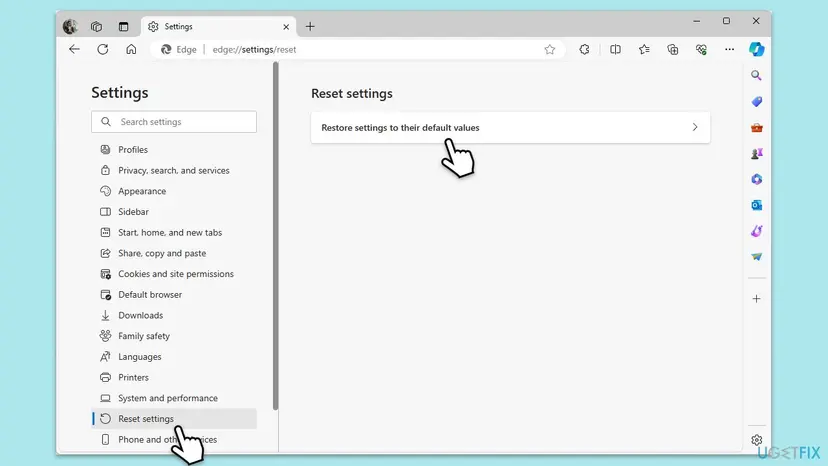
It worked if: After the reset, the Translate icon appears on foreign pages and the panel translates them.
If not: If translation still fails, read the section below on what to check and whom to ask.
Edge still does not translate: what to check and who can help
If the fixes above did not help, collect a few facts before you ask for help. They show at once whether the cause is a setting, a policy or the network.
- Copy the version number from
edge://settings/help. - Open
edge://policyand note whether TranslateEnabled or any other policy is listed. - Note whether Translate to [language] is in the right-click menu, and whether the panel opens.
- Note the page address and its language, and whether other pages in that language translate.
- Send the report from Edge with Alt + Shift + I (Send feedback), with a screenshot of the page.
| Situation | Who can fix it | What to send |
|---|---|---|
| Work or school PC, or Edge says it is managed | Your administrator | The edge://policy list and the Edge version |
| One site never translates, others do | Usually nobody: the site may block it. Use Fix 1 on selected text. | The page address |
| Translation fails on one network only | The network owner or the VPN provider | That translation works on another network |
| Fails everywhere on a current Edge with no policy | Microsoft, through Send feedback | Version, steps tried, a screenshot |
Nothing about this problem points to your disk, memory or graphics card. It is always a setting, a policy, an extension or the path to the translation service.
How to keep Edge translation working
- Keep only languages you really read on the Preferred languages list.
- Select Not now in the panel when you want to skip one page, instead of Never translate [Language].
- Restart Edge now and then so its updates finish.
- Use the right-click Translate to [language] for languages you read but sometimes want translated.
- Do not run tweak tools that set Edge policies on a home PC.
- Do not stack several translation extensions on top of the built-in translator.
- Do not reset Edge first: in most cases one switch or one list entry is the cause.
Most cases of a missing Edge translate button come down to the Preferred languages list or a Never translate choice. Once you know that rule, the button is never really lost.
Frequently asked questions
Why is the translate button not showing in Microsoft Edge?
Because Edge thinks you read the page's language. Microsoft's help says the Translate icon appears only when the page's language is not on your Preferred languages list in Settings > Languages. It also stays hidden when Offer to translate pages that aren't in a language I read is off, or after you chose Never translate [Language] in the panel. Right-click the page and select Translate to [language] to translate anyway, then fix the setting as in Fix 2 and Fix 3.
How do I translate a page in Edge when the translate icon is missing?
Right-click an empty part of the page and select Translate to [language]. Microsoft's help confirms that you can translate a page manually at any time, even after you set Edge to never translate its language. To return to the original text, select the Translate icon that appears in the address bar after translating and choose Show original. If the right-click menu has no Translate item either, a policy has turned translation off, as described in Fix 5.
How do I undo Never translate in Edge?
Microsoft says you can return to the translate panel manually even after selecting Never translate. Open a page in that language, translate it with the right-click menu or the Translate icon, and from then on use Not now instead of Never translate when you want to skip a page. Also open edge://settings/languages, select More actions next to that language on the Preferred languages list and check its translation option. If the panel still does not appear, a reset of Edge settings (Fix 8) clears the choice.
Why does Edge not offer to translate a language I added?
Adding a language to Preferred languages tells Edge that you read it. Microsoft defines a foreign language as one that is not on that list, so pages in a listed language get no offer. People often add a language for spell check or a keyboard and forget it. Remove the language in Settings > Languages if you do not read it (Fix 3), or keep it and translate such pages by hand with the right-click menu.
Why is Translate missing from the right-click menu in Edge too?
Then Edge's built-in translation is switched off as a whole. Microsoft's TranslateEnabled policy, when disabled, turns off all built-in translate features, including the right-click option. Open edge://policy and look for TranslateEnabled. On a work or school PC your administrator set it and only they can change it. On your own PC, Fix 5 shows how to set Enable Translate back to Not configured, or how to remove the value from the registry after a backup.
Can Edge translate PDF files and selected text?
Partly. Microsoft's policy reference says users can translate selected text on a webpage from the right-click menu, and selected text in a PDF from the PDF toolbar and the right-click menu. Edge does not offer to translate a whole PDF the way it offers a webpage. A user on Microsoft Q&A reported exactly that with an ebook opened in Edge. For a long PDF, translate it section by section, or use a translation service that accepts files.
Is Microsoft Translator not working the same problem?
Often it is related but not the same. Edge's translate feature sends the page text to the Microsoft Translator service, so when that service cannot be reached, Edge cannot translate either (Fix 7). The separate Microsoft Translator app and website are other products with their own settings, and this page does not cover them. If only Edge fails while the Translator website works on the same PC, the cause is in Edge: start with Fix 1 and Fix 2.
My Edge is in Spanish, Portuguese or Polish: where are these settings?
The settings sit in the same places in every language, only the labels are translated. Type edge://settings/languages in the address bar to open the Languages page directly, whatever your Edge language is. The first list there is your Preferred languages, and the switch below it is the offer to translate. This page answers searches such as no funciona, no me traduce, não funcionou or nie ma ikony: the causes and fixes are the same.
Does Edge send the page to Microsoft when it translates?
Yes. The description under the Offer to translate switch in Edge says that the webpage text is sent to the Microsoft Translator service for translation, and links to Microsoft's privacy statement. That is also why translation needs a working connection to that service. If you do not want some pages sent, do not translate them, or turn off the offer in Settings > Languages and translate only by hand when you choose to.
Should I install a translation extension instead?
Only if you need something the built-in translator does not do, such as translating a whole file. For webpages the built-in translator is enough once the offer is back, and an extra extension can get in the way of it (Fix 6). An extension also reads the pages you open, so install it only from the Microsoft Edge Add-ons store and from a maker you trust. Remove it if translation in Edge starts failing after you add it.
Sources
- Microsoft Support: Use Microsoft Translator in Microsoft Edge browser (Preferred languages, Never translate, manual translation, Offer to translate setting) (support.microsoft.com)
- Microsoft Learn: Microsoft Edge policy TranslateEnabled (Enable Translate, registry path, selected text and PDF translation) (learn.microsoft.com)
- Microsoft Q&A: Edge translation button not visible (user report and advisor answer on Preferred languages) (learn.microsoft.com)
Did this fix work?
One click, no account. It tells the next reader which guides are worth their time.
Questions and experiences: fix Microsoft Edge translator not working
Still broken, or found a fix we did not cover? Ask here: members and our editors answer. Reading is open; writing needs a free account.
…