
How to fix Microsoft Office error 0-2031 in Windows?

Prefer to fix it yourself? The manual steps follow.
- 6methods
- 5 to 45 minutes
- Easy
Applies to Microsoft 365 (Office 365), Office 2024, Office 2021, Office 2019 and Office 2016 installed with Click-to-Run on Windows 11 and Windows 10
6 methods in this guide
Hello. When I tried to install Microsoft Office on my Windows PC, I got the 0-2031 error code. How do I deal with this?
Error code 0-2031 appears in the Couldn't install window when Office setup cannot finish, often after another Office install, update or uninstall got in the way. Microsoft sends this code to its page on another installation in progress. Let any running Office job end, restart the PC and run setup once.
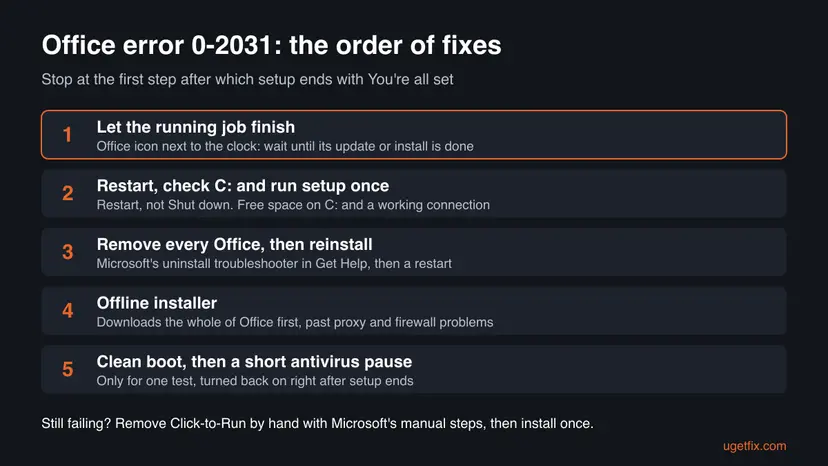
Error 0-2031 means Office setup stopped before it finished. Microsoft ties it to another installation, update or uninstall that was running, or to an Office left half installed. Check for an Office icon next to the clock and let that job end (Fix 1). Then restart, make sure drive C: has free space and run setup once (Fix 2). If it returns, remove every Office with Microsoft's uninstall troubleshooter and install again (Fix 3).
| Error | Error Code: 0-2031 with a number in brackets, such as (17002), under the heading Couldn't install and the text We're sorry, we had a problem installing your Office program(s). |
|---|---|
| Where it appears | In the Microsoft setup window, during or near the end of an Office installation that you started from your account, a store download or your school's link. |
| Main cause | Another Office installation, update or uninstall was running, or an earlier Office is left half installed. Microsoft's help system sends 0-2031 to its page on another installation in progress. |
| Fastest fix | Let the running Office job finish, then restart the PC and run the installer one time (Fix 1 and Fix 2). |
| Also written as | 0-2031, error code 0 2031, 0-2031 (17000), 0-2031 (17002), 0-2031 (17004), 0-2031 (3221225477), 0-2031 (3221225725), 17003-2031 and error code 2031. |
| Affects | Click-to-Run setups of Microsoft 365, Office 2024, 2021, 2019 and 2016 on Windows 11 and Windows 10. Office for Mac uses other installers and other codes. |
| Microsoft's status | A known setup error, documented on Microsoft's page "...Another installation is in progress..." or error code 0-1018, 17003-2031, or 2035-0 (dated 16 May 2026). No patch: the fix is to clear the blocking job or the old Office. |
| Not the cause | Your licence or payment. Setup fails while it copies files, before Office is activated. |
| Where the cause is logged | Setup logs in %temp% and %windir%\Temp, named after your PC with the date and time, ending in .log. |
| Time to fix | 5 minutes when a restart is enough. 30 to 45 minutes when Office has to be removed and installed again. |
Facts checked on 15 October 2026. Steps written for Click-to-Run versions of Microsoft 365 and Office on Windows 11 (25H2 and 26H2) and Windows 10 22H2, read against Microsoft's documentation.
What error code 0-2031 means in Office setup
0-2031 is the code Office setup shows when an installation could not finish. The window is the general Couldn't install window, and its text asks you to check your connection and your free space. Those two hints are the same in every Couldn't install window. The code is what tells you more.
| Line in the window | What it tells you |
|---|---|
| Couldn't install | Setup started, copied part of Office and stopped. It did not finish the installation. |
| We're sorry, we had a problem installing your Office program(s). | A general sentence. It does not name the cause. |
| Is your internet connection working? Do you have enough free space on your main hard drive? | The two checks setup asks for in every Couldn't install window. Check them, but do not stop there: Fix 2 covers both. |
| Go online for additional help | The link opens Microsoft's page for the code. For 0-2031 that is the page about another installation in progress. |
| Error Code: 0-2031 (17002) | The code. The number in brackets changes from PC to PC; the fixes do not. |
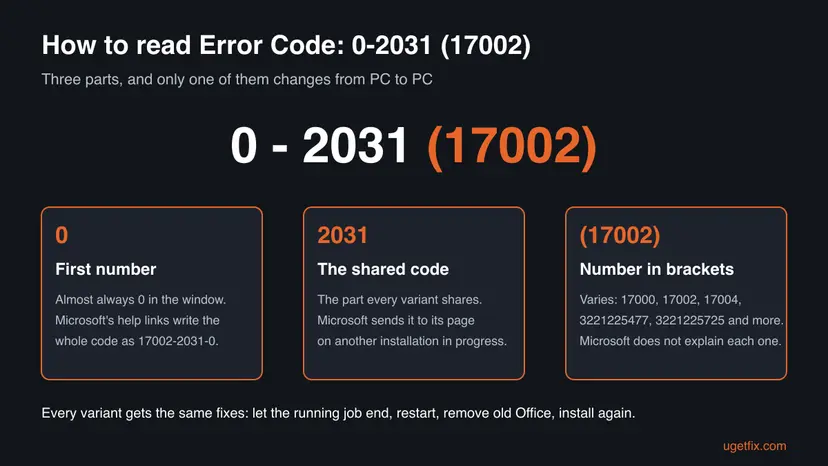
0-2031, 0 2031, 0-2031 (17000), 0-2031 (17002), 0-2031 (17004) and 0-2031 (3221225477) are the same error. Microsoft's help links write it the other way round, for example 17002-2031-0 or 3221225725-2031-0, and its article title says 17003-2031. Some forum posts drop the dash and write 02031.
What Microsoft says about Office error 0-2031
Microsoft has no page titled 0-2031 alone. Its help system maps 0-2031 and dozens of its variants, such as 17000-2031-0, 17002-2031-0, 17004-2031-0, 3221225477-2031-0 and 3221225725-2031-0, to one support article. That article also covers 0-1018 and 2035-0 and is about another installation in progress.
- The message on that page
- We're sorry, but we could not start your Office installation. Another installation is in progress, please try again later.
- The cause, in Microsoft's words
- This error usually occurs if another installation, update, or uninstall was running before you tried to install Office.
- Step 1
- Check for an Office icon in the Windows system tray and click it to see the install progress. If an install is running, wait until it is done.
- Step 2
- No icon: restart the computer and reinstall Office.
- Step 3
- Still failing: run the uninstall troubleshooter to clean up any full or partial Office installations, then reinstall.
- Limits of the troubleshooter
- It currently cannot uninstall Office 2024, it needs Windows 10 or higher, and it must run on the PC with the Office you want to remove. If it does not remove everything, Microsoft points to manual removal.
Microsoft's general page on Office install problems adds three facts that matter for 0-2031. Office can only be installed on the system drive, usually C:. A 64-bit Office cannot be installed over a 32-bit one, or the other way round. And the offline installer may help bypass proxy, firewall, antivirus or internet connection problems.
Microsoft does not explain each bracket number. Two can be decoded: 3221225477 is the decimal form of the Windows status code 0xC0000005 (access violation) and 3221225725 of 0xC00000FD (stack overflow). Both say that a setup process crashed. They do not change the fixes below.
What causes Office error 0-2031, from the most common to the rare
The ranking below is our reading of Microsoft's pages and of the solved reports on Microsoft Q&A. It is an order of likelihood, not a statistic. Every cause is tied to the fix that removes it.
| How often | Cause | Typical sign | Fix |
|---|---|---|---|
| Most often | An Office install, update or uninstall was still running | An Office icon next to the clock, or the error right after an earlier attempt you closed | Fix 1, Fix 2 |
| Most often | A half-finished or damaged Office from an earlier attempt or an update | Office apps are listed but show an error when they start, or uninstalling Office fails | Fix 3, Fix 6 |
| Often | Another Office is in the way: a trial, an older version, or the other bit version (32-bit and 64-bit) | Two Office entries in Installed apps, or a preinstalled Office on a new PC | Fix 3 |
| Less often | The download is blocked or cut: proxy, firewall, antivirus or an unstable connection | The error comes late in the install, or after 30015-11 or another 30000 code | Fix 4, Fix 5 |
| Less often | Too little free space on drive C: | Settings shows drive C: nearly full | Fix 2 |
| Rarely | A program that starts with Windows interferes with setup | The error stops in a clean boot | Fix 5 |
- After a Windows or Office update. On Microsoft Q&A, a user whose Office stopped opening after a Windows 10 update got 30015-11 and then 0-2031 (17002) on every reinstall. The accepted answer: remove Office with Microsoft's removal tool, then install again.
- A second code before or after. 0-2031 often comes right after a 30000 code, such as 30015-11 (3221356598). The first code names the failed step; 0-2031 is setup giving up. Fix the first one if it has its own page, then come back here.
How to fix error code 0-2031 when you install Microsoft 365 or Office
Fix 1 and Fix 2 cost nothing and solve the cases where a job is still running. Fix 3 removes the Office that is in the way, and it is the fix that works most often when the error returns. Fix 4 to Fix 6 are for a PC where setup keeps failing. Pick your start in the table.
| What you see or have | Start with |
|---|---|
| An Office icon is next to the clock, or you just closed another Office setup | Fix 1 |
| No icon, and this is your first or second try today | Fix 2 |
| The error comes back after a restart, or Office was installed on this PC before | Fix 3 |
| The error came after a 30000 code, or the network is slow, filtered or at work or school | Fix 4 |
| Fix 3 and Fix 4 finished and setup still fails | Fix 5 |
| The uninstall troubleshooter itself fails or leaves Office behind | Fix 6 |
Fix 1. Check the Office icon next to the clock and let the running job finish
5 to 30 minutesNo riskEveryone first, above all when you started Office setup or an update a short time ago.
This is Microsoft's first step for the codes it groups with 0-2031. If an Office update or install is still working in the background, a second setup cannot finish, and waiting is the whole fix.
- Select Close in the error window. Do not start the installer again yet.
- Look at the notification area at the right end of the taskbar. Select the small arrow (Show hidden icons) to see the icons that are folded away.
- If you see an Office or Microsoft 365 icon, select it. A progress window of the running installation, update or repair opens.
- Leave the PC on and connected until that window says it is done.
- Open Start and look for Word or Excel. The earlier installation may have finished while you were looking at the error.
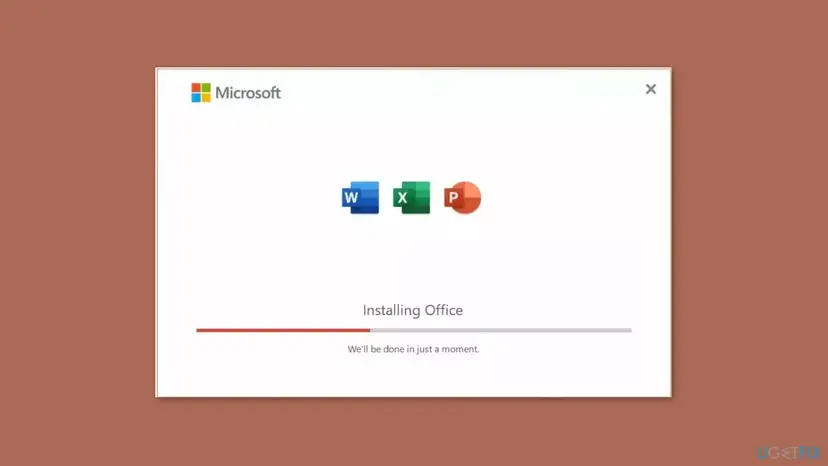
It worked if: The running job ends, and either Office is installed or a new start of setup runs to the end.
If not: If there is no icon, or the job never moves, go to Fix 2.
Fix 2. Restart the PC, check drive C: and the connection, then run setup once
10 minutesNo riskThere is no Office icon next to the clock, or the running job seems stuck.
A restart ends every installer still loaded in memory, including one that crashed. Microsoft lists restart and reinstall as its second step. The same pass covers the two checks the Couldn't install window asks for: free space and the connection.
- Save your work and close all apps.
- Open Settings > Windows Update. If updates are installing, let them finish first.
- Select Start > Power > Restart. Use Restart, not Shut down: with Fast Startup on, a shutdown keeps part of the old session.
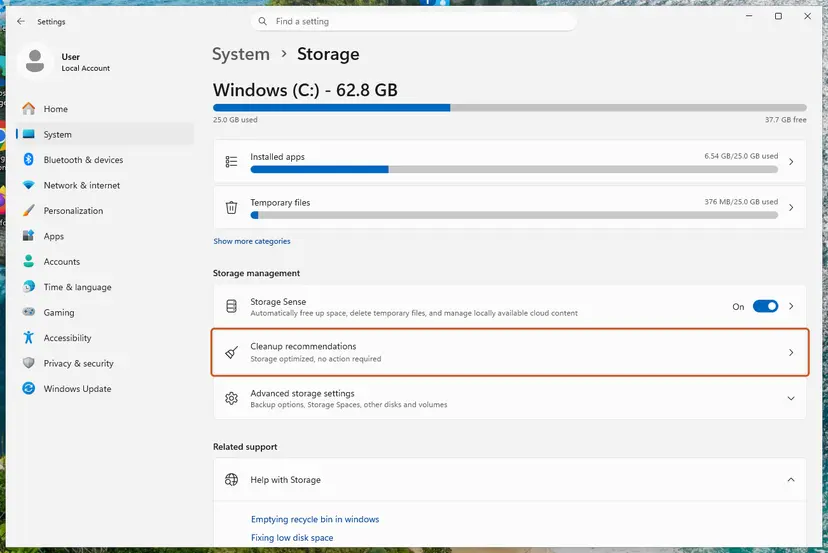
- Open Settings > System > Storage and check the free space on drive C:. Office can only be installed on the system drive, so space on another drive does not help.
- If C: is nearly full, free some space first: Free up disk space and delete temporary files.
- Check that the PC is online. A cable or a home network is safer than public Wi-Fi: How to check your internet connection in Windows.
- Sign in at
m365.cloud.microsoft/appswith the account that owns Office and select Install apps. For a product key or a school copy, use the download link you were given. - Run the downloaded setup file one time, select Yes if User Account Control asks, and wait. The first window can take a minute to appear.
It worked if: Setup runs past the point where it failed and ends with You're all set.
If not: If 0-2031 appears again after a restart, an earlier Office is in the way. Go to Fix 3.
Fix 3. Remove every Office with Microsoft's uninstall troubleshooter, then install again
20 to 40 minutesRead the warningThe error survives a restart, Office was installed on this PC before, or Office apps show errors when they start.
This is Microsoft's third step: clean up any full or partial Office installation. A half-installed Office, a trial or the other bit version keeps the new setup from finishing. Removing all of them gives setup a clean start.
Uninstalling removes the Office apps, not your documents. What you can lose is the way back: note the Microsoft account or the product key that owns your Office before you start. Outlook data stored only on this PC, templates and signatures are worth a copy: Back up your files (Windows Backup, File History, Time Machine).
- Sign in to Windows with an administrator account.
- Open Microsoft's page Uninstall Microsoft 365 or Office from a PC and select the Uninstall button under the uninstall troubleshooter.
- When the browser says This site is trying to open Get Help, select Open.
- Follow the prompts in the Get Help app and restart the PC when you are asked to.
- Open Settings > Apps > Installed apps (Windows 10: Apps & features), type
officein the search box and check that no Microsoft 365 or Office entry is left. - Install Office again as in Fix 2, and choose the same bit version you want to keep (64-bit is the default).

| Your Office | How to remove it |
|---|---|
| Microsoft 365, Office 2021, 2019 or 2016 | The uninstall troubleshooter in Get Help, as above. |
| Office 2024 | Microsoft says the troubleshooter currently cannot uninstall it. Use Control Panel > Programs > Uninstall a program, select the product and Uninstall: Uninstall a program or app in Windows. |
| Two Office versions, or 32-bit and 64-bit mixed | Remove both. Microsoft says you get an error when you install one bit version over the other. |
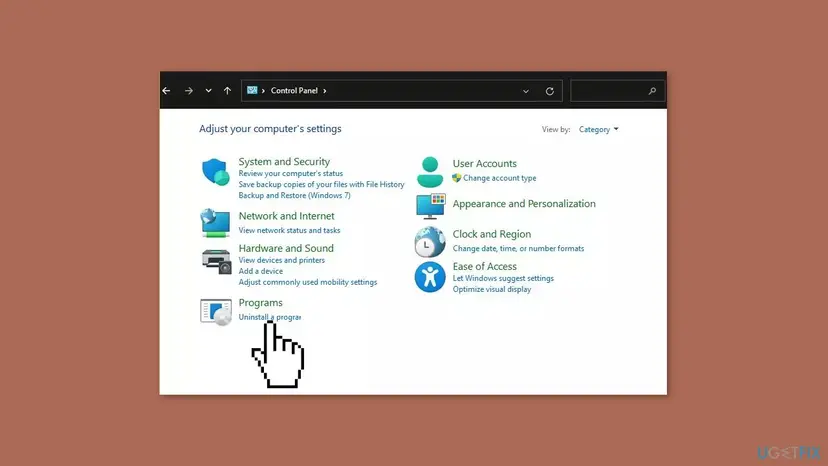
It worked if: No Office entry is left in Installed apps, and the new setup runs through to You're all set.
If not: If setup still fails with 0-2031, the download may be the problem. Go to Fix 4. If the troubleshooter itself failed, go to Fix 6.
Fix 4. Install Office with Microsoft's offline installer
20 to 40 minutesLow riskThe online setup keeps failing, the connection is slow or filtered, or a 30000 code came before 0-2031.
The usual installer streams Office from the internet while it installs, so any break stops it. Microsoft says the offline installer may help bypass proxy, firewall, antivirus or internet connection problems, because the whole of Office is downloaded first.
- Open Microsoft's page Use the Office offline installer and select the tab for your product.
- Follow the download steps there and choose Offline installer and your language.
- Open your Downloads folder and double-click the image file. Windows opens it as a new drive.
- Open the Office folder on that drive.
- Run
Setup64.exefor 64-bit Office orSetup32.exefor 32-bit Office, once. - Sign in to an Office app at the end to activate it.
Keep the image file until Office works. If the offline setup also ends with 0-2031, the cause is on the PC and not in the download: go to Fix 5.
It worked if: The offline setup runs from the mounted drive and ends with You're all set.
If not: If the same error appears, a program on the PC interferes. Go to Fix 5.
Fix 5. Run Office setup in a clean boot, with the antivirus paused for this one test
20 minutes plus restartsLow riskFix 1 to Fix 4 did not help, and other software with its own updater or a third-party security app is installed.
A clean boot starts Windows without third-party services and startup apps, so no other updater or tool can hold or block the installer. On Microsoft Q&A, the user who fixed 0-2031 (17002) paused the antivirus, ran Microsoft's removal tool and then reinstalled.
- Open System Configuration. Select Search on the taskbar, type msconfig and select System Configuration from the results.
- Hide Microsoft services. On the Services tab, select the Hide all Microsoft services check box. Only services from other companies stay in the list.

With Hide all Microsoft services ticked, only third-party services stay in the list. Screenshot: Windows 11 26H2. - Disable the remaining services. Select Disable all, then select Apply.
- Open Task Manager. On the Startup tab of System Configuration, select Open Task Manager.
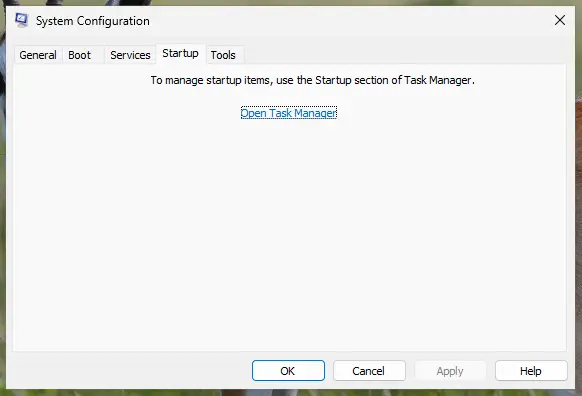
The Startup tab only links to Task Manager. Screenshot: Windows 11 26H2. - Disable the startup apps. On the Startup apps tab in Task Manager, select each item whose status is Enabled and select Disable. Write down or take a screenshot of the items you disable: you need the list to turn them back on.
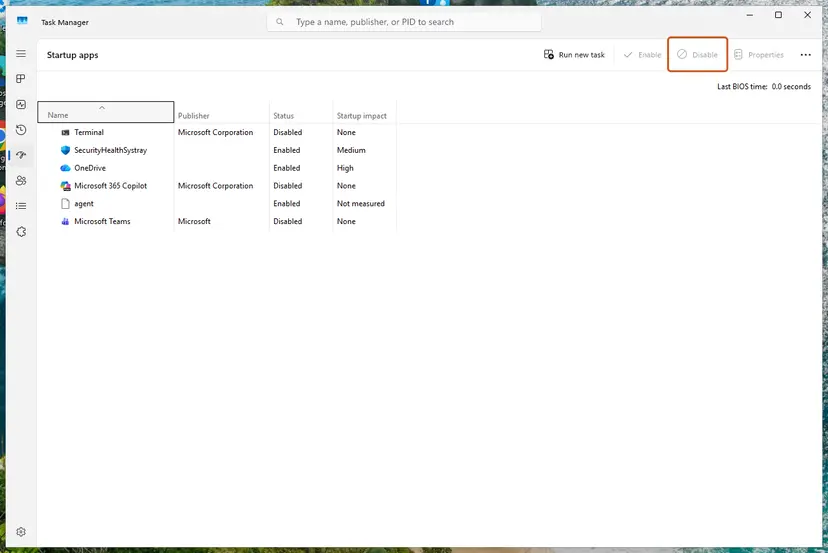
Select an app, then Disable. Screenshot: Windows 11 26H2. - Confirm the changes. Close Task Manager. On the Startup tab of System Configuration, select OK.
- Restart and test. Restart the PC. Windows now starts in a clean boot environment: try again the thing that failed (run the app, install the update, uninstall the program).
These steps were written for Windows 11 25H2 and 26H2. The full page with the other versions and what each result means: How to perform a clean boot in Windows
- Run Office setup once while the PC is in the clean boot. If it installs, the blocker was one of the items you turned off.
- Still failing in the clean boot? Pause the security app for this one installation and run setup again. Step by step: Turn off Microsoft Defender protection for a moment.
- Turn everything back on afterwards. Resume the antivirus as soon as setup ends, and return to normal startup as the clean boot procedure describes.
Never leave the antivirus off. If Office installs only with it paused, keep Office, turn protection back on, and tell the maker of the security app. The fix belongs in its settings, not in a PC without protection.
It worked if: Office setup runs to You're all set, and Office still opens after you return to normal startup with protection on.
If not: If the error also appears in a clean boot, an Office remains that no tool could remove. Go to Fix 6.
Fix 6. Remove a broken Click-to-Run installation by hand
30 minutesRead the warningThe uninstall troubleshooter failed or left Office behind, and setup still ends with 0-2031.
Microsoft's tip for this error: if the troubleshooter does not completely uninstall Office, uninstall it manually. The service, scheduled tasks and folders of Click-to-Run then stop telling setup that an Office is present.
Microsoft calls manual removal a long, complex process, and mistakes can force a reinstall of Windows. Your documents are not in these folders, but copy them anyway: Back up your files (Windows Backup, File History, Time Machine). Before any registry part, export the registry: Back up the registry before editing it.
- Sign in with an administrator account and open Command Prompt with Run as administrator.
- Delete the Office scheduled tasks, one line at a time:
schtasks.exe /delete /tn "\Microsoft\Office\Office Automatic Updates" schtasks.exe /delete /tn "\Microsoft\Office\Office Subscription Maintenance" schtasks.exe /delete /tn "\Microsoft\Office\Office ClickToRun Service Monitor" - In Task Manager (Ctrl + Shift + Esc), end
OfficeClickToRun.exe,OfficeC2RClient.exe,AppVShNotify.exeand anysetup*.exe: Close a frozen app (Task Manager, Force Quit). - Delete the Click-to-Run service:
sc delete ClickToRunSvc - Press Win + R, type
%ProgramFiles%and delete the Microsoft Office 16 and Microsoft Office folders. Do the same in%ProgramFiles(x86)%. - Restart, then run Office setup once.
Microsoft's page goes on with more folders, registry keys and shortcuts. Follow it from Manually uninstall Office if setup still fails. Our guide to error 0-2035, the sibling code on the same Microsoft page, walks through the same removal in more detail.
It worked if: No Office folders, service or tasks are left, and the next setup runs to You're all set.
If not: Collect the setup log described below and contact Microsoft support or your school or company IT with it.
Still getting error 0-2031? Read the setup log and ask the right people
Click-to-Run writes a log for every installation attempt. For installation problems the logs are in your %temp% folder, named after your PC with the date and time, and ending in .log. Logs written by the system account are in %windir%\Temp.
- Run Office setup once more so that a fresh log is written.
- Press Win + R, type
%temp%and press Enter. - Sort the folder by Date modified and open the newest file whose name starts with your PC's name and ends in
.log. - Press Ctrl + F and search for
2031, then forerror. The lines just before the first hit name the step that failed. - Repeat in
%windir%\Tempif%temp%has no new log.
| Your situation | Who can help | What to send |
|---|---|---|
| Microsoft 365 for home or Office bought from Microsoft | Microsoft support | The full error text with the number in brackets, the Office product, your Windows version and the newest log |
| Office from a school or university | Your school's IT service desk | The same, plus the download link you used. |
| Office from a work account or a company PC | Your company IT | The same. Companies often deploy Office with their own tools, and such a job may be the one that blocks setup. |
| Office key bought from a reseller | The reseller first | The order number, the error text and the download link the reseller gave you. |
Microsoft documents no hardware cause for 0-2031. A full drive C: is the one physical limit, and Fix 2 covers it. If every step fails on one PC and works on another with the same account, the cause is in that PC's Windows, not in your licence.
How to avoid error 0-2031 the next time you install Office
- Let Windows and Office updates finish and restart before you install Office.
- Remove a trial or an older Office before you install a new one.
- Pick one bit version, 64-bit or 32-bit, and keep it.
- Keep the PC on and connected until You're all set appears.
- Double-click the installer again because nothing seemed to happen.
- Shut down or unplug the PC during an Office installation or update.
- Install Office on a nearly full drive C:.
- Leave the antivirus off after a test.
Microsoft ended support for Office 2016 and Office 2019 on 14 October 2025, and Windows 10 left support on the same day. Setup of those versions still works, but Microsoft no longer fixes its problems.
Frequently asked questions
What does error code 0-2031 mean in Office?
It means Office setup could not finish the installation. The window says Couldn't install and asks you to check the connection and the free space. Microsoft's help system links 0-2031 to its page about another installation in progress: an Office install, update or uninstall was running, or an earlier Office is left half installed. Let any running Office job finish, restart the PC and run setup once. If it returns, remove every Office with Microsoft's uninstall troubleshooter and install again.
What do 0-2031 (17002), (17000) and (17004) mean?
They are the same error with a different number in brackets. Microsoft maps all of them to the same support page and gives the same three steps: let the running job finish, restart and reinstall, then remove Office with the uninstall troubleshooter. Microsoft does not explain each bracket number. Users report 17002 most often, frequently after a Windows or Office update damaged the existing installation. Treat every variant with the fixes on this page, in order.
What is error code 0-2031 (3221225477) or (3221225725)?
These are 0-2031 with a Windows status code in brackets, written as a decimal number. 3221225477 is 0xC0000005, an access violation, and 3221225725 is 0xC00000FD, a stack overflow. Both mean a setup process crashed. Microsoft sends these variants to the same page as the others, so the fixes do not change. A crash in setup is often caused by a damaged earlier Office or by a program that interferes, which Fix 3 and Fix 5 address.
Is error 2031 the same as 0-2031?
Yes, when it comes from Office setup. People search for error code 2031, 0 2031 and 02031, and Microsoft's own article title uses 17003-2031. All point to the same support page. Check the window, though: a code such as 30015-11 or 30094 shown before 0-2031 is a separate error with its own fixes. Fix that first code if it has its own page, then come back here if 0-2031 stays.
I get error 0-2031 when I install Office 365. Is my subscription the problem?
No. Setup fails while it installs files, before it checks your subscription. Office 365 is now called Microsoft 365, and the fixes are the same for it as for Office 2021 or 2024. Install from the account that owns the subscription at m365.cloud.microsoft/apps. Your subscription stays in your Microsoft account while you remove and reinstall Office, so nothing is lost by following Fix 3.
Does error 0-2031 happen on Windows 11?
Yes. The error comes from Office setup, not from one version of Windows, so it appears on Windows 11 and Windows 10 alike. The steps on this page are written for Windows 11 25H2 and 26H2 and give the Windows 10 names where they differ. Windows 10 left support on 14 October 2025, and the uninstall troubleshooter needs Windows 10 or later.
Can I get error 0-2031 on a Mac?
This page is about Office on Windows. Office for Mac uses a different installer, a package file, and Microsoft's page for 0-2031 lists only Windows Click-to-Run products. If Office setup on a Mac fails, check the message it shows and look for Microsoft's Mac installation help; the Windows steps on this page, such as Get Help and Click-to-Run, do not exist on macOS.
Should I turn off my antivirus to fix 0-2031?
Only for one test, and only after the other fixes. Microsoft says the offline installer can get past antivirus, firewall and proxy problems, so try Fix 4 first. If setup works only with protection paused, pause it for that one installation, turn it back on right after, and ask the security app's maker to fix the conflict. Never leave the PC without protection.
Will reinstalling Office delete my files?
No. Removing Office removes the apps, not the Word, Excel or PowerPoint files you created. Keep a copy anyway of anything stored only on this PC, such as Outlook data files, templates and signatures. Before you uninstall, note the Microsoft account or product key that owns Office, because you need it to install and activate the new copy.
Is there a Spanish guide (solucion) for error 0-2031?
This page is in English. The error and its fixes are the same in every language of Windows and Office: the window shows the same code on its last line. Microsoft has its support article about another installation in progress in Spanish and many other languages, and the steps there match Fix 1 to Fix 3 on this page.
Sources
- Microsoft Support: "...Another installation is in progress..." or error code 0-1018, 17003-2031, or 2035-0 when installing Office (page and its help-link codes for 0-2031) (support.microsoft.com)
- Microsoft Support: Troubleshoot installing Office (system drive, 32-bit and 64-bit, offline installer) (support.microsoft.com)
- Microsoft Q&A: Error code: 0-2031 (17002) (learn.microsoft.com)
Did this fix work?
One click, no account. It tells the next reader which guides are worth their time.
Questions and experiences: fix Microsoft Office error 0-2031 in Windows
Still broken, or found a fix we did not cover? Ask here: members and our editors answer. Reading is open; writing needs a free account.
…