
How to fix Microsoft Office error code 147-0 in Windows

Prefer to fix it yourself? The manual steps follow.
- 6methods
- 5 to 60 minutes
- Easy
Applies to Microsoft 365 apps, Office 2024, 2021, 2019 and 2016 (Click-to-Run installs) on Windows 11 and Windows 10
6 methods in this guide
Every time I open any Office program, be it Word, Excel or Access, I receive error code 147-0. What is this about, and why is it preventing me from using Office? Can it be fixed?
Error 147-0 appears when Word, Excel, Outlook or another Office app refuses to open because Office believes an update, install or removal is still in progress. Restart the PC first. If the message stays, end the stuck Office processes and run Online Repair.
147-0 means Office is waiting for an update, install or removal that never finished. Let any update finish and choose Restart, not Shut down (Fix 1). If the error is still there, end the Office processes in Task Manager (Fix 2), then run Online Repair from Installed apps (Fix 3). A full reinstall is the last step.
| Error | Error Code: 147-0 under the message "We couldn't open Office because we're updating, adding or removing programs. Please try later". |
|---|---|
| Where it appears | When you open Word, Excel, Outlook, PowerPoint or Access. Users report a short "Updating Office, please wait a moment" window first, then the error after a minute or two. |
| Main cause | An Office update, install or removal that stopped halfway, so Office still thinks it is busy changing its own files. |
| Fastest fix | Restart the PC (not Shut down) and wait a few minutes before you open Office (Fix 1). Then end the Office processes and run Online Repair (Fix 2 and 3). |
| Also written as | 147-0, 147 0, error 147, and the window title Unable to start Office. Newer builds name it Microsoft 365 and Office. |
| Affects | Microsoft 365 (Office 365) and Office 2016 to 2024 installed with Click-to-Run, on Windows 11 and Windows 10. Windows 10 left support on 14 October 2025. |
| Microsoft's status | Not listed as a known bug. Microsoft's forum moderators answer it with the same order: end background processes, Online Repair, then uninstall and reinstall the latest version. |
| Your documents | Not affected. Repair and reinstall replace program files only. |
| Time to fix | About 5 minutes for a restart, 20 to 40 minutes for Online Repair, up to an hour for a full reinstall. |
Facts checked on 15 October 2026. Steps written for Windows 11 (25H2 and 26H2) and Windows 10 22H2.
What Microsoft Office error code 147-0 means
Office installs and updates itself through Click-to-Run, a service that changes Office files in the background. While it works, Office will not let its apps open, so they do not use files that are being replaced. Error 147-0 is that lock: Office found an update, install or removal marked as running and refused to start.
The problem is that the lock stays when the job behind it is stuck or was cut off. Readers on Microsoft's forum describe the same error after restarting for two and three days in a row. The message text tells you exactly that, so read it as "an Office change never finished", not as a broken PC.
| What you see | When | What it tells you |
|---|---|---|
| Updating Office, please wait a moment | Right after you open an Office app | Office tried to finish the pending change itself. |
| Unable to start Office with "We couldn't open Office because we're updating, adding or removing programs. Please try later" and Error Code: 147-0 | A minute or two later | The pending change did not finish. The app will not open. |
| "We couldn't open Microsoft 365 and Office because we're updating, adding or removing programs." | Same moment, newer Office builds | The same error with the newer product name. |
| Repair says "We need to close some programs but weren't able to" | When you try Online Repair | An Office process is still holding files. Go to Fix 2 or Fix 5. |
The old version of this page tied 147-0 to user permissions. The sources we read tie it to an Office update or install that did not finish. Running Office as administrator does not remove the lock, so that step is gone.
Why error 147-0 appears, from most to least common
Every cause below leaves Office in the same state: it thinks it is still changing itself. Find the row that matches what happened on your PC and start with its fix.
| Cause | How often | How to tell | Fix |
|---|---|---|---|
| An Office update was still running, or the PC was shut down while it ran. | Most often | The error started right after an update or a restart for updates. | Fix 1 |
| An Office update process hangs in the background. | Often | The error stays after restarts, and Office processes show in Task Manager while no app is open. | Fix 2 |
| The update stopped halfway and left damaged Office files. | Sometimes | Nothing is running, but the error stays. | Fix 3 |
| The Microsoft Office Click-to-Run Service is stopped, disabled or stuck. | Less often | Repair will not open, or stops at once. | Fix 4 |
| Another program keeps Office files open, so repair cannot replace them. | Less often | Repair asks you to close programs even after a restart. | Fix 5 |
| The Office install is broken beyond repair, often after a mix of versions. | Rarely | Online Repair fails or the error returns after it. | Fix 6 |
How to fix Microsoft Office error code 147-0
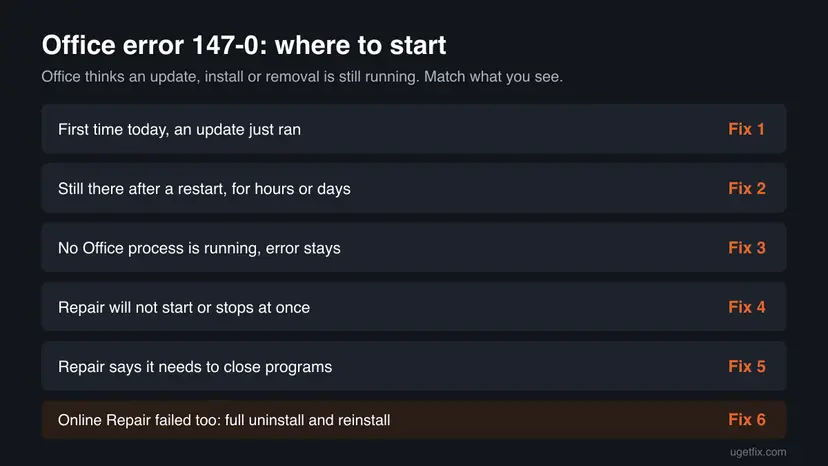
Fixes 1 and 2 clear the stuck update and solve most cases without changing anything. Fix 3 is Microsoft's repair. Fixes 4 and 5 are for a repair that will not run. Fix 6 replaces Office completely.
| What you see or what happened | Start with |
|---|---|
| The error appeared today, right after Office or Windows updated. | Fix 1 |
| The error stays after one or more restarts. | Fix 2 |
| No Office process is running, but the error stays. | Fix 3 |
| The repair window does not open or closes at once. | Fix 4 |
| Repair says "We need to close some programs but weren't able to". | Fix 5 |
| Online Repair failed, or the error comes back after it. | Fix 6 |
Fix 1. Let the update finish, then restart the PC properly
5 to 15 minutesLow riskYou see 147-0 for the first time, often right after Office or Windows installed updates.
The error says an update is in progress, and sometimes it really is. A real restart closes every Office process and lets Click-to-Run finish or drop the job. On Windows 11 and 10, Shut down with Fast Startup keeps part of the old session, while Restart always starts clean.
- Close every Office app, including Outlook and Teams if they are open.
- If you see an Office update window or the Updating Office, please wait a moment window, leave it alone until it closes.
- Open Start, select the power button and choose Restart. Do not use Shut down.
- After you sign in, wait 3 to 5 minutes before you open any Office app, so a pending update can finish in the background.
- Open Word or Excel once. If you see the updating window again, let it run without closing it.
If you always shut down instead of restarting, Fast Startup may keep the stuck state between sessions. You can turn it off: Turn off Fast Startup
It worked if: The Office app opens to its start screen without Error Code: 147-0.
If not: If the error is still there after a restart and a wait, end the stuck Office processes: Fix 2.
Fix 2. End the stuck Office update processes in Task Manager
5 minutesLow riskThe error survives one or more restarts, sometimes for days.
A Microsoft Community moderator answering this exact error suggests opening Task Manager, ending the background processes that are still running, and only then repairing Office. A hung Office update process keeps the lock in place for as long as it runs.
- Close all Office apps and save your work in other programs.
- Press Ctrl + Shift + Esc to open Task Manager on the Processes page.
- Look under Apps and Background processes for entries whose names start with Microsoft Office, Microsoft 365, Word, Excel, Outlook or Microsoft Office Click-to-Run.
- Select each Office entry and choose End task. If Windows refuses for one of them, leave it.
- Wait one minute, then open Word or Excel.
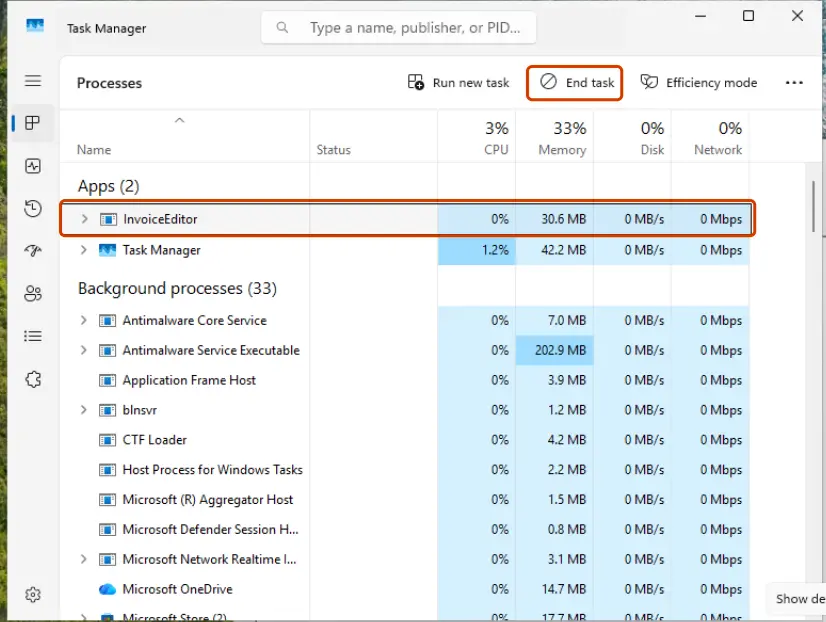
Step by step, with pictures: Close a frozen app (Task Manager, Force Quit)
It worked if: The Updating Office window either finishes quickly or does not appear, and the app opens.
If not: If no Office process was running, or the error came back, repair Office: Fix 3.
Fix 3. Repair Office with Online Repair
20 to 40 minutesLow riskNo Office process is stuck, but 147-0 stays. This is the main fix when Fixes 1 and 2 did not help.
An update that stopped halfway leaves a mix of old and new Office files. Microsoft recommends Online Repair for Click-to-Run installs "to make sure everything gets fixed"; Quick Repair only finds and replaces damaged files. The repair also ends the half-done update.
- Check that the PC is online, close all Office apps and repeat Fix 2 if Office processes are running.
- Right-click Start and select Installed apps (Windows 10: Apps and Features).
- Find your Microsoft 365 or Microsoft Office entry, select the three dots next to it and choose Modify. Select Yes if Windows asks.
- In How would you like to repair your Microsoft 365 and Office programs?, choose Online Repair and select Repair.
- Wait until it finishes, then restart the PC and open the Office app.
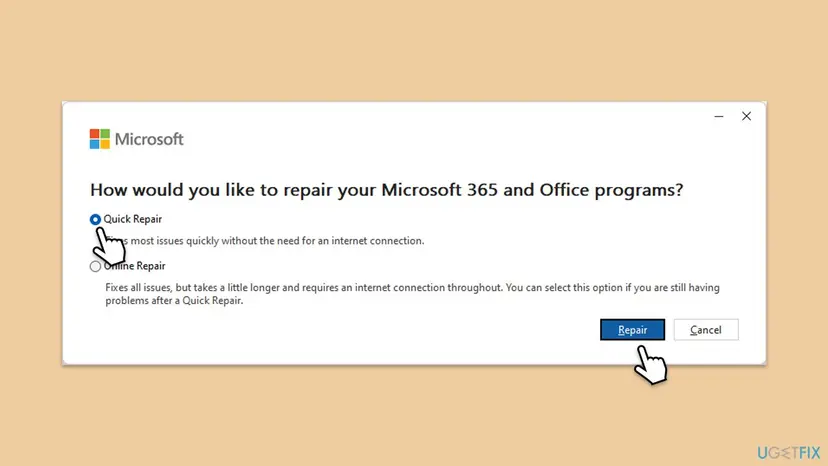
The repair covers the whole Office suite, even if only one app fails. Full steps for both Windows versions: How to repair Microsoft 365 or Office
It worked if: Office opens, may ask you to sign in again, and shows your account under File > Account.
If not: If the repair window does not open, go to Fix 4. If it asks you to close programs it cannot close, go to Fix 5.
Fix 4. Restart the Microsoft Office Click-to-Run Service
5 minutesLow riskThe repair window does not open, closes at once, or a cleanup tool changed your services.
Click-to-Run runs every Office update, install and repair. If its service is stuck, disabled or stopped, the update it started can never end, and repair cannot start either. Restarting it lets Office check its state again.
- Close all Office apps.
- Press Win + R, type
services.mscand press Enter. - Find Microsoft Office Click-to-Run Service and double-click it.
- If Startup type is Disabled, set it to Automatic and select Apply.
- If the service runs, select Stop, wait a few seconds and select Start. If it is stopped, select Start. Then select OK.
- Open the Office app. If it still fails, run Fix 3 now that the service runs.
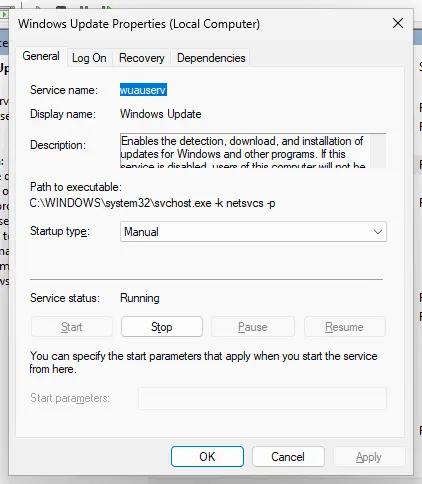
Step by step, with pictures: Check and restart Windows services
It worked if: The service shows Running with startup type Automatic, and Office or its repair window opens.
If not: If the service is missing from the list, Office is only partly installed: go to Fix 6.
Fix 5. Run the repair from a clean boot when it cannot close programs
20 to 45 minutesLow riskOnline Repair says "We need to close some programs but weren't able to", even after a restart.
Users on Microsoft's forum report this exact repair message with 147-0, and a Microsoft agent asked whether the problem also happens in Safe Mode. A clean boot starts Windows without other programs and services, so nothing holds Office files while the repair replaces them.
- Start Windows in a clean boot, with only Microsoft services running: How to perform a clean boot in Windows
- After the restart, check Task Manager once more and end any Office entries (Fix 2).
- Run Online Repair again from Installed apps (Fix 3).
- When the repair finishes, open Word or Excel to test it.
- Undo the clean boot as the procedure describes and restart normally.
A clean boot does not delete programs or files. It only stops them from starting for one session. Remember to switch your services and startup apps back on when Office works again.
It worked if: The repair runs to the end without asking you to close programs, and Office opens.
If not: If the repair still fails, or the error returns after it, reinstall Office: Fix 6.
Fix 6. Uninstall Office completely and install the latest version
30 to 60 minutesLow riskOnline Repair failed, the Click-to-Run service is missing, or 147-0 comes back after every repair.
When the update state itself is broken, only a clean install resets it. The Microsoft moderator's last step for 147-0 is the uninstall tool from Microsoft's Uninstall Office from a PC page, then the latest Office from the Microsoft 365 portal.
- Check that Office is listed on the Microsoft account that bought it, or find your product key, before you remove anything.
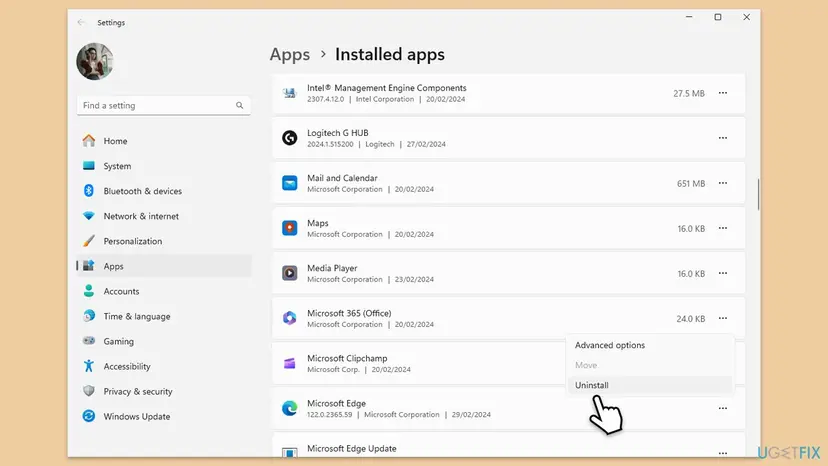
- Right-click Start, select Installed apps, open the three dots next to Microsoft 365 (Office) and choose Uninstall.
- If the normal uninstall fails, open Microsoft's support page Uninstall Office from a PC and run the uninstall tool it offers.
- Restart the PC.
- Sign in at microsoft365.com with the account that owns Office and install it again. Open Word and sign in.
Uninstalling Office removes the programs, not your documents. Files in Documents, Desktop and OneDrive stay. Outlook data stored on a mail server comes back when you sign in again.
It worked if: Office installs without errors, opens, and activates when you sign in with the account that owns it.
If not: If setup itself fails with another code, read the next section and contact Microsoft support with that code.
If Office error 147-0 is still there
When all six fixes failed, collect these facts before you contact Microsoft support or your IT team. They show whether the problem is the Office update, another program or the PC.
| What to check | Where | What it tells you |
|---|---|---|
| Office entries running while no app is open | Task Manager > Processes | An Office process that comes back after End task means an update keeps restarting. |
| Application errors at the minute of the failure | Event Viewer > Windows Logs > Application | Errors from Office, Click-to-Run or a security product name the process that fails. |
| Click-to-Run service state | services.msc | Disabled or missing means Office is only partly installed. |
| Your Office version and the setup error code, if any | Installed apps, or the setup window | Support needs it to compare with known issues. |
| Whether it is a work PC | Your IT team | Company PCs often get Office updates from a central tool. IT may have to finish or cancel the update. |
If the PC is very low on disk space, the update cannot finish and repair fails the same way. Free space first: Free up disk space and delete temporary files. If other programs also fail to start, check the drive: Check a disk for errors (chkdsk).
If the message changes to "Something went wrong" with a code such as 0x2-0x0, Office files are missing rather than locked. See our guide to Microsoft Office error code 0x2-0x0.
How to avoid error 147-0 next time
The error starts when an Office update is cut off, so prevention is about letting updates end.
- Let the Updating Office window finish before you close the app.
- Use Restart after updates, not Shut down.
- Keep at least a few gigabytes free on drive C: for updates.
- Install Office from one source and one version only.
- End Office updates in Task Manager while they show progress.
- Unplug a laptop or hold the power button during an update.
- Let cleaner or tuning tools disable Microsoft services.
- Delete Office folders by hand to fix it.
Frequently asked questions
What is error code 147-0 in Office 365?
It is Office telling you it cannot open because it is busy updating, adding or removing programs. The full message reads "We couldn't open Office because we're updating, adding or removing programs. Please try later". It applies to Microsoft 365, formerly Office 365, and to Office 2016 to 2024 installed with Click-to-Run. In most cases the update behind it is stuck, not running, so a restart and Online Repair fix it.
How long should I wait before I try again?
A real Office update usually finishes within a few minutes after a restart. If the error is still there after you restarted the PC and waited a few minutes, waiting longer rarely helps. A reader on Microsoft's forum saw the error for three days in a row. At that point the update is stuck, and you should end the Office processes (Fix 2) and run Online Repair (Fix 3).
Why do I get error 147-0 in Outlook only?
Outlook, Word and Excel share the same Click-to-Run install, so the lock normally blocks every Office app. If only Outlook shows it, the other apps may simply not have been opened yet. Close Outlook, end any Office entries in Task Manager, and restart. If Outlook still fails while Word opens, run Online Repair, which repairs the whole suite, Outlook included.
Will repairing or reinstalling Office delete my documents or emails?
No. Online Repair and a reinstall replace Office program files only. Documents in Documents, Desktop or OneDrive stay where they are. Email in Microsoft 365, Outlook.com or another server account comes back when you sign in again. Local Outlook data files also stay on the disk. You may need to sign in to Office again, and some app settings can be reset.
Does running Office as administrator fix error 147-0?
Not in the sources we read. The error is a lock set by an unfinished Office update, not a permission problem, and Microsoft's moderators do not suggest it. Running Word as administrator does not end the update behind the lock. Restart the PC, end the Office processes and repair Office instead. The old version of this page listed it first; we dropped it.
Does a Windows update fix error 147-0?
Not directly. The lock belongs to Office's own update system, which runs apart from Windows Update. Restarting after a Windows update can help, because the restart also ends a stuck Office job. Installing more Windows updates while Office is stuck adds nothing. Keep Windows up to date for other reasons, but use Fixes 1 to 3 for this error.
Repair says "We need to close some programs but weren't able to". What now?
An Office process or another program is holding files that the repair must replace. Restart the PC, open Task Manager and end every Office entry (Fix 2), then run Online Repair again. If the same message returns, start Windows in a clean boot and repair from there (Fix 5). As a last step, uninstall Office and install it again (Fix 6).
Is error 147-0 the same as the Unable to start Microsoft 365 and Office error?
Yes. "Unable to start Office" is the title of the window, and newer Office builds use the product name Microsoft 365 and Office in it. The text under it about updating, adding or removing programs and the code 147-0 are the same, and so are the fixes. Searches for "error 147" or "147 0" usually mean this window too.
I searched for error 147 in a game. Is this page for me?
No. This page is about error 147-0 in Microsoft Office on Windows. Games and other programs use their own numbering, and a game's error 147 has nothing to do with Office updates. Search for the game's name together with the code, or check the game publisher's support pages. If Office is what fails on your PC, start with Fix 1 above.
Sources
- Microsoft Support: Repair an Office application (support.microsoft.com)
- Microsoft Q&A: Need help with MS 365 Error Code: 147-0 "Unable to start Office" (learn.microsoft.com)
- Microsoft Q&A: Error 147-0 We couldn't open Microsoft 365 and Office because we're updating, adding or removing programs (learn.microsoft.com)
Did this fix work?
One click, no account. It tells the next reader which guides are worth their time.
Questions and experiences: fix Microsoft Office error code 147-0 in Windows
Still broken, or found a fix we did not cover? Ask here: members and our editors answer. Reading is open; writing needs a free account.
…