
Microsoft AC Adapter driver missing in Windows 11 and 10: how to fix it

Prefer to fix it yourself? The manual steps follow.
- 8methods
- 5 to 45 minutes
- Easy
Applies to Windows laptops and 2-in-1 tablets that run on a battery
8 methods in this guide
Until recently my laptop was working perfectly fine, but after a Windows update it won't power up unless it is connected to the power source. The battery also doesn't seem to charge when the laptop is turned on. I checked Device Manager and found that the AC adapter driver is missing from the list entirely. How do I resolve this?
Microsoft AC Adapter is the Device Manager entry that tells Windows a laptop is plugged in. Its driver comes with Windows, so there is nothing to download: when it is missing, show hidden devices and scan for hardware changes first. If it does not come back, reinstall the battery entries, then check the charger and the BIOS.
Open Device Manager, select View > Show hidden devices, then Action > Scan for hardware changes and restart (Fix 1). Windows installs Microsoft AC Adapter on its own because the driver is built in. If it is still missing, uninstall both entries under Batteries and scan again (Fix 2), do a hard reset (Fix 3) and check in the BIOS that the charger is recognized (Fix 4). Do not download an AC adapter driver from a third-party site.
| Error | No error code: Microsoft AC Adapter is gone from Device Manager > Batteries, has a yellow mark, or the whole Batteries category is missing |
|---|---|
| Where it appears | Device Manager (right-click Start), usually noticed when the laptop will not charge or will not run on battery |
| Main cause | Windows lost track of the device after an update or a driver change, or the firmware stopped reporting the power source, often because of a charger, port or BIOS problem |
| Fastest fix | Scan for hardware changes and restart (Fix 1), then reinstall the two Batteries entries (Fix 2) |
| Also written as | Microsoft AC Adapter driver, AC adapter driver missing, AC adapter not showing in Device Manager, Microsoft AC Adapter driver download |
| Driver file | Built into Windows and installed by the Battery class installer; its hardware ID is ACPI\ACPI0003. Microsoft offers no separate download |
| Affects | Laptops and 2-in-1 tablets on Windows 11 (25H2, 26H2) and Windows 10 22H2. A desktop PC usually has no such entry |
| Vendor status | Not a listed Windows bug. Microsoft's own fix for a laptop that does not detect its power supply is to uninstall the battery device, scan for hardware changes and restart |
| Time to fix | 5 minutes for Fixes 1 and 2, up to 45 minutes with a BIOS update |
| When it is hardware | The BIOS shows the adapter as unknown or with the wrong wattage, or the charging light stays off with every charger |
Facts checked on 15 October 2026. Steps written for Windows 11 (25H2 and 26H2) and Windows 10 22H2.
What Microsoft AC Adapter is in Device Manager
Microsoft AC Adapter is not a driver for the charger brick itself. It is how Windows sees the laptop's power input, as reported by the firmware. It sits under Batteries next to Microsoft ACPI-Compliant Control Method Battery (on a Surface: Surface Battery). Together they tell Windows whether the laptop is plugged in and how full the battery is.
Both drivers ship with Windows. Microsoft's driver documentation says all battery devices belong to the Battery class and that the battery class installer installs their driver. That is why there is no official "Microsoft AC Adapter driver download": when Windows can see the device, it installs the driver by itself.
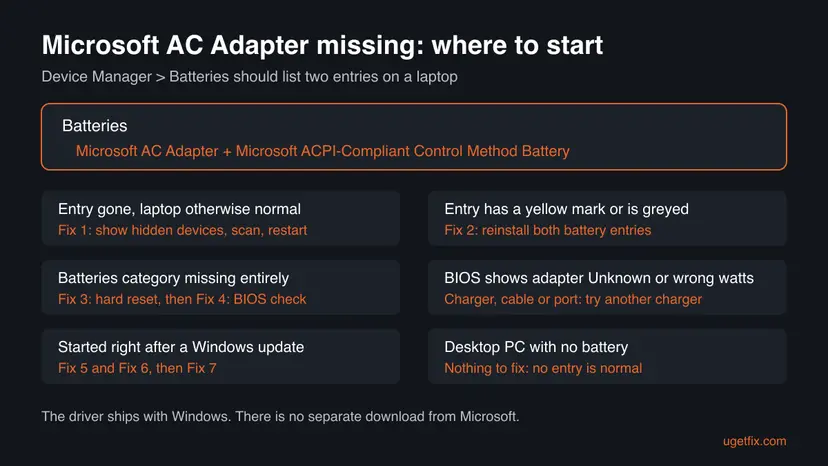
- Device name
- Microsoft AC Adapter
- Category
- Batteries
- Hardware ID
ACPI\ACPI0003(see it in Properties > Details > Hardware Ids)- Driver provider
- Microsoft, delivered with Windows
- Missing on a desktop
- Usually normal: a PC without a battery has nothing to report
Why the AC adapter driver goes missing, from most to least common
Most often the entry is only hidden or was not detected after an update or a driver change, and a scan brings it back. Next comes a battery device that Windows holds in a bad state, which a reinstall clears. Less often the laptop's firmware stops reporting the power source: the embedded controller hangs, the BIOS is old, or the charger or port is faulty so the BIOS does not recognize the adapter.
| Cause | How common | What you see | Fix |
|---|---|---|---|
| Device not detected or hidden after an update or restart | Most common | Only Microsoft AC Adapter is gone, the battery entry is still there | Fix 1 |
| Battery devices stuck in a bad state | Common | Yellow mark, greyed entry or a plug icon that never appears | Fix 2 |
| Embedded controller holding a bad state | Common after a full drain | The whole Batteries category is missing | Fix 3 |
| Charger, cable or port not recognized | Common | BIOS shows the adapter as Unknown or with the wrong wattage | Fix 4 |
| Missing driver or firmware update | Less common | Started on an older laptop, or the maker lists a power fix | Fix 5 and Fix 6 |
| A Windows update or damaged system files | Rare | Started right after an update | Fix 7 and Fix 8 |
How to fix a missing Microsoft AC Adapter driver in Windows
Fix 1 and Fix 2 take five minutes and bring the entry back in most cases. Fix 3 and Fix 4 check the laptop's hardware side. Fixes 5 to 8 update or repair Windows and the firmware, so do them only when the first four did not help.
| What you see | Start with |
|---|---|
| Microsoft AC Adapter gone, the battery entry still listed | Fix 1 |
| A yellow mark or a greyed entry under Batteries | Fix 2 |
| The whole Batteries category is missing on a laptop | Fix 3, then Fix 4 |
| No plug symbol on the battery icon while the charger is connected | Fix 4 |
| It started right after a Windows update | Fix 5, then Fix 7 |
| A desktop PC with no battery | Nothing to fix |
Fix 1. Show hidden devices and scan for hardware changes
3 minutesNo riskEveryone, and first of all readers who still see the battery entry but not Microsoft AC Adapter.
The driver is already on the PC. A scan makes Windows ask the firmware again which devices exist, and when the power source is reported, Windows installs Microsoft AC Adapter on its own.
- Connect the charger.
- Right-click Start and select Device Manager.
- Open the View menu and select Show hidden devices.
- Expand Batteries and look for Microsoft AC Adapter. A faded icon means Windows remembers the device but does not see it now.
- Select the computer name at the top of the list, open the Action menu and select Scan for hardware changes.
- Select Start > Power > Restart. Use Restart, not Shut down.
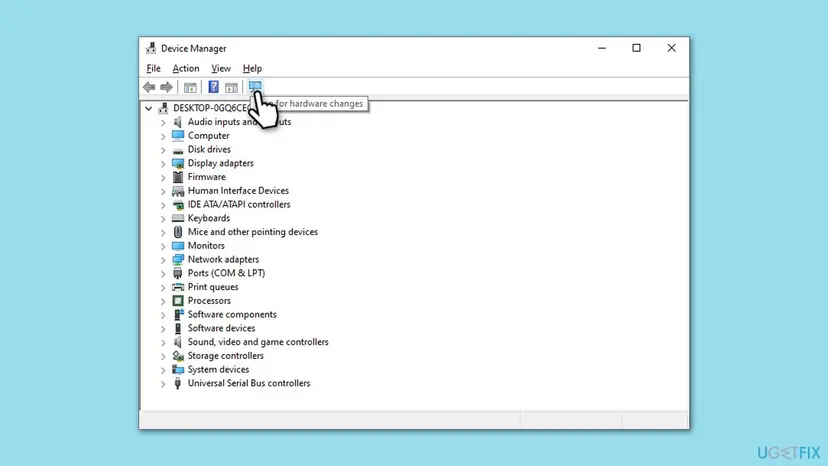
It worked if: Microsoft AC Adapter is listed under Batteries with a normal icon, and the battery icon on the taskbar shows a plug symbol.
If not: If it is still missing or shows a yellow mark, reinstall the battery entries in Fix 2.
Fix 2. Uninstall both battery entries and let Windows add them again
5 minutesLow riskReaders who see a yellow mark or a greyed entry under Batteries, or whose laptop does not show a plug symbol with the charger in.
Microsoft's fix for a laptop that does not detect its power supply is to uninstall the battery device, scan for hardware changes and restart. Doing it for both entries clears a stuck state in either one.
Microsoft warns not to uninstall drivers on a Surface Pro X: the only way to restore them there is a full system reset.
- Keep the charger plugged in.
- Open Device Manager and select the arrow next to Batteries.
- Right-click Microsoft AC Adapter (if listed) and select Uninstall device, then Uninstall.
- Right-click Microsoft ACPI-Compliant Control Method Battery (on a Surface: Surface Battery) and select Uninstall device, then Uninstall.
- Leave Attempt to remove the driver for this device unticked if it is offered.
- Select the computer name at the top, then Action > Scan for hardware changes.
- Select Start > Power > Restart.
Uninstalling removes only the device entries, not the driver. Windows adds both back on the scan or at the restart. For the general steps with screenshots: Update, roll back or reinstall a driver.

It worked if: Both entries are back under Batteries with no yellow mark, and the battery icon says it is plugged in.
If not: If Batteries stays empty or missing, do the hard reset in Fix 3.
Fix 3. Do a hard reset to clear the laptop's power controller
5 minutesNo riskReaders whose whole Batteries category is gone, or whose battery was fully drained before the problem started.
Windows learns about the charger from the laptop's embedded controller. When that controller hangs, Windows has nothing to detect. Cutting all power for a short time lets it start fresh.
- Save your work and select Start > Power > Shut down.
- Unplug the charger and every accessory: dock, USB drives, screen, mouse.
- If the battery is removable, take it out.
- Press and hold the power button for 20 to 30 seconds, then release it.
- Put the battery back if you removed it, and connect only the charger.
- Turn the laptop on and open Device Manager > Batteries.
Some brands use their own steps, such as a reset pinhole on the bottom of the case or a different button hold. Check your laptop's manual if the steps above do not match. Our guide to a laptop battery stuck at 0% lists the steps Microsoft and Dell give.
It worked if: After the start, Batteries lists both entries again and the charging light comes on.
If not: If nothing changes, check whether the BIOS sees the charger in Fix 4.
Fix 4. Check in the BIOS that the charger is recognized
10 minutesLow riskReaders whose battery icon has no plug symbol with the charger in, and anyone whose Batteries entries did not come back.
If the firmware does not see the charger, Windows cannot show Microsoft AC Adapter. Dell notes that an adapter shown as Unknown or with the wrong wattage usually means an incompatible or faulty charger, or a port with a connection issue.
- Plug the charger into a wall outlet, not a power strip or a dock.
- Check that the charging light on the laptop or plug is on. No light means power is not reaching the laptop or the port has failed, Dell says.
- Shut down, press the power button and tap the setup key several times. It is F2 on Dell and often F2, F10, F1 or Del on other brands.
- Open the Overview, Main or Information page and read the AC Adapter line.
- If it says Unknown or the wattage is lower than your manual asks for, try another charger of the right wattage from the laptop maker.
- Change nothing else and select Exit without saving.
Back in Windows, hover over the battery icon on the taskbar. Dell suggests looking for Plugged in or AC adapter connected there. A USB-C phone or tablet charger is often too weak to be recognized as a laptop adapter.
It worked if: The BIOS shows the adapter with the right wattage, and after the start Windows lists Microsoft AC Adapter again.
If not: If the BIOS sees the charger but Windows still does not, install updates in Fix 5. If no charger is recognized, see Still broken below.
Fix 5. Install Windows updates, including optional driver updates
15 minutesLow riskReaders whose problem started after a driver change, or whose laptop has not updated for a while.
Microsoft's fix for a power supply that is not detected pairs the battery driver reinstall with installing updates. The laptop maker often publishes its power and chipset drivers as optional updates.
- Press Win + I and open Windows Update (Windows 10: Update & Security > Windows Update).
- Select Check for updates and install what is offered.
- On Windows 11, open Advanced options > Optional updates. On Windows 10, select View optional updates.
- Expand Driver updates, tick the ones from your laptop maker and select Download & install.
- Restart and check Device Manager > Batteries.
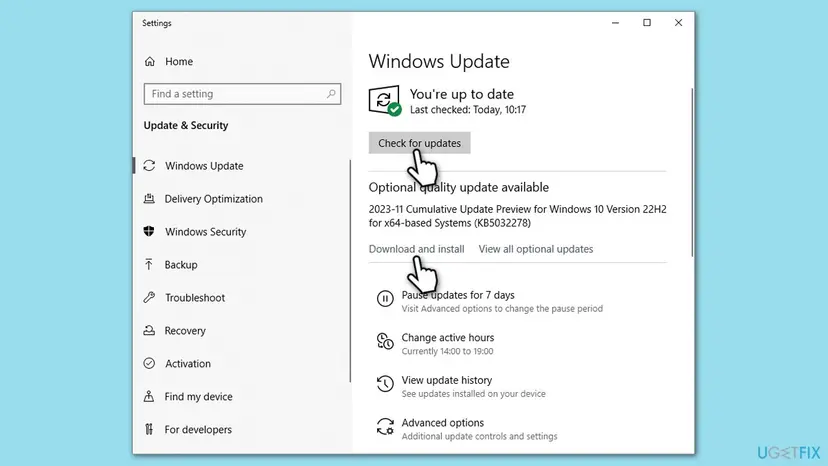
It worked if: Updates install, and after the restart Microsoft AC Adapter is listed again.
If not: If no driver updates are offered, get them from the laptop maker in Fix 6.
Fix 6. Update the BIOS, chipset and Intel Management Engine drivers from the laptop maker
30 minutesRead the warningReaders whose BIOS sees the charger but Windows does not, and owners of laptops with old firmware.
The firmware reports the power source to Windows. Dell notes that the Intel Management Engine Interface helps manage power delivery on Intel laptops and that an outdated version can cause charging problems.
- Press Win + R, type
msinfo32and press Enter. - Note the System Manufacturer, System Model and BIOS Version/Date.
- Open the support page for that exact model on the maker's website, or use the maker's update app.
- Install the newest chipset and power management packages for your Windows version.
- On Intel laptops, open Device Manager > System devices, right-click Intel Management Engine Interface, select Update driver and then Search automatically for drivers.
- If a newer BIOS is listed, read its notes and install it with the charger plugged in.
- Restart and check Device Manager > Batteries.
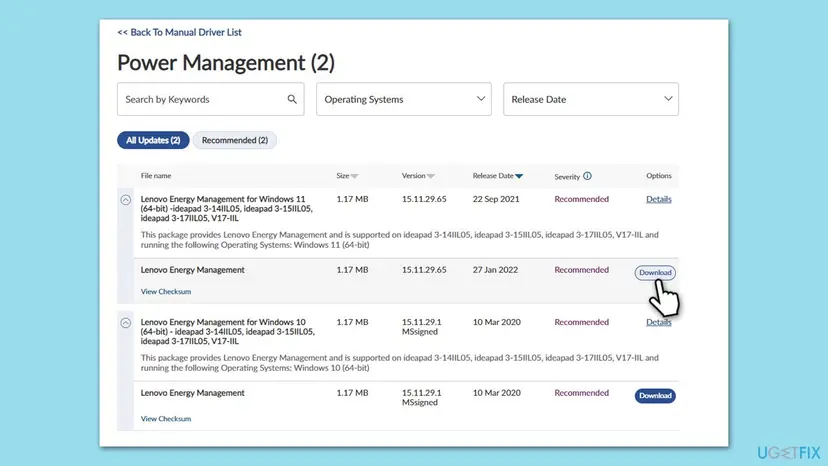
Keep the charger plugged in and do not turn the laptop off during a BIOS update. A power cut can leave the laptop unable to start. Back up important files first with Back up your files (Windows Backup, File History, Time Machine), and know where your BitLocker recovery key is if the PC uses one.
Get drivers only from the laptop maker or Windows Update. The maker's support page has no file called "Microsoft AC Adapter driver", because that driver comes from Windows itself.
It worked if: After the updates and a restart, Microsoft AC Adapter is listed and the battery icon shows the plug symbol.
If not: If it started after a Windows update, try Fix 7.
Fix 7. Uninstall the latest Windows update or use System Restore
15 minutesLow riskReaders whose AC adapter entry disappeared right after Windows installed updates, like in the question above.
An update can replace drivers that change how the power source is read. Removing it for a test shows whether it is the cause. If you have a restore point from before the problem, System Restore undoes the driver changes as well.
- Open Windows Update. Select Start > Settings > Windows Update.
- Open the update history. Under More options, select Update history. Note the KB number and the date of the update you suspect.
- Open the list of removable updates. Scroll down to Related settings and select Uninstall updates.
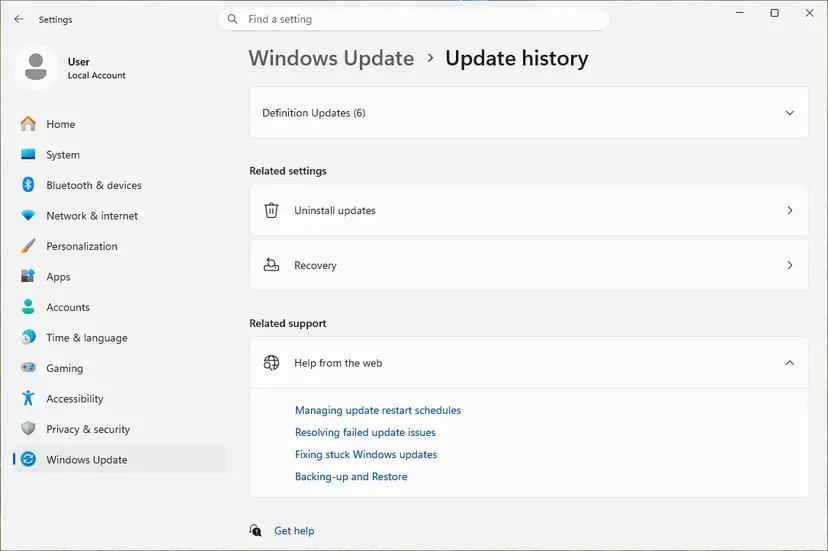
Uninstall updates is under Related settings. Screenshot: Windows 11 26H2. - Uninstall the update. Find the update in the list and select Uninstall next to it. If the update is not in the list, Windows does not allow it to be removed this way.
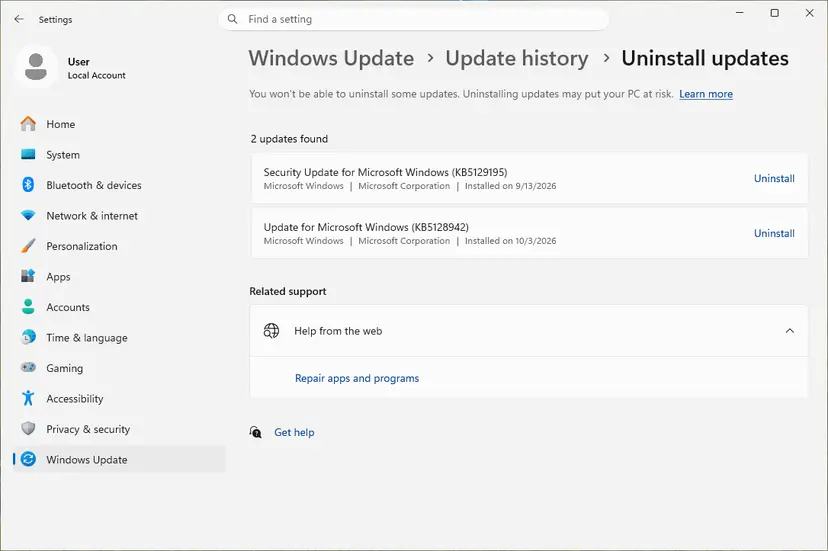
Each removable update has its own Uninstall link. Screenshot: Windows 11 26H2. - Pause updates. Go back to Settings > Windows Update and select Pick a date on the Pause updates control. If your PC shows a list there instead, select the pause length you prefer. Without a pause Windows downloads the same update again.
These steps were written for Windows 11 25H2 and 26H2. The full page with the other versions and what each result means: How to uninstall a Windows update
If removing the update does not help and a restore point exists from before the problem, roll back with Undo recent changes with System Restore. Removing an update also removes its security fixes, so check the laptop maker's site for new drivers before you let it install again.
It worked if: After the restart, Microsoft AC Adapter is back under Batteries.
If not: If neither helps, repair the system files in Fix 8.
Fix 8. Repair Windows system files with SFC and DISM
20 minutesNo riskReaders who tried Fixes 1 to 7 and whose BIOS does see the charger.
If the built-in driver files or the driver store are damaged, Windows cannot install the device even when it detects it. SFC and DISM restore those files from Microsoft's copy.
- Open an elevated command window. Right-click Start and select Terminal (Admin), or type cmd in the search box, right-click Command Prompt and select Run as administrator. Select Yes when Windows asks for permission.

Search for cmd and choose Run as administrator. Screenshot: Windows 11 26H2. - Run DISM first. Type the command below and press Enter. DISM downloads clean copies of damaged components from Windows Update, so it can take several minutes. Wait until it says The operation completed successfully.
DISM.exe /Online /Cleanup-Image /RestoreHealth
DISM /RestoreHealth running. Screenshot: Windows 11 26H2. - Run System File Checker. In the same window, type the command below and press Enter. Do not close the window until the verification reaches 100%.
sfc /scannow
sfc /scannow at 100%. Screenshot: Windows 11 26H2. - Read the result and restart. Compare the last message with the table below this guide, then restart the PC so that repaired files are loaded.

The result line tells you what SFC did. Screenshot: Windows 11 26H2.
These steps were written for Windows 11 24H2 and 25H2. The full page with the other versions and what each result means: Run DISM and SFC to repair Windows system files
After the scan, open Device Manager once more and run Action > Scan for hardware changes, as in Fix 1.
It worked if: SFC reports that it repaired files or found no integrity violations, and the scan in Device Manager adds Microsoft AC Adapter.
If not: If it is still missing, see Still broken below.
Microsoft AC Adapter still missing: when it is the charger or the laptop
If the BIOS does not recognize any charger, Windows cannot either, and no driver will help. The cause is then hardware: the charger, its cable, the charging port or the charging circuit on the board.
- No charging light with any charger: power does not reach the laptop. The port or the board needs a repair.
- BIOS shows Unknown with the original charger: the charger or its cable is faulty, or the port has a loose connection. Try a second original charger.
- The laptop turns off when unplugged: the battery is empty, worn out or disconnected. Run
powercfg /batteryreport, as in our battery stuck at 0% guide. - The BIOS sees the charger and Windows still does not: reinstall Windows while keeping your files with Reinstall Windows without losing files. If the entry is still missing, it is a firmware problem for the laptop maker.
Give the laptop model and serial number, the BIOS version from msinfo32, what the BIOS says on the AC Adapter line, the charger's wattage, whether the charging light comes on, and whether the laptop runs on battery when unplugged.
How to keep the AC adapter driver from going missing again
- Use the charger that came with the laptop, or one of the same wattage from the maker.
- Install the maker's BIOS and chipset updates from its support page.
- Restart, not only shut down, after driver or Windows updates.
- Create a restore point before a big driver or firmware change.
- Download a "Microsoft AC Adapter driver" from a driver site or a video description.
- Uninstall drivers on a Surface Pro X.
- Leave the laptop fully drained for weeks.
- Use a driver cleaner that removes Microsoft's own drivers.
Windows 10 left support on 14 October 2025. Every fix here still works on Windows 10 22H2, but a laptop that stays on it gets no new driver fixes through Windows Update.
Frequently asked questions
What is Microsoft AC Adapter in Device Manager?
It is the entry Windows uses for the laptop's power input. The firmware reports whether a charger is connected, and Windows shows that as Microsoft AC Adapter under Batteries, next to Microsoft ACPI-Compliant Control Method Battery. It does not control the charger and does not charge the battery itself. Windows uses it to know when the laptop is plugged in, which drives the plug symbol on the battery icon and the plugged-in power settings.
Where can I download the Microsoft AC Adapter driver for Windows 11?
There is no separate download, and you do not need one. The driver is part of Windows 11 and Windows 10, and the battery class installer adds it as soon as Windows sees the device. To get it back, open Device Manager, run Action > Scan for hardware changes and restart (Fix 1). A site that offers a "Microsoft AC Adapter driver download" is not Microsoft, and its file may be outdated or unsafe.
Is there a Microsoft AC Adapter driver download for Windows 10?
No. Windows 10 has the driver built in, just like Windows 11. If the entry is missing, run a hardware scan and restart (Fix 1), reinstall the battery entries (Fix 2) and install optional driver updates from Windows Update (Fix 5). Your laptop maker's support page has chipset, power management and BIOS packages that help Windows detect the device, but no file named after the Microsoft driver.
How do I install the Microsoft AC Adapter driver?
Let Windows install it. Plug in the charger, open Device Manager, select View > Show hidden devices, then Action > Scan for hardware changes, and restart. Windows adds Microsoft AC Adapter under Batteries when the firmware reports the power source. If it does not appear, uninstall both battery entries and scan again (Fix 2). Then check in the BIOS that the charger is recognized (Fix 4).
What happens if I uninstall Microsoft AC Adapter?
Windows removes the device entry and, until it adds it back, may not know that the charger is connected. The battery icon can lose its plug symbol and plugged-in power settings may not apply. Charging is run by the laptop's hardware, so it usually continues. Windows adds the entry back on the next hardware scan or restart. On a Surface Pro X, Microsoft warns not to uninstall drivers, because only a full reset restores them.
Can I uninstall Microsoft AC Adapter safely?
Yes, on most laptops, as a repair step. Uninstalling it is part of Fix 2, and Windows reinstalls it on its own after a scan or a restart. Do not tick Attempt to remove the driver for this device, and do not do it on a Surface Pro X. There is no benefit in leaving it uninstalled: it uses no noticeable resources and Windows needs it to see the charger.
Why is the AC adapter driver missing after a Windows update?
Most often Windows did not detect the device again after the update's restart, and a hardware scan brings it back (Fix 1). Less often the update changed a driver that the laptop's power reporting depends on. Install optional driver updates (Fix 5) and the maker's chipset and BIOS updates (Fix 6). If it is still missing, uninstall the update or use System Restore (Fix 7).
Why does my laptop not charge when the AC adapter driver is missing?
The missing entry and the charging problem usually share one cause: the laptop's firmware is not reporting a working charger. Check the charging light and the AC Adapter line in the BIOS (Fix 4). If the BIOS shows Unknown or the wrong wattage, the charger, cable or port is at fault. If the BIOS sees the charger, a hard reset (Fix 3) and the battery entry reinstall (Fix 2) usually restore both.
Why is there no Microsoft AC Adapter on my desktop PC?
That is normal. A desktop without a battery has no power source for Windows to report, so most desktops show no Batteries category at all. Only laptops, 2-in-1 tablets and some all-in-one PCs with a battery list Microsoft AC Adapter. There is nothing to fix on a desktop unless it really has a built-in battery or a UPS that reports to Windows.
What does "Connect an AC adapter to start downloading data" mean?
That message is about a different thing: some apps and devices refuse to download a large update while running on battery. Plug in the charger and start the download again. This page is about the Microsoft AC Adapter entry in Device Manager. If the message stays while the charger is connected, Windows may not see the charger: check that Microsoft AC Adapter is listed and use Fix 1 to Fix 4. We could not confirm which app shows this exact text.
Sources
- Microsoft Support: Surface battery won't charge or Surface won't run on battery (support.microsoft.com)
- Microsoft Learn: Install a battery driver (learn.microsoft.com)
- Dell Support: How to Troubleshoot Dell Laptop Battery Issues (dell.com)
Did this fix work?
One click, no account. It tells the next reader which guides are worth their time.
Questions and experiences: Microsoft AC Adapter driver missing in Windows 11 and 10: how to fix it
Still broken, or found a fix we did not cover? Ask here: members and our editors answer. Reading is open; writing needs a free account.
…