
How to fix mso.dll missing or not found error in Windows?

Prefer to fix it yourself? The manual steps follow.
- 7methods
- 5 to 40 minutes
- Easy
Applies to Word, Excel, Outlook, PowerPoint, Access and Publisher in Microsoft 365 and Office 2016 to 2024, and older Office 2010 and 2013 installations
7 methods in this guide
Hi, I keep getting Office app crashes and it indicates an mso.dll file every time. How do I resolve this?
mso.dll is the shared library that every Microsoft Office app loads, so an mso.dll error means Office itself, not Windows, is broken or blocked. When the app crashes, an add-in is the most common trigger; start it in Office Safe Mode. When it will not start, repair Office.
Hold Ctrl while you open the app, or run winword /safe, excel /safe or outlook /safe. If it works in Office Safe Mode, an add-in is the cause: turn add-ins off one by one (Fix 1). If the app will not start at all or says mso.dll was not found, repair Office from Installed apps > Modify > Online Repair (Fix 2). Never download mso.dll from a DLL site.
| Error | Mso.dll Not Found, Cannot find [PATH]\Mso.dll, or an Office app that closes with Faulting module name: mso.dll in Event Viewer. |
|---|---|
| Where it appears | When Word, Excel, Outlook, PowerPoint or Access starts, saves a file or closes. The crash variant shows only in Event Viewer > Windows Logs > Application, Event ID 1000. |
| Main cause | For crashes: an add-in or a damaged Office installation. For "not found": a damaged, half-removed or mixed Office installation. |
| Fastest fix | Office Safe Mode and add-ins for crashes (Fix 1). Online Repair of Office for a missing file (Fix 2). |
| Also written as | mso dll error, mso.dll missing, mso.dll crash, mso9.dll (Office 2000), msointl.dll missing (the language file of Office). |
| Where the file is | C:\Program Files\Common Files\Microsoft Shared\OFFICE16\mso.dll for Office 2016 to 2024 and Microsoft 365. 32-bit Office uses Program Files (x86). |
| Microsoft's status | No Microsoft page covers mso.dll by name. Microsoft's general advice for an Office app that crashes or will not start is Office Safe Mode, then repair (checked 16 October 2026). |
| Time to fix | 5 minutes for Safe Mode and add-ins. 10 to 30 minutes for Online Repair, which downloads Office again. |
Facts checked on 16 October 2026. Steps written for Microsoft 365, Office 2024, 2021, 2019 and 2016 on Windows 11 (25H2 and 26H2) and Windows 10 22H2, read against Microsoft Support pages and Microsoft Q&A cases.
What the mso.dll error means and how it shows up
mso.dll is the Microsoft Office shared library. Word, Excel, Outlook, PowerPoint, Access and Publisher all load it for the ribbon, file dialogs, spelling, add-ins and other common parts. It belongs to Office, not to Windows, and it is not stored in System32.
Because every Office app depends on it, mso.dll is named in two quite different problems. Tell them apart first, because the fix is different.
| What you see | What it means | Start with |
|---|---|---|
| This application failed to start because Mso.dll was not found. Re-installing the application may fix this problem. | Office cannot load the file at all. The installation is damaged, half removed or mixed with another Office. | Fix 2 |
| Cannot find [PATH]\Mso.dll or Mso.dll Not Found | The same, the path shows which Office folder is expected. | Fix 2 |
| The app closes, and Event Viewer shows Faulting module name: mso.dll with Exception code: 0xc0000005 | The file is there, but the app crashed while running code inside it. Something loaded into Office, most often an add-in, or a damaged setting sent it bad data. | Fix 1 |
| Outlook closes when you send mail, or Excel closes on Save As, always naming mso.dll | A crash at one action, usually an add-in hooked into that action. | Fix 1, then Fix 3 |
This application failed to start because Mso.dll was not found. Re-installing the application may fix this problem.
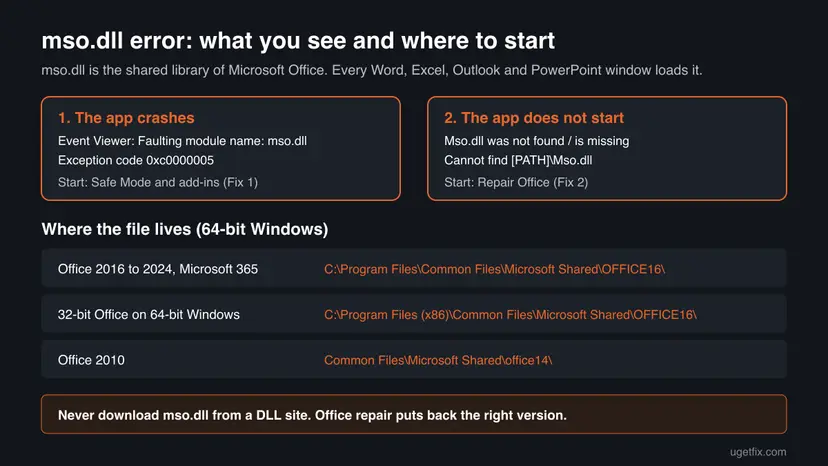
DLL download sites offer single copies of mso.dll. An Office build expects the mso.dll of the exact same version, and a file from such a site can be the wrong version or carry malware. Office repair puts back the right file for your build.
What causes mso.dll errors, from the most common to the rare
Microsoft publishes no list of causes for mso.dll. The order below comes from Microsoft's advice for Office apps that crash or will not start and from the cases users posted on Microsoft Q&A. It is an order of likelihood, not a statistic.
| How often | Cause | Typical sign | Fix |
|---|---|---|---|
| Most often | An add-in or extension loaded into Office (PDF tools, CRM, antivirus mail scanners, old plug-ins) | The app works in Office Safe Mode but crashes normally. | Fix 1 |
| Often | Damaged Office program files, for example after an interrupted update | "Not found" messages, or every Office app crashes. | Fix 2 |
| Less often | A leftover plug-in program or an Office feature that conflicts | Repair finishes, but the crash stays. | Fix 3 |
| Less often | Office set to run in compatibility mode for an older Windows | Started after a Windows upgrade or after trying old compatibility settings. | Fix 4 |
| Rarely | A damaged Windows user profile or Office settings in it | Office works for another user on the same PC. | Fix 5 |
| Rarely | Two Office versions on one PC, or a broken earlier removal | Two Office entries in Installed apps, or repair fails. | Fix 6 |
| Rarely | Damaged Windows files, malware or failing memory | Other programs crash too. | Fix 7 |
The old advice to re-register mso.dll with regsvr32 has no Microsoft source behind it, and Office repair already restores its registration. We left it out.
mso.dll location: where the file is for each Office version
Crash reports name the full path in the line Faulting module path. Use it to see which Office the crash belongs to. The folder name carries the Office version number, not the year.
| Office version | Folder of mso.dll | Note |
|---|---|---|
| Microsoft 365, Office 2024, 2021, 2019, 2016 (64-bit) | C:\Program Files\Common Files\Microsoft Shared\OFFICE16\ | All of them are version 16. |
| Same versions, 32-bit Office on 64-bit Windows | C:\Program Files (x86)\Common Files\Microsoft Shared\OFFICE16\ | Check which edition you have in File > Account > About. |
| Office 2010 | C:\Program Files\Common Files\Microsoft Shared\office14\ | Out of support since 13 October 2020. |
| Office 2000 | The file is called mso9.dll | Out of support for many years; repair cannot fetch it online. |
Do not copy mso.dll between these folders or between PCs. The file must match the build of the rest of Office, and only setup or repair keeps them in step. If the folder is empty or missing, Office is damaged and Fix 2 or Fix 6 rebuilds it.
How to fix the mso.dll error in Word, Excel and Outlook
Fix 1 and Fix 2 solve most cases. Fix 1 is for crashes, Fix 2 for a missing file and for crashes that Fix 1 did not explain. Fix 3 to Fix 6 deal with conflicts, settings and a broken installation. Fix 7 is a general Windows check for the rare case where other programs fail too.
| What you see or have | Start with |
|---|---|
| An Office app closes, Event Viewer names mso.dll | Fix 1 |
| Mso.dll was not found or Cannot find [PATH]\Mso.dll | Fix 2 |
| Repair finished, but one app still crashes at the same action | Fix 3 |
| It started after a Windows upgrade or after changing compatibility settings | Fix 4 |
| Office works for another Windows user on the same PC | Fix 5 |
| Two Office versions are installed, or repair fails | Fix 6 |
| Other programs crash too, not only Office | Fix 7 |
Fix 1. Start the app in Office Safe Mode and turn off add-ins
5 to 15 minutesLow riskWord, Excel, Outlook or PowerPoint crashes and Event Viewer names mso.dll as the faulting module.
Microsoft says Office Safe Mode helps find an add-in or extension that causes a problem. Safe Mode skips add-ins and customizations, so if the crash stops there, something loaded into Office, not mso.dll itself, is the cause.
- Close the Office app completely.
- Press Win + R, type
winword /safefor Word,excel /safefor Excel,outlook /safefor Outlook orpowerpnt /safefor PowerPoint, and select OK. - Or hold Ctrl while you open the app's shortcut and select Yes when it asks about Safe Mode.
- Do what made the app crash before: open the file, save, send the mail.
- If there is no crash, close the app, start it normally and open File > Options > Add-ins.
- At the bottom, set Manage to COM Add-ins and select Go.
- Clear the check box of one add-in, select OK and test. Repeat until the crash stops.
- Leave the guilty add-in off, then update or remove it.
When an app could not start, Office may turn off a part of it by itself. Microsoft calls this automated safe mode. To see what was turned off, open File > Options > Add-ins, set Manage to Disabled Items and select Go.
For Outlook, test sending mail in outlook /safe. Users on Microsoft Q&A report that crashes when sending often come from mail add-ins, such as scanners and CRM connectors. Safe Mode does not save templates or preferences, so close it and start normally when you are done.
It worked if: The app opens and the action that used to crash works with the add-in turned off.
If not: If the app also crashes in Safe Mode or does not start at all, repair Office with Fix 2.
Fix 2. Repair Office with Quick Repair, then Online Repair
10 to 30 minutesLow riskMso.dll was not found, or every Office app crashes, or Safe Mode did not help.
Repair checks every Office file, mso.dll included, against your installed build and replaces damaged or missing ones. Microsoft notes it repairs the whole suite, even if only Word or Excel fails, and recommends Online Repair to make sure everything gets fixed.
- Open Installed apps. Right-click the Start button and select Installed apps.
- Find Microsoft 365 or Office. Find your Microsoft 365 or Office product in the list. If you have a standalone app such as Visio or Project, search for it by its own name.
- Open the repair window. Select the three dots next to the product and select Modify.
- Start with Quick Repair. In the repair window, select Quick Repair, then Repair. It is the faster option: it finds damaged files and replaces them.
- Finish and test. Follow the instructions on the screen until the repair is done. Restart the PC if you are asked to, then open the app that had the problem.
- Run Online Repair if the problem is still there. Open the same repair window again and select Online Repair, then Repair. Microsoft recommends this option to make sure everything gets fixed. It takes longer than Quick Repair.
These steps were written for Windows 11 25H2 and 26H2. The full page with the other versions and what each result means: How to repair Microsoft 365 or Office
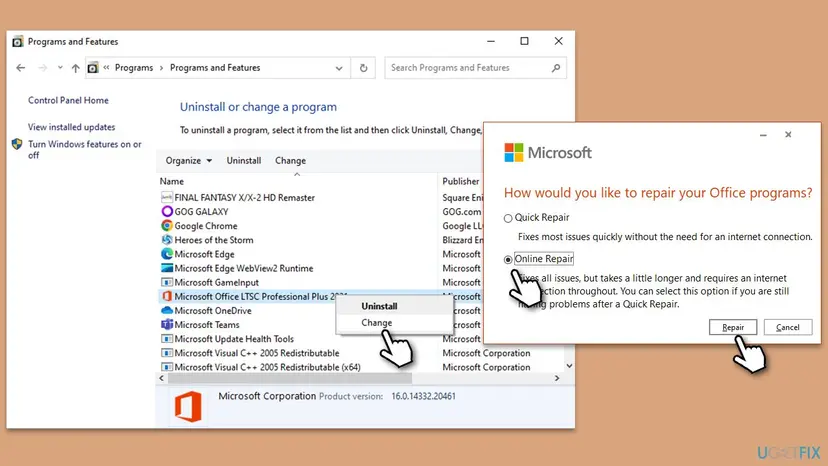
- Click-to-Run Office (Microsoft 365, Office 2019 to 2024 for home): choose Quick Repair first. If the error comes back, choose Online Repair, which needs an internet connection and takes longer.
- MSI Office (volume editions of Office 2016 and older): the window is called Change your installation. Select Repair and Continue.
- Restart the PC when the repair asks, then open the app that failed.
It worked if: The repair ends without an error and the app opens without the mso.dll message or crash.
If not: If the same app still crashes at the same action, look for a leftover plug-in with Fix 3.
Fix 3. Remove old Office plug-ins and change the installed Office features
15 minutesLow riskRepair finished, but Excel, Word or Outlook still crashes with mso.dll at the same action.
One user on Microsoft Q&A found that repair did not stop an Excel crash in mso.dll. Removing an old plug-in program and removing one Office feature (Publisher) did. Repair replaces files but leaves installed plug-ins and the chosen features alone.
- Open Settings > Apps > Installed apps (Windows 10: Apps & features).
- Look for programs that add to Office: PDF printers, toolbars, CRM or mail plug-ins, old conference tools.
- Uninstall those you no longer use: Uninstall a program or app in Windows.
- For MSI Office only: open Control Panel > Programs and Features, select Office and Change, then Add or Remove Features.
- Set a feature you do not use, such as Publisher, to Not Available, select Continue and restart the PC.
Click-to-Run Office has no Add or Remove Features choice in this window. There, removing the plug-in programs is the part that applies.
It worked if: The crash no longer happens after the restart, and the apps you use still work.
If not: If nothing changed, check the compatibility settings of the app with Fix 4.
Fix 4. Turn off compatibility mode for the Office app
5 minutesNo riskOffice was set to run for an older Windows, or the error started right after a Windows upgrade.
Compatibility mode makes Windows pretend to be an older version for that program. Current Office is built for Windows 11 and 10, and running it as if on Windows 8 or 7 can make it load its libraries wrongly.
- Open Start, type the app name, for example
Word, right-click it and select Open file location. - Right-click the app's shortcut and select Properties.
- Open the Compatibility tab.
- Clear Run this program in compatibility mode for and any other ticked box there.
- Select Apply and OK, then open the app.
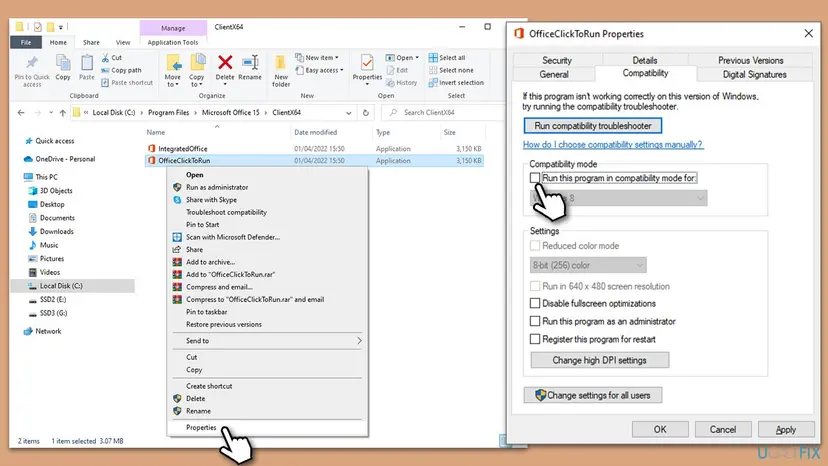
The tab and its options are explained in How to run a program as administrator or in compatibility mode. Here you only clear them; do not turn compatibility mode on for Office.
It worked if: The Compatibility tab shows no ticked boxes and the app starts without the error.
If not: If nothing was ticked or the error stays, test another Windows user with Fix 5.
Fix 5. Test Office in a new Windows user account
15 minutesLow riskOffice crashes for you, but you suspect it would work for someone else on the same PC.
Office keeps add-ins, templates and settings per user. An answer on the Microsoft Q&A mso.dll thread suggests a new Windows user account to rule out a damaged profile. If Office works there, the problem is in your profile, not in mso.dll.
- Create a new local account: Create a new user account to test a problem.
- Sign out and sign in to the new account.
- Open the Office app that crashed and do the same action.
- If it works, return to your account and move your files and settings over, or keep removing add-ins and templates in your own profile.
It worked if: Office works in the new account, which shows the cause is in your user profile.
If not: If Office also crashes in the new account, reinstall it with Fix 6.
Fix 6. Uninstall Office completely and install one version again
30 to 40 minutesRead the warningRepair fails, two Office versions are on the PC, or an earlier removal stopped halfway.
When two Office versions share the same Microsoft Shared folder, or an old removal left half of one behind, each can load the other's mso.dll. A clean removal and one fresh installation leaves a single matching set of files.
Uninstalling removes the Office apps, not your documents. Keep your product key or the Microsoft account that owns Office. Back up custom templates, macros and Outlook data files first: Back up your files (Windows Backup, File History, Time Machine).
- Open Settings > Apps > Installed apps and search for
officeand365. - If two Office versions are listed, decide which one you keep.
- Uninstall every Office entry: Uninstall a program or app in Windows.
- Restart the PC.
- Sign in at your Microsoft account page and install Office again, or run the setup of your licensed version.

It worked if: Installed apps lists only one Office, and the apps open without the mso.dll error.
If not: If an Office entry refuses to uninstall, or new installs crash too, check Windows itself with Fix 7.
Fix 7. Check Windows: system files and a malware scan
30 to 45 minutesNo riskOther programs crash too, or the Office installation and repair both fail.
SFC and DISM repair Windows files that Office relies on, not mso.dll itself, and a malware scan rules out a file that was changed or blocked. Both are general checks, so they come last.
- Repair Windows system files: Run DISM and SFC to repair Windows system files.
- Restart the PC.
- Run a full scan with Microsoft Defender: How to scan for malware with Microsoft Defender.
- Repair Office again with Fix 2 after the scans.
It worked if: SFC reports no integrity violations or repaired them, the scan finds nothing, and Office opens.
If not: Read the crash details in Event Viewer as shown below and check the memory if many programs crash.
If the mso.dll error comes back: read the crash in Event Viewer
Each Office crash writes an entry with the faulting application, the faulting module and its path. That is where searches like faulting module path: c:\program files\common files\microsoft shared\office16\mso.dll come from.
- Press Win + R, type
eventvwr.mscand press Enter. - Open Windows Logs > Application.
- Select Filter Current Log, type
1000in the event ID box and select OK. - Open the entry from the time of the crash, with source Application Error.
- Note Faulting application name, Faulting module name with its version, and Exception code.
- Exception code 0xc0000005 is an access violation: code inside mso.dll read memory it should not. It points to bad data, often from an add-in, not to a missing file.
- A module version older than the app's version means the Office files are out of step. Run Online Repair (Fix 2).
- What to send to Microsoft support: the event text, your Office version from File > Account, and what you did when it crashed.
- When it is hardware: many unrelated programs crash at random times, also with other modules. Test the memory: How to test your RAM with Windows Memory Diagnostic.
How to keep mso.dll errors from coming back
- Keep Office updated from File > Account > Update Options.
- Install add-ins only from their maker and remove those you stop using.
- Keep one Office version on a PC.
- Restart after an Office update before you open large files.
- Download mso.dll or any Office DLL from a DLL site.
- Copy mso.dll from another PC or another Office folder.
- Run Office in compatibility mode for an older Windows.
- Stop an Office update or repair halfway.
Office 2016 and Office 2019 left support on 14 October 2025, and Windows 10 did the same day. They still run, but they get no fixes for new crash bugs. A supported Office on Windows 11 gets those fixes through Update Options.
Frequently asked questions
What is mso.dll?
mso.dll is the Microsoft Office shared library. Word, Excel, Outlook, PowerPoint, Access and Publisher all load it for shared parts such as the ribbon, file dialogs, spelling and add-in support. It is installed by Office in the Microsoft Shared folder under Common Files, not by Windows. A crash report that names it tells you Office crashed, but not why. The cause is usually an add-in or a damaged Office installation.
Where is mso.dll located?
For Microsoft 365 and Office 2016 to 2024 on 64-bit Windows, it is in C:\Program Files\Common Files\Microsoft Shared\OFFICE16. A 32-bit Office uses the same path under Program Files (x86). Office 2010 keeps it in the office14 folder. If the file is missing from your Office folder, repair Office instead of copying it from somewhere else, because it must match the exact build of the rest of Office.
Can I download mso.dll and put it in the folder?
Do not do that. An Office build expects the mso.dll of exactly the same version, so a file from a DLL site rarely matches and can make crashes worse. Such files can also carry malware. Repairing Office downloads or restores the correct file for your installation in a few minutes. If repair fails, uninstall Office and install it again from your Microsoft account.
Why does Outlook crash with an mso.dll error?
Most often an Outlook add-in, such as a mail scanner, a CRM connector or an old meeting plug-in, crashes inside mso.dll when you send or open mail. Start Outlook with outlook /safe from Win + R. If it works there, turn off COM add-ins one at a time in File, Options, Add-ins. If Outlook also crashes in Safe Mode, run Online Repair of Office.
Why does mso.dll use high CPU?
mso.dll does not run on its own, so Task Manager shows the Office app, not the DLL. Because so many shared features live in mso.dll, a busy Office app often spends its time there. High CPU in an Office app usually comes from an add-in, a large file with live calculations, or a background Office task. Test the app in Safe Mode first. For the Office SDX Helper process, see our guide to Microsoft Office SDX Helper high CPU.
What does msointl.dll missing mean?
msointl.dll is the language resource file of Office. It holds the interface text for a language, so it sits next to the language pack rather than in the shared folder. When it is missing, usually after a language pack was removed or an update stopped halfway, the app shows an error at start. The fix is the same as for mso.dll: run Online Repair of Office, and if you removed a language, add it back from Office language settings.
What is mso9.dll?
mso9.dll is the shared library of Office 2000, the ninth version of Office. It is named in errors only on PCs that still run Office 2000 or an old program that installed parts of it. That Office is far past its end of support and cannot be repaired online. The practical fix is to install a current Office. Do not download mso9.dll from a DLL site.
Does SFC repair mso.dll?
No. System File Checker repairs protected Windows files, and mso.dll belongs to Office, not to Windows. SFC and DISM help only when Windows itself is damaged, for example when other programs crash too. For mso.dll, use Office repair: Installed apps, then Microsoft 365 or Office, then Modify, then Quick Repair or Online Repair. That is the tool that checks and replaces Office files.
Does re-registering mso.dll with regsvr32 fix the error?
We found no Microsoft source that recommends it, and it is not needed. Office setup and repair register what Office needs. If regsvr32 reports that the module could not be loaded or that the entry point was not found, that does not mean Office is broken. Use Office Safe Mode for crashes and Office repair for a missing file instead.
Is the mso.dll error a sign of a virus?
Rarely. In almost all reported cases the cause is an add-in or a damaged Office installation. Malware can damage or replace DLL files, so if Office repair keeps failing, or other programs also behave oddly, run a full scan with Microsoft Defender. A real risk comes from DLL download sites: a downloaded mso.dll is a much more likely way to get malware than the error itself.
Sources
- Microsoft Support: Repair an Office application (support.microsoft.com)
- Microsoft Support: Open Office apps in safe mode on a Windows PC (support.microsoft.com)
- Microsoft Q&A: Excel crashes with Faulting module name: mso.dll (event log and user answers) (learn.microsoft.com)
Did this fix work?
One click, no account. It tells the next reader which guides are worth their time.
Questions and experiences: fix mso.dll missing or not found error in Windows
Still broken, or found a fix we did not cover? Ask here: members and our editors answer. Reading is open; writing needs a free account.
…