
How to fix mso20win32client.dll Bad Image error in Windows?

Prefer to fix it yourself? The manual steps follow.
- 8methods
- 10 minutes to 1 hour
- Easy to medium
Applies to Microsoft 365 and Office 2016, 2019, 2021 and 2024 on Windows 11 and Windows 10: the Bad Image window naming mso20win32client.dll and app crashes with mso20win32client.dll as the faulting module
8 methods in this guide
Every time I attempt to open an MS Office app, be it Outlook, Word, or Excel, I always get a Bad Image error saying that mso20win32client.dll was not designed to run on Windows or it contains an error. How do I fix this?
mso20win32client.dll is a shared Microsoft Office file, so the Bad Image window (Error status 0xc000012f) and the Outlook or Excel crashes that name it are Office problems, not Windows ones. Start with an Office repair: Quick Repair, then Online Repair. If the crashes began after an Office update, update again or go back one build.
mso20win32client.dll belongs to Office, so repair Office first (Fix 1): Installed apps, your Microsoft 365 or Office entry, Modify, Quick Repair, and Online Repair if that is not enough. If Outlook or Excel started crashing after an Office update, install the newest build (Fix 2) or go back to the previous one (Fix 3). Never download the DLL from a DLL site.
| Error | "C:\Program Files (x86)\Common Files\Microsoft Shared\Office16\mso20win32client.dll is either not designed to run on Windows or it contains an error", Error status 0xc000012f. Or an app crash with mso20win32client.dll as the faulting module. |
|---|---|
| Where it appears | A Bad Image window titled OUTLOOK.EXE, WINWORD.EXE or EXCEL.EXE when you open an Office app. The crash version shows no window: the app closes and Event Viewer logs it. |
| Main cause | A damaged or mismatched Office installation. Less often a faulty Office build, a broken Outlook profile after switching back from the new Outlook, or damaged Windows files. |
| Fastest fix | Repair Office: Quick Repair, then Online Repair (Fix 1). It replaces Office's own files, which SFC does not check. |
| Also written as | mso20win32client, mso20win32client dll, mso20win32client.dll error, mso20win32client.dll crash, Outlook or Excel crash with mso20win32client.dll |
| File location | C:\Program Files\Common Files\Microsoft Shared\Office16 (64-bit Office) or C:\Program Files (x86)\Common Files\Microsoft Shared\Office16 (32-bit Office on 64-bit Windows) |
| Affects | Office versions that use the Office16 folder: Microsoft 365 Apps and Office 2016, 2019, 2021 and 2024, on Windows 11 and Windows 10. Windows 10 left support on 14 October 2025. |
| Vendor status | No general known issue for the Bad Image window. In January 2025 Microsoft confirmed Microsoft 365 apps crashing on Windows Server 2016 (MO978220); the event log named mso20win32client.dll and a rollback to the previous build helped. |
| Time to fix | 10 to 30 minutes for a Quick or Online Repair. 30 to 60 minutes for a full removal and reinstall of Office. |
Facts checked on 15 October 2026. Steps written for Windows 11 (25H2 and 26H2) and Windows 10 22H2.
What the mso20win32client.dll error means
mso20win32client.dll is a library that Word, Excel, Outlook, PowerPoint and the other Office apps load when they start. It sits in Office's shared folder, not in C:\Windows\System32, and it is installed and updated by Office itself. People search for it in two situations that look different but have the same owner.
Message 1: the Bad Image window (as the old version of this guide recorded it)
OUTLOOK.EXE - Bad Image
C:\Program Files (x86)\Common Files\Microsoft Shared\Office16\mso20win32client.dll is either not designed to run on Windows or it contains an error.
Try installing the program again using the original installation media or contact your system administrator or the software vendor for support.
Error status 0xc000012f.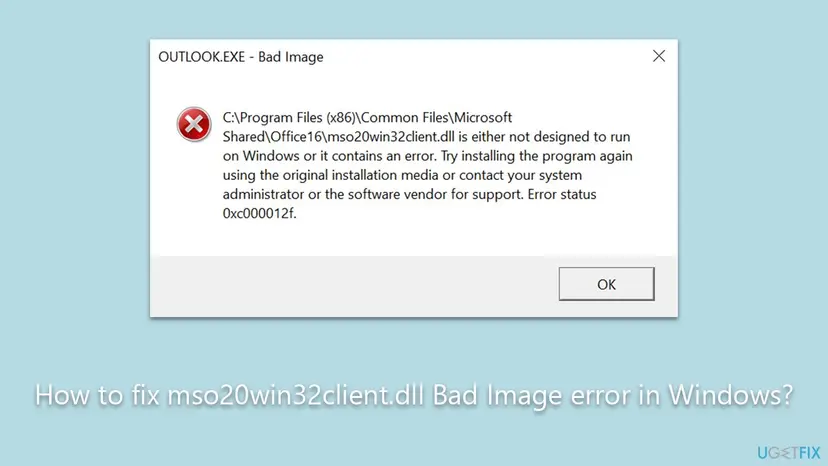
| What you see | What it means | Start with |
|---|---|---|
| A Bad Image window naming mso20win32client.dll, ending with Error status 0xc000012f | Windows found the file but refused to load it: its content is damaged or does not match what the app expects. Status 0xc000012f is the generic "bad image" code. | Fix 1 |
| Outlook or Excel closes with no window; Event Viewer shows an Application Error with Faulting module name: mso20win32client.dll | The app loaded the file and then crashed inside it. The file may be fine; something it works with is broken, or the Office build has a bug. | Fix 2 or Fix 3 |
| Outlook (classic) crashes even in safe mode, right after you tried the new Outlook and switched back | A user report on Microsoft Q&A: the problem sat in the Windows user profile, not in Office. | Fix 4 |
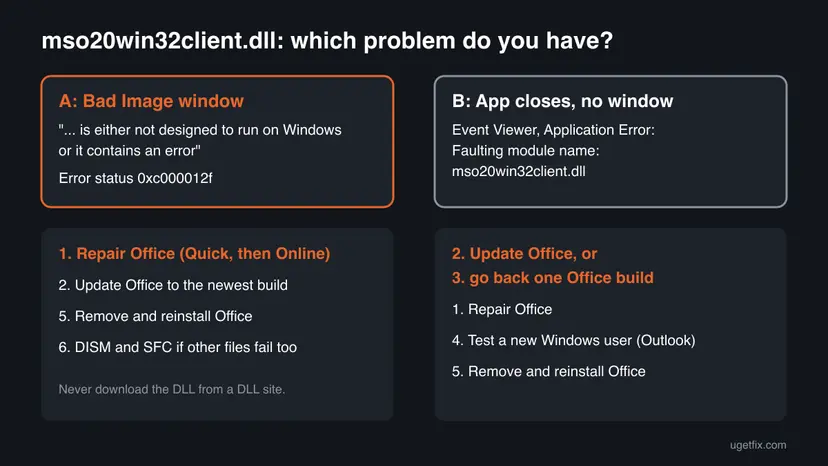
To read the crash version, press Win + R, type eventvwr.msc and open Windows Logs > Application. Look for an Error with source Application Error at the time the app closed. The lines Faulting application name and Faulting module path tell you which app crashed and where mso20win32client.dll lives, for example C:\Program Files\Common Files\Microsoft Shared\Office16\mso20win32client.dll.
What causes the mso20win32client.dll error, from most to least common
Most often the Office installation is damaged: an interrupted update, a disk error or a cleanup tool left mso20win32client.dll or a file next to it broken. Less often a new Office build crashes on your setup, or an Outlook profile is broken. Rarely Windows itself is damaged.
| Cause | How often | How to tell | Fix |
|---|---|---|---|
| Damaged or incomplete Office files | Most often | Bad Image window in every Office app, Error status 0xc000012f | Fix 1, Fix 5 |
| A faulty Office build after an automatic update | Often | Crashes began on a known day; Event Viewer names mso20win32client.dll; other PCs on the same build crash too | Fix 2, Fix 3 |
| A broken Windows user profile or Outlook data in it | Sometimes | Only Outlook crashes, even in safe mode; repair and reinstall change nothing | Fix 4 |
| A leftover of an older Office version or a half-removed one | Sometimes | Two Office entries in Installed apps, or the repair fails | Fix 5 |
| Damaged Windows files or a bad Windows update | Rarely | Bad Image windows also name files in C:\Windows\System32 | Fix 6, Fix 7, Fix 8 |
- Why SFC alone rarely helps. System File Checker repairs protected Windows files. mso20win32client.dll is an Office file, so only the Office repair or a reinstall replaces it.
- Why graphics drivers are not on the list. The old version of this page told readers to update drivers. Nothing ties this Office file to a driver, so that step is gone.
- Why not copy the file from another PC. Users on forums report copying mso20win32client.dll from a working machine. It must match your exact Office build, and the Office repair puts back the right one for you.
A single file from a download site may be from another Office build, may be unsigned, and may carry malware. Office checks and replaces its own files during a repair, which is the safe way to get a correct copy.
How to fix the mso20win32client.dll error in Windows
Fix 1 helps most readers with the Bad Image window. Fix 2 and Fix 3 are for crashes that began after an Office update. Fix 4 is for Outlook only. Fix 5 to Fix 8 are for the cases the first fixes do not solve.
| What you see or what your PC has | Start with |
|---|---|
| Bad Image window, mso20win32client.dll, Error status 0xc000012f, in every Office app | Fix 1 |
| Outlook or Excel closes on its own and Event Viewer names mso20win32client.dll | Fix 2 |
| The crashes started right after Office updated itself | Fix 3 |
| Only Outlook (classic) crashes, even in safe mode, after you tried the new Outlook | Fix 4 |
| The Office repair fails or the window comes back | Fix 5 |
| Bad Image windows also name files in C:\Windows\System32 | Fix 6 |
| The error started right after a Windows update | Fix 7 or Fix 8 |
Fix 1. Repair Microsoft 365 or Office with Quick Repair, then Online Repair
10 to 30 minutesLow riskYou see the Bad Image window naming mso20win32client.dll in Outlook, Word or Excel. This is the first fix for nearly everyone.
mso20win32client.dll is one of Office's own files. Microsoft's repair checks the Office installation and replaces damaged files, and Online Repair reinstalls Office's program files completely, so the DLL comes back in the version that matches your build.
- Open Installed apps. Right-click the Start button and select Installed apps.
- Find Microsoft 365 or Office. Find your Microsoft 365 or Office product in the list. If you have a standalone app such as Visio or Project, search for it by its own name.
- Open the repair window. Select the three dots next to the product and select Modify.
- Start with Quick Repair. In the repair window, select Quick Repair, then Repair. It is the faster option: it finds damaged files and replaces them.
- Finish and test. Follow the instructions on the screen until the repair is done. Restart the PC if you are asked to, then open the app that had the problem.
- Run Online Repair if the problem is still there. Open the same repair window again and select Online Repair, then Repair. Microsoft recommends this option to make sure everything gets fixed. It takes longer than Quick Repair.
These steps were written for Windows 11 25H2 and 26H2. The full page with the other versions and what each result means: How to repair Microsoft 365 or Office
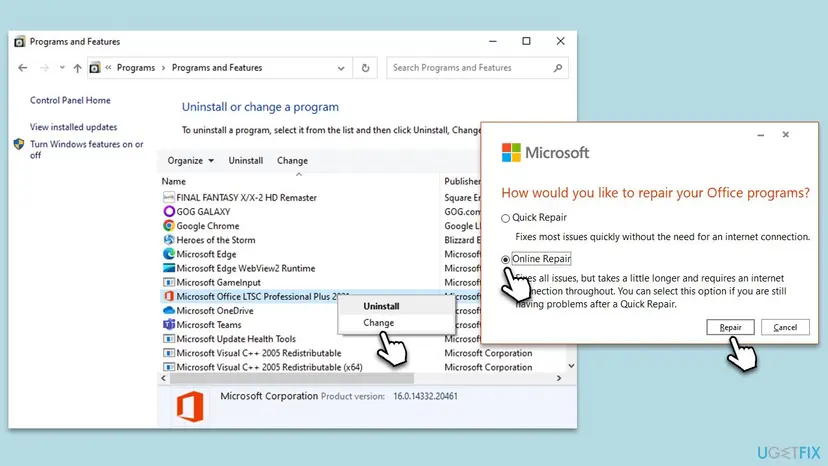
Microsoft describes Quick Repair as faster, but it only detects and replaces corrupted files. Online Repair takes longer and needs the internet the whole time, and Microsoft recommends it "to make sure everything gets fixed". If the Bad Image window survives a Quick Repair, run the Online Repair.
It worked if: The repair window reports that it finished, and Outlook, Word and Excel open without the Bad Image window.
If not: If the window stays after an Online Repair, remove and reinstall Office with Fix 5. If the apps now open but crash later, go to Fix 2.
Fix 2. Update Office to the newest build
5 to 15 minutesNo riskThe apps open but crash, Event Viewer names mso20win32client.dll, or Office has not updated for a while.
A crash inside mso20win32client.dll is often a bug of one Office build. Microsoft fixes such bugs in later builds, and an update also replaces the DLL and the files it works with as one matching set.
- Open any Office app that still starts, for example Word, and open a blank document.
- Select File > Account (in Outlook: File > Office Account).
- Under Product Information, select Update Options > Update Now.
- Wait until Office reports You're up to date!, then close all Office apps.
- Open the app that crashed and use it as before.
If Update Options is missing or shows only About Updates, your organisation manages Office updates. Ask IT which build is approved and whether a fixed one is on its way.
It worked if: Office shows a newer version number under About, and the app no longer closes on its own.
If not: If the crashes began with the newest build, go back one build with Fix 3.
Fix 3. Go back to the previous Office build if an update started the crashes
15 to 30 minutesRead the warningOffice updated itself and the crashes started right after it, on one PC or on many with the same build.
In January 2025 Microsoft 365 build 16.0.18324.20168 crashed Outlook and Excel on Windows Server 2016 terminal servers, with mso20win32client.dll as the faulting module. Microsoft confirmed it under MO978220, and administrators reported that returning to build 16.0.18227.20162 stopped the crashes.
Going back removes the security fixes of the newer build. Use it as a stopgap only, and let Office update again once Microsoft ships a fixed build. Your documents and mail are not changed by the rollback.
- In Word, open File > Account > About Word and note your current Version and Build.
- Find the build released before yours on Microsoft's update history page for Microsoft 365 Apps, for your update channel.
- Close all Office apps.
- Type
cmdin Windows search, right-click Command Prompt and select Run as administrator. - Run the Click-to-Run client with the previous build number. This is the command from the January 2025 case; replace the number with yours:
"C:\Program Files\Common Files\Microsoft Shared\ClickToRun\OfficeC2RClient.exe" /update user updatetoversion=16.0.18227.20162 - Let the Office update window finish, then open the app that crashed.
- To stop Office installing the faulty build again at once, select File > Account > Update Options > Disable Updates, and turn updates back on with Enable Updates within a few weeks.
It worked if: About Word shows the older build, and Outlook or Excel no longer crash.
If not: If the command returns at once and nothing happens, check the build number and that you are on Click-to-Run Office. If the crashes stay on the older build, the update was not the cause: try Fix 4 or Fix 5.
Fix 4. Test Outlook in a new Windows user account
10 to 20 minutesLow riskOnly Outlook (classic) crashes, even in safe mode, and repairing or reinstalling Office changed nothing. One trigger users report is switching to the new Outlook and back.
A reader on Microsoft Q&A had this exact case on Windows 11. An independent advisor answered that it was tied to the Windows user profile, because Office files are shared by all users but each profile keeps its own Outlook settings and cache.
- Open Other users. Open Settings > Accounts > Other users. You can also press Windows key + R and run the command below.
ms-settings:otherusers - Add an account. Next to Add other user, select Add account.
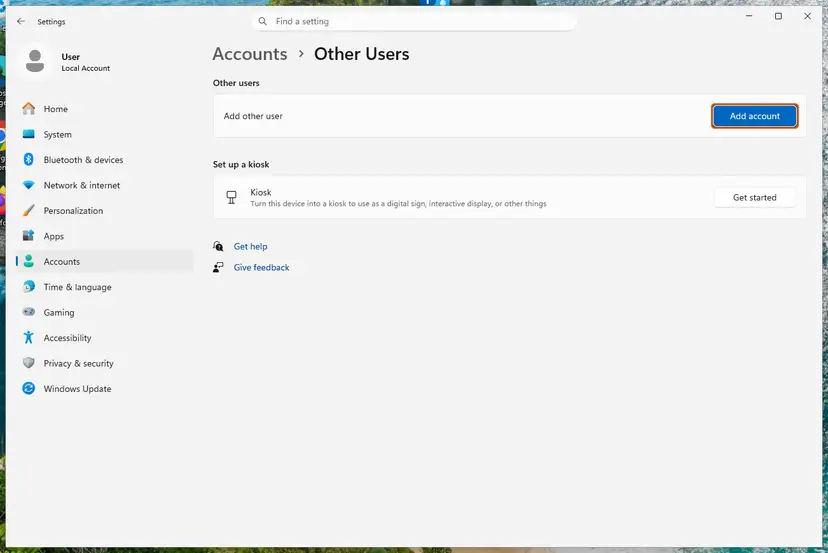
Add account is next to Add other user. Screenshot: Windows 11 26H2. - Skip the Microsoft account. Select I don't have this person's sign-in information.
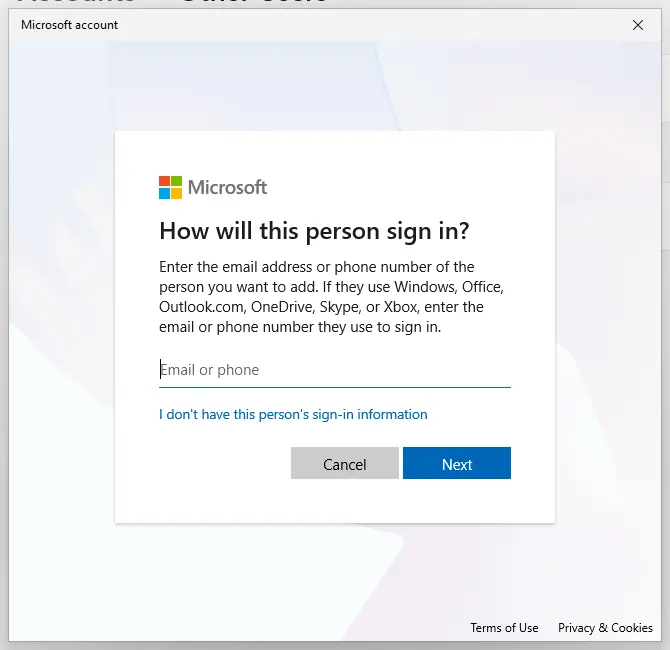
The link for a local account is under the email box. Screenshot: Windows 11 26H2. - Choose a local account. Select Add a user without a Microsoft account.
- Name the account. Type a user name and, if you want one, a password. If you set a password, Windows also asks for answers to security questions. Select Next.
- Make it an administrator (optional). Back in Other users, select the new account, then Change account type next to Account options. Choose Administrator and select OK. For testing a problem, a standard account is usually enough.
- Sign in to the new account. Open Start, select your account picture and choose the new account. The first sign-in takes a few minutes while Windows sets up the profile.
These steps were written for Windows 11 24H2, 25H2 and 26H2. The full page with the other versions and what each result means: Create a new user account to test a problem
- Sign in to the new account and open Outlook (classic).
- Add your mail account when Outlook asks for it.
- If Outlook works here, the problem is in your own profile. Keep the new account, or move your files over to it.
The reader in that thread fixed it in his own account by deleting some Office cache folders from his profile and restarting. We could not confirm which folders those were, so we do not list them here.
It worked if: Outlook opens and stays open in the new account.
If not: If Outlook crashes in the new account too, the problem is not the profile: remove and reinstall Office with Fix 5.
Fix 5. Remove Office completely and install it again
30 to 60 minutesLow riskThe Online Repair failed or did not help, or Installed apps shows two Office entries.
Uninstalling removes the whole Office16 shared folder, mso20win32client.dll included, and a fresh install writes every file again. It also clears leftovers of an older or half-removed Office that a repair keeps.
Your documents and Outlook data files stay where they are. Have the Microsoft account you bought Office with, or your product key, at hand: you need it to install Office again.
- Uninstall from the Start menu. Select Start > All apps and find the app. Right-click it (or press and hold) and select Uninstall.
- Or uninstall in Settings. Select Start > Settings > Apps > Installed apps. Find the app, select More (the three dots) > Uninstall, and confirm.
- Or uninstall from Control Panel. Some programs can only be removed here. Type Control Panel in the search box on the taskbar and open it, then select Programs > Programs and Features. Right-click the program and select Uninstall or Uninstall/Change, then follow the program's own uninstaller.
- Restart if the uninstaller asks. Some programs finish removing their files only after a restart.
These steps were written for Windows 11 24H2 and 25H2. The full page with the other versions and what each result means: Uninstall a program or app in Windows
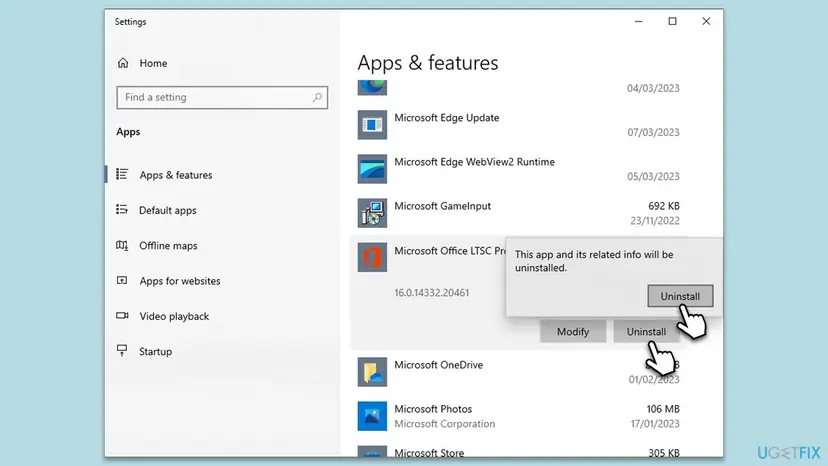
- Restart the PC after the uninstall.
- Sign in at your Microsoft account's Services & subscriptions page, or the Office portal for work accounts, and install Office from there.
- Open Outlook, Word and Excel once and check that no Bad Image window appears.
It worked if: Office installs without errors and every app starts normally.
If not: If the uninstall itself fails, or the same window appears on a fresh install, check Windows with Fix 6.
Fix 6. Repair Windows system files with DISM and SFC
20 to 30 minutesNo riskBad Image windows also name files in C:\Windows\System32, or Office will not reinstall.
SFC does not replace Office files, but Office depends on Windows libraries. If those are damaged, Office files can fail to load too, and DISM and SFC restore the Windows side.
- Open an elevated command window. Right-click Start and select Terminal (Admin), or type cmd in the search box, right-click Command Prompt and select Run as administrator. Select Yes when Windows asks for permission.

Search for cmd and choose Run as administrator. Screenshot: Windows 11 26H2. - Run DISM first. Type the command below and press Enter. DISM downloads clean copies of damaged components from Windows Update, so it can take several minutes. Wait until it says The operation completed successfully.
DISM.exe /Online /Cleanup-Image /RestoreHealth
DISM /RestoreHealth running. Screenshot: Windows 11 26H2. - Run System File Checker. In the same window, type the command below and press Enter. Do not close the window until the verification reaches 100%.
sfc /scannow
sfc /scannow at 100%. Screenshot: Windows 11 26H2. - Read the result and restart. Compare the last message with the table below this guide, then restart the PC so that repaired files are loaded.

The result line tells you what SFC did. Screenshot: Windows 11 26H2.
These steps were written for Windows 11 24H2 and 25H2. The full page with the other versions and what each result means: Run DISM and SFC to repair Windows system files
Run DISM first, then SFC, then restart and run the Office repair from Fix 1 once more.
It worked if: SFC reports no integrity violations or that it repaired files, and Office opens after a restart.
If not: If the error started right after a Windows update, go to Fix 7.
Fix 7. Remove the Windows update installed just before the error
10 to 20 minutesLow riskThe Bad Image window or the crashes started on the day a Windows update was installed.
Users of the old version of this guide reported that the error came with a Windows update. Removing that update undoes the change, so you can tell whether it caused the problem.
- Open Windows Update. Select Start > Settings > Windows Update.
- Open the update history. Under More options, select Update history. Note the KB number and the date of the update you suspect.
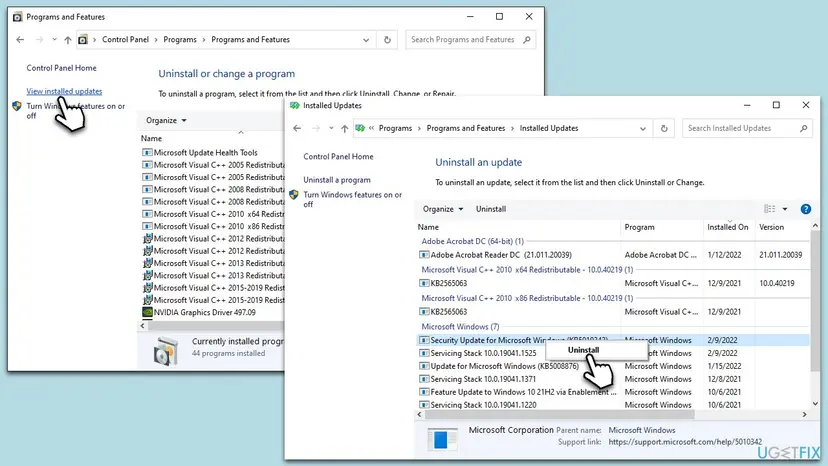
- Open the list of removable updates. Scroll down to Related settings and select Uninstall updates.
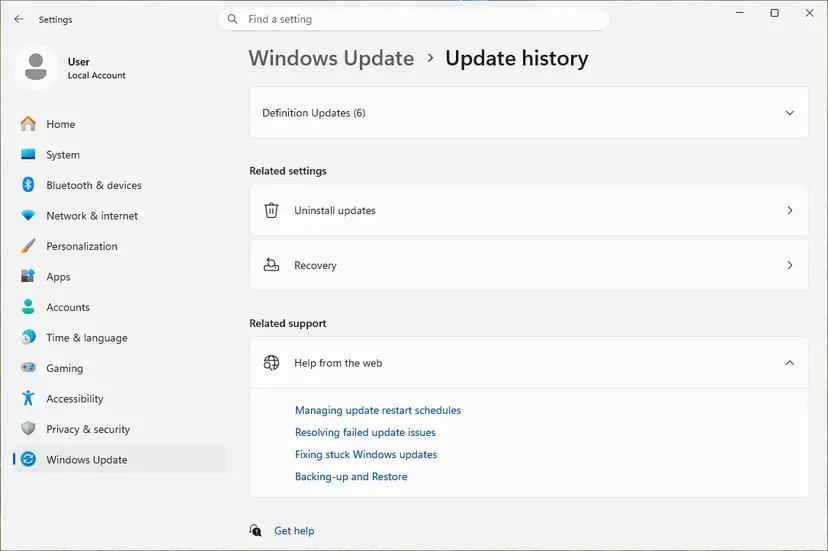
Uninstall updates is under Related settings. Screenshot: Windows 11 26H2. - Uninstall the update. Find the update in the list and select Uninstall next to it. If the update is not in the list, Windows does not allow it to be removed this way.
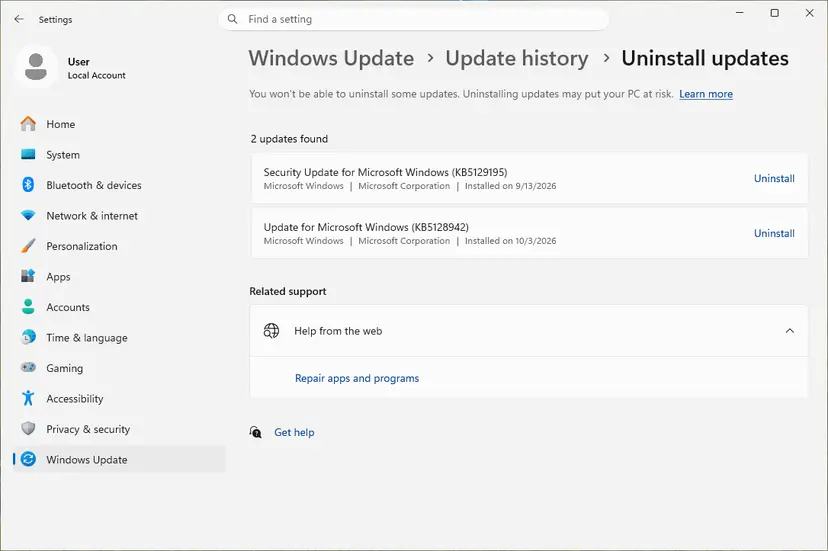
Each removable update has its own Uninstall link. Screenshot: Windows 11 26H2. - Pause updates. Go back to Settings > Windows Update and select Pick a date on the Pause updates control. If your PC shows a list there instead, select the pause length you prefer. Without a pause Windows downloads the same update again.
These steps were written for Windows 11 25H2 and 26H2. The full page with the other versions and what each result means: How to uninstall a Windows update
It worked if: After the restart, Office opens without the window. Pause updates for a week and install the update again later.
If not: If the error stays, put the update back and try System Restore with Fix 8.
Fix 8. Undo recent changes with System Restore
20 to 40 minutesLow riskThe error started recently and a restore point from before exists.
System Restore puts back programs, drivers and system settings from a restore point, Office files included, so a change that damaged the installation is undone in one step.
- Open System Restore. Press Windows+R, type the command below and press Enter. You can also open Control Panel > Recovery > Open System Restore. If a first page opens, select Next.
rstrui.exe - Choose a restore point. Select a restore point from a time before the problem started. The Description often names the event, such as a driver or app install. If the one you need is missing, select Show more restore points (shown only when there are more).
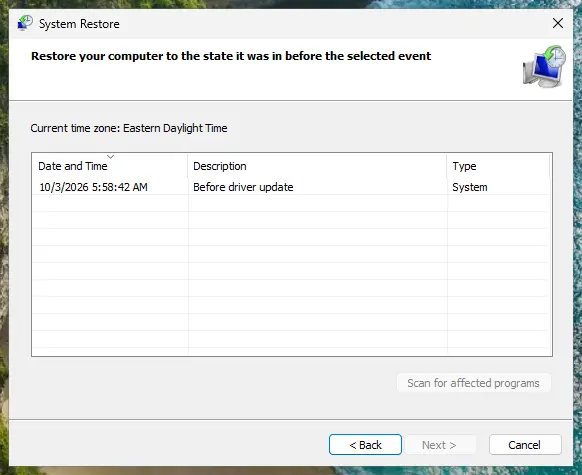
Pick a restore point from before the problem started. Screenshot: Windows 11 26H2. - See what will change. Select Scan for affected programs. The upper list shows programs and drivers that will be removed; the lower list shows those that might come back and may need to be reinstalled. Select Close.
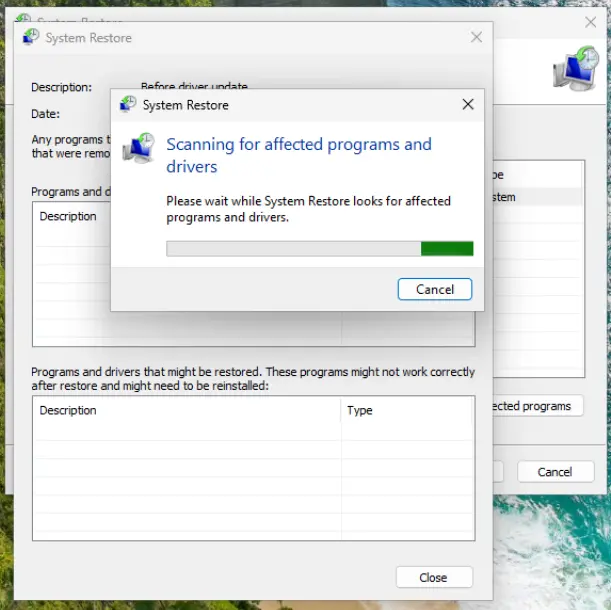
The scan lists programs and drivers the restore removes or brings back. Screenshot: Windows 11 26H2. - Start the restore. Select Next, check the summary and select Finish. Windows restarts and applies the restore point. Do not turn the PC off.
- Check the result. After sign-in Windows reports whether the restore succeeded. Check whether the problem is gone.
These steps were written for Windows 11 and Windows 10 (the steps are the same). The full page with the other versions and what each result means: Undo recent changes with System Restore
Your documents stay. Programs and updates installed after the restore point are removed, so check Scan for affected programs first.
It worked if: Windows reports that the restore completed, and Office opens normally.
If not: If there is no restore point, or the error returns, collect the details in "If the mso20win32client.dll error is still there" below.
If the mso20win32client.dll error is still there
Stop trying fixes at random and collect what Microsoft support or your IT needs. Three facts decide the next step: the exact message, the Office build and the event log entry.
- Photograph the Bad Image window with the title, the full path and the Error status line.
- Note the Office version and build from File > Account > About in any app that opens.
- In Event Viewer, under Windows Logs > Application, copy the Application Error entry: faulting application, faulting module, exception code and module path.
- Note which fixes you tried, for example "Online Repair done, reinstall done, crash only in my Windows account".
- Send this to Microsoft support from the Office help page, or post it on Microsoft Q&A.
- Same result again. If the window comes back after a clean reinstall, the cause is outside Office: check Windows with Fix 6 and look for other Bad Image windows.
- When it is hardware. If files break again after each repair, check the disk with Check a disk for errors (chkdsk) and the memory with How to test your RAM with Windows Memory Diagnostic.
How to keep the mso20win32client.dll error from coming back
- Let Office updates finish. Do not shut the PC down while Office shows an update in progress.
- Keep one Office version. Remove old trials and older editions before installing a new one.
- Never replace Office files by hand. Use the Office repair instead of copied or downloaded DLLs.
- Keep restore points on. They make Fix 8 possible after a bad update.
- On managed PCs, test updates first. The January 2025 case shows why a test group before a wide rollout pays off.
If you still run Windows 10, plan the move to Windows 11: Windows 10 left support on 14 October 2025 and no longer gets regular fixes.
Frequently asked questions
What is mso20win32client.dll?
mso20win32client.dll is a shared Microsoft Office library. It lives in C:\Program Files\Common Files\Microsoft Shared\Office16 for 64-bit Office, or under Program Files (x86) for 32-bit Office. Word, Excel, Outlook and the other apps load it when they start. It is not a Windows system file and not malware. Office installs, updates and repairs it on its own, so you never need to download it.
Is it safe to download mso20win32client.dll from a DLL website?
No. The file must match your exact Office build, and a copy from a DLL site may be from another build, unsigned or infected. Even a correct file does not fix the files next to it that may also be damaged. Run the Office repair (Fix 1) instead: it replaces mso20win32client.dll with the copy that belongs to your installation, signed by Microsoft.
What does Error status 0xc000012f mean?
0xc000012f is the Windows status for a bad image. Windows found the file named in the window but refused to load it, because its content is damaged or not a valid program file for this system. The window title names the app that tried to load it, for example OUTLOOK.EXE. For mso20win32client.dll the cure is an Office repair, because the file belongs to Office.
Why does Outlook crash with mso20win32client.dll as the faulting module?
The crash happens inside the Office library, but the cause is often around it: a faulty Office build, a damaged Office installation or a broken Outlook profile. Update Office first (Fix 2). If the crashes started with an update, go back one build (Fix 3). If only Outlook crashes, even in safe mode, test it in a new Windows user account (Fix 4).
Excel crashes with mso20win32client.dll. Is the fix the same?
Yes. The file is shared by all Office apps, so an Excel crash that names mso20win32client.dll is handled like the Outlook one. Repair Office (Fix 1), then update it (Fix 2). If Excel crashes in every workbook from one day on, roll back to the previous build (Fix 3). If it crashes only in one file, the file or an add-in is the more likely cause.
Does running Office as administrator fix the error?
No. Running an app as administrator changes its permissions, not the files it loads. A damaged or mismatched mso20win32client.dll stays damaged, so the Bad Image window or the crash comes back. Readers who tried it and saw no change are on the right track: go straight to the Office repair in Fix 1, which replaces the file.
Will repairing or reinstalling Office delete my files or emails?
No. The Quick Repair, the Online Repair and an uninstall work on Office's program files, not on your documents. Outlook data files and mail on the server stay as they are. You may have to sign in to Office again after a reinstall, so keep the Microsoft account or product key at hand. A backup of your files before bigger changes is still a good habit: Back up your files (Windows Backup, File History, Time Machine).
Can a cracked or unofficial copy of Office cause this error?
It can. Activators and repackaged Office copies change or replace Office files, and a mismatched mso20win32client.dll is exactly what triggers a Bad Image window. We do not help with such copies and cannot say what they changed. Remove them, scan the PC with Microsoft Defender (How to scan for malware with Microsoft Defender) and install genuine Office from your Microsoft account.
Does SFC /scannow fix the mso20win32client.dll error?
Usually not on its own. SFC repairs protected Windows files, and mso20win32client.dll is an Office file, so SFC does not check it. The old version of this guide put SFC first; it is now Fix 6. Run it when Bad Image windows also name Windows files, or when Office refuses to reinstall, and then run the Office repair once more.
Sources
- Microsoft Support: Repair an Office application (Quick Repair and Online Repair, Windows 11 and 10) (support.microsoft.com)
- Microsoft Q&A: Outlook continually crashing, mso20win32client.dll faulting module (user report and profile answer) (learn.microsoft.com)
- Born's Tech and Windows World: Microsoft 365 apps crashing, mso20win32client.dll, MO978220 and the rollback command (borncity.com)
Did this fix work?
One click, no account. It tells the next reader which guides are worth their time.
Questions and experiences: fix mso20win32client.dll Bad Image error in Windows
Still broken, or found a fix we did not cover? Ask here: members and our editors answer. Reading is open; writing needs a free account.
…