
How to fix the MUI_NO_VALID_SYSTEM_LANGUAGE (0x12A) blue screen in Windows

Prefer to fix it yourself? The manual steps follow.
- 6methods
- 15 to 90 minutes
- Advanced
Applies to Windows 11, Windows 10 and Windows Server PCs that crash at startup with stop code MUI_NO_VALID_SYSTEM_LANGUAGE
6 methods in this guide
Hello, I recently updated Windows with the latest patch, and since then I have been getting strange BSODs named MUI NO SYSTEM LANGUAGE. I tried restarting several times, but the problem persists. Is there anything that could be done to get rid of these crashes?
MUI_NO_VALID_SYSTEM_LANGUAGE is stop code 0x0000012A: Windows starts, looks for the language pack of its default display language, finds none and stops. It almost always follows a removed or half-installed display language. Undo that change with System Restore from the recovery screens first.
Windows cannot find an installed language pack for the language it is set to start in. Open the recovery screens and run System Restore to a point before you changed or removed a language (Fix 1). Without a restore point, use the recovery Command Prompt to switch Windows to a language that is still installed (Fix 2), or add the missing pack back (Fix 3).
| Error | A stop screen with Stop code: MUI_NO_VALID_SYSTEM_LANGUAGE, bug check value 0x0000012A. Windows restarts and crashes again in a loop. |
|---|---|
| Where it appears | Early in startup, before the sign-in screen. Sometimes on the first restart after setup, a language change, an update or entering a product key. |
| Main cause | Microsoft: Windows did not find any installed, licensed language packs for the system default UI language. |
| Fastest fix | System Restore from the recovery screens to a point before the language change (Fix 1). |
| Also written as | 0x12A, 0x0000012A, MUI NO VALID SYSTEM LANGUAGE, MUI NO SYSTEM LANGUAGE, "no valid system language". |
| Affects | Windows 11, Windows 10 and Windows Server 2019, 2022 and later. Windows 10 left support on 14 October 2025. |
| Vendor status | Not a known bug of one update. Microsoft documents the stop code and, in its Q&A answers, points to a missing language pack or a damaged ISO. |
| Where the cause is logged | DISM /Image:D:\ /Get-Intl from the recovery Command Prompt shows the default UI language and the installed languages side by side. |
| Time to fix | 15 minutes for Fix 1 or 2. An hour or more when a language pack or a reinstall has to be downloaded on another PC. |
Facts checked on 15 October 2026. Steps written for Windows 11 (25H2 and 26H2) and Windows 10 22H2.
What MUI_NO_VALID_SYSTEM_LANGUAGE (0x12A) means
MUI stands for Multilingual User Interface, the part of Windows that loads menus and messages from language packs. Every Windows install has a default system UI language, such as en-US or zh-CN. Microsoft's bug check reference says stop code 0x12A means Windows did not find any installed, licensed language pack for that default language.
Windows cannot show anything without text, so it stops instead of starting half-blind. Because the check runs on every start, the crash repeats until the setting and the installed packs agree again. That is why restarting does nothing, as the reader above found.
| Parameter 1 | What Windows was doing | What it means for you |
|---|---|---|
0x1 | Phase I of startup: Windows found no installed language packs at all | Packs are missing or damaged on disk. Fix 3 or Fix 6 |
0x2 | Building the kernel cache: no installed, licensed pack for the default UI language | The default points at a removed language. Fix 1 or Fix 2 |
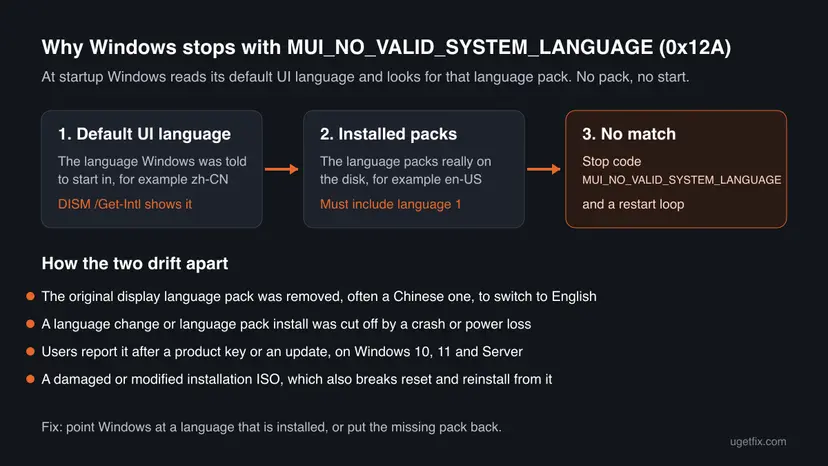
People search for MUI_NO_VALID_SYSTEM_LANGUAGE, "mui no valid system language", "MUI NO SYSTEM LANGUAGE", 0x12A and 0x0000012A. They are the same stop code. It is not 0xB or any other code.
What causes the MUI no valid system language crash, most common first
The reports on Microsoft Q&A and the old questions on this site share one pattern: something changed the languages shortly before the first crash. The table ties each cause to the fix that addresses it.
| How often | Cause | Sign | Fix |
|---|---|---|---|
| Most often | The original display language pack was removed to switch to another language, often Chinese to English | The crash started on the restart that the language change asked for | Fix 1, Fix 2 |
| Often | A language pack install or removal was cut off, or the base language a partial language needs was removed | Get-Intl lists a default UI language that is not among the installed languages | Fix 2, Fix 3 |
| Less often | An update or a product key change on a PC or server whose language set does not match | The crash began right after an update or activation | Fix 4, Fix 6 |
| Less often | A damaged, modified or unofficial installation ISO | Fresh installs crash on the first restart; Reset this PC does not help | Fix 6 |
| Rarely | Damaged system files around the language resources | Offline SFC finds and repairs files | Fix 5 |
Microsoft's language pack list shows that many display languages need a base language. Hindi, Filipino and Georgian need English (United States), Catalan and Basque need Spanish (Spain), Belarusian needs Russian. Removing the base language can leave the default language without what it needs.
MUI no valid system language on Windows Server
Windows Server shows the same stop code, and Server cases account for a good share of searches. Two typical reports on Microsoft Q&A: a Windows Server 2019 install that crashed on its first reboot after setup, and a Windows Server 2022 English Standard install that crashed after a product key was entered. In the second case the Chinese edition activated with the same key without a crash.
- Microsoft's answer in both threads: check that the language pack for that exact Server version is installed, and suspect a damaged ISO.
- Server language packs come on a separate language pack ISO. Microsoft links the Windows Server 2019 one (build 17763) in its article about language packs on Server Desktop Experience.
- A language pack must match the Server build exactly. A Windows 11 or Windows 10 pack does not work on Server.
- We could not confirm why entering a key triggered the crash in the Server 2022 report. Treat it as a mismatch between the media and the installed languages, and rebuild from a verified ISO in the language you need (Fix 6).
How to fix the MUI_NO_VALID_SYSTEM_LANGUAGE blue screen
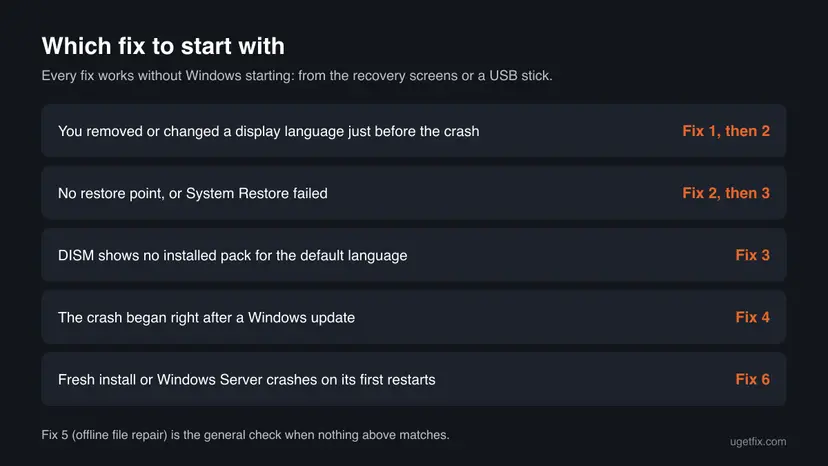
Windows does not start with this error, so every fix begins in the recovery screens or from a USB stick. Start with Fix 1 if a restore point exists. Fixes 2 and 3 repair the language setting by hand. Fixes 4 to 6 are for crashes that did not start with a language change.
| What you see or did | Start with | Then |
|---|---|---|
| You removed or changed a display language just before the crash | Fix 1 | Fix 2 |
| No restore point exists, or System Restore failed | Fix 2 | Fix 3 |
Get-Intl shows no installed language you could switch to | Fix 3 | Fix 6 |
| The crash began right after a Windows update | Fix 4 | Fix 1 |
| A fresh install or a Windows Server crashes on its first restarts | Fix 6 | Fix 3 |
Fix 1. Undo the language change with System Restore from the recovery screens
15 minutesLow riskThe crash started after you removed, added or switched a display language, and System Protection was on.
A restore point holds the registry and system files from before the change, including the language setting and the language packs. Rolling back puts the default language and its pack back together without touching your documents.
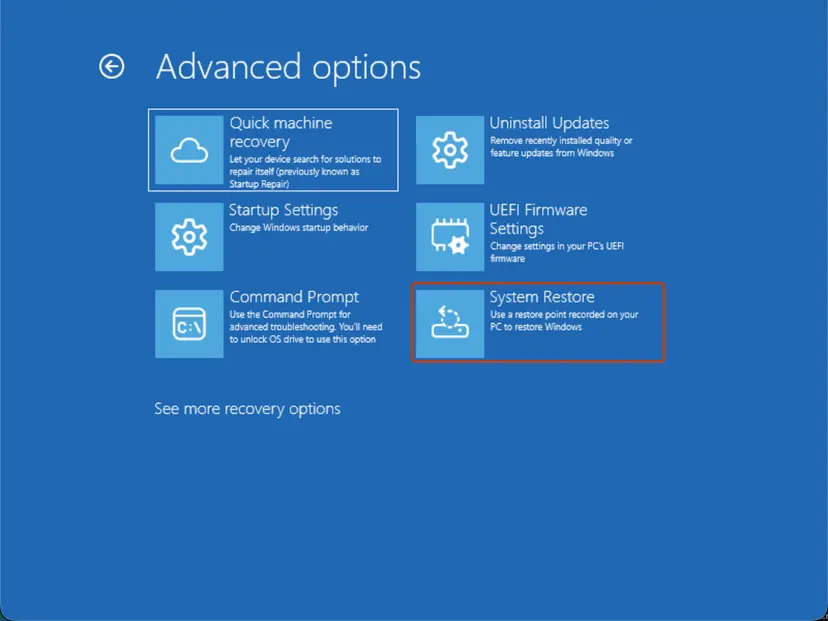
- Turn the PC on and, when the logo appears, hold the power button until it turns off. Do this twice. On the third start Windows opens Automatic Repair.
- Select Advanced options, then Troubleshoot > Advanced options.
- Select System Restore. If the drive is encrypted, enter your BitLocker recovery key when asked.
- Pick a restore point dated before the language change and select Next, then Finish.
- Let the PC restart. Do not change the language again until Windows has started cleanly twice.
All the ways to open System Restore, with screenshots: Undo recent changes with System Restore
It worked if: Windows starts to the sign-in screen in the language it had before the change, and the stop screen does not return on the next restart.
If not: If there is no restore point or the restore fails, go to Fix 2 and set the language by hand.
Fix 2. Switch Windows to a language that is still installed, from the recovery Command Prompt
15 minutesLow riskNo restore point exists, or Fix 1 failed, and at least one language pack is still on the disk.
The crash happens because the default UI language points at a pack that is gone. DISM can read and change the language settings of the Windows on the disk while it is offline, and Microsoft documents that it refuses a language that is not installed.
- Open the recovery screens as in Fix 1 and select Troubleshoot > Advanced options > Command Prompt. Enter the BitLocker recovery key if asked.
- Find the Windows drive. In recovery it often is not C:. Try each letter until the folder list shows
System32.dir C:\Windows dir D:\Windows - Read the language settings of that Windows. Use the letter you found; D: is shown here.
dism /Image:D:\ /Get-Intl - Compare two lines: Default system UI language and Installed language(s). If the default is not in the installed list, that is the cause.
- Set the default to a language from the installed list, for example English (United States).
dism /Image:D:\ /Set-UILang:en-US - Run
dism /Image:D:\ /Get-Intlagain and check that the default now matches an installed language. - Close the Command Prompt, select Continue and let Windows start.
- Set-UILang fails
- DISM says the language is not installed. Pick another one from the Installed language(s) line, or add the pack in Fix 3.
- Windows 11 Pro and Enterprise
- Microsoft says the language chosen at setup can be kept as the System Preferred UI language. If the crash stays, also run
dism /Image:D:\ /Set-SysUILang:en-US. - Format and keyboard
- Only the display language changes. Re-add your own language in Settings > Time & language once Windows starts.
It worked if: Windows starts in the language you set, and Get-Intl lists the same language as default and installed.
If not: If no installed language is listed, or Windows still crashes, add the missing pack back in Fix 3.
Fix 3. Add the missing language pack back to the offline Windows
45 minutesLow riskGet-Intl shows no usable installed language, or you want to keep the original display language.
When the pack itself is gone, the only way to satisfy the startup check without changing the language is to put that pack back. DISM installs language packs into an offline Windows with the same command Microsoft uses to build images.
You need the language pack .cab for your exact Windows version, copied to a USB stick on another PC. Microsoft publishes the Languages and Optional Features ISO for Windows 11 24H2 and 25H2 (build 26100) and for 22H2 and 23H2 (build 22621). We could not confirm a separate ISO for 26H2. For Windows 10 22H2 and Windows Server the language ISO comes through Volume Licensing or the Server language pack ISO.
- On a working PC, open the ISO for your Windows version and copy the folder
LanguagesAndOptionalFeaturesto a USB stick. - Plug the stick into the broken PC and open the recovery Command Prompt as in Fix 2.
- Find the letters of the Windows drive and of the USB stick with
dir, as in Fix 2. - Add the pack of the language that
Get-Intlshowed as default. Here the stick is E: and the language is Chinese (Simplified).dism /Image:D:\ /Add-Package /PackagePath:E:\LanguagesAndOptionalFeatures\Microsoft-Windows-Client-Language-Pack_x64_zh-cn.cab - Run
dism /Image:D:\ /Get-Intland check that the language now appears under Installed language(s). - Restart, then run Windows Update once Windows starts, so the new pack gets the language parts of the updates already installed.
A pack from another Windows version, a Windows 10 pack on Windows 11, or a client pack on Server is refused or does not help. Download packs only from Microsoft, never from sites that rehost .cab files.
It worked if: DISM reports The operation completed successfully, Get-Intl lists the language as installed, and Windows starts in it.
If not: If DISM refuses the package, check that the build matches. If the crash began after an update, try Fix 4 first.
Fix 4. Remove the latest update from the recovery screens
15 minutesLow riskThe first crash came right after Windows installed an update, with no language change by you.
An update can carry language resources and finish installing on the next restart. If that step left the language set inconsistent, removing the update returns the files and settings that worked.
- Open the recovery screens as in Fix 1.
- Select Troubleshoot > Advanced options > Uninstall Updates.
- Select Uninstall latest quality update and follow the prompts. Use Uninstall latest feature update only if a new Windows version installed just before the crash.
- Let the PC restart. Once Windows runs, pause updates for a week.
- Full steps for each Windows version: How to uninstall a Windows update
It worked if: Windows starts normally on the previous update and the stop screen does not come back over several restarts.
If not: If the option fails or the crash stays, go back to Fix 2 and check the language settings with Get-Intl.
Fix 5. Repair Windows system files offline
30 minutesNo riskThe language settings look right in Get-Intl but Windows still stops with 0x12A.
Language resources live in system folders that SFC checks. If those files are damaged, the pack looks present but cannot be used. SFC can repair an offline Windows from the recovery Command Prompt.
In the recovery Command Prompt, with D: as the Windows drive:
sfc /scannow /offbootdir=D:\ /offwindir=D:\Windows- Open the recovery Command Prompt and find the Windows drive as in Fix 2.
- Run the command above and wait until it reaches 100 percent.
- Restart. If Windows starts, run the online DISM and SFC repair as well: Run DISM and SFC to repair Windows system files
- If Windows still stops, try the automatic repair once: Run Startup Repair
It worked if: SFC reports that it found and repaired files or found no integrity violations, and the next start passes the logo.
If not: If SFC cannot repair the files, rebuild Windows from fresh media in Fix 6.
Fix 6. Reinstall Windows from verified media in the language you want
60 minutes or moreRead the warningNothing above worked, a fresh install crashes on its first restarts, or this is a Windows Server.
When the media itself is damaged or modified, every reset or reinstall from it repeats the crash. In one Microsoft Q&A thread, factory resets kept failing and new media from Microsoft was the advice.
A clean install replaces Windows and your apps. Before you start, copy your files to a USB drive from the recovery Command Prompt with xcopy or robocopy. Choose the custom install and keep the old partition: Setup then moves the old Windows into a Windows.old folder.
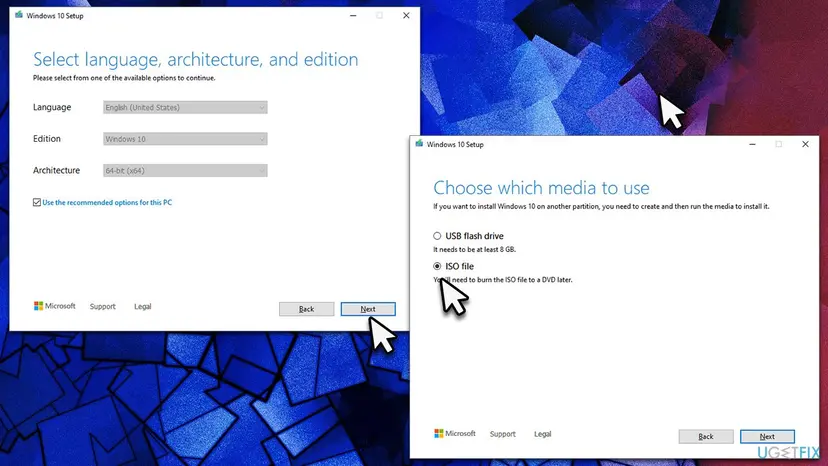
- On a working PC, download the Media Creation Tool or the ISO from Microsoft's Windows download page. For Server, use the ISO from your licensing portal or Microsoft's evaluation center.
- Select the Language you want Windows to use. Use one language consistently: install media, language packs and later updates must agree.
- Create the USB stick, boot the broken PC from it and choose Custom: Install Windows only.
- Select the old Windows partition and continue. Do not delete partitions if you need files from them.
- After setup, add other display languages only through Settings > Time & language > Language & region, and keep the original language until the new one is fully installed.
It worked if: Setup finishes, Windows starts in the chosen language, and dism /Online /Get-Intl shows the same language as default and installed.
If not: If a fresh install from new media still crashes on the same machine, read the section on what to check next.
Still crashing with 0x12A: what to check and send
If the same error comes back after a fix, collect what support needs. The language report is more useful than a photo of the stop screen.
- The full output of
dism /Image:D:\ /Get-Intlfrom the recovery Command Prompt. - The SFC log
D:\Windows\Logs\CBS\CBS.logand the DISM logD:\Windows\Logs\DISM\dism.log, copied to a USB stick. - The crash dumps from
D:\Windows\Minidump, if any exist. Parameter 1 tells0x1from0x2. - What changed last: the language added or removed, the update, the product key, the ISO used.
| Where to ask | When |
|---|---|
| Microsoft Support or Microsoft Q&A | Windows 11, or Windows Server with a support contract |
| Your PC maker | A factory recovery partition or OEM image crashes the same way |
| A repair shop | Fresh, verified media still crashes: rule out the disk |
How to change the display language without this crash
- Add the new language in Settings > Time & language > Language & region, set it as display language, sign out and back in.
- Remove the old language only after Windows has started in the new one at least once.
- Create a restore point before any language change: Undo recent changes with System Restore
- Keep the base language that a partial language needs.
- Remove the language that is still the Windows display language.
- Turn off the PC while a language pack installs.
- Use unofficial or modified ISOs and language packs.
- Mix language packs from different Windows versions.
Windows 10 left support on 14 October 2025. If you are moving to Windows 11 anyway, a clean install in the language you want avoids juggling packs later.
Frequently asked questions
What is MUI_NO_VALID_SYSTEM_LANGUAGE?
It is Windows stop code 0x0000012A. Microsoft defines it as Windows not finding any installed, licensed language packs for the system default UI language. In plain words, Windows was told to start in a language whose files are no longer there, so it cannot show any text and stops. It is a software setting problem, not a hardware fault. Readers asking in other languages, such as "what is this error and how do I solve it", ask the same thing: Fix 1 and Fix 2 above solve most cases.
Is MUI no valid system language a hardware problem?
Almost never. The stop code comes from a check of language settings, and every report we read starts with a language change, an update, a product key or an installation ISO. Hardware only plays a part when files on a failing disk get damaged. If even a fresh install from new Microsoft media crashes the same way on the same machine, test the disk with your PC maker's tool before you replace anything.
Why does Reset this PC not fix the error?
Reset this PC rebuilds Windows from files already on the PC. If those files carry the same language mismatch or are damaged, the reset reproduces the crash. A user on Microsoft Q&A who removed the Chinese display pack reset the PC several times without success, and the advice was new media from Microsoft. Use Fix 2 first, and Fix 6 with a fresh USB stick if the reset keeps failing.
Can I get into Safe Mode to fix it?
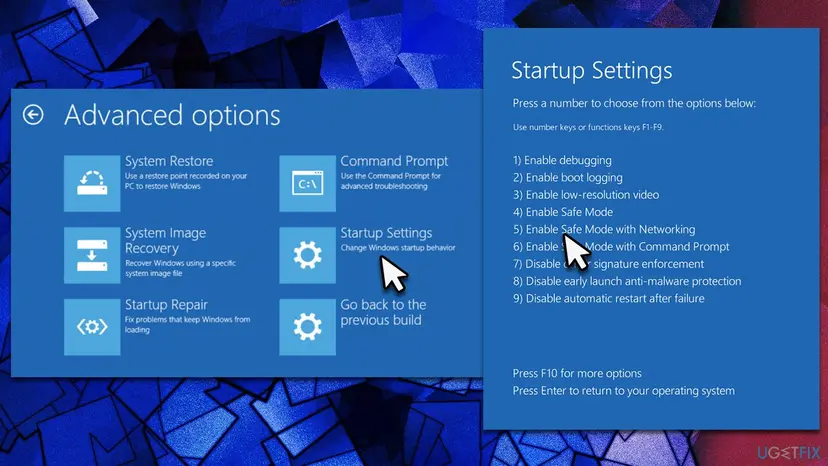
Usually not. Safe Mode loads the same Windows kernel and the same language settings, so it hits the same check and stops. You can try it once from Troubleshoot > Advanced options > Startup Settings, but do not spend time there. The recovery screens run their own small Windows with their own language, which is why System Restore and the Command Prompt in Fixes 1 to 3 work when normal and Safe Mode starts do not. Steps: Start Windows or a Mac in Safe Mode
Why does Windows Server show MUI no valid system language after I enter a product key?
We could not confirm the exact cause. In the Microsoft Q&A report, Windows Server 2022 English Standard crashed after the key was entered, while the Chinese edition activated with the same key. Microsoft's answer was to check the language pack for that Server version and to suspect a damaged ISO. Rebuild from a verified ISO in one language, add Server language packs only from the matching language pack ISO, and run Get-Intl to check the result.
What is bootres.dll.mui and is it related?
Files ending in .mui are language resource files: each holds the text of one Windows component in one language, in a folder named after the language such as en-US. bootres.dll.mui belongs to the boot resources. We found no source that ties a damaged copy of this one file to stop code 0x12A. If your SFC log names it, repair the files offline as in Fix 5 rather than copying the file from another PC or a download site.
I did the fix but I still get the same error. What next?
Run dism /Image:D:\ /Get-Intl again and read the two language lines. If the default still differs from the installed list, the change did not reach the right drive letter, so check the letter with dir. If they match and Windows still crashes, run the offline SFC in Fix 5, then rebuild from fresh media in Fix 6. Searches in Spanish and Russian for "still the same error" and "it did not help" land here too.
How do I remove a display language safely?
Add the new language first in Settings > Time & language > Language & region and set it as the Windows display language. Sign out, sign back in and restart once, so Windows really starts in the new language. Only then remove the old language from the same page. Never remove the language Windows still displays, and keep the base language that a partial language such as Hindi or Catalan needs. A restore point beforehand turns any mistake into a 15 minute fix.
Does the error mean my Windows is not genuine?
Not by itself. The word licensed in Microsoft's definition refers to language packs that the Windows edition allows, not to activation of Windows. That said, the old reports include users who installed unofficial Windows copies, and modified ISOs often have their language packs stripped or altered. If your Windows came from such a source, reinstall from Microsoft's own media as in Fix 6.
Sources
- Microsoft Learn: Bug Check 0x12A MUI_NO_VALID_SYSTEM_LANGUAGE (learn.microsoft.com)
- Microsoft Learn: DISM Languages and International Servicing Command-Line Options (learn.microsoft.com)
- Microsoft Learn: Add languages to Windows images (learn.microsoft.com)
Did this fix work?
One click, no account. It tells the next reader which guides are worth their time.
Questions and experiences: fix the MUI_NO_VALID_SYSTEM_LANGUAGE (0x12A) blue screen in Windows
Still broken, or found a fix we did not cover? Ask here: members and our editors answer. Reading is open; writing needs a free account.
…