
How to fix "No Network Connection [2603]: Please check your network settings" in OneDrive?

Prefer to fix it yourself? The manual steps follow.
- 7methods
- 5 to 45 minutes
- Intermediate
Applies to Personal, work and school Microsoft accounts in the OneDrive sync app, Outlook, Teams, Word, Excel and OneNote on Windows 11 and Windows 10, with notes for Mac, iPhone and Android
7 methods in this guide
Hello. I can't log into OneDrive because I get the 2603 error code with the "No Network Connection. Please check your network settings and try again" message. What should I do?
Error [2603], No Network Connection with the line to check your network settings, appears when OneDrive, Outlook or Teams signs in, often while web pages open fine. The sign-in cannot reach Microsoft's servers because of this PC or this network. Test the account in a private browser window and the app on another network first.
Error 2603 means the Microsoft sign-in window could not reach Microsoft's servers, even though your internet may work. First sign in at office.com in a private browser window and try the app on a phone hotspot (Fix 1). If the PC fails on every network, reset Internet Options to their defaults (Fix 2). If only one network fails, turn off its VPN or proxy (Fix 3).
| Error | No Network Connection with the red line: Please check your network settings and try again. [2603] |
|---|---|
| Where it appears | In the small Microsoft sign-in window that opens when OneDrive, Outlook, Teams, Word, Excel or OneNote asks for your account. Try again shows the same window. |
| Main cause | Something between the sign-in window and Microsoft's servers: damaged Internet Options, a VPN, proxy or firewall, stale stored sign-in data, or a DNS problem. |
| Fastest fix | Run the two tests of Fix 1, then reset Internet Options with RunDll32.exe InetCpl.cpl,ResetIEtoDefaults and restart the PC (Fix 2). |
| Also written as | Error 2603, [2603], network error 2603, No Internet Connection (2603), Microsoft error 2603, Outlook error 2603, Teams error 2603. |
| Affects | Windows 11 and Windows 10 22H2, and the same Microsoft 365 apps on Mac, iPhone and Android. The code is shared, the fixes differ by system. |
| Microsoft's status | Microsoft has not documented code 2603. Microsoft Q&A moderators point to the local network, a VPN or proxy, cached sign-in data and DNS. No fix in an update is announced. |
| Time to fix | 5 minutes for the tests in Fix 1, up to 45 minutes when you need Fix 6 or Fix 7. Nothing to download. |
Facts checked on 15 October 2026. Steps written for The OneDrive sync app and the Microsoft 365 sign-in window on Windows 11 (25H2 and 26H2) and Windows 10 22H2, read against Microsoft Q&A moderator answers and an IT help desk's instructions.
What "No Network Connection [2603]" means in OneDrive
You open OneDrive, or Windows starts it for you, and select Sign in. A small window titled Sign in with the Microsoft logo opens. Instead of the email field, it shows the heading No Network Connection and the red line Please check your network settings and try again. [2603] with Cancel and Try again.
![Microsoft Sign in window with the heading No Network Connection, the red text Please check your network settings and try again [2603], and the Cancel and Try again buttons](/pic/w828q75/uploads/guides/no-network-2603-sign-in-window.jpg.webp)
The window is not drawn by OneDrive itself. It is the shared Microsoft sign-in page that every Microsoft 365 app opens, so the same code appears in Outlook, Teams, Word and OneNote. On Windows it relies on the system's Internet settings, not on your browser. That is why the browser can work while the sign-in window says there is no network.
| Part of the message | What it really tells you |
|---|---|
| No Network Connection | The sign-in page could not load from Microsoft's servers. It does not prove your internet is down. |
| Please check your network settings and try again. | A general hint. The settings that matter are Internet Options, VPN, proxy, firewall and DNS, not the Wi-Fi itself. |
| [2603] | The sign-in page's code for this failure. Microsoft has not published a description of it. |
| No network connection available. Check your network and try again. | The same failure in the mobile apps, sometimes shown after a reinstall. |
Code 2606 says Proxy Authentication Error and most often comes from damaged stored account data. Code 2603 says No Network Connection and points first at the PC's Internet settings and the network path. The fixes overlap, but the order is different.
What causes error 2603, ranked
Microsoft has not published a cause for 2603. The order below is our reading of an IT help desk's instructions and of Microsoft Q&A moderator answers. It is not a statistic.
| How often | Cause | Typical sign | Fix |
|---|---|---|---|
| Most often | Damaged or changed Internet Options | Browsers work, every Microsoft 365 app shows 2603 on every network. | Fix 2 |
| Often | A VPN, proxy or firewall that blocks the sign-in | The app signs in on a phone hotspot but not on this network. | Fix 3 |
| Often | Stale stored sign-in data on the PC | Started after a password or account change, works in a browser. | Fix 4 |
| Less often | A DNS problem on this network | Some Microsoft pages load slowly or not at all. | Fix 5 |
| Less often | Damaged Office program files | Word, Excel and Outlook all show 2603, the fixes above did not help. | Fix 6 |
| Rarely | OneDrive's own settings | Only OneDrive fails, Outlook and Teams sign in. | Fix 7 |
Microsoft's moderators also list two causes you cannot fix on the PC: a security flag on the Microsoft account, and a problem on Microsoft's side. Fix 1 tells you within five minutes whether one of them is the case.
How to fix "No Network Connection [2603]" in OneDrive, Outlook and Teams
Do Fix 1 first: its two tests take five minutes and tell you which fix to use next. Then follow the order and try the sign-in after each fix. Success looks the same every time: the Microsoft window asks for your email address instead of showing 2603.
| Your case | Start with | Then |
|---|---|---|
| Every Microsoft 365 app shows 2603, browsers work | Fix 2 | Fix 4 |
| The app signs in on a phone hotspot but not at home or at work | Fix 3 | Fix 5 |
| It started after a password or account change | Fix 4 | Fix 2 |
| You use a VPN app or a company network | Fix 3 | Fix 2 |
| Word, Excel and Outlook fail even after Fix 2 to Fix 5 | Fix 6 | Fix 4 |
| Only OneDrive fails, Outlook and Teams sign in | Fix 7 | Fix 2 |
Fix 1. Test the account in a browser and the app on another network
5 minutesNo riskEveryone first, before you change any setting.
A Microsoft Community moderator answering a 2603 report on OneDrive for Business said the local network or the device is the likely cause, and asked first for a test on another network and on the web. Together the two tests show where to look.
- Quit OneDrive: select its cloud icon in the taskbar corner, then the gear and Quit OneDrive. Close Outlook, Teams and the other Office apps too.
- Open a private browser window (Ctrl + Shift + N in Edge and Chrome), go to
office.comand sign in with the same account. - Turn on your phone's hotspot and connect the PC to it instead of your usual Wi-Fi or cable.
- Start OneDrive from the Start menu and sign in while the PC is on the hotspot.
- Connect back to your usual network and read the result in the chart below.
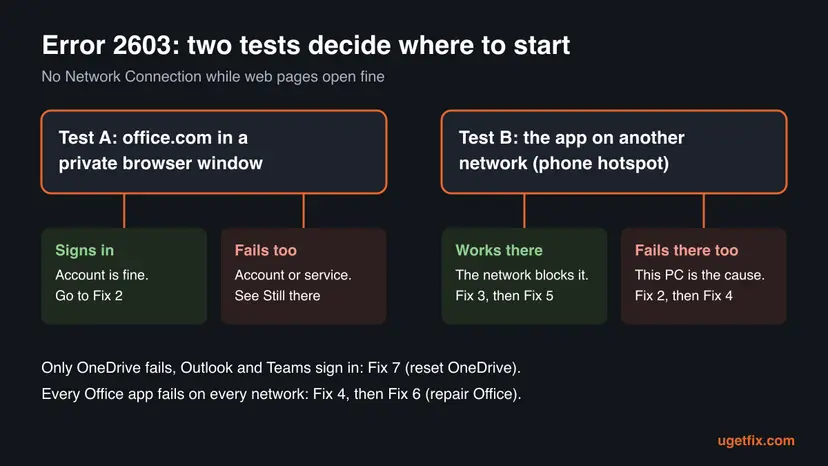
If the account also fails at office.com, the problem is the account or Microsoft's service, not this PC: go to the section on what to collect below. Quitting and starting OneDrive alone sometimes clears a single failed sign-in.
It worked if: You know whether the account, this network or this PC is the cause, and which fix to start with.
If not: If both tests fail on the PC but work on another device, go on with Fix 2.
Fix 2. Reset Internet Options to their defaults
5 minutesLow riskEvery Microsoft 365 app shows 2603 on every network, while web pages open in the browser.
An IT help desk lists this reset as the first fix for the 2603 window in Outlook, Teams and OneDrive. The sign-in window uses Windows' Internet settings, so a changed security or connection setting there blocks it while your browser keeps working.
- Close OneDrive, Outlook, Teams and the other Office apps.
- Press Win + R.
- Paste this command and select OK:
RunDll32.exe InetCpl.cpl,ResetIEtoDefaults - In the Reset Internet Explorer Settings window, select Reset, wait for it to finish and select Close. If no window opens, use the manual way below.
- Restart the PC and sign in to OneDrive again.
The manual way does the same for the advanced settings only: press Win + R, type inetcpl.cpl and press Enter. Open the Advanced tab, select Restore advanced settings, then Apply and OK, and restart.
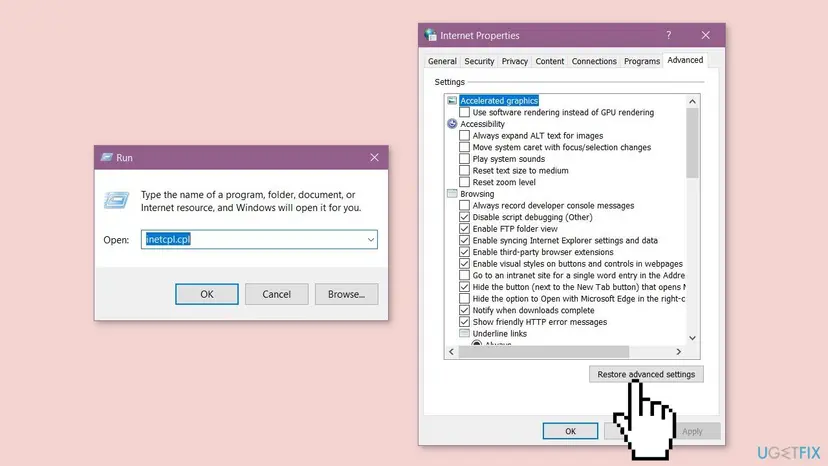
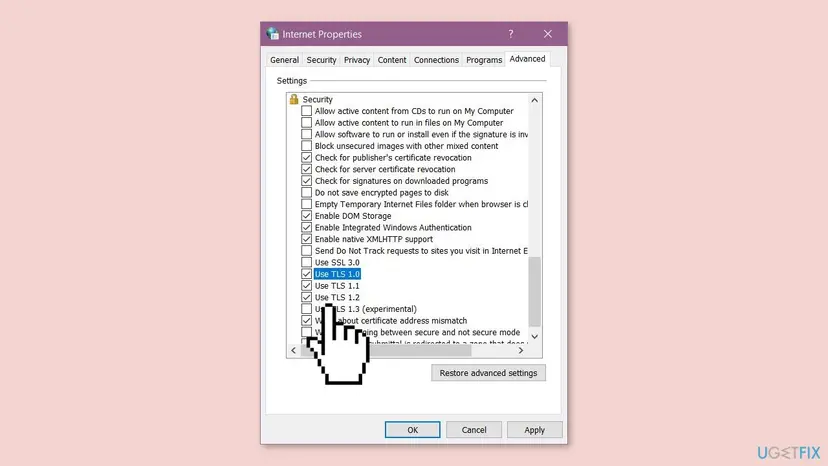
On the same Advanced tab, scroll to the Security group and make sure Use TLS 1.2 is ticked. Microsoft's sign-in servers need it. The reset turns it back on if a tool turned it off.
It worked if: After the restart the Microsoft window shows the email field instead of No Network Connection.
If not: If 2603 stays, check for a VPN, proxy or firewall with Fix 3.
Fix 3. Turn off a VPN, proxy or firewall that blocks the sign-in
10 minutesLow riskThe app signs in on a phone hotspot but not on this network, or you use a VPN app or a company network.
Microsoft's moderator asked the Mac user with 2603 to turn off any VPN or proxy first, and the IT help desk names a firewall that blocks the Microsoft Sign In assistant as a known cause. Any of them can stop the sign-in page while the browser still works.
A proxy or VPN set by your organisation is usually needed there. Do not turn it off: note what is set and send it to IT. The steps below are for your own PC.
- Disconnect any VPN app you use and close it fully, also from the taskbar corner.
- Press Win + I and open Network & internet > Proxy.
- Under Manual proxy setup, select Edit next to Use a proxy server (Windows 11) or look at the switch (Windows 10). Turn it off and select Save.
- If Use setup script is on and you did not set it up, turn it off.
- Try the sign-in again.
Security suites with their own firewall or web filter can block the sign-in too. Pause the protection for a single sign-in attempt and turn it back on right after: Turn off Microsoft Defender protection for a moment. If the sign-in works only while it is paused, add an exception in that product instead of leaving it off.
It worked if: With the VPN and proxy off, the sign-in window asks for your email address.
If not: If 2603 stays on every network, clear the stored sign-in data with Fix 4.
Fix 4. Clear the sign-in data Windows keeps for Microsoft 365
10 minutesLow riskThe error started after a password or account change, and the account signs in at office.com.
Microsoft's moderator lists cached login data first among the causes of 2603. Windows keeps that data for all Microsoft 365 apps in one place, and clearing it makes the next sign-in start fresh.
- Close OneDrive, Outlook, Teams and every other Microsoft 365 app.
- Press Win + R, type
%localappdata%\Packagesand select OK. - Right-click the folder Microsoft.AAD.BrokerPlugin_cw5n1h2txyewy, select Rename and add
.oldto the end of the name. - If Windows says the folder is in use, restart the PC and rename it before you open any app.
- Restart the PC and sign in to OneDrive again.
Windows creates a new folder at the next sign-in, and each Microsoft 365 app asks for your account once. Your files, mail and chats are not stored there. The full steps, including the smaller token store and the command that registers the sign-in plug-in again, are in our guide to Proxy Authentication error 2606.
It worked if: A new Microsoft.AAD.BrokerPlugin folder appears, and the sign-in window asks for your account.
If not: If 2603 stays, change the DNS servers with Fix 5.
Fix 5. Flush DNS and use different DNS servers
10 minutesLow riskThe app fails on one network only, or some Microsoft pages load slowly or not at all.
Microsoft's moderator names DNS issues among the causes of 2603 and suggests public DNS servers. If your router's DNS cannot resolve Microsoft's sign-in addresses, the window reports no network while other sites still open.
- Press Win + R, type
ncpa.cpland press Enter. - Right-click the adapter you use (Wi-Fi or Ethernet) and select Properties.
- Double-click Internet Protocol Version 4 (TCP/IPv4).
- Leave the IP address as it is. Select Use the following DNS server addresses and enter
8.8.8.8and1.1.1.1, or8.8.4.4as the second. - Select OK twice and restart the PC.
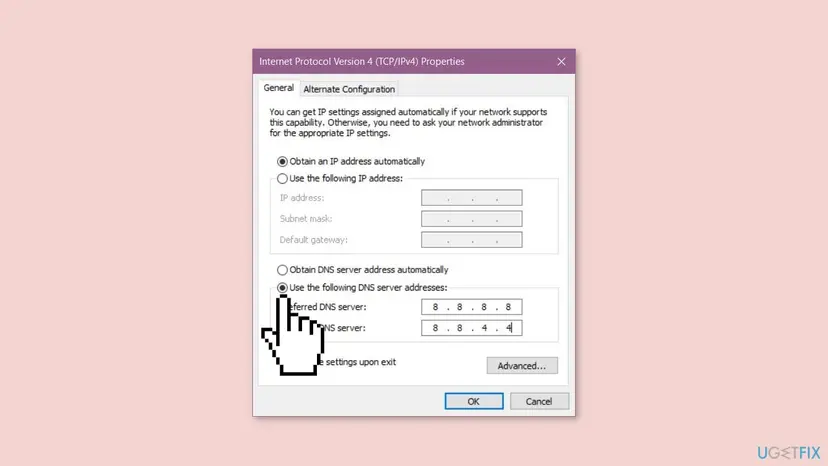
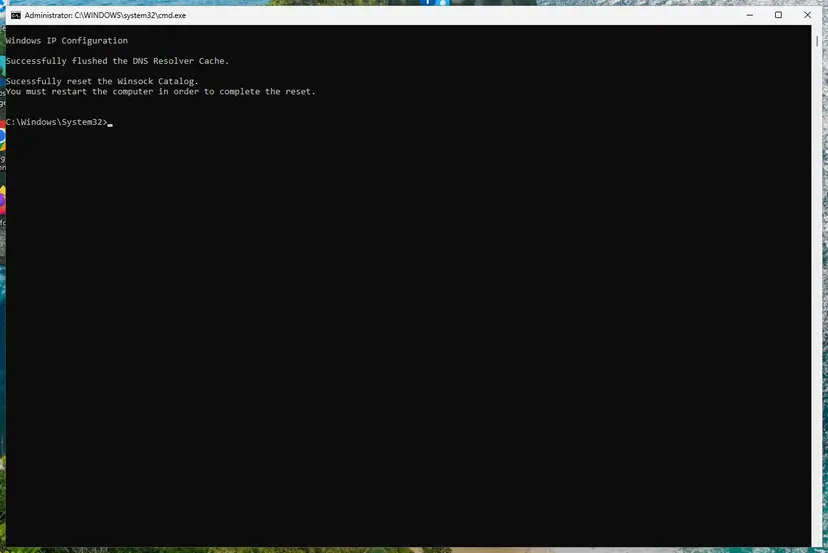
To undo it, select Obtain DNS server address automatically again. Flushing the DNS cache and resetting Winsock clears old addresses as well; every step is in Reset the network and flush DNS.
It worked if: Microsoft pages load normally and the sign-in window shows the email field.
If not: If 2603 stays in every Office app, repair Office with Fix 6.
Fix 6. Repair Microsoft 365 or Office
10 to 30 minutesLow riskWord, Excel and Outlook all show 2603, and Fix 2 to Fix 5 did not help.
The IT help desk gives a Quick Repair and then an Online Repair as its second and third fixes for 2603. The repair replaces damaged Office files, including the parts that open the sign-in window.
- Save your work and close every Office app and OneDrive.
- Right-click Start and select Installed apps (Windows 11) or Apps and Features (Windows 10).
- Find Microsoft 365 or your Office product, select the three dots or the entry and select Modify.
- Select Quick Repair, then Repair, and restart the PC when it is done.
- If 2603 is still there, repeat with Online Repair. It takes longer and needs the internet.
Your documents and mail are not touched by either repair. The Windows 10 path and what each option does: How to repair Microsoft 365 or Office.
It worked if: The repair ends without an error, and Word or Outlook signs in after the restart.
If not: If only OneDrive still fails, reset it with Fix 7.
Fix 7. Reset the OneDrive app
5 minutes, then a full syncLow riskOnly OneDrive shows 2603 while Outlook and Teams sign in.
OneDrive keeps its own settings and link to your account. A reset clears them and makes it sign in again, which helps when only OneDrive holds on to the failed sign-in.
- Quit OneDrive from its cloud icon: the gear, then Quit OneDrive.
- Press Win + R.
- Paste this command and select OK:
%localappdata%\Microsoft\OneDrive\onedrive.exe /reset - If Windows cannot find the file, use
%programfiles%\Microsoft OneDrive\onedrive.exe /resetinstead. - If OneDrive does not start again within a few minutes, run the same path without
/reset, then sign in.
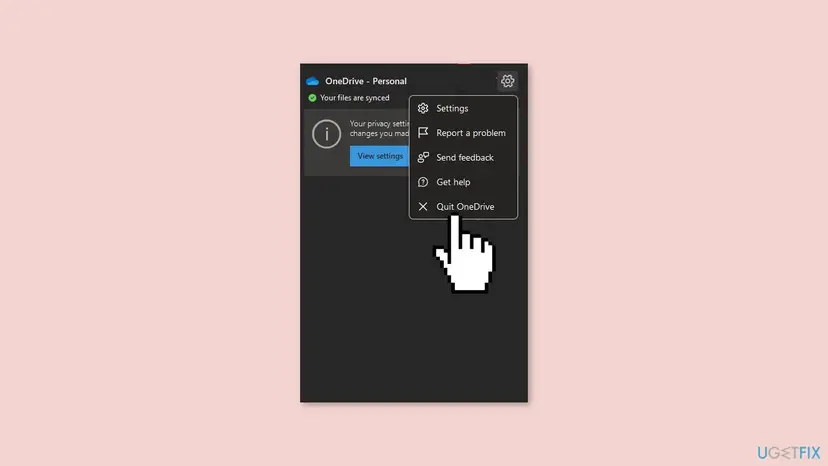
A reset does not delete files on the PC or in the cloud, but OneDrive syncs everything again. Every path and the Store version: How to reset OneDrive in Windows.
It worked if: OneDrive starts, asks for your email address and begins to sync without the 2603 window.
If not: If 2603 is still there, collect the details in the next section for IT or Microsoft support.
If error 2603 is still there: what to collect and who can fix it
When the PC side is clean and the error stays, the cause is in the network, the account or Microsoft's service. The moderator's own questions are a good list to answer before you contact anyone.
- The browser test: does the account sign in at
office.comin a private window? - Another network: does 2603 also appear on a phone hotspot?
- Another Windows user: create a second user account on the PC and sign in there. If it works, the problem is in your Windows profile: Create a new user account to test a problem.
- Other people: does anyone else on the same network or in your organisation get 2603?
- Windows' log: in Event Viewer, open Applications and Services Logs > Microsoft > Windows > AAD > Operational and note the errors at the time of the sign-in.
| What you see | Likely reason | Who can fix it |
|---|---|---|
| 2603 only on one network, fine on a hotspot | That network's firewall, proxy or DNS | The network's owner or IT |
| 2603 on every network, the account works in a browser | Settings or data on this PC or profile | Repeat Fix 2 and Fix 4, then IT |
| The account fails in a browser too | The account, its licence or a security flag | IT, or Microsoft support for a personal account |
| Many users get 2603 at the same time | A network change or a Microsoft service problem | IT, or wait and try again |
Error 2603 on a Mac, iPhone or Android phone
The same message and code appear in the Microsoft 365 apps on other systems, because they use the same sign-in page. The Windows steps do not apply there, but the tests do.
- Mac: Microsoft's moderator suggested another network, turning off any VPN or proxy, and signing in from another macOS user profile. OneDrive on the web tells you whether the account itself works.
- iPhone and iPad: the moderator suggested switching between Wi-Fi and mobile data and signing in at onenote.com or office.com in Safari first. Next, set DNS by hand under Settings > Wi-Fi > your network > Configure DNS and check VPN & Device Management for profiles that block Microsoft.
- Android: switch between Wi-Fi and mobile data, turn off any VPN or private DNS app, and try another Microsoft app. If Word or Outlook signs in, clear the failing app's storage and sign in again.
In the iPhone thread we read, the user tried all of the moderator's steps without success, while OneDrive and Excel on the same phone worked. When only one app fails on a phone, report it through the app's Help & Feedback so Microsoft sees it.
How to keep error 2603 from coming back
Once Internet Options, the network path and the stored data are clean, the error does not return on its own. It comes back when a tool changes the Internet settings or puts itself between the PC and Microsoft.
- Watch tools that change Internet settings: VPN clients, proxy tools and older optimizers can change Internet Options. If 2603 returns after you install one, Fix 2 undoes the change.
- After a password or account change, sign out of OneDrive and Office and sign in again while online.
- Leave proxy settings alone unless you know you need them, and close VPN apps you are not using.
- Keep Windows and Office updated. Windows 10 left support on 14 October 2025, so without Extended Security Updates it no longer gets fixes for its network and sign-in parts.
Frequently asked questions
What does "No Network Connection. Please check your network settings and try again. [2603]" mean?
It means the Microsoft sign-in window could not load from Microsoft's servers. The window is shared by OneDrive, Outlook, Teams and the other Microsoft 365 apps, and on Windows it uses the system's Internet settings. So it can say No Network Connection while your browser opens every page. The cause is usually Internet Options, a VPN, proxy or firewall, stored sign-in data or DNS. Start with the two tests in Fix 1.
How do I fix error 2603 in Outlook?
Outlook opens the same Microsoft sign-in window as OneDrive, so the same fixes apply. Close Outlook and the other Office apps, sign in at office.com in a private browser window to check the account, then reset Internet Options with Fix 2. If it started after a password change, clear the stored sign-in data with Fix 4. When Word and Excel fail too, repair Office with Fix 6, which the IT help desk we read lists for Outlook.
Why does Teams show no network connection 2603 when my internet works?
Teams does not use your browser to sign in. It opens the Microsoft sign-in window, which relies on Windows' own Internet settings and on the path to Microsoft's sign-in servers. A changed Internet setting, a VPN, a proxy or a firewall can block that path while websites still load. Try Teams on a phone hotspot: if it signs in there, Fix 3 and Fix 5 are for you. If not, start with Fix 2.
Is error 2603 a Microsoft outage?
Usually not. A Microsoft outage affects many people at once and also stops the sign-in at office.com. If the private browser test in Fix 1 works, Microsoft's service is fine and the problem is on your PC or network. If the browser sign-in also fails, and colleagues or other people report the same, wait and try again later. Microsoft has not documented 2603 as a service error, and no fix in an update is announced.
Is error 2603 the same as error 2606?
No, but they come from the same Microsoft sign-in window. Error 2606 says Proxy Authentication Error and most often comes from damaged account data stored by Windows. Error 2603 says No Network Connection and points first at Internet Options and the network path. Clearing the stored sign-in data (Fix 4) helps with both. If your window shows 2606, follow our separate guide for that code, which has more steps for the stored data.
Will changing DNS to 8.8.8.8 fix error 2603?
Sometimes. A Microsoft moderator names DNS problems among the causes and suggests public DNS servers such as 8.8.8.8 and 1.1.1.1. It helps when your router or provider's DNS cannot resolve Microsoft's sign-in addresses, which shows as 2603 on one network only. It does not help when Internet Options or stored sign-in data are the cause. Fix 5 shows the steps and how to undo them.
How do I fix error 2603 on a Mac?
The Windows steps do not apply on a Mac, but the logic is the same. Microsoft's moderator suggested connecting to another network, turning off any VPN or network proxy, and signing in from another macOS user account on the same Mac. Also check whether the account works on OneDrive on the web. If another user account signs in, the problem is in your own profile's stored data, and Microsoft support or IT can help further.
How do I fix error 2603 on an iPhone or Android phone?
Switch between Wi-Fi and mobile data and try again, since a Wi-Fi network's DNS or filter can cause it. Sign in at office.com in the phone's browser first. Turn off any VPN or DNS app. On an iPhone, check VPN & Device Management for profiles, and try manual DNS. If one Microsoft app fails while others sign in, delete it, install it again and use its Help & Feedback to report the problem.
Will reinstalling OneDrive fix error 2603?
Rarely on its own. The 2603 window comes from the shared Microsoft sign-in, which a reinstall of OneDrive does not change, and the same code appears in Outlook and Teams. When only OneDrive fails, a reset (Fix 7) clears its settings and is the better test. When several apps show 2603, start with Fix 2 and Fix 4, which change the settings and data the error depends on.
Should I turn off my firewall or antivirus to fix 2603?
Not for good. The IT help desk we read names a firewall that blocks the Microsoft Sign In assistant as one cause, so a short test is reasonable. Pause the protection for one sign-in attempt and turn it back on right after, as in Fix 3. If the sign-in works only while it is paused, add an exception in that product or ask its vendor instead of leaving the PC unprotected.
Sources
- Microsoft Q&A: I cannot log onto OneDrive from my Mac as it now has the error code 2603 (moderator answer) (learn.microsoft.com)
- Microsoft Q&A: No Network Connection Available (Error 2603) for OneNote on iPhone (Microsoft support specialist answer) (learn.microsoft.com)
- Stapel IT knowledge base: No Network Connection for Office Applications (2603) (help.stapel.io)
Did this fix work?
One click, no account. It tells the next reader which guides are worth their time.
Questions and experiences: fix "No Network Connection [2603]: Please check your network settings" in OneDrive
Still broken, or found a fix we did not cover? Ask here: members and our editors answer. Reading is open; writing needs a free account.
…