
How to fix Office 365 sign-in error 0xcaa70010 in Windows?

Prefer to fix it yourself? The manual steps follow.
- 7methods
- 5 to 40 minutes
- Intermediate
Applies to Microsoft 365 Apps, Office 2016 and later and Outlook on Windows 11 and Windows 10, mainly with work or school accounts
7 methods in this guide
I can't sign in to my Office 365 account. I thought it was a temporary thing, but this has been happening since yesterday. The error code shown is 0xcaa70010.
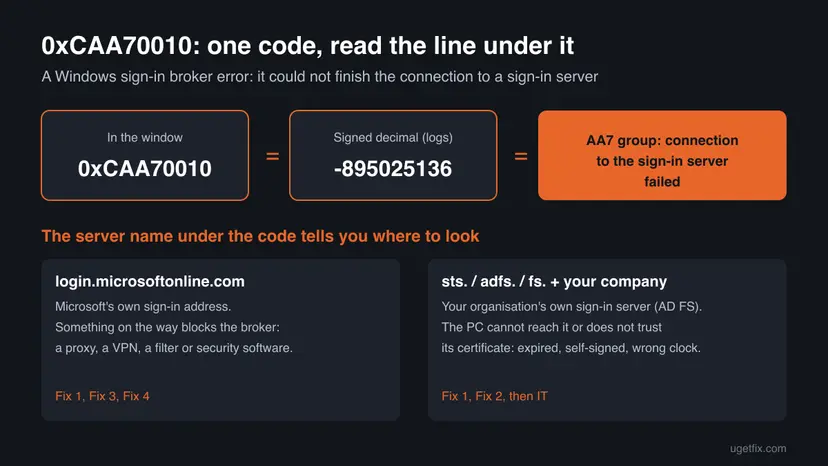
0xCAA70010 is a sign-in error of the Windows account broker: Word, Outlook or Teams asked it for your work account, and it could not finish the connection to a sign-in server. The window says We can't connect you. Read the server name under the code and open it in Edge first: it tells you which fix applies.
0xCAA70010 means Windows could not complete the secure connection to the sign-in server named under the code. Open that server address in Microsoft Edge (Fix 1). A certificate warning points at the clock, missing root certificate updates or your company's sign-in server (Fix 2). A page that does not open points at a proxy or network block (Fix 3). If everything opens, check security software and stored accounts.
| Error | We can't connect you. It looks like we can't connect to one of our services at the moment. Please try again later, or contact your helpdesk if the issue persists. 0xCAA70010, with a server name under it. |
|---|---|
| Where it appears | In the Microsoft sign-in window that Word, Excel, Outlook or Teams open when they ask Windows for your work or school account: at start, when you add an account in Outlook, or when Office activates. |
| Main cause | The Windows sign-in broker cannot finish a secure connection to the server under the code: Microsoft's login.microsoftonline.com or your organisation's own sign-in server, for example an AD FS address that starts with sts.. |
| Fastest fix | Open the server under the code in Edge (Fix 1). The result, a certificate warning, a failed page or a page that works, tells you which of the next fixes to use. |
| Also written as | 0xcaa70010, caa70010, 0XCAA70010, and the signed decimal -895025136 in logs. Older Office builds show You'll need the internet for this. with the same code. |
| Code family | Microsoft lists codes of the pattern 0x?AA7???? among the network connection errors of the broker. Its neighbour 0xCAA70004 is the one most often confused with it. |
| Affects | Microsoft 365 Apps and Office 2016 or later on Windows 11 and Windows 10, mostly work and school accounts and organisations with their own sign-in server. |
| Microsoft's status | No Microsoft article is dedicated to 0xCAA70010. Its archived article on Office sign-in connection issues covers the whole 0xCAA7 group. No fix in an Office update is announced. |
| Time to fix | 5 minutes for the test in Fix 1. Up to 40 minutes for the rest. A server certificate problem can only be fixed by the organisation's IT. |
Facts checked on 15 October 2026. Steps written for Microsoft 365 Apps (Word, Excel, Outlook, Teams) on Windows 11 (25H2 and 26H2) and Windows 10 22H2, read against Microsoft's documentation.
What Office 365 error 0xCAA70010 means
You open Word or Outlook, enter your work address, and instead of the password page a small window says We can't connect you. It asks you to try again later or to contact your helpdesk. Under the text stand the code 0xCAA70010 and a server name.
The window does not come from Office. It is drawn by the Web Account Manager, the part of Windows that holds work and school accounts for apps. Microsoft says Office has used it for sign-in since build 16.0.7967. When the broker cannot finish its connection to a sign-in server, every Office app that asked shows the same window.
| What you may see | Where | What it tells you |
|---|---|---|
We can't connect you with 0xCAA70010 and login.microsoftonline.com | Word, Excel, Outlook, Teams | The broker could not reach Microsoft's main sign-in address. |
We can't connect you with 0xCAA70010 and an address such as sts.company.com | Outlook when adding an account, Office activation | The organisation signs you in on its own server (AD FS), and the PC could not finish a secure connection to it. |
| You'll need the internet for this. We couldn't connect to one of the services we needed to sign you in. 0xCAA70010 | Older Office 2016 builds | The same error with older wording. The reader's internet was fine. |
| -895025136 | Logs and admin tools | The signed decimal form of 0xCAA70010. |
The server name under 0xCAA70010 is the most useful fact on the screen. Write it down before you close the window. Every fix on this page starts from it.
0xCAA70010, 0xCAA70004 and the other 0xCAA7 sign-in codes
Microsoft's article on Office sign-in connection issues tells you to look in the AAD log for codes of the pattern 0x?AA7????, 0x?AA8???? and 0x?AA3????. It treats all of them as connection failures, even when the rest of the network works. 0xCAA70010 belongs to that group.
| Code | What it points at | How it relates to 0xCAA70010 |
|---|---|---|
0xCAA70010 | A sign-in server could not be reached securely. Reports tie it to untrusted or expired certificates on AD FS servers. | This page. |
0xCAA70004 | The server or a proxy was not found, often a proxy setting. | Same AA7 group, same first tests. Searched together with this code. |
0xCAA70007 | Microsoft's example: the connection failed although the network works. | Same group, shown with You'll need the internet for this. |
0xCAA80000 | The broker found no network path at all. | AA8 group. Our 0xCAA80000 guide covers it. |
We could not find a Microsoft page that gives 0xCAA70010 its own name or text. What is known comes from the group pattern, from Microsoft's checks for the group, and from administrators who found the cause in their own setup.
What causes error 0xCAA70010, ranked
The order below is our reading of the reports and of Microsoft's checks for this group. It is not a statistic. Each cause points at the fix that tests it.
| How often | Cause | Typical sign | Fix |
|---|---|---|---|
| Most often | The PC does not trust the certificate of the sign-in server: expired, self-signed, or the PC lacks current root certificates | A company server name such as sts. under the code. Edge shows a certificate warning for it. | Fix 1, Fix 2 |
| Often | A proxy, firewall or web filter lets browsers through but not the broker | Work or school network. Office signs in on a phone hotspot. | Fix 1, Fix 3 |
| Often | Security software or a VPN filters the broker processes | Started after an antivirus, VPN or HTTPS scanning tool was installed or updated. | Fix 4 |
| Less often | A wrong clock on the PC | The PC was off for a long time or the time zone is wrong. Certificates then look invalid. | Fix 2 |
| Less often | Stale stored credentials or a broken work account link | Only one account fails, or the error began after a password change or migration. | Fix 5 |
| Rarely | A damaged Office installation or an old build | The error stays on every network and with clean credentials. | Fix 6, Fix 7 |
Many pages still tell you to add EnableADAL = 0 to the registry. That switches Office back to an old sign-in method. Microsoft does not support turning off ADAL or WAM to solve sign-in problems, so this page does not use it.
How to fix Office 365 sign-in error 0xCAA70010 in Windows
Start with Fix 1. It changes nothing and tells you whether the cause is a certificate, the network or this PC. Then go to the fix it points at and try the sign-in after each one. Success looks the same every time: the password page appears instead of We can't connect you.
| Your case | Start with | Then |
|---|---|---|
A company server (sts., adfs., fs.) under the code, and Edge shows a certificate warning | Fix 2 | Send the warning to IT |
| The server under the code does not open in Edge | Fix 3 | IT or the internet provider |
| Office signs in on a phone hotspot but not on the usual network | Fix 3 | IT, with the server name |
| It began after a VPN, antivirus or web filter was installed | Fix 4 | Fix 3 |
| Only one account fails, or it began after a password change | Fix 5 | Fix 6 |
| Every test passes and Office still fails | Fix 6 | Fix 7 |
Fix 1. Open the server under the code in Edge and try another network
5 minutesNo riskEveryone, first. It changes nothing and decides the next fix.
Microsoft's own check for broker connection errors is to open login.microsoftonline.com in Edge, normally and InPrivate. With 0xCAA70010 the window also names the server it failed on, so you can test exactly that one.
- Write down the server name under 0xCAA70010 and close the Office apps.
- Open Microsoft Edge and go to
https://login.microsoftonline.com. You should land on the Microsoft 365 start page or your organisation's sign-in page. - Press Ctrl + Shift + N for an InPrivate window, open the same address and sign in with your work account.
- If the code showed another server, such as
sts.company.com, openhttps://plus that name in Edge too. - Note what you see: a certificate warning such as Your connection isn't private, a page that does not open, or a normal page.
- If every page opened, disconnect any VPN, connect to a phone hotspot and start Word again.
- Return to your usual network and reconnect the VPN, whatever the result.
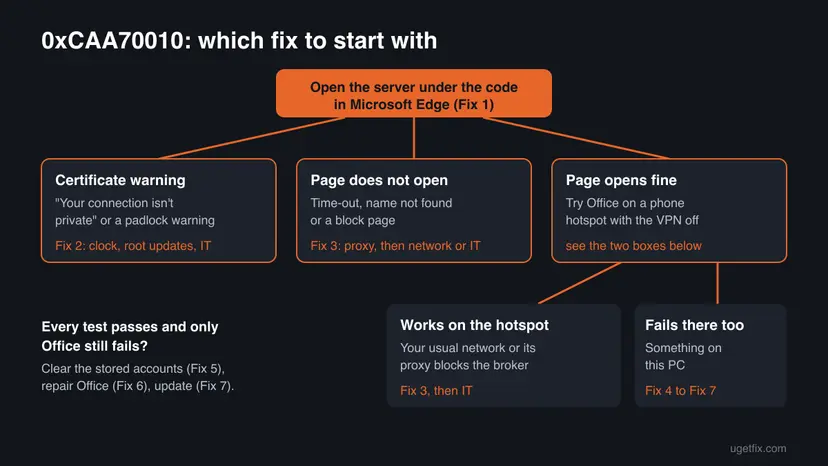
Use Edge, not an old browser. Microsoft notes that Internet Explorer used a different network stack. A sign-in that works on the hotspot is not a fix, but it shows IT that the usual network blocks the broker.
It worked if: You know which of three results you got, and Office may already sign in on the hotspot.
If not: If you saw a certificate warning, go to Fix 2. If the page did not open, go to Fix 3.
Fix 2. Make the PC trust the sign-in server: clock, root certificates and IT
10 minutesLow riskEdge showed a certificate warning, or a company server such as sts. stands under the code.
An administrator traced 0xCAA70010 to an AD FS server whose certificate the PC did not trust. He named an outdated list of trusted certificates and an expired certificate as the other causes. A wrong clock makes valid certificates look invalid too.
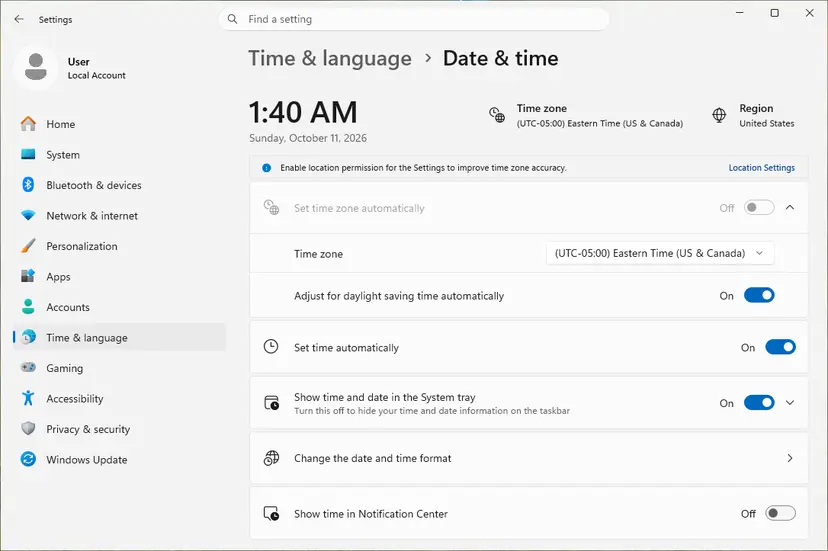
- Check the date, time and time zone in the corner of the taskbar.
- If they are wrong, turn on automatic time and sync. Step by step: How to fix the date and time in Windows.
- Select Start, type
check for updatesand open Check for updates. Install everything offered and restart. Windows Update also refreshes the trusted root certificates. - Open the server address from Fix 1 in Edge again.
- If the warning is still there, select the warning icon next to the address and open the certificate details. Note the Issued by name and the Valid to date.
- Send the server name, the warning text and these two details to IT. Do not install a certificate from an unknown source yourself.
If the AD FS certificate is self-signed or issued by an internal certificate authority, the client must trust that authority. If it is a public certificate, check that it has not expired and that the client has current root updates.
It worked if: The server opens in Edge without a warning, and Office shows the password page.
If not: If the server opens without a warning but Office still fails, check the proxy with Fix 3.
Fix 3. Remove a proxy that only Windows apps use
10 minutesLow riskThe server did not open in Edge, or Office signs in on the hotspot only.
Windows keeps more than one proxy setting, and the broker can use one your browser ignores. Microsoft says the network environment must not block login.microsoftonline.com, and a stray proxy is the most common block on a single PC.
If your organisation set a proxy, removing it can cut the PC off from company resources. Write down every value before you change it. On a managed laptop, send IT what you find.
- Open Settings > Network & internet > Proxy. Under Manual proxy setup, check Use a proxy server. Windows 10 has the same Proxy page.
- If a manual proxy is on and nobody set it on purpose, note the address and switch it off.
- Right-click Start and open Terminal (Admin). Select Yes in the prompt.
- Show the WinHTTP proxy that Windows components use:
netsh winhttp show proxy - If it lists a proxy you do not know, and you are not on a company network, reset it:
netsh winhttp reset proxy - Restart the PC and open Word.
If no proxy was set and other Windows apps also fail to sign in, reset Winsock, TCP/IP and the DNS cache: Reset the network and flush DNS. Note any fixed IP address or DNS server first.
It worked if: The WinHTTP setting reads Direct access, and Office shows the password page on your usual network.
If not: If no proxy was set or removing it changed nothing, check security software and the VPN with Fix 4.
Fix 4. Let the sign-in broker through security software and VPN filters
10 minutesLow riskThe error began after a VPN, antivirus or HTTPS scanning tool was installed or updated.
Microsoft names two processes that fetch sign-in tokens and says that a local firewall, antivirus or Windows Defender must not block them. A tool that scans HTTPS traffic can also replace the server's certificate, which looks like an untrusted server.
- Sign-in broker
C:\Windows\SystemApps\Microsoft.AAD.BrokerPlugin_cw5n1h2txyewy\Microsoft.AAD.BrokerPlugin.exe- Background task host
C:\Windows\System32\backgroundTaskHost.exe- Main destination
https://login.microsoftonline.com
- Disconnect the VPN and quit its app.
- Pause Microsoft Defender real-time protection for one attempt: Turn off Microsoft Defender protection for a moment.
- If you use another antivirus, pause its web shield or HTTPS scanning the same way.
- Open Word and try the sign-in once.
- Turn the protection, the web shield and the VPN back on, whatever the result.
- If the sign-in worked, add the two processes and the sign-in server to that program's exceptions, or ask its maker or IT to do it.
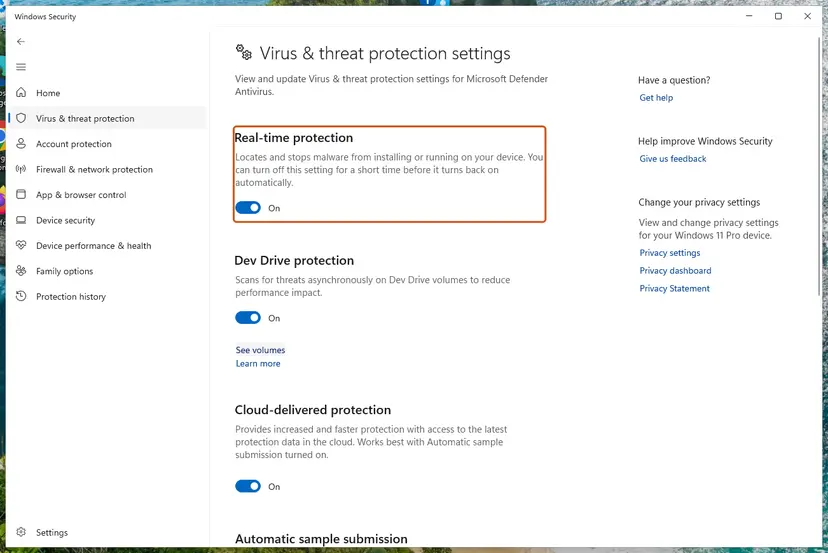
It worked if: Office signs in while the program is paused, which names the blocker, and keeps signing in once the exceptions are set.
If not: If nothing changed with everything paused, turn it all back on and clear the stored accounts with Fix 5.
Fix 5. Remove stored Office credentials and reconnect the work account
10 minutesLow riskOnly one account fails, or the error began after a password change, a migration or a new company sign-in server.
Windows keeps a copy of the account and the server it last used. Microsoft's recovery for a broken work account link is to remove the account under Access work or school and add it again.
Disconnecting an account under Access work or school can remove the organisation's setup from the PC. On a managed laptop, only clear Credential Manager and leave Disconnect to IT.
- Close Word, Excel, Outlook, Teams and OneDrive.
- Select Start, type
credential managerand open Credential Manager. Select Windows Credentials. - Expand every entry that starts with MicrosoftOffice and select Remove, then Yes.
- Open Settings > Accounts > Access work or school. If the work account is listed and you do not sign in to Windows with it, select it and select Disconnect.
- Restart the PC, open Word and sign in with the work account again.
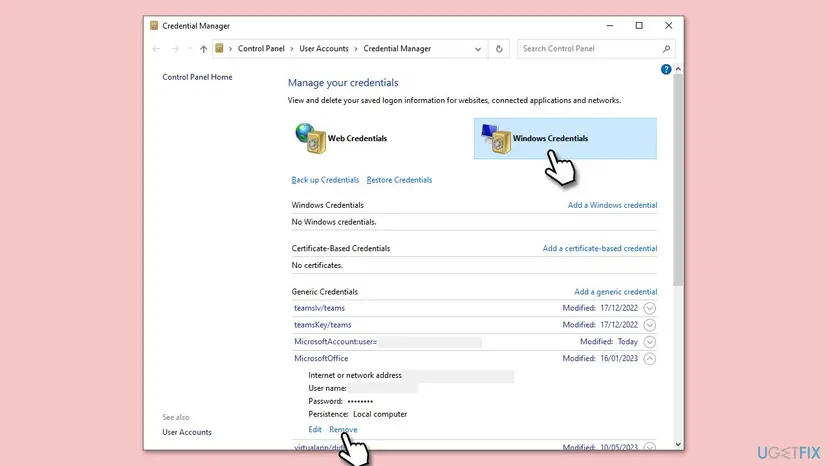
It worked if: Office asks for the account as on a new PC and shows the password page or your company's sign-in page.
If not: If the same window returns, repair Office with Fix 6.
Fix 6. Repair Office with Quick Repair, then Online Repair
10 to 30 minutesLow riskThe error stays on every network and with cleared credentials.
An administrator on Microsoft Q&A cleared the same window for several users by running the Microsoft 365 installer over the existing installation. Online Repair does the same with Microsoft's own tool and keeps your files.
- Open Installed apps. Right-click the Start button and select Installed apps.
- Find Microsoft 365 or Office. Find your Microsoft 365 or Office product in the list. If you have a standalone app such as Visio or Project, search for it by its own name.
- Open the repair window. Select the three dots next to the product and select Modify.
- Start with Quick Repair. In the repair window, select Quick Repair, then Repair. It is the faster option: it finds damaged files and replaces them.
- Finish and test. Follow the instructions on the screen until the repair is done. Restart the PC if you are asked to, then open the app that had the problem.
- Run Online Repair if the problem is still there. Open the same repair window again and select Online Repair, then Repair. Microsoft recommends this option to make sure everything gets fixed. It takes longer than Quick Repair.
These steps were written for Windows 11 25H2 and 26H2. The full page with the other versions and what each result means: How to repair Microsoft 365 or Office
Full steps for Windows 11 and Windows 10: How to repair Microsoft 365 or Office. Online Repair downloads Office again, so it needs a working connection to Microsoft's download servers.
It worked if: The repair finishes, Office starts and the sign-in reaches the password page.
If not: If 0xCAA70010 still returns, update Office and Windows and run Microsoft's sign-in troubleshooter with Fix 7.
Fix 7. Update Office and Windows and run Microsoft's sign-in troubleshooter
15 to 30 minutesLow riskOffice or Windows has not updated for weeks, or every other fix failed.
Microsoft's first advice for Office sign-in connection issues is the latest Office build for your channel and a supported Windows. Its article also points to the Microsoft 365 Sign-in troubleshooter, which tests the common causes.
- Open Word and select File > Account > Update Options > Update Now.
- Select Start, type
check for updates, install everything offered and restart. - Open the Microsoft 365 Sign-in troubleshooter from Microsoft's link
https://aka.ms/SaRA-OfficeSignIn-sarahomeand follow it. - Sign in to Office once more.
Windows 10 left support on 14 October 2025. A Windows 10 PC without Extended Security Updates no longer gets fixes for the sign-in broker or new root certificates through Windows Update.
It worked if: Office and Windows report that they are up to date, and the sign-in reaches the password page.
If not: If 0xCAA70010 stays, stop changing the PC and collect the evidence in the next section for IT.
If 0xCAA70010 is still there: where the real cause is written
Windows records each failed broker request. Microsoft describes where to find it, and the entry shows the server and the code at the moment of the failure.
- Right-click Start and open Event Viewer.
- Go to Applications and Services Logs > Microsoft > Windows > AAD > Operational.
- Look for errors at the time of your sign-in that mention
XMLHTTPWebRequest. - Note the code and the server. Microsoft's pattern for connection failures is
0x?AA7????,0x?AA8????,0x?AA3????,0x102or0x80070102. - Check that the time matches a moment you were online, not a wake from sleep.
| What the log or tests show | Likely reason | Who can fix it |
|---|---|---|
AA7 errors with a company sts. or adfs. server, certificate warning in Edge | The organisation's sign-in server certificate is untrusted or expired. | IT only. |
AA7 errors with login.microsoftonline.com, only on the work network | The company proxy or filter blocks the broker. | IT. |
0x?028????, 0x?029???? or 0x?009???? | Not a network problem: Microsoft ties these to the TPM chip. | IT, or a TPM firmware update. |
| AADSTS135011 or AADSTS50155 | The device was disabled or deleted in the organisation's directory. | IT only. |
- Send to IT: the full text of the window, the server name, the time, the Edge result from Fix 1 and the AAD log entry.
- When it is not your PC: if colleagues on the same network get 0xCAA70010 with the same server, the cause is the server or the network, and no change on your PC will fix it.
How to keep 0xCAA70010 from coming back
Once the broker can reach and trust the sign-in server, the error does not return by itself. It comes back when a certificate expires or something new sits in the path.
- Keep automatic time on. A wrong clock makes every certificate look invalid.
- Install Windows updates. They carry new root certificates and broker fixes.
- Give security tools an exception, not a pause. Allow the two broker processes and the sign-in server in antivirus, HTTPS scanning and VPN filters.
- Do not leave test proxies behind. Check
netsh winhttp show proxyafter you remove a VPN or debugging tool. - For administrators: watch certificate dates. Renew the AD FS certificate before it expires and use one that client PCs trust.
Frequently asked questions
What does error 0xCAA70010 mean?
It means the Windows sign-in broker could not finish a secure connection to the sign-in server when Office asked for your account. Microsoft groups codes of the pattern 0x?AA7???? with connection failures. Reports tie this one most often to a server certificate the PC does not trust, and to proxies or filters in the way. The server name under the code shows whether Microsoft's address or your organisation's own server failed. Fix 1 on this page tests it in two minutes.
Why does 0xCAA70010 show login.microsoftonline.com?
Because that is the server the broker tried to reach and could not. login.microsoftonline.com is Microsoft's main sign-in address for work and school accounts. Microsoft notes that this one name covers many IP addresses and services, so a filter that blocks only some of them causes errors that come and go. Open the address in Edge as in Fix 1. If it fails there too, the whole PC is blocked. If it opens, check the proxy in Fix 3 and security software in Fix 4.
What is the difference between 0xCAA70010 and 0xCAA70004?
Both belong to the same AA7 group of broker connection errors and show the same We can't connect you window. The code 0xCAA70004 is usually described as a server or proxy that was not found, so the proxy check comes first. The code 0xCAA70010 more often appears when the server was reached but the secure connection failed, for example on an untrusted certificate. The first test is the same for both: open the server under the code in Edge. If you see caa70004 in Teams, the steps on this page still apply.
Is 0xCAA70010 a problem with my internet connection?
Usually not. In the reports the browser and other apps work, and the reader says the connection is good. The broker uses its own processes and the Windows network settings, and it checks the server's certificate strictly. A proxy, a filter, a wrong clock or an untrusted certificate stops it while web pages still open. Test the server under the code in Edge and on a phone hotspot (Fix 1) to see where the block sits.
Why do I get 0xCAA70010 only on the company network?
Because something on that network stands between the broker and the sign-in server. A company proxy, firewall or HTTPS inspection device can let browsers through while blocking or rewriting the broker's connection. If Office signs in on a phone hotspot and fails at work, nothing on your PC needs changing. Send IT the server name under the code, the time, and the hotspot result. Searches such as the Japanese 社内ネットワーク, company network, describe exactly this case.
Can I fix 0xCAA70010 by turning off modern authentication?
We do not recommend it. Old guides add EnableADAL = 0 under the Office Identity registry key, which sends Office back to an older sign-in method. Microsoft says Office uses the Web Account Manager for sign-in since build 16.0.7967, and it does not support turning off ADAL or WAM to solve sign-in issues. Some security features only work through WAM. Find the certificate, proxy or filter problem instead, with Fix 1 to Fix 4.
Will reinstalling Office fix 0xCAA70010?
Sometimes, but only after the network and certificate checks. One administrator cleared the same window for several users by running the Microsoft 365 installer over the existing installation. Another reader reinstalled several times without success, because the cause was outside Office. Online Repair in Fix 6 reinstalls Office with Microsoft's own tool and keeps your files. Deleting Office folders and registry keys by hand is not needed and can leave Office half removed.
Is Microsoft 365 down when I see 0xCAA70010?
Rarely. The code comes from your PC: its broker could not finish the connection. If Microsoft's service had an outage, Outlook on the web and Word on the web would usually fail as well. Sign in at https://www.office.com in a browser and ask a colleague on another network. If both work, the problem is on your PC, your network or your organisation's sign-in server. Your administrator can see Microsoft's service status in the Microsoft 365 admin center.
I searched for this error in Spanish, Vietnamese or Japanese. Does this page apply?
Yes. Searches such as me sale igual (it still shows the same), nó bị sao đây (what is wrong with it) and エラーになります (it gives an error) came to this page with the same code. The window appears in your Windows language, but 0xCAA70010 and the server name stay the same. Match the error by the code, then follow the fixes in order. Menu names in Windows and Office appear in your language.
Sources
- Microsoft Learn: Connection issues when signing in after updating to Office 2016 build 16.0.7967 on Windows 10 (learn.microsoft.com)
- Microsoft Q&A: Error code 0xCAA70010 and 0x80070057 when installing Office (user reports) (learn.microsoft.com)
- PeteNetLive: Outlook ADFS Error 0xCAA70010 (administrator's write-up) (petenetlive.com)
Did this fix work?
One click, no account. It tells the next reader which guides are worth their time.
Questions and experiences: fix Office 365 sign-in error 0xcaa70010 in Windows
Still broken, or found a fix we did not cover? Ask here: members and our editors answer. Reading is open; writing needs a free account.
…