
How to fix OneDrive error “Connecting to d.docs.live.net” when opening Microsoft Office files?

Prefer to fix it yourself? The manual steps follow.
- 7methods
- 5 to 20 minutes
- Easy
Applies to Word, Excel and PowerPoint on Windows 11 and Windows 10 with files in a personal OneDrive (Microsoft account)
7 methods in this guide
Hello. I have a very irritating issue which prevents me from editing Word and Excel documents in OneDrive. I use Office 2013 on my Windows 10 laptop. When I try to edit shared OneDrive Excel or Word files, I get a Windows Security pop-up saying “Connecting to d.docs.live.net. Enter your credentials.” I entered the username and password three times, but the file opens in read-only mode. When I click Enable Editing, the same pop-up shows up, I have to enter the credentials three more times, and Protected View still does not go away. Any ideas?
Connect to d.docs.live.net is a Windows Security box that Word, Excel or PowerPoint opens when it reaches a file in your personal OneDrive by its web address and has no valid sign-in for it. It is not a virus and not a OneDrive outage. Remove the old saved password for d.docs.live.net first, then sign in to Office with the account that owns the file.
d.docs.live.net is the web address of files in a personal OneDrive. The box appears when Office opens such a file by that address and the saved sign-in is missing or old. Open Credential Manager, remove the d.docs.live.net entry under Generic Credentials, restart, and sign in again in Word under File > Account (Fix 1). If the prompt stays, check that Office uses the account that owns the file (Fix 2).
| Error | A Windows Security box with Connecting to d.docs.live.net and Enter your credentials, or Connect to d.docs.live.net on current Windows, that keeps coming back after you type your password. |
|---|---|
| Where it appears | In Word, Excel or PowerPoint when you open, enable editing on or save a file that lives in a personal OneDrive. Users also report it when PowerPoint exports a video. |
| Main cause | An old saved password for d.docs.live.net in Credential Manager, or Office signed in with a different account than the one that owns the file. |
| Fastest fix | Remove the d.docs.live.net entry in Credential Manager > Windows Credentials > Generic Credentials, restart, then sign in under File > Account (Fix 1). |
| Also written as | Connect to d.docs.live.net, Connecting to d.docs.live.net, connect to d docs live net, Windows Security connect to d.docs.live.net, https://d.docs.live.net. |
| Related message | Sorry, we couldn't open https://d.docs.live.net/... means Office could not reach the cloud file at all. Fixes 2 and 3 cover it. |
| Affects | Office 2013 to Microsoft 365 on Windows 10 and Windows 11. Reports on Microsoft Q&A run from 2015 to May 2026. |
| Vendor status | No Microsoft support article covers this prompt. Microsoft community staff and moderators point to Credential Manager, the Office sign-in and the Office Document Cache. |
| Your files | Safe. The prompt blocks one way of opening the file; the file stays in OneDrive and opens on onedrive.com. |
| Time to fix | 5 minutes for Fixes 1 to 3, 15 to 20 minutes for an Office repair. |
Facts checked on 15 October 2026. Steps written for Windows 11 (25H2 and 26H2) and Windows 10 22H2 with Microsoft 365 apps and the current OneDrive sync app.
What “Connect to d.docs.live.net” means
d.docs.live.net is the address Office uses for documents stored in a personal OneDrive, the one tied to a Microsoft account such as outlook.com or hotmail.com. A file there has an address like https://d.docs.live.net/<your OneDrive ID>/Documents/Report.docx. A Microsoft Q&A moderator put it simply: the d.docs.live.net location means OneDrive. It is not a separate folder on your PC.
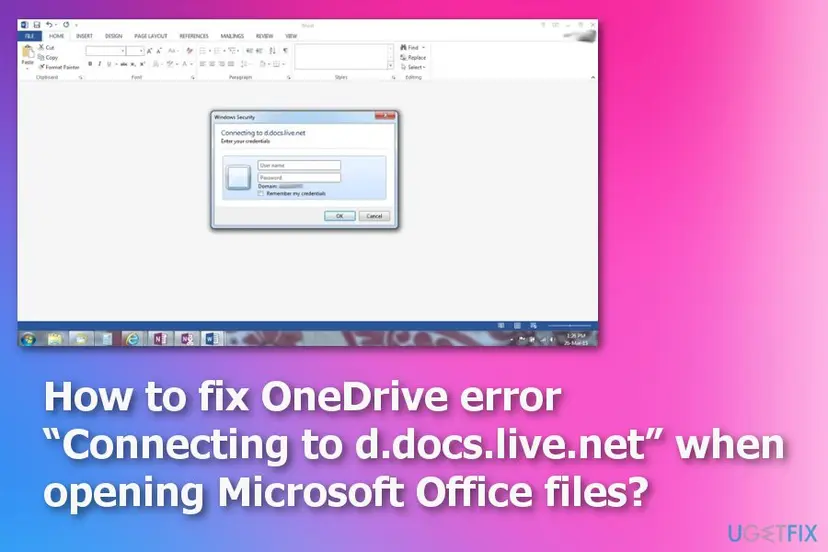
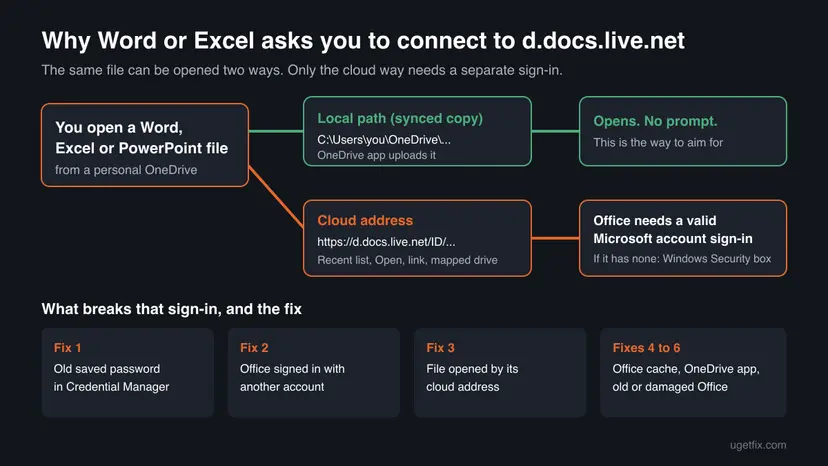
When Office opens a file by that web address, it needs a valid Microsoft account sign-in for it. If Office cannot use one silently, Windows falls back to the old credentials box. A Microsoft Q&A moderator described it in May 2026 as Excel opening the file through the cloud or WebDAV path instead of the normal synced copy, with a bad cached login.
- Older form: a Windows Security box with the lines Connecting to d.docs.live.net and Enter your credentials. The 2015 report on Microsoft Q&A shows it three times on opening, three times on Enable Editing and three times on save.
- Current form: a Windows Security box that says Connect to d.docs.live.net, often with the user name already filled in as MicrosoftAccount\ followed by an email address and a saved password.
- Related message: Sorry, we couldn't open https://d.docs.live.net/... in Word, Excel or PowerPoint. Here Office did not even get to the sign-in.
- Spellings people search: connect to d.docs.live.net, connecting to d.docs.live.net, d docs live net, https //d.docs.live.net. They are all the same address.
The box wants your Microsoft account: the email address and password you use on onedrive.com. A Windows PIN, a local Windows user name or a work account does not work for a personal OneDrive. If two-step verification is on and an old Office keeps refusing your password, Microsoft says such apps need an app password.
Why Office keeps asking you to connect to d.docs.live.net: causes, most common first
The order below follows the answers that helped readers in the Microsoft Q&A threads on this prompt, from the accepted 2015 answer to a staff answer in 2026. The common thread is always the same: Office reaches the file by its cloud address and the sign-in it has for that address is wrong.
| How often | Cause | Typical sign | Fix |
|---|---|---|---|
| Most often | An old or wrong password saved for d.docs.live.net in Credential Manager. | The box returns after every restart, often after a password change, with a filled-in password you did not type. | Fix 1 |
| Often | Office is signed in with another account than the one that owns the file. | Office shows a work or school account, the file is in a personal OneDrive. | Fix 2 |
| Often | The file is opened by its cloud address, not from the synced OneDrive folder. | The prompt appears from the Recent list, a link or a mapped network drive, but not from File Explorer. | Fix 3 |
| Sometimes | The Office Document Cache is damaged. | Files stuck uploading, the prompt appears when you save. | Fix 4 |
| Sometimes | The OneDrive sync app is not signed in or not running. | No OneDrive cloud icon, or files show a red cross. | Fix 5 |
| Rarely | An old or damaged Office installation. | Office 2013, 2016 or 2019, or the prompt on every cloud file. | Fix 6 |
An early answer on Microsoft Q&A suggested unticking all Protected View options. That does not touch the sign-in and removes a protection Microsoft uses for files from the internet and email. Leave Protected View on and fix the sign-in instead.
How to fix the Connect to d.docs.live.net prompt
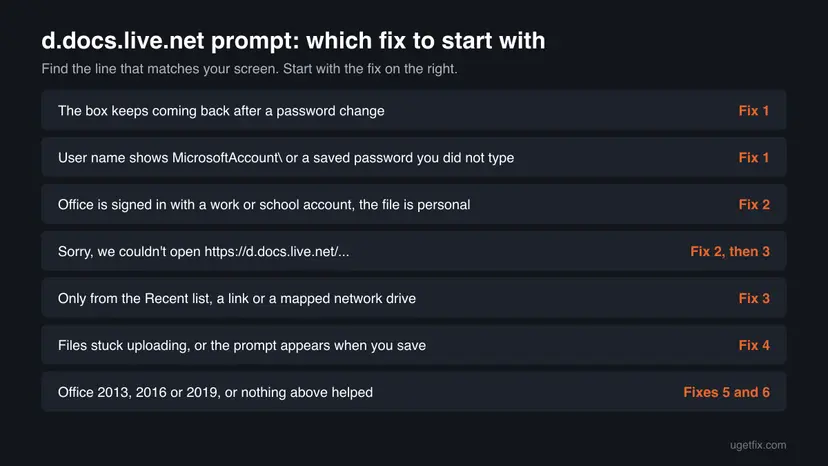
Fixes 1 to 3 take a few minutes each and fix most cases. Fix 4 helps when saving or uploading hangs. Fixes 5 and 6 repair the OneDrive app and Office itself. Fix 7 is for readers who want Office to stop saving to OneDrive at all.
| What you see or what happened | Start with |
|---|---|
| The box comes back after you changed your Microsoft account password. | Fix 1 |
| The user name shows MicrosoftAccount\ with a password you did not type. | Fix 1 |
| Office is signed in with a work or school account; the file is in your personal OneDrive. | Fix 2 |
| Sorry, we couldn't open https://d.docs.live.net/... | Fix 2, then Fix 3 |
| The prompt appears only from the Recent list, a link or a mapped network drive. | Fix 3 |
| Files stay stuck uploading, or the prompt appears on save. | Fix 4 |
| You use Office 2013, 2016 or 2019, or nothing above helped. | Fix 5 and Fix 6 |
| You never want to save to OneDrive from Office. | Fix 7 |
Fix 1. Remove the saved d.docs.live.net password in Credential Manager
5 minutesLow riskEveryone first, and especially when the box returns after a password change or shows a password you did not type.
Windows stores what you typed in the box as a Generic Credential named after the address. If that password is old, Windows offers it again and again and the server refuses it. Removing it was the accepted answer in the Microsoft Q&A thread with more than 2,200 same-question votes.
- Close Word, Excel, PowerPoint and Outlook.
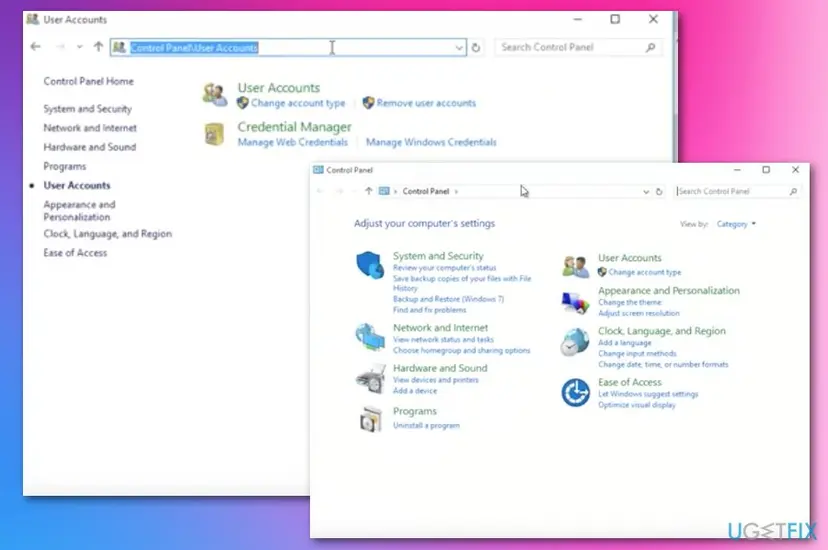
- Select Start, type Credential Manager and open it. On Windows 10 you can also go to Control Panel > User Accounts > Credential Manager.
- Select Windows Credentials.
- Under Generic Credentials, find the entry named d.docs.live.net. Expand it with the arrow and select Remove, then Yes.
- Remove other entries only if their name contains d.docs.live.net, OneDrive or MicrosoftOffice and your Microsoft account email. Leave all other entries alone.
- Restart the PC.
- Open Word, go to File > Account and check that your Microsoft account is shown under User Information. If it is not, select Sign in and use the account that owns the OneDrive file.
- Open the file again. If Windows asks once more, type your Microsoft account email and password and tick Remember my credentials.
One reader on Microsoft Q&A edited the saved password instead of removing the entry, and the old password kept coming back. Remove the entry; do not edit it.
It worked if: Word or Excel opens the file without the Windows Security box, or asks once and then remembers the new password.
If not: If the box returns with the same account, go to Fix 2. If it appears only from the Recent list or a link, go to Fix 3.
Fix 2. Sign in to Office with the account that owns the file and reconnect OneDrive
5 minutesLow riskOffice is signed in with a work or school account, with several accounts, or the message is Sorry, we couldn't open https://d.docs.live.net.
Office asks for the sign-in of the account it thinks owns the address. A Microsoft Q&A moderator found this in the Sorry, we couldn't open case: a student signed in with a school account tried to open files from a personal OneDrive. Removing and re-adding the OneDrive service rebuilds that link.
- Open Word and select File > Account.
- Under User Information, read which account is signed in. If it is not the account that owns the file, select Switch account and sign in with the right one.
- Under Connected Services, find the OneDrive entry of your personal account and select Remove. Confirm.
- Select Add a service > Storage > OneDrive and sign in with your Microsoft account. These are Microsoft's steps for adding OneDrive as a service.
- Close all Office apps, open Word again and open the file from File > Open > OneDrive - Personal.
A file in OneDrive for work or school never uses d.docs.live.net; its address starts with your organisation's SharePoint name. If you see d.docs.live.net, the file is in a personal OneDrive, even when someone shared it with your work account.
It worked if: File > Account shows your Microsoft account, Connected Services lists OneDrive with that email, and the file opens without a prompt.
If not: If the prompt appears only when you open from the Recent list or a link, go to Fix 3.
Fix 3. Open the synced copy in your OneDrive folder instead of the cloud address
3 minutesLow riskThe prompt appears from Office's Recent list, a shared link, Open > OneDrive or a mapped network drive, but you have the OneDrive app on the PC.
A file opened from the OneDrive folder in File Explorer has a local path, and the OneDrive app uploads the changes with its own sign-in. Office then needs no d.docs.live.net sign-in at all. The Microsoft Q&A staff answer from May 2026 starts with exactly this check.
- Open File Explorer and select OneDrive - Personal in the left pane.
- Go to the folder of the file. If the file shows a cloud icon, right-click it and select Always keep on this device, then wait for the green check mark.
- Double-click the file to open it from there.
- If you mapped OneDrive as a network drive with a d.docs.live.net address in the past, right-click that drive under This PC and select Disconnect. Use the OneDrive folder instead.
- In Word or Excel, select File > Open, right-click the old entry of the file in the Recent list and select Remove from list, so the cloud address is not used again by mistake.
It worked if: The file opens from File Explorer without a prompt, and the title bar shows that it is saved to OneDrive.
If not: If the prompt appears when you save, or files stay stuck uploading, go to Fix 4. If there is no OneDrive folder in File Explorer, go to Fix 5.
Fix 4. Delete the Office Document Cache
5 minutesLow riskFiles stay stuck uploading, Office warns about the Office Document Cache, or the prompt appears when you save.
Office keeps a local cache of cloud files to make sure changes reach the server. Microsoft says this cache can be damaged when a cloud app fails to sync, and that deleting it is not dangerous. A damaged cache can keep pushing an old upload with an old sign-in.
Close every Office file before you delete the cache. Microsoft's Upload Center notes that the delete does not remove items still waiting to upload or items with upload errors, but closing the files first avoids any doubt.
- Microsoft 365 and Office 2021 or 2024: open Word and select File > Options > Save.
- Under Cache Settings, select Delete cached files, then confirm.
- Office 2016 or 2019 with the Upload Center: select Start, type Microsoft Upload Center and open it. Select Settings, then Delete cached files.
- Restart the PC and open the file again from the OneDrive folder.
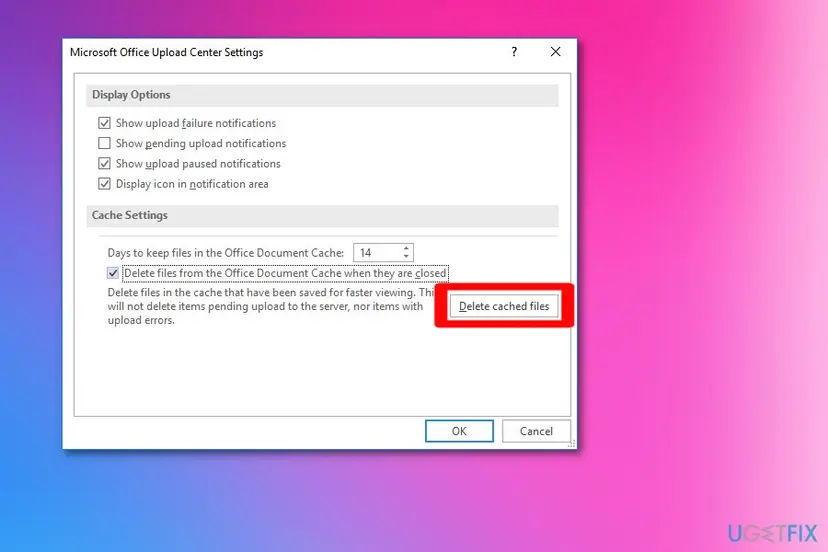
If the cache files are locked and cannot be deleted, Microsoft's article first starts Windows with a clean boot, deletes the cache and then restarts normally: How to perform a clean boot in Windows
It worked if: Office opens and saves the file without the prompt, and nothing is waiting to upload.
If not: Go to Fix 5 to reset the OneDrive app.
Fix 5. Reset the OneDrive app and sign in again
5 minutes, then a full syncLow riskThe OneDrive cloud icon is missing, shows a red cross or a sign-in request, or the files in the OneDrive folder do not sync.
Fix 3 only works when the OneDrive app is signed in and syncing. A reset clears the app's settings and connections without deleting files, so it can sign in fresh and give Office a working local copy again.
- Open the Run box. Press the Windows key and R at the same time.
- Reset the Microsoft Store cache. Type the command below and select OK. A blank Command Prompt window opens and closes, then the Microsoft Store opens. Close it. This is the first step in Microsoft's instructions. If OneDrive still does not sync, continue.
wsreset.exe - Run the OneDrive reset command. Press the Windows key and R again. Copy the command below, paste it into the box and select OK.
%localappdata%\Microsoft\OneDrive\onedrive.exe /reset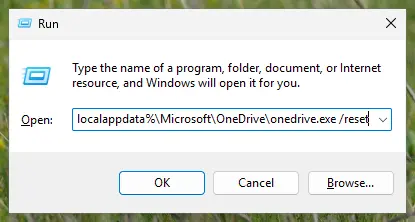
Type the reset command in the Run box and select OK. Screenshot: Windows 11 26H2. - If Windows cannot find it, try the second path. If you see a message that starts with Windows cannot find, open the Run box again and use this command instead.
C:\Program Files\Microsoft OneDrive\onedrive.exe /reset - If that fails too, try the third path. If you still see Windows cannot find, use this command. If none of the three works, the OneDrive sync app is not installed on this PC.
C:\Program Files (x86)\Microsoft OneDrive\onedrive.exe /reset - Start OneDrive again. Select Start, type OneDrive in the search box and select the OneDrive desktop app. OneDrive then starts a full sync.
These steps were written for Windows 11 25H2 and 26H2, Windows 10 22H2. The full page with the other versions and what each result means: How to reset OneDrive in Windows
When OneDrive starts, sign in with the same Microsoft account that owns the files. If you synced only some folders, choose them again, because the reset forgets that choice.
It worked if: The OneDrive cloud icon is back in the taskbar, the folder syncs, and the file opens from File Explorer without a prompt.
If not: If OneDrive itself shows a sign-in error, see our guide to OneDrive error 0x8004e4be. Otherwise go to Fix 6.
Fix 6. Update and repair Office, or move off an unsupported version
15 to 20 minutesLow riskYou use Office 2013, 2016 or 2019, or the prompt appears on every cloud file after Fixes 1 to 5.
The original question came from Office 2013, which left support on 11 April 2023. Microsoft ended support for Office 2016 and 2019 on 14 October 2025, and their support for connecting to Microsoft 365 services ended on 10 October 2023. A current, repaired Office uses the modern sign-in.
- Open Word and select File > Account. Under Product Information, note the version.
- Select Update Options > Update Now and let Office install the updates. Restart the apps.
- If the prompt stays, repair Office as below. Start with Quick Repair and use Online Repair if that does not help.
- Open Installed apps. Right-click the Start button and select Installed apps.
- Find Microsoft 365 or Office. Find your Microsoft 365 or Office product in the list. If you have a standalone app such as Visio or Project, search for it by its own name.
- Open the repair window. Select the three dots next to the product and select Modify.
- Start with Quick Repair. In the repair window, select Quick Repair, then Repair. It is the faster option: it finds damaged files and replaces them.
- Finish and test. Follow the instructions on the screen until the repair is done. Restart the PC if you are asked to, then open the app that had the problem.
- Run Online Repair if the problem is still there. Open the same repair window again and select Online Repair, then Repair. Microsoft recommends this option to make sure everything gets fixed. It takes longer than Quick Repair.
These steps were written for Windows 11 25H2 and 26H2. The full page with the other versions and what each result means: How to repair Microsoft 365 or Office
We could not find a Microsoft statement that a personal OneDrive refuses Office 2013, 2016 or 2019. Microsoft only says it no longer fixes them. If an old Office keeps prompting after Fixes 1 to 5, a supported version is the lasting fix, and onedrive.com in a browser works meanwhile.
It worked if: Office is on a current build and opens OneDrive files without the Windows Security box.
If not: Read the section below on what to collect, and use onedrive.com in a browser in the meantime.
Fix 7. Make Office save to this PC by default
2 minutesNo riskYou do not want new files to go to OneDrive at all, or the prompt appears when you save or export something you meant to keep on the PC.
Office saves new files to OneDrive by default when you are signed in. A Microsoft MVP on Microsoft Q&A gives this setting to people whose files kept going to d.docs.live.net. It changes where new files go, not files already in OneDrive.
- Open Word, Excel or PowerPoint and select File > Options > Save.
- Tick Save to Computer by default.
- Next to Default local file location, select Browse and choose a folder on the PC, for example Documents.
- Select OK. Repeat in the other Office apps if the option is not shared on your version.
- For a file already in OneDrive, use File > Save As > This PC to keep a local copy.
It worked if: New documents are saved to the folder you chose, and Save As no longer starts at a d.docs.live.net address.
If not: Files already in OneDrive stay there. Open them from the OneDrive folder (Fix 3) or download them from onedrive.com.
If Office still asks you to connect to d.docs.live.net
There is no log entry with a code for this prompt, so support needs a clear description. Collect these facts before you post on Microsoft Q&A or contact Microsoft support.
- Does the file open on onedrive.com with the same account? If not, the account or the file is the problem, not Office.
- Office version: File > Account > Product Information and the build number under About Word.
- Accounts: which account File > Account shows, and which account owns the file.
- Where you open it from: File Explorer, the Recent list, a link in an email, Teams or a mapped drive.
- What changed: a password change, two-step verification turned on, a new PC, or a Windows or Office update just before it started.
- The exact text of the Windows Security box, including the user name it fills in.
For a personal Microsoft account, use Contact Microsoft Support on Microsoft's OneDrive help pages. If the file was shared with you, ask the owner to check that you still have edit access; a revoked share can also end in a sign-in loop.
Are your files safe while the prompt blocks them?
Yes. The prompt blocks Office from reaching the file by its web address; the file stays in OneDrive. Removing a saved password, deleting the Office cache or resetting OneDrive does not delete documents.
- Open the file on onedrive.com in a browser and edit it in Word for the web while you fix the desktop app.
- If a file is stuck uploading, save a copy with File > Save As > This PC before you delete the Office cache.
- If you cannot find a document that Office saved to d.docs.live.net, look in the Documents folder on onedrive.com: that is where the address points.
How to keep the d.docs.live.net prompt from coming back
The prompt comes back when the saved sign-in and the real one drift apart. These habits keep them together.
- After a Microsoft account password change, remove the d.docs.live.net entry in Credential Manager.
- Open OneDrive files from the OneDrive folder in File Explorer.
- Keep Office and the OneDrive app updated.
- Use one personal Microsoft account in Office for your personal OneDrive.
- Do not edit the saved d.docs.live.net password; remove it.
- Do not turn off Protected View to stop the prompt.
- Do not map OneDrive as a network drive with a d.docs.live.net address.
- Do not type your password into a web page that only claims to be d.docs.live.net.
Frequently asked questions
What is d.docs.live.net?
It is the web address Microsoft Office uses for files in a personal OneDrive, the one that belongs to a Microsoft account. A file there looks like https://d.docs.live.net/ followed by your OneDrive ID, a folder such as Documents and the file name. A Microsoft Q&A moderator sums it up as: the d.docs.live.net location means OneDrive. It is not a virus, not a folder on your hard drive and not a separate service you have to sign up for.
What username and password does Connect to d.docs.live.net want?
Your Microsoft account: the email address and password you use on onedrive.com or outlook.com. Not the PIN you use to unlock Windows and not a work or school account. Current Windows often fills in the user name as MicrosoftAccount\ followed by your email. If two-step verification is on and an older Office refuses your correct password, Microsoft says to create an app password under Advanced security options in your Microsoft account and type that instead.
What does Sorry, we couldn't open https://d.docs.live.net mean?
Office tried to reach a file in a personal OneDrive by its web address and failed before any sign-in. In the Microsoft Q&A thread on this message, the user was signed in to Office with a school account while the file lived in a personal OneDrive. Sign in with the account that owns the file and re-add OneDrive under File > Account > Connected Services (Fix 2). If the file was moved, renamed or deleted, remove the old entry from the Recent list and open it from onedrive.com.
Why does the box come back after I type the right password?
Usually because Windows keeps an older password for d.docs.live.net in Credential Manager and offers it before yours. One reader on Microsoft Q&A changed the stored password, and the box still showed the old one. Remove the whole d.docs.live.net entry under Generic Credentials and restart (Fix 1). If it still returns, Office is probably signed in with another account (Fix 2), or the file is opened by its cloud address instead of from the OneDrive folder (Fix 3).
Why are my Office files saving to d.docs.live.net?
Because Office saves to OneDrive by default when you are signed in with a Microsoft account, and d.docs.live.net is simply OneDrive's address. The files are in your OneDrive, usually in Documents, and you can see them on onedrive.com. To keep new files on the PC, open File > Options > Save, tick Save to Computer by default and choose a Default local file location (Fix 7). Files already saved there can be downloaded from onedrive.com or saved again with Save As > This PC.
Is Connect to d.docs.live.net a scam or a virus?
The address itself belongs to Microsoft's OneDrive, and the genuine prompt is a Windows Security box that opens from Word, Excel or PowerPoint. It is safe to type your Microsoft account there. Be careful with web pages or emails that ask you to log in to d.docs.live.net through a link: OneDrive's own sign-in happens on Microsoft's login pages, not on a page you reached from an unexpected message. When in doubt, open onedrive.com yourself and sign in there.
Should I turn off Protected View to stop the prompt?
No. Protected View opens files from the internet and email read-only to protect you from malware, and turning it off does not repair the OneDrive sign-in. The original reader saw the prompt again when selecting Enable Editing because Office needed to sign in to save changes back, not because of Protected View. Fix the saved credentials and the Office account (Fixes 1 and 2), and Enable Editing works normally with Protected View still on.
Excel Power Query cannot connect to https://d.docs.live.net. What can I do?
A question on Microsoft Tech Community describes a query that uses Data > From Web with a d.docs.live.net address and fails at the sign-in; it has no answer from Microsoft. A query to the synced copy avoids the web sign-in: use Data > Get Data > From File > From Excel Workbook and pick the file in your OneDrive folder in File Explorer. The query then reads a local path, and the OneDrive app keeps that file up to date.
Will removing credentials or deleting the Office cache delete my documents?
No. Credential Manager only stores sign-in details; removing the d.docs.live.net entry means Office asks once for your password again. Microsoft says deleting the Office Document Cache is not dangerous, and the Upload Center notes that it does not delete files still waiting to upload. Your documents stay in OneDrive. To be safe, close every Office file and save a local copy of anything that is stuck uploading before you delete the cache.
Connect to d.docs.live.net, como resolver? Is there a guide in Spanish or Portuguese?
This page is in English, but the prompt and the fixes are the same in every language of Windows and Office. In Spanish or Portuguese, open the Credential Manager (Administrador de credenciales or Gerenciador de Credenciais), remove the d.docs.live.net entry under Windows credentials, restart, and sign in again in Word under File > Account (Archivo or Arquivo > Cuenta or Conta). The menu names change with the language; the steps and the order stay the same.
Sources
- Microsoft Q&A: Connecting to d.docs.live.net - enter your credentials (accepted answer: empty Credential Manager) (learn.microsoft.com)
- Microsoft Q&A: Receiving message Connect to d.docs.live.net, not accepting login (staff answer, May 2026) (learn.microsoft.com)
- Microsoft Q&A: How do I connect with, or by-pass, d.docs.live.net security screen (user reports) (learn.microsoft.com)
Did this fix work?
One click, no account. It tells the next reader which guides are worth their time.
Questions and experiences: fix OneDrive error “Connecting to d.docs.live.net” when opening Microsoft Office files
Still broken, or found a fix we did not cover? Ask here: members and our editors answer. Reading is open; writing needs a free account.
…