
How to fix "Operation failed with error 0x00004005" when using printer?

Prefer to fix it yourself? The manual steps follow.
- 7methods
- 5 to 30 minutes
- Intermediate
Applies to Windows 11 and Windows 10 PCs that connect to a printer shared by another PC or a print server
7 methods in this guide
Hello. My computer cannot print, and the connection to the printer is the issue. It is not the printer or my fault. Something is not okay with Windows 10 and connections, because I get a pop-up with the error code "operation failed with error 0x00004005". Can I solve this, and what is the reason?
"Operation failed with error 0x00004005" appears when your PC tries to connect to a printer that another computer shares and the connection breaks, most often while Windows fetches the printer driver from that computer. Install the right driver on your own PC first and connect again; if that fails, add the printer through a local port.
Error 0x00004005 is a general "operation failed" result from Windows while it connects to a shared printer. Most often the driver cannot come from the host PC. Install the maker's driver for your Windows on your own PC, then connect again with an administrator account (Fix 1). If it still fails, add the printer on a local port named \\HostName\ShareName (Fix 2). If the host does not open at all, fix sharing and sign-in first (Fix 3).
| Error | Windows cannot connect to the printer. Operation failed with error 0x00004005. A general failure code. It does not name the reason; the fixes below find it. |
|---|---|
| Where it appears | In the Connect to Printer box, when you add or double-click a printer that another computer shares on your network. |
| Main cause | The client cannot get or install the printer driver from the host: a 32-bit or 64-bit mismatch, a driver the host cannot pass on, or a non-administrator account. |
| Fastest fix | Install the driver for your own Windows from the printer maker, then connect again as an administrator (Fix 1). Next: a local port (Fix 2). |
| Also written as | 0x4005, 0x0004005, 0x000004005, 0x0000405, error 4005, operation failed with error 4005, 4005 printer error. |
| Not the same as | 0x80004005, "Your printer has experienced an unexpected configuration problem", which shows in the print dialog when you print, not when you connect (Fix 7). |
| Affects | Windows 11 and Windows 10, and older Windows 7 and XP setups. Any printer brand that is shared from one PC to another. |
| Microsoft's status | No support article for 0x00004005 by number. Since 10 August 2021, installing a driver from a shared printer needs an administrator by default (KB5005652). |
| Time to fix | 5 to 10 minutes for Fix 1, 15 minutes for the local port, up to 30 minutes when the host PC needs changes. |
Facts checked on 15 October 2026. Steps written for Windows 11 (25H2 and 26H2) and Windows 10 22H2.
What "Operation failed with error 0x00004005" means
The full message is "Windows cannot connect to the printer. Operation failed with error 0x00004005." It comes in a small box titled Connect to Printer, at the moment you add a printer that another computer shares, or when you double-click that printer under Network in File Explorer. The printer is visible; the connection is what fails.
The code itself says little. Microsoft has no support article for 0x00004005 as a printer error. Its last four digits match the generic COM error E_FAIL, 0x80004005, which Microsoft lists as "Unspecified error". We could not confirm that Windows builds one from the other, but both mean the same in practice: a step failed and Windows did not say which one.
Windows writes eight digits after 0x: 0x00004005. People also type 0x4005, 0x0004005, 0x000004005, 0x0000405 or simply "error 4005". Zeros in front change nothing, so 0x4005 and 0x00004005 are one error. 0x0000405 has a digit missing and is almost always a typo of the same code. 0x80004005 is a different, wider code, covered in the FAQ and in Fix 7.
Why Windows cannot connect to the printer: causes of 0x00004005, ranked
When you connect to a shared printer, Windows uses Point and Print: it copies the driver from the host and links your print queue to the host's queue. 0x00004005 means one of those steps failed. Microsoft's printing documents and the reports on Microsoft Q&A and Super User point to these causes, from common to rare.
| # | Cause | How to recognise it | Fix |
|---|---|---|---|
| 1 | The driver on the host does not fit your PC | The host is an older or 32-bit Windows, or uses a driver package another PC cannot take over | Fix 1, Fix 2 |
| 2 | Your account may not install drivers from a shared printer | You sign in without administrator rights, or Windows asks for an administrator and you cancel | Fix 1 |
| 3 | Sharing, network discovery or sign-in is off on the host | \\HostName does not open, asks for a password, or the local port says access is denied | Fix 3 |
| 4 | A stuck Print Spooler or an old connection on your PC | The printer worked before; an old copy of it is still listed | Fix 4 |
| 5 | A damaged or very old driver on the host | Other PCs fail too, or the host prints badly itself | Fix 6 |
| 6 | Policy settings on a work network | Domain PCs, printer deployment by the IT department | Still not fixed section |
- Why the driver comes first. In a Microsoft Q&A thread with this exact message, a Windows 7 64-bit laptop could see a printer shared by a Windows XP PC but could not connect. The accepted answer was a method that installs the driver on the laptop itself. A 64-bit PC cannot use a 32-bit driver, so it has nothing to download.
- Why the driver package matters. Another user on Microsoft Q&A got 0x00004005 with a shared printer that used a v4 driver with a JavaScript constraint script. Without the script in the driver manifest, the client could connect, the user reported.
- Why the account matters. Microsoft's KB5005652 says that updates released on 10 August 2021 and later require administrator rights to install a printer driver from a remote computer through Point and Print. A standard account cannot finish the connection alone.
- Why the host matters. On Super User, a user who got 0x00004005 between two Windows 10 PCs also got "access is denied" on a local port. That points to sharing or sign-in, not to the driver.
Error 0x4005 on Windows 11, Windows 10 and Windows 7: what differs
The message and the cause are the same on every version. What differs is where the settings are, and how old the host is. Many reports come from mixed setups: a new laptop connecting to a printer that an older desktop shares by USB.
| Situation | Windows 11 | Windows 10 22H2 | Windows 7 or XP host |
|---|---|---|---|
| Add a shared printer | Settings > Bluetooth & devices > Printers & scanners > Add device | Settings > Devices > Printers & scanners > Add a printer or scanner | Control Panel, Devices and Printers |
| Driver bitness | 64-bit (x64 or Arm64) only | 64-bit or, rarely, 32-bit | Often 32-bit, so a 64-bit client has no matching driver |
| Driver install by a standard user | Needs an administrator since August 2021 | Same | Not serviced, no newer rules |
| Updates and fixes | Still serviced | Support ended on 14 October 2025 | Windows 7 support ended in January 2020 |
Windows 11 22H2 and later changed how two PCs talk during printing. If your error turns into 0x00000709 or 0x000006BA after a change, follow our guide to shared printer error 0x00000709, which covers those RPC settings.
How to fix "Operation failed with error 0x00004005": seven fixes in order
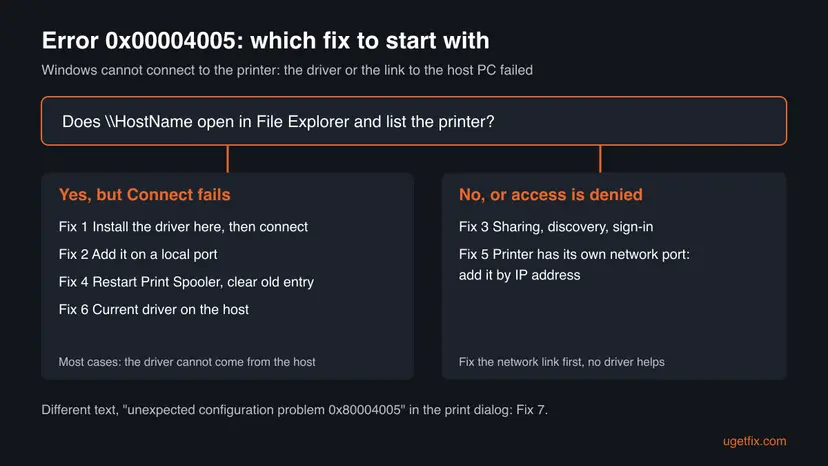
Fix 1 and Fix 2 deal with the driver and solve most cases. Fix 3 is for a host your PC cannot reach. Fix 4 to Fix 6 cover the spooler, network printers and the host's driver. Fix 7 is for the related 0x80004005 message in the print dialog.
| What you see or have | Start with |
|---|---|
The shared printer is listed under \\HostName, but Connect gives 0x00004005 | Fix 1 |
| The host is an old or 32-bit Windows, or Fix 1 did not help | Fix 2 |
\\HostName does not open, asks for a password or says access is denied | Fix 3 |
| It worked before, and an old copy of the printer is still listed | Fix 4 |
| The printer has its own Wi-Fi or Ethernet connection | Fix 5 |
| Several PCs fail with the same shared printer | Fix 6 |
| "Your printer has experienced an unexpected configuration problem. 0x80004005" when you print | Fix 7 |
Fix 1. Install the printer driver on your PC first, then connect as an administrator
5 to 10 minutesLow riskFor everyone who sees the shared printer but gets 0x00004005 on Connect. Needs an administrator account on your PC.
The connection fails while Windows takes the driver from the host. When a fitting driver is already installed on your PC, Windows has less to copy, and the step that fails often disappears. An administrator is needed because, since August 2021, Windows blocks driver installs from a shared printer for standard users.
- On your PC, open Settings > System > About and read System type: 64-bit x64, or an Arm-based processor.
- On the host PC, note the exact printer model in Printers & scanners.
- On the printer maker's website, download the driver for that model and for your Windows version and system type. Install it with no printer connected.
- Sign in with an administrator account, or be ready to type an administrator's password when Windows asks.
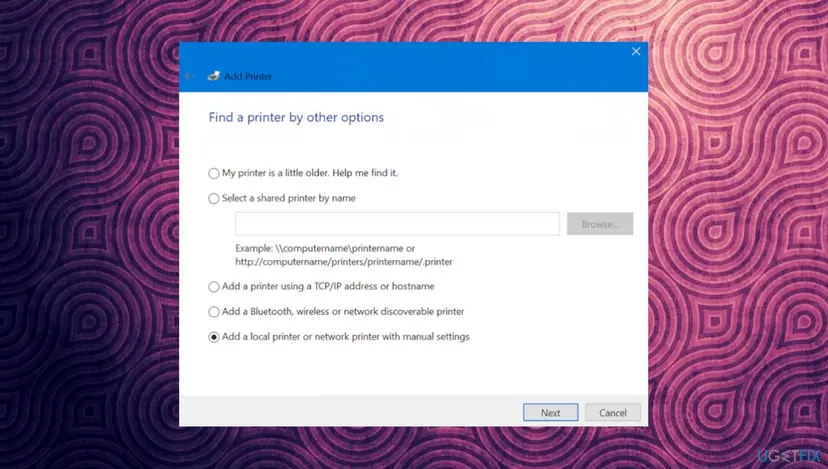
- Open Settings > Bluetooth & devices > Printers & scanners, select Add device, then Add manually next to The printer that I want isn't listed.
- Choose Select a shared printer by name, type
\\HostName\ShareNameand select Next. Approve the administrator prompt. - Print a test page from the printer's page in Printers & scanners.
If you turned on Windows protected print mode under Printer preferences, Microsoft says printers that use third-party drivers are uninstalled and those drivers cannot be used while it is on. Check that setting before you install a maker's driver.
Do not lower the driver security setting RestrictDriverInstallationToAdministrators to make this work for a standard account. Microsoft says the value 0 makes devices vulnerable. Have an administrator connect the printer once instead.
It worked if: The printer is added without the 0x00004005 box and the test page comes out.
If not: If the same error comes back, the host's queue link is failing too. Go to Fix 2.
Fix 2. Add the shared printer on a local port with its own driver
15 minutesLow riskFix 1 did not help, the host is an old or 32-bit Windows, or the host's driver cannot be passed on. Needs an administrator.
A normal connection depends on the host handing over its driver and queue. A local port skips both: your PC keeps its own driver and queue and only sends finished print data to the share. It is the route the accepted Microsoft Q&A answer for 0x00004005 led to, and the one the old uGetFix guide gave.
- Install the driver for the printer model on your PC, as in Fix 1, steps 1 to 3.
- Open Settings > Bluetooth & devices > Printers & scanners and select Add device, then Add manually. On Windows 10 select Add a printer or scanner, then The printer that I want isn't listed.
- Choose Add a local printer or network printer with manual settings and select Next.
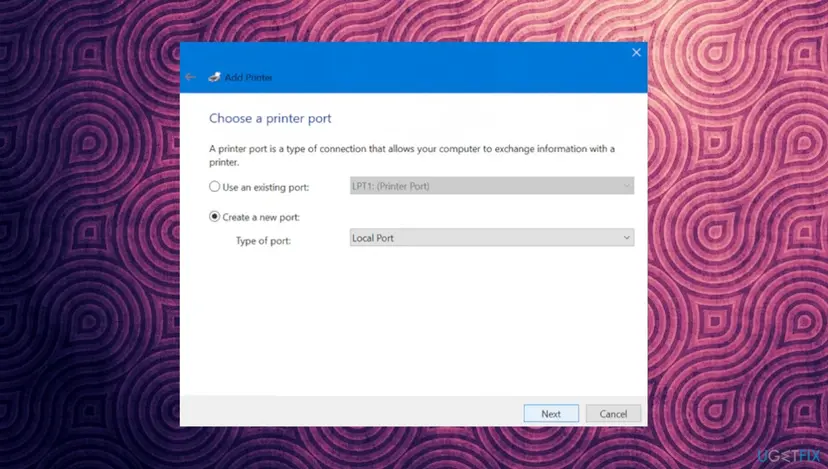
- Choose Create a new port, set Type of port to Local Port and select Next.
- As the port name, type
\\HostName\ShareNameexactly as the host shares it and select OK. - Pick the maker and model from the list, or select Have Disk and point to the driver you downloaded.
- Give the printer a name, do not share it again, and print a test page.
| Normal connection | Local port | |
|---|---|---|
| Driver | Copied from the host | Installed by you from the maker |
| Print queue | On the host | On your PC |
| What must work | Share name, sign-in, driver copy and queue link | Share name and sign-in only |
The same route also helps with shared printer error 0x00000040, where the link to the host drops.
It worked if: The test page prints, and the printer is listed on your PC like a local printer.
If not: If Windows says "access is denied" when you type the port name, the host refuses your sign-in. Go to Fix 3.
Fix 3. Check sharing, network discovery and sign-in on the host PC
10 minutesLow risk\\HostName does not open, asks for credentials that do not work, or the local port in Fix 2 says access is denied.
No driver helps if your PC cannot open the share. Microsoft's own checklist for shared printers names the share, the network, matching credentials and two sharing switches. A user on Super User whose 0x00004005 came with "access is denied" fixed it with sharing settings and later Windows updates.
- On the host, open Settings > Bluetooth & devices > Printers & scanners, select the printer and then Printer properties.
- On the Sharing tab, check Share this printer, note the Share name exactly, then select Apply and OK.
- On the host and on your PC, open Settings > Network & internet > Advanced network settings > Advanced sharing settings and turn on Network discovery and File and printer sharing.
- Make sure both PCs are on the same local network and the host is awake.
- Sign in on your PC with the same account as on the host, or enter the host's user name and password when Windows asks. An account with no password often cannot open a share.
- On your PC, type
\\HostNamein the File Explorer address bar. The shared printer must be listed before you try Fix 1 or Fix 2 again.
On Windows 10 the printer is under Settings > Devices > Printers & scanners, then Manage and Printer properties. Sharing switches are under Settings > Network & Internet > Network and Sharing Center > Change advanced sharing settings.
It worked if: \\HostName opens and shows the printer, and Fix 1 or Fix 2 now finishes.
If not: If the host cannot be opened by name, try \\ followed by its IP address. If that opens, the problem is name resolution on your network; use the IP address in the printer path.
Fix 4. Restart Print Spooler and remove the old printer connection
10 minutesLow riskThe printer worked before, an old copy of it is still listed, or Fix 1 and Fix 2 stop halfway.
The Print Spooler service does the connecting. A spooler that hangs, or an old connection and driver for the same printer, can make the new connection fail with a general error. The old guide named a stopped spooler as a main cause; it is a quick check, not the usual answer.
- On your PC, open Printers & scanners, select every old copy of the shared printer and select Remove.
- Under Related settings, open Print server properties, go to the Drivers tab and remove the old driver of that printer if it is listed.
- Restart Print Spooler on your PC and on the host, as shown below.
- Restart your PC and connect again with Fix 1.
- Open Services. Press Windows+R, type the command below and press Enter. You can also type Services in the search box on the taskbar and open the app.
services.msc - Find the service. The list is sorted by Name. Click any row and type the first letter of the service to jump to it. Check the Status column (Running or empty) and the Startup Type column.
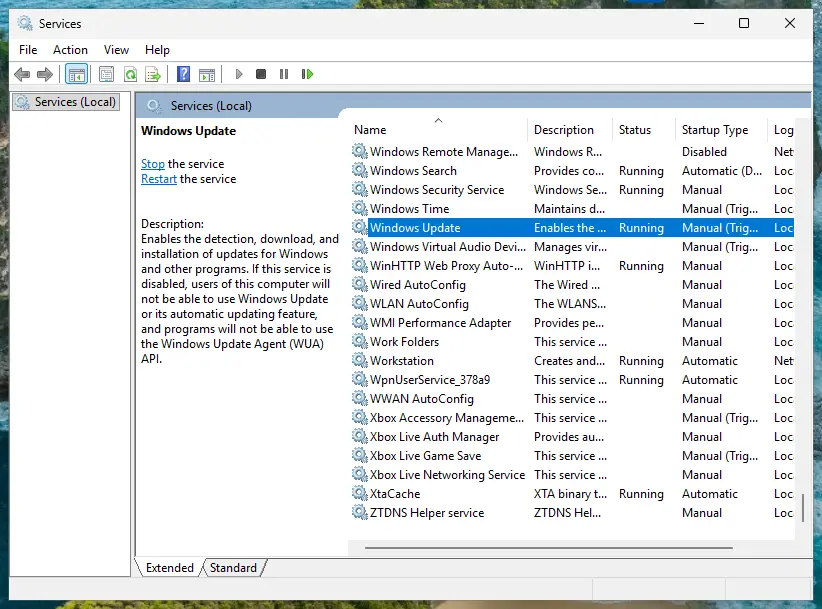
Status and Startup Type of each service are shown in the list. Screenshot: Windows 11 26H2. - Restart the service. Right-click the service and select Restart. If the service is not running, select Start instead. Wait until the progress window closes.
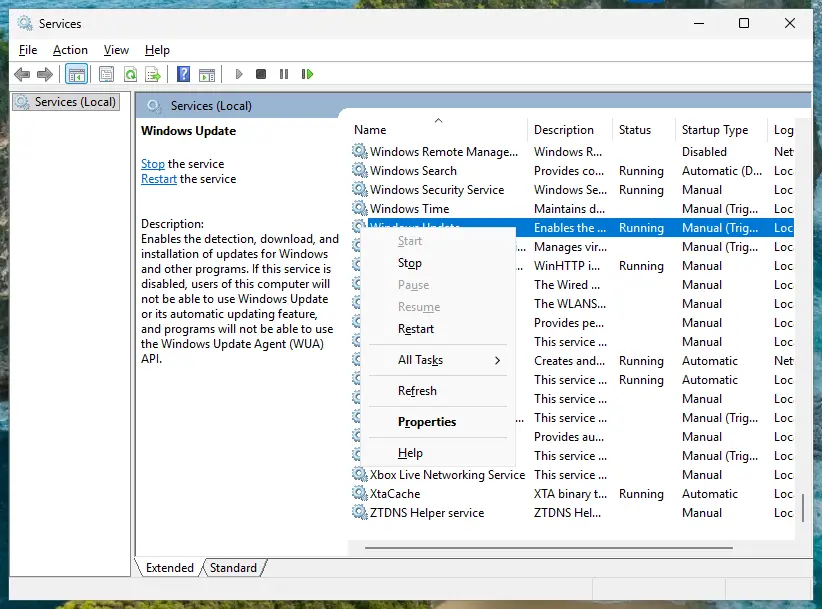
Right-click a service to start, stop or restart it. Screenshot: Windows 11 26H2. - Open its properties to change the startup type. Only if your guide says so: double-click the service. The General tab shows the Service name (used in commands), the Startup type and the Service status.
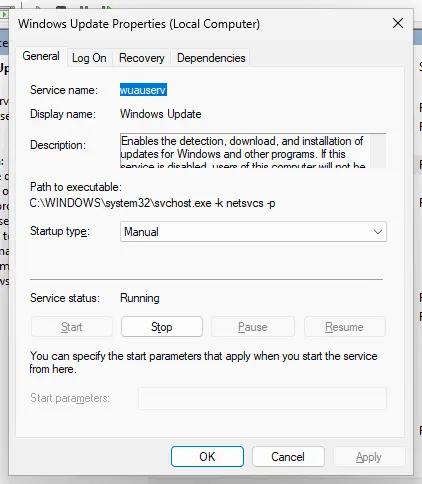
Properties show the service name, startup type and status. Screenshot: Windows 11 26H2. - Set the startup type and apply. Choose the type from the Startup type list (Automatic, Automatic (Delayed Start), Manual or Disabled), select Apply, then Start if the service should run now, and OK.
These steps were written for Windows 11 and Windows 10 (the steps are the same). The full page with the other versions and what each result means: Check and restart Windows services
It worked if: Print Spooler shows Running on both PCs, and the printer connects without the error.
If not: If the spooler stops by itself, that is a different fault; our guide to print spooler error 0x000006BA covers it. Otherwise go to Fix 5 or Fix 6.
Fix 5. Add a network printer by its IP address instead of through another PC
10 minutesLow riskThe printer has its own Wi-Fi or Ethernet connection, and you added it through another PC only out of habit.
A printer with its own network port does not need a host PC. Added by IP address, it gets a local TCP/IP port and a local driver on your PC, so there is no shared connection that can fail with 0x00004005.
- Find the printer's IP address on its control panel or on a network settings page it prints.
- Open Settings > Bluetooth & devices > Printers & scanners, select Add device, then Add manually.
- Choose Add a printer using a TCP/IP address or hostname and select Next.
- Type the IP address, let Windows find the driver, or select the maker's driver you installed.
- Remove the old shared copy of the printer so apps stop using it.
A printer connected by USB to another PC can only be reached through that PC. For it, Fix 1 to Fix 4 are the routes.
It worked if: The printer shows in Printers & scanners with its own port and prints a test page.
If not: Give the printer a fixed address in your router so the port keeps working, then try Fix 6 if pages still fail.
Fix 6. Install the current driver for the printer on the host PC
15 to 20 minutesLow riskSeveral PCs fail with the same shared printer, or the host has run an old driver for years.
Every client copies its driver from the host, so a damaged, very old or unusual driver package on the host fails on every client. A Microsoft Q&A report ties 0x00004005 to a v4 driver with a constraint script. A current full driver from the maker gives clients something they can take over.
- On the host, check the printer maker's website for the current driver of the model and the host's Windows version.
- Update or reinstall the driver on the host, as shown below.
- Restart the host, print a test page there, then connect from the client again with Fix 1.
- Open Device Manager. Right-click Start and select Device Manager.
- Open the device's Driver tab. Expand the category (for example Display adapters), right-click the device, select Properties and open the Driver tab. Driver Date and Driver Version show what is installed now.
- Update the driver. Select Update Driver and let Windows search automatically. To use a driver you downloaded from the device maker, select Browse my computer for drivers instead and point to the unpacked folder.
- Or roll back the driver. If the problem started after a driver update, select Roll Back Driver, choose a reason and select Yes. The button is greyed out when Windows has no earlier driver to return to.
- Or reinstall the driver. Select Uninstall Device. Tick Attempt to remove the driver for this device only if you want Windows to delete the driver package too, then select Uninstall.
- Restart. Restart the PC. Windows detects the device again and installs a driver for it.
- Check optional driver updates. Open Settings > Windows Update > Advanced options > Optional updates. If driver updates are listed, tick the ones you need and select Download & install.
These steps were written for Windows 11 24H2 and later. The full page with the other versions and what each result means: Update, roll back or reinstall a driver
It worked if: The host prints, and clients connect without 0x00004005.
If not: If the maker has no driver for your Windows versions, use Fix 2 on each client, or Fix 5 when the printer has a network port.
Fix 7. Different message: "unexpected configuration problem 0x80004005" when you print
10 minutesLow riskThe printer is installed, but the print dialog says "Your printer has experienced an unexpected configuration problem. 0x80004005" and Print is greyed out.
This is not the connection error above; it comes later, in the print dialog. Microsoft documents one current cause: a regression in Windows 11 KB5083769 and later that breaks Universal Print printers first installed on Windows 10. For home printers, removing and adding the printer again is the same first step.
- Open Terminal without administrator rights and run the command below.
- Look for your printer's name. A key named only after the printer, without
S-1-12-numbers in front, is the case Microsoft describes. - In Printers & scanners, remove the printer, restart the PC and add it again. Microsoft gives this as the manual fix for affected Universal Print printers.
- For a printer at home, install the maker's current driver while you add it again, as in Fix 1.
Lists the installed printers; read-only, changes nothing
reg query "HKLM\SYSTEM\CurrentControlSet\Control\Print\Printers"Microsoft adds that a test page on an affected printer may fail with "The I/O operation has been aborted because of either a thread exit or an application request" and code 0x000003e3. Our guide to printing error 0x000003e3 covers that code.
It worked if: The print dialog shows the printer normally and Print works.
If not: On a work PC with Universal Print, the IT department can use Microsoft's Convert-UpPrinterToPerUser.ps1 script. At home, read the Print Service log in the next section.
Still getting error 0x00004005? Where the real cause is written
The box never says which step failed. Windows writes more in its logs. Collect these facts before you change anything else, and send them along if you ask the printer maker or Microsoft for help.
| Check | Where | What it tells you |
|---|---|---|
| Host reachable | File Explorer, type \\HostName | If it does not open, the problem is sharing or the network (Fix 3) |
| Print Service log | Event Viewer, Applications and Services Logs > Microsoft > Windows > PrintService > Admin | Errors at the time of the failure, often with the driver name |
| Driver on the host | Host: Print server properties > Drivers | Driver name, type and processor (x64, x86 or Arm64) |
| Your system type | Settings > System > About | Whether the host's driver can fit your PC at all |
| Driver policy | HKEY_LOCAL_MACHINE\Software\Policies\Microsoft\Windows NT\Printers\PointAndPrint | RestrictDriverInstallationToAdministrators should be 1 or absent |
- Is it hardware? No. The code comes from Windows before any page is sent. If the printer prints from the host, the printer, its cable and its ink are fine.
- Work networks. Microsoft's older article on shared printers lists policies that block third-party drivers and wrong DNS reverse lookup on the print server among the causes of failed connections. On a domain PC, the IT department controls both.
- What to send to support: both Windows versions and system types, the printer model and driver name, how the printer is connected, the path you used, and the PrintService events from the time of the error.
How to keep error 0x00004005 from coming back
The error comes back when a new PC joins the network or the host gets a new driver. A few habits keep shared printing simple.
- Install the maker's driver on every client before you connect it to a shared printer.
- Connect each shared printer once with an administrator account.
- Give a network printer a fixed IP address and add it by IP on every PC.
- Keep the host awake and on the same update level as the clients.
- Remove a printer in Settings before you replace it, so no old copy stays behind.
- Do not set
RestrictDriverInstallationToAdministratorsto 0 and leave it there. - Do not switch the LAN Manager authentication level to send LM and NTLM responses; it weakens sign-in for the whole PC.
- Do not share a printer from a PC that no longer gets updates if a newer PC can host it.
Frequently asked questions
What does "Operation failed with error 0x00004005" mean?
It means Windows could not finish connecting to a printer that another computer shares. The code is general: Microsoft does not document it as a printer error with one cause, and its last four digits match the generic "Unspecified error" 0x80004005. In practice the failing step is usually the driver that Windows copies from the host, less often sharing or sign-in on the host. Start with Fix 1, which installs the driver on your PC first.
Is 0x00004005 the same as 0x80004005?
Not quite. 0x80004005 is the generic COM error E_FAIL, "Unspecified error". It appears in many places: file shares, Windows Update, zip files and printers. 0x00004005 is the code the Connect to Printer box shows when a shared printer cannot be added. The last four digits are the same and both mean an unnamed failure, but the fixes differ. For the printer message "unexpected configuration problem 0x80004005", see Fix 7. For 0x80004005 outside printing, this page does not apply.
How do I fix "Your printer has experienced an unexpected configuration problem 0x80004005"?
Remove the printer in Printers & scanners, restart the PC and add it again with the maker's current driver. Microsoft documents a regression in Windows 11 KB5083769 and later that causes this exact message for Universal Print printers first installed on Windows 10, and gives removing and re-adding the printer as the manual fix. Fix 7 shows how to check whether your printer is one of them with a read-only reg query command.
How do I fix printer error 0x00004005 on Windows 7?
The same way: install the printer driver on the Windows 7 PC first, then connect, or add the printer on a local port (Fix 1 and Fix 2). A Microsoft Q&A thread with this error involved a Windows 7 64-bit laptop and a printer shared by a 32-bit Windows XP PC, which had no driver the laptop could use. Keep in mind that Windows 7 has had no security updates since January 2020.
Why do I get 0x4005 when installing a printer on Windows 10?
Usually because Windows 10 cannot take the driver over from the PC that shares the printer, or because a standard account may not install it. Since the updates of 10 August 2021, installing a driver from a shared printer needs administrator rights. Install the driver from the maker yourself and connect as an administrator (Fix 1). Windows 10 left support on 14 October 2025, so also plan a move to Windows 11.
Can I fix error 0x00004005 without administrator rights?
Usually not. Installing a printer driver needs an administrator since August 2021, and both Fix 1 and Fix 2 install one. Ask the person who manages the PC to connect the printer once; after that you can print with your own account. Microsoft warns that changing the RestrictDriverInstallationToAdministrators value to 0 makes devices vulnerable, so it is not a fix for a standard user.
Is error 0x00004005 caused by the printer itself?
No. The error comes from Windows on your PC while it connects to another computer, before any page is sent. If the printer prints from the PC it is attached to, the printer, ink, paper and cable are fine. The fault sits in the driver, the share or the sign-in between the two PCs. Only the step of adding by IP address in Fix 5 needs the printer's own network settings.
Does the old LAN Manager authentication fix still help?
We do not recommend it. Older guides, the earlier version of this one included, told readers to set Network security: LAN Manager authentication level to send LM and NTLM responses. That allows older, weaker sign-in for every network connection of the PC, not only printing. The fixes on this page work with modern authentication. If an old host needs LM sign-in, replace or update the host.
What is error 0x00000040 when connecting to a shared printer?
It is a different error from the same family. 0x00000040 is Windows error 64, "The specified network name is no longer available": the connection to the host dropped. It appears in the same Connect to Printer box. The local port in Fix 2 helps with both codes, but 0x00000040 has its own checks, which our guide to printer error 0x00000040 covers.
Sources
- Microsoft Learn: COM Error Codes (Generic), E_FAIL 0x80004005 (learn.microsoft.com)
- Microsoft Support: KB5005652, Manage new Point and Print default driver installation behavior (CVE-2021-34481) (support.microsoft.com)
- Microsoft Support: Fix shared printer connection problems in Windows (support.microsoft.com)
Did this fix work?
One click, no account. It tells the next reader which guides are worth their time.
Questions and experiences: fix "Operation failed with error 0x00004005" when using printer
Still broken, or found a fix we did not cover? Ask here: members and our editors answer. Reading is open; writing needs a free account.
…