
How to fix "Please insert the external storage media and press OK" error in Windows 10?

Prefer to fix it yourself? The manual steps follow.
- 7methods
- 2 minutes to 2 hours
- Beginner to intermediate
Applies to Windows 10 and Windows 11 PCs with little internal storage (often 32 GB or 64 GB eMMC laptops and tablets) that ran a feature update with external storage
7 methods in this guide
Yesterday I wanted to reinstall Windows 10. I managed to install it, but now I've been getting this weird message: "Please insert the external storage media and press OK". I added an external storage, but the error message would not disappear. Any ideas how to solve this?
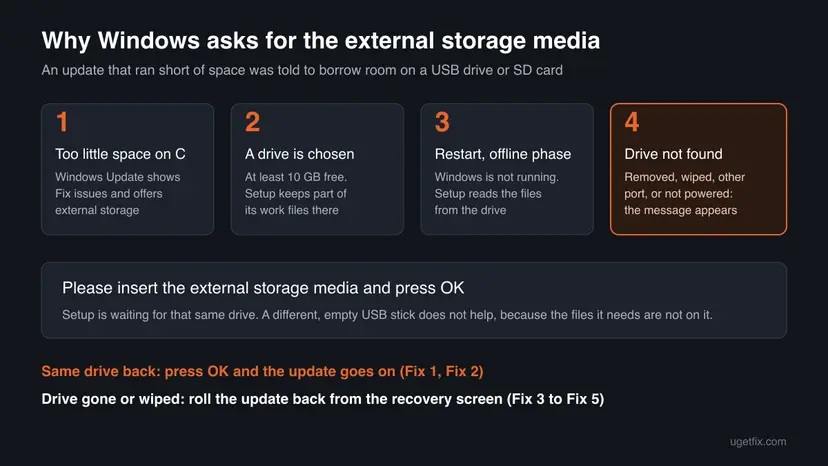
"Please insert the external storage media and press OK" means a Windows update that was short of space was set to use a USB drive or SD card, and that drive is now missing. Setup waits for the same drive, not any drive. Plug the original drive back into the same port and press OK first.
Windows is in the middle of an update that keeps part of its work files on the USB drive or SD card you chose when it ran out of space. Put that same drive back into the same port and press OK (Fix 1). A new, empty drive does not help. If the original drive is lost or wiped, roll the update back from the recovery screen (Fix 3).
| Error | Please insert the external storage media and press OK, in a small box on a black or manufacturer-coloured screen, with an OK button and no way to reach the desktop. |
|---|---|
| Where it appears | After a restart during a Windows feature update, in the offline phase when Windows itself is not running. Users report it on Windows 10 and on upgrades to Windows 11. |
| Main cause | Windows Update did not have enough free space, the user chose an external storage device in Fix issues, and that device was then removed, wiped or not detected. |
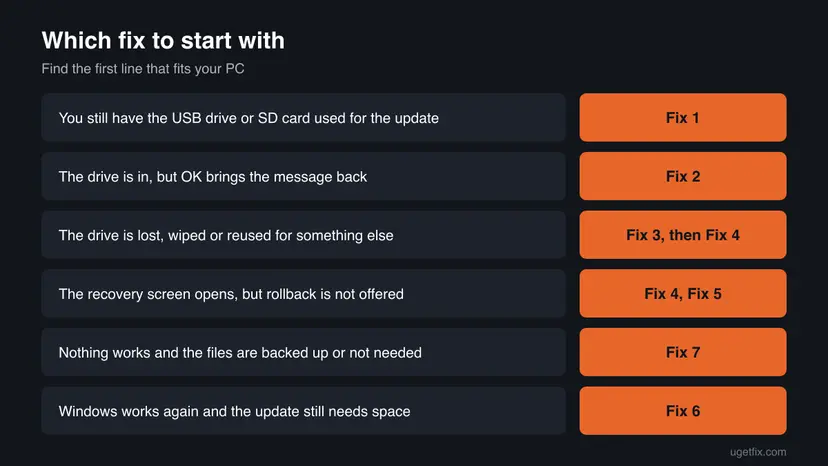
| Fastest fix | Reconnect the exact drive used for the update to the same port and press OK (Fix 1). Without it, uninstall the update from the recovery environment (Fix 3). |
| Also written as | "Please insert external storage media and press OK", "insert the external storage media", "Windows update asks for USB drive". |
| Affects | Mostly small laptops and tablets with 32 GB or 64 GB of storage, such as the HP Stream and older Surface models in the threads we read. Windows 10 support ended on 14 October 2025. |
| Microsoft's status | Not a bug. Microsoft documents the external storage option on its page Free up space for Windows updates (read 15 October 2026): you need a device with at least 10 GB free and can remove it once the installation is complete. |
| Where the cause is written | Setup logs in C:\$WINDOWS.~BT\Sources\Panther (setuperr.log first). You can read them only from the recovery Command Prompt or after Windows starts again. |
| Time to fix | 2 minutes when you have the drive. 20 to 40 minutes for a rollback. One to two hours for a reinstall. |
Facts checked on 15 October 2026. Steps written for Steps written for Windows 10 22H2 and Windows 11 25H2 and 26H2, against Microsoft's support page on freeing up space for Windows updates.
What "Please insert the external storage media and press OK" means
Before a feature update starts, Windows checks that the system drive has room for it. When it does not, Settings > Windows Update shows Fix issues, which opens a tool that can borrow space on an external storage device. Microsoft's support page says the device needs at least 10 GB of free space and an internet connection, and that you can remove it once the installation is complete.
The key word is complete. The update downloads in Windows, then restarts and finishes offline. During that offline phase Setup still needs the files it parked on the external drive. If the drive is gone, Setup cannot go forward and cannot finish, so it stops and asks: Please insert the external storage media and press OK.
| Part of the message | What it refers to | What it tells you |
|---|---|---|
| the external storage media | The one USB flash drive, SD card or external disk picked from the drop-down list in the update tool. | Another drive, even a bigger one, is not the same media. It holds none of Setup's files. |
| Please insert | Setup checked the ports and did not find a volume it recognises. | The drive may be plugged in but asleep, in a hub, or on a port the firmware turned off. |
| and press OK | Setup checks again each time you press OK. | Pressing OK with nothing changed only shows the message again. It does not harm anything. |
The same words can appear in other setup programs that install from removable media. On this page we deal with the Windows update case, which is the one in every thread we read, from Microsoft Q&A to the HP Support Community.
Why Windows keeps asking for the external storage media
Microsoft does not list causes for the message itself. The ranking below joins how the external storage option works, as Microsoft describes it, with what users and support staff report on Microsoft Q&A and in the HP Support Community. Each cause points to a fix.
| Cause | How often | How to tell | Fix |
|---|---|---|---|
| The drive used for the update was unplugged before the update finished. | Most often reported | You remember choosing a USB drive or SD card in the update tool, and it is no longer in the PC. | Fix 1 |
| The drive is in, but the firmware or the port does not make it visible at boot. | Often | The drive is plugged in, OK brings the message back, and it sits in a hub, a dock or a front port. | Fix 2 |
| The drive was formatted or reused, so Setup's files are gone. | Often | You wiped the drive, as in the HP thread, or you copied other files onto it and deleted the old ones. | Fix 3, Fix 4 |
| The update was interrupted by power loss or a forced shutdown and the files on the drive are damaged. | Less often | The laptop shut down by itself during the update, then the message appeared. | Fix 3, Fix 5 |
| The system drive is still too full for the update to continue without the drive. | The root cause behind all of these | Settings > System > Storage showed only a few GB free before the update. | Fix 6 |
Microsoft's table for updates to Windows 11 shows why small PCs end up here. A feature update can need 20 GB to reduce offline time and 5.5 GB to 13.75 GB or more at minimum. Even with external storage it still needs 4.5 GB to 7 GB or more. A 32 GB device rarely has that much free.
Where to see why the update is stuck
The message box gives no code. Windows Setup writes its progress to setupact.log and its errors to setuperr.log in C:\$WINDOWS.~BT\Sources\Panther. That folder exists only while an upgrade is in progress or has just failed.
- Open the recovery environment as in Fix 3, steps 1 and 2.
- Select Troubleshoot > Advanced options > Command Prompt.
- Find the letter of your Windows drive. In the recovery environment it is often not C:
dir C:\$WINDOWS.~BT\Sources\Panther - If the folder is there, open the error log in Notepad:
notepad C:\$WINDOWS.~BT\Sources\Panther\setuperr.log - Read the last lines. A line that names a path on the external drive, or says a file was not found, confirms that Setup lost the drive.
If dir says the path is not found, try D: and E: instead of C:. The recovery environment gives drive letters in its own order.
How to fix "Please insert the external storage media and press OK"
Fix 1 and Fix 2 let the stuck update finish, which keeps your files and apps. Fix 3 to Fix 5 roll Windows back when the drive is gone. Fix 6 is for the next try, so the message does not come back. Fix 7 reinstalls Windows when nothing else starts the PC.
| What you see or have | Start with |
|---|---|
| You still have the USB drive or SD card used for the update. | Fix 1 |
| The drive is plugged in, but OK brings the message back. | Fix 2 |
| The drive is lost, wiped or was used for something else. | Fix 3 |
| The recovery screen opens, but no update can be uninstalled. | Fix 4, then Fix 5 |
| Windows works again and you still want the update. | Fix 6 |
| No recovery option works, and your files are backed up or not needed. | Fix 7 |
Fix 1. Put the same drive back into the same port and press OK
2 minutes, then the update itselfNo riskYou still have the USB flash drive, SD card or external disk that you chose when the update asked for more space.
Setup parked part of the update on that drive and needs it to finish the offline phase. Microsoft says the device can be removed only once the installation is complete, so giving it back lets Setup carry on where it stopped.
- Leave the PC on the screen with the message. Do not hold the power button.
- Find the drive you used for the update. Check the label or the files on another PC only if it does not change anything on the drive.
- Plug it into the same USB port or card slot it was in during the update. Connect it directly, not through a hub or dock.
- Wait 10 seconds so the drive can start, then press OK.
- If the update continues, leave the PC plugged in to power until you see the sign-in screen.
Formatting it, running a disk check on it or letting another PC "repair" it can delete Setup's files. If you need to check which drive it was, look only at its name and size.
It worked if: The message closes, a progress screen such as Working on updates appears, and the PC restarts into Windows.
If not: If the message comes back with the drive in place, go to Fix 2. If you no longer have the drive, go to Fix 3.
Fix 2. Make the drive visible at startup: another port, full shutdown, USB ports on in UEFI
10 minutesLow riskThe right drive is plugged in, but pressing OK brings the same message back.
Before Windows loads, only the firmware's USB support is active. A drive in a hub or dock, or on a port turned off in UEFI, is invisible to Setup. A Microsoft support agent on Microsoft Q&A advised a Surface owner with this message to check the docking USB port setting in UEFI.
- Unplug every other USB device, hub and dock. Leave only the update drive, plugged directly into the PC.
- Try each USB port in turn. After each change, wait 10 seconds and press OK.
- If the drive is an SD card, take it out, check that the lock switch on its side is not set to Lock, and push it in until it clicks.
- If nothing helps, hold the power button for about 10 seconds to turn the PC off, wait 10 seconds and turn it on with the drive already plugged in.
- On a Surface: with the PC off, hold volume up and press and release power. Release volume up when the UEFI screen appears. Under devices, make sure the USB ports are On, then exit and restart.
- On other PCs, open the firmware setup with the key shown at start (often F2, F10 or Del) and check that USB storage and USB ports are enabled.
Turning the PC off in the middle of the update is a risk in itself, but at this point Setup is already stopped and waiting. In the Microsoft Q&A thread the agent's UEFI step did not help the owner, whose drive held no update files any more. That is the case for Fix 3.
It worked if: After OK, the update continues with a progress percentage, or Windows starts normally.
If not: If the drive is seen but the message stays, its files are probably gone or damaged. Go to Fix 3.
Fix 3. Uninstall the stuck update from the recovery environment
20 to 40 minutesLow riskThe drive used for the update is lost, wiped or reused, or Fix 1 and Fix 2 did not help.
Without its files Setup cannot finish, so the way out is backwards. The recovery environment can remove the latest feature or quality update and start the version of Windows you had before, with your files and apps.
If the PC never reaches the sign-in screen, interrupt the start twice so that Windows opens its recovery environment on the third start. Then choose Uninstall latest feature update when the stuck update was a new Windows version, or Uninstall latest quality update when it was a monthly update.
- Interrupt the startup twice. Turn the PC on and, as soon as the Windows or manufacturer logo appears, hold the power button until the PC shuts down. Do this twice. If Windows already fails to start several times in a row, it opens the recovery environment on its own.
- Open the advanced options. Turn the PC on a third time. On the Automatic Repair screen, select Advanced options.
- Open Uninstall Updates. Select Troubleshoot > Advanced options > Uninstall Updates.
- Remove the latest update. Select Uninstall latest quality update and follow the instructions. Quality updates are the regular monthly updates.
- Start Windows and pause updates. Let the PC restart. Once Windows starts, pause updates as described in the tab for your version of Windows, so the same update is not installed again at once.
These steps were written for Windows 11 and Windows 10, from the Windows Recovery Environment. The full page with the other versions and what each result means: How to uninstall a Windows update
Microsoft says Windows keeps the files needed to remove a feature update for about 10 days. We could not confirm whether the option is always offered for an update that stopped halfway. If the uninstall fails or is missing, go to Fix 4.
It worked if: The recovery environment reports that the update was removed, the PC restarts, and your previous Windows version starts without the message.
If not: If no update can be uninstalled, or the PC returns to the message, go to Fix 4.
Fix 4. Go back to a restore point with System Restore
15 to 45 minutesLow riskThe update cannot be uninstalled, and System Restore was on before the update started.
Windows normally makes a restore point before it installs an update. Returning to it puts back the system files, drivers and registry from before the update, while your personal files stay. An HP employee in the HP Support Community suggested exactly this for a stuck HP Stream.
Run it from the recovery environment, because Windows does not start. Pick the newest restore point dated before the update. On an encrypted PC you need the BitLocker recovery key.
- Open the recovery environment. On the sign-in screen or in the Start menu, select Power, hold Shift and select Restart. For other ways, see Start Windows or a Mac in Safe Mode.
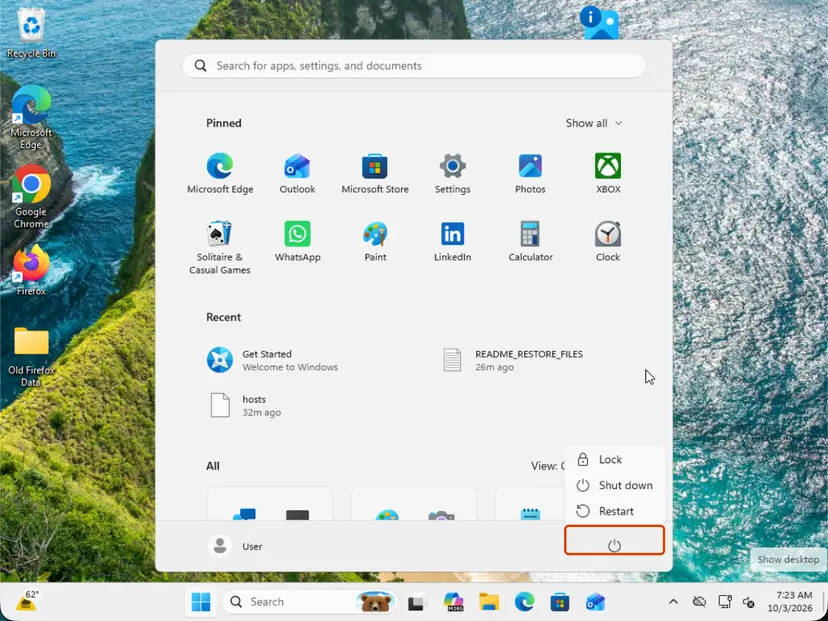
Hold Shift while you select Restart. Screenshot: Windows 11 26H2. - Go to Advanced options. Select Troubleshoot > Advanced options.
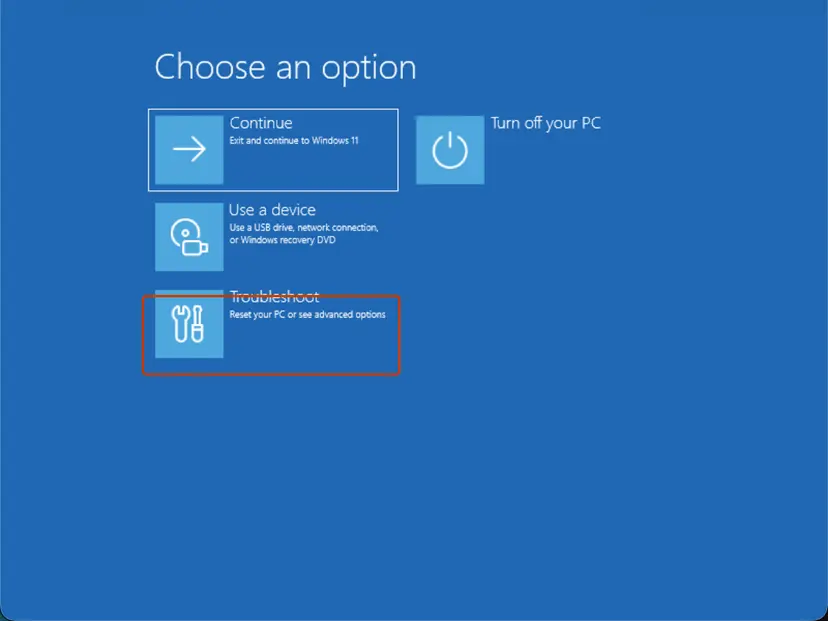
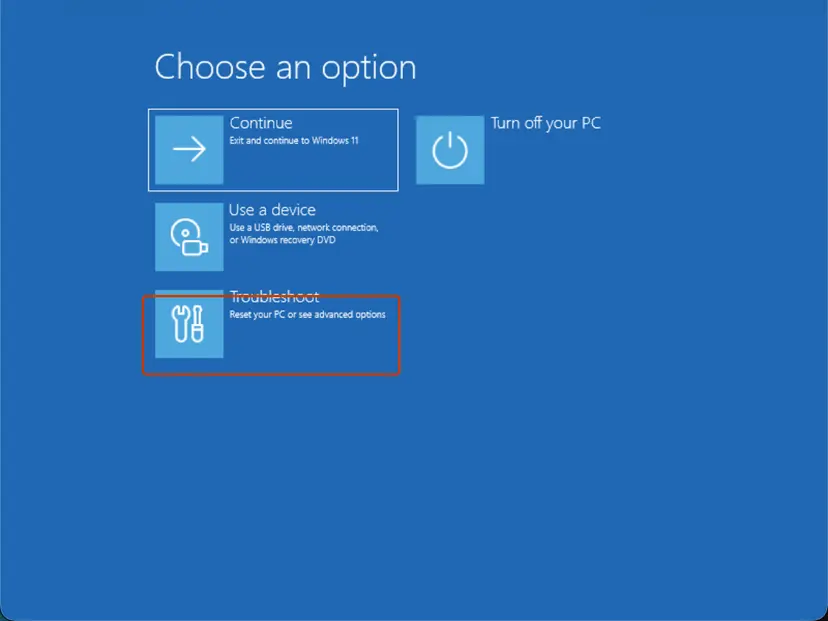
Choose an option: Troubleshoot. Screenshot: Windows 11 26H2. - Select System Restore. Select System Restore. If the drive is encrypted, enter your BitLocker recovery key when asked.
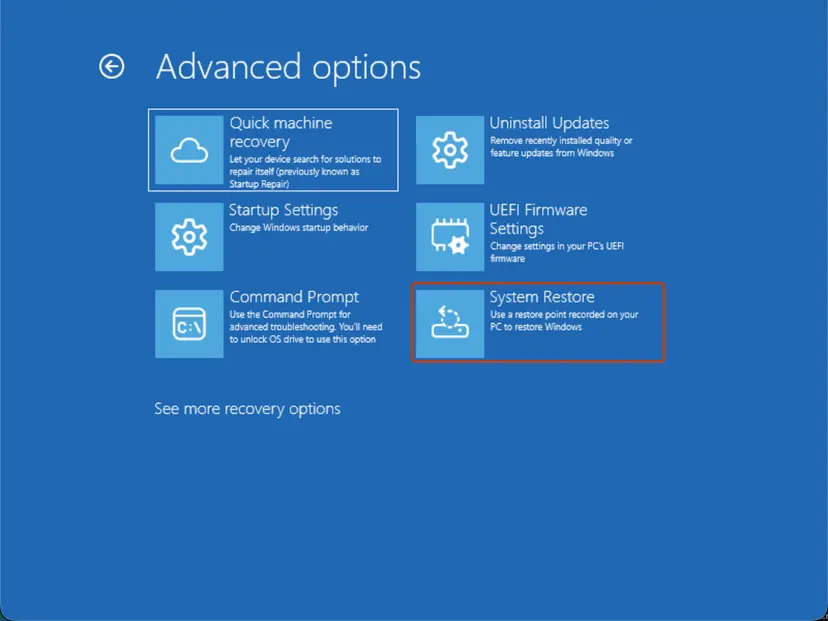
Advanced options: System Restore. Screenshot: Windows 11 26H2. - Choose a restore point and finish. Select a restore point from before the problem, optionally Scan for affected programs, then select Next and Finish.
- Restart. When the restore is done, select Restart.
These steps were written for Windows 11 and Windows 10, from the Windows Recovery Environment. The full page with the other versions and what each result means: Undo recent changes with System Restore
The old way in this guide, Safe Mode with Command Prompt and rstrui.exe, does not work when Windows cannot start at all. The System Restore tile in the recovery environment does the same thing without loading Windows.
It worked if: System Restore reports that it completed, and Windows starts at the version and state of the restore point.
If not: If there is no restore point, or the restore fails, go to Fix 5.
Fix 5. Run Startup Repair
10 to 30 minutesLow riskRollback and System Restore were not available, or the PC now stops at a different error such as 0xc0000225.
A forced shutdown in the middle of an update can leave the boot files pointing at a half-installed system. In the HP thread the same PC later showed 0xc0000225, a required device not found. Startup Repair rebuilds the boot setup when that is the problem.
Startup Repair cannot bring back the missing update files, so expect it to help only when the message has turned into a boot error.
- Open the recovery environment. After repeated failed starts Windows opens it by itself (Automatic Repair: select Advanced options). If Windows still starts, open Settings > System > Recovery and select Restart now next to Advanced startup. From the sign-in screen, hold Shift and select Power > Restart.
- Select Troubleshoot. On Choose an option, select Troubleshoot.
- Open Advanced options. Select Advanced options.
- Start the repair. Select Quick machine recovery (or Startup Repair on older versions).
- Sign in if asked. Choose an administrator account and type its password. If Windows asks for the BitLocker recovery key, enter it.
- Wait for the result. The check can take a while. If it fixes the problem, the PC restarts into Windows. If it cannot, it says so and shows where its log file is; select Advanced options and continue below.
These steps were written for Windows 11 and Windows 10, from the Windows Recovery Environment. The full page with the other versions and what each result means: Run Startup Repair
It worked if: Startup Repair reports that it repaired the PC, and Windows starts.
If not: If it says it could not repair your PC, back up your files from another PC if you can and go to Fix 7.
Fix 6. Free up space before you try the update again
15 to 30 minutesLow riskWindows starts again after Fix 1 to Fix 5, and the update is still waiting.
The message exists only because the update needed more room than the PC had. With enough free space Windows does not offer external storage at all, so there is no drive to lose.
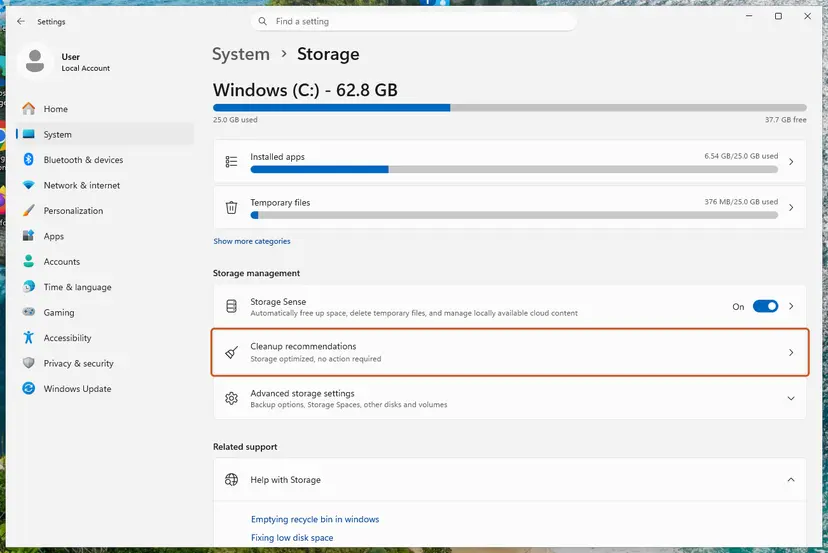
- Press Win + I and open System > Storage. Turn on Storage Sense and open Cleanup recommendations, as Microsoft advises.
- Remove what you do not need: temporary files, old downloads, large apps you no longer use. Step by step: Free up disk space and delete temporary files.
- Run Disk Cleanup with Clean up system files and check Previous Windows installation(s) only once the rollback is behind you and Windows works.
- On Windows 11, remove unused optional features in Settings > System > Optional features, and unused languages in Time & language > Language & region. Microsoft notes each language can take 175 MB to more than 300 MB.
- Check Settings > Windows Update again. If Fix issues still asks for external storage, use a drive with at least 10 GB free, back it up first, and leave it in until the sign-in screen appears.
It worked if: Windows Update installs the update without asking for external storage, or you finish it with the drive left in until the end.
If not: If the PC has 32 GB of storage and cannot free enough, use the external drive and do not remove it, or stay on your current version.
Fix 7. Reinstall Windows from a recovery drive or Microsoft's installation media
1 to 2 hoursRead the warningNothing above starts Windows, and your files are backed up or not needed.
When the update can neither finish nor be rolled back, a clean installation is the only way to a working system. HP's staff in the community thread pointed the owner to a recovery USB or a fresh install from Microsoft's download.
Copy what you need first. If Windows does not start, take the files off with the recovery Command Prompt and a USB drive, or remove the disk and read it on another PC. Do not use the update drive for this backup.
- Back up the files you need, as in the warning above.
- Surface: download the recovery image for your serial number from Microsoft's Surface Recovery Image page, extract it to a 16 GB or larger FAT32 USB drive, then start with volume down held and choose Recover from a drive.
- HP and other brands: the maker's recovery USB, or the recovery partition (often F11 at start on HP). A PC upgraded from an older Windows may no longer have a working partition, as users report in the HP thread.
- Any PC: Microsoft's Media Creation Tool, on a working PC, writes Windows to a USB drive of 8 GB or more. Start from it and choose Custom to install. Step by step: Reinstall Windows without losing files.
- When Setup asks where to install, pick the internal drive, then follow the screens until the desktop appears.
It worked if: Windows sets up from the start, and the message does not appear again.
If not: If the installation itself cannot see the internal drive, see the section on when the message stays.
If "Please insert the external storage media" still appears
A message that survives a rollback, System Restore and Startup Repair usually means the half-finished update damaged the boot setup or the internal storage itself. Read setuperr.log as in the section on where the cause is written before you reinstall.
| What you find | What to do |
|---|---|
| The installation media cannot see the internal drive. | The eMMC or SSD may have failed. Contact the maker; on small eMMC laptops the storage is soldered and cannot be swapped. |
| The PC shows 0xc0000225 or "A required device isn't connected". | That is a boot error now, not the update prompt. Run Startup Repair (Fix 5), then reinstall (Fix 7). |
| A work or school PC. | Do not reinstall it yourself. The IT department may hold the BitLocker key and its own installation image. |
| The drive used for the update is found, but Setup still refuses it. | Its files are damaged. Keep the drive untouched and go to Fix 3. |
- What to send to support: the exact message, the PC model and storage size, the Windows version you were updating from and to, and whether the drive used for the update still exists.
- Add the last 30 lines of
setuperr.logif you could open it from the recovery Command Prompt.
How to stop the message from coming back
- Keep at least 20 GB free before a feature update if the PC can spare it.
- Use a drive you can leave in for the whole update, with at least 10 GB free.
- Label the drive and leave it in until you see the sign-in screen.
- Keep the laptop on mains power for the whole update.
- Remove the drive after the download, while Windows still restarts.
- Format or reuse the drive until the update is complete.
- Plug the drive into a hub or dock for the update.
- Hold the power button while the update is installing.
Windows 10 left support on 14 October 2025. If a small Windows 10 laptop has to borrow an external drive for every feature update, plan the move to a PC with more storage rather than fighting each update.
Frequently asked questions
What does "Please insert the external storage media and press OK" mean?
It means a Windows update is halfway through and cannot find the external drive it was told to use. When the system drive is short of space, the Fix issues tool in Windows Update lets you lend the update a USB drive or SD card with at least 10 GB free. Setup keeps part of its work there until the installation is complete. If that drive is removed before the end, Setup stops after the restart and asks for it with this message.
I plugged in a USB drive and it still asks. Why?
Because it wants the same drive it used before the restart, not any drive. The files Setup needs are on the original USB drive or SD card, so a new or empty one does not satisfy it. Plug the original drive into the same port, directly rather than through a hub, and press OK. If the drive was formatted or reused, its files are gone; roll the update back from the recovery environment instead (Fix 3).
Can I just press OK until it goes away?
No. Each press of OK makes Setup look for the drive once more. Pressing it without changing anything shows the same message again, though it does no harm. Change something first: reconnect the original drive, move it to another port, or turn the PC off and on with the drive already in. If none of that helps, the way out is to uninstall the update from the recovery screen.
Will I lose my files?
Not with Fix 1 to Fix 6. Finishing the update, uninstalling it from the recovery environment and System Restore all keep your personal files. Only a clean reinstall (Fix 7) deletes them, which is why it comes last with a backup first. If the PC does not start, copy your files from the recovery Command Prompt to a second USB drive, or read the internal disk on another PC, before any reinstall.
How do I get to the recovery screen if Windows never starts?
Interrupt the start twice. Turn the PC on and, as soon as the logo appears, hold the power button until it switches off. Do this twice, then turn it on a third time and choose Advanced options on the Automatic Repair screen. On a Surface you can also start from a recovery USB with volume down held. From Troubleshoot > Advanced options you reach Uninstall Updates, System Restore, Startup Repair and Command Prompt.
How much space does the external drive need?
Microsoft asks for an external storage device with at least 10 GB of free space and an internet connection. Its own examples for updates to Windows 11 show that even with external storage, the internal drive still needs about 4.5 GB to 7 GB or more free. If the internal drive is fuller than that, Windows may ask you to free more space after you pick the drive.
When can I remove the external drive safely?
Only when the installation is complete, as Microsoft puts it. In practice that means after the last restart, when you see the sign-in screen or the desktop of the new version. The download finishing in Settings is not the end: the longest part runs after the restart, without Windows, and that is when Setup reads the drive. Leave it in until then.
Does this message appear in Windows 11 too?
Yes. The external storage option is part of Windows Update in both Windows 10 and Windows 11, and Microsoft documents it for both on the same page. Users report the message when upgrading to Windows 11 as well as with Windows 10 feature updates. The fixes on this page are the same; only some menu names differ, such as Update & Security in Windows 10 Settings.
Is this message a virus or a scam?
No, not when it appears on a black or manufacturer-coloured screen during an update with a single OK button. It is a Windows Setup prompt. A message in a web browser that asks you to call a number or download a tool is a different thing and is not from Windows. Close such a browser tab and never call the number.
The old advice was to boot into Safe Mode and run rstrui.exe. Does that still work?
Only if Windows still starts far enough to reach Safe Mode, which is rare with this message. The System Restore tile in Troubleshoot > Advanced options of the recovery environment runs the same restore without loading Windows, so use that instead (Fix 4). Uninstalling the latest update from the same menu (Fix 3) is often quicker when the update is the only change.
Sources
- Microsoft Support: Free up space for Windows updates (external storage of at least 10 GB, Fix issues, space table, 10-day removal window) (support.microsoft.com)
- Microsoft Q&A: How to fix "Please insert the external storage media and press OK" (Surface, support agent's UEFI and recovery drive steps) (learn.microsoft.com)
- HP Support Community: Please insert external storage media (HP Stream after a Windows 10 update, HP staff answers) (h30434.www3.hp.com)
Did this fix work?
One click, no account. It tells the next reader which guides are worth their time.
Questions and experiences: fix "Please insert the external storage media and press OK" error in Windows 10
Still broken, or found a fix we did not cover? Ask here: members and our editors answer. Reading is open; writing needs a free account.
…