
How to fix SAFE_OS phase error during REPLICATE_OC operation in Windows 10?

Prefer to fix it yourself? The manual steps follow.
- 7methods
- 20 minutes to 2 hours
- Intermediate
Applies to Feature updates and upgrades from Windows 10 (any version) or Windows 11 to a newer version, through Windows Update, the Media Creation Tool, the Installation Assistant or setup.exe
7 methods in this guide
- What the error means
- Why it appears
- Where the cause is written
- The fixes
- 1. Turn off Windows features
- 2. Remove optional features
- 3. Repair the component store
- 4. Reset Windows Update
- 5. Upgrade from the ISO
- 6. Upgrade in a clean boot
- 7. Reset or reinstall Windows
- If it is still there
- Keep it from coming back
- FAQ
Hi, I have been trying to update Windows for more than six months now, to no avail. Whenever I try, I always receive an error code 0x8007001F - 0x20006 "The installation failed in the SAFE_OS phase with an error during REPLICATE_OC operation." It would be great if you could provide some solutions to this. Thanks.
The installation failed in the SAFE_OS phase with an error during REPLICATE_OC operation means Setup could not carry your optional Windows features into the new Windows, so it rolled the PC back. It usually comes with 0x8007001F - 0x20006. Turn off the Windows features you added, repair the component store, then run the upgrade again.
Six months of failures means the same part of your Windows breaks every time: the optional components, also called Windows features. Press Win + R, run optionalfeatures, untick the features you added yourself and run the upgrade again (Fix 1). If it still fails, repair the component store with DISM (Fix 3) and upgrade from a mounted ISO (Fix 5). Reset this PC is the last resort.
| Error | We couldn't install Windows 10 (or Windows 11) with 0x8007001F - 0x20006 and the line The installation failed in the SAFE_OS phase with an error during REPLICATE_OC operation. |
|---|---|
| Where it appears | In the Windows 10 Setup or Windows 11 Setup window after a restart, once Setup has set the PC back. Windows Update history shows the same code for a failed feature update. |
| Main cause | Setup could not read or save the state of the optional components (Windows features) it must copy into the new Windows. The log usually shows a damaged component store package next to it. |
| Fastest fix | Turn off the optional Windows features you added in Windows Features (Fix 1), then run the upgrade again. Repair the component store with DISM if that is not enough (Fix 3). |
| Also written as | 0x8007001F 0x20006, 0x8007001F-0x20006, 0x8007001f 0x20006 safe_os replicate_oc, and in lower case: the installation failed in the safe_os phase with an error during replicate_oc operation. |
| Affects | Upgrades from Windows 7, 8.1 and Windows 10 to a newer Windows 10 or Windows 11 version. Users report it most on old Windows 10 builds that have missed several feature updates. |
| Microsoft's status | Not a known issue with a fix in an update. Microsoft documents the meaning of the code parts only. Windows 10 left support on 14 October 2025. |
| Where the cause is written | C:\$WINDOWS.~BT\Sources\Panther\setupact.log and setuperr.log. Look for lines with MIG OC and Gather Optional Component status. |
| Time to fix | 20 to 40 minutes for Fix 1 to Fix 4. One to two hours for the upgrade itself, longer for Reset this PC. |
Facts checked on 15 October 2026. Steps written for Windows 10 22H2 upgrading to Windows 11 25H2 and to a fresh Windows 10 22H2 image, and Windows 11 24H2 upgrading to 25H2 and 26H2, through Windows Update and through setup.exe from a mounted ISO.
What 0x8007001F - 0x20006 and REPLICATE_OC mean
Windows Setup reports a failed upgrade with two codes joined by a dash. Microsoft calls the first one the result code, which names the Win32 or NTSTATUS error, and the second one the extend code, which names the phase and the operation that were running. This is the full message:
We've set your PC back to the way it was right before you started installing Windows 10. 0x8007001F - 0x20006. The installation failed in the SAFE_OS phase with an error during REPLICATE_OC operation
| Part | How it decodes | What it tells you |
|---|---|---|
| 0x8007001F | 8007 marks a Win32 error. 001F is error 31, ERROR_GEN_FAILURE: a device attached to the system is not functioning. | A general failure. On its own it does not name the broken part. |
| 0x20006, first digit 2 | Phase 2 is the SAFE_OS phase. | The PC had restarted into the small setup environment that builds the new Windows. |
| 0x20006, last digits 06 | Operation 6 is SP_EXECUTION_OP_REPLICATE_OC in Microsoft's table. | Setup was copying the optional components, the Windows features, into the new Windows. |
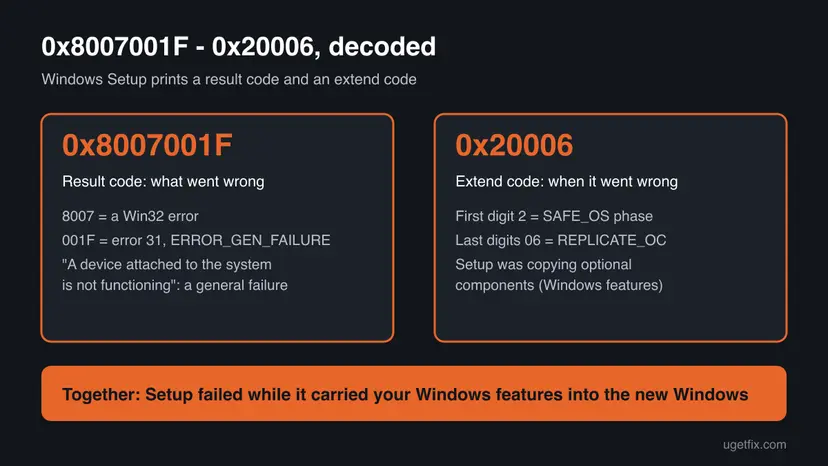
Microsoft notes that its extend code table was written for Windows 10 version 1607 and might change. The text Setup prints still matches it, so the reading holds for Windows 10 22H2 and Windows 11. The same phase also fails during other operations: APPLY_IMAGE is operation 0C, INSTALL_UPDATES is 3 and INSTALL_DRIVERS is 7. Those are different problems with the same SAFE_OS prefix.
Why the upgrade fails with a SAFE_OS phase error during REPLICATE_OC
Microsoft has not published a cause list for this exact code. The ranking below joins the meaning of the code with the logs a volunteer moderator read on Microsoft Q&A, where Setup failed to open a component store package and then failed to gather the optional component status.
| Cause | How often | How to tell | Fix |
|---|---|---|---|
| An optional Windows feature you turned on, such as .NET Framework 3.5, Hyper-V, IIS or SMB 1.0, has a broken or missing package. | Most often | setupact.log shows MIG OC lines and Gather Optional Component status with 0x8007001F. | Fix 1 |
| An added optional feature or language package that Setup cannot match in the new version. | Often | Settings lists extra optional features or languages you no longer use. | Fix 2 |
| The component store is damaged, so Setup cannot open the package of a feature at all. | Often | The log shows OpenPackage failed with a code like 0x800f0900, or DISM finds corruption. | Fix 3 |
| A broken Windows Update cache or a half-downloaded upgrade. | Sometimes | Only the Windows Update route fails, or it fails at the same percentage each time. | Fix 4, Fix 5 |
| A startup program that holds files open, or a Windows install too damaged to repair. | Rarely | The upgrade passes in a clean boot, or every repair above fails. | Fix 6, Fix 7 |
The reader above tried for six months. Setup reaches the same broken feature on every attempt, so the upgrade fails at the same point until that feature or its package is fixed or turned off.
Where setupact.log shows the REPLICATE_OC failure
Setup keeps its logs after the rollback in a hidden folder on drive C. On Microsoft Q&A, the moderator who solved a 0x8007001F - 0x20006 case read these files and found the failing optional component in them.
| File | Where it is | What to look for |
|---|---|---|
setupact.log | C:\$WINDOWS.~BT\Sources\Panther | Search for 0x8007001F, then read the MIG OC lines just above it. |
setuperr.log | Same folder | Only the errors. Short, so read it first. |
| Rollback logs | C:\$WINDOWS.~BT\Sources\Rollback | Created when Setup rolls back. Useful for support. |
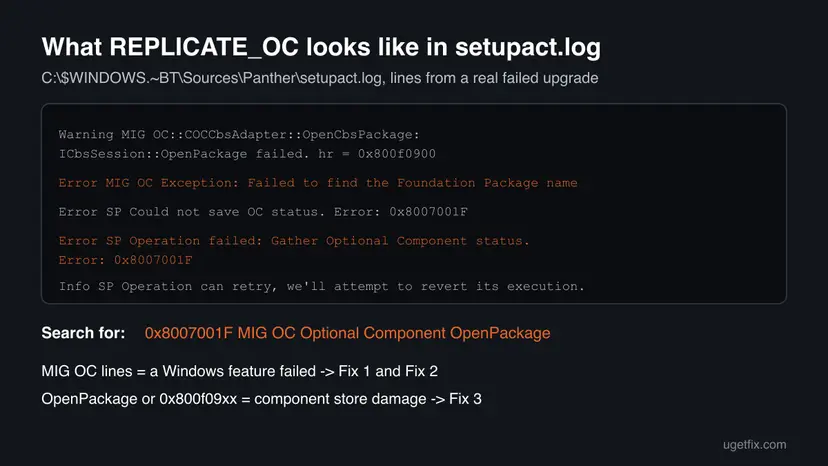
- Press Win + R, type
C:\$WINDOWS.~BT\Sources\Pantherand press Enter. The folder is hidden, so it does not show in File Explorer by default. - Copy
setupact.logandsetuperr.logto your Desktop. - Open the copy of
setupact.login Notepad and press Ctrl + End. - Press Ctrl + F, choose Up and search for
0x8007001F. - Read the lines above each hit.
MIG OCandOptional Componentpoint to Fix 1 and Fix 2.OpenPackage failedwith a0x800f09code points to Fix 3.
If the folder is missing, Windows Update or Disk Cleanup already removed it. Start the upgrade once more and copy the logs right after the rollback. The exact wording of the lines can change between versions, so search for the code and read what is around it.
How to fix the SAFE_OS phase error during REPLICATE_OC operation
Fix 1 and Fix 2 take the optional components out of the upgrade, which is what the error is about. Fix 3 repairs the store those components come from. Fix 4 and Fix 5 run the upgrade again from a clean download. Fix 6 and Fix 7 are for when nothing else helps.
| What you see or have | Start with |
|---|---|
setupact.log shows MIG OC or Gather Optional Component status lines. | Fix 1 |
| You added languages, fonts or other optional features in Settings. | Fix 2 |
The log shows OpenPackage failed or a 0x800f09 code, or DISM reports corruption. | Fix 3 |
| Only the Windows Update route fails. | Fix 4, then Fix 5 |
| You cannot read the log, or all of the above failed. | Fix 5, then Fix 6 |
| Every repair failed and you need the new version. | Fix 7 |
Fix 1. Turn off the optional Windows features before the upgrade
10 minutesLow riskEveryone with this code, and first of all those whose log shows MIG OC or Gather Optional Component status.
REPLICATE_OC is the step where Setup copies the optional components into the new Windows. A moderator on Microsoft Q&A traced the failure to them and advised turning them off and trying again. A feature that is off is not copied.
- Press Win + R, type
optionalfeaturesand press Enter. The Windows Features window opens. - Take a photo or write down every ticked box, so you can turn the same features back on later.
- Untick the features you or a program added, such as .NET Framework 3.5, Hyper-V, Windows Subsystem for Linux, Virtual Machine Platform, Internet Information Services, SMB 1.0/CIFS File Sharing Support and Windows Sandbox.
- Select OK and wait while Windows applies the changes.
- Restart when asked, then run the upgrade again.
- After the new version is installed, open Windows Features again and turn back on what you need.
Turning off Hyper-V or the Linux subsystem does not delete virtual machine files or Linux distributions. They do not start until you turn the feature back on. If the Windows Features window is blank, the component store is damaged: go to Fix 3.
It worked if: The upgrade gets past the restart where it used to roll back, and Setup moves on to the next phase.
If not: If the same code comes back, remove optional features in Settings (Fix 2) and repair the component store (Fix 3).
Fix 2. Remove the optional features and languages you do not use
10 minutesLow riskYou added display languages, fonts, handwriting or other features on demand, or Fix 1 alone did not help.
Features on demand and language packs are optional components too, installed from Settings rather than the Windows Features window. Fewer of them means fewer packages Setup has to replicate, and one broken one can stop the step.
- Press Win + I. In Windows 11, open System > Optional features. In Windows 10, open Apps > Apps & features > Optional features.
- Look through Installed features for items you never use, such as extra fonts, Windows Media Player Legacy or Math Recognizer.
- Select the item and then Uninstall (Windows 11 shows it under Remove in the expanded item).
- Open Time & language > Language & region (Windows 11) or Time & Language > Language (Windows 10).
- Remove any display language you do not use. Keep the one Windows is shown in.
- Restart and run the upgrade again.
We could not confirm from Microsoft which optional feature is most often behind this code. The log lines from Fix 1's section name the package when Setup records it, so remove that one first if you see its name.
It worked if: The removed items disappear from the list after the restart, and the upgrade passes the SAFE_OS phase.
If not: If a feature refuses to uninstall or the list is empty, the store is damaged: run Fix 3.
Fix 3. Repair the component store with DISM and SFC
20 minutesNo riskThe log shows OpenPackage failed or a 0x800f09 code, the Windows Features window is blank, or Fix 1 and Fix 2 failed.
In the Microsoft Q&A logs, Setup could not open a package in the component store before it failed with 0x8007001F. DISM repairs that store, and SFC then repairs the protected files that come from it.
- Open an elevated command window. Right-click Start and select Terminal (Admin), or type cmd in the search box, right-click Command Prompt and select Run as administrator. Select Yes when Windows asks for permission.

Search for cmd and choose Run as administrator. Screenshot: Windows 11 26H2. - Run DISM first. Type the command below and press Enter. DISM downloads clean copies of damaged components from Windows Update, so it can take several minutes. Wait until it says The operation completed successfully.
DISM.exe /Online /Cleanup-Image /RestoreHealth
DISM /RestoreHealth running. Screenshot: Windows 11 26H2. - Run System File Checker. In the same window, type the command below and press Enter. Do not close the window until the verification reaches 100%.
sfc /scannow
sfc /scannow at 100%. Screenshot: Windows 11 26H2. - Read the result and restart. Compare the last message with the table below this guide, then restart the PC so that repaired files are loaded.

The result line tells you what SFC did. Screenshot: Windows 11 26H2.
These steps were written for Windows 11 24H2 and 25H2. The full page with the other versions and what each result means: Run DISM and SFC to repair Windows system files
After the repair, clean up superseded components so Setup has less to read. In the same administrator Command Prompt run:
dism /Online /Cleanup-Image /StartComponentCleanupIt worked if: DISM ends with The restore operation completed successfully, and SFC reports no integrity violations or that it repaired files.
If not: If DISM cannot repair the store, use Fix 5, which brings a complete copy of Windows, or Fix 7.
Fix 4. Reset Windows Update and clear the old upgrade files
15 minutesLow riskThe upgrade comes through Windows Update and fails there, or earlier attempts left a large $WINDOWS.~BT folder.
A cached feature update can be incomplete after months of failed attempts. Resetting the update components forces a fresh download, which rules out a damaged copy of the upgrade as the source of the failing package.
- Open Command Prompt as administrator. Type cmd in the search box, right-click Command Prompt and select Run as administrator. Select Yes when Windows asks for permission.
- Stop the update services. Type the commands below and press Enter after each one. If Windows says that other services depend on Cryptographic Services, it stops them too. A message that a service is not started is fine.
net stop wuauserv
net stop bits
net stop cryptsvc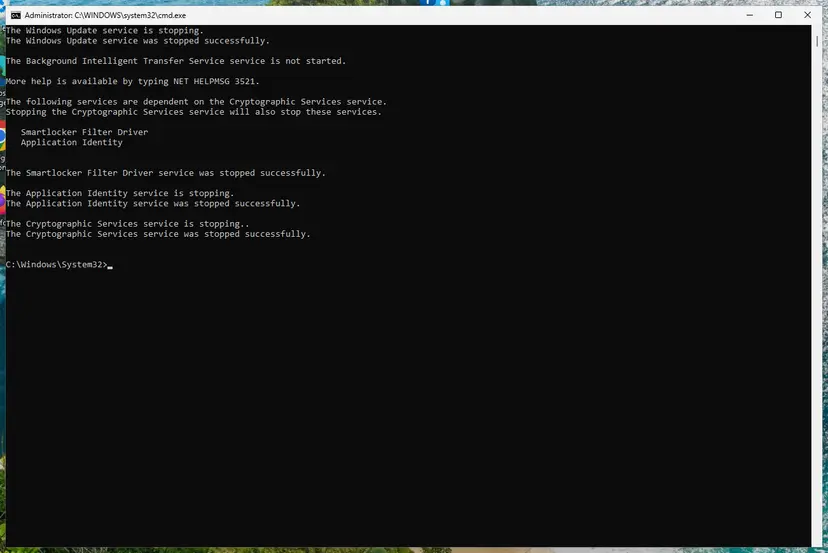
The update services are stopped. Screenshot: Windows 11 26H2. - Delete the download queue files. This clears the list of downloads that the Background Intelligent Transfer Service keeps. If Windows says it cannot find the files, continue.
del "%ALLUSERSPROFILE%\Application Data\Microsoft\Network\Downloader\qmgr*.dat" - Rename the update cache folders. Renaming keeps a copy in case you need it; Windows creates new, empty folders when the services start again. If you get Access is denied, a service is still running: repeat the previous step.
ren %systemroot%\SoftwareDistribution SoftwareDistribution.old
ren %systemroot%\System32\catroot2 catroot2.old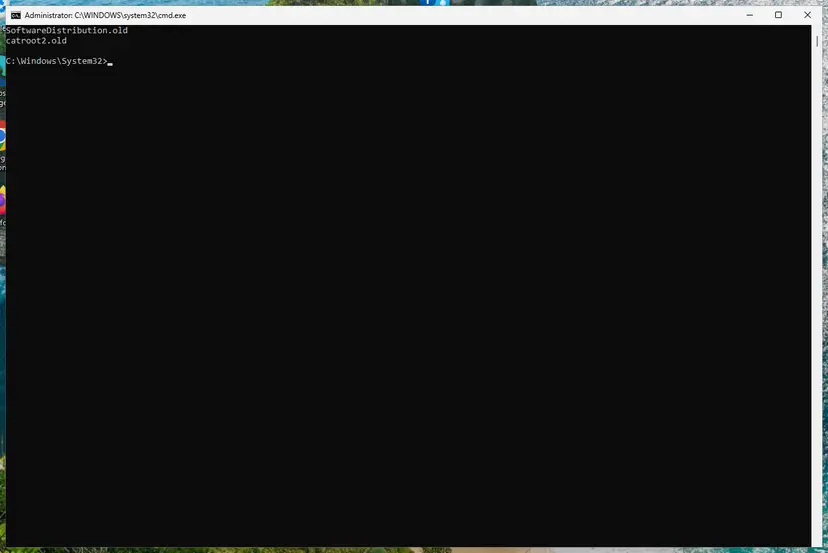
Both folders now end in .old. Screenshot: Windows 11 26H2. - Start the services again. Type the commands below and press Enter after each one. The requested service has already been started is fine: Windows started it on its own.
net start cryptsvc
net start bits
net start wuauserv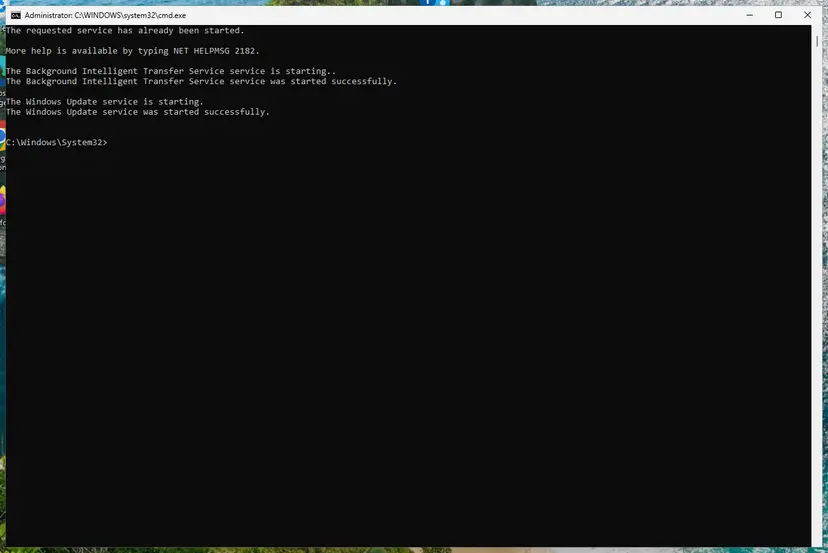
BITS and Windows Update are running again. Screenshot: Windows 11 26H2. - Restart and check for updates. Restart the PC. Then select Start > Settings > Windows Update > Check for updates. The first check can take longer than usual because everything is downloaded again.
These steps were written for Windows 11 and Windows 10 (the steps are the same). The full page with the other versions and what each result means: Reset Windows Update components
Then clear what the failed attempts left with Free up disk space and delete temporary files: in Disk Cleanup, the temporary Windows installation files hold the old $WINDOWS.~BT content. Copy setupact.log out first.
It worked if: Windows Update downloads the upgrade from zero instead of jumping to a cached percentage.
If not: If the new download fails with the same code, run the upgrade from an ISO (Fix 5).
Fix 5. Run the upgrade from a mounted ISO without Dynamic Update
1 to 2 hoursLow riskAfter Fix 1 to Fix 4, when only Windows Update fails, or when the PC has missed many feature updates.
Setup from the ISO uses a complete, fresh copy of Windows. Turning off Dynamic Update stops it from pulling extra packages during the upgrade, so the optional components it replicates come only from your PC and the ISO.
- Back up the files you cannot lose: Back up your files (Windows Backup, File History, Time Machine).
- Download the ISO from Microsoft's Download Windows 11 page, or from the Download Windows 10 page with the Media Creation Tool if the PC cannot run Windows 11.
- Right-click the ISO and select Mount. Note the drive letter, for example
E:. - Open Command Prompt as administrator and start Setup without Dynamic Update:
E:\setup.exe /dynamicupdate disable - Choose Keep personal files and apps and follow the steps.
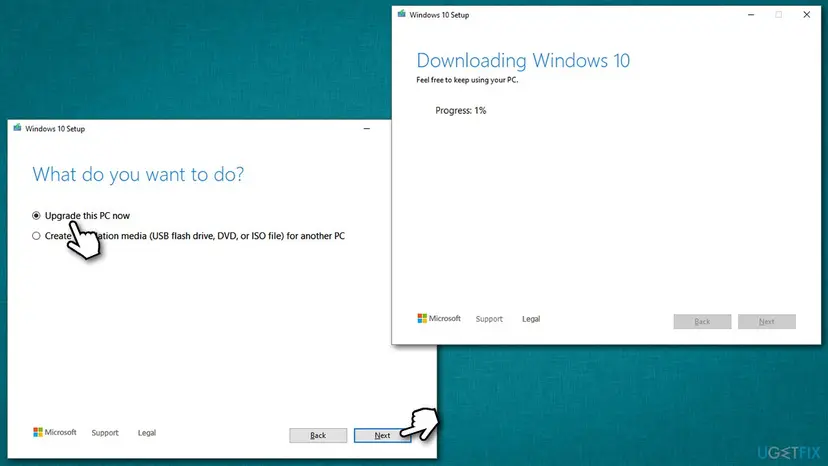
On Microsoft Q&A, a user on Windows 10 1909 reports that an ISO alone, even offline, failed with the same code. The ISO helps after Fix 1 to Fix 3, not instead of them.
It worked if: Setup restarts a few times and ends at the sign-in screen of the new version.
If not: If it rolls back again, read the new setupact.log and check whether a different feature is named now.
Fix 6. Upgrade in a clean boot
20 minutes, plus the upgradeLow riskEverything above failed, or a security, backup or system tool starts with Windows.
A clean boot starts Windows with Microsoft services only. Programs that hold component files open or hook into servicing at startup are then out of the way while Setup gathers the optional component status.
- Open System Configuration. Select Search on the taskbar, type msconfig and select System Configuration from the results.
- Hide Microsoft services. On the Services tab, select the Hide all Microsoft services check box. Only services from other companies stay in the list.
- Disable the remaining services. Select Disable all, then select Apply.
- Open Task Manager. On the Startup tab of System Configuration, select Open Task Manager.
- Disable the startup apps. On the Startup apps tab in Task Manager, select each item whose status is Enabled and select Disable. Write down or take a screenshot of the items you disable: you need the list to turn them back on.
- Confirm the changes. Close Task Manager. On the Startup tab of System Configuration, select OK.
- Restart and test. Restart the PC. Windows now starts in a clean boot environment: try again the thing that failed (run the app, install the update, uninstall the program).
These steps were written for Windows 11 25H2 and 26H2. The full page with the other versions and what each result means: How to perform a clean boot in Windows
Do not tick Safe boot for the upgrade: Setup needs normal Windows to start. Undo the clean boot after the upgrade.
It worked if: The upgrade finishes. Turn startup items back on one at a time to find the program that stopped it.
If not: If it still fails, the Windows install is likely beyond repair: go to Fix 7.
Fix 7. Reset this PC or reinstall Windows and keep your files
1 to 3 hoursRead the warningEvery fix above failed. The Microsoft Q&A moderator says cases like this often need a reset.
When the component store is too damaged to repair, a reset builds Windows again from a clean image. The broken optional components go with it, and the next upgrade starts from a healthy system.
Keep my files keeps documents, photos and other personal files, but removes installed programs and resets settings. Back up first with Back up your files (Windows Backup, File History, Time Machine), note your programs and licence keys, and have your BitLocker recovery key ready.
- Open Recovery in Settings. Open Settings > System > Recovery. Next to Fix problems using Windows Update, select Reinstall now. This keeps your apps, files and settings.
- Start the reinstall. Choose whether the PC may restart on its own 15 minutes after the installation, then select OK.
- Wait and restart. Windows Update downloads and installs a repair copy of your current Windows version. Keep the PC plugged in and online, and restart it when asked.
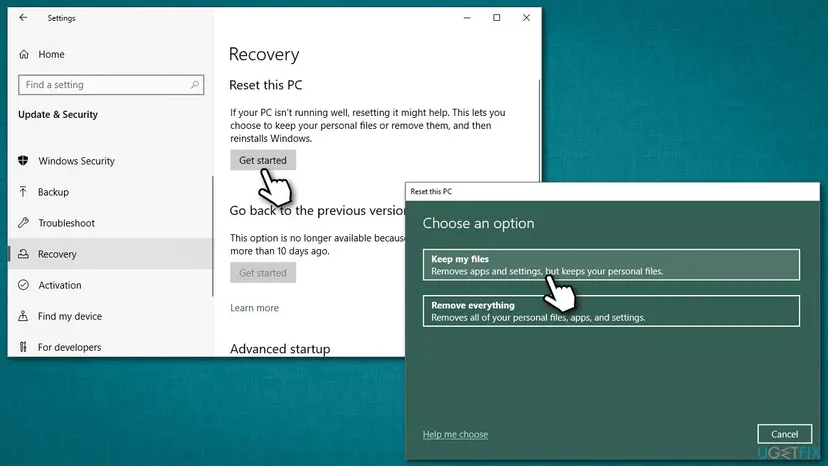
- If that did not help: Reset PC. Back in Settings > System > Recovery, next to Reset this PC, select Reset PC. This keeps your personal files but removes installed apps and settings.
- Choose Keep my files. Select Keep my files. Do not select Remove everything.
- Choose where Windows comes from. Select Cloud download to download a fresh copy of Windows, or Local reinstall to use the files already on the PC (faster, but may not include the latest updates).
- Reset. Review the summary and select Reset. The PC restarts several times.
These steps were written for Windows 11 22H2 and later. The full page with the other versions and what each result means: Reinstall Windows without losing files
It worked if: Windows starts fresh with your files in place, and the upgrade then installs without the REPLICATE_OC error.
If not: If even the reset fails, see the next section: the logs and possibly the hardware need a look.
If the SAFE_OS phase error during REPLICATE_OC is still there
Each attempt writes a new setupact.log. Copy it out right after the rollback, before Windows Update or Disk Cleanup removes the folder, and compare it with the last one.
| What you find | What to do |
|---|---|
| The code changed to another SAFE_OS operation, such as APPLY_IMAGE or INSTALL_DRIVERS | Progress: the features step passed. Read our guide to 0x80070002 - 0x20007 for the driver step. |
| The same MIG OC lines after Fix 1 to Fix 3 | Run Fix 7. The store cannot be repaired in place. |
| No log at all | Run Microsoft's SetupDiag tool on the PC. It reads the logs and names the failure. |
| A work or school PC | Ask the IT department. Their tools may turn the features on again. |
| Freezes, blue screens or disk errors during the upgrade | Test memory with How to test your RAM with Windows Memory Diagnostic and the drive with Check a disk for errors (chkdsk). Back up first. |
- What to send to support: the full code, your current Windows version and build, how you started the upgrade, and which features you turned off.
- Attach
setupact.logandsetuperr.logfromC:\$WINDOWS.~BT\Sources\Panther, and fromRollbackif it exists. - Say whether DISM found and repaired corruption.
0x8007001F reads as a device failure, but with 0x20006 it is almost always about Windows components, not hardware. Suspect the hardware only if the code changes from one attempt to the next or the PC crashes during Setup.
How to keep the REPLICATE_OC error from coming back
- Install feature updates when they come instead of skipping several versions.
- Run DISM with
/RestoreHealthwhen Windows Update starts to fail, not months later. - Turn off Windows features and remove languages you no longer use.
- Keep 30 GB or more free on drive C before a big upgrade.
- Do not use tweak or debloat tools that delete Windows packages from the component store.
- Do not delete files in
C:\Windows\WinSxSby hand. Use DISM cleanup. - Do not stay on an old Windows 10 build: Windows 10 left support on 14 October 2025.
- Do not retry the same upgrade again and again without reading the log.
Once the new version runs, keep it updated each month. A PC that takes every feature update has fewer stale optional components for Setup to carry across, which is the step this error stops.
Frequently asked questions
What does 0x8007001F - 0x20006 mean?
It means Windows Setup hit a general failure while it copied the optional components into the new Windows. Microsoft's guide to upgrade error codes splits the code in two. The extend code 0x20006 is phase 2, SAFE_OS, with operation 6, SP_EXECUTION_OP_REPLICATE_OC. The result code 0x8007001F is Win32 error 31, ERROR_GEN_FAILURE. Setup then rolls back to your old Windows. The broken part is usually a Windows feature or a damaged component store package.
What is the SAFE_OS phase?
The SAFE_OS phase is the part of the upgrade after the first restart, when the PC runs a small setup environment instead of your Windows. In it Setup applies the new image, copies optional components, installs drivers and installs updates. Microsoft's extend code table numbers it phase 2, so every code from 0x20000 to 0x200FF belongs to it. An error in this phase leaves your files alone, because Setup restores the old Windows.
What is REPLICATE_OC?
REPLICATE_OC is the operation in which Setup carries the optional components, OC for short, from your current Windows into the new one. Optional components are the Windows features you turn on or off, such as .NET Framework 3.5, Hyper-V or SMB 1.0. The Setup log calls the step Gather Optional Component status. If one of these packages is broken or cannot be opened, the step fails with 0x8007001F.
What about SAFE_OS errors during APPLY_IMAGE or BOOT?
They are the same phase with a different operation, so they need different fixes. APPLY_IMAGE is operation 0C: Setup failed while writing the new Windows image, which points to the download, the ISO or the disk. BOOT means the first start of the new system failed, often because of a driver. This page covers REPLICATE_OC only. The log steps above still help with either one, because the cause is written in the same setupact.log file.
Does the same error appear on Windows Server?
Yes, the message reads We couldn't install Windows Server when the in-place upgrade of a server fails at the same step. The code parts mean the same, and the cause is again the optional components, which on a server are roles and features. Remove the roles and features you no longer need in Server Manager, repair the store with DISM, and upgrade from the ISO. Check the vendor's support terms before upgrading a production server in place.
Will waiting or the Windows Update troubleshooter fix it?
No. Microsoft does not list this code as a known issue, so no update is coming for it. The troubleshooter checks the update service and its download cache, while this error happens after the download, inside the SAFE_OS phase. That is why the old version of this guide put it first and this one leaves it out. Fix 1 and Fix 3 work on the part that actually fails.
Will I lose my files when the upgrade rolls back?
No. The message says Setup set your PC back to the way it was right before you started, and that includes files, apps and settings. What stays behind is the hidden $WINDOWS.~BT folder and often several gigabytes on drive C. Copy setupact.log out of it, then free the space with Disk Cleanup. Only Fix 7 removes apps, and it keeps your personal files when you choose Keep my files.
Can I stay on my old Windows 10 version instead?
You can, but it gets riskier every month. Windows 10 left support on 14 October 2025, so an old build receives no security updates at all. If the PC meets the Windows 11 requirements, fix the error and upgrade to Windows 11. If it does not, at least bring Windows 10 to 22H2 with the Media Creation Tool, which runs the same Setup and needs the same fixes.
Is 0x8007001F a hardware problem?
Rarely. The Win32 text of error 31 says a device attached to the system is not functioning, which sounds like hardware. With the extend code 0x20006, though, it is a general failure inside the optional components step. Microsoft Q&A logs show a damaged component store, not a device. Test memory and the drive only if the PC also freezes, shows blue screens or gives a different code on every attempt.
Sources
Did this fix work?
One click, no account. It tells the next reader which guides are worth their time.
Questions and experiences: fix SAFE_OS phase error during REPLICATE_OC operation in Windows 10
Still broken, or found a fix we did not cover? Ask here: members and our editors answer. Reading is open; writing needs a free account.
…