
How to fix SecurityHealthSystray.exe Bad Image error in Windows?

Prefer to fix it yourself? The manual steps follow.
- 7methods
- 10 to 45 minutes
- Intermediate
Applies to Windows 11 and Windows 10: the Bad Image window titled SecurityHealthSystray.exe that names SecurityHealthSSO.dll, with error status 0xc000012f, 0xc0000020 or another code
7 methods in this guide
- What the file is
- What the error means
- Read the window first
- Causes, ranked
- The fixes
- 1. Install the platform update
- 2. Replace the damaged DLL
- 3. Reset Windows Security
- 4. Repair system files
- 5. Check disk and memory
- 6. Scan for malware
- 7. Repair-install Windows
- Hide the icon for now
- Still there: what to send
- Keep it from coming back
- FAQ
I keep getting a pop-up titled SecurityHealthSystray.exe - Bad Image, which says SecurityHealthSystray \\?\C:\windows\system32\securityHealth1.0.2109.27002\SecurityHealthSSO.dll is not designed to run on Windows or contains an error. What can I do to fix this?
SecurityHealthSystray.exe is the Windows Security notification icon, a Microsoft file in C:\Windows\System32. Its Bad Image window almost always names SecurityHealthSSO.dll in C:\Windows\System32\SecurityHealth\<version> with error status 0xc000012f: that copy of the file is damaged. Install the newest Windows Security platform update (KB5007651) first.
SecurityHealthSystray.exe is the shield icon of Windows Security, not a virus. The Bad Image window means it could not load SecurityHealthSSO.dll from the versioned folder under C:\Windows\System32\SecurityHealth. On Windows 11, install the newest Update for Windows Security platform (KB5007651) from Windows Update or the Microsoft Update Catalog and restart (Fix 1). If your folder is already the newest version, replace the damaged file with a Microsoft-signed copy of the same version (Fix 2). Your antivirus keeps running meanwhile.
| Error | SecurityHealthSystray.exe - Bad Image window: SecurityHealthSSO.dll \"is either not designed to run on Windows or it contains an error\", followed by an error status. |
|---|---|
| Where it appears | Right after you sign in to Windows, when the Windows Security notification icon starts. The shield in the tray is missing, and the Windows Security app often opens blank. |
| Main cause | The copy of SecurityHealthSSO.dll in C:\Windows\System32\SecurityHealth\<version> is damaged. Status 0xc000012f means the file does not even start like a program file. |
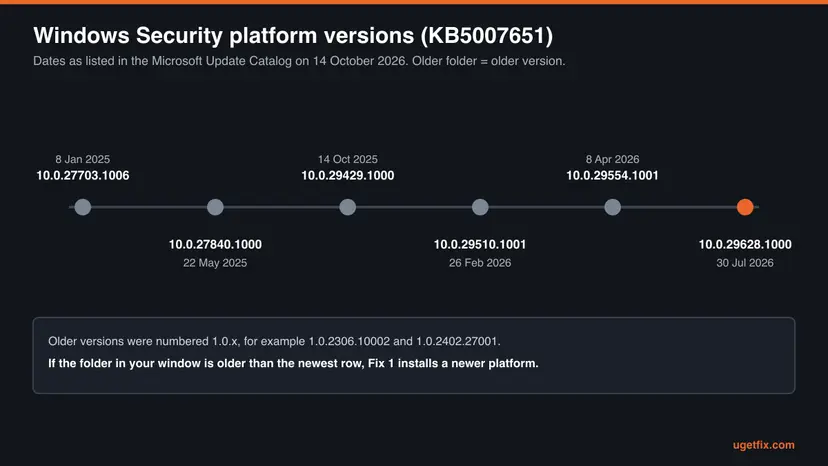
| Fastest fix | Install the newest Update for Windows Security platform - KB5007651 and restart (Fix 1). Newest in the catalog on 14 October 2026: version 10.0.29628.1000, listed 30 July 2026. |
| Also written as | SecurityHealthSystray: SecurityHealthSystray.exe - Bad Image, Security Health Systray bad image, SecurityHealthSSO.dll error, Windows Security bad image. Typos: securityhealtsystray, securityhealthstray. |
| Status codes readers report | Mostly 0xc000012f. Less often 0xc0000020. The codes 0xc000007b, 0xc0000428 and 0xc0e90002 use the same window for other reasons (see the table below). |
| Affects | Mainly Windows 11. Microsoft's page for KB5007651 says the update applies only to Windows 11 (build 22000 or later). Windows 10 left support on 14 October 2025. |
| Microsoft's status | No Microsoft article for this window. Microsoft ships the platform as KB5007651 and keeps every version in the Update Catalog. A volunteer moderator on Microsoft Q&A treats it as a damaged file. |
| Not affected | Microsoft Defender Antivirus. Microsoft states that the Windows Security services do not affect the state of the antivirus. |
| Time to fix | 10 to 15 minutes for Fix 1. About 20 minutes for Fix 2. Up to an hour for a repair install of Windows (Fix 7). |
Facts checked on 14 October 2026. Steps written for Windows 11 (25H2 and 26H2) and Windows 10 22H2.
What SecurityHealthSystray.exe is, and why it starts with Windows
SecurityHealthSystray.exe is a small Microsoft program in C:\Windows\System32. Its file description, as Microsoft writes it into the file, is Windows Security notification icon. It does one job: it puts the shield icon of Windows Security into the notification area of the taskbar and keeps it up to date.
Microsoft's Windows Security documentation names that icon as the first way to open the app: select the icon in the notification area on the taskbar. Behind the icon sit the Windows Security Service (SecurityHealthService) and the Security Center service (wscsvc), which collect the protection status of your antivirus, firewall and other features.
- File
SecurityHealthSystray.exeinC:\Windows\System32- Description in the file
- Windows Security notification icon
- Publisher
- Microsoft Corporation, part of Microsoft Windows Operating System
- Size
- About 84 to 270 KB, depending on the Windows build (Winbindex file index)
- Starts
- At sign-in, as a startup item of Windows
- Loads
SecurityHealthSSO.dllfromC:\Windows\System32\SecurityHealth\<platform version>- Can be uninstalled
- No. Microsoft: "You can't uninstall Windows Security."
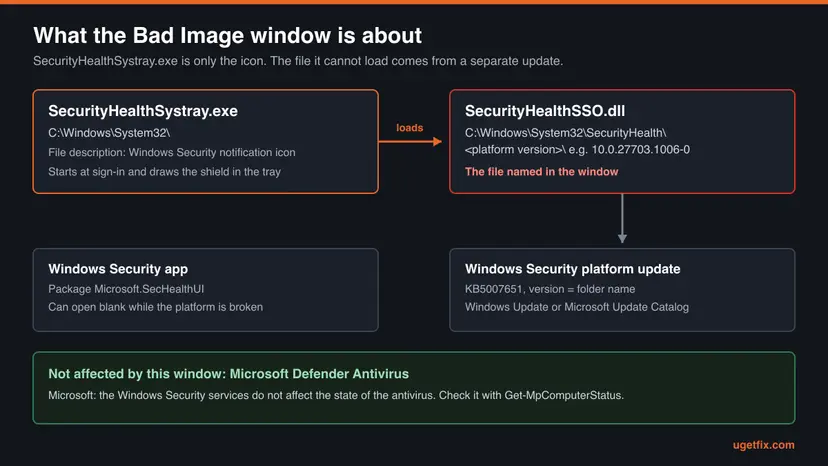
- Is it a virus? Not by its name. The real file sits in
C:\Windows\System32and is signed by Microsoft. A file with this name in a user folder, in Temp or in Downloads would be a different matter: scan it (Fix 6). - Can you stop it at startup? Yes, and Microsoft even ships a policy for it, Hide Windows Security Systray. It hides the icon only. It does not repair the damaged DLL, so read "Hide the icon while you fix it" below before you rely on it.
- Does the antivirus depend on it? No. Microsoft writes that the Windows Security services "don't affect the state of Microsoft Defender Antivirus".
What the SecurityHealthSystray.exe Bad Image error means
The window says that Windows tried to start the tray icon, the icon asked for SecurityHealthSSO.dll, and Windows refused to load that DLL because the file is not a usable program file. The full title is SecurityHealthSystray: SecurityHealthSystray.exe - Bad Image. The path in the text points into a folder named after a version number.
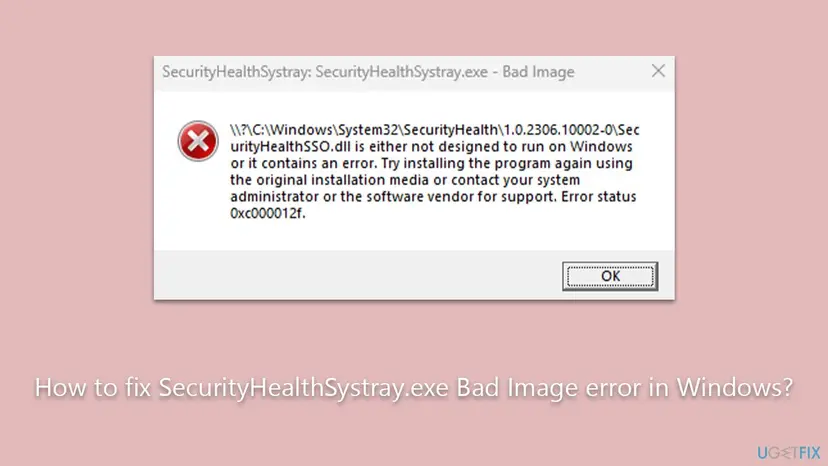
The sentence in the middle is Microsoft's standard text for a bad program file. Microsoft documents it word for word for STATUS_INVALID_IMAGE_FORMAT (0xC000007B), and Windows reuses the same window for related codes. Only the number at the end changes, and that number tells you what is wrong.
| Status code | Microsoft's name and text | What it means here |
|---|---|---|
0xc000012f | STATUS_INVALID_IMAGE_NOT_MZ: "The specified image file did not have the correct format: it did not have an initial MZ." | The most reported code. Every Windows program file starts with the two letters MZ. This one does not, so its content is broken, often empty or overwritten. |
0xc0000020 | STATUS_INVALID_FILE_FOR_SECTION: "The attributes of the specified mapping file for a section of memory cannot be read." | Windows could not map the file into memory. Users report it for the same DLL, less often. The cure is the same. |
0xc000007b | STATUS_INVALID_IMAGE_FORMAT: the classic Bad Image text. | Wrong or damaged program file. Treat it like 0xc000012f. |
0xc0000428 | STATUS_INVALID_IMAGE_HASH: "The hash for image %hs cannot be found in the system catalogs." | The file's hash does not match Microsoft's signed catalog. Repair Windows files (Fix 4). |
0xc0e90002 | A code integrity policy refused the file. | Not a damaged file but a policy decision. A separate guide covers it (see the next section). |
- Spellings people search. SecurityHealthSystray bad image, Security Health Systray bad image, SecurityHealthSystray.exe bad image error, securityhealthsso.dll error, Windows Security bad image and "windows system32 securityhealth error" all describe this window.
- The version in the path. Readers report folders such as
1.0.2109.27002-0,1.0.2306.10002-0,1.0.2401.13001-0and10.0.27703.1006-0. The number is the version of the Windows Security platform that installed the file.
How to read the window: which DLL, which folder, which code
Before you change anything, write down two things from the window or take a photo of it: the folder in the path and the status code at the end. The folder tells you which version of the platform is damaged. The code tells you whether the file is broken or was refused for another reason.
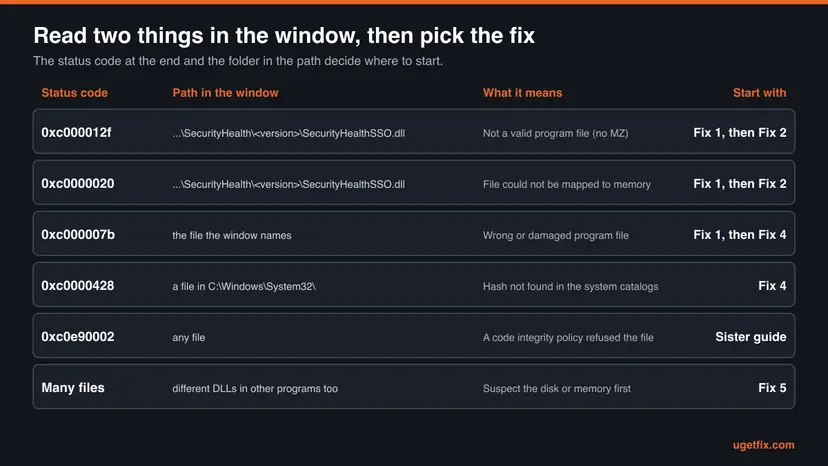
| What the path shows | Whose file it is | Start with |
|---|---|---|
C:\Windows\System32\SecurityHealth\<version>\SecurityHealthSSO.dll | A file of the Windows Security platform, installed by update KB5007651. | Fix 1, then Fix 2 |
C:\Windows\System32\SecurityHealthSSO.dll, with no version folder | The copy that ships inside Windows itself. Winbindex lists it in Windows cumulative updates. | Fix 4 |
C:\Windows\System32\SecurityHealthSystray.exe named as the bad file | The icon program itself. | Fix 4 |
| Error status 0xc0e90002 with any path | A code integrity policy refused the file. The method is in our guide to Bad Image error 0xc0e90002 | That guide |
| A file with this name outside System32 | Not the Windows file. | Fix 6 |
In the cases we found, every path points into Microsoft's own SecurityHealth folder, and the file is signed by Microsoft. So the problem is the copy of the file on your disk, not a foreign DLL forced into the icon. That is why the fixes below put a fresh Microsoft copy in place instead of removing software.
List the platform folders on your PC (Command Prompt)
dir C:\Windows\System32\SecurityHealthThe command lists one folder per platform version on the PC. Compare the names with the folder in the window and with the newest version in the timeline in the next section. If the window names the only folder, or the newest one, Fix 1 may find nothing newer, and Fix 2 is the way.
What causes the SecurityHealthSystray error, from most to least common
Most often the platform DLL was damaged on disk: an update that was cut off, a forced shutdown while it was written, or a disk problem. Less often Windows itself is damaged after Reset this PC. Rarely the cause is hardware or malware.
| Cause | How often | How to tell | Fix |
|---|---|---|---|
| The platform copy of SecurityHealthSSO.dll is broken. | Most often | Status 0xc000012f or 0xc0000020, path in a SecurityHealth version folder. | Fix 1, then Fix 2 |
| An older platform version stays in use and a newer one was never installed. | Often | The folder in the window is older than the newest version in the catalog. | Fix 1 |
| The Windows Security app itself is out of step after the repair. | Sometimes | The window is gone, but Windows Security opens blank or black. | Fix 3 |
| Windows system files are damaged. | Sometimes | The path is directly in System32, or the code is 0xc0000428. | Fix 4 |
| The disk or the memory corrupts files. | Rarely | Other programs also show 0xc000012f, or the file breaks again. | Fix 5 |
| Malware posing as the icon program. | Rarely | A file with this name outside System32. | Fix 6 |
| The platform is missing after Reset this PC. | Rarely | The error or a blank app began after a reset. | Fix 1, then Fix 7 |
- The update KB5007651 from the old version of this page. The old guide said this update caused the error and told readers to remove it. KB5007651 is the update that installs the Windows Security platform. Removing it does not bring back a good copy of the DLL, and users report it is not even listed among updates you can uninstall.
- Reset this PC. Posters on Microsoft Q&A reported in 2024 that after Reset this PC the platform was not fully reinstalled and Windows Security opened blank until they installed KB5007651 by hand. An independent advisor there called it a bug of the reset. We could not confirm that from Microsoft.
How to fix SecurityHealthSystray.exe Bad Image error
Fix 1 and Fix 2 put a working SecurityHealthSSO.dll back and end most cases. Fix 3 repairs the Windows Security window that may stay blank afterwards. Fixes 4 to 7 are for the rarer causes and come last.
| What you see or what your PC has | Start with |
|---|---|
Status 0xc000012f or 0xc0000020, path in SecurityHealth\<version>, Windows 11 | Fix 1 |
| Fix 1 found nothing newer, or the window names the newest version folder | Fix 2 |
| The window is gone, but Windows Security opens blank or black | Fix 3 |
| Path directly in System32, status 0xc0000428 or 0xc000007b, or Windows 10 | Fix 4 |
| Other programs also show Bad Image, or the file breaks again after a fix | Fix 5 |
| A SecurityHealthSystray.exe outside System32, or you are worried about malware | Fix 6 |
| The error began after Reset this PC, or nothing else helped | Fix 7 |
| Status 0xc0e90002 | The 0xc0e90002 guide linked above |
Fix 1. Install the newest Windows Security platform update (KB5007651)
10 to 15 minutesNo riskWindows 11, and the window names SecurityHealthSSO.dll in a SecurityHealth version folder.
The DLL in the window belongs to the Windows Security platform, and Microsoft ships that platform as KB5007651. Each version lives in its own folder named after the version, so a newer platform brings a fresh copy of SecurityHealthSSO.dll in a new folder.
- Write down the version folder from the window, for example
10.0.27703.1006-0. - Open Settings > Windows Update and select Check for updates.
- If Update for Windows Security platform - KB5007651 is offered, let it install. Microsoft lists it in the category Microsoft Security platform with the classification Definition Updates.
- Restart the PC from Start > Power > Restart and sign in.
- If the window is gone, you are done. If Windows Update offered nothing, or the window is back, install the package by hand with the next steps.
Microsoft's support page for the update says to run the installation as an administrator, and it gives the PowerShell command Get-AppPackage Microsoft.SecHealthUI to see the version of the Windows Security app. The package itself comes from the Microsoft Update Catalog:
- Open catalog.update.microsoft.com in your browser and search for KB5007651.
- Pick the row with the highest version. On 14 October 2026 it was Update for Windows Security platform - KB5007651 (Version 10.0.29628.1000), dated 30 July 2026, 44.0 MB.
- Select Download and save the file
securityhealthsetupto your Downloads folder. - Right-click the downloaded file and select Run as administrator. Confirm the User Account Control prompt.
- Restart, then run
dir C:\Windows\System32\SecurityHealthagain. A folder with the new version should now be listed.
The general way to take an update from the catalog, with checks for x64 and Arm PCs, is here: Install an update from the Microsoft Update Catalog
Microsoft's page states that this update applies only to Windows 11 devices, build 22000 or later. On Windows 10 the SecurityHealthSSO.dll copy comes with Windows itself, so go to Fix 4. We could not confirm whether any Windows 10 build uses the versioned SecurityHealth folder.
- The same version as yours is the newest. Then the installer may have nothing to replace, and the damaged file stays. We could not confirm from Microsoft whether running the same version again repairs a damaged file. Go to Fix 2.
- KB5007651 keeps coming back in Windows Update. Users on Microsoft Q&A report the update being offered again and again after it installed. That is a separate problem and does not mean your fix failed. Judge by the Bad Image window.
It worked if: After the restart no Bad Image window appears, the shield icon is back in the notification area, and a folder with the newer version is listed under SecurityHealth.
If not: If the window now names the new folder, or nothing newer exists, replace the file with Fix 2. If the window is gone but the app is blank, use Fix 3.
Fix 2. Replace the damaged SecurityHealthSSO.dll with a signed copy of the same version
20 to 30 minutesRead the warningFix 1 found no newer platform, or the window still names the newest version folder.
Status 0xc000012f says the file on disk is not a program file at all. Re-registering it or restarting services cannot change its content. Only a good copy of the same version, signed by Microsoft, makes the folder work again.
You change a protected Windows file. A wrong copy can leave Windows Security unable to start. Keep the old file under a new name so that you can put it back, use only a copy from a healthy PC with the same version folder, and check its signature before and after. Back up your files first: Back up your files (Windows Backup, File History, Time Machine)
The source must be a PC you trust that has the same folder name under C:\Windows\System32\SecurityHealth, for example a second Windows 11 PC at home. Do not take the file from a DLL download site. A Microsoft Q&A volunteer offered a copy from his own OneDrive; that may be well meant, but you cannot check where such a file came from.
- On the healthy PC, open the same folder, for example
C:\Windows\System32\SecurityHealth\10.0.27703.1006-0, and copySecurityHealthSSO.dllto a USB stick. - On the healthy PC, open Windows PowerShell and check the signature of the file at its original place. Status must say
Valid.Get-AuthenticodeSignature C:\Windows\System32\SecurityHealth\10.0.27703.1006-0\SecurityHealthSSO.dll | Format-List Status, StatusMessage, SignerCertificate - On your PC, type cmd in the search box, right-click Command Prompt and select Run as administrator.
- Go to the folder named in the window. Use your own version number.
cd /d C:\Windows\System32\SecurityHealth\10.0.27703.1006-0 - Give the Administrators group ownership and full rights on the damaged file. Microsoft's
takeown /agives ownership to Administrators, and*S-1-5-32-544is the fixed name of that group in any language.takeown /f SecurityHealthSSO.dll /a icacls SecurityHealthSSO.dll /grant *S-1-5-32-544:F - Keep the damaged file under another name, then copy the good one in. Replace
E:with the letter of your USB stick.ren SecurityHealthSSO.dll SecurityHealthSSO.dll.old copy E:\SecurityHealthSSO.dll . - Give the file back to its normal owner.
icacls SecurityHealthSSO.dll /setowner "NT SERVICE\TrustedInstaller"
- Check the new file on your PC. Status must say
Valid.powershell -Command Get-AuthenticodeSignature .\SecurityHealthSSO.dll - Restart the PC from Start > Power > Restart and sign in.
| Status from Get-AuthenticodeSignature | Microsoft's meaning | What to do |
|---|---|---|
Valid | The file has a valid signature. | Good. Restart and check. |
HashMismatch | The hash of the file does not match the hash stored with the signature. | The file is damaged. Do not use this copy. |
NotSigned | The file has no signature. | Wrong file or wrong version. Do not use it. |
UnknownError | The file has an invalid signature. | Typical for a file that is not a program file, such as your damaged copy. |
- Access is denied, or the file is in use. Do the same steps in Safe Mode, where fewer Windows Security parts run: Start Windows or a Mac in Safe Mode
- Undo. Delete the new file and rename
SecurityHealthSSO.dll.oldback toSecurityHealthSSO.dllin the same administrator window. - No second PC with the same version. Skip this fix. A repair install (Fix 7) replaces the platform from Microsoft without any manual copy.
It worked if: The signature check of the new file says Valid, and after the restart the shield icon appears without a Bad Image window.
If not: If the window comes back with the same file, the disk may be damaging it again: check it with Fix 5. If Windows Security now opens blank, use Fix 3.
Fix 3. Reset the Windows Security app when it opens blank or black
5 minutesLow riskThe Bad Image window is gone or still there, and Windows Security opens as an empty window.
The app you open (package Microsoft.SecHealthUI) and the platform below it are updated separately. After the platform was broken or replaced, the app can keep a state that no longer fits. Microsoft says Reset-AppxPackage makes an app react as a freshly installed app.
- Right-click Start and select Terminal (Admin) on Windows 11 or Windows PowerShell (Admin) on Windows 10.
- Reset the Windows Security app for every user of the PC.
Get-AppxPackage Microsoft.SecHealthUI -AllUsers | Reset-AppxPackage - Wait until the prompt returns without a red error message.
- Restart the PC and open Windows Security from Start.
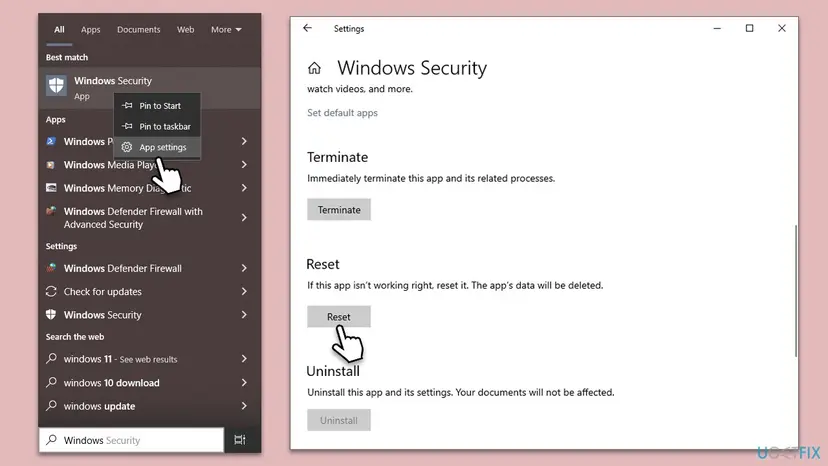
- What a reset removes. The app's own data on this PC, such as which sections you dismissed. It does not change your antivirus settings, your firewall or the platform files.
- The app opens, but a section says it is managed by your organization. Posters on Microsoft Q&A reported such a message on reset Windows 11 PCs with a missing platform. Go back to Fix 1 or Fix 7.
It worked if: Windows Security opens with its Home page and the protection areas, and the shield icon shows its status in the tray.
If not: If the app is still blank, the platform is incomplete. Repeat Fix 1, and if it was already done, use Fix 7.
Fix 4. Repair Windows system files with DISM and SFC
20 to 30 minutesNo riskThe path is directly in System32, the code is 0xc0000428 or 0xc000007b, or the PC runs Windows 10.
SecurityHealthSystray.exe and the System32 copy of SecurityHealthSSO.dll are Windows files that ship in Windows updates. DISM repairs the component store, and SFC then replaces damaged Windows files with the stored originals.
- Open an elevated command window. Right-click Start and select Terminal (Admin), or type cmd in the search box, right-click Command Prompt and select Run as administrator. Select Yes when Windows asks for permission.

Search for cmd and choose Run as administrator. Screenshot: Windows 11 26H2. - Run DISM first. Type the command below and press Enter. DISM downloads clean copies of damaged components from Windows Update, so it can take several minutes. Wait until it says The operation completed successfully.
DISM.exe /Online /Cleanup-Image /RestoreHealth
DISM /RestoreHealth running. Screenshot: Windows 11 26H2. - Run System File Checker. In the same window, type the command below and press Enter. Do not close the window until the verification reaches 100%.
sfc /scannow
sfc /scannow at 100%. Screenshot: Windows 11 26H2. - Read the result and restart. Compare the last message with the table below this guide, then restart the PC so that repaired files are loaded.

The result line tells you what SFC did. Screenshot: Windows 11 26H2.
These steps were written for Windows 11 24H2 and 25H2. The full page with the other versions and what each result means: Run DISM and SFC to repair Windows system files
We could not confirm from Microsoft whether SFC checks the versioned platform folder under C:\Windows\System32\SecurityHealth. Readers on Microsoft Q&A report that they \"tried every scan\" without result for that folder. If your window names it, Fix 1 and Fix 2 are the direct route.
It worked if: SFC ends with "did not find any integrity violations" or with a message that it repaired files, and the Bad Image window stays away after a restart.
If not: If SFC cannot repair files, or the same error returns days later, check the disk and memory with Fix 5.
Fix 5. Check the disk and the memory when files keep breaking
30 minutes to several hoursLow riskOther programs also show Bad Image, or the DLL is damaged again after Fix 1 or Fix 2.
Status 0xc000012f means the content of a file is wrong. One damaged file after a power cut is common. Several damaged files, or one that breaks again, point to a disk or memory that corrupts what Windows writes.
- Back up the files you cannot lose before you check a disk that may be failing: Back up your files (Windows Backup, File History, Time Machine)
- Run chkdsk on drive C: in read-only mode first, then with repair if it finds errors: Check a disk for errors (chkdsk)
- Test the memory with Windows Memory Diagnostic: How to test your RAM with Windows Memory Diagnostic
- After both checks are clean or repaired, repeat Fix 1 or Fix 2 to put a good DLL back.
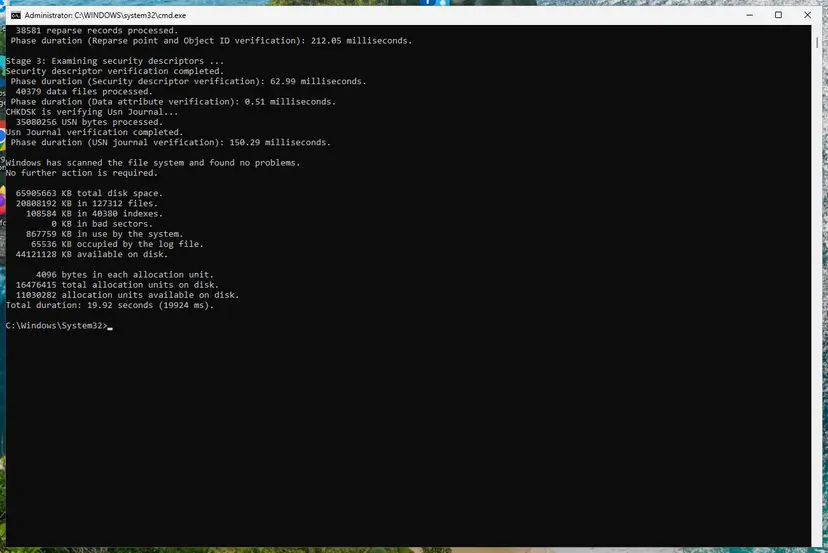
It worked if: chkdsk reports no problems or fixes them, Windows Memory Diagnostic reports no errors, and the repaired DLL stays good after several restarts.
If not: If chkdsk finds bad sectors or the memory test reports errors, the hardware needs attention before any software fix will last. See "If the error is still there".
Fix 6. Scan for malware from the command line when Windows Security will not open
15 minutes to several hoursNo riskA SecurityHealthSystray.exe sits outside System32, or you want proof the PC is clean while the app is broken.
The Bad Image window is not a sign of infection by itself. But malware likes names of Windows files, and while the Windows Security app is broken you cannot start a scan from it. MpCmdRun.exe runs the same Defender scan from a command line.
- Right-click Start and select Terminal (Admin) or Windows PowerShell (Admin).
- Check that the antivirus is running. AntivirusEnabled and RealTimeProtectionEnabled should say
True.Get-MpComputerStatus | Format-List AMServiceEnabled, AntivirusEnabled, RealTimeProtectionEnabled - Start a quick scan. Microsoft documents
-ScanType 1for a quick scan and2for a full scan.& "$env:ProgramFiles\Windows Defender\MpCmdRun.exe" -Scan -ScanType 1 - Wait for the end of the scan. Return code 0 means no malware was found, or it was found and removed.
- If a SecurityHealthSystray.exe outside System32 was found, run a full scan with
-ScanType 2.
When Windows Security opens again, the full procedure with scan options and Protection history is here: How to scan for malware with Microsoft Defender. If another antivirus is installed, Microsoft notes that Defender Antivirus turns itself off, so scan with that product instead.
It worked if: The scan ends with no threats, or the threats are removed, and Get-MpComputerStatus shows the antivirus enabled.
If not: If the scan is clean and the Bad Image window is still there, the platform itself needs replacing: use Fix 7.
Fix 7. Repair Windows with Reinstall now and keep your apps and files
45 to 90 minutesRead the warningFixes 1 to 6 did not help, or the error and a blank Windows Security began after Reset this PC.
A repair install replaces every Windows component with a fresh copy from Microsoft and keeps your apps, files and settings. A user on Microsoft Q&A reports that Microsoft support ended a broken Windows Security platform with exactly this kind of in-place reinstall.
A repair install keeps apps and files when it finishes normally. A power cut or a failing disk during the install can still cost data. Back up first, keep the laptop plugged in, and choose Reinstall now, not Reset PC: Back up your files (Windows Backup, File History, Time Machine)
- Open Settings > System > Recovery on Windows 11.
- Next to Fix problems using Windows Update, select Reinstall now and confirm.
- Leave the PC online and plugged in while Windows downloads and installs the repair copy. It restarts several times.
- Sign in, open Settings > Windows Update, install what is offered, and run Fix 1 if KB5007651 is not offered by itself.

The route for Windows 10 and the other recovery options are here: Reinstall Windows without losing files. Avoid Reset this PC for this error: posters on Microsoft Q&A report that a reset is exactly what left their Windows Security platform incomplete.
It worked if: Windows starts without the Bad Image window, the shield icon is in the tray, and Windows Security opens with all its sections.
If not: If even a repaired Windows shows the window, collect the data listed in "If the error is still there" and report it to Microsoft.
Hide the Windows Security icon while you fix it
If you need the window gone today and the fix must wait, you can stop the icon program from starting. This is a stopgap, not a fix: the damaged DLL stays, and the Windows Security app may still open blank. Your antivirus and firewall keep running.
- Press Ctrl + Shift + Esc to open Task Manager and select Startup apps.
- Find Windows Security notification icon (on some builds listed as SecurityHealthSystray).
- Select it and choose Disable, then restart.
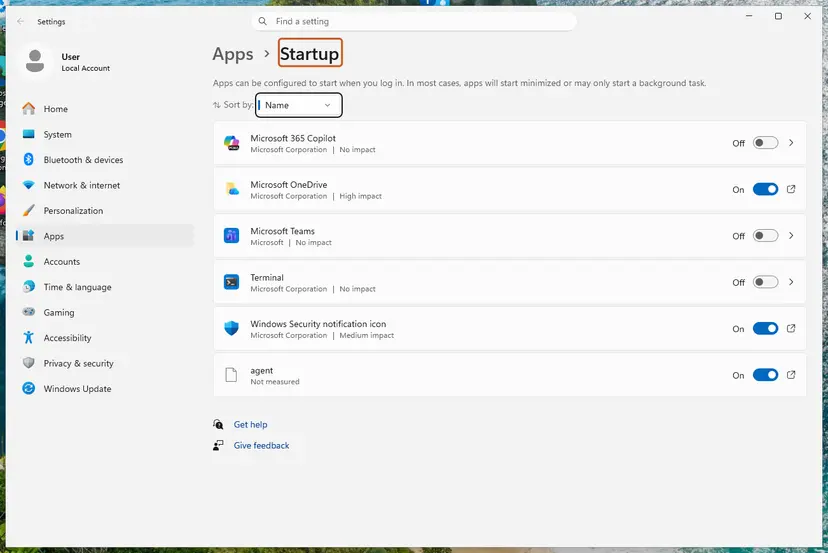
All startup routes are shown here: Stop apps from opening at startup. On Windows Pro, Enterprise and Education Microsoft also offers the policy Hide Windows Security Systray under Computer Configuration > Windows Components > Windows Security > Systray. Microsoft says it takes effect after you sign out and in, or restart.
The icon is how Windows Security warns you at a glance. When Fix 1 or Fix 2 has worked, enable the startup item again, or set the policy back to Not configured, which Microsoft defines as the same as Disabled.
If the SecurityHealthSystray error is still there
When the window survives every fix, stop changing files and collect what an expert or Microsoft needs. Three facts decide the next step: the exact version folder, the status code, and whether other programs show Bad Image too.
- Take a photo or screenshot of the window with the full path and the status code visible.
- Save the list of platform folders and the app version to the desktop.
dir C:\Windows\System32\SecurityHealth > %USERPROFILE%\Desktop\securityhealth.txt powershell -Command "Get-AppxPackage Microsoft.SecHealthUI | Format-List Name, Version >> $env:USERPROFILE\Desktop\securityhealth.txt" - Press Win + R, type
winverand note the version and OS build. - Open Event Viewer > Windows Logs > Application and look for errors at the time of sign-in that name SecurityHealthSystray.exe or SecurityHealthSSO.dll.
- Send it all through the Feedback Hub (press Win + F) or to Microsoft support.
| What you see | What it points to |
|---|---|
| chkdsk found bad sectors, or the memory test reports errors | Hardware. Replace the part, then do Fix 1 or Fix 2 again. |
| Many different programs show 0xc000012f | Disk, memory or a damaged Windows. Fix 5, then Fix 7. |
| Only this one DLL, and it breaks again after each fix | Something rewrites the file. Scan (Fix 6) and check the disk (Fix 5). |
| A work or school PC | Your administrator. The platform and its policies may be managed centrally. |
Microsoft has no public article about this window. Everything Microsoft states is about the update KB5007651, the error codes and the Windows Security services. The link between the window and a damaged platform DLL comes from user reports and the status codes themselves.
How to keep the Bad Image window from coming back
A DLL loses its content when Windows is cut off while it writes, or when the disk fails. Most prevention is about letting updates finish and keeping the disk healthy.
- Let Windows Update finish and restart when it asks, so that platform updates such as KB5007651 complete.
- Shut down from Start instead of holding the power button, and keep a laptop charged during updates.
- Check the disk now and then, and act on SMART or chkdsk warnings early.
- Prefer Reinstall now over Reset this PC when you want to repair Windows.
- Keep Microsoft Defender Antivirus or another antivirus running while you fix the icon.
- Do not download SecurityHealthSSO.dll from a DLL website.
- Do not delete the SecurityHealth folder or SecurityHealthSystray.exe to silence the window.
- Do not uninstall KB5007651 hoping to remove the error. It is the update that delivers the platform.
- Do not leave the icon disabled for good after the fix. It is how Windows Security warns you.
- Do not run registry cleaners on Windows Security entries.
Frequently asked questions
What is SecurityHealthSystray.exe?
SecurityHealthSystray.exe is a Microsoft program in C:\Windows\System32 whose file description is Windows Security notification icon. It starts when you sign in and shows the shield icon of Windows Security in the notification area of the taskbar. Selecting that icon opens Windows Security, which shows the status of your antivirus, firewall, account protection and device security. The program is small, between about 84 and 270 KB depending on the Windows build. It is part of Windows, so it cannot be uninstalled, and it does not scan files itself. The scanning is done by Microsoft Defender Antivirus or by your third-party antivirus.
Is SecurityHealthSystray.exe a virus?
No. The real SecurityHealthSystray.exe is a Microsoft file in C:\Windows\System32, signed by Microsoft, with the description Windows Security notification icon. The Bad Image window does not mean it is infected: it means a DLL the icon needs is damaged. Check the location if you are unsure. Open Task Manager, right-click the process and choose Open file location. If the folder is not System32, or the file sits in your user folder, Temp or Downloads, scan the PC with Microsoft Defender from the command line as shown in Fix 6.
Can I disable SecurityHealthSystray.exe at startup?
Yes. Disabling the startup item named Windows Security notification icon only removes the shield from the taskbar. Microsoft states that the Windows Security services do not affect the state of Microsoft Defender Antivirus, so protection keeps running. Microsoft even has a policy for it, Hide Windows Security Systray. Two caveats. You lose the quick warning the icon gives, and hiding it does not repair a damaged SecurityHealthSSO.dll. Use it as a stopgap while you work through Fix 1 and Fix 2, then turn it back on.
Does the Bad Image error mean my PC is unprotected?
Not by itself. The window is about the icon and the Windows Security interface, not about the antivirus engine. Microsoft writes that the Windows Security services do not change the state of Microsoft Defender Antivirus. To be sure, open PowerShell and run Get-MpComputerStatus. If AntivirusEnabled and RealTimeProtectionEnabled show True, real-time protection is on. If you use another antivirus, Defender Antivirus turns itself off by design, and that product protects the PC. Still fix the error, because a broken Windows Security app cannot show you warnings.
What does error status 0xc000012f mean in this window?
It is the Windows status STATUS_INVALID_IMAGE_NOT_MZ. Microsoft's text: the specified image file did not have the correct format, it did not have an initial MZ. Every Windows program file and DLL begins with the letters MZ. When they are missing, the file content is broken, for example emptied or overwritten after an interrupted update or a disk problem. That is why re-registering the DLL or restarting services does not help. The file has to be replaced with a good copy, which Fix 1 does through the platform update and Fix 2 does by hand.
Should I download SecurityHealthSSO.dll from a DLL website?
No. A DLL site cannot prove where its file came from, and a file with the right name can carry anything. Get a good copy from Microsoft instead: the platform update KB5007651 from Windows Update or the Microsoft Update Catalog (Fix 1), or a copy of the same version from another PC you own, checked with Get-AuthenticodeSignature (Fix 2). If neither works, a repair install with Reinstall now replaces the platform from Microsoft's servers (Fix 7).
Does regsvr32 SecurityHealthSSO.dll fix the error?
We do not recommend it, and the older version of this page was wrong to start with it. Registering a DLL writes registry entries that point to the file. It does not change the content of the file. With status 0xc000012f the content is broken, so Windows cannot load the DLL for registration either. Users on Microsoft Q&A who tried the regsvr32 commands report errors such as the system cannot find the file specified. Replace the file instead, with Fix 1 or Fix 2.
Why did the error appear after Reset this PC or an update?
The Windows Security platform is installed by its own update, KB5007651, apart from the monthly Windows updates. If that installation is cut off, the files in the version folder can stay incomplete. Posters on Microsoft Q&A also reported in 2024 that Reset this PC did not reinstall the platform fully, which left Windows Security blank until they installed KB5007651 by hand. Microsoft has not published an article on that. In both cases the answer is Fix 1: install the newest platform version and restart.
Does this error happen on Windows 10?
Less often, and the fix differs. Microsoft's page for KB5007651 says the platform update applies only to Windows 11, build 22000 or later. On Windows 10, SecurityHealthSystray.exe and SecurityHealthSSO.dll come with Windows itself and are updated by the monthly cumulative updates. So on Windows 10 start with DISM and SFC (Fix 4), then a repair install (Fix 7). Keep in mind that Windows 10 left support on 14 October 2025. Without Extended Security Updates it no longer gets fixes for Windows files.
Is this the same as the MicrosoftSecurityApp.exe Bad Image error?
No, although the windows look alike. MicrosoftSecurityApp.exe belongs to the Microsoft Defender app that comes with Microsoft 365, and its Bad Image window usually ends with status 0xc0e90002, which means a code integrity policy refused a file. SecurityHealthSystray.exe belongs to the Windows Security icon built into Windows, and its window usually ends with 0xc000012f, which means the DLL itself is damaged. Read the program in the title and the code at the end, then follow the guide for that pair.
Sources
- Microsoft Learn: [MS-ERREF] NTSTATUS Values (0xC000012F, 0xC0000020, 0xC000007B, 0xC0000428) (learn.microsoft.com)
- Microsoft Support: Windows Security app update (KB5007651, Windows 11 only, run as administrator) (support.microsoft.com)
- Microsoft Update Catalog: KB5007651, Update for Windows Security platform (versions and dates) (catalog.update.microsoft.com)
Did this fix work?
One click, no account. It tells the next reader which guides are worth their time.
Questions and experiences: fix SecurityHealthSystray.exe Bad Image error in Windows
Still broken, or found a fix we did not cover? Ask here: members and our editors answer. Reading is open; writing needs a free account.
…