
How to fix Snipping Tool opening automatically in Windows?

Prefer to fix it yourself? The manual steps follow.
- 9methods
- 2 to 20 minutes
- Easy
Applies to Windows 11, Windows 10; Snipping Tool (Microsoft.ScreenSketch)
9 methods in this guide
- What is happening
- Why it happens
- The fixes
- 1. Turn off the Print Screen key
- 2. Find a stuck key
- 3. Check the pen button
- 4. Other apps on the same key
- 5. Remove it from startup
- 6. Registry value for Print Screen
- 7. Repair or reset the app
- 8. Reinstall Snipping Tool
- 9. Clean boot test
- Still opening
- Keep it from coming back
- FAQ
Hello. I use a Windows computer and the Snipping Tool app keeps opening automatically or by itself. What should I do? Any tips would be appreciated.
When Snipping Tool keeps opening on its own, something is sending it the screenshot command: the Print Screen key, a stuck key, a pen button or another app. It is rarely a fault in Snipping Tool itself. Turn off the Print Screen key setting first, then look for the key or button that fires it.
Snipping Tool opens when it receives a capture command, so find what sends it. Open Settings > Accessibility > Keyboard and turn off Use the Print screen key to open screen capture (Fix 1). If it still pops up every few seconds, unplug or switch off the keyboard and any pen to find a stuck key or button (Fixes 2 and 3). Repair or reset the app only after that (Fix 7).
| Error | No error message. The Snipping Tool capture overlay dims the screen, or the app window opens, without you asking for it. |
|---|---|
| Where it appears | Over any app, often while typing or gaming, sometimes every few seconds and sometimes right after you sign in. |
| Main cause | The Print Screen key is set to open Snipping Tool, and that key (or a stuck key, a laptop Fn combination or a pen button) is being pressed. |
| Fastest fix | Turn off Use the Print screen key to open screen capture in Settings (Fix 1). |
| Also written as | Snipping Tool randomly opens, keeps popping up, opens on its own, automatically takes screenshots. |
| Affects | Windows 11 and Windows 10. Windows 10 left Microsoft support on 14 October 2025. |
| Microsoft's status | Not a listed bug. Microsoft documents Print Screen, Win + Shift + S and Win + Shift + R as the ways that open Snipping Tool. |
| Where snips go | Every capture is saved automatically to your Screenshots folder, which is why a stuck key fills it with pictures. |
| Time to fix | About 2 minutes for the setting. Up to 20 minutes when you have to test keyboards, pens and other apps. |
Facts checked on 15 October 2026. Steps written for Windows 11 (25H2 and 26H2) and Windows 10 22H2, read against Microsoft documentation.
What it means when Snipping Tool opens by itself
Snipping Tool does not start at random. Microsoft lists the ways it opens: the Start menu, Win + Shift + S for a picture and Win + Shift + R for a video. The Print Screen key opens it too when Windows is set to send that key there. When the overlay or the window appears by itself, one of these commands reached Windows without you meaning it.
Two things follow from that. First, the capture is real: Microsoft says every snip is saved automatically to the Screenshots folder, so a key that fires again and again leaves a trail of pictures there. Second, reinstalling the app rarely helps, because the command comes from outside the app. Users on Super User report that even uninstalling Snipping Tool did not stop the Print Screen key from opening a capture.
If you find screenshots you did not take, the same trigger is at work. Snipping Tool saves each capture to Pictures > Screenshots by default. The fixes below stop the trigger, and the setting in the app's Settings menu turns automatic saving off if you do not want the files.
Why Snipping Tool keeps opening automatically
Most often the Print Screen key opens Snipping Tool and something presses that key: your hand, a laptop Fn combination or a key that sticks. Less often a pen button or another screenshot app sends the command. Rarely the app is set to start with Windows or its own files are damaged.
| Cause | How often | How to tell | Fix |
|---|---|---|---|
| Print Screen is set to open Snipping Tool and the key is pressed by accident, often next to keys you use a lot. | Most often | The overlay appears when you type, game or press Fn combinations. | Fix 1, Fix 6 |
| A stuck or faulty key, or a keyboard that sends key presses by itself. | Often | It opens every few seconds, even when you do not touch the PC. | Fix 2 |
| A pen button shortcut set to Snipping Tool, or a faulty pen. | Sometimes | Touch screen or Surface PC with a pen paired over Bluetooth. | Fix 3 |
| Another screenshot or keyboard app uses the same key (Snagit, Greenshot, Logi Options+, laptop maker software). | Sometimes | Two capture tools react, or the setting in Fix 1 changes nothing. | Fix 4, Fix 9 |
| A Snipping Tool shortcut in the Startup folder. | Rarely | The window opens once, right after you sign in. | Fix 5 |
| Damaged app data or a half-finished app update. | Rarely | The app also crashes, closes itself or shows that it is being updated. | Fix 7, Fix 8 |
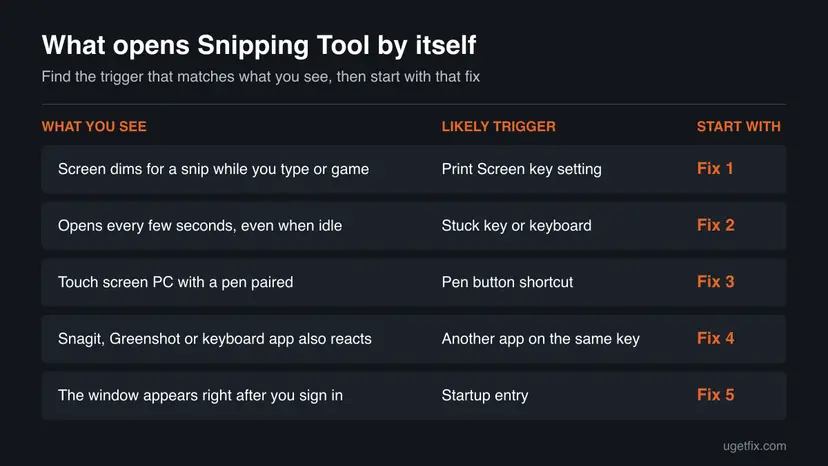
How to stop Snipping Tool from opening automatically
Fixes 1 to 5 remove the trigger and solve most cases. Fix 6 is the registry way to do Fix 1. Fixes 7 to 9 repair the app and look for a third-party program when nothing else worked.
| What you see or have | Start with |
|---|---|
| The overlay appears while you type, game or use Fn keys. | Fix 1 |
| It opens every few seconds, even when the PC is idle. | Fix 2 |
| Surface or another touch screen PC with a pen. | Fix 3 |
| Snagit, Greenshot, Logi Options+ or a laptop key tool is installed. | Fix 4 |
| The window opens once each time you sign in. | Fix 5 |
| The Print Screen switch is missing or greyed out. | Fix 6 |
| The app also crashes, closes or shows an update message. | Fix 7, then Fix 8 |
Fix 1. Turn off the setting that makes Print Screen open Snipping Tool
2 minutesNo riskEveryone, first. It takes a minute and removes the most common trigger.
With this setting on, any press of the Print Screen key opens the Snipping Tool overlay. On many laptops that key shares a spot with other keys, so it is pressed by accident far more often than people think.
- Press Win + I to open Settings.
- Select Accessibility on the left, then Keyboard.
- Scroll to On-screen keyboard, access keys, and Print screen.
- Turn off Use the Print screen key to open screen capture. On older builds the switch is called Use the Print Screen key to open Snipping Tool.
- If the switch is not on that page, open Bluetooth & devices > Keyboard and look there.
- Restart the PC so the key is released by every app.
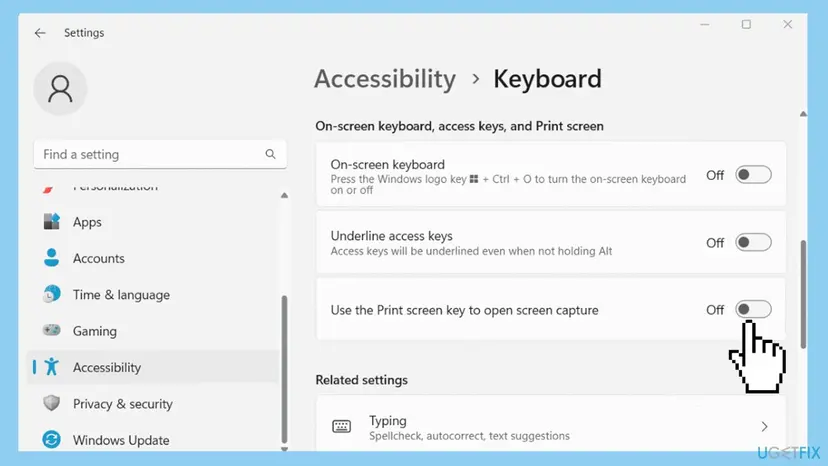
Users on Super User report that in some 25H2 builds this switch moved to Bluetooth & devices > Keyboard, which is why step 5 is there. On Windows 10 the switch is under Settings > Ease of Access > Keyboard and reads Use the PrtScn button to open screen snipping.
It worked if: Print Screen now copies the whole screen to the clipboard without opening Snipping Tool, and the pop-ups stop.
If not: If the overlay still opens, something else sends the command. Go to Fix 2. If the switch is missing or greyed out, use Fix 6.
Fix 2. Check for a stuck key or a keyboard that presses keys by itself
10 minutesNo riskSnipping Tool opens every few seconds or while the PC is idle, or Fix 1 changed nothing.
A shortcut that fires on its own means a key is held down: Print Screen, or Windows, Shift and S together. Removing one keyboard at a time shows which device sends the press.
- Press each of PrtSc, Win, Shift and S a few times and check that each one springs back up.
- Unplug the external keyboard, or switch off a wireless or Bluetooth one, and wait a few minutes.
- On a laptop with a detachable keyboard, such as a Surface Type Cover, detach it and wait.
- Press Win + Ctrl + O to open the on-screen keyboard and look for a key that shows as pressed.
- If the pop-ups stop with one keyboard removed, clean or replace that keyboard.
On some laptops Print Screen is a second function of another key and needs Fn. A user on Super User found that the laptop maker's Fn key software, not Windows, sent Print Screen to Snipping Tool. Check the maker's keyboard app if your laptop has one.
It worked if: With the faulty keyboard unplugged or detached, Snipping Tool stays closed.
If not: If it still opens with every keyboard removed, a pen or another app sends the command. Go to Fix 3 and Fix 4.
Fix 3. Change the pen shortcut or disconnect the pen
5 minutesNo riskYou have a Surface or another touch screen PC with a pen paired over Bluetooth.
A pen button can be set to open Snipping Tool. Microsoft support staff found this on a Surface Pro 8 whose Snipping Tool kept popping up: the pen cap was clicking by itself, and the pop-ups stopped once the pen was disconnected.
- Press Win + I and open Bluetooth & devices.
- Open Pen & Windows Ink.
- Under the pen shortcuts, check whether a click, a double-click or press and hold of the pen button opens Snipping Tool.
- Set that shortcut to Nothing or to another action.
- To test the pen itself, remove it in Bluetooth & devices and use the PC for a while without it.
If the pop-ups stop only when the pen is removed, the pen button is sending clicks on its own. Microsoft's staff treat that as a hardware fault of the pen and point to Surface support for a replacement.
It worked if: Snipping Tool no longer opens when you pick up or hold the pen, or while the pen is removed.
If not: If you have no pen, or nothing changed, go to Fix 4.
Fix 4. Check other screenshot and keyboard apps that use the same key
10 minutesNo riskYou have Snagit, Greenshot, Screenpresso, Logi Options+ or a keyboard tool from your laptop maker.
Two programs can listen to Print Screen at the same time. Then one press opens Snipping Tool and the other app, or the other app's editor opens after every Snipping Tool capture. A user on Super User found Logi Options+ had bound Print Screen to its own capture.
- Look at the icons next to the clock and note every screenshot or keyboard app.
- Open each app's settings and find its hotkeys or key assignments.
- Decide which tool should own Print Screen and remove the key from the other one.
- If you keep the third-party tool, also do Fix 1 so Windows does not open Snipping Tool on the same key.
- Restart the PC, which users report is needed before the other tool gets the key back.
If the Snagit editor opens every time you use Snipping Tool, the cause is in Snagit, not in Windows. Look in Snagit's capture settings for its Print Screen and clipboard options. We did not confirm the exact menu names of Snagit's current version.
It worked if: Only the tool you chose reacts to Print Screen, and nothing opens by itself.
If not: If you cannot tell which program is responsible, Fix 9 switches them all off for one test.
Fix 5. Remove Snipping Tool from the apps that start with Windows
3 minutesNo riskThe Snipping Tool window opens once, right after you sign in.
A shortcut in your Startup folder opens the app at every sign-in. Microsoft support staff suggest this check first when the app appears on its own after a restart.
- Press Win + R, type
shell:startupand press Enter. - If a Snipping Tool shortcut is in the folder, right-click it and select Delete.
- Open Settings > Apps > Startup and turn off Snipping Tool if it is listed.
- Restart the PC and sign in.
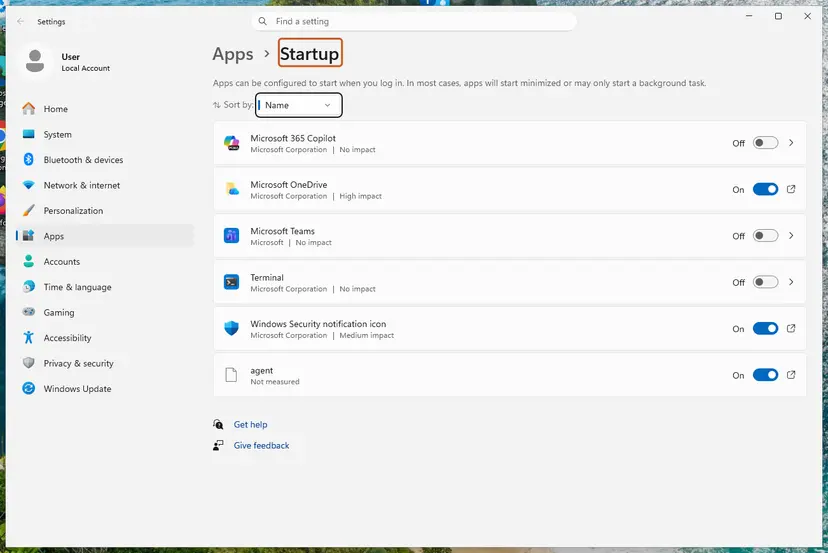
Step by step for both places, Settings and Task Manager: Stop apps from opening at startup
It worked if: After the restart the desktop appears without the Snipping Tool window.
If not: If it still opens at sign-in, a startup program sends Print Screen. Use Fix 9.
Fix 6. Set the Print Screen value in the registry when the switch is missing
5 minutesLow riskThe switch from Fix 1 is missing, greyed out or turns itself back on.
The switch in Fix 1 is stored as the value PrintScreenKeyForSnippingEnabled for your user account. Setting it to 0 does the same as turning the switch off.
A wrong change in the registry can stop programs or Windows from working. Export the Keyboard key before you edit it and change nothing else. How to make the backup: Back up the registry before editing it
- Press Win + R, type
regedit, press Enter and select Yes. - Paste the path below into the address bar and press Enter.
- Double-click PrintScreenKeyForSnippingEnabled. If it does not exist, right-click an empty area, select New > DWORD (32-bit) Value and give it that name.
- Set Value data to
0and select OK. - Close Registry Editor and restart the PC.
Key and value
HKEY_CURRENT_USER\Control Panel\Keyboard
PrintScreenKeyForSnippingEnabled = 0 (DWORD)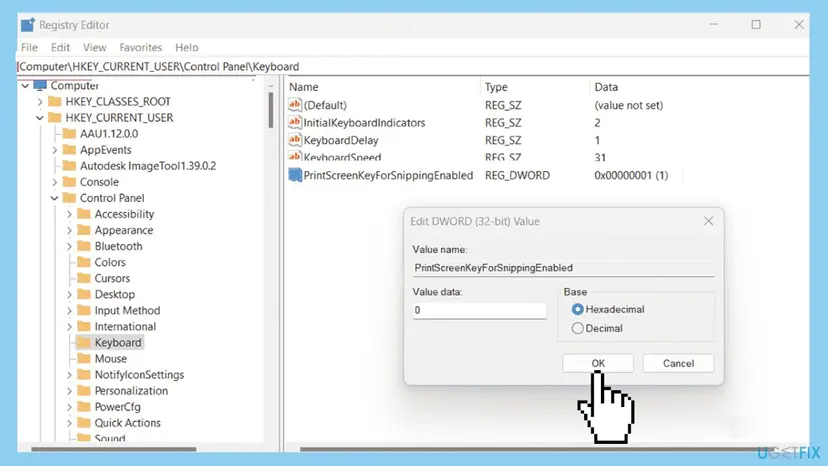
Microsoft does not describe this value on the support pages we read. It is the value the Settings switch changes, as users on Super User report, and a restart is needed before it takes effect. A work PC can set it back by policy.
It worked if: After the restart Print Screen copies the screen to the clipboard and Snipping Tool stays closed.
If not: If the value returns to 1 after a restart, an administrator or a management tool sets it. Ask them, then try Fix 7.
Fix 7. Repair or reset Snipping Tool
5 minutesLow riskThe triggers above are ruled out, or the app also crashes, closes itself or behaves oddly.
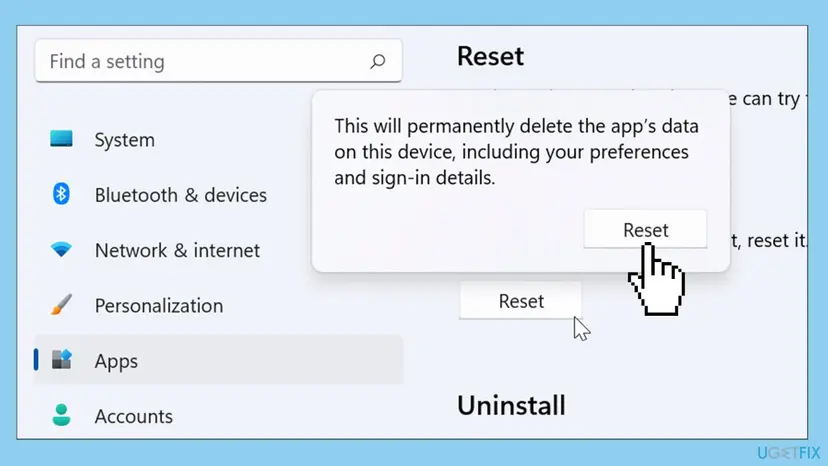
Repair fixes the app's files and keeps its data. Reset returns the app to a fresh state, which clears a damaged setting such as an auto-start or a stuck recording state.
- Open Installed apps. Select Start > Settings > Apps > Installed apps.
- Open the app's advanced options. Find the app in the list, select the three dots next to it and select Advanced options. Some apps do not have this option: for those, see the section about desktop programs below.
- Repair first. On the page that opens, select Repair if it is there. The app's data stays. Open the app and check whether it works.
- Reset if Repair did not help. Select Reset. This deletes the app's data on this PC, including sign-in details and settings. Open the app and set it up again.
These steps were written for Windows 11 25H2 and 26H2. The full page with the other versions and what each result means: How to repair or reset an app in Windows

If Snipping Tool shows "We’re updating Snipping Tool. It should be ready to use again shortly.", the Microsoft Store is installing a new version. Wait for it to finish before you repair anything.
It worked if: After Repair or Reset the app opens only when you ask for it.
If not: If it still opens by itself, reinstall it with Fix 8, or test for a third-party trigger with Fix 9.
Fix 8. Reinstall Snipping Tool from Microsoft Store
10 minutesLow riskRepair and Reset did not help, or the app will not open properly at all.
A fresh install replaces every app file. It does not fix a trigger outside the app, so use it only after Fixes 1 to 5.
- Right-click Start and select Terminal (Admin) or Windows PowerShell (Admin), then select Yes.
- Run the command below to remove the Snipping Tool package.
- Open Microsoft Store, search for Snipping Tool and select Get or Install.
- Restart the PC and test.
Remove the Snipping Tool package for your account
Get-AppxPackage *Microsoft.ScreenSketch* | Remove-AppxPackage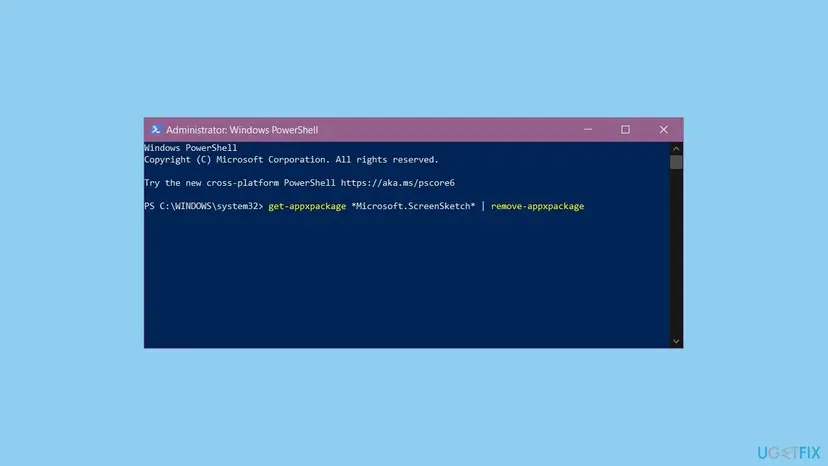
If the Store will not install it again, re-register the built-in apps: How to re-register Microsoft Store apps with PowerShell
It worked if: Snipping Tool is back in the Start menu with default settings, and it opens only on request.
If not: Do Fix 1 again, because a reinstall does not change the Print Screen switch. Then go to Fix 9.
Fix 9. Use a clean boot to find the program that triggers it
20 minutesLow riskNothing above helped and you suspect a program that runs in the background.
A clean boot starts Windows with Microsoft services only. If Snipping Tool stops opening, one of the switched-off programs sent the key press, and you can turn them back on one at a time to find it.
- Open System Configuration. Select Search on the taskbar, type msconfig and select System Configuration from the results.
- Hide Microsoft services. On the Services tab, select the Hide all Microsoft services check box. Only services from other companies stay in the list.
- Disable the remaining services. Select Disable all, then select Apply.
- Open Task Manager. On the Startup tab of System Configuration, select Open Task Manager.
- Disable the startup apps. On the Startup apps tab in Task Manager, select each item whose status is Enabled and select Disable. Write down or take a screenshot of the items you disable: you need the list to turn them back on.
- Confirm the changes. Close Task Manager. On the Startup tab of System Configuration, select OK.
- Restart and test. Restart the PC. Windows now starts in a clean boot environment: try again the thing that failed (run the app, install the update, uninstall the program).
These steps were written for Windows 11 25H2 and 26H2. The full page with the other versions and what each result means: How to perform a clean boot in Windows

It worked if: In the clean boot Snipping Tool stays closed. Turning programs back on one by one shows which one brings it back.
If not: If it still opens in a clean boot, the trigger is hardware (a key or a pen). Go back to Fix 2 and Fix 3, then read the next section.
If Snipping Tool still opens by itself
There is no log of which key opened Snipping Tool, so the test is to remove one possible sender at a time. Work through this list and note when the pop-ups stop.
- Check the Screenshots folder. Open Pictures > Screenshots and look at the times of the files. Captures every few seconds point to a stuck key (Fix 2).
- Test in Safe Mode. If it still opens there, no third-party program is involved: Start Windows or a Mac in Safe Mode
- Test another user account. If a new account is fine, the cause is in your settings, so repeat Fix 1 and Fix 6 there.
- When it is hardware: the pop-ups stop only with a keyboard or a pen removed. Clean or replace that device, or contact the maker of the laptop or the Surface.
- What to tell support: your Windows version from Settings > System > About, whether Fix 1 is off, which keyboards and pens are connected and what happens with each one removed.
As a last software step, repair Windows system files. It is not a known cause of this problem, so do it only after the tests above: Run DISM and SFC to repair Windows system files
How to keep Snipping Tool from popping up again
- Use Win + Shift + S for screenshots and leave the Print Screen switch off if you press that key by accident.
- Let only one screenshot tool own Print Screen.
- After a big Windows update, check that the Print Screen switch is still off.
- Keep the pen in its holder or remove it from Bluetooth when you do not use it.
- Do not uninstall Snipping Tool to stop the pop-ups. The command comes from outside the app.
- Do not install unknown key remapping tools to block the key; change the setting instead.
- Do not delete other registry values under the Keyboard key.
Frequently asked questions
Why does Snipping Tool keep opening automatically?
Because something sends it the capture command. In Windows, Snipping Tool opens from the Start menu, with Win + Shift + S, with Win + Shift + R, and with the Print Screen key when Windows is set to send that key to Snipping Tool. When it opens by itself, the usual reason is that the Print Screen key is pressed by accident or is stuck. A pen button, another screenshot app or a startup shortcut can do the same. Turn off the Print Screen setting first, then test the keyboard and pen.
How do I stop Snipping Tool from popping up?
Open Settings, go to Accessibility > Keyboard and turn off Use the Print screen key to open screen capture. On some newer builds the switch is under Bluetooth & devices > Keyboard. On Windows 10 it is under Ease of Access > Keyboard. Restart the PC. If the overlay still appears, unplug or switch off your keyboards one at a time, check the pen shortcuts in Pen & Windows Ink, and remove any Snipping Tool shortcut from the Startup folder. Those steps cover nearly every case.
Why is my Snipping Tool automatically taking screenshots?
Snipping Tool saves every capture to your Screenshots folder automatically, so each unwanted trigger leaves a picture. If a key is stuck or a pen button clicks by itself, the app captures again and again and the folder fills up. Stop the trigger with Fixes 1 to 3 on this page. If you want to keep using the app but stop the automatic saving, open Snipping Tool, select See More and then Settings, and change the save option there.
Why does Snipping Tool close automatically?
The most common reason is an app update. While the Microsoft Store installs a new version, Snipping Tool closes and shows "We’re updating Snipping Tool. It should be ready to use again shortly." Wait a few minutes and open it again. If it closes at other times too, its files may be damaged: repair it, then reset it in Settings > Apps > Installed apps > Snipping Tool > Advanced options (Fix 7). A reinstall from Microsoft Store is the next step (Fix 8).
How do I make Print Screen take a normal screenshot again?
Turn off the switch Use the Print screen key to open screen capture in Settings, as in Fix 1. Microsoft describes the result: Print Screen then copies a picture of the whole screen to the clipboard without opening Snipping Tool, and you paste it with Ctrl + V. If the switch is missing or greyed out, set the registry value PrintScreenKeyForSnippingEnabled to 0 under HKEY_CURRENT_USER\Control Panel\Keyboard, as in Fix 6, and restart. Back up the key first.
How do I make Snipping Tool open automatically when I press Print Screen?
Turn the same switch on. In Windows 11 open Settings > Accessibility > Keyboard and turn on Use the Print screen key to open screen capture. In Windows 10 open Settings > Ease of Access > Keyboard and turn on Use the PrtScn button to open screen snipping. From then on, Print Screen opens the snipping overlay, and the capture opens in the Snipping Tool window for editing. Win + Shift + S does the same without any setting.
How do I stop Snagit from opening with Snipping Tool?
Snagit and Snipping Tool can both react to the Print Screen key or to the clipboard. Decide which one should own Print Screen. If you prefer Snipping Tool, remove the Print Screen hotkey in Snagit's capture settings. If you prefer Snagit, turn off the Windows switch in Fix 1 so Windows does not also open Snipping Tool. Restart the PC after the change. We did not confirm the exact menu names in the current version of Snagit.
Can I uninstall Snipping Tool to stop it opening?
You can, but it rarely helps. The app opens because a key or button sends a capture command, and that command still reaches Windows. Users on Super User report that even after they uninstalled Snipping Tool, Print Screen still opened a capture. Turn off the Print Screen switch instead. If you really want it gone, remove it in Settings > Apps > Installed apps, or with the PowerShell command in Fix 8, and do not reinstall it from Microsoft Store.
How do I open Snipping Tool, and can I launch it from the command line?
Microsoft documents three ways: select Start, type snipping tool and select the app; press Win + Shift + S for a picture snip; or press Win + Shift + R for a video snip. You can also pin it to the taskbar from the search results. Microsoft's Snipping Tool page lists no command line. Many users type snippingtool in the Run box, but we could not confirm that in a Microsoft document, so treat it as a shortcut that may change.
Sources
- Microsoft Support: Use Snipping Tool to capture screenshots (support.microsoft.com)
- Microsoft Q&A: How can I fix the snipping tool from popping up constantly on a Surface Pro 8? (learn.microsoft.com)
- Super User: How can I disable the Snipping Tool functionality triggered by the Print Screen key in Windows 11? (superuser.com)
Did this fix work?
One click, no account. It tells the next reader which guides are worth their time.
Questions and experiences: fix Snipping Tool opening automatically in Windows
Still broken, or found a fix we did not cover? Ask here: members and our editors answer. Reading is open; writing needs a free account.
…