
How to fix the SYSTEM_LICENSE_VIOLATION (0x9A) blue screen in Windows 10 and 11

Prefer to fix it yourself? The manual steps follow.
- 6methods
- 15 to 90 minutes
- Advanced
Applies to Windows 11, Windows 10 and Windows Server PCs that crash with stop code SYSTEM_LICENSE_VIOLATION
6 methods in this guide
Hello. I received SYSTEM LICENSE VIOLATION, and now I can't boot into Windows; the error shows up again instead. I am not sure what to do next. Is my PC broken? Please help.
SYSTEM_LICENSE_VIOLATION is stop code 0x0000009A: while starting, Windows checks the registry values that hold its edition and licence data, and stops when it cannot read them or finds them changed. It rarely means you broke a licence by accident. Start with System Restore from the recovery screens.
Your PC is most likely not broken. Windows stops with SYSTEM_LICENSE_VIOLATION when it cannot read, or finds changed, the registry keys that store its edition and licence data. Open the recovery screens and run System Restore to a point before the first crash (Fix 1). Without a restore point, try Startup Repair (Fix 2), check the keys offline (Fix 3), then Reset this PC with Keep my files (Fix 5).
| Error | A blue (or, on Windows 11 24H2 and later, black) stop screen with Stop code: SYSTEM_LICENSE_VIOLATION, bug check value 0x0000009A. |
|---|---|
| Where it appears | Mostly during startup, often in a loop that never reaches the sign-in screen. Less often while Windows runs or shuts down. |
| Main cause | The kernel could not read or protect the licence values in HKLM\SYSTEM\Setup and HKLM\SYSTEM\CurrentControlSet\Control\ProductOptions, usually because the registry is damaged or was changed. |
| Fastest fix | System Restore from the recovery screens to a point before the first crash (Fix 1). |
| Also written as | 0x9A, 0x0000009A, SYSTEM LICENSE VIOLATION, system licence violation, "license violation" stop code. |
| Affects | Windows 11, Windows 10 and Windows Server. Windows 10 left support on 14 October 2025. |
| Vendor status | Not a bug of one update. Microsoft documents 0x9A as a licence check failure with about 27 sub-cases, named by Parameter 1. |
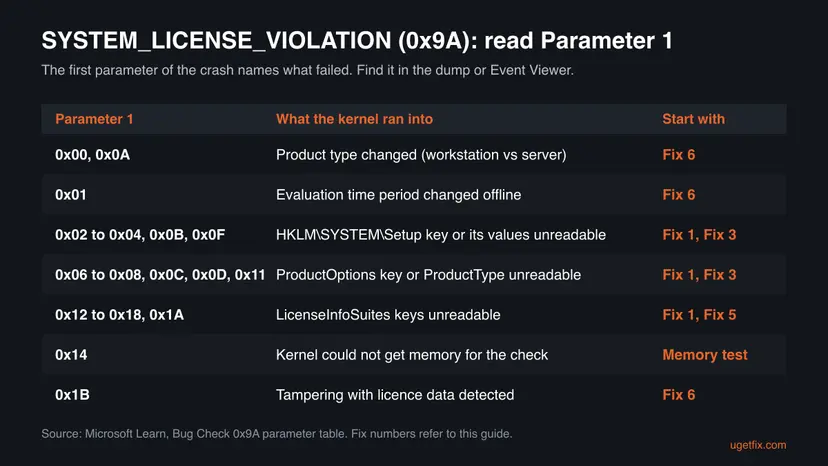
| Where the cause is written | Parameter 1 of the crash, in the dump files under C:\Windows\Minidump and in the BugCheck entry of Event Viewer's System log. |
| Time to fix | 15 minutes for Fix 1 or 2. One to two hours when Windows has to be reset or reinstalled. |
Facts checked on 15 October 2026. Steps written for Windows 11 (25H2 and 26H2) and Windows 10 22H2.
What SYSTEM_LICENSE_VIOLATION (0x9A) means
Microsoft's bug check reference gives SYSTEM_LICENSE_VIOLATION the value 0x0000009A and says the software license agreement has been violated. Its own examples are narrow: someone changed the product type of an offline Windows, or changed the trial period of an evaluation copy. The word "violation" sounds like an accusation, but the real trigger is usually more ordinary.
An independent analysis of the Windows kernel by software analyst Geoff Chappell explains the gap. Windows guards a few registry values: SetupType and SystemSetupInProgress in HKLM\SYSTEM\Setup, and ProductType, ProductSuite and ProductPolicy in HKLM\SYSTEM\CurrentControlSet\Control\ProductOptions. The 0x9A crash mostly means the kernel failed while reading or protecting those values, not that it proved a licence breach. A real, detected change of the product type only writes a License Violation entry to the System log.
SYSTEM_LICENSE_VIOLATION, "system license violation", "system licence violation", "stop code system license violation", 0x9A and 0x0000009A are the same stop code on Windows 10 and Windows 11. "System violation error" searches usually mean this code too.
On Windows 11 23H2 and older, and on Windows 10, the crash shows the blue screen with the stop code at the bottom. Microsoft says Windows 11 24H2 and later show a black screen instead, with the message Your device ran into a problem and needs to restart. and the same stop code.
What causes the system license violation blue screen, most likely first
Microsoft lists the sub-cases but not how often each one happens. The ranking below combines the parameter table with what users describe on Microsoft Q&A: the crash usually follows something that wrote to the registry or interrupted Windows.
| How likely | Cause | Sign | Fix |
|---|---|---|---|
| Most likely | The SYSTEM registry hive or its licence keys were damaged by a cut-off update, a power loss or a failed System Restore | Crash right after an update, a forced shutdown or a restore; Parameter 1 between 0x02 and 0x11 | Fix 1, Fix 2, Fix 3 |
| Likely | An unofficial activator, a "tweak" tool or an edition changer edited ProductOptions or the licence data | The tool ran just before the crash; Parameter 1 is 0x00, 0x0A or 0x1B | Fix 1, then Fix 6 |
| Less often | The trial clock of an evaluation edition of Windows or Windows Server was changed | Evaluation build; Parameter 1 is 0x01 | Fix 6 |
| Rarely | A failing disk or bad sectors damage the registry files again and again | The crash returns after every repair; chkdsk finds bad sectors | Fix 4, then Fix 5 |
| Rarely | Low memory or faulty RAM during the check | Parameter 1 is 0x14 (memory allocation failed) | Memory test in the last section |
An unactivated Windows shows a watermark and limits personalization; it does not crash with 0x9A. A fully activated Windows can still crash with 0x9A when its registry is damaged. Activation and this stop code are separate things.
Where to find Parameter 1 of the 0x9A crash
The stop screen shows only the name. The four parameters are saved with the crash, and the first one tells you which of the sub-cases above hit your PC. You need Windows running, or another PC that can read the dump file.
- If Windows starts at least once (after Fix 1 or in Safe Mode), open Event Viewer > Windows Logs > System and look for an entry from BugCheck. Its text starts with "The bugcheck was: 0x0000009a" and lists four values in brackets. The first one is Parameter 1.
- Small dump files are saved in
C:\Windows\Minidump. Copy them to a USB stick from the recovery Command Prompt and open them on a working PC with WinDbg. - Look in the same System log for an entry with the text License Violation. It means the kernel did see a product type change, which points to Fix 6.
How to fix the SYSTEM_LICENSE_VIOLATION blue screen
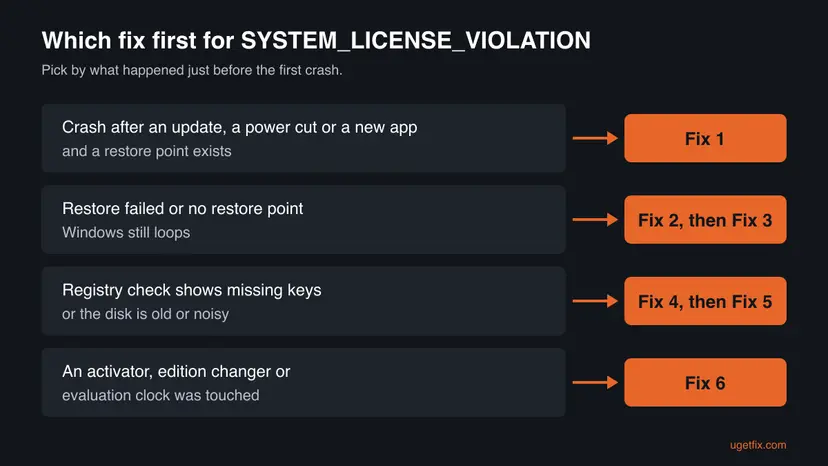
Windows usually does not start with this error, so every fix begins in the recovery screens. Windows opens them on its own after two or three failed starts. Fixes 1 and 2 undo or repair the damage without touching your files; Fix 3 tells you whether the licence keys are still there; Fixes 5 and 6 rebuild Windows.
| What you see or did | Start with | Then |
|---|---|---|
| The crash began after an update, a power cut, a new program or driver | Fix 1 | Fix 2 |
| No restore point, or System Restore failed | Fix 2 | Fix 3 |
| Fix 3 shows missing keys or the hive will not load | Fix 4 | Fix 5 |
| You used an activator, an edition changer or changed an evaluation copy | Fix 1 | Fix 6 |
| The crash comes back after every repair | Fix 4 | Fix 6 |
Fix 1. Roll the registry back with System Restore from the recovery screens
15 minutesLow riskThe crash started after an update, a program or driver install, an activator, or a forced shutdown, and System Protection was on.
A restore point holds a copy of the registry, including the Setup and ProductOptions keys that the licence check reads. Restoring it puts back values that the kernel could read before, and leaves your documents alone.
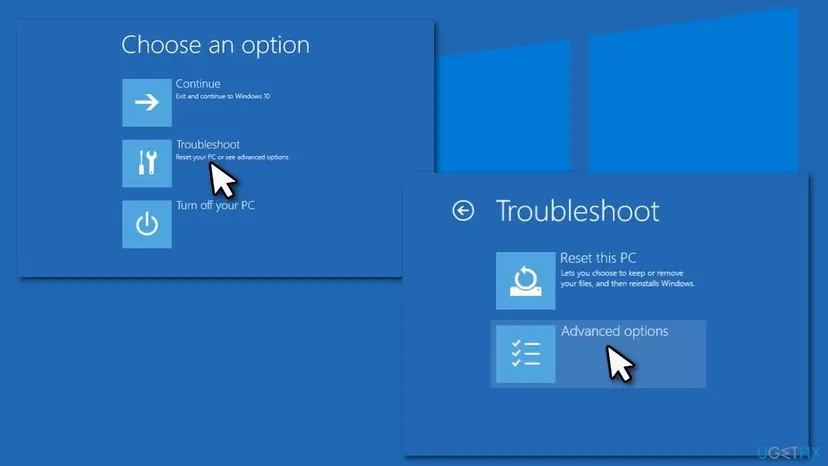
- Turn the PC on and, when the logo appears, hold the power button until it turns off. Do this twice. On the third start Windows opens Automatic Repair.
- Select Advanced options, then Troubleshoot > Advanced options.
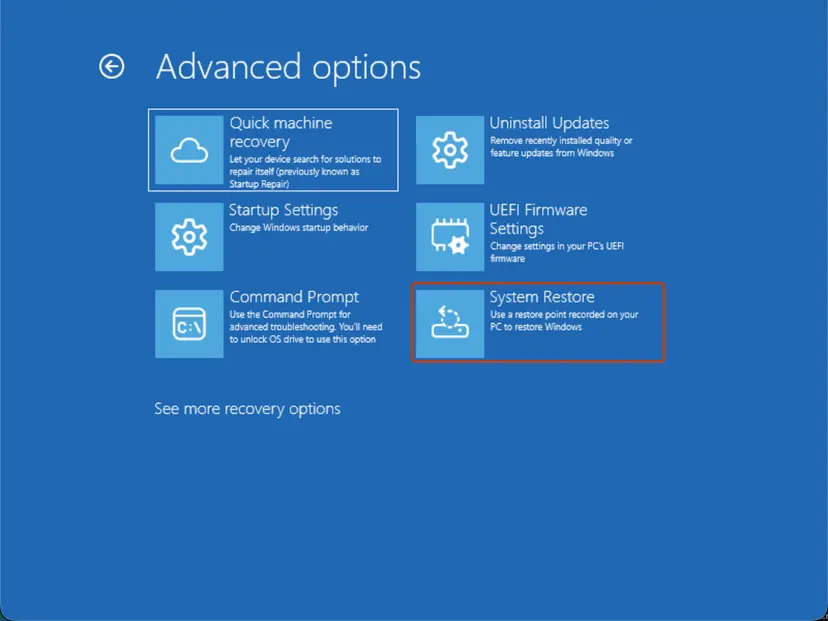
- Select System Restore. If the drive is encrypted, enter your BitLocker recovery key when asked.
- Pick a restore point dated before the first crash and select Next, then Finish.
- Let the PC restart and do not repeat what came before the crash until Windows has started cleanly twice.
All the ways to open System Restore, with screenshots: Undo recent changes with System Restore
It worked if: Windows starts to the sign-in screen and the stop screen does not return over the next few restarts.
If not: If no restore point is listed or the restore fails, go to Fix 2.
Fix 2. Run Startup Repair (Quick machine recovery) from the recovery screens
10 to 30 minutesNo riskThere is no restore point, or System Restore failed, and Windows keeps crashing at startup.
Startup Repair checks why Windows does not start and repairs boot files, the boot configuration and some registry problems by itself. It costs nothing to try and keeps every file.
- Open the recovery screens as in Fix 1: two interrupted starts, then Advanced options.
- Select Troubleshoot > Advanced options.
- Select Quick machine recovery on current Windows 11, or Startup Repair on older Windows 11 and on Windows 10.
- Choose an administrator account and type its password; enter the BitLocker recovery key if asked.
- Wait for the result. If it cannot repair the PC, it says so and shows where its log file is.
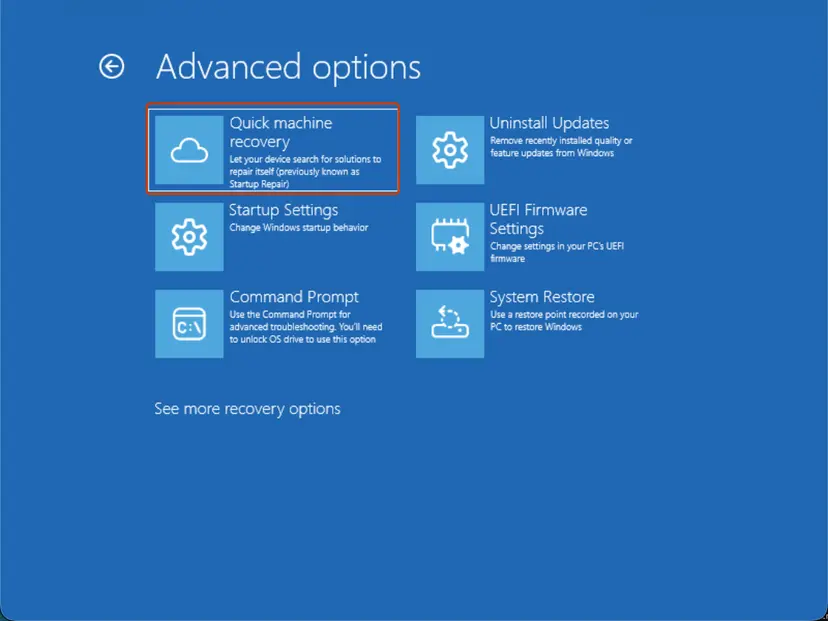
Full steps, including where the repair log is: Run Startup Repair
It worked if: The repair reports that it fixed a problem and the PC restarts into Windows without the stop screen.
If not: If it says it could not repair your PC, go to Fix 3 to see whether the licence keys are still readable.
Fix 3. Check the licence keys of the offline Windows from the recovery Command Prompt
10 minutesNo riskFixes 1 and 2 did not help and you want to know whether the registry hive is damaged before you reset Windows.
Most 0x9A sub-cases mean one of these keys or values could not be opened or read. Loading the SYSTEM hive of the broken Windows and reading them shows in a minute whether they exist, so you know whether a reset is needed.
- Open the recovery screens as in Fix 1 and select Troubleshoot > Advanced options > Command Prompt. Enter the BitLocker recovery key if asked.
- Find the Windows drive. In recovery it often is not C:. Try each letter until the list shows
System32.dir C:\Windows dir D:\Windows - Load the SYSTEM hive of that Windows under a temporary name. Use the letter you found; D: is shown here.
reg load HKLM\OFFSYS D:\Windows\System32\config\SYSTEM - Read the Setup values and the product options. An offline hive has
ControlSet001instead ofCurrentControlSet.reg query HKLM\OFFSYS\Setup /v SetupType reg query HKLM\OFFSYS\Setup /v SystemSetupInProgress reg query HKLM\OFFSYS\ControlSet001\Control\ProductOptions - Unload the hive before you leave, so nothing stays locked.
reg unload HKLM\OFFSYS - Close the Command Prompt and select Continue or Turn off your PC.
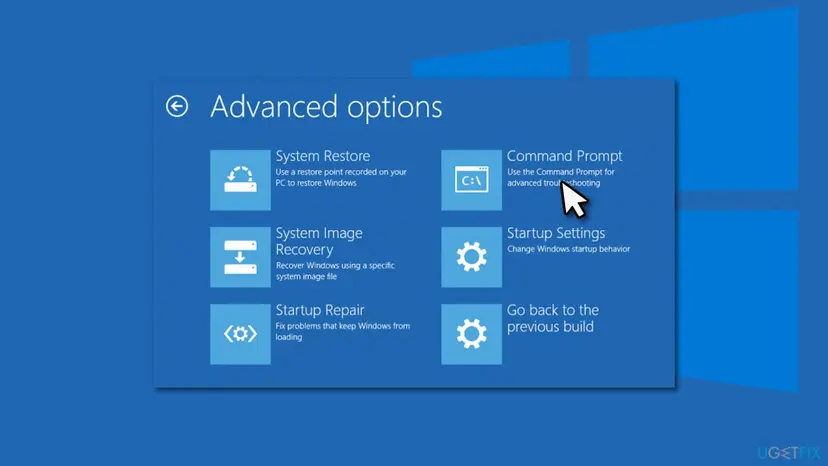
| What you see | What it means | Next |
|---|---|---|
reg load fails with an access or file error | The SYSTEM hive itself is damaged or the disk cannot read it | Fix 4, then Fix 5 |
| "The system was unable to find the specified registry key or value" | A licence value is missing, which matches Parameter 1 values 0x02 to 0x07 | Fix 5 |
ProductType is WinNT on Windows 10 or 11, and SetupType and SystemSetupInProgress are 0x0 | The keys look normal; the cause is elsewhere | Fix 4, then Fix 5 |
ProductType is ServerNT or LanmanNT on a Windows 10 or 11 PC | The product type was changed, the case Microsoft names for Parameter 1 0x00 | Fix 6 |
Changing ProductType or the Setup values by hand is exactly what the licence check punishes, and a wrong value can stop Windows for good. This fix only reads. If you ever must edit the registry, back it up first: Back up the registry before editing it
It worked if: You know whether the keys exist and what they say, and which of Fixes 4 to 6 to run.
If not: If the commands fail because the drive letter is wrong, run dir on each letter again. Then continue with Fix 4.
Fix 4. Check the Windows drive for file system errors and bad sectors
30 minutes to several hoursLow riskThe hive will not load, the crash returns after every repair, or the disk is old or makes noises.
The registry lives in files on the Windows drive. If the file system or the disk is damaged, the licence keys are lost again after each repair. Chkdsk fixes file system errors and marks bad sectors so the next repair holds.
In the recovery Command Prompt, with D: as the Windows drive:
chkdsk D: /f /r- Open the recovery Command Prompt and find the Windows drive as in Fix 3.
- Run the command above.
/ffixes file system errors;/ralso looks for bad sectors and takes much longer on a hard disk. - Wait until it reaches 100 percent and read the summary at the end.
- Restart. If Windows still crashes, go back to Fix 1 or run Fix 5.
Other ways to run chkdsk and where its log is: Check a disk for errors (chkdsk)
It worked if: Chkdsk reports that it found no problems, or that it fixed them, and lists 0 KB in bad sectors.
If not: If chkdsk reports bad sectors, copy your files off the disk now and plan to replace it before Fix 5 or Fix 6.
Fix 5. Reset this PC and keep your files
60 to 90 minutesRead the warningThe licence keys are missing or the hive is damaged, and you want to keep your personal files.
Reset this PC writes a new Windows with a fresh registry, so damaged or edited licence keys are replaced. With Keep my files your documents stay in place.
Installed apps and settings are removed; personal files in your user folders stay. Before you start, copy anything irreplaceable to a USB drive from the recovery Command Prompt with robocopy, for example robocopy D:\Users\Name\Documents E:\Backup /E. Have your app installers and licence keys ready.
- Open the recovery screens as in Fix 1 and select Troubleshoot > Reset this PC.
- Select Keep my files. Do not select Remove everything.
- Select Cloud download to get a fresh copy of Windows from Microsoft. Local reinstall uses the files on the PC, which may be the damaged ones.
- Review the summary and select Reset. The PC restarts several times.
- Once Windows runs, check Settings > System > Activation. A digital licence tied to the PC activates again on its own.
The same reset from inside Windows, with screenshots: Reinstall Windows without losing files
It worked if: Windows starts with your files in place and the stop screen does not return.
If not: If the reset fails or the crash comes back, reinstall from a USB stick in Fix 6.
Fix 6. Reinstall Windows from Microsoft's own media
60 to 120 minutesRead the warningNothing above worked, Windows was changed by an activator or edition tool, or this is an evaluation copy whose clock was changed.
When the licence data was edited on purpose, a restore or reset may carry the change over. A clean install from Microsoft's media writes genuine licence data that the kernel can check. An expired or edited evaluation copy needs a full edition with a valid key.
A clean install replaces Windows and your apps. Copy your files to a USB drive first, as in Fix 5. Choose the custom install and keep the old partition: Setup then moves the old Windows into a Windows.old folder.
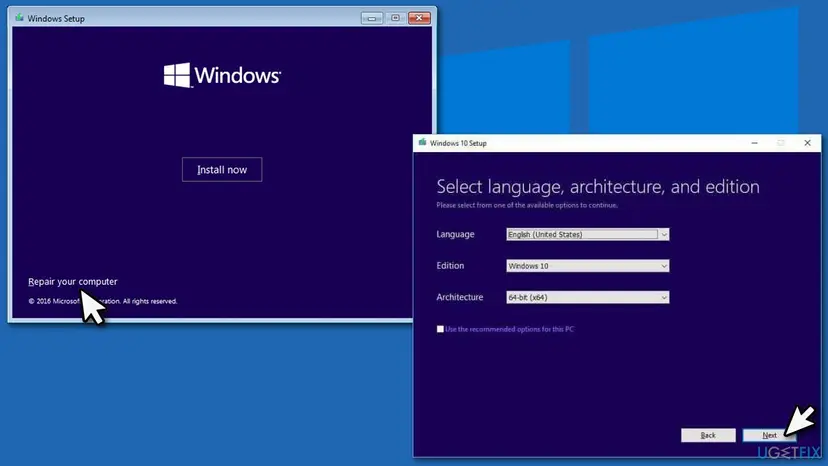
- On a working PC, download the Media Creation Tool from Microsoft's Windows download page and create a USB stick. Windows 11 is the version to install: Windows 10 no longer gets security updates.
- Boot the broken PC from the stick. The key for the boot menu differs by maker; it is shown briefly at power on.
- Select Install now, then Custom: Install Windows only, and choose the old Windows partition. Do not delete partitions you still need files from.
- When asked for a product key, enter your own or select I don't have a product key if the PC had a digital licence.
- Do not run activators or edition changers on the new Windows. Activate with a genuine key in Settings > System > Activation.
It worked if: Setup finishes, Windows starts and activates, and the old files are in C:\Windows.old if you need them.
If not: If a clean install from new media still crashes with 0x9A on the same PC, test the memory and the disk as in the next section.
Still getting SYSTEM_LICENSE_VIOLATION: what to check and send
A crash that survives a clean install from Microsoft's media is no longer a registry problem. Memory errors (Parameter 1 0x14 points there) and a failing disk are the usual suspects.
- Test the RAM: How to test your RAM with Windows Memory Diagnostic
- Run chkdsk again and the disk maker's own test tool.
- Save the files from
C:\Windows\Minidumpand the BugCheck entries of the System log, with the four parameters. - Write down what changed last: the update, the program, the activator, the power cut.
| Where to ask | When |
|---|---|
| Microsoft Support or Microsoft Q&A | A genuine Windows 11 that crashes after Fix 5 or Fix 6 |
| Your PC maker | The factory recovery image crashes the same way, or the memory test fails |
| A repair shop | Chkdsk finds bad sectors or the disk cannot be read |
How to keep the system license violation crash from coming back
- Keep System Protection on for the Windows drive, so Fix 1 is always possible: Undo recent changes with System Restore
- Let updates finish and restart; do not cut the power while Windows shows "Working on updates".
- Activate Windows with a genuine key or digital licence.
- Replace a disk that chkdsk or its maker's tool reports as failing.
- Run activators, KMS emulators or edition changers.
- Edit
ProductOptionsorHKLM\SYSTEM\Setupby hand. - Change the clock or trial data of an evaluation edition.
- Use "registry cleaner" tools that delete keys they do not understand.
Frequently asked questions
What is SYSTEM_LICENSE_VIOLATION?
It is Windows stop code 0x0000009A. Microsoft defines it as Windows detecting a violation of the software license agreement, for example a changed product type or a changed evaluation period. In practice, the kernel stops when it cannot read or protect the registry values that hold the edition and licence data. That is usually registry damage or an edited licence, not a hardware fault. Readers asking in other languages what this problem is, what caused it and how to solve it, ask the same thing: Fix 1 and Fix 2 solve most cases.
Is my PC broken?
Almost certainly not. The stop code comes from a check of registry values, so the hardware is usually fine and your files are still on the disk. The crash repeats on every start because the check runs on every start. Run System Restore from the recovery screens first. Only if the crash survives a clean install from Microsoft's media should you test the memory and the disk.
Does system license violation mean my Windows is not genuine?
Not by itself. Windows that is not activated shows a watermark and limits personalization; it does not crash with 0x9A. A genuine, activated Windows can still crash when its SYSTEM registry hive is damaged. The link to piracy is real in one way: activators and edition changers edit exactly the values this check guards, and Microsoft names changed product types and changed evaluation periods as triggers. If you used such a tool, reinstall from Microsoft's media (Fix 6).
Is SYSTEM_LICENSE_VIOLATION different on Windows 11 and Windows 10?
The stop code and the fixes are the same. Two things differ. Windows 11 24H2 and later show a black screen with "Your device ran into a problem and needs to restart." instead of the blue one, and on current Windows 11 the Startup Repair tile is called Quick machine recovery. Windows 10 left support on 14 October 2025, so if you have to reinstall anyway, install Windows 11 if the PC supports it.
Can I fix it in Safe Mode?
Usually not. Safe Mode loads the same kernel and reads the same registry, so it hits the same licence check and stops. You can try once from Troubleshoot > Advanced options > Startup Settings, and if Safe Mode does open, read the BugCheck entry in Event Viewer to get Parameter 1. Otherwise use the recovery screens, which run their own small Windows. Steps: Start Windows or a Mac in Safe Mode
Will SFC or bootrec fix the license violation blue screen?
Rarely. SFC repairs protected system files, and the bootrec commands repair the boot record and boot configuration. The 0x9A check reads registry values in the SYSTEM hive, which neither tool rebuilds. That is why older guides that start with sfc /scannow or bootrec often do not help with this code. If you want to rule out damaged system files after Windows starts again, use Run DISM and SFC to repair Windows system files.
Can a driver cause stop code 0x9A?
Not directly. Microsoft's general advice for stop codes is to remove new hardware and update or roll back drivers, and that is sound for most blue screens. For 0x9A, a driver matters only if its install wrote to the registry and was cut off, or if it ran into the licence data. If the crash began right after a driver install, System Restore (Fix 1) undoes both the driver and the registry change in one step.
I get system license violation on Windows Server or an evaluation copy. What now?
Microsoft names two Server-related sub-cases: Parameter 1 0x0A, a workstation converted to a server, and 0x01, offline changes to the evaluation time period. Both mean the licence data was edited. Do not try to move the clock or edit the keys back. Reinstall from genuine media and activate a full edition with a valid key. We could not confirm on Microsoft's pages whether an evaluation that simply runs out shows this stop code.
Fix 1 worked. How do I stop it from happening again?
Find out what changed just before the first crash and do not repeat it: an activator, a registry cleaner, an update that was cut off by a power loss. Keep System Protection on so a restore point exists next time, and let updates finish before you shut down. If you are not sure, run chkdsk once from inside Windows to rule out a failing disk.
Sources
- Microsoft Learn: Bug Check 0x9A SYSTEM_LICENSE_VIOLATION (learn.microsoft.com)
- Microsoft Support: Troubleshooting Windows unexpected restarts and stop code errors (support.microsoft.com)
- Geoff Chappell: Bug Check 0x9A (kernel analysis of the licence check) (geoffchappell.com)
Did this fix work?
One click, no account. It tells the next reader which guides are worth their time.
Questions and experiences: fix the SYSTEM_LICENSE_VIOLATION (0x9A) blue screen in Windows 10 and 11
Still broken, or found a fix we did not cover? Ask here: members and our editors answer. Reading is open; writing needs a free account.
…