
How to fix The Last of Us Part I crashes and freezes on Windows?

Prefer to fix it yourself? The manual steps follow.
- 8methods
- 5 to 60 minutes for Fix 1, a few minutes for most other fixes
- Easy
Applies to The Last of Us Part I on Windows PC, bought on Steam or the Epic Games Store
8 methods in this guide
Hello. I just installed The Last of Us Part I on my Windows PC, but it crashes shortly after launch. How do I fix this?
The Last of Us Part I on PC crashes and freezes most often while its shaders are still building, on an old game version, or when it runs out of video memory or RAM. Naughty Dog fixed many crashes in later patches, the newest being v1.1.5. Let the shader build in the main menu finish first.
If The Last of Us Part 1 freezes or crashes on PC, stay in the main menu until the shader build reaches 100 % before you play (Fix 1). Then install the latest game patch, v1.1.5 or newer (Fix 2), and a current graphics driver (Fix 3). If it still crashes, lower the texture settings until the video memory estimate fits your card (Fix 4).
| Error | The Last of Us Part 1 freezing or crashing on PC: the game closes to the desktop, freezes the picture, or shows "Please wait" screens during play before it crashes. |
|---|---|
| Where it appears | At launch, in the first chapters while shaders still build in the background, or after long play. The game files are tlou-i.exe (CPUs with AVX2) and tlou-i-l.exe (older CPUs). |
| Main cause | Playing before the shader (PSO cache) build finishes, which Naughty Dog lists as a known cause of poor performance and stability. Then old game versions, old drivers and running out of VRAM or RAM. |
| Fastest fix | Wait in the main menu until shaders are built (Fix 1), then update the game to v1.1.5 or newer (Fix 2). |
| Also written as | Last of Us Part 1 crashing PC, TLOU Part 1 keeps crashing, The Last of Us Part 1 crash on startup, The Last of Us 1 freeze PC, Last of Us Part 1 crash fix. |
| Affects | The PC version released on 28 March 2023, on 64-bit Windows 10 (1909 or newer) and Windows 11. Steam and Epic Games Store copies. |
| Naughty Dog's status | Many crashes were fixed in patches after launch. v1.1.5, made with Nixxes Software, brings "various crash fixes and stability improvements" from The Last of Us Part II Remastered for PC. PCGamingWiki still lists crashes and a possible memory leak as unresolved. |
| Minimum PC | Intel Core i7-4770K or AMD Ryzen 5 1500X, 16 GB RAM, GeForce GTX 970 or Radeon RX 470 with 4 GB VRAM, 100 GB on an SSD. That targets 720p, Low, at 30 FPS. |
| Time to fix | 5 to 60 minutes for the shader build, a few minutes for the settings fixes, longer to verify the game files. |
Facts checked on 15 October 2026. Steps written for Windows 11 (25H2 and 26H2) and Windows 10 22H2, with the game facts read from Naughty Dog's support pages and patch notes and from PCGamingWiki.
What The Last of Us Part 1 freezing and crashing on PC look like
The Last of Us Part I crashing on PC shows up in a few ways. The game closes to the desktop, often with the game's own crash reporter window, which Naughty Dog says appears automatically. The picture freezes and the game stops responding. Or the game shows "Please wait" screens in the middle of play and crashes a while later.
There is no single error code. The game was ported by Iron Galaxy Studios and launched on 28 March 2023 with long shader build times, crashes and heavy CPU use. Naughty Dog's patches fixed many of these, and v1.1.5, made with Nixxes Software, added more crash fixes.
| What you see | What it usually means | Start with |
|---|---|---|
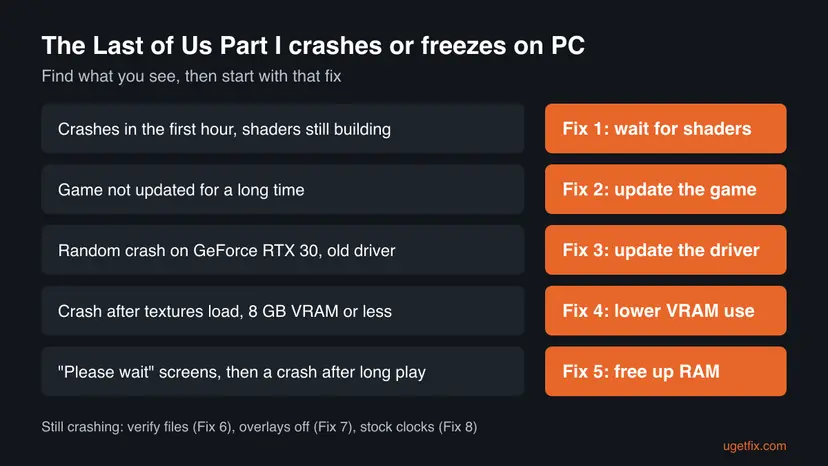
| Crashes in the first hour, shaders still building in the menu | The game plays while it compiles shaders, which Naughty Dog lists as degrading stability | Fix 1 |
| Crash on startup or after a Windows or driver change | An old game build, damaged files or an old driver | Fix 2, Fix 3, Fix 6 |
| Random crashes during play on a GeForce RTX 30 card | A crash NVIDIA fixed in hotfix driver 531.58 | Fix 3 |
| Crash when new areas load, on a card with 8 GB of VRAM or less | Settings ask for more video memory than the card has | Fix 4 |
| "Please wait" screens, then a crash after long play | The PC runs out of RAM; a possible memory leak is listed as unresolved | Fix 5 |
| Freeze with the picture stuck, other heavy games also unstable | An unstable overclock or a hardware fault | Fix 8 |
Why The Last of Us Part 1 keeps crashing on PC, most common cause first
Most often the game crashes because it was started before its shaders were built, or because the copy is still on an early version. Less often an old graphics driver, too little video memory or too little RAM is the cause. Rarely the cause is damaged files, an overlay or an overclock.
| Cause | How common | Fix |
|---|---|---|
| Playing before the shader build in the main menu has finished | Most common, on first start and after every driver update | Fix 1 |
| Game older than the latest patch | Common on copies not started for a while | Fix 2 |
| Old graphics driver, or the RTX 30 crash fixed in driver 531.58 | Common | Fix 3 |
| Texture settings above the card's video memory | Common on 4 GB to 8 GB cards | Fix 4 |
| Too little free RAM, browsers and other apps open, a possible memory leak | Common with 16 GB of RAM | Fix 5 |
| Damaged or incomplete game files | Less common | Fix 6 |
| Steam, Discord, NVIDIA or Xbox Game Bar overlay | Less common | Fix 7 |
| GPU or CPU overclock, undervolt or memory profile | Rare, but it survives every other fix | Fix 8 |
The game needs 64-bit Windows 10 version 1909 or newer, 16 GB of RAM, a DirectX 12 card with at least 4 GB of video memory and 100 GB on an SSD. Naughty Dog asks players to run it from an internal SSD. A PC below this crashes no matter which fix you try.
How to fix The Last of Us Part I crashes and freezes on Windows
The fixes are ordered by how often they help and how little they cost. Test the game after each one in the place where it crashed. Fix 1 to Fix 5 deal with the causes Naughty Dog itself names; the rest rule out files, overlays and hardware tuning.
| What you see or what your PC has | Start with |
|---|---|
| First start, a new driver, or the shader bar in the menu is not at 100 % | Fix 1 |
| You have not updated the game since you bought it | Fix 2 |
| GeForce RTX 30 card, or a driver older than the game's patch | Fix 3 |
| Graphics card with 8 GB of video memory or less | Fix 4 |
| 16 GB of RAM, "Please wait" screens, crashes after an hour or more | Fix 5 |
| Crash on startup that began after an update or a drive move | Fix 6 |
Fix 1. Let the shader build finish in the main menu before you play
5 to 60 minutesNo riskThe game crashes in the first chapters, on the first start, or after you installed a new graphics driver.
The game builds its shaders (the PSO cache) in the main menu on the first start and after each GPU driver update. You can start playing before it ends, but Naughty Dog lists degraded performance and stability while shaders load in the background, and asks players to let the build finish.
- Start The Last of Us Part I and stay in the main menu.
- Watch the shader progress shown in the menu. It builds the base game and the Left Behind chapter together.
- Do not start or continue the story until it reaches 100 %. PCGamingWiki puts this at roughly 5 to 60 minutes, depending on the PC.
- Close other heavy apps while it runs, so the CPU works only on the shaders.
- When the build is done, load your save and play the part that crashed.
The build starts again after every graphics driver update. That is normal: wait for it once more instead of jumping straight into the game.
It worked if: The shader bar is gone or full, loading screens are short and the early chapters no longer crash.
If not: If it still crashes with every shader built, update the game with Fix 2.
Fix 2. Install the latest The Last of Us Part I patch (v1.1.5 or newer)
10 to 30 minutesLow riskThe game has not been updated for a long time, auto updates are off, or it crashes on startup.
Naughty Dog's patches after launch fixed several crashes, shortened the shader build and lowered CPU use while textures stream. Patch v1.1.5 brought "various crash fixes and stability improvements" from The Last of Us Part II Remastered for PC.
- Steam: open Library, select The Last of Us Part I and let any update listed on its page download.
- Epic Games Store: open Library, select the three dots on the game, choose Manage and turn on Auto update.
- Restart the launcher if no update shows, so it checks again.
- Start the game and let the shader build finish again (Fix 1), because a patch can change the shaders.
v1.1.5 also added AMD FSR 4 for compatible Radeon cards. Earlier patches moved the game to FSR 3 (v1.1.3, 19 March 2024) and FSR 3.1 (v1.1.4, 24 January 2025).
It worked if: The launcher shows the game as up to date and the crash you had before is gone.
If not: If it still crashes on the latest patch, update the graphics driver with Fix 3.
Fix 3. Update the graphics driver from NVIDIA, AMD or Intel
10 minutesLow riskRandom crashes in play, a GeForce RTX 30 card, or a driver older than the game's last patch.
Naughty Dog's first support step after verifying files is a current driver from the card maker. NVIDIA's hotfix driver 531.58 fixed a crash where the game "may randomly crash during gameplay on GeForce RTX 30 series GPUs", so anything older is a known cause on those cards.
- Find your card: right-click Start, open Device Manager and expand Display adapters.
- Download the current driver from NVIDIA, AMD or Intel for that card.
- Install it and restart Windows.
- Start the game and wait for the new shader build (Fix 1) before you test.

Device Manager often finds no newer driver, so the card maker's site is the better source. If the crashes began right after a new driver, roll it back: Update, roll back or reinstall a driver.
It worked if: The Driver tab shows a new driver version and the game runs past the point where it crashed.
If not: If it still crashes, lower the video memory use with Fix 4.
Fix 4. Lower texture settings until the video memory estimate fits your card
5 minutesNo riskThe game crashes or stutters when new areas load, on a card with 4 GB to 8 GB of video memory.
The game streams large textures into video memory. When the settings ask for more VRAM than the card has, it stalls or crashes. Naughty Dog also asks players to watch for background programs that use VRAM.
- Open Options > Graphics in the game.
- Look at the video memory estimate the menu shows for the current settings.
- Lower the texture quality settings one step at a time until the estimate sits below your card's VRAM.
- Turn on an upscaler (DLSS, FSR or XeSS, whichever your card supports) to lower the render load.
- Close browsers, video players and capture tools that use the graphics card, then restart the game.
| Minimum | Recommended | |
|---|---|---|
| Target | 720p, Low, 30 FPS | 1080p, High, 60 FPS |
| CPU | Intel Core i7-4770K or AMD Ryzen 5 1500X | Intel Core i7-8700 or AMD Ryzen 5 3600X |
| Graphics | GTX 970 or Radeon RX 470, 4 GB VRAM | RTX 2070 Super or RX 5700 XT, 8 GB VRAM |
| RAM and storage | 16 GB RAM, 100 GB on an SSD | 16 GB RAM, SSD |
It worked if: The estimate fits your card and the game no longer crashes when a new area loads.
If not: If crashes come after long play with "Please wait" screens, free up RAM with Fix 5.
Fix 5. Close background apps to free up RAM for the game
3 minutesNo risk"Please wait" screens appear in play, or the game crashes after an hour or more, on a PC with 16 GB of RAM.
Naughty Dog listed a potential memory leak as a known issue. PCGamingWiki ties it to crashes and "Please wait" screens when the PC runs out of RAM. 16 GB is the minimum, so every open browser tab takes memory the game needs.
- Close the game.
- Press Ctrl + Shift + Esc to open Task Manager on the Processes page.
- Sort by Memory and select End task on apps you do not need, such as browsers, chat apps and launchers you are not using.
- Start the game and play the part that crashed.
- If crashes still come after long sessions, save and restart the game every hour or two.
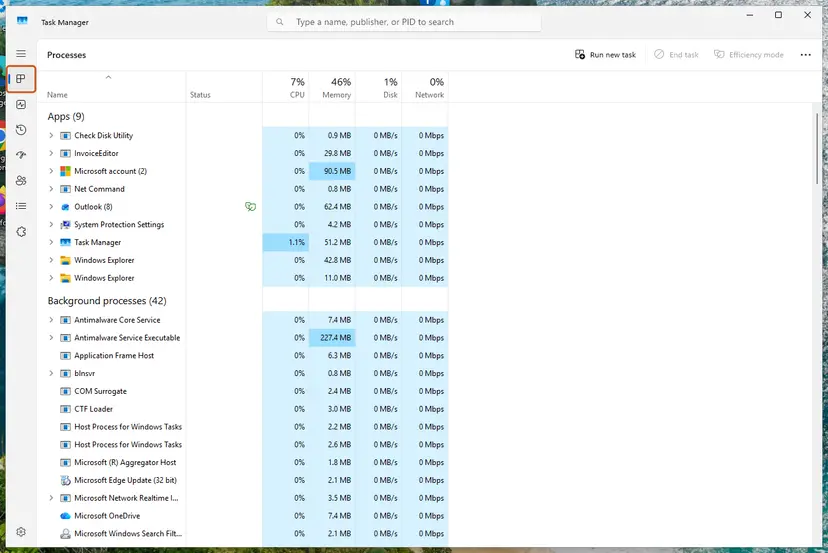
To keep apps from starting with Windows and eating RAM before you play: Stop apps from opening at startup.
It worked if: Memory use in Task Manager stays below the total, and no "Please wait" screens appear during play.
If not: If the game crashes even with RAM to spare, verify the files with Fix 6.
Fix 6. Verify The Last of Us Part I game files in Steam or Epic
15 to 30 minutesLow riskThe game crashes on startup, after a patch, or after a move to another drive.
Naughty Dog asks for this step before any support ticket. An update cut short or a drive error leaves damaged files that crash the game when they load, and the launcher downloads only those files again.
- Steam: right-click The Last of Us Part I in the library, select Properties, open Installed Files and select Verify integrity of game files.
- Epic Games Store: open Library, select the three dots on the game, choose Manage and select Verify.
- Wait until the launcher reports it has finished, then start the game and let any new shader build complete.
Every launcher, step by step: How to verify game files in Steam, Epic Games, Xbox app, EA app, Battle.net and GOG Galaxy.
It worked if: The launcher reports the files are fine or were downloaded again, and the game starts.
If not: If the game still crashes, turn off overlays with Fix 7.
Fix 7. Turn off the Steam, Discord, NVIDIA and Xbox Game Bar overlays
5 minutesNo riskCrashes or freezes while Discord, the Steam overlay, the NVIDIA overlay, Xbox Game Bar or a recording tool runs.
An overlay hooks into the game's DirectX 12 frames and uses extra video memory. On a game that already fills VRAM, that extra load can tip it into a crash.
- Steam: open Steam > Settings > In Game and turn off Enable the Steam Overlay while in-game.
- Discord: open User Settings, go to Game Overlay and turn off Enable in-game overlay.
- NVIDIA: open the NVIDIA app or GeForce Experience settings and turn off the in-game overlay.
- Xbox Game Bar: press Win + I, open Gaming > Game Bar and turn it off.
- Close FPS counters such as MSI Afterburner and RivaTuner, then start the game.
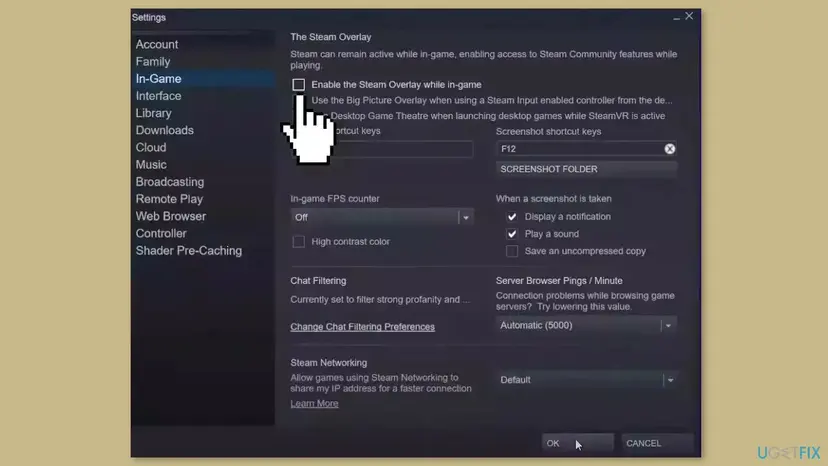
It worked if: The game runs with no overlay and the crash does not come back.
If not: Turn the overlays back on if they made no difference, then try Fix 8.
Fix 8. Reset any GPU or CPU overclock to stock settings
5 minutesLow riskEvery fix above failed, the picture freezes at heavy scenes, or the PC has a tuning tool or factory OC mode.
The game loads the CPU very hard while it streams and unpacks data, and it fills the graphics card's memory. A clock that is stable in other games can fail here.
- Close the game.
- Open the tool you tuned the card with, such as MSI Afterburner or AMD Software: Adrenalin Edition.
- Reset core clock, memory clock, voltage and power limit to their defaults, then apply.
- If the card has a factory OC mode, switch it to the standard mode.
- If you turned on a CPU overclock or an XMP or EXPO memory profile recently, test once with it off in the BIOS.
- Start the game and play the part that froze.
Write down your tuned values before you reset them, so you can return to them step by step if the game is stable at stock.
It worked if: The game runs past the scene that froze, at stock clocks.
If not: Read the crash data as the next section explains, and send it to Naughty Dog support.
If The Last of Us Part 1 keeps crashing on PC: where the real cause is written
The game writes a log and crash dumps, and Naughty Dog asks for them with every ticket. Collect them before you reinstall 100 GB, because they show whether the game, the driver or the hardware failed.
| Where to look | What it holds |
|---|---|
C:\Users\<you>\Saved Games\The Last of Us Part I | The log.txt file and, in the users folder, your save data |
Steam: C:\Program Files (x86)\Steam\steamapps\common\The Last of Us Part I\.crashdata\reports | The .dmp crash files |
Epic: C:\Program Files\Epic Games\TheLastOfUsPart1\.crashdata\reports | The .dmp crash files |
| Event Viewer, Windows Logs > Application and System | An Application Error for tlou-i.exe and display driver events at the crash time |
If Event Viewer shows NVIDIA display driver events at each freeze, the guide to nvlddmkm events explains what they mean.
- Send to Naughty Dog support: CPU, GPU and driver version, RAM, SSD or HDD, Windows version, game settings and version, and where it crashed. Attach a DxDiag report, your save,
log.txtand the.dmpfiles. - Make a DxDiag report: press Win, type
dxdiag, press Enter and select Save All Information. - Use the crash reporter: when the game's crash window appears, send the report. Naughty Dog says it helps them find the cause much faster.
- Signs of hardware: other heavy games crash too, the card runs very hot, or crashes continue at stock clocks with a fresh driver. Check cooling and the power supply.
How to keep The Last of Us Part I running without crashes
- Let the shader build finish after every game patch and driver update.
- Keep the game on the latest patch and the driver from NVIDIA, AMD or Intel up to date.
- Keep the game on an internal SSD, as Naughty Dog asks.
- Back up
Saved Games\The Last of Us Part Ibefore a reinstall.
- Do not run a browser full of tabs next to the game on a 16 GB PC.
- Do not download "crash fix" executables from unknown sites: they replace game files and can carry malware.
- Do not turn off Windows Security or your antivirus to make the game run.
- Do not keep settings whose video memory estimate is above your card's VRAM.
Windows 10 left support on 14 October 2025. The game still runs on Windows 10 version 1909 or newer, and every step on this page works on Windows 10 and Windows 11.
Frequently asked questions
Why does The Last of Us Part 1 freeze on PC?
Most often it freezes because shaders are still being built in the background, or because the settings need more video memory than the card has. Naughty Dog lists degraded performance and stability while shaders load as a known issue. Freezes after long play with "Please wait" screens point to the PC running out of RAM. Let the shader build finish, lower the texture settings until the VRAM estimate fits, and close background apps.
Why does The Last of Us Part 1 crash on startup?
A crash on startup usually comes from damaged game files, an old game version or an old graphics driver. Verify the files in Steam or Epic first, because Naughty Dog asks for that before any ticket. Then install the latest patch and the driver from the card maker's site. Also check that the PC meets the minimum: 64-bit Windows 10 version 1909 or newer, 16 GB of RAM and a card with 4 GB of video memory.
Did Naughty Dog fix the PC crashes in The Last of Us Part I?
Many of them. Patches after the 28 March 2023 launch fixed several crashes, shortened shader build times and lowered CPU use. Patch v1.1.5, made with Nixxes Software, brought various crash fixes and stability improvements from The Last of Us Part II Remastered for PC. PCGamingWiki still lists crashes and a possible memory leak as unresolved, so the fixes on this page still matter on the latest version.
How long does the shader build take in The Last of Us Part I?
PCGamingWiki puts it at roughly 5 to 60 minutes, depending on the PC. The game builds shaders for the base game and the Left Behind chapter at the same time, in the main menu. It runs on the first start and again after every graphics driver update. You can play before it ends, but Naughty Dog warns that performance and stability suffer, and this is the most common cause of early crashes.
Is 16 GB of RAM enough for The Last of Us Part I?
It is the minimum and the recommended amount, so it works, but it leaves little room. Naughty Dog listed a potential memory leak, and the "Please wait" screens that come before some crashes were seen mainly on 16 GB setups in tests PCGamingWiki cites. Close browsers and other apps before you play, and restart the game every hour or two if long sessions crash. With 32 GB this problem is much rarer.
What does "Something went wrong with this game" mean in The Last of Us Part 1?
Players search for this text after the game closes, but we could not confirm in Naughty Dog's documents which window shows it. Treat it like any crash: let the shader build finish, install the latest patch, update the graphics driver and verify the game files. If it comes back, send Naughty Dog support your log.txt and the .dmp files from the game's .crashdata\reports folder, as the section above explains.
What does "It appears that The Last of Us Part I did not quit properly" mean?
It is a message players report seeing when the game starts after a crash, so the last session ended abruptly. We could not confirm its exact wording or options in Naughty Dog's documents. It does not cause the crash itself. Find out why the game closed: check the shader build, update the game and driver, and look in Event Viewer and the crash data folder described in the still crashing section.
Can I fix The Last of Us Part 1 crashes with a mod?
PCGamingWiki lists a community mod that moves shader building to loading screens, but it works only on the Steam copy and crashes the Epic copy, according to its author. Mods change the game's files, so a new patch can break them and Naughty Dog support will not help with a modded game. Try every fix on this page first and remove mods before you send a crash report.
The fixes did not help. What should I do?
If nothing changed, collect the facts and contact Naughty Dog support. Include your CPU, GPU and driver version, RAM, storage type, Windows version, game settings and version, and where it crashed. Attach a DxDiag report, your save, log.txt and the .dmp files. If other heavy games also crash, or the crash stays at stock clocks with a fresh driver, check the PC's cooling and power supply. This page is about the PC version on Windows.
Sources
- Naughty Dog: I need help submitting a ticket (The Last of Us Part I PC checks, log and crash data paths) (feedback.naughtydog.com)
- Naughty Dog: The Last of Us Part I v1.1.5 Patch Notes for PC (feedback.naughtydog.com)
- PCGamingWiki: The Last of Us Part I (known issues, shader compilation, file locations, system requirements) (pcgamingwiki.com)
Did this fix work?
One click, no account. It tells the next reader which guides are worth their time.
Questions and experiences: fix The Last of Us Part I crashes and freezes on Windows
Still broken, or found a fix we did not cover? Ask here: members and our editors answer. Reading is open; writing needs a free account.
…