
How to fix "The network security key isn't correct" error in Windows 11

Prefer to fix it yourself? The manual steps follow.
- 8methods
- 2 to 20 minutes
- Easy
Applies to Windows 11 and Windows 10 PCs joining a WPA2-Personal or WPA3-Personal Wi-Fi network (home routers, phone hotspots, small offices)
8 methods in this guide
- What the message means
- Why it appears
- The fixes
- 1. Find and retype the password
- 2. Forget the network
- 3. Delete the profile with netsh
- 4. Connect manually
- 5. Restart and check the router
- 6. Restart the Wi-Fi adapter
- 7. Update the Wi-Fi driver
- 8. Reset the network
- Still broken: what to check
- Keep it from coming back
- FAQ
Hello. I tried to connect to my Wi-Fi in Windows 11 like I always do, but I received the "The network security key isn't correct" error message. How could this be? Any tips would be appreciated.
"The network security key isn't correct" means the Wi-Fi password Windows sent was refused by the router. Most often the password is mistyped or was changed; less often Windows holds an old copy of the network or the security type does not match. Find the real password first, then forget the network and join again.
The network security key is your Wi-Fi password, and Windows says the router refused it. Read the password from the router label or a device that is still connected and type it again, watching capital letters (Fix 1). If you are sure it is right, forget the network in Settings and join again (Fix 2). Then delete the stored profile with netsh (Fix 3).
| Error | "The network security key isn't correct. Please try again." It appears under the network name, below the Enter the network security key field. |
|---|---|
| Where it appears | In the Wi-Fi list that opens from the network icon on the taskbar, right after you type the password and select Next. |
| Main cause | The password does not match the router's: a typo, a case mistake, or a password changed on the router. Less often a stale saved profile or a security type mismatch. |
| Fastest fix | Read the real password and type it again (Fix 1). Then forget the network and reconnect (Fix 2). |
| Also written as | "Network security key mismatch", "possible network security key mismatch", "wrong network key", "network security key is incorrect" and "the network key isn't correct". |
| Affects | Windows 11 and Windows 10. Windows 10 left support on 14 October 2025, so its Wi-Fi drivers get fewer updates. |
| Vendor status | Not a bug. Microsoft lists it under Wi-Fi authentication problems: verify the password, restart or reset the router, and update its firmware. |
| Who can change it | The password is set on the router. If you do not run the router, ask the person who does. |
| Time to fix | 2 minutes for a typo. 10 to 20 minutes when the profile, the router or the driver needs work. |
Facts checked on 16 October 2026. Steps written for Windows 11 (25H2 and 26H2) and Windows 10 22H2, read against Microsoft Support's Wi-Fi troubleshooting page and a Microsoft Q&A answer.
What "The network security key isn't correct" means
The network security key is simply the Wi-Fi password: the key of a WPA2-Personal or WPA3-Personal network. When you select a network on the taskbar, Windows asks you to Enter the network security key. If the router does not accept what you typed, the line under the network changes to: "The network security key isn't correct. Please try again."
The PC and the router never send the password itself. Both work out encryption keys from it, and if a single character differs, the handshake fails. So Windows cannot tell you which character is wrong, only that the key does not match.
The key belongs to the router, not to your PC or your Microsoft account. Your Windows sign-in PIN or password will not work here, and neither will the router's admin password, unless someone set them the same.
- "Network security key mismatch", "security key mismatch" and "network key mismatch" describe the same thing: the key the PC sent does not match the router's.
- "Possible network security key mismatch" is wording users quote from diagnostics and router logs. We could not confirm which Windows window shows it, but the meaning and the fixes are the same.
- "Some information has changed since the last time you connected" can appear first, when the router's password or security type changed since the PC last joined.
Why Windows says the network security key isn't correct
Most often the password really is wrong. Less often it is right, but Windows sends an old copy from a saved profile, or tries a security type the router no longer uses. Rarely the router or the Wi-Fi driver is stuck. Microsoft's own advice for this case starts with the password, then the router.
| Cause | How often | How to tell | Fix |
|---|---|---|---|
| A typo, Caps Lock, or a password copied wrong. | Most often | You typed it from memory, or 0 and O, 1 and l look alike. | Fix 1 |
| The router password was changed. | Often | Other devices that joined earlier still work, new ones fail too. | Fix 1 |
| Windows keeps an old profile of the network. | Often | It worked on this PC before, and the password is right. | Fixes 2 and 3 |
| The security type changed (WPA2 to WPA3, or mixed mode). | Sometimes | The router was replaced, updated, or its settings were changed. | Fix 4 |
| The router is stuck or remembers this PC badly. | Sometimes | A restart of the router helps for a while. | Fix 5 |
| The Wi-Fi adapter or its driver fails the handshake. | Rarely | Only this PC fails, on more than one network. | Fixes 6 to 8 |
On Microsoft Q&A a user got the error after a Windows 11 reset, with the right password. The PC joined Wi-Fi only while an Ethernet cable was plugged in. A Microsoft support specialist pointed to stale network profile data and to the router keeping old device information.
How to fix "The network security key isn't correct"
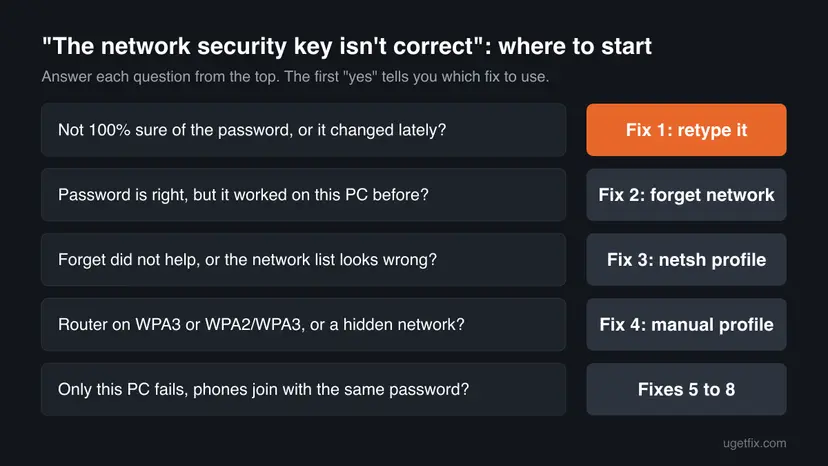
Fixes 1 and 2 solve most cases in a few minutes. Fixes 3 and 4 rebuild the saved Wi-Fi profile when the right password is still refused. Fixes 5 to 8 are for the router, the adapter and the driver.
| What you see or have | Start with |
|---|---|
| You are not fully sure of the password, or it changed lately. | Fix 1 |
| The password is right, and the PC joined this network before. | Fix 2, then Fix 3 |
| The network is hidden, or the router now uses WPA3 or WPA2/WPA3. | Fix 4 |
| Every new device fails, old ones still work. | Fix 1, then Fix 5 |
| Only this PC fails, phones join with the same password. | Fix 6, then Fix 7 |
| It started after a Windows update or reset. | Fix 3, then Fix 8 |
Fix 1. Find the real Wi-Fi password and type it again
2 minutesNo riskEveryone should start here, and it is the only fix when the router password changed.
Microsoft's first step for Wi-Fi authentication problems is to verify that the password matches the router. Wi-Fi passwords are case sensitive, so one wrong capital letter is enough for the router to refuse the key.
- Look for the password on the router's sticker. It is often labelled Wi-Fi key, WPA key, WLAN key or Password.
- If another Windows PC is connected, open Settings > Network & internet > Wi-Fi, open the network's properties and select View next to View Wi-Fi security key.
- Or, on that PC, open Command Prompt and show the saved key. It is on the line Key Content:
netsh wlan show profile name="YourNetworkName" key=clear - On many phones you can open the saved network and show its password or a QR code. That copy is the one that works right now.
- Back on this PC, check that Caps Lock is off, select the network on the taskbar and type the key slowly.
- Select the eye icon in the field to read what you typed, then select Next.
Under the key field Windows may say you can also connect by pushing the button on the router. That is WPS: press the WPS button on the router within the time shown and the PC joins without the password.
It worked if: The network shows Connected, secured and web pages open.
If not: If you are sure the password is right, go to Fix 2.
Fix 2. Forget the network in Windows and connect again
3 minutesNo riskThe password is right and this PC joined the network before, or the router password changed lately.
Windows stores a profile with the password and security type of each network. Microsoft lists forgetting and reconnecting as a standard Wi-Fi step, because the old profile can keep sending a key the router no longer accepts.
- Press Win + I and open Network & internet > Wi-Fi.
- Select Manage known networks.
- Find your network and select Forget.
- Select the network icon on the taskbar, choose your Wi-Fi and select Connect.
- Type the password and select Next.
On Windows 10 22H2 the path is Settings > Network & Internet > Wi-Fi > Manage known networks. If the router offers two networks, for example one ending in 5G, forget both.
It worked if: The PC connects and joins the network again by itself after a restart.
If not: If the same message comes back, go to Fix 3.
Fix 3. Delete the saved Wi-Fi profile with netsh
5 minutesLow riskForgetting in Settings did not help, or the network is not in the Manage known networks list.
Command Prompt shows every stored Wi-Fi profile, including ones Settings hides. A Microsoft support specialist linked this error after a reset to stale network profile data, and deleting the profile removes it.
- Press Win + S, type
cmd, right-click Command Prompt and select Run as administrator. - List the stored Wi-Fi profiles:
netsh wlan show profiles - Delete the profile of your network, using its exact name from the list:
netsh wlan delete profile name="YourNetworkName" - If the name appears twice with small differences, delete both.
- Connect from the taskbar again and type the password.
The same problem with the Cisco Secure Client wording is covered in Incorrect PSK provided for network SSID.
It worked if: Windows asks for the key as if the network were new, and accepts it.
If not: If it still refuses the key, create the profile by hand in Fix 4.
Fix 4. Create the Wi-Fi profile manually with the right security type
5 minutesLow riskThe network is hidden, or the router uses WPA3-Personal or a WPA2/WPA3 mixed mode.
When you join from the list, Windows guesses the security type. A profile made by hand with the type the router really uses removes that guess, which matters after a router was replaced or switched to WPA3.
- Press Win + S, type Control Panel and press Enter.
- Open Network and Sharing Center and select Set up a new connection or network.
- Choose Manually connect to a wireless network and select Next.
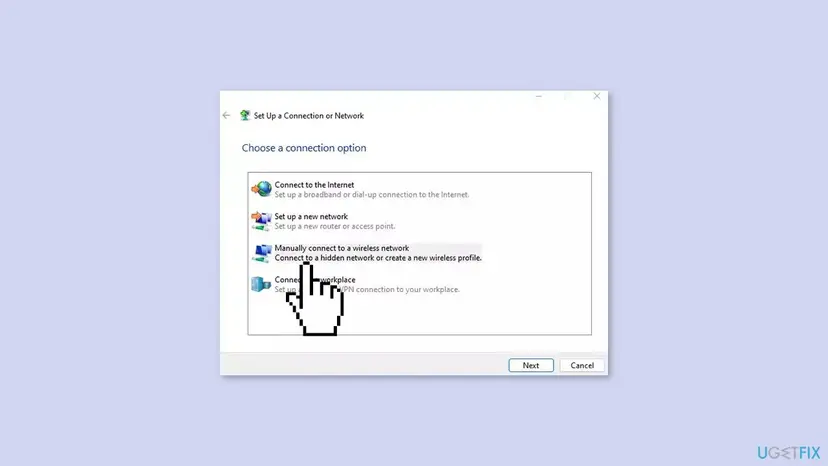
Manually connect to a wireless network creates a new Wi-Fi profile with the security type you choose. - Type the exact Network name, case included.
- Set Security type to WPA2-Personal, or WPA3-Personal if the router uses it, and Encryption type to AES.
- Enter the password in Security Key and select Next.
- If Windows says the network already exists, select Use the existing network, then connect from the taskbar.
To learn what the router uses, open its admin page as in Fix 5 and read the Wi-Fi security mode. Do not pick WEP or TKIP; Windows warns about them, see this Wi-Fi uses an older security standard.
It worked if: The new profile connects and the network shows Connected, secured.
If not: If the right key and type are still refused, go to Fix 5.
Fix 5. Restart the router, check its Wi-Fi password and try the other band
10 minutesLow riskNew devices fail too, the router was changed lately, or it helps only for a while.
Microsoft suggests restarting the modem and router and trying the other frequency band. The router's admin page also shows the password it really expects, which settles any doubt about the key.
- Unplug the router and the modem, wait at least 30 seconds, plug in the modem, then the router.
- Wait until the lights stop blinking and try to connect again.
- If the list shows two networks, for example one for 2.4 GHz and one for 5 GHz, try the other one.
- To read the password, open the router's admin page in a browser. The address is the Default Gateway shown by
ipconfig, often192.168.0.1or192.168.1.1.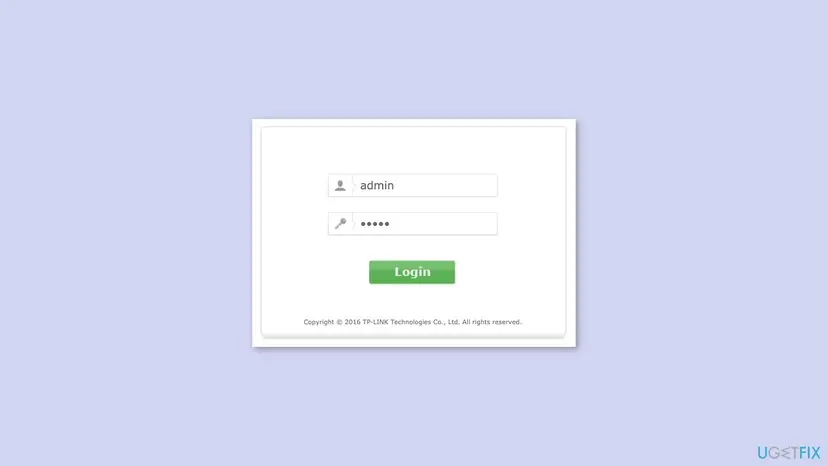
A router's admin sign-in page; the Wi-Fi password is set in its wireless security settings. - Sign in and open the Wireless or Wi-Fi security settings to see the password and security mode.
- If you change the password, select Save and join again with the new one on every device.
Microsoft also advises updating the router firmware for this problem. A Microsoft specialist added that a router can keep old information about a device; deleting this PC from the router's device list lets it join fresh.
It worked if: The PC joins after the restart, or the admin page shows a password different from the one you typed.
If not: If only this PC fails with the right password, go to Fix 6.
Fix 6. Turn the Wi-Fi adapter off and on again
2 minutesNo riskOnly this PC fails, phones join with the same password, and the PC was not restarted for a while.
Disabling the adapter stops the Wi-Fi service's session with it. When it starts again, Windows begins a fresh handshake instead of repeating a failed one.
- Press Win + R, type
ncpa.cpland press Enter to open Network Connections. - Right-click Wi-Fi and select Disable.
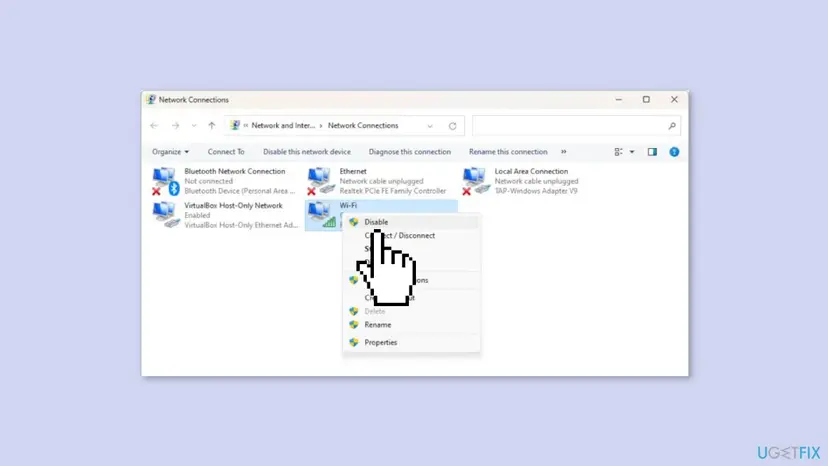
Disable the Wi-Fi adapter in Network Connections, then enable it again from the same menu. - Wait 10 seconds.
- Right-click Wi-Fi again and select Enable.
- Connect from the taskbar and type the password.
It worked if: The adapter comes back and the network accepts the key.
If not: Update or reinstall the driver in Fix 7.
Fix 7. Update or reinstall the Wi-Fi driver
15 minutesLow riskOnly this PC fails, on this and other networks, or it began after a Windows update.
An old or broken Wi-Fi driver can fail the WPA3 handshake while a phone succeeds. Microsoft suggests reinstalling the network adapter driver when a connection broke after an update.
- Press Win + I and open Windows Update > Advanced options > Optional updates.
- Expand Driver updates, tick any Wi-Fi or wireless driver and select Download & install.
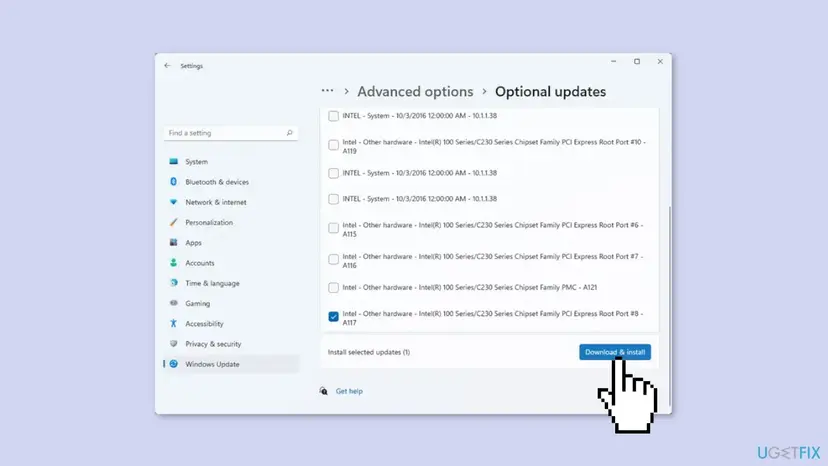
Optional updates in Windows 11: drivers offered by Windows Update are installed from this page. - Download the newest driver from the PC or adapter maker first, in case Windows does not reinstall one.
- Open Device Manager, expand Network adapters, right-click the Wi-Fi adapter and select Uninstall device.
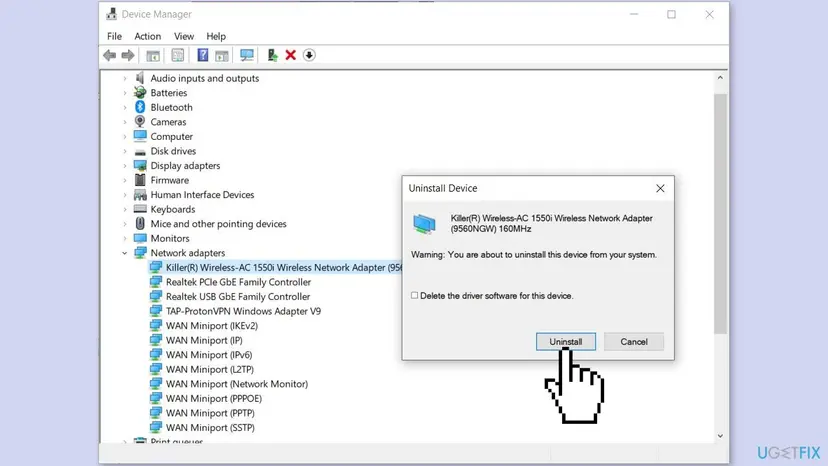
Uninstalling the Wi-Fi adapter in Device Manager (Windows 10 shown, the same dialog on Windows 11). - Restart the PC. Windows installs the driver again; if not, install the one you downloaded.
Step by step, with roll back for a driver that broke after an update: Update, roll back or reinstall a driver
It worked if: After the restart the adapter is back and the network accepts the key.
If not: Reset the network settings in Fix 8.
Fix 8. Reset the network settings
10 minutes plus a restartRead the warningFixes 1 to 7 did not help, or the error began after an upgrade or a Windows reset.
Microsoft calls network reset the last step: it removes every network adapter and its settings, then reinstalls them with defaults. No stored profile or setting can then send an old key.
Saved Wi-Fi networks and VPN adapters are removed, and VPN software may need to be set up again. Write down your Wi-Fi passwords and VPN settings first. On a work PC ask IT before you reset.
- Open Network reset. Open Settings > Network & internet > Advanced network settings and select Network reset.
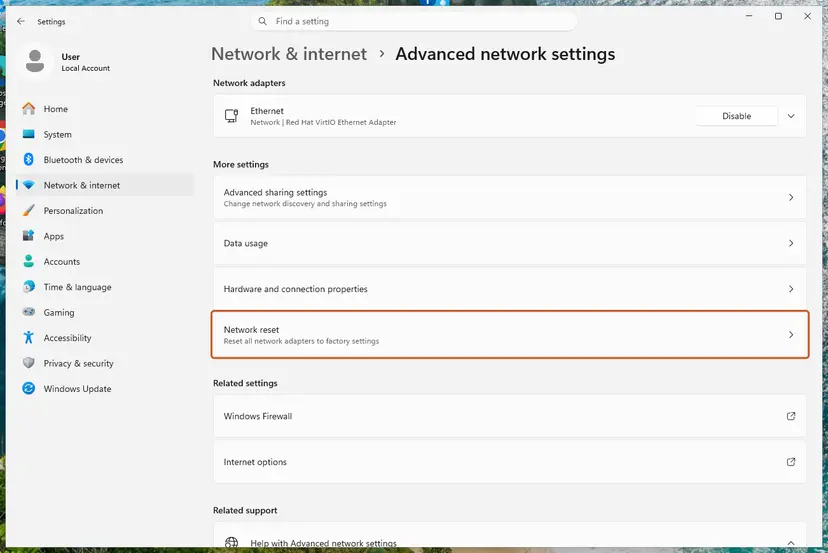
Network reset is under More settings in Advanced network settings. Screenshot: Windows 11 26H2. - Reset now. Select Reset now, then Yes to confirm. Windows removes and reinstalls all network adapters and restarts the PC.
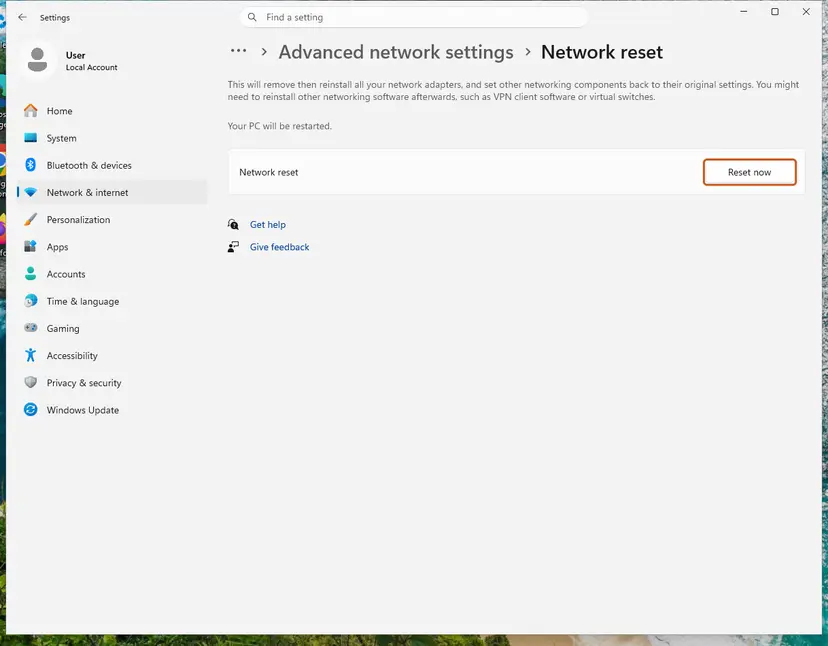
Network reset warns that VPN software or virtual switches may need to be reinstalled. Screenshot: Windows 11 26H2. - Reconnect. After the restart, connect to your Wi-Fi network again (you will need its password) and reinstall or reconfigure VPN software if it stopped working.
These steps were written for Windows 11 24H2 and later. The full page with the other versions and what each result means: Reset the network and flush DNS
Full steps, including the Winsock and TCP/IP commands Microsoft lists before a reset: Reset the network and flush DNS
It worked if: After the restart the PC joins the network with the right password.
If not: Read the next section: the report, the profile cleanup and the hardware checks show where the fault is.
If "The network security key isn't correct" keeps coming back
Windows can write a wireless network report that lists each connection attempt and its result. Run netsh wlan show wlanreport in an administrator Command Prompt; the report opens as an HTML file under C:\ProgramData\Microsoft\Windows\WlanReport. Look for failed sessions at the time of the error.
| What you see | What it means | What to do |
|---|---|---|
| Other devices also fail with the same password. | The password is wrong. | Fix 1 and Fix 5: read it on the router. |
| It works with an Ethernet cable plugged in, not without. | Stale profile data, reported after a Windows reset. | Fix 3, then the profile cleanup below. |
| Only this PC fails, on every network. | The Wi-Fi adapter or driver. | Fix 7, then test a USB Wi-Fi adapter. |
| It fails only on the WPA3 or 5 GHz network. | The adapter or driver does not handle that mode well. | Fix 4 with WPA2-Personal, Fix 7. |
A Microsoft support specialist suggested deleting the network's subkey under HKEY_LOCAL_MACHINE\SOFTWARE\Microsoft\Windows NT\CurrentVersion\NetworkList\Profiles, matched by its ProfileName value. A wrong deletion can break other connections, so back up the registry first: Back up the registry before editing it
- When it is hardware. If a USB Wi-Fi adapter joins the same network with the same password and the built-in one does not, the built-in adapter or its driver is at fault.
- What to send to support. The exact message, the router model and its security mode, whether other devices join, and the wireless network report.
How to keep the network security key error away
- Keep the Wi-Fi password written down where you can read it exactly.
- Use a long password of letters and digits that is easy to read.
- After you change the router password, forget the network on every PC and join again.
- Use WPA2-Personal (AES) or WPA3-Personal on the router.
- Keep the router firmware and the Wi-Fi driver up to date.
- Do not mix up the Wi-Fi password with the router's admin password.
- Do not drop to WEP or TKIP to make a device connect.
- Do not reset the router to factory defaults unless you know its default password and settings.
- Do not delete registry keys without a backup.
If several people share the network, tell them before you change its password or security mode. Every device has to forget the network and join again, and a PC that still holds the old profile shows this exact message.
Frequently asked questions
What does "The network security key isn't correct" mean?
It means the router refused the Wi-Fi password your PC sent. The network security key is the Wi-Fi password of a WPA2 or WPA3 network. Windows shows the message under the network name after you select Next. It does not say which character is wrong, because the PC and the router compare keys worked out from the password, not the password itself. Retype the real password first.
How do I enter the network security key in Windows 11?
Select the network icon on the taskbar, pick your Wi-Fi and select Connect. Windows then asks you to enter the network security key. Type the Wi-Fi password exactly, select the eye icon to check it, and select Next. If the router supports WPS, Windows may also offer to connect when you push the button on the router, without typing the key.
What is a network security key mismatch?
A network security key mismatch means the key your device sent does not match the key set on the router. "Security key mismatch", "network key mismatch" and "possible network security key mismatch" are the same idea in other words, often from diagnostics or router logs. The usual reasons are a typo, a changed router password, or a saved profile with an old key. Retype the key, then forget the network and join again.
Where do I find my Wi-Fi network security key?
Look at the sticker on the router first, labelled Wi-Fi key, WPA key or Password. On a Windows PC that is connected, open Settings, Network and internet, Wi-Fi, the network's properties, and select View next to View Wi-Fi security key. Or run netsh wlan show profile with the network name and key=clear and read Key Content. Many phones can also show the saved password.
Why is my network security key not working when it is correct?
Usually because Windows sends an old saved profile, or tries a security type the router no longer uses. Forget the network in Settings, delete the profile with netsh, and create it by hand with WPA2-Personal or WPA3-Personal and AES. One user on Microsoft Q&A saw this after a Windows reset, and only the profile cleanup and router side helped. If only this PC fails, update the Wi-Fi driver.
Which one is it: the Wi-Fi password, the router password or my Windows password?
It is the Wi-Fi password, the one other devices type to join the network. It is not your Windows sign-in password or PIN, and not your Microsoft account password. It is also usually not the router's admin password, which you use only to open the router's settings page. On many routers the Wi-Fi password is printed on the sticker as WPA key or Wi-Fi key.
Is a Windows network security key the same as Windows Security?
No. Windows Security is the app with Microsoft Defender antivirus and the firewall. It does not check Wi-Fi passwords and does not cause this message. The network security key is the router's Wi-Fi password, and the check happens between the Wi-Fi adapter and the router. You do not need to turn off any protection to fix it.
Could "The network security key isn't correct" mean someone is attacking me?
Almost never. The message only says the key did not match. Check that you picked the right network name, because a nearby network with a similar name will refuse your password. If the router password was changed and you did not change it, sign in to the router, set a new long Wi-Fi password and a new admin password, and update its firmware.
The password does not work on any device. What now?
Then the password you have is not the one on the router. Sign in to the router's admin page with the address shown as Default Gateway in ipconfig, and read or change the Wi-Fi password in its wireless security settings. If you cannot sign in, ask the person who runs the network or your internet provider. A factory reset restores the sticker password but also wipes all router settings.
Sources
- Microsoft Support: Fix Wi-Fi connection issues in Windows (forget and reconnect, router restart, network reset, Wi-Fi authentication problem) (support.microsoft.com)
- Microsoft Q&A: Keep running into "The network key isn't correct. Please try again" issue (answer by a Microsoft Community Support Specialist) (learn.microsoft.com)
Did this fix work?
One click, no account. It tells the next reader which guides are worth their time.
Questions and experiences: fix "The network security key isn't correct" error in Windows 11
Still broken, or found a fix we did not cover? Ask here: members and our editors answer. Reading is open; writing needs a free account.
…