
How to fix error 0x801901f7 (The server stumbled) in Windows Update and Microsoft Store?

Prefer to fix it yourself? The manual steps follow.
- 7methods
- 5 to 30 minutes
- Easy
Applies to Windows 11 and Windows 10: Windows Update, Optional features, Microsoft Store; Windows Server and Configuration Manager clients
7 methods in this guide
Yesterday I could access Windows Store without any obstacles, but now it has crashed. Whenever I try to launch it, it says The Server Stumbled. At the bottom of the page the error code 0x801901F7 is given. Could you please explain why this is happening?
Error 0x801901f7 means that a server answered your PC with HTTP 503, Service Unavailable. Today you see it mostly in Windows Update, and in Microsoft Store as The server stumbled. Most often Microsoft's service is busy and the error clears by itself, so wait, restart and try again before you change anything.
0x801901f7 is HTTP 503: the update or Store server, or a proxy between you and it, said it cannot serve you right now. Your PC is not damaged. Restart, wait an hour and select Check for updates or open the Store again (Fix 1). If it still fails, remove any proxy or VPN (Fix 2) and test from another network such as a phone hotspot (Fix 3).
| Error | 0x801901f7 (HTTP_E_STATUS_SERVICE_UNAVAIL). Microsoft's description: HTTP 503, service is temporarily unavailable. |
|---|---|
| Where it appears | Settings > Windows Update, at the end of the message about problems installing updates. In Microsoft Store under the words The server stumbled. Also in Optional features, DISM and Configuration Manager logs. |
| Main cause | The Microsoft server that Windows asked is overloaded or down for a while. Less often a proxy, VPN or web filter on your network gives the 503 answer. |
| Fastest fix | Restart, wait, then check for updates or open the Store again (Fix 1). |
| Also written as | 0x801901F7, (0x801901f7), 801901F7, error code 0x801901F7. In other languages the message is translated but the code stays the same. |
| Related codes | 0x80244022 is the same HTTP 503 as reported by the Windows Update client. 0x801901F4 is HTTP 500, 0x801901F6 is 502, 0x801901F8 is 504. |
| Affects | Windows 11, Windows 10, Windows Server 2022, Microsoft Store, Xbox services. Not tied to one update or one version. |
| Microsoft's status | No support article for this code and no fix in an update: it is a server answer, not a bug on the PC. Outages are posted on Windows release health. |
| Time to fix | 5 minutes for Fixes 1 to 4. 10 to 20 minutes for the update cache reset and a manual install. |
Facts checked on 15 October 2026. Steps written for Windows 11 (25H2 and 26H2) and Windows 10 22H2.
What error code 0x801901f7 means
Microsoft's list of error codes names 0x801901F7 HTTP_E_STATUS_SERVICE_UNAVAIL and describes it as HTTP 503: service is temporarily unavailable. The first part, 0x8019, marks an HTTP status that came back from a web server. The last part, 1F7, is 503 written in hexadecimal.
So Windows did reach a server, and that server, or a box in between such as a proxy, answered that it cannot serve the request now. Nothing on your disk is reported as broken. A Microsoft staff member on Microsoft Q&A put it the same way: the service is temporarily overloaded, resume the job later.
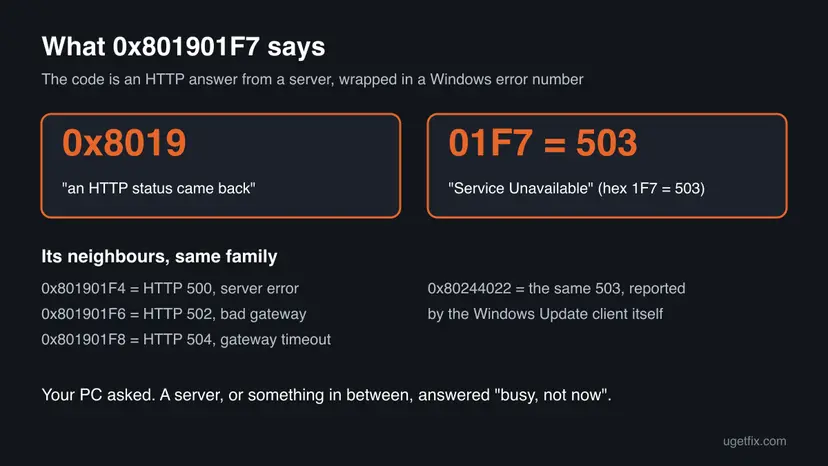
| What you see | Where | What it tells you |
|---|---|---|
| There were some problems installing updates, but we'll try again later. If you keep seeing this and want to search the web or contact support for information, this may help: (0x801901f7) | Settings > Windows Update | The update service or its download server answered 503 during the scan or the download. |
| The server stumbled. We all have bad days. The Error Code 0x801901F7, in case you need it. | Microsoft Store, when it opens | The Store could not load its pages from Microsoft's servers. |
| 0x801901F7 next to a feature or a DISM command | Settings > Optional features, DISM /Online | Windows tried to download the feature from Windows Update and got 503. |
| failed to download source file, with error 0x801901F7 | Configuration Manager logs on work PCs | The company's distribution point answered 503, not Microsoft. |
Windows translates the message but never the code. Erreur 0x801901f7, erro 0x801901f7 or Fehler 0x801901f7 is the same HTTP 503, and the fixes below are the same.
Why error 0x801901f7 appears
A 503 always comes from the other end of the connection. The question is which server answered: Microsoft's, something on your network, or your company's update server. Find your row first.
| Cause | How often | How to tell | Fix |
|---|---|---|---|
| Microsoft's update or Store service is overloaded or down for a while. | Most often | It started without any change on your side, and other PCs fail too. | Fix 1 |
| A proxy or VPN on the PC passes the request on and gets or gives a 503. | Sometimes | A proxy is set in Settings, a VPN app runs, or netsh shows a WinHTTP proxy. | Fix 2 |
| The network itself: a router, firewall or web filter blocks or limits Microsoft's addresses. | Sometimes | Updates work over a phone hotspot but not over your usual network. | Fix 3 |
| Microsoft Store's local cache is stuck after a failed load. | Store only | Windows Update works, only the Store shows The server stumbled. | Fix 4 |
| Leftovers of a failed download in the update cache make Windows ask for the same failing file again. | Rarely | Only this PC fails, others on the same network update fine. | Fix 5, Fix 6, Fix 7 |
| A WSUS or Configuration Manager server in a company answers 503. | Work PCs | The PC is managed, and the logs name a company server. | Ask IT |
The old advice that 0x801901f7 is caused by damaged registry entries, a virus or outdated drivers has no source behind it. None of these produce an HTTP answer from a server, so do not start there.
How to fix error 0x801901f7
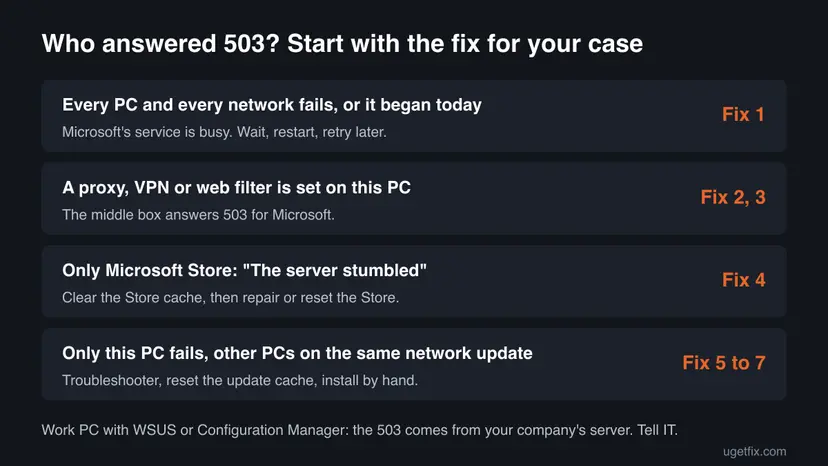
Fix 1 costs nothing and clears most cases, because the server simply recovers. Fixes 2 and 3 find a proxy or a network that answers instead of Microsoft. Fix 4 is for Microsoft Store only. Fixes 5 to 7 repair Windows Update on this one PC.
| What you see or have | Start with |
|---|---|
| It started today without any change, or several PCs fail at once. | Fix 1 |
| A proxy, a VPN app or a corporate network setting is on this PC. | Fix 2 |
| No proxy, but you use a router with filtering, a school or office network, or a security suite with web protection. | Fix 3 |
| Only Microsoft Store shows The server stumbled. | Fix 4 |
| Updates work over a hotspot and on other PCs, but not on this one. | Fix 5, then Fix 6 |
| Only one update keeps failing with 0x801901f7. | Fix 7 |
| A work PC that gets updates from the company. | Ask IT, see If the error is still there |
Fix 1. Restart, wait and try again later
5 minutes, then a waitNo riskAlways first. Above all when the error appeared out of nowhere or other PCs show it too.
HTTP 503 is the answer of a server that is busy or under maintenance. Microsoft's own description of the code says temporarily, and its staff advise to resume later. Windows Update retries by itself, which is why the message says we'll try again later.
- Save your work and restart the PC with Start > Power > Restart.
- Open Windows release health and look for a current issue with Windows Update or Microsoft Store downloads.
- Wait at least an hour. Leave the PC on and connected, so Windows can retry by itself.
- Open Settings > Windows Update and select Check for updates, or open Microsoft Store again.
- If the error is back, note the time and try once more the next day before you change settings.
A quick way to tell a server problem from a PC problem: try a second PC or a phone with the Microsoft Store app on the same network. If both fail at the same time, the cause is outside your PC.
It worked if: Windows Update finds and installs updates, or the Store opens its Home page.
If not: If the error stays for more than a day while other PCs update fine, check for a proxy in Fix 2.
Fix 2. Turn off the proxy and reset the WinHTTP proxy
5 minutesLow riskA proxy or a VPN app is set on the PC, or you do not know. Not on a work PC whose network needs the proxy.
Windows Update and the Store do not always talk to Microsoft directly. When a proxy sits in between, the 503 can be the proxy's own answer. Windows keeps two proxy settings: the one in Settings, and the WinHTTP proxy that system services use.
- Close any VPN app and turn its connection off.
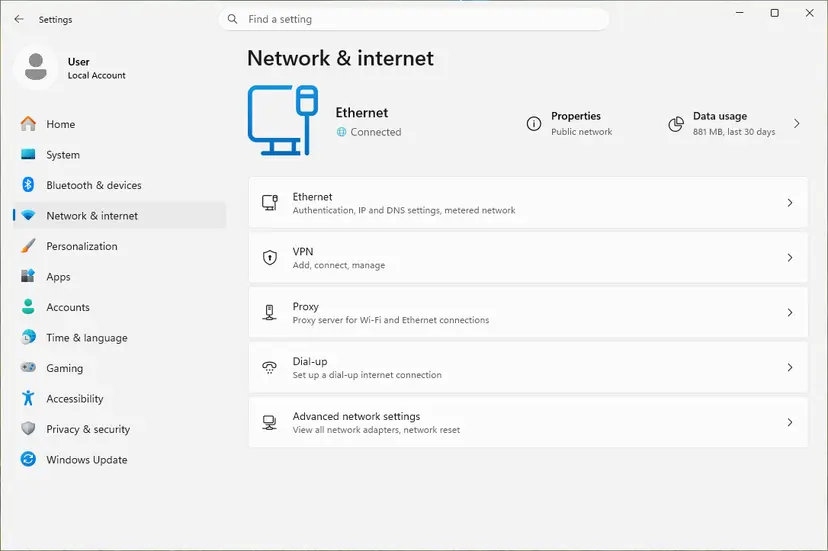
- Open Settings > Network & internet > Proxy. On Windows 10 open Settings > Network & Internet > Proxy.
- Under Manual proxy setup, open Use a proxy server and turn it Off. If a setup script is listed under Automatic proxy setup and you did not add it, turn it off too.
- Right-click Start, select Terminal (Admin) (Windows 10: Command Prompt (Admin) or Windows PowerShell (Admin)) and confirm.
- Type
netsh winhttp show proxyand press Enter to see whether a WinHTTP proxy is set. - If a proxy server is listed, type
netsh winhttp reset proxyand press Enter. Microsoft documents that this resets the WinHTTP proxy setting to DIRECT. - Restart the PC and check for updates or open the Store again.
If your employer or school set the proxy, removing it can cut the PC off from the internet on that network. Write down the proxy address shown in step 5 first, so you can set it back with netsh winhttp set proxy and the same address.
It worked if: netsh winhttp show proxy reports direct access without a proxy server, and the update or the Store works.
If not: If there was no proxy, test another network in Fix 3.
Fix 3. Test from another network
10 minutesLow riskNo proxy on the PC, but the network has a router with filtering, a firewall, a school or office connection, or a security suite with web protection.
A Microsoft moderator advised exactly this for a Windows 11 PC whose logs showed HTTP 503 from a Microsoft update address. If updates work over a hotspot, Microsoft is fine and something on your usual network answers or blocks.
- Turn on the mobile hotspot on your phone and connect the PC to it. Updates can be large, so watch your data plan.
- Open Settings > Windows Update and select Check for updates, or open the Store.
- If it works now, reconnect to your usual network and restart the modem and the router.
- Still failing on the usual network? Open the router's or the firewall's settings and look for web filtering, ad blocking or blocked categories that could include Microsoft update or Store addresses.
- If a security suite other than Microsoft Defender has a web or HTTPS filter, pause that feature for one test, check for updates, and turn it back on right away.
It worked if: Updates install over the hotspot. That proves the cause is on your usual network.
If not: If the hotspot fails too, the cause is on the PC or at Microsoft. For the Store go to Fix 4, for Windows Update to Fix 5.
Fix 4. Microsoft Store only: clear the cache, then repair or reset the Store
5 minutesLow riskWindows Update works, and only Microsoft Store shows The server stumbled.
The Store keeps a local cache of the pages it loaded. After a failed load it can keep showing the error even when the server is back. Clearing the cache is also Microsoft's first step when the Store does not open.
Press Win + R, type wsreset.exe and select OK. Microsoft says a blank Command Prompt window opens, closes after about ten seconds, and the Store opens by itself. If the error is still there, repair and then reset the Store:
- Clear the Store cache. Press Windows + R, type wsreset.exe and select OK. A blank Command Prompt window opens; after a short while it closes and Microsoft Store opens by itself.
After wsreset, the Store opens and loads again. Screenshot: Windows 11 26H2. - Open System components. If the problem stays, select Start > Settings > System > System components. Next to Microsoft Store, select the three dots and Advanced options. If Microsoft Store is not listed there, look for it in Settings > Apps > Installed apps.
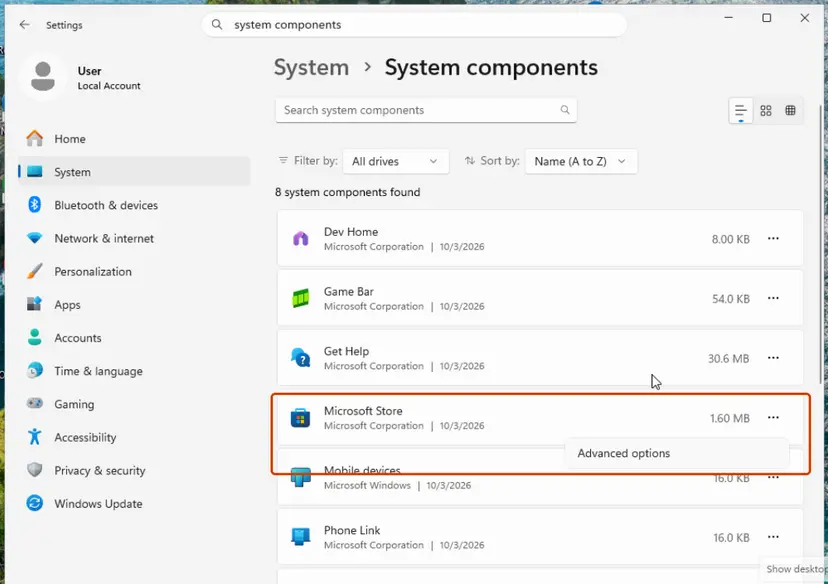
Microsoft Store is listed under System components. Screenshot: Windows 11 26H2. - Repair first. Scroll to Reset and select Repair. Repair keeps the app's data. Open the Store and check whether it works.
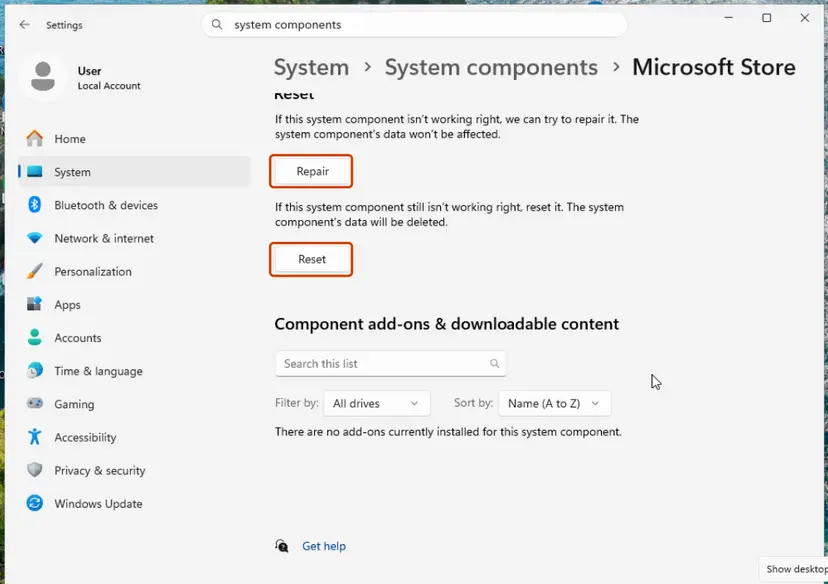
Repair keeps the app's data; Reset deletes it. Screenshot: Windows 11 26H2. - Reset if Repair did not help. Select Reset and confirm. This deletes the Store app's data on this PC; your purchases stay in your Microsoft account. Open the Store and sign in again.
These steps were written for Windows 11 26H2 (build 26300). The full page with the other versions and what each result means: Reset the Microsoft Store
Reset signs you out of the Store and clears its settings. Your installed apps and games stay. Sign in with your Microsoft account again after the reset.
It worked if: The Store opens on its Home page without The server stumbled.
If not: If the Store still stumbles while Windows Update works, the Store servers are the likely cause: go back to Fix 1 and try again later.
Fix 5. Run the Windows Update troubleshooter
5 minutesNo riskOnly this PC fails, and the hotspot test failed too.
Microsoft names the troubleshooter as the first step for any update problem. It restarts the update services and clears a stuck download, which helps when Windows keeps asking for the same failing file.
- Open Troubleshoot settings. Select Start > Settings > System > Troubleshoot.
- Open the list of troubleshooters. Select Other troubleshooters.
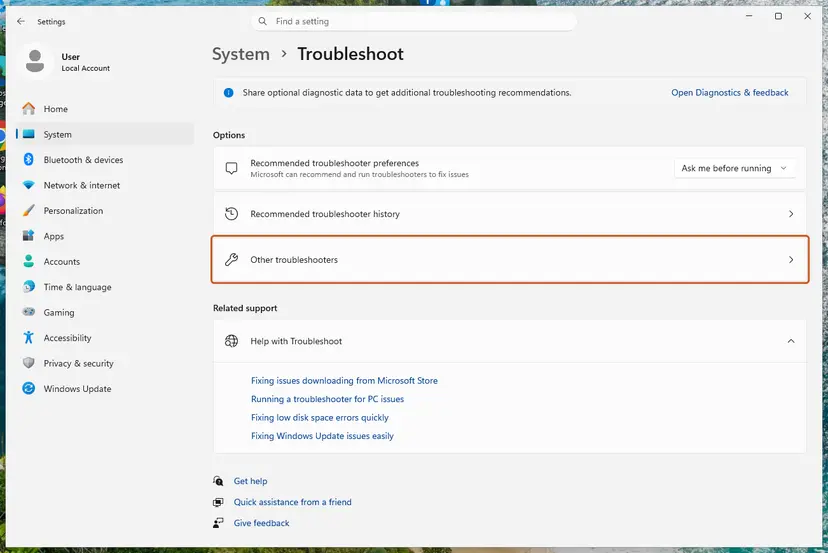
Settings, System, Troubleshoot: select Other troubleshooters. Screenshot: Windows 11 26H2. - Run the Windows Update troubleshooter. Under Most frequent, select Run next to Windows Update. The Get Help app opens and starts the checks.
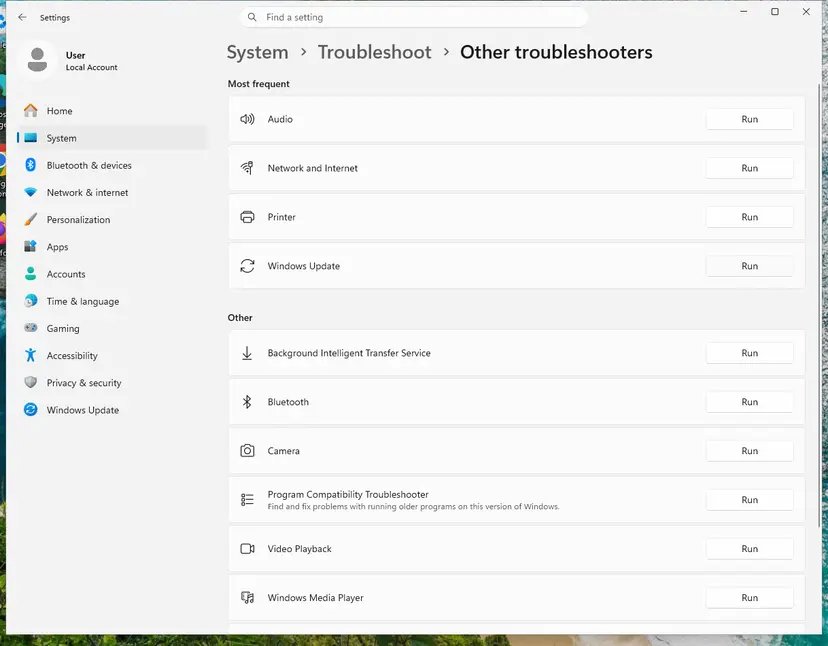
Windows Update is in the Most frequent group; select Run on its row. Screenshot: Windows 11 26H2. - Read the result. Wait until Get Help finishes. If it found and fixed a problem, it says so and asks whether this solved the problem. Answer the question so it can offer the next step.
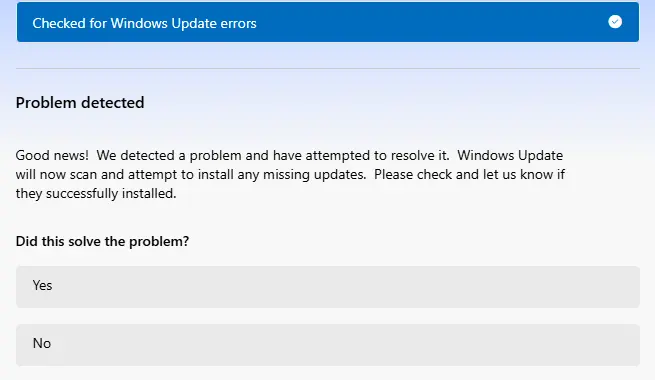
Get Help reports what it found and asks if the problem is solved. Screenshot: Windows 11 26H2. - Restart the PC. Restart when the troubleshooter finishes, even if it does not ask you to.
- Check for updates again. Select Start > Settings > Windows Update > Check for updates, and install the updates it finds.
These steps were written for Windows 11 (screenshots: 26H2). The full page with the other versions and what each result means: Run the Windows Update troubleshooter
It worked if: The troubleshooter reports a problem as fixed, and the next check finds and installs updates.
If not: Reset the update cache in Fix 6.
Fix 6. Reset the Windows Update components
10 minutesLow riskThe troubleshooter did not help and only this PC fails.
A Microsoft moderator gave this reset for a Windows 11 PC with 0x801901F7 in Windows Update and Optional features. Renaming the SoftwareDistribution and catroot2 folders drops the half-finished downloads, so Windows asks for everything from scratch.
- Open Command Prompt as administrator. Type cmd in the search box, right-click Command Prompt and select Run as administrator. Select Yes when Windows asks for permission.
- Stop the update services. Type the commands below and press Enter after each one. If Windows says that other services depend on Cryptographic Services, it stops them too. A message that a service is not started is fine.
net stop wuauserv net stop bits net stop cryptsvc - Delete the download queue files. This clears the list of downloads that the Background Intelligent Transfer Service keeps. If Windows says it cannot find the files, continue.
del "%ALLUSERSPROFILE%\Application Data\Microsoft\Network\Downloader\qmgr*.dat" - Rename the update cache folders. Renaming keeps a copy in case you need it; Windows creates new, empty folders when the services start again. If you get Access is denied, a service is still running: repeat the previous step.
ren %systemroot%\SoftwareDistribution SoftwareDistribution.old ren %systemroot%\System32\catroot2 catroot2.old - Start the services again. Type the commands below and press Enter after each one. The requested service has already been started is fine: Windows started it on its own.
net start cryptsvc net start bits net start wuauserv - Restart and check for updates. Restart the PC. Then select Start > Settings > Windows Update > Check for updates. The first check can take longer than usual because everything is downloaded again.
These steps were written for Windows 11 and Windows 10 (the steps are the same). The full page with the other versions and what each result means: Reset Windows Update components

It worked if: The next Check for updates takes longer than usual, then downloads and installs the updates.
If not: If one update still fails, install it by hand in Fix 7.
Fix 7. Install the update by hand from the Microsoft Update Catalog
10 to 20 minutesLow riskOne update keeps failing with 0x801901f7, while the rest of the internet works.
The catalog gives you the same package as a file in the browser, without the Windows Update scan and download service in between. If that service is the one answering 503, the browser download can still work.
- Check your Windows version. Press Windows key + R, type winver and press Enter. Note the version (for example 25H2) and the OS build.
- Find the KB number. Open Settings > Windows Update. A failed or pending update is listed with its KB number; earlier ones are under Update history.
- Check the processor type. Open Settings > System > About and look at System type: an x64-based PC needs the x64 file, an ARM-based PC (for example Snapdragon) needs the arm64 file.
- Search the catalog. Open the Microsoft Update Catalog at catalog.update.microsoft.com in your browser, type the KB number (for example KB5124010) in the search box and press Enter.
- Pick the right row. Find the row whose title names your Windows version and your processor type (x64-based or arm64-based) and select Download on that row.
- Download every file listed. A window lists one or more .msu links. Download all of them into one empty folder, for example C:\packages. On Windows 11 24H2 and later the list can include earlier checkpoint updates that the new one needs.
- Install a single file. If there is only one file, double-click it and confirm the installation in the Windows Update Standalone Installer.
These steps were written for Windows 11 24H2 and later; Windows 10 22H2. The full page with the other versions and what each result means: Install an update from the Microsoft Update Catalog
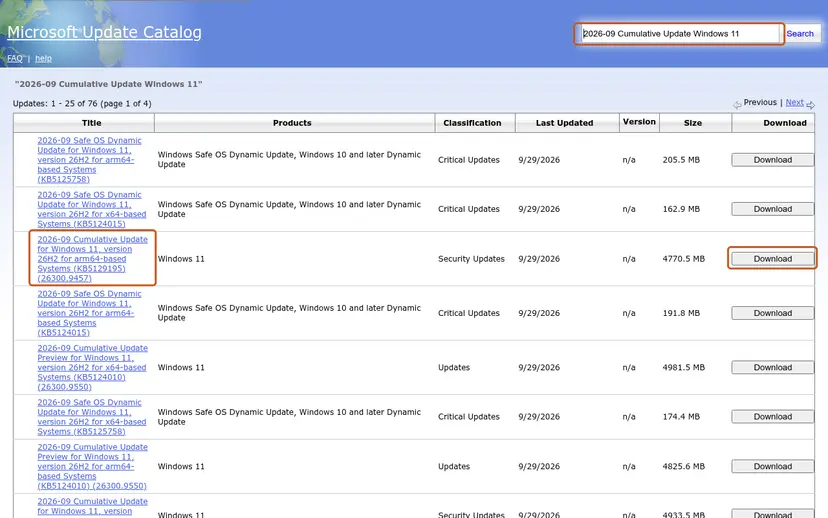
It worked if: The installer finishes, and the update appears under Settings > Windows Update > Update history.
If not: If the catalog download fails as well, the cause is the network or Microsoft. Go back to Fix 3 or wait as in Fix 1.
If the error is still there
The log tells you which server answered 503, and that decides who can fix it. Open Windows PowerShell or Terminal, run Get-WindowsUpdateLog and wait. Microsoft documents that it merges the update trace files into one WindowsUpdate.log on your Desktop.
- Search the file for 503 and for 0x801901F7, and note the host name on the same lines.
- A Microsoft name such as sls.update.microsoft.com or download.windowsupdate.com means Microsoft's side answered. In a recent Microsoft Q&A case the log showed tas02.sls.update.microsoft.com returning HTTP 503, with the secondary error 0x8024802A.
- A company server name means WSUS or Configuration Manager answered. On Configuration Manager clients the download errors are in DataTransferService.log.
- A proxy name means the proxy answered: go back to Fix 2.
| Situation | What to do |
|---|---|
| Work or school PC | Send IT the code 0x801901f7, the time and the server name from the log. In one Configuration Manager case on Microsoft Q&A the cause was a distribution point site in IIS with a wrong protocol setting; only the administrator can change that. |
| Windows Server 2022 installed from old media | An administrator on Server Fault reported 503 from download.windowsupdate.com and got updates working only after turning TLS 1.3 off for the client, installing all updates and turning it on again. It is one report, not a Microsoft fix, and it means a registry change: back up first with Back up the registry before editing it. |
| Microsoft's server answers 503 for days on a home PC | Contact Microsoft Support with the log lines. Microsoft's forum moderators state that they have no access to the update infrastructure, so a forum post will not fix it. |
| Windows 10 | Windows 10 left support on 14 October 2025. Without Extended Security Updates, Windows Update no longer offers it security fixes, so a failing scan matters less than the move to Windows 11. |
| Nothing above applies and updates still fail | Repair the system files: Run DISM and SFC to repair Windows system files. As the last step, reinstall Windows over itself and keep your files: Reinstall Windows without losing files |
0x801901f7 is never a hardware fault. A failing disk or memory gives other codes. If you also see 0x80244022, you are looking at the same 503 from another part of Windows Update, and the same fixes apply.
How to keep error 0x801901f7 from coming back
- Let Windows retry on its own for a few hours before you start repairs. Most 503 answers end without you.
- Keep the proxy and VPN settings you actually need, and remove the ones you do not.
- If your router or firewall filters traffic, keep Microsoft's update and Store addresses allowed.
- Check Windows release health when updates fail on several PCs at once.
- Do not delete files in C:\Windows\SoftwareDistribution by hand while the update service runs. Use the reset in Fix 6.
- Do not run registry cleaners or tools that promise to fix 0x801901f7. The code comes from a server, not from the registry.
- Do not turn off your antivirus or firewall for good. A pause for one test is enough.
If Windows Update shows other codes after this one is gone, our guide to Windows update error 0x80070302 covers a cache problem that the same reset fixes.
Frequently asked questions
What does error code 0x801901f7 mean?
It means a server answered your PC with HTTP 503, Service Unavailable. Microsoft lists the code as HTTP_E_STATUS_SERVICE_UNAVAIL and describes it as a service that is temporarily unavailable. The first part of the number, 0x8019, marks an HTTP status, and 1F7 is 503 in hexadecimal. Windows reached the server, but the server, or a proxy between you and it, said it cannot handle the request now. Nothing on your PC is reported as broken.
Why does Windows Update show 0x801901f7?
Windows Update asked a Microsoft server for the list of updates or for a file, and got a 503 answer back. Most often the service is overloaded or under maintenance for a while, and Windows retries by itself, which is why the message says we'll try again later. Less often a proxy, a VPN or a filtering router answers instead of Microsoft. Restart, wait, and check for updates again before you change settings. If it lasts more than a day, test another network.
Is error 0x801901f7 different on Windows 11?
No. The code means the same on Windows 11 25H2 and 26H2 and on Windows 10 22H2: an HTTP 503 answer. Recent reports on Microsoft Q&A come from Windows 11, where Windows Update, Optional features and a DISM feature install all failed with 0x801901F7 on one PC at the same time. The fixes are the same, only the Settings paths differ slightly, and each method above gives both.
What is The server stumbled in Microsoft Store?
It is the Store's own wording for the same 503 answer. The full text reads The server stumbled. We all have bad days. The Error Code 0x801901F7, in case you need it. It appears when the Store cannot load its pages from Microsoft's servers. Wait and open the Store again. If it keeps showing, clear the Store cache with wsreset.exe and then repair or reset the Store as in Fix 4. Your installed apps stay.
How long should I wait before I try to fix 0x801901f7?
Give it a few hours and one restart. A 503 answer is meant to be temporary, and Windows Update tries again on its own schedule while the PC is on and connected. If the error is still there the next day, and other PCs on the same network update without problems, the cause is probably on your PC or your network. Then work through Fixes 2 to 7 in order.
Is 0x801901f7 the same as 0x80244022?
They describe the same HTTP 503 answer, reported by different parts of Windows. Microsoft's Windows Update error list names 0x80244022 WU_E_PT_HTTP_STATUS_SERVICE_UNAVAIL and explains it as HTTP status 503, the service is temporarily overloaded. 0x801901F7 is the general Windows HTTP code for the same status. In a recent Microsoft Q&A case one PC showed 0x80244022 in the Store and 0x801901F7 in Windows Update at the same time. Both go away with the same fixes.
I see erreur 0x801901f7 or erro 0x801901f7. Is this the same error?
Yes. Windows translates the message into your language, for example des problèmes sont survenus lors de l'installation des mises à jour in French or ocorreram alguns problemas ao instalar as atualizações in Portuguese, but the code in brackets stays 0x801901f7. It is the same HTTP 503 answer, and every fix on this page applies. The menu names in Settings are translated too, but they sit in the same places.
Can a virus or a damaged registry cause 0x801901f7?
We found no source that ties this code to malware or to the registry, and it would not fit what the code says. 0x801901f7 is an answer that came back from a server over the network. Malware can change proxy settings, though, and a changed proxy can produce a 503. That is why Fix 2 checks the proxy. If you find a proxy you never set, scan the PC with Microsoft Defender as well.
Does 0x801901f7 appear on Xbox?
Yes, the code exists for Xbox services too. Microsoft lists 0x801901F7 among the Xbox Live HTTP error codes, again with the meaning HTTP 503, service temporarily unavailable. On a console or in the Xbox app it means an Xbox service is busy or under maintenance. Check the Xbox status page, wait, and try again. The proxy and network checks in Fixes 2 and 3 help the same way when only your console fails.
My work PC shows 0x801901f7. What should I do?
Tell your IT department rather than changing settings yourself. Many company PCs get updates from a WSUS or Configuration Manager server, and then the 503 answer comes from that server, not from Microsoft. In one case on Microsoft Q&A the Office updates failed with 0x801901F7 because a distribution point site in IIS had a wrong protocol setting. Give IT the code, the time and, if you can, the server name from the log.
Sources
- Microsoft Learn: Error codes, Microsoft Game Development Kit (HTTP_E_STATUS_SERVICE_UNAVAIL 0x801901F7) (learn.microsoft.com)
- Microsoft Learn: Windows Update error code list by component (0x80244022) (learn.microsoft.com)
- Microsoft Support: Troubleshoot problems updating Windows (support.microsoft.com)
Did this fix work?
One click, no account. It tells the next reader which guides are worth their time.
Questions and experiences: fix error 0x801901f7 (The server stumbled) in Windows Update and Microsoft Store
Still broken, or found a fix we did not cover? Ask here: members and our editors answer. Reading is open; writing needs a free account.
…