
How to fix TPM event id 14 when playing Valorant?

Prefer to fix it yourself? The manual steps follow.
- 5methods
- 10 to 45 minutes
- Advanced
Applies to VALORANT and other Riot Vanguard games on Windows 11 and Windows 10 PCs with a firmware or discrete TPM
5 methods in this guide
Hello. Sometimes when I am playing Valorant, the game becomes laggy and slow. Sometimes it even crashes. In Event Viewer, I found TPM Event ID 14. How do I fix this problem?
TPM Event ID 14 is a Windows System log entry that says the Trusted Platform Module hit a non-recoverable error, so TPM services can fail. VALORANT notices it because Riot Vanguard checks the TPM. Install the latest Windows update first, then update your BIOS or TPM firmware, as Microsoft advises.
Event ID 14 from the source TPM means Windows could not use the TPM chip or firmware TPM after a hardware error. Microsoft's fix is the latest Windows cumulative update (Fix 1) and the newest BIOS or TPM firmware for your PC (Fix 2). Then check tpm.msc shows TPM 2.0 ready (Fix 3). Keep the TPM on: Vanguard needs it.
| Error | Event ID 14, Source TPM, Level Error: "The device driver for the Trusted Platform Module (TPM) encountered a non-recoverable error in the TPM hardware". |
|---|---|
| Where it appears | In Event Viewer > Windows Logs > System, often at the time VALORANT lagged, froze or crashed. |
| Main cause | A problem with the TPM device or its firmware, which Windows cannot recover from by itself. |
| Fastest fix | Install the latest Windows cumulative update and restart (Fix 1), then update the BIOS (Fix 2). |
| Also written as | TPM event 14, event 14 TPM, TPM error 14, TPM 14 error. Event ID 17 ("failed to execute a TPM command") is its partner entry. |
| Affects | Windows 11 and Windows 10 PCs with a TPM. VALORANT on Windows 11 needs TPM 2.0 for Vanguard. |
| Vendor status | Microsoft documents Event 14 and 17 (article last updated February 2026). Riot lists a known AMD fTPM stutter bug that BIOS updates fixed. |
| Time to fix | 10 to 30 minutes for updates, plus about 15 minutes for a BIOS update. |
Facts checked on 16 October 2026. Steps written for Windows 11 (25H2 and 26H2) and Windows 10 22H2, with Riot Vanguard and the TPM requirements as Riot Support describes them in October 2026.
What TPM Event ID 14 means in Event Viewer
Event ID 14 is written by the TPM driver of Windows, not by VALORANT. Microsoft's article on this event says the TPM device driver logs it when it meets an unrecoverable error. Windows then cannot talk to the TPM for features such as BitLocker, Modern Authentication and Next Generation Credentials (Windows Hello).
How the entry looks in Event Viewer (Microsoft's example, shortened)
Log Name: System
Source: TPM
Event ID: 14
Level: Error
Description: The device driver for the Trusted Platform Module (TPM) encountered a non-recoverable error in the TPM hardware, which prevents TPM services (such as data encryption) from being used. For further help, please contact the computer manufacturer.
Microsoft lists a second entry with it: Event ID 17, Level Information, "The Trusted Platform Module (TPM) hardware failed to execute a TPM command." In Microsoft's example the two are logged one right after the other. Event 17 alone is a note about one failed command; Event 14 says the TPM stopped being usable.
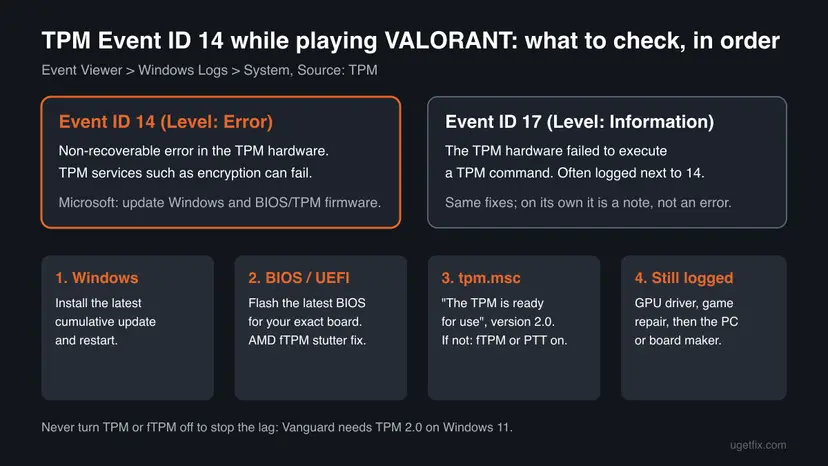
Riot Vanguard, the anti-cheat of VALORANT, needs TPM 2.0 on Windows 11, and Riot says Windows 11 needs it too. When the TPM fails, Vanguard can lose its check of the PC. That is why players find this entry after a lag spike, a freeze or a crash.
What causes TPM Event ID 14, ranked and tied to a fix
Microsoft names one cause, an issue with the TPM device, and two remedies: current Windows updates and current BIOS or TPM firmware. Riot adds two TPM problems it sees in Vanguard games. Neither company publishes how often each cause appears, so the order below follows their own order of steps.
| How likely | Cause | Sign you can check | Fix |
|---|---|---|---|
| Most often | Old BIOS or TPM firmware with a TPM bug. | The BIOS date in System Information is more than a year old, or the PC maker lists a newer BIOS. | Fix 2 |
| Often | Missing Windows servicing stack or cumulative update. | Windows Update shows updates waiting or a restart pending. | Fix 1 |
| Often on AMD | Firmware TPM (fTPM) bug in older AMD AGESA firmware, which Riot says caused random micro-stutters. | Ryzen PC, short freezes every few minutes, old BIOS. | Fix 2 |
| Sometimes | The TPM is switched off, set to TPM 1.2, or not fully started by the firmware. | tpm.msc says no compatible TPM, or Specification Version 1.2. | Fix 3 |
| Users report | A new graphics driver at the same time as the lag. | The lag began right after a GPU driver update. | Fix 4 |
| Rarely | Damaged VALORANT files, so the crash is the game's own. | VALORANT crashes even on days with no TPM entry. | Fix 5 |
| Rarely | A faulty TPM chip or motherboard. | Event 14 returns after all updates, on every start. | Still broken section |
Turning the TPM or fTPM off in the BIOS removes the entry but breaks Vanguard on Windows 11. Riot says it plainly for the AMD stutter: do not turn fTPM off, update the BIOS instead. Switching TPM modes also clears the keys BitLocker uses.
How to find and read the TPM entry in Event Viewer
Before you fix anything, confirm that the entry really is Event 14 from the source TPM and note when it happens. The time tells you whether it matches the lag in VALORANT or only appears at start-up.
- Press Win + R, type the command below and press Enter.
eventvwr.msc - In the left pane open Windows Logs and select System.
- In the right pane select Filter Current Log.
- In the Event sources list tick TPM, then select OK.
- Open each entry and read the Event ID, the Level and the time. Compare the time with your last lag or crash.
- Open the Details tab to see the locationCode value. Write it down for the PC maker if you need support later.
If you see only Event 17 entries and the TPM works in tpm.msc, the TPM is not failing. Look at the game and the graphics driver first (Fixes 4 and 5).
How to fix TPM Event ID 14 when playing VALORANT
Restart the PC and play a match after each fix, then check the System log again. Fixes 1 and 2 are Microsoft's own remedy for Event 14. Fix 3 makes sure Vanguard sees a working TPM 2.0. Fixes 4 and 5 cover the lag and crashes that users tie to the driver or the game.
| What you see or have | Start with |
|---|---|
| Windows Update shows updates waiting or a restart pending. | Fix 1 |
| Windows is current, but the BIOS is old or the PC maker lists a newer one. | Fix 2 |
| AMD Ryzen PC with short freezes every few minutes. | Fix 2 |
| tpm.msc says no compatible TPM was found, or shows version 1.2. | Fix 3 |
| VALORANT shows VAN 9001, VAN 9003 or VAN 9090 next to the event. | Fix 3 |
| The lag began right after a graphics driver update. | Fix 4 |
| VALORANT crashes, but the TPM entry is not at the same time. | Fix 5 |
Fix 1. Install the latest Windows cumulative update and restart
10 to 30 minutesLow riskEveryone first, and above all PCs with updates waiting or a restart pending.
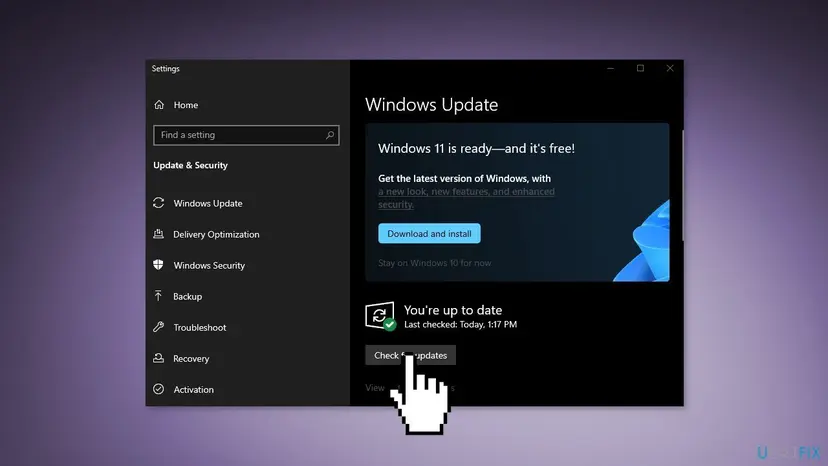
Microsoft's workaround for Event 14 starts here: install the latest servicing stack update and the monthly cumulative update. These carry the current TPM driver and its fixes.
- Press the Windows key to open Start.
- Type Check for updates and open it from the results.
- Select Check for updates. On Windows 10 the same page is under Settings > Update & Security > Windows Update.
- Install all available updates, including the latest cumulative update.
- Restart when Windows asks, then select Check for updates again until nothing is left.
If an update fails with an error code, fix the update first: Run the Windows Update troubleshooter. A single cumulative update can also be installed by hand: Install an update from the Microsoft Update Catalog.
Windows 10 left support on 14 October 2025, so it no longer gets new monthly fixes without extended updates. Install what is offered; a TPM fix that came later reaches Windows 11 only.
It worked if: Windows Update says you are up to date, and after a few matches no new Event 14 appears in the System log.
If not: If Event 14 returns on a fully updated Windows, update the BIOS in Fix 2.
Fix 2. Update the BIOS or UEFI firmware of your PC or motherboard
15 to 30 minutesRead the warningWindows is current but Event 14 returns, the BIOS is old, or an AMD PC stutters every few minutes.
Microsoft asks for the newest BIOS or TPM firmware for Event 14, because the TPM lives in that firmware. Riot adds that early AMD fTPM firmware caused micro-stutters, which later BIOS updates fixed.
A BIOS update can ask for the BitLocker recovery key on the next start. Save the key from your Microsoft account device page (account.microsoft.com/devices/recoverykey) and back up your files: Back up your files (Windows Backup, File History, Time Machine). Keep a laptop on its charger and never turn the PC off during the update.
- Press Win + R, type the command below and press Enter. Note BaseBoard Manufacturer, BaseBoard Product and BIOS Version/Date.
msinfo32 - On a laptop or brand PC, note the model name from the same window, System Model.
- Open the support site of your PC or motherboard maker and find your exact model.
- Compare the newest BIOS version there with yours. Read its notes for TPM, fTPM or PTT fixes.
- Install it with the maker's own tool or the BIOS flash menu, exactly as the maker's page says.
- After the restart, enter the BIOS and check that fTPM (AMD) or PTT (Intel) is still Enabled, as Fix 3 shows.
Microsoft also names "TPM Device Firmware". On PCs with a discrete TPM chip, the maker may publish a separate TPM firmware update next to the BIOS. Use only the file the maker lists for your model.
It worked if: msinfo32 shows the new BIOS date, tpm.msc still shows TPM 2.0 ready, and the lag and Event 14 stop.
If not: If tpm.msc no longer finds the TPM after the update, turn it back on in Fix 3. If Event 14 stays, try Fix 4.
Fix 3. Check TPM 2.0 in tpm.msc and turn on fTPM or PTT in the BIOS
10 minutesRead the warningtpm.msc finds no TPM or shows version 1.2, or VALORANT shows a VAN 9001, 9003 or 9090 error.
Vanguard needs a working TPM 2.0 on Windows 11, and Riot says the TPM is often there but switched off in the BIOS. A TPM that is off or in 1.2 mode cannot answer Windows or Vanguard.
- Press Win + R, type the command below and press Enter.
tpm.msc - Read the status. The TPM is ready for use with Specification Version: 2.0 means the TPM is on: skip to Fix 4.
- If it says Compatible TPM cannot be found, or the window will not open, check Windows Security > Device security > Security processor details.
- To enter the BIOS on Windows 11, open Settings > System > Recovery, select Restart now next to Advanced startup. On Windows 10 use Settings > Update & Security > Recovery.
- After the restart select Troubleshoot > Advanced options > UEFI Firmware Settings. You can also press Del, F2 or F10 at start-up; the key varies by brand.
- On Intel, set Intel Platform Trust Technology (PTT) to Enabled. On AMD, set AMD fTPM switch or TPM Device Selection to AMD CPU fTPM.
- Check that Secure Boot is on as well, since Vanguard needs it on Windows 11.
- Press F10 to save and exit, then run tpm.msc again.
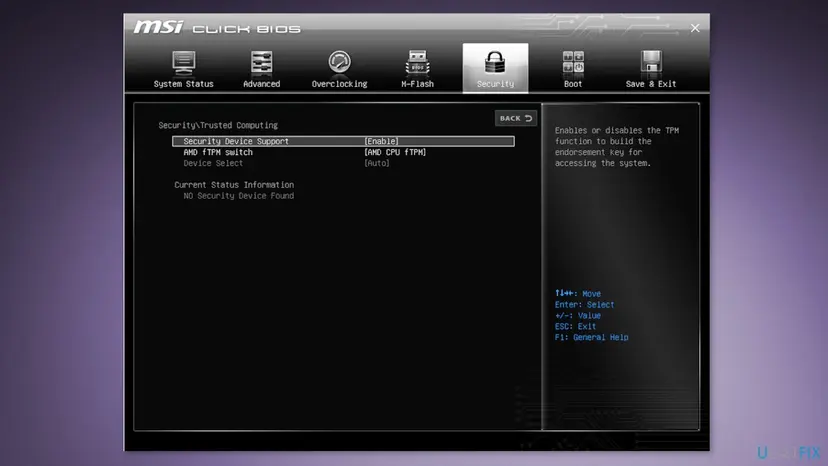
| Brand | Intel (PTT) | AMD (fTPM) |
|---|---|---|
| ASUS | Advanced > PCH-FW Configuration > PTT | Advanced > AMD fTPM Configuration > AMD fTPM switch |
| MSI | Settings > Security > Trusted Computing > TPM Device Selection > PTT | Settings > Security > Trusted Computing > TPM Device Selection > AMD CPU fTPM |
| Gigabyte | Settings > Miscellaneous > Intel Platform Trust Technology | Settings > Miscellaneous > AMD CPU fTPM |
| ASRock | Security > Intel Platform Trust Technology | Advanced > CPU Configuration > AMD fTPM Switch |
Riot warns that switching between TPM 1.2 and 2.0, or between a discrete chip and fTPM, clears the TPM keys. Suspend BitLocker or save your recovery key first, or Windows may lock you out.
It worked if: tpm.msc shows The TPM is ready for use and Specification Version: 2.0, and VALORANT starts without a VAN 9000-range error.
If not: If TPM 2.0 is enabled but tpm.msc still fails, Riot points to a BIOS bug: go back to Fix 2. If the TPM is fine, go to Fix 4.
Fix 4. Roll back or update the graphics driver
10 minutesLow riskThe lag or crash in VALORANT began right after an NVIDIA, AMD or Intel graphics driver update.
Users report that rolling back the NVIDIA driver ended the lag that came with Event 14. Microsoft does not tie the event to graphics drivers, so this fixes the game symptom, not the TPM.
- Open Device Manager. Right-click Start and select Device Manager.
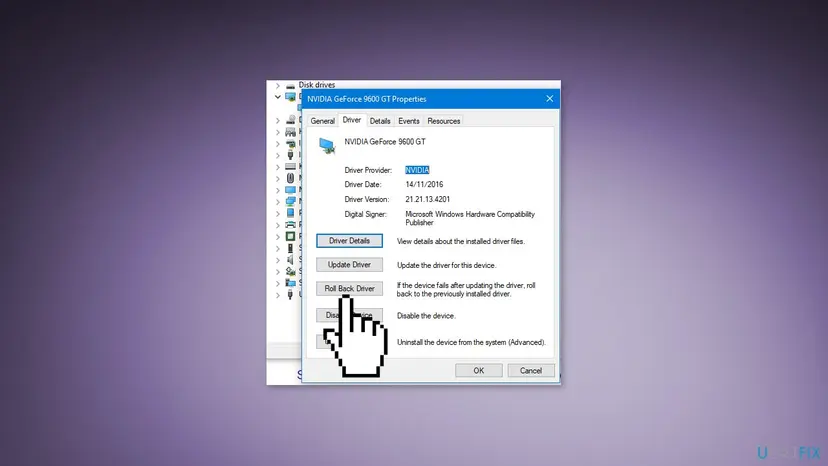
- Open the device's Driver tab. Expand the category (for example Display adapters), right-click the device, select Properties and open the Driver tab. Driver Date and Driver Version show what is installed now.
- Update the driver. Select Update Driver and let Windows search automatically. To use a driver you downloaded from the device maker, select Browse my computer for drivers instead and point to the unpacked folder.
- Or roll back the driver. If the problem started after a driver update, select Roll Back Driver, choose a reason and select Yes. The button is greyed out when Windows has no earlier driver to return to.
These steps were written for Windows 11 24H2 and later. The full page with the other versions and what each result means: Update, roll back or reinstall a driver
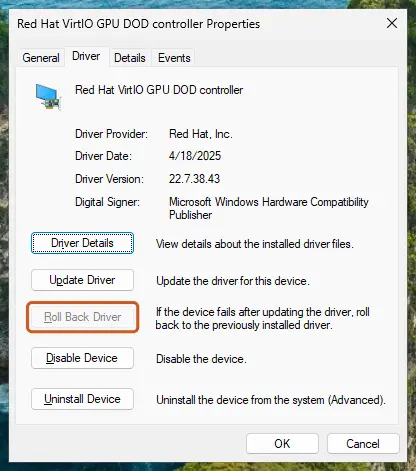
It worked if: Device Manager shows the older driver date, and VALORANT plays without the lag spikes.
If not: If Roll Back Driver is greyed out, install the newest driver from the card maker instead. If the lag stays, go to Fix 5.
Fix 5. Repair VALORANT in the Riot Client
10 minutesLow riskVALORANT crashes, but the TPM entries in Event Viewer are not at the same time.
A crash that does not line up with Event 14 is often the game itself. The Riot Client's Repair button checks the game files and replaces damaged ones without a full download.
- Open and sign in to the Riot Client.
- Select the profile icon in the upper right corner, then Settings.
- Choose VALORANT on the left.
- Select Repair and wait until it finishes.
- Restart the PC and play a match.
If VALORANT shows a Vanguard code such as VAN 0 at start, the steps differ: see how to fix error VAN 0 in VALORANT.
It worked if: Repair ends without an error, and VALORANT no longer crashes in matches.
If not: If crashes and Event 14 continue together, read the still broken section below and contact the PC or motherboard maker.
TPM Event ID 14 still there: when it is the hardware
Microsoft's last step for Event 14 is to contact the hardware vendor or the device maker to diagnose the TPM. That is the right move when the event comes back after all updates, because only the maker can test or replace the TPM chip or the motherboard.
- Note the Event ID, the locationCode from the Details tab, and how often the entry appears.
- In tpm.msc, note the Manufacturer Name and Manufacturer Version under TPM Manufacturer Information.
- Note your BIOS version from msinfo32 and the date you updated it.
- Send these to the support of your PC or motherboard maker and ask them to test the TPM.
- If VALORANT also shows a Vanguard error, open a ticket with Riot Player Support and name the error.
Event 14 on every start, tpm.msc that loses the TPM after each restart, or BitLocker asking for the recovery key again and again. If your CPU or motherboard is new, the AMD message in our fTPM/PSP NV guide may also apply.
Should you go back to Windows 10 to stop Event 14?
Some players report that going back from Windows 11 to Windows 10 ended the problem. We do not advise it as a fix. Windows 10 left support on 14 October 2025, and the TPM fault itself stays in the hardware. Windows offers Go back only for a short time after an upgrade.
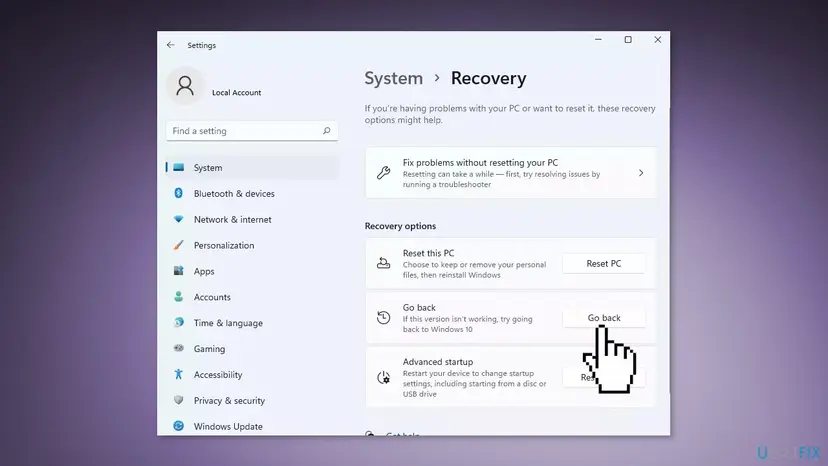
- Back up your files first and remember your Windows 10 password.
- Open Settings > System > Recovery and select Go back under Recovery options.
- Choose a reason under Why are you going back, follow the screens, then select Go back to Windows 10.
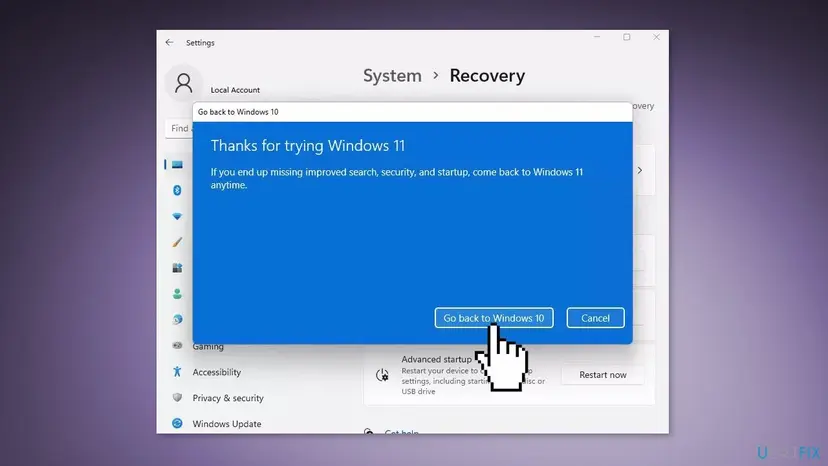
How to keep TPM Event ID 14 from coming back
Most repeats come from firmware that stays old for years, or from changes in the BIOS that reset the TPM. A few habits keep the TPM healthy and Vanguard happy.
- Install Windows cumulative updates every month and restart after them.
- Check your PC or motherboard maker for BIOS updates a few times a year, and read the notes for TPM fixes.
- Keep fTPM or PTT on after every BIOS update or BIOS reset.
- Save your BitLocker recovery key before any BIOS change.
- Switch the TPM or fTPM off to stop the lag: Vanguard on Windows 11 needs it.
- Change TPM mode (1.2, 2.0, chip or firmware) without saving the BitLocker key.
- Flash a BIOS file meant for another model.
- Clear the TPM because a forum says so: it removes the keys Windows uses.
Frequently asked questions
What is TPM Event ID 14?
TPM Event ID 14 is an Error entry in the Windows System log, written by the TPM driver. Microsoft's text says the driver met a non-recoverable error in the TPM hardware, which prevents TPM services such as data encryption from working. It is not a VALORANT code. Microsoft's remedy is the latest Windows updates and the latest BIOS or TPM firmware, and then the PC maker if it continues.
What is the difference between TPM Event ID 14 and Event ID 17?
Event ID 17 is an Information entry that says the TPM hardware failed to execute a TPM command. Event ID 14 is an Error that says the TPM met a non-recoverable error, so TPM services cannot be used. Microsoft covers both in one article and shows them logged together. Event 17 alone with a working tpm.msc is usually harmless; Event 14 means you should update Windows and the BIOS.
Can TPM Event ID 14 cause lag or crashes in VALORANT?
It can be linked. Vanguard checks the TPM on Windows 11, and Riot says older AMD fTPM firmware caused random micro-stutters every few minutes until BIOS updates fixed it. A TPM error at the same time as a lag spike points to the firmware, which is why Fix 2 is the BIOS. If the crashes come at other times, the cause is more likely the game or the graphics driver.
Should I turn off the TPM to fix Event ID 14?
No. Turning the TPM off hides the entry but stops Vanguard on Windows 11, and Riot says Windows 11 itself needs TPM 2.0. Riot's own advice for the AMD fTPM stutter is to update the BIOS and keep fTPM on. Switching the TPM off or changing its mode can also clear the keys BitLocker uses, so you may need your recovery key to start Windows.
How do I check if my TPM works?
Press Win + R, type tpm.msc and press Enter. The TPM works when the status says "The TPM is ready for use" and Specification Version says 2.0. If the window says no compatible TPM can be found, or does not open, check Windows Security, Device security, Security processor details. Nothing there means the TPM is off in the BIOS: turn on fTPM or PTT as Fix 3 shows.
Does a discrete TPM chip work for VALORANT?
For the basic Vanguard requirement, yes. Riot says a discrete TPM 2.0 chip satisfies VAN 9001. For a VAN: RESTRICTION error that lists TPM, Riot says Vanguard needs a firmware TPM, which is Intel PTT or AMD fTPM, and a chip alone is not enough. Riot adds that Intel CPUs from the 4th generation and AMD Ryzen 1000 and newer have firmware TPM built in.
Is TPM Event ID 14 the same on League of Legends?
Yes, the event is the same, because it comes from Windows and not from the game. League of Legends uses Riot Vanguard too, and Riot keeps its TPM 2.0 article in the shared Riot Client section of its support site. The fixes on this page, Windows updates, a BIOS update and a working TPM 2.0, apply to League in the same way.
Does updating the BIOS remove my files or settings?
A BIOS update does not touch the files on your drive, but it can reset BIOS settings to their defaults. That may switch fTPM, PTT or Secure Boot off, so check them after the update as Fix 3 shows. BitLocker may also ask for the recovery key on the next start. Save the key from your Microsoft account first, and keep the PC powered during the update.
Is VALORANT (バロラント) affected the same way in every region?
Yes. VALORANT, written バロラント in Japanese, uses the same Riot Vanguard and the same TPM 2.0 requirement on Windows 11 in every region. Event ID 14 is a Windows entry, so its meaning and fixes do not change with the game's language or server. Follow the fixes in order, starting with Windows updates and a BIOS update.
Sources
- Microsoft Learn: Event ID 14, 17 log for TPM command failure or non-recoverable error (learn.microsoft.com)
- Riot Games Support: Enable TPM 2.0 (support.riotgames.com)
Did this fix work?
One click, no account. It tells the next reader which guides are worth their time.
Questions and experiences: fix TPM event id 14 when playing Valorant
Still broken, or found a fix we did not cover? Ask here: members and our editors answer. Reading is open; writing needs a free account.
…