
How to fix "Unable to find the Ubisoft Game Launcher" error in Windows?

Prefer to fix it yourself? The manual steps follow.
- 7methods
- 5 minutes for the first fix, 10 to 30 minutes for the repairs
- Easy
Applies to Assassin's Creed II and other older Ubisoft games started on Windows 11 or Windows 10, mostly copies bought on Steam
7 methods in this guide
Hello. I tried to play Assassin's Creed, but I received the "Unable to find the Ubisoft Game Launcher" error. How do I deal with this?
"Unable to find the Ubisoft Game Launcher" means an older Ubisoft game, most often Assassin's Creed II bought on Steam, could not hand over to Ubisoft Connect. Ubisoft Support says the usual reason is that Ubisoft Connect is not installed. Install it, sign in with a Ubisoft account and press Play again.
The game looked for Ubisoft Connect, Ubisoft's launcher that used to be called Uplay and the Ubisoft Game Launcher, and did not find a working copy. Ubisoft Support's answer for Assassin's Creed II on Steam is Fix 1: install Ubisoft Connect, sign in with a Ubisoft account and start the game again. If it is already installed, exit it fully and restart it with Fix 2.
| Error | A window with the text "Unable to find the Ubisoft Game Launcher, please reinstall Assassin's Creed II." and a second line such as "Ubisoft Game Launcher: Error code 1" or Error code 2. |
|---|---|
| Where it appears | Right after you press Play in Steam or start the game's .exe, before the game window opens. The game checks for the launcher first. |
| Main cause | Ubisoft Connect is not installed, did not finish installing or cannot start. Ubisoft Support on the Steam forum: the launcher "is required to play Assassin's Creed II". |
| Fastest fix | Install Ubisoft Connect PC with administrator rights, restart Windows, sign in, then press Play in Steam (Fix 1). |
| Also written as | Unable to find Ubisoft Game Launcher, unable to find the Ubisoft Game Launcher AC2, AC 2 unable to find Ubisoft launcher, unable to find Ubisoft Connect, Ubisoft Game Launcher error code 1, error code 2. |
| What the Ubisoft Game Launcher is | The old name of Ubisoft Connect PC, Ubisoft's desktop app for its games and accounts. Its default folder still carries the old name: C:\Program Files (x86)\Ubisoft\Ubisoft Game Launcher. |
| Affects | Assassin's Creed II above all. Players report the same window for Assassin's Creed Brotherhood, Far Cry 3 and Splinter Cell: Conviction. Windows 11 and Windows 10; Windows 10 left support on 14 October 2025, which does not change this error. |
| Vendor status | Not a bug with a patch. Ubisoft Support treats it as a missing launcher. For a game that will not start, Ubisoft Help lists a restart of the app, a file check and a reinstall of Ubisoft Connect PC. |
| Time to fix | 5 minutes to install Ubisoft Connect. 10 to 30 minutes for a clean reinstall or a file check, by the size of the game. |
Facts checked on 15 October 2026. Steps written for Ubisoft Connect PC and the Steam copy of Assassin's Creed II on Windows 11 (25H2 and 26H2) and Windows 10 22H2, read against Ubisoft Help and Ubisoft Support's answers on the Steam forum for the game.
What "Unable to find the Ubisoft Game Launcher" means in Assassin's Creed 2
Older Ubisoft games sold on Steam do not run on Steam alone. When you press Play, the game first starts Ubisoft's own launcher, which checks your Ubisoft account and licence. If the game cannot find that launcher on the PC, or the launcher does not answer, it stops and shows this window.
The launcher has changed its name twice: Ubisoft Game Launcher, then Uplay, now Ubisoft Connect PC. The game still uses the oldest name in its message, which is why the text asks for a program you will not find under that name in the Start menu. Ubisoft Connect is that program.
| Text on screen or in the search | Same cause? |
|---|---|
| Unable to find the Ubisoft Game Launcher, please reinstall Assassin's Creed II. | Yes |
| Ubisoft Game Launcher: Error code 1 | Yes, the same window. Ubisoft publishes no meaning for the number. |
| Ubisoft Game Launcher: Error code 2 | Yes, the same window, as players report it on the Steam forum. |
| Unable to find the Ubisoft Game Launcher, please reinstall Assassin's Creed Brotherhood. | Yes, another older game with the same check. |
| Unable to start game / Unable to locate game (inside Ubisoft Connect) | Close: the launcher runs but cannot start the game. Fixes 2, 4 and 5 cover it. |
The text asks you to reinstall Assassin's Creed II, but the game is rarely the broken part. Ubisoft Support's answer on the game's Steam forum was to install the Ubisoft Connect PC client. Reinstalling the game is the last fix on this page, not the first.
Why you are unable to find the Ubisoft Game Launcher, from most to least likely
Ubisoft does not publish numbers for this error. The order below follows Ubisoft Support's answers to players who reported it and the steps Ubisoft Help gives for a game that will not start.
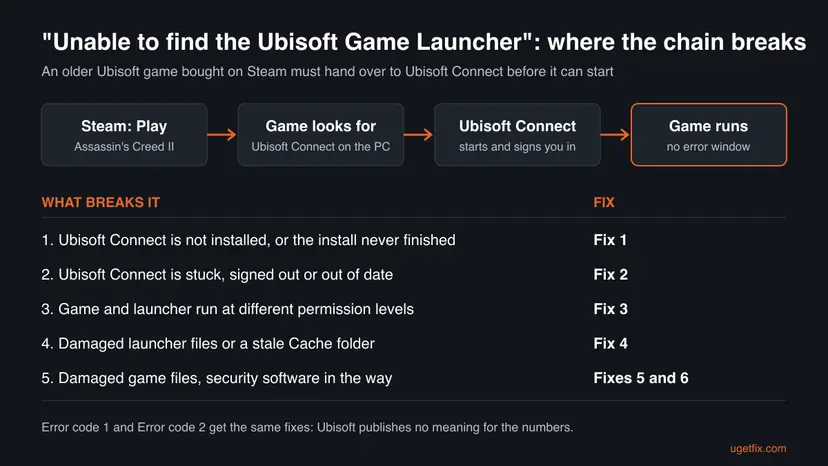
| Cause | How to tell | Fix |
|---|---|---|
| Ubisoft Connect is not installed, or its install never finished. | There is no Ubisoft Connect in the Start menu or in Installed apps. You bought the game on Steam and never installed anything else. | Fix 1 |
| Ubisoft Connect is stuck, signed out or out of date. | It is installed but sits in the background, asks you to sign in, or offers an update. | Fix 2 |
| The game and the launcher run at different permission levels. | One of them has Run this program as an administrator ticked and the other does not. | Fix 3 |
| Damaged launcher files or an old Cache folder. | Ubisoft Connect crashes, opens blank or the error came back after an update. | Fix 4 |
| Damaged or missing game files. | Ubisoft Connect opens fine and only this game fails. | Fix 5 |
| Security software blocks the launcher. | It began after you installed an antivirus, a firewall or a tune-up tool. | Fix 6 |
| A game install that cannot be repaired. | Everything above was done and the file check keeps failing. | Fix 7 |
How to fix "Unable to find the Ubisoft Game Launcher"
Fixes 1 and 2 answer most cases and take a few minutes. Fixes 3 and 4 repair the launcher, Fix 5 repairs the game, Fix 6 looks at your security software and Fix 7 reinstalls the game as a last step.
| What you see or have | Start with |
|---|---|
| You bought Assassin's Creed II on Steam and never installed Ubisoft Connect. | Fix 1 |
| Ubisoft Connect is installed but you are not sure it is running or signed in. | Fix 2 |
| You set the game or Ubisoft Connect to run as administrator. | Fix 3 |
| Ubisoft Connect crashes, opens blank or will not update. | Fix 4 |
| Ubisoft Connect works, only this game fails. | Fix 5 |
| It began after new security software. | Fix 6 |
Fix 1. Install Ubisoft Connect PC and sign in with a Ubisoft account
5 to 10 minutesNo riskEveryone whose PC has no Ubisoft Connect, above all if you bought Assassin's Creed II on Steam and installed nothing else.
Ubisoft Support's answer to this exact error on the Assassin's Creed II Steam forum: "it sounds like you do not have Ubisoft Connect launcher, which is required to play any of our games". The game cannot start until the launcher exists.
- Close the error window and make sure the game is not running.
- In a browser, open
https://ubisoftconnect.comand download Ubisoft Connect PC. - Right-click the downloaded installer and select Run as administrator. Ubisoft Help asks for administrator rights for the install.
- Follow the steps on screen and keep the default folder,
C:\Program Files (x86)\Ubisoft\Ubisoft Game Launcher. - Restart Windows. Ubisoft recommends a restart after the install.
- Open Ubisoft Connect and sign in. If you have no Ubisoft account, create one there, as Ubisoft Support advises.
- Leave Ubisoft Connect open, go back to Steam and press Play for Assassin's Creed II.
On the first start through Steam, the game opens Ubisoft Connect and asks you to sign in. Use the same Ubisoft account every time, because the Steam copy is tied to the account you sign in with.
It worked if: Ubisoft Connect opens, signs you in, and then the game's own start screen appears instead of the error.
If not: If Ubisoft Connect was already installed, or the error stays after the install, restart it properly with Fix 2.
Fix 2. Exit Ubisoft Connect fully, update it, sign in and start the game again
3 minutesNo riskUbisoft Connect is installed, but it may be stuck in the background, signed out or waiting for an update.
Ubisoft Help says that restarting the desktop app may resolve temporary issues that keep a game from starting. A launcher frozen in the background, or half way through an update, cannot answer the game's call.
- Close the game and Ubisoft Connect.
- Press Ctrl + Shift + Esc to open Task Manager.
- On Processes, select every entry named Ubisoft Connect or after the game, and select End task.
- Start Ubisoft Connect from the Start menu and let it install any update it offers.
- Check that you are signed in to your Ubisoft account.
- Press Play in Steam, or start the game from the Games page of Ubisoft Connect.
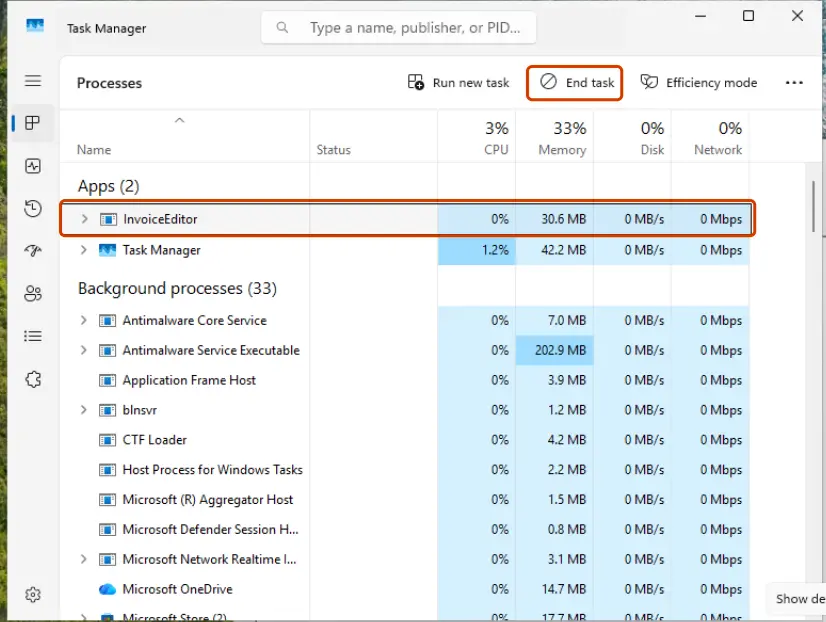
The full steps for Task Manager are here: Close a frozen app (Task Manager, Force Quit). Start the game from Steam or from a fresh desktop shortcut. Players often keep an old shortcut from before the launcher was renamed, and it may point at a folder that no longer exists.
It worked if: Ubisoft Connect opens signed in and up to date, and the game starts without the window.
If not: If the game still cannot find the launcher, check the permission levels with Fix 3.
Fix 3. Run the game and Ubisoft Connect at the same permission level
3 minutesLow riskYou ticked Run this program as an administrator for the game, for Steam or for Ubisoft Connect, or you are not sure.
Ubisoft Help recommends running Ubisoft Connect PC with administrative rights so that it has the rights it needs. A game started as administrator also cannot hand over to a launcher started as a normal user, so the two must match.
- Exit the game, Steam and Ubisoft Connect.
- Right-click the Ubisoft Connect shortcut and select Properties, then the Compatibility tab.
- Tick Run this program as an administrator and select OK.
- In Steam, right-click Assassin's Creed II and select Manage > Browse local files.
- Right-click the game's .exe file, select Properties > Compatibility and set the same box the same way.
- Start Ubisoft Connect first, sign in, then press Play in Steam.
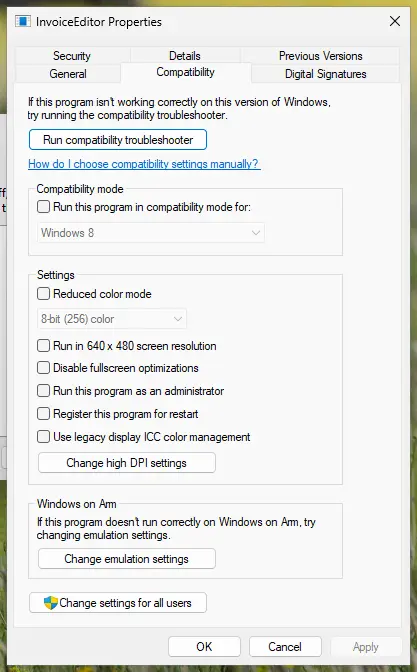
The Compatibility tab step by step: How to run a program as administrator or in compatibility mode. If you want the setting for one test only, right-click Ubisoft Connect and select Run as administrator instead of ticking the box.
It worked if: Ubisoft Connect asks for permission once, opens, and the game starts from Steam.
If not: If the error stays with both programs at the same level, the launcher's own files may be damaged. Go to Fix 4.
Fix 4. Reinstall Ubisoft Connect cleanly and delete its Cache folder
10 to 15 minutesRead the warningUbisoft Connect crashes, opens blank, will not update, or Fixes 1 to 3 did not help.
This is Ubisoft's own reinstall procedure. The Cache folder holds the launcher's stored data, and a stale copy survives a normal reinstall. Deleting it forces Ubisoft Connect to rebuild what the game asks for.
Ubisoft Help: when you uninstall the desktop app, "you will have the option to keep or remove your installed games, as well as local save files". Choose to keep both. Ubisoft also asks you to back up your save files first.
- Close Ubisoft Connect and back up your save files.
- Press Win + I and open Apps > Installed apps (on Windows 10: Apps > Apps & features).
- Find Ubisoft Connect, select Uninstall and keep your games and saves when asked.
- Open File Explorer and go to
C:\Program Files (x86)\Ubisoft\Ubisoft Game Launcher. - Delete the cache folder there. If you prefer a way back, rename it to
cache_oldinstead. - Download Ubisoft Connect PC again and run the installer as administrator, as in Fix 1.
- Restart Windows, sign in to Ubisoft Connect and press Play in Steam.
The uninstall steps with screenshots: Uninstall a program or app in Windows. If you installed Ubisoft Connect on another drive, the Cache folder is in that install folder instead.
It worked if: A fresh Ubisoft Connect opens, signs you in, and the game starts without the error.
If not: If the launcher now works but this one game still fails, repair the game's files with Fix 5.
Fix 5. Verify the game files in Steam or in Ubisoft Connect
5 to 20 minutesLow riskUbisoft Connect opens and works, and only Assassin's Creed II or one other game fails.
The game finds the launcher through files in its own folder. If one is damaged or missing, the hand-over fails. Ubisoft Help lists file verification for a game that will not start, followed by an update of the files.
Steam copy: right-click the game in the Library, select Properties > Installed Files > Verify integrity of game files. The other launchers work the same way:
- Restart and open Steam. Restart your computer and launch Steam.
- Open the game's menu. Right-click the game in your Library, or open the game's Library page and select the gear icon on the far right.
- Open Properties. Select Properties in the menu.
- Verify the files. Select the Installed Files tab and select Verify integrity of game files.
- Wait for the result. Steam checks the game's files. This can take several minutes.
These steps were written for Steam on Windows. The full page with the other versions and what each result means: How to verify game files in Steam, Epic Games, Xbox app, EA app, Battle.net and GOG Galaxy
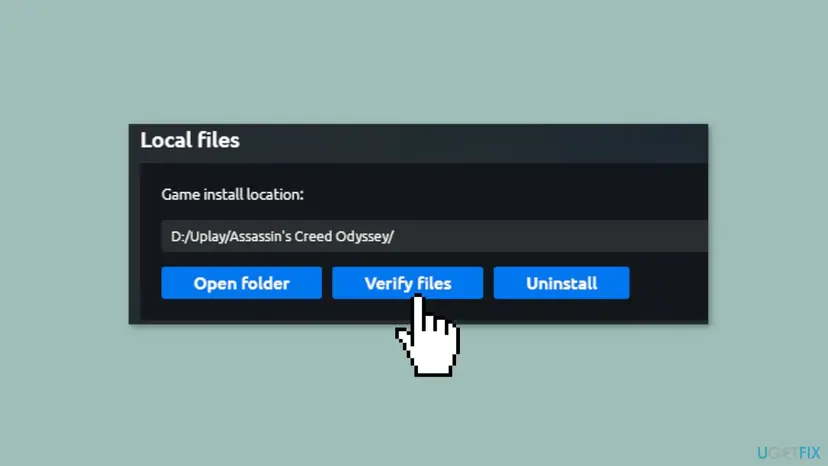
- Ubisoft Connect copy: open Ubisoft Connect and select Games.
- Right-click the game and select Properties.
- Under Local files, select Verify files.
- If the check offers a repair, accept it. Ubisoft Help then asks you to select Update before you start the game.
It worked if: The check ends with the files valid or repaired, and the game starts.
If not: If the files check out and the error stays, look at your security software with Fix 6.
Fix 6. Let Ubisoft Connect through your security software
5 minutesLow riskThe error began after you installed an antivirus, a firewall or a tune-up tool, or Fixes 1 to 5 did not help.
Ubisoft Help asks players to make sure that Ubisoft Connect PC is not being blocked by security software such as a firewall or an antivirus. A blocked launcher cannot start or answer the game.
- Open your antivirus and look in its quarantine or history for anything from the Ubisoft or game folder. Restore it if it is there.
- Add
C:\Program Files (x86)\Ubisoft\Ubisoft Game Launcherto the exceptions. - Add the game's folder too. In Steam, Manage > Browse local files shows where it is.
- Restart Ubisoft Connect and press Play.
- If you cannot add exceptions, pause protection for one test launch and turn it back on at once: Turn off Microsoft Defender protection for a moment
If the game starts only while protection is paused, the answer is a lasting exception for the two folders. Turn real-time protection back on straight after the test.
It worked if: The game starts with your security software running.
If not: If nothing was blocked and the error stays, reinstall the game with Fix 7.
Fix 7. Uninstall and reinstall the game
20 to 40 minutes, by your connectionRead the warningFixes 1 to 6 did not help, or the file check in Fix 5 keeps failing.
The message itself asks you to reinstall the game. It is the last step because it takes longest, but a fresh install also writes the game's link to the launcher again.
An uninstall can remove local save files. Copy them to another folder first, or check that cloud saves are on in Ubisoft Connect.
- Make sure Ubisoft Connect is installed, up to date and signed in.
- In Steam, right-click the game and select Manage > Uninstall.
- Restart Windows.
- Install the game again from the Steam Library.
- Start Ubisoft Connect, sign in, then press Play in Steam.
It worked if: The fresh install starts, Ubisoft Connect signs you in and the game opens.
If not: Contact Ubisoft Support as described in the next section.
If the game still cannot find the Ubisoft Game Launcher: what to send to support
We found no log file that Ubisoft documents for this message: the game shows the window and closes. What helps support is the exact text, the error number, where you bought the game and what you have tried. Ubisoft Help asks for DxDiag and MSInfo reports with a support case.
- Take a screenshot of the error window, with the error code line.
- Press Win + R, type
dxdiag, press Enter and select Save All Information. - Press Win + R, type
msinfo32, press Enter and select File > Export. - Note where you bought the game (Steam, Ubisoft Store) and which fixes on this page you tried.
- Open a case at Ubisoft Help and attach the files. Ubisoft also answers on the game's Steam forum in English.
- When it is the account: Ubisoft Connect signs in, but the game is not in the account's library. Your Steam copy may be linked to another Ubisoft account. Only Ubisoft Support can check that.
- When it is a modified copy: a game started with a patched .exe or a no-launcher patch will not find the launcher. No fix on this page applies to it. See the FAQ.
- When it is the drive: the files fail to verify again soon after Fix 5. Check the drive that holds the game.
How to keep the Ubisoft Game Launcher error from coming back
- Keep Ubisoft Connect installed while you own older Ubisoft games, even if you bought them on Steam.
- Let Ubisoft Connect finish its updates before you press Play.
- Sign in with the same Ubisoft account every time.
- Start games from Steam or Ubisoft Connect, or from shortcuts they create.
- Keep the Ubisoft folder in your antivirus exceptions.
- Do not uninstall Ubisoft Connect to tidy up the PC while those games are installed.
- Do not tick Run this program as an administrator for only one of the game and the launcher.
- Do not move the game folder by hand. Use the launcher to move or reinstall it.
- Do not use no-launcher patches or modified .exe files.
The same idea holds for other launchers. A Steam game that needs Steam running fails in a similar way, which our guide to the "Steam must be running to play this game" error explains.
Frequently asked questions
How do I fix "Unable to find the Ubisoft Game Launcher, please reinstall Assassin's Creed 2"?
Install Ubisoft Connect PC, sign in and start the game again. That was Ubisoft Support's answer to players with this message on the Assassin's Creed II Steam forum: the launcher "is required to play Assassin's Creed II". Download it from https://ubisoftconnect.com, run the installer as administrator, restart Windows and sign in with a Ubisoft account. Then press Play in Steam. If Ubisoft Connect was already there, end it in Task Manager, start it again and let it update. Reinstalling the game, which the message asks for, is the last step, not the first.
What do Error code 1 and Error code 2 mean in the Ubisoft Game Launcher?
We could not confirm a meaning for either number. Ubisoft publishes no list for these codes, and players report both under the same message, "Unable to find the Ubisoft Game Launcher". Ubisoft Support answered an Assassin's Creed II player with Error code 2 the same way: install Ubisoft Connect. So treat both codes as the same problem. Start with Fix 1 and Fix 2. If you contact Ubisoft Support, give them the exact code you see, because they may know more about a given case.
Do I need Ubisoft Connect for Assassin's Creed 2 on Steam?
Yes. Ubisoft Support says on the game's Steam forum that the Ubisoft Connect PC client is required to play Assassin's Creed II, and to play any of its games. The Steam copy starts Ubisoft Connect, which checks your Ubisoft account. You need a free Ubisoft account and Ubisoft Connect installed on the same PC. You can still buy and start the game through Steam. Keep both programs installed, and sign in to Ubisoft Connect with the same account each time.
Is the Ubisoft Game Launcher the same as Ubisoft Connect?
Yes. The Ubisoft Game Launcher was the first name of Ubisoft's desktop app. It was renamed Uplay and is now Ubisoft Connect PC. Older games still use the first name in their error messages. The install folder kept it too: by default Ubisoft Connect lives in C:\Program Files (x86)\Ubisoft\Ubisoft Game Launcher. So when a game says it cannot find the Ubisoft Game Launcher, it means Ubisoft Connect, and installing or repairing Ubisoft Connect is the fix.
Why does the error stay even though Ubisoft Connect is installed?
Because the game also needs the launcher to start and answer. A copy stuck in the background, signed out, waiting for an update or blocked by security software looks missing to the game. A different permission level can do the same. End every Ubisoft Connect process in Task Manager, start it again, update it and sign in (Fix 2). Then make the administrator setting match for the game and the launcher (Fix 3). If it still fails, do Ubisoft's clean reinstall with the Cache folder deleted (Fix 4).
Where is the Ubisoft cache folder, and is it safe to delete?
Ubisoft Help gives its place as the Ubisoft Connect install folder, by default C:\Program Files (x86)\Ubisoft\Ubisoft Game Launcher. Inside it, the folder is named cache. Ubisoft's own reinstall steps delete it, so it is meant to be removed: Ubisoft Connect builds it again. Close Ubisoft Connect first. If you want a way back, rename the folder to cache_old instead of deleting it. Your games and saves are not in it. Fix 4 has the full steps.
How do I repair Ubisoft Connect?
Ubisoft Connect has no separate repair button that we could confirm. Ubisoft's repair is a reinstall. Close the launcher, back up your saves, uninstall it from Windows and keep your games and save files when it asks. Then delete the Cache folder in the install folder, install it again with administrator rights and restart. Fix 4 walks through it. To repair one game instead of the launcher, use Verify files in the game's Properties in Ubisoft Connect, or the file check in Steam (Fix 5).
Does the same fix work for Far Cry 3, Brotherhood and other older Ubisoft games?
In most cases, yes. Players report the same "Unable to find the Ubisoft Game Launcher" window for Assassin's Creed Brotherhood, Far Cry 3 and Splinter Cell: Conviction, with the game's name in the text. These games use the same launcher check as Assassin's Creed II. Install or restart Ubisoft Connect, sign in and start the game again. Ubisoft Support says the launcher is required to play any of its games. We did not find a game-specific fix from Ubisoft for these titles, so the order of the fixes stays the same.
What does "Unable to start the game" mean in Ubisoft Connect?
It is a close cousin of this error. Here Ubisoft Connect runs, but it cannot start the game, or it cannot locate it. Ubisoft Help gives three steps for it. First restart Ubisoft Connect. Then verify the game files and select Update after the check. Finally reinstall Ubisoft Connect. Those are Fixes 2, 5 and 4 on this page. If the game was moved to another folder or drive, Ubisoft Connect may look for it in the old place, so a file check or a reinstall puts the link right.
Can I play Assassin's Creed 2 without the Ubisoft launcher?
Not with a legal copy. The Steam and Ubisoft Store versions check your licence through Ubisoft Connect each time they start. Patches that remove the launcher check come from piracy sites, change the game's .exe and can carry malware. A player on the game's Steam forum reported that such a patch did not help. Ubisoft Support's answer there was to install Ubisoft Connect. Ubisoft Connect is free and needs only a free Ubisoft account, so that is the way to play.
Sources
- Ubisoft Help: Installing or re-installing Ubisoft Connect PC (install with administrator rights, restart, keep games and saves, delete the Cache folder, default install folder) (ubisoft.com)
- Ubisoft Help: Error message "Unable to start game" / "Unable to locate game" when launching a game in Ubisoft Connect PC (ubisoft.com)
- Steam Community, Assassin's Creed II Player Support: "unable to find the ubisoft game launcher" (October 2021, answers by Ubisoft Support staff; player posts used only as reports) (steamcommunity.com)
Did this fix work?
One click, no account. It tells the next reader which guides are worth their time.
Questions and experiences: fix "Unable to find the Ubisoft Game Launcher" error in Windows
Still broken, or found a fix we did not cover? Ask here: members and our editors answer. Reading is open; writing needs a free account.
…