
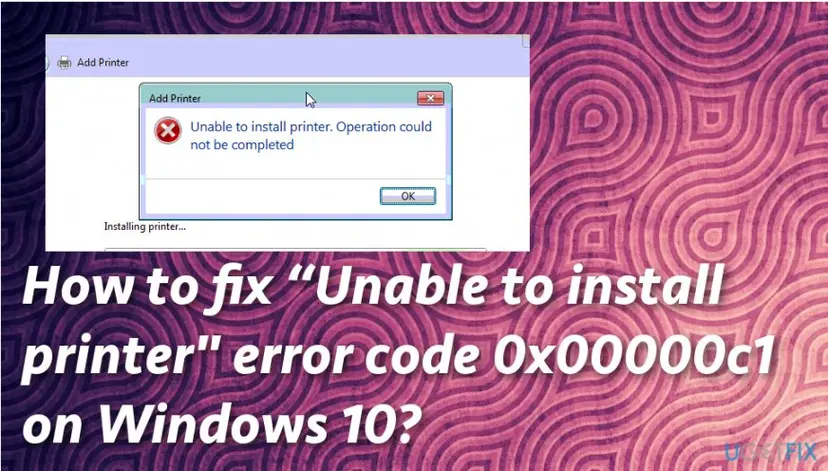
How to fix "Unable to install printer" error code 0x00000c1 on Windows 10?

Prefer to fix it yourself? The manual steps follow.
- 7methods
- 5 to 40 minutes
- Intermediate
Applies to Windows 10 and Windows 11 PCs that fail to add a USB, network or shared printer; older reports cover Windows 7 and Windows Vista
7 methods in this guide
- What the error means
- Causes, ranked
- Windows 10 and Windows 11
- The fixes
- 1. Match the driver to your PC
- 2. Remove the failed driver
- 3. Use the Windows driver
- 4. Restart the Print Spooler
- 5. Reset the driver records
- 6. Clean boot installation
- 7. System files and updates
- Still there: what to check
- Keep it from coming back
- FAQ
Hello, I've been trying to install a printer on my Windows 10 PC, on which, by the way, all available updates were installed about a week ago. The system does not accept the printer and gives me error code 0x00000c1. What does it mean? I can't find any useful information on the net, so I would highly appreciate your help!
Error 0x00000c1 (Windows writes 0x000000c1) stops the Add Printer wizard with "Unable to install printer". It is Windows error 193: a printer driver file is not a valid program for this PC, most often because it was built for another system type. Check whether your Windows is 64-bit or ARM first, then install the matching driver.
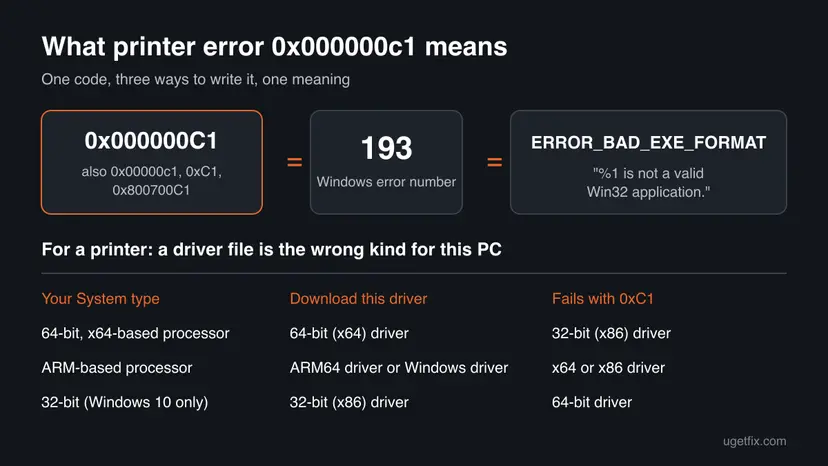
0x00000c1 is Windows error 193, ERROR_BAD_EXE_FORMAT: "%1 is not a valid Win32 application." With a printer it means a driver file does not fit your PC, usually a 32-bit driver on 64-bit Windows or an x64 driver on an ARM PC. Read System type in Settings > System > About (Fix 1), remove the failed driver (Fix 2), then install the driver for that system type or let Windows pick its own (Fix 3).
| Error | Unable to install printer. Operation could not be completed (error 0x000000c1). The number is Windows system error 193, ERROR_BAD_EXE_FORMAT: "%1 is not a valid Win32 application." |
|---|---|
| Where it appears | In the Add Printer wizard while it says "Installing printer", in a manufacturer's setup program, and in older reports as "Windows can't open Add Printer" with the same code. |
| Main cause | A printer driver file built for another system type: a 32-bit (x86) driver on 64-bit Windows, an x64 driver on an ARM PC, or a damaged file left by an earlier attempt. |
| Fastest fix | Check System type (Fix 1), remove the failed driver with printui /s /t2 (Fix 2) and install the driver that matches your system type (Fix 3). |
| Also written as | 0x00000c1, 0x000000c1, 0x000000C1, 0xC1, error 193, and as an HRESULT 0x800700C1, which wraps the same error 193. |
| Affects | Windows 10 and Windows 11, every printer brand. The oldest reports are from Windows Vista and Windows 7. Windows 10 support ended on 14 October 2025. |
| Microsoft's status | No Microsoft article describes this code for printers. Microsoft documents the meaning of error 193 and tells you to download a driver that matches your Windows version and your system type. |
| Needs an administrator | Yes, for removing and installing printer drivers and for the registry steps. |
| Time to fix | 5 to 15 minutes for Fix 1 to Fix 3. Up to 40 minutes when the spooler's driver records have to be reset (Fix 5). |
Facts checked on 15 October 2026. Steps written for Windows 11 (25H2 and 26H2) and Windows 10 22H2.
What "Unable to install printer" error 0x000000c1 means
0x000000c1 is a hexadecimal number. In decimal it is 193, and Microsoft's list of system error codes names it ERROR_BAD_EXE_FORMAT with the text "%1 is not a valid Win32 application." The %1 stands for a file name that Windows fills in elsewhere. The message box of the Add Printer wizard does not show it, so you only see the code.
The error means that Windows tried to load a program file and found it was not a program it can run. A printer driver is a set of such files: DLLs that the Print Spooler loads into its own process. When one of them is built for another processor type, or is cut short, the spooler cannot load it and the installation stops.
Windows writes eight digits after 0x: 0x000000c1. The old title of this page and many searches use seven, 0x00000c1, and some write 0xC1. Zeros in front do not change a number, so all of them are error 193. An HRESULT form, 0x800700C1, also turns up in logs and setup programs: the last four digits carry the same error 193.
Why Windows is unable to install the printer: causes of 0x00000c1, ranked
Microsoft gives no printer-specific cause for this code. The ranking below follows from what error 193 means and from Microsoft's own advice for printer driver trouble, which is to use a driver that matches your Windows version and your system type. It runs from the common to the rare.
| # | Cause | How to recognise it | Fix |
|---|---|---|---|
| 1 | The driver is for another system type: 32-bit on 64-bit Windows, x64 on an ARM PC, or a package for an older Windows | The driver came from a disc, an old download or a file that names Windows 7, XP or 32-bit. System type shows 64-bit or ARM. | Fix 1, Fix 3 |
| 2 | A failed or half-installed driver of this model is still registered, and Windows reuses it | The error came back after you downloaded the right driver | Fix 2 |
| 3 | No suitable maker's driver exists for your PC | The maker offers nothing for Windows 11, or nothing for ARM | Fix 3 (the Windows driver) |
| 4 | The Print Spooler holds an old copy of the driver in memory, or it is stopped | The error started after an update or after a cancelled setup | Fix 4 |
| 5 | The spooler's driver records in the registry point to wrong or missing files | Every printer model fails, also a driver from the Windows list | Fix 5 |
| 6 | A Windows file that the spooler needs is damaged | Other parts of Windows misbehave too | Fix 7 |
The reader's case at the top of this page, an error after a week of updates on Windows 10, fits cause 1 or cause 4. Updates rarely change which driver fits, but they restart the spooler and can expose an old 32-bit package that a previous Windows put up with.
Error 0x00000c1 on Windows 10 and Windows 11: what differs
The code means the same on both systems, and the fixes are the same. What differs is which drivers can fit at all, and that is the whole point of this error.
| Your PC | Drivers that can load | What to watch |
|---|---|---|
| Windows 11 | 64-bit (x64) drivers, or ARM64 drivers on an ARM PC | Windows 11 exists only in 64-bit form, so a 32-bit printer driver never fits |
| Windows 10, 64-bit | 64-bit (x64) drivers | The most common case for this error: a 32-bit driver from an old disc |
| Windows 10, 32-bit | 32-bit (x86) drivers | A 64-bit driver gives the same error the other way round |
| Windows on ARM (for example a Copilot+ PC) | ARM64 drivers, or the drivers Windows installs by itself | Many makers offer x64 packages only. Use Fix 3. |
Microsoft ended support for Windows 10 on 14 October 2025. The PC still prints, but it no longer gets fixes for the print components. Where a menu path differs between the two systems, the steps below give both.
How to fix error 0x00000c1: seven fixes in order
Fix 1 to Fix 3 match the driver to your PC, and they solve most cases. Fix 4 and Fix 5 clean up the Print Spooler and its records. Fix 6 and Fix 7 are the general checks when nothing specific helped.
| What you see or have | Start with |
|---|---|
| The driver came from a disc, an old download, or a file marked 32-bit or for an older Windows | Fix 1 |
| You already installed the right driver and the code still appears | Fix 2 |
| An ARM PC, or the maker has no driver for your Windows | Fix 3 |
| The error started after a Windows update or a cancelled setup | Fix 4 |
| Every printer model fails, also with drivers from the Windows list | Fix 5 |
| It works on another PC, or old printer software is still installed | Fix 6 |
| The Print Spooler stops by itself, or Windows has other faults | Fix 7 |
Fix 1. Check your system type and get the driver that matches it
5 minutesNo riskFor everyone who sees the code, before anything else.
Error 193 says a file is not a valid program for this PC. For a printer that nearly always means the driver package was built for another processor type, and Microsoft's own advice is a driver that matches your Windows version and your system type.
- Select Start > Settings > System > About.
- Under Device specifications, read System type: "64-bit operating system, x64-based processor", "ARM-based processor" or, on Windows 10 only, "32-bit operating system".
- Look at the driver you tried. A file name or download page that says x86, 32-bit, Windows XP or Windows 7 does not fit a 64-bit or ARM PC.
- Go to the support site of the printer's maker and search for the exact model printed on the printer.
- Download the newest driver for your Windows version and your system type. For an ARM PC, look for ARM64; if there is none, go to Fix 3.
Microsoft's support page on driver compatibility says to avoid drivers marked for older or unsupported Windows versions unless no newer drivers are available. An old disc in the printer's box is the most common way a 32-bit driver gets onto a 64-bit PC.
Do not install yet if an attempt has already failed: remove the failed driver first with Fix 2, or Windows may pick up the wrong copy again. Starting a setup program with administrator rights: How to run a program as administrator or in compatibility mode
It worked if: You have a driver package that names your Windows version and your system type.
If not: If a matching driver already failed with the same code, go to Fix 2 and then Fix 3.
Fix 2. Remove the failed driver and its package, then install again
10 minutesLow riskThe code appeared once already, or it returns with a driver that should fit. Needs an administrator.
A new installation does not start from zero: Windows finds the driver already registered for the model and tries to reuse it. If that copy is the wrong kind, it fails with 0xC1 every time, whatever you download. Removing the driver and its package forces a clean start.
- Open Settings > Bluetooth & devices > Printers & scanners. On Windows 10 it is Settings > Devices > Printers & scanners.
- Select the printer that fails, if it is listed, and select Remove (Windows 10: Remove device).
- Press Win + R, type
printui /s /t2and press Enter. The print server properties open on the Drivers tab. - Select the driver of your printer model and select Remove.
- Choose Remove driver and driver package, then select OK and confirm.
- If Windows says the driver is in use, restart the Print Spooler as in Fix 4 and repeat steps 4 and 5.
- Restart the PC and install the driver you got in Fix 1, as an administrator.
The Drivers tab lists each driver with its processor, for example x64 or x86. A driver of your printer marked x86 on a 64-bit PC is the cause found. If the buttons are greyed out, close the box and run the same command from an administrator Command Prompt.
If the package refuses to go, our guide to printer error 0x000003eb shows how to delete it from the Driver Store with pnputil.
It worked if: The driver is gone from the Drivers tab, and the new installation runs to the end without the code.
If not: If the right driver still fails, let Windows choose its own driver with Fix 3.
Fix 3. Let Windows install its own driver for the printer
5 to 10 minutesNo riskAn ARM PC, a maker with no driver for your Windows, or a maker's driver that fails whatever you do.
A driver that Windows installs by itself always fits your system type, because Windows only offers what can run on your PC. Microsoft's compatibility steps start with letting Windows install a compatible driver before you go to the maker.
- Remove the failed printer and driver as in Fix 2.
- Switch the printer on and connect it to the PC or to the same network.
- Open Settings > Bluetooth & devices > Printers & scanners (Windows 10: Settings > Devices > Printers & scanners).
- Select Add device (Windows 10: Add a printer or scanner) and wait for the printer to appear.
- Select it and let Windows install the recommended driver.
- If the printer was already added, select it, then Manage, then Update driver, as Microsoft's page describes.
- Print a test page.
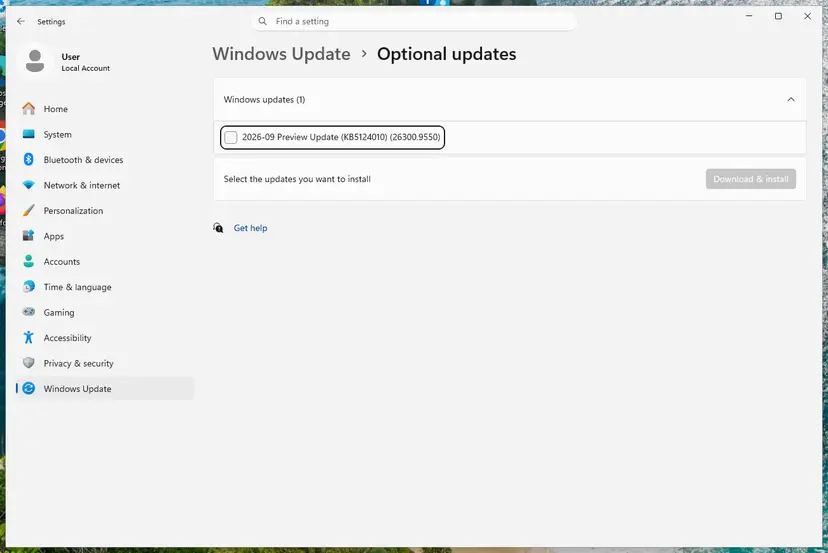
What you may lose with the Windows driver are the extras of the maker's software, such as ink level tools. Printing itself works. All the ways to update or roll back a driver: Update, roll back or reinstall a driver
It worked if: The printer appears under Printers & scanners without any setup program, and the test page prints.
If not: If Windows finds no driver or the same code appears, the spooler itself needs attention: go to Fix 4.
Fix 4. Restart the Print Spooler and set it to start automatically
3 minutesNo riskThe error started after an update or a cancelled setup, or the printer list is empty.
The Print Spooler loads printer driver files into memory and keeps them there. A restart drops a wrong copy that it still holds. If the service is stopped or set to Manual, no printer can be installed at all.
- Press Win + R, type
services.mscand press Enter. - Find Print Spooler in the list and double-click it.
- Set Startup type to Automatic.
- If Service status says Stopped, select Start. If it says Running, select Stop, then Start.
- Select OK and try the installation again.
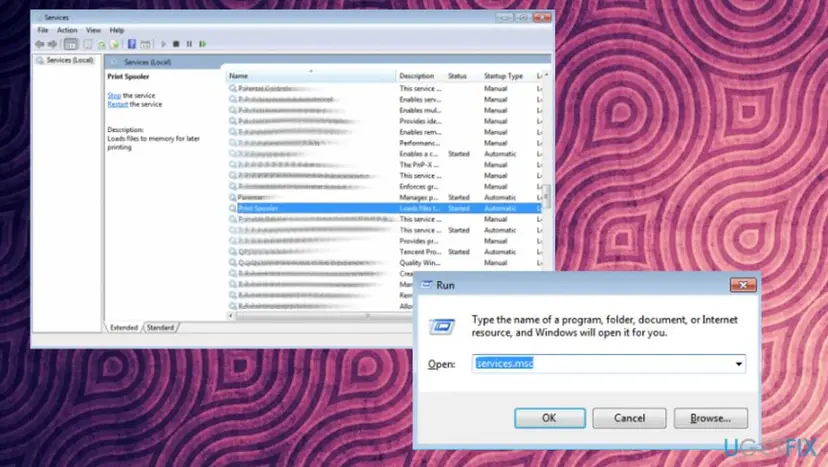
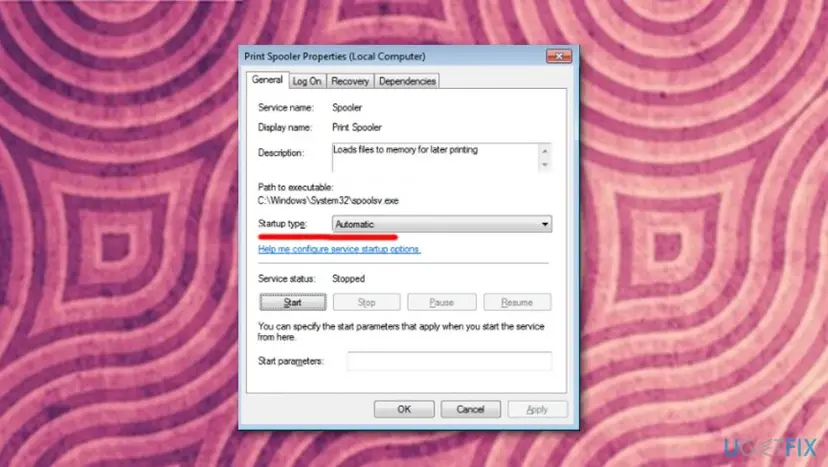
Where the Services window is and what each command in it does: Check and restart Windows services
It worked if: Print Spooler shows Running and Automatic, and the printer installs.
If not: If the spooler stops again by itself or every model still fails, reset its driver records with Fix 5.
Fix 5. Reset the spooler's driver records in the registry and the drivers folder
20 to 40 minutesRead the warningEvery printer model fails, or a driver stays on the Drivers tab and cannot be removed. Needs an administrator.
The spooler keeps a registry key for each classic driver and the driver's files in a folder. When a key points to files of the wrong kind, every attempt to load that driver fails with error 193, and the removal tools of Fix 2 can fail too.
Deleting the driver keys removes those drivers, so every printer that uses them must be installed again. Export the whole Print key before you change anything and keep the renamed folder until all printers work. How to export and import a key: Back up the registry before editing it
- Remove the printers that fail under Printers & scanners, as in Fix 2.
- Open Command Prompt as administrator and run
net stop spooler. - Run the export command shown below. It writes the backup file to your desktop.
- Press Win + R, type
regeditand select OK. Go to the key for your system type shown below. - Under Version-3, right-click the key with the name of the failing driver and select Delete.
- In File Explorer, open
C:\Windows\System32\spool\drivers\x64(32-bit Windows 10:W32X86) and rename the folder3to3.old. - Run
net start spoolerand install the printer again with Fix 1 or Fix 3.
Step 3: back up the whole Print key
reg export "HKLM\SYSTEM\CurrentControlSet\Control\Print" "%USERPROFILE%\Desktop\print-backup.reg"Step 4: 64-bit Windows (first line) and 32-bit Windows 10 (second line)
HKEY_LOCAL_MACHINE\SYSTEM\CurrentControlSet\Control\Print\Environments\Windows x64\Drivers\Version-3
HKEY_LOCAL_MACHINE\SYSTEM\CurrentControlSet\Control\Print\Environments\Windows NT x86\Drivers\Version-3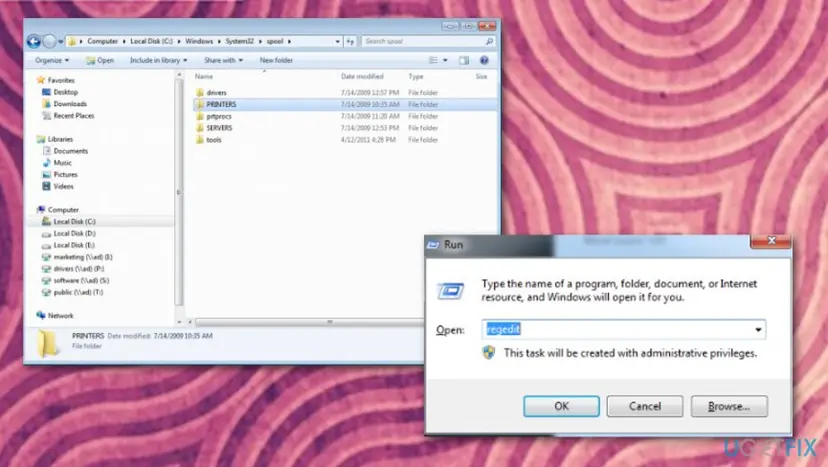
- A correction to the earlier version of this guide. It deleted the contents of
spool\drivers\w32x86on every PC. On 64-bit Windows the driver files are underx64, and deleting files is never needed: renaming keeps the way back. - Undo. Stop the spooler, remove the new
3folder if Windows made one, rename3.oldback to3, double-clickprint-backup.regand start the spooler. - Leave alone the keys Version-4 and Print Processors, and the keys with Microsoft in their name.
It worked if: The spooler starts, the old entries are gone from the Drivers tab, and the printer installs.
If not: If the spooler does not start, undo the reset as described above and continue with Fix 6.
Fix 6. Install in a clean boot after removing old printer software
15 to 20 minutesLow riskYou replaced a printer of another brand, or the same driver installs on another PC.
Old printer suites leave services and helpers that register their own files with the spooler. If one of them is a 32-bit leftover, the spooler can trip over it while it installs your new driver. A clean boot starts Windows without programs from other companies.
- Open Settings > Apps > Installed apps (Windows 10: Apps & features) and uninstall the software of printers you no longer own.
- Restart the PC.
Removing a program completely: Uninstall a program or app in Windows. Then start Windows in a clean boot:
- Open System Configuration. Select Search on the taskbar, type msconfig and select System Configuration from the results.
- Hide Microsoft services. On the Services tab, select the Hide all Microsoft services check box. Only services from other companies stay in the list.
- Disable the remaining services. Select Disable all, then select Apply.
- Open Task Manager. On the Startup tab of System Configuration, select Open Task Manager.
- Disable the startup apps. On the Startup apps tab in Task Manager, select each item whose status is Enabled and select Disable. Write down or take a screenshot of the items you disable: you need the list to turn them back on.
- Confirm the changes. Close Task Manager. On the Startup tab of System Configuration, select OK.
- Restart and test. Restart the PC. Windows now starts in a clean boot environment: try again the thing that failed (run the app, install the update, uninstall the program).
These steps were written for Windows 11 25H2 and 26H2. The full page with the other versions and what each result means: How to perform a clean boot in Windows
- In the clean boot, install the driver from Fix 1 once more.
- Afterwards, switch everything back on: Enable all on the Services tab of System Configuration, enable the startup apps and restart.
It worked if: The same driver now installs, and the printer still works after a normal restart.
If not: If the code appears in a clean boot too, go to Fix 7.
Fix 7. Repair Windows system files and install pending updates
20 to 40 minutesNo riskNothing above helped, the Print Spooler stops by itself, or Windows has other faults.
The spooler and the Add Printer wizard are Windows files. If one of them is damaged, Windows can report the same error 193 for its own file, whatever driver you choose. The system file check replaces damaged copies.
- Open an elevated command window. Right-click Start and select Terminal (Admin), or type cmd in the search box, right-click Command Prompt and select Run as administrator. Select Yes when Windows asks for permission.
- Run DISM first. Type the command below and press Enter. DISM downloads clean copies of damaged components from Windows Update, so it can take several minutes. Wait until it says The operation completed successfully.
DISM.exe /Online /Cleanup-Image /RestoreHealth - Run System File Checker. In the same window, type the command below and press Enter. Do not close the window until the verification reaches 100%.
sfc /scannow - Read the result and restart. Compare the last message with the table below this guide, then restart the PC so that repaired files are loaded.
These steps were written for Windows 11 24H2 and 25H2. The full page with the other versions and what each result means: Run DISM and SFC to repair Windows system files
- Open Settings > Windows Update (Windows 10: Settings > Update & Security > Windows Update) and select Check for updates.
- Install what is offered, restart, and install the printer again with Fix 1.
It worked if: The system file check reports that it repaired files or found none damaged, and the printer installs.
If not: Read the logs listed under "If the error is still there" and take them to the printer maker's support.
If error 0x000000c1 is still there: where to look and what to send to support
The message box hides the name of the file that failed to load. Two places on your PC record more, and three tests tell you which side to work on.
- Type event viewer in the search box and open Event Viewer.
- Open Applications and Services Logs > Microsoft > Windows > PrintService > Admin and look for errors at the time of your attempt. An entry may name the DLL that could not load.
- Open
%SystemRoot%\inf\setupapi.dev.login Notepad and go to the end, where the last driver installation is recorded.
| Test | Result | What it means |
|---|---|---|
| Add a different printer model with a driver from the Windows list | It installs | The spooler is fine. Your model's driver is the wrong kind: Fix 1 to Fix 3. |
| Install the same download on another PC with the same system type | It fails there too | The package does not fit that system type. Ask the maker for the right one or use Fix 3. |
| Every model fails, including Windows' own drivers | It fails | The spooler's records or files are damaged: Fix 5 and Fix 7. |
- Another place a wrong file can sit. Besides drivers, the spooler loads port monitors and print processors that printer software adds under
HKLM\SYSTEM\CurrentControlSet\Control\Print. Our reading of the code is that a 32-bit one of these would stop the spooler the same way. We could not confirm this from a Microsoft document, so leave these keys to the maker's support or an administrator. - What to send to support: the exact message, the printer model, the driver file name and version, your Windows version and System type, and the PrintService events.
- It is not the printer's hardware. The error comes before a single page is sent, so a cable, ink or paper problem cannot cause it.
How to keep error 0x00000c1 from coming back
- Check System type before you download any printer driver.
- Download the driver from the maker's site on the day you install it, for your Windows version and system type.
- Remove an old printer together with its driver package (Fix 2) before you add a new one.
- On an ARM PC, try Add device and the Windows driver first.
- Do not install from the disc in the box when a newer package exists.
- Do not install a driver marked for Windows XP or Windows 7 on Windows 10 or Windows 11 unless nothing newer exists.
- Do not delete files in the
spool\driversfolders with File Explorer. Use the Drivers tab, or rename as in Fix 5. - Do not leave the PC in a clean boot after the test.
One habit prevents most repeats: treat the driver as a program with a system type, just like any other software. A 64-bit PC needs a 64-bit driver, and an ARM PC needs an ARM64 driver or the one Windows provides.
Frequently asked questions
What does error 0x00000c1 mean?
It is Windows system error 193, which Microsoft names ERROR_BAD_EXE_FORMAT with the text "%1 is not a valid Win32 application." Windows tried to load a program file and found it was not one it can run. With a printer, the file is almost always part of the printer driver, and the usual reason is that the driver was built for another system type, such as 32-bit Windows. Fix 1 shows how to check which driver your PC needs.
Is 0x00000c1 the same error as 0x000000c1?
Yes. Windows writes eight digits after 0x, so the full form is 0x000000c1. The seven-digit 0x00000c1, the short 0xC1, and capital or small letters are the same number, error 193. The form 0x800700C1 is the same error 193 packed as an HRESULT, which setup programs and logs often use. Do not mix it up with 0x000000c2 or similar codes, which are different errors.
Does error 0x00000c1 appear on Windows 11 too?
Yes. The code and the fixes are the same on Windows 10 and Windows 11. On Windows 11 it is even easier to understand, because Windows 11 exists only in 64-bit form: a 32-bit printer driver cannot work there at all. On an ARM PC running Windows 11, an x64 driver from the maker can fail the same way, so try the driver Windows installs by itself, as in Fix 3.
How do I know if I need a 32-bit or a 64-bit printer driver?
Open Settings > System > About and read System type under Device specifications. "64-bit operating system, x64-based processor" needs a 64-bit (x64) driver. "ARM-based processor" needs an ARM64 driver or the driver Windows offers. "32-bit operating system" appears only on Windows 10 and needs a 32-bit (x86) driver. Microsoft's support page on printer driver compatibility gives the same step: match the driver to your Windows version and system type.
What does "Unable to install printer. Operation could not be completed" mean without a code?
It is the general message of the Add Printer wizard when the driver installation fails. The code in brackets says why. With 0x000000c1, a driver file is the wrong kind for the PC. Other codes point elsewhere: our guide to printer error 0x000003eb covers the case where the driver installation simply cannot complete. If you see no code at all, the steps of Fix 2 and Fix 3 are still a good start.
What does error code 0x800700c1 mean?
0x800700C1 is the same Windows error 193 written as an HRESULT, the form many programs and installers use. The 8007 part says the error comes from Windows itself. The C1 part is 193, which Microsoft describes as "%1 is not a valid Win32 application". In a printer setup program it has the same cause as on this page: a driver or helper file built for another system type. In other programs it means the program tried to start a file of the wrong kind.
What does "Cannot install new boot files. Error: 0x000000c1" mean?
That is the same error number in a different place, not a printer problem. The boot files tool reports error 193 when a file it should copy or run is not valid for the PC. We have not checked this case, so this page does not give fixes for it. What carries over is the meaning: look for a file or a tool of the wrong kind, for example one from a different Windows version or processor type.
Can I fix 0x00000c1 without an administrator password?
Only in part. Installing and removing printer drivers needs administrator rights, and so do the registry and the Print Spooler. A standard user can try Add device and hope Windows already has a fitting driver, as in Fix 3. You can also collect the facts for the administrator: the exact message, the printer model, the driver file you used and your System type. On a work PC, do not try to get around the limit.
Do I need to scan for malware to fix this printer error?
Not as a first step. Error 193 has a clear technical meaning, a file of the wrong kind, and the fixes above deal with it directly. The earlier version of this page started with a system scan, but we found no source that ties malware to this code. A scan with your security program is still sensible if Windows shows other odd behaviour, and it does no harm. Leave your protection on while you install the printer.
Is this guide in other languages?
No, this page is in English, but the code is the same in every language of Windows. Searches such as "0x000000c1 принтер" (printer, in Russian) or "lỗi gì đây" (what error is this, in Vietnamese) lead to the same answer: the printer driver does not fit the PC's system type. The steps work on any language version; the menu names are translated, but the commands printui /s /t2 and services.msc are the same.
Sources
- Microsoft Learn: System Error Codes (0-499), ERROR_BAD_EXE_FORMAT 193 (0xC1) (learn.microsoft.com)
- Microsoft Support: Fix printer driver compatibility issues in Windows (support.microsoft.com)
Did this fix work?
One click, no account. It tells the next reader which guides are worth their time.
Questions and experiences: fix "Unable to install printer" error code 0x00000c1 on Windows 10
Still broken, or found a fix we did not cover? Ask here: members and our editors answer. Reading is open; writing needs a free account.
…