
How to fix Victoria 3 crashing or not responding on Windows 11 and 10

Prefer to fix it yourself? The manual steps follow.
- 6methods
- 5 to 30 minutes
- Easy
Applies to Victoria 3 for PC (Steam app 529340) on Windows 11 and Windows 10, with or without mods and DLC
6 methods in this guide
Hi, I have recently purchased Victoria 3 on Steam and was excited to play it. Unfortunately, I did not have a very good time, as it just kept crashing to desktop for no apparent reason. These crashes occur at random, seemingly unrelated times when I'm playing the game. I am using Windows 10 22H2.
Victoria 3 crashing or not responding usually has one of two causes: leftover mod data in your Documents folder, or the Windows 11 24H2 freeze that Paradox confirmed in 2025. Start the game with the Vulkan renderer, then rebuild the user folder. Both take minutes and cost nothing.
If the game or the whole PC freezes on Windows 11, add -vulkan to the Steam launch options (Fix 1): it is the workaround Paradox staff give. If it crashes to the desktop, especially after an update or with mods, unsubscribe from the mods, back up your saves and let the game rebuild its Documents folder (Fix 2). Then verify the files and update the graphics driver.
| Error | Usually no code. The game closes to the desktop, Windows shows that Victoria 3 is not responding, or the whole PC freezes. |
|---|---|
| Where it appears | On launch, on the Initializing game screen, when you start a new game, or after some time of play. |
| Main cause | Leftover or outdated mod data in the user folder, and on Windows 11 24H2 and later a system freeze that Paradox says is not in the game itself. |
| Fastest fix | Add -vulkan in Steam > Properties > General > Launch Options (Fix 1), then rebuild the user folder (Fix 2). |
| Also written as | Vic 3 crashing, vic3 keeps crashing, Victoria 3 crash on startup, not responding on launch, crashes on launch. |
| Affects | Windows 11 and Windows 10 64-bit. The official minimum is Windows 10, 8 GB RAM and a GTX 660, R7 370 or Intel HD 630 with 2 GB of video memory. |
| Vendor status | Paradox confirmed the Windows 11 24H2 freeze in March 2025 and said it was working with Microsoft. We found no later notice that it is fixed. |
| User folder | %USERPROFILE%\Documents\Paradox Interactive\Victoria 3, with your saves, settings and the crashes folder. |
| Time to fix | 2 minutes for Fix 1, 10 to 20 minutes for Fix 2 because the first start rebuilds the shader cache. |
Facts checked on 15 October 2026. Steps written for Windows 11 (25H2 and 26H2) and Windows 10 22H2, with the Steam version of Victoria 3.
What Victoria 3 crashing or not responding means
Victoria 3 is a Paradox Development Studio strategy game that runs on Direct3D 11. When it crashes, it rarely shows an error code. You see one of three things, and each one points to a different cause.
- The game closes to the desktop on launch, on the Initializing game screen or when you select a new game. Most often this is mod data that no longer matches the game version.
- Windows shows a box with the title Victoria 3 is not responding and the line If you close the program, you might lose information. The game is stuck, not closed yet.
- The whole PC freezes on start or during play, so even the mouse stops. Paradox staff tie this to the Windows 11 24H2 update.
If Steam or the launcher shows an exit code such as 3221225794, that is the decimal form of the Windows code 0xC0000142: a program library failed to load. Verify the files (Fix 3) and update the driver (Fix 4) in that case.
Windows 10 left Microsoft support on 14 October 2025. Victoria 3 still lists Windows 10 as its minimum system, and Fixes 2 to 5 work the same way on Windows 10 22H2.
Why Victoria 3 keeps crashing, most common cause first
Paradox staff and QA name the causes below in their own forum answers. The table ranks them and ties each one to a fix.
| How often | Cause | How to spot it | Fix |
|---|---|---|---|
| Most often | Mods, or data left behind by removed mods, that do not match the game version | Crash after a major patch, when you select a new game, or the game log names mods you no longer use | Fix 2 |
| Often | The Windows 11 24H2 freeze Paradox confirmed in 2025 | The whole PC locks up on start or during play, on Windows 11 24H2 or later | Fix 1, Fix 4, then Fix 6 |
| Sometimes | Damaged or incomplete game files | Crash on launch after a stopped download or a disk error | Fix 3 |
| Sometimes | An old graphics driver | Other games crash too, or the driver is more than a few months old | Fix 4 |
| Rarely | Windows settings for the game file, such as fullscreen optimizations | Nothing else helped | Fix 5 |
The PC itself can be the limit too. Paradox recommends 16 GB of RAM and a GTX 1660 or RX 590. A PC at the 8 GB minimum has little memory to spare, so close the browser and other programs before you play and see whether the crashes stop.
How to fix Victoria 3 crashing
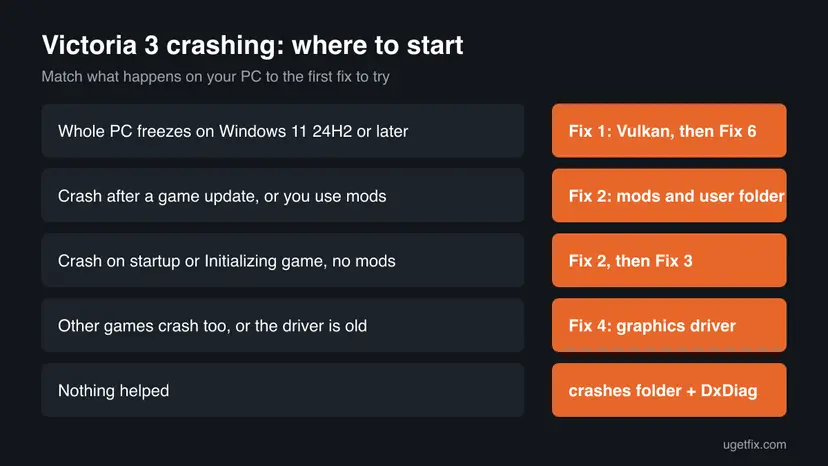
Fix 1 and Fix 2 are the two remedies Paradox staff give for this game. Fixes 3 and 4 repair the files and the driver. Fix 5 is a quick Windows setting, and Fix 6 is a registry workaround for the Windows 11 24H2 freeze, for advanced users only.
| What you see or what your PC has | Start with |
|---|---|
| The whole PC freezes on Windows 11 24H2 or later | Fix 1, then Fix 4, then Fix 6 |
| Crash to desktop after a game update, or you use mods | Fix 2 |
| Crash on launch or on Initializing game, no mods | Fix 2, then Fix 3 |
| Crash when you start a new game | Fix 2 |
| Other games crash too | Fix 4 |
| Nothing above helped | Fix 5, then the Still crashing section |
Fix 1. Start Victoria 3 with the Vulkan renderer instead of DirectX 11
2 minutesNo riskVictoria 3 or the whole PC freezes on start or during play, most of all on Windows 11 24H2 or later.
Paradox staff list changing the renderer from DX11 to Vulkan as a workaround for the 24H2 freeze. Paradox does not say why it helps; the game simply draws with Vulkan and skips DirectX 11.
- Open Steam and go to Library.
- Right-click Victoria 3 and select Properties.
- On the General page, find Launch Options.
- Type
-vulkanin the box. If the box already holds other options, add a space and then-vulkan. - Close the window and start the game from Steam as usual.
To go back to DirectX 11, open the same box and delete -vulkan. Nothing else changes, and your saves are not touched.
It worked if: The game passes the launcher and Initializing game, and runs past the point where it froze before.
If not: Remove -vulkan again if the game will not start with it. Then rebuild the user folder in Fix 2.
Fix 2. Turn off mods and let the game rebuild its Documents folder
10 to 20 minutesRead the warningThe game crashes to the desktop, most of all after a patch, when you select a new game, or if you ever used mods.
Paradox QA traced a crash like this to mods that referenced things changed in major patches and to data left by old mods. Their fix: unsubscribe, back up the saves and delete the user folder, which the game rebuilds with a fresh shader cache.
This folder holds your local saves, your settings and your key bindings. Copy the save games folder, and input_profiles if you changed keys, to another place before you delete anything. Graphics settings go back to default.
- Close Victoria 3, the Paradox launcher and Steam's game window.
- In Steam, open the Workshop for Victoria 3 and select Unsubscribe on every mod. Mods you added by hand, remove from the launcher's playset.
- Press Win + R, type
%USERPROFILE%\Documents\Paradox Interactiveand press Enter. - Copy the
save gamesfolder insideVictoria 3to your desktop or another drive. - Rename the
Victoria 3folder toVictoria 3 old. Renaming keeps a way back. - Start the game from Steam. The first start takes longer, because it builds the folder and the shader cache again.
- When it works, copy your saves back into the new
Victoria 3\save gamesfolder.
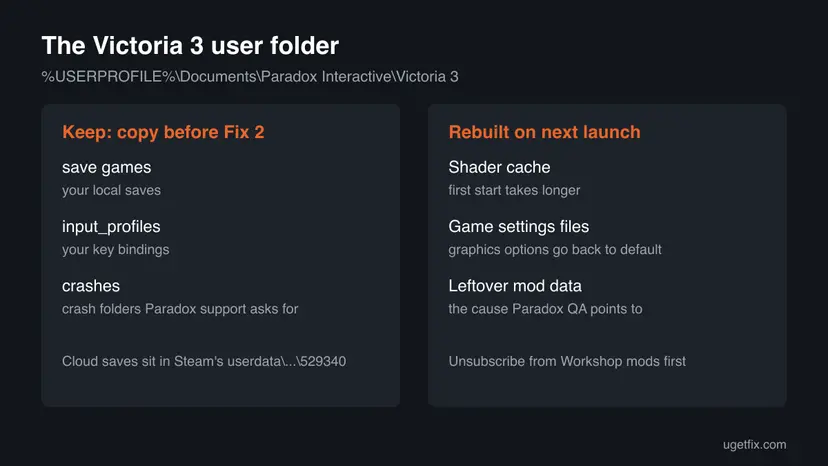
The old advice to delete only the shader cache is part of this fix: the cache lives in the same folder and is rebuilt with it. Cloud saves stay safe in Steam's userdata\<your id>\529340\remote\save games.
It worked if: The game starts after a longer first load, reaches the main menu and starts a new game without closing.
If not: If it works without mods, add them back one at a time and test each one, as one of them is out of date. If it still crashes with no mods, verify the files in Fix 3.
Fix 3. Verify the Victoria 3 game files in Steam
5 to 10 minutesNo riskThe game crashes on launch or on Initializing game, even with a fresh user folder and no mods.
Paradox's bug report form asks first whether you have verified the game files. A verify compares every file with Steam's copy and downloads the ones that are damaged or missing.
- In Steam, right-click Victoria 3 and select Properties.
- Open Installed Files and select Verify integrity of game files.
- Wait until Steam has checked the files and downloaded any that failed, then start the game.
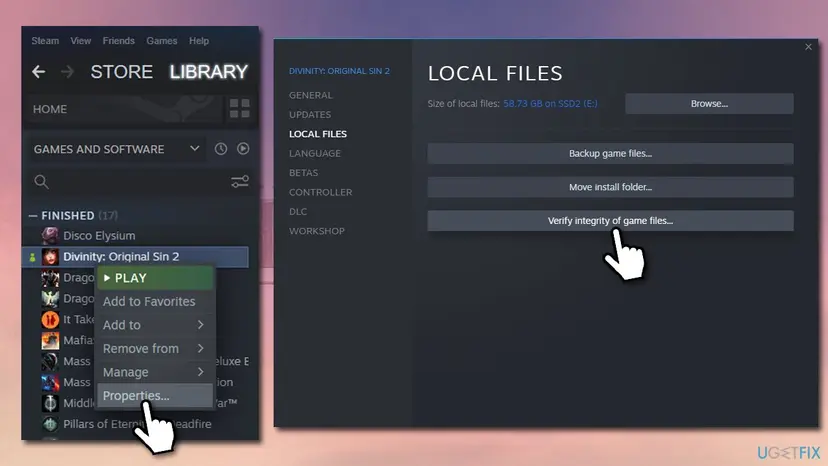
Full steps, also for other launchers: How to verify game files in Steam, Epic Games, Xbox app, EA app, Battle.net and GOG Galaxy.
It worked if: Steam reports that all files were validated, or downloads the few that failed, and the game starts.
If not: If every file is fine and the game still crashes, update the graphics driver in Fix 4.
Fix 4. Update or reinstall the graphics driver
10 minutesLow riskOther games crash too, the driver is old, or the PC freezes on Windows 11 24H2 or later.
Updating to the latest graphics driver is the first workaround Paradox staff list for the 24H2 freeze. Victoria 3 needs a Direct3D 11 card with at least 2 GB of video memory, and an old driver can fail on its map shaders.
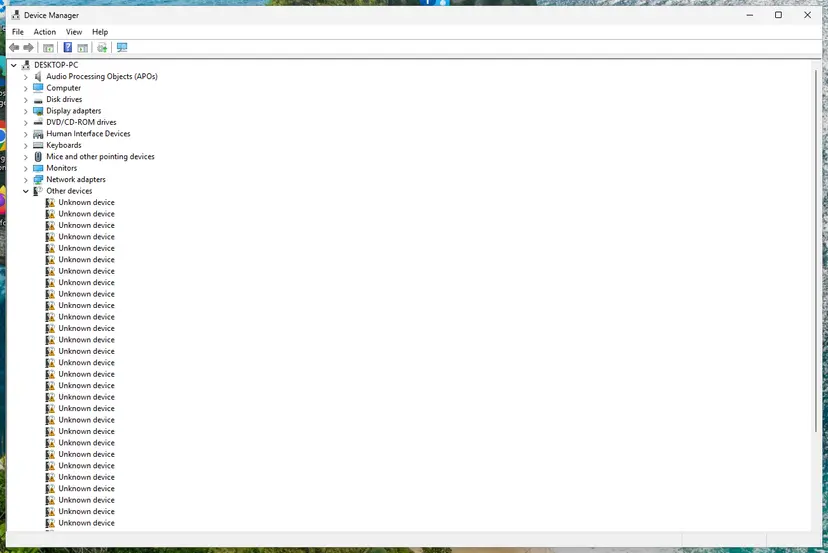
Get the newest driver for your card from NVIDIA, AMD or Intel, or let Device Manager look for one. Step by step, with roll back if the problem started after a driver update: Update, roll back or reinstall a driver.
- Install the driver and restart the PC.
- If you set
-vulkanin Fix 1, start the game once with it and once without it, to see which works better with the new driver.
It worked if: The game runs past the point where it used to close or freeze.
If not: If the crash started right after a driver update, roll that driver back with the same procedure. Then try Fix 5.
Fix 5. Change the compatibility settings of victoria3.exe
3 minutesNo riskFixes 1 to 4 did not help.
Players report that Disable fullscreen optimizations stops some crashes, and the old version of this guide also used Run this program as an administrator. We could not confirm either from Paradox, so treat this as a quick test that is easy to undo.
- In Steam, right-click Victoria 3 and select Manage > Browse local files.
- Find
victoria3.exe. If it is not in the first folder, type its name in the File Explorer search box. - Right-click
victoria3.exeand select Properties. On Windows 11 it may be under Show more options. - Open the Compatibility tab and select Disable fullscreen optimizations. Clear every other box.
- Select Apply and OK, then start the game. If it still crashes, also try Run this program as an administrator.
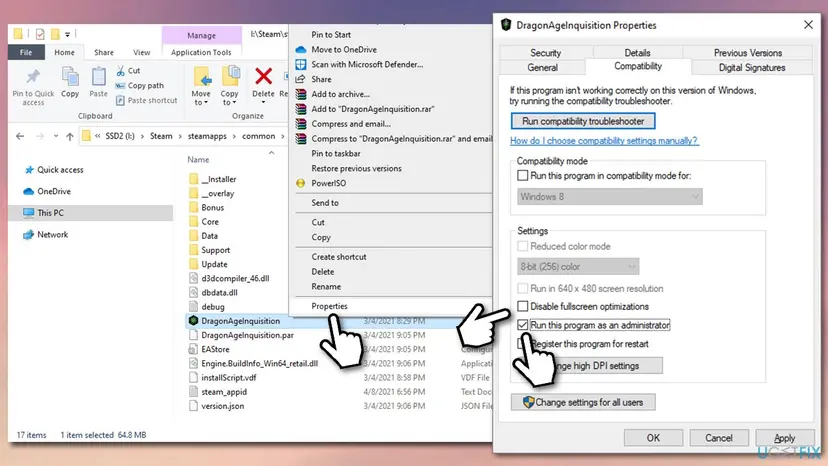
Every option on this tab, and how to undo it: How to run a program as administrator or in compatibility mode.
It worked if: The game starts and stays open past the point where it closed before.
If not: Clear the boxes again. If you are on Windows 11 24H2 or later and the whole PC still freezes, see Fix 6. Otherwise read the crash folder as the next section shows.
Fix 6. Set HMBAllocationPolicy to 0 for the Windows 11 24H2 freeze
10 minutesRead the warningAdvanced users only: the whole PC freezes with Victoria 3 on Windows 11 24H2 or later, and Fixes 1 and 4 did not help.
Paradox staff shared this registry workaround and say it works for a lot of people, but they do not recommend it, because it changes how Windows handles storage for every program. It sets how much memory Windows lends to the SSD.
A wrong registry edit can stop Windows from starting. Back up the registry first: Back up the registry before editing it. Paradox says to do this only if you are very comfortable editing the registry, and it is done at your own risk. Write down the old value so you can put it back.
- Press Win + R, type
regeditand press Enter. Select Yes in the permission prompt. - Go to
HKEY_LOCAL_MACHINE\SYSTEM\CurrentControlSet\Control\StorPort. - If
HMBAllocationPolicyexists, write down its value, double-click it and set it to0. - If it does not exist, right-click the right pane, select New > DWORD (32-bit) Value, name it
HMBAllocationPolicyand leave it at0. - Close Registry Editor and restart the PC.
To undo it, set the old value back, or delete HMBAllocationPolicy if you created it, and restart. If you notice the PC's storage getting slower afterwards, undo it.
It worked if: The PC no longer freezes when you start or play Victoria 3.
If not: Undo the change and send the crash folder and DxDiag file to Paradox, as the next section shows.
Victoria 3 still crashes: send the crash folder and DxDiag
Paradox QA say what they need to troubleshoot any crash: the crash folder and a DxDiag file. You can read the crash folder yourself first.
- Open
%USERPROFILE%\Documents\Paradox Interactive\Victoria 3\crashes. Each crash gets its own folder there. - Zip the newest folder.
- Press Win + R, type
dxdiagand press Enter. Wait until the bar at the bottom finishes. - Select Save All Information and save the text file.
- Post both files in the Victoria 3 Tech Support or Bug Reports forum on forum.paradoxplaza.com, with your game version and Windows version from
winver.
- No crash folder at all, and the whole PC froze: that is the 24H2 freeze, not a game crash. See Fixes 1, 4 and 6.
- Event Viewer shows an Application Error for
victoria3.exe: open Event Viewer > Windows Logs > Application and read Faulting module name. A graphics driver file there points back to Fix 4. - The PC restarts or shows a blue screen, and other games crash too: the cause is the hardware or the driver, not Victoria 3. Test the memory with How to test your RAM with Windows Memory Diagnostic.
How to keep Victoria 3 from crashing again
- After every major patch, wait until your mods are updated for the new version before you load a modded save.
- Once in a while, clear old mod data the way Fix 2 shows. The player in the Paradox thread said they would do it now and then.
- Keep a copy of
save gameson another drive or in a cloud folder. - Keep the graphics driver current, and keep
-vulkanif it helped on Windows 11. - On a PC with 8 GB of RAM, the official minimum, close the browser and other programs before you play.
Most crashes return with a new patch and an old mod. If it breaks right after an update, start again at Fix 2.
Frequently asked questions
Why does Victoria 3 keep crashing?
Most often because of mods, or data left by mods you removed, that no longer match the game version. Paradox QA found this in a crash report and fixed it by having the player unsubscribe from all mods and delete the user folder in Documents. On Windows 11 24H2 and later there is also a freeze that Paradox says is not caused by the game itself. Damaged files and an old graphics driver come after that.
Why is Victoria 3 not responding on launch?
If Windows says Victoria 3 is not responding while it starts, the game is stuck on loading, not closed. Give it a few minutes on the first start after an update, because it may be building the shader cache. If it stays stuck, or the whole PC freezes, start it with -vulkan (Fix 1). If it still hangs, rebuild the user folder in Fix 2.
Why does Victoria 3 crash on startup or on the Initializing game screen?
A crash at this point usually means the game failed while loading its data, which includes your mods and the user folder. Turn off all mods and rename the Documents folder so the game builds a fresh one (Fix 2). If that does not help, verify the game files in Steam (Fix 3), then update the graphics driver (Fix 4).
Why does Victoria 3 crash when starting a new game?
In the Paradox report this guide follows, the game crashed every time the player selected a new game, a minute or two after loading. The cause was mods that referenced things changed in major patches. Removing the mods and cleaning the user folder fixed it, and the mods worked again afterwards once updated. Fix 2 has the steps.
Where is the Victoria 3 shader cache, and is it safe to delete?
The shader cache is part of the user folder at %USERPROFILE%\Documents\Paradox Interactive\Victoria 3. Deleting it is safe: Paradox QA say the game rebuilds it on the next start, which then takes a bit longer. Rather than delete only the cache, rename the whole folder after copying your saves, as Fix 2 shows. That clears leftover mod data at the same time.
Does the Vulkan launch option make Victoria 3 slower?
We could not find a measurement for Victoria 3. Paradox staff list Vulkan only as a workaround for the Windows 11 24H2 freeze, not as a speed setting. Try the game with and without -vulkan on your PC. If both run, keep the one that feels smoother; if only Vulkan runs without freezing, keep it.
Will Fix 2 delete my Victoria 3 saves?
Not if you copy them first. Local saves are in the save games folder inside the user folder, so copy that folder before you rename or delete anything. Steam Cloud saves are stored separately under Steam's userdata folder for app 529340 and are not touched. Renaming the folder instead of deleting it also keeps a way back.
What does exit code 3221225794 mean for Victoria 3?
3221225794 is the decimal form of the Windows status code 0xC0000142. It means a program library failed to start when the game opened. It is not a Victoria 3 error code, so the fix is general: verify the game files (Fix 3), update the graphics driver (Fix 4), and restart the PC. If it stays, send the crash folder to Paradox.
Does Victoria 3 crash on the Mac and Linux versions too?
Victoria 3 also runs on macOS and Linux, but this page is about Windows. The user folder idea is the same: on Linux it is Paradox Interactive/Victoria 3 in your data folder. The 24H2 freeze, the registry fix and the Windows compatibility settings apply only to Windows. On a Mac or Linux PC, the mod and folder steps are the place to start.
Sources
- Paradox Interactive Forums, staff post: Regarding Crashes on Windows 11's 24H2 Update (Vulkan, driver and HMBAllocationPolicy workarounds) (forum.paradoxplaza.com)
- Paradox Interactive Forums, Victoria 3 Bug Reports: Paradox QA answer on mod data, the user folder, the crashes folder and DxDiag (forum.paradoxplaza.com)
- PCGamingWiki: Victoria 3 (game data locations, renderer, system requirements) (pcgamingwiki.com)
Did this fix work?
One click, no account. It tells the next reader which guides are worth their time.
Questions and experiences: fix Victoria 3 crashing or not responding on Windows 11 and 10
Still broken, or found a fix we did not cover? Ask here: members and our editors answer. Reading is open; writing needs a free account.
…