
How to fix Website Online but Isn't Responding to Connection Attempts?

Prefer to fix it yourself? The manual steps follow.
- 9methods
- 5 to 30 minutes
- Easy
Applies to Windows 11 and Windows 10 PCs that cannot open one or more websites, or a shared folder, while the internet connection itself works
9 methods in this guide
- What the message means
- Why it appears
- The fixes
- 1. Find the failing side
- 2. Flush and change DNS
- 3. Proxy and extensions
- 4. Check security software
- 5. Test without IPv6
- 6. Reset the network
- 7. Reinstall the adapter
- 8. Your own server
- 9. Shared folders and printers
- Still broken: what to send
- Keep it from coming back
- FAQ
Hey. Various websites are online but not responding. I cannot properly load pages in the browser and use the internet. The connection is okay: Discord and Spotify work, and they need the connection. But Windows often says the access is limited. I do not get what is wrong. It happens even with microsoft.com. Can you explain how to check for the cause and solve this?
This is a finding of Windows Network Diagnostics: it found the site's address, but the site did not answer on its web port (80 or 443). The block can sit on your PC, your router, your provider or the site itself. Test the site from a phone on mobile data first, then fix the side that fails.
The site's name was found, but the connection to its web port timed out. Open the site on a phone on mobile data and on another device on your Wi-Fi (Fix 1). If only this PC fails, flush DNS and try another DNS server (Fix 2), then turn off the proxy and browser extensions (Fix 3). If every device fails, the router, the provider or the site is the cause.
| Error | website is online but isn't responding to connection attempts, also shown as Resource is online but isn't responding to connection attempts or, for shared folders, with File and Print Sharing resource in front. |
|---|---|
| Where it appears | In Windows Network Diagnostics, after you select Running Windows Network Diagnostics on a browser error page such as This site can't be reached with ERR_CONNECTION_TIMED_OUT, or after you run the network troubleshooter. |
| Main cause | The connection to port 80 (HTTP) or 443 (HTTPS) gets no answer. On a home PC that is most often a stale DNS answer, a proxy or a security app. Otherwise the site is down or blocks your address. |
| Fastest fix | Open the site on a phone on mobile data to find which side fails (Fix 1), then run ipconfig /flushdns and switch to another DNS server (Fix 2). |
| Detail line | "The remote computer isn't responding to connections on port 443, possibly due to firewall or security policy settings, or because it might be temporarily unavailable." Port 80 appears instead for plain HTTP. |
| Also written as | "website is not responding", "site took too long to respond", "web page not responding", and in Chrome or Edge ERR_CONNECTION_TIMED_OUT. |
| Affects | Windows 11 (25H2 and 26H2) and Windows 10 22H2, in any browser. Windows 10 stopped getting security updates on 14 October 2025. |
| Microsoft's status | Not a Windows bug. It is a test result: Windows says it found no problem with its own firewall and cannot fix the remote side. |
| Time to fix | 5 to 15 minutes for Fixes 1 to 3. A network reset and adapter reinstall take about 20 minutes with restarts. |
Facts checked on 16 October 2026. Steps written for Windows 11 25H2 and Windows 10 22H2; the Diagnostics wording read from Microsoft Q&A reports; Test-NetConnection from Microsoft Learn.
What "website is online but isn't responding to connection attempts" means
Windows Network Diagnostics runs a short chain of tests against the site you tried to open. It looks up the site's name, checks that the address answers at all, and then tries to open a connection to the web port. This message means the first steps passed and the last one did not: the address is known, but nothing answered on port 80 or 443 in time.
- Finding
- website is online but isn't responding to connection attempts
- Detail
- The remote computer isn't responding to connections on port 443, possibly due to firewall or security policy settings, or because it might be temporarily unavailable.
- Second detail
- Windows couldn't find any problems with the firewall on your computer.
- Browser page before it
- This site can't be reached, "took too long to respond", with the Try list Checking the connection, Checking the proxy and the firewall, Running Windows Network Diagnostics and the code
ERR_CONNECTION_TIMED_OUT.
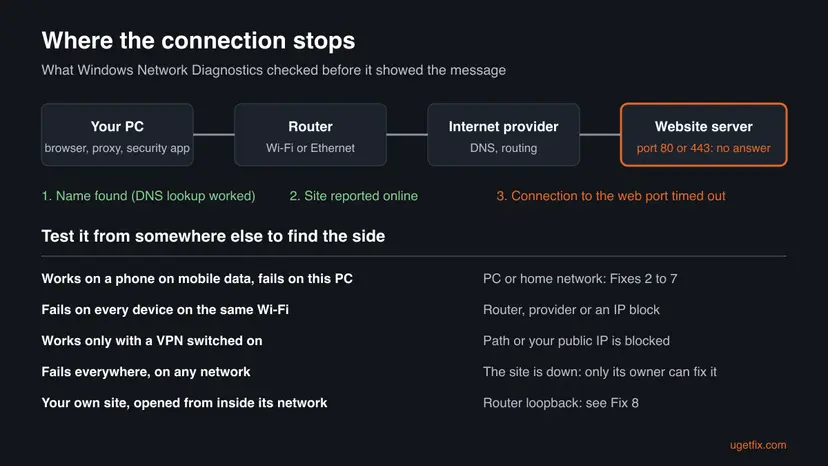
That line only covers Windows Defender Firewall on this PC. It does not check a third-party security app, a browser proxy, the router, your provider or the server's own firewall. Any of them can drop the connection and produce the same finding.
- Port 80 or 443: 443 is HTTPS, which almost every site uses today. Port 80 means the browser or the troubleshooter tried plain HTTP first.
- Resource is online: the same test with a more general word. It appears when the troubleshooter was started from Settings rather than from a site.
- File and Print Sharing resource is online: the test was against a shared folder or printer on your network, which uses port 445. See Fix 9.
- French search "site web non responsive": that phrase means a site that does not adapt to phone screens, a different topic. A site that does not answer is covered here.
Why a website is online but not responding, ranked from most to least common
The reader's case above is typical: Discord and Spotify work, the browser does not. Apps like these keep their own connections and often ignore the browser's proxy. So the line works, and something between the browser and the site drops the request. The table ties each cause to its fix.
| Cause | How common | Typical sign | Fix |
|---|---|---|---|
| A cached or wrong DNS answer points the browser to an old or unreachable address | Most often on one PC | Works on a phone on mobile data, fails on this PC in every browser | Fix 2 |
| A proxy in Windows or a browser extension (VPN, ad blocker, filter) sends traffic to a dead end | Often | Apps work, browsers fail; one browser may work | Fix 3 |
| A third-party security app or firewall blocks or inspects HTTPS | Often | Starts after a security app install or update | Fix 4 |
| The site is down, or its firewall blocks your public IP address or country | Often | Fails on every device at home, works with a VPN or on mobile data | Fix 1 |
| Broken IPv6 route on the router or provider | Less often | Only some sites fail, often large ones that have IPv6 addresses | Fix 5 |
| Damaged Winsock or TCP/IP settings, or a leftover VPN filter driver | Less often | Many sites fail on this PC only, after a VPN was removed | Fix 6 |
| A faulty network adapter driver | Rarely | Connection drops and limited access warnings | Fix 7 |
| You open your own server from inside its network | Specific | Works from outside, fails from the office or home LAN | Fix 8 |
| File and printer sharing is off or blocked | Shared folders only | The finding names a File and Print Sharing resource | Fix 9 |
When Windows shows limited or no internet access while apps still work, its own connectivity check failed too. That points to DNS or a proxy on this PC (Fixes 2 and 3) rather than to the website.
How to fix "website is online but isn't responding to connection attempts"
Fix 1 shows which side fails and takes two minutes. Fixes 2 to 5 solve most cases where only this PC is affected. Fixes 6 and 7 rebuild the network stack. Fixes 8 and 9 cover your own server and shared folders.
| What you see or have | Start with |
|---|---|
| You do not know yet whether the site or your PC is the problem. | Fix 1 |
| The site works on a phone on mobile data, but not on this PC. | Fix 2 |
| Discord, Spotify or games work, but every browser fails. | Fix 3 |
| It started after you installed or updated a security app or VPN. | Fix 4 |
| Only a few large sites fail on every device at home. | Fix 5 |
| Fixes 2 to 5 changed nothing on this PC. | Fix 6 |
| It is your own website or server and you are on its network. | Fix 8 |
| The message names a File and Print Sharing resource. | Fix 9 |
Fix 1. Find which side fails: test from another device, network and port
5 minutesNo riskEveryone, before changing settings, because the answer decides which fix applies.
Diagnostics only says the remote port did not answer. Testing the same site from a second device and a second network shows whether the block is on your PC, your network, or the site, so you do not reset things that were never broken.
- Open the site on a phone with Wi-Fi turned off, so it uses mobile data. If it fails there too, the site is down or blocks your region.
- Open the site on another device on the same Wi-Fi. If it fails there but works on mobile data, the router, your provider or an IP block is the cause.
- Right-click Start and select Terminal. You do not need administrator rights for this test.
- Type this, with the site's name instead of example.com, and press Enter:
Test-NetConnection example.com -Port 443 - Read the last line. TcpTestSucceeded : True means the port answers from this PC and the browser side is the problem (Fix 3). False means the connection never opens.
- If the address in RemoteAddress differs from the one your phone gets for the same site, the DNS answer on this PC is wrong (Fix 2).
| Result | What it means | Next |
|---|---|---|
| Fails everywhere, also on mobile data | The site is down or offline for your region | Wait, or contact the site's owner |
| Fails on all home devices, works on mobile data or with a VPN | Router, provider or a block on your public IP | Restart the router; ask the provider or site owner |
| Fails only on this PC | DNS, proxy, security app or network stack on this PC | Fix 2 |
| TcpTestSucceeded is True but the browser fails | Browser proxy or extension | Fix 3 |
It worked if: You know whether the failure is on the site, the home network or this PC, and which fix to try next.
If not: If the results disagree, restart the router and the PC once and repeat the test, then follow Fix 2.
Fix 2. Flush the DNS cache and switch to another DNS server
5 minutesLow riskThe site opens on a phone on mobile data but not on this PC, in any browser.
A site that moved to a new server keeps answering on the new address. A PC that still holds the old address in its cache, or asks a DNS server with stale data, knocks on a door where nobody listens, which is exactly this finding.
- Type
cmdin the search box, right-click Command Prompt and select Run as administrator. - Clear the cached addresses:
ipconfig /flushdns - Try the site. If it still fails, change the DNS server for your connection.
- Windows 11: open Settings > Network & internet, select Wi-Fi and your network's properties (or Ethernet), then Edit next to DNS server assignment.
- Windows 10: open Settings > Network & Internet > Status > Properties, then Edit under IP settings.
- Choose Manual, turn on IPv4, and enter a public DNS service, for example
8.8.8.8and8.8.4.4(Google) or1.1.1.1and1.0.0.1(Cloudflare). Select Save. - Run
ipconfig /flushdnsonce more, close the browser completely and open the site again.

It worked if: The site loads, and Test-NetConnection now shows the same address as your phone and TcpTestSucceeded : True.
If not: Set DNS back to Automatic (DHCP) if you prefer, and go to Fix 3.
Fix 3. Turn off the proxy and test the browser without extensions
5 minutesLow riskApps such as Discord, Spotify or games work, but web pages fail in one or more browsers.
Browsers use the Windows proxy, and extensions can set their own. If that proxy or VPN extension stopped answering, every page times out while apps that ignore the proxy keep working, which matches the reader's question.
- Open Settings > Network & internet > Proxy.
- Write down anything filled in under Use a proxy server or Use setup script, so you can restore a work proxy later.
- Select Set up next to Use a proxy server, turn it off and select Save. Do the same for Use setup script.
- Open the browser's extensions page (
chrome://extensionsin Chrome,edge://extensionsin Edge) and switch off every VPN, proxy, ad blocker and privacy extension. - Close the browser fully and open the site in a private window. If it loads, turn extensions back on one at a time to find the one at fault.
- Clear the site's cached data if it still loads half a page: Clear the browser cache and cookies
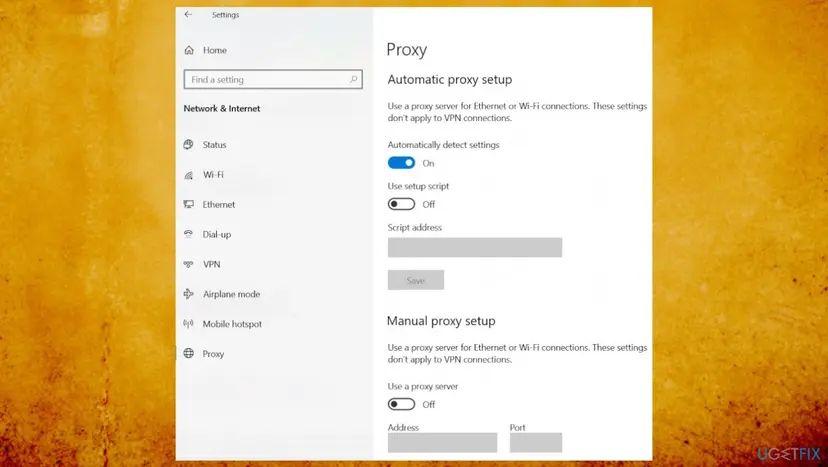
For the details of a stuck proxy, including registry values and policies, see our guide on ERR_PROXY_CONNECTION_FAILED.
It worked if: Pages open again, and the Proxy page shows Use a proxy server and Use setup script as off.
If not: If no proxy was set and no extension made a difference, go to Fix 4.
Fix 4. Check the security app and firewall for a block on the browser
10 minutesLow riskThe problem started after a security app, VPN or firewall was installed or updated.
Diagnostics only checks Windows Defender Firewall. Third-party suites filter web traffic and inspect HTTPS, and when that layer fails it drops the connection to port 443 silently, which looks exactly like a site that does not answer.
- Open Control Panel > System and Security > Windows Defender Firewall and select Allow an app or feature through Windows Defender Firewall.
- Check that your browser is in the list and allowed on Private and Public. If you change anything, select Change settings first.
- Open your third-party security app and look for its web protection, HTTPS scanning or firewall log. Look for a block entry with the site's name or address.
- As a short test only, pause the protection, open the site, and turn protection back on right away. Step by step: Turn off Microsoft Defender protection for a moment
- If the site opens while paused, add the site as an exception in that app, or update the app, instead of leaving protection off.
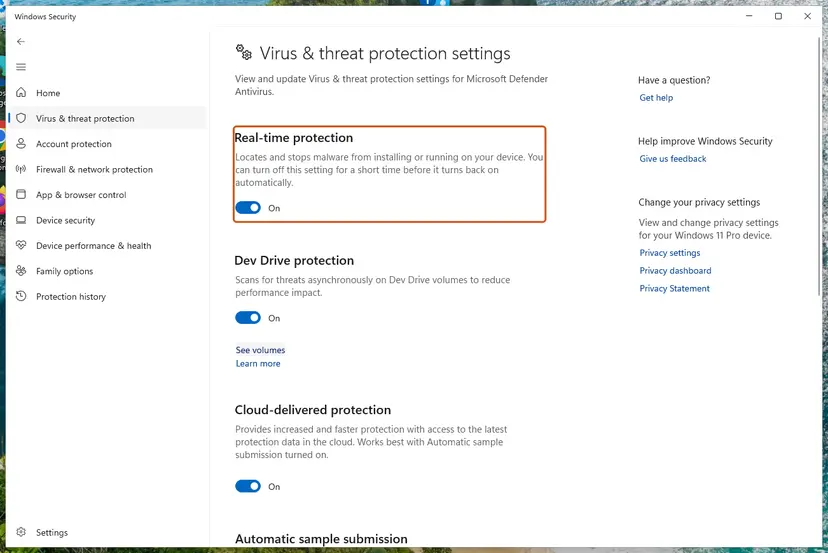
Never leave antivirus or firewall protection off to keep a site working. Turn it back on as soon as the test is done, and fix the rule or update the app.
It worked if: The site opens with protection on after you add the exception or update the security app.
If not: If the site fails even with protection paused, the security app is not the cause. Go to Fix 5.
Fix 5. Test the connection with IPv6 turned off on the adapter
5 minutesLow riskOnly some sites fail, often large ones, and the same sites fail on other devices at home.
Many large sites publish an IPv6 address. If the router or provider has a broken IPv6 route, the name resolves but the connection to that address never completes. Turning IPv6 off for one test shows whether that path is to blame.
- Press Win + R, type
ncpa.cpland press Enter. The Network Connections window opens. - Right-click your active Wi-Fi or Ethernet adapter and select Properties.
- Clear Internet Protocol Version 6 (TCP/IPv6) and select OK.
- Open the site again in a new browser window.
- Whatever the result, tick Internet Protocol Version 6 (TCP/IPv6) again afterwards. Windows expects IPv6 to be on.
It worked if: If the site opens with IPv6 off, the IPv6 path is broken. Restart the router, update its firmware, or report it to your provider.
If not: If nothing changes, turn IPv6 back on and go to Fix 6.
Fix 6. Reset Winsock, TCP/IP and the network settings
10 minutes plus a restartRead the warningMany sites fail on this PC only, often after a VPN or security app was removed.
A removed VPN or filter can leave entries in the Winsock catalog or a filter driver on the adapter. Resetting returns the network stack to defaults, so connections to port 443 stop being dropped by a component that no longer works.
The commands keep your Wi-Fi networks. A full Network reset removes saved Wi-Fi networks, VPN adapters and manual IP or DNS settings. Write down your Wi-Fi password and VPN details first.
- Open Command Prompt as administrator.
- Run these commands one at a time:
netsh winsock reset netsh int ip reset ipconfig /flushdns - Restart Windows and test the site.
- If it still fails, open Settings > Network & internet > Advanced network settings > Network reset and select Reset now. Full steps: Reset the network and flush DNS
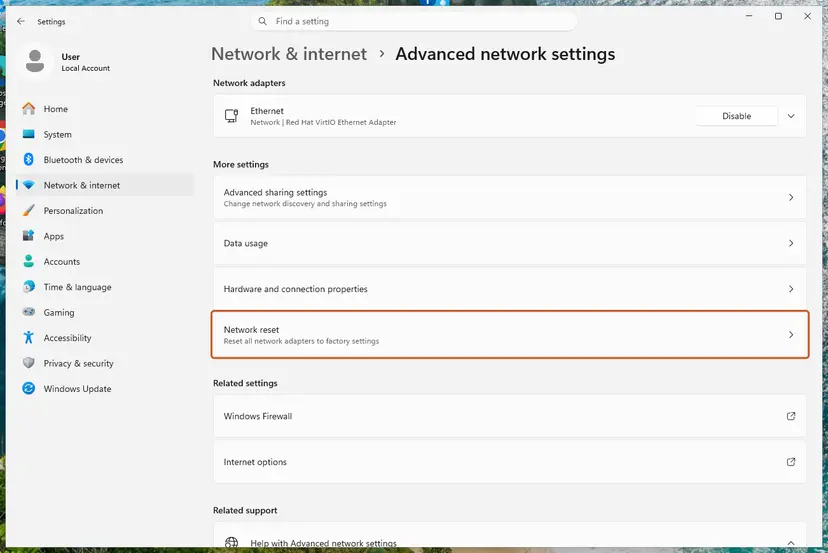
It worked if: After the restart the site loads and Test-NetConnection reports TcpTestSucceeded : True.
If not: If only this PC still fails, reinstall the network adapter in Fix 7.
Fix 7. Reinstall the network adapter driver
10 minutesLow riskThis PC shows limited access warnings or drops the connection, and Fix 6 did not help.
A damaged adapter driver can pass small packets such as DNS and ping while larger connections stall. Removing the adapter makes Windows install its driver again from scratch on the next start.
- Right-click Start and select Device Manager.
- Expand Network adapters. Right-click your Wi-Fi or Ethernet adapter and select Uninstall device. Leave the option to delete the driver cleared.
- Restart Windows. The adapter returns with its driver.
- If the PC maker offers a newer network driver, install it. Step by step: Update, roll back or reinstall a driver
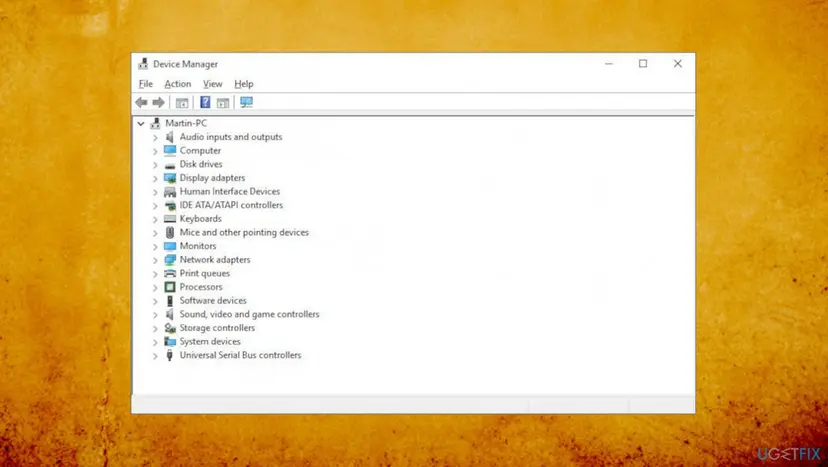
It worked if: The adapter is back under Network adapters, the limited access warning is gone and the site loads.
If not: Read the Diagnostics details and the browser's error code under "Still broken" below, and send them to your provider.
Fix 8. Your own website fails from inside its network: router loopback
15 minutesLow riskYou host the site or server yourself, it works from outside, and fails from the office or home network.
From inside the network, the site's public address points back at your own router. Routers that do not support NAT loopback, also called hairpinning, drop that connection, so Diagnostics sees a site that is online but never answers.
- Open the site on a phone on mobile data. If it works there, the server and the host are fine.
- In the router's settings, look for NAT loopback, NAT reflection or hairpin NAT and turn it on if the router has it. We could not confirm which routers offer it.
- If your network has its own DNS server, add a record that points the site's name to the server's internal address.
- For a single PC, ask whoever runs the network to add the internal address to the PC's hosts file instead.
- If the site is hosted elsewhere, give the host the time, your public IP address and the port from the Diagnostics detail. Their firewall may block your office's address.
It worked if: The site opens from inside the network as well as from outside.
If not: If it fails from outside too, the server or its firewall is not answering on port 80 or 443. That is for the host or the server's admin.
Fix 9. File and Print Sharing resource: turn on sharing and check port 445
10 minutesLow riskThe finding names a File and Print Sharing resource when you open a shared folder, NAS or printer.
Shared folders use SMB on port 445, not a web port. The other PC or NAS is visible on the network, but sharing is off, the network profile is Public, or its firewall blocks 445, so the share never answers.
- On both PCs, open Settings > Network & internet, select your Wi-Fi or Ethernet connection, and set Network profile type to Private.
- Open Settings > Network & internet > Advanced network settings > Advanced sharing settings. Under Private networks, turn on Network discovery and File and printer sharing.
- From the PC that cannot connect, test the share's port in Terminal, with the other PC's name or address:
Test-NetConnection NAS-NAME -CommonTCPPort SMB - If TcpTestSucceeded is False, check the firewall or security app on the PC or NAS that shares the folder.
- Open the share by address, such as
\\192.168.1.20\share, to rule out a name problem.
It worked if: The shared folder or printer opens, and the port test shows TcpTestSucceeded : True.
If not: An old NAS may only speak SMB version 1, which current Windows does not turn on. Update the NAS firmware rather than turning SMB 1 back on.
Still broken: read the Diagnostics details and collect what support needs
The short finding hides the useful part. In Windows Network Diagnostics select View detailed information. The report names the site, the port that did not answer and the tests that passed. Save it or take a screenshot.
- Port in the detail line: 443 or 80 is a web port. 445 is file sharing. Another number means an app or game server.
- Your result from Fix 1: which devices and networks fail. This alone tells the provider whether to look at your line.
- Test-NetConnection output: the RemoteAddress and TcpTestSucceeded lines for the site.
- The browser's error code, for example
ERR_CONNECTION_TIMED_OUTorERR_CONNECTION_RESET. - When it is not your PC: if the site fails on every network, only its owner can fix it. If it fails only from your public IP, ask the site's owner whether their firewall blocks your address.
Users on Microsoft Q&A report that a site failed on every browser on the PC, worked on a phone on the same Wi-Fi and with a VPN, and opened again after a DNS flush, a DNS server change and a TCP/IP reset. That is the pattern Fixes 2 and 6 cover.
How to keep websites from going unresponsive again
- Close VPN and proxy apps from their own menu, so they remove the settings they added.
- Keep one VPN or proxy extension per browser.
- Update your router's firmware, especially when only some sites fail.
- Note any manual DNS or proxy settings you make, so you can undo them.
- Do not leave antivirus or firewall protection paused after a test.
- Do not install free proxy tools from unknown sites.
- Do not run a full Network reset before Fix 1: it removes saved Wi-Fi networks and may not be needed.
After you uninstall a VPN or security suite, open Settings > Network & internet > Proxy and check that nothing is left. A leftover proxy or filter is the most common reason the message returns on one PC.
Frequently asked questions
What does "resource is online but isn't responding to connection attempts" mean?
It means Windows Network Diagnostics found the device or site you tried to reach, but nothing answered when it tried to open a connection to a specific port. The detail line names the port: 80 or 443 for websites, 445 for shared folders and printers. The device is there, but a firewall, a security app, a sharing setting or the remote service itself does not accept the connection. Fix 1 shows which side is at fault.
Why does a website say it took too long to respond?
"Took too long to respond" and the code ERR_CONNECTION_TIMED_OUT mean the browser sent a request and waited, but the server never answered. It is the browser's version of the same problem that Diagnostics reports as online but not responding. Causes range from a stale DNS answer or a proxy on your PC to a firewall at the site. If the site works on a phone on mobile data, start with Fix 2 on your PC.
Why do Discord and Spotify work but websites do not?
These apps open their own connections and often do not use the browser's proxy settings, while browsers follow the Windows proxy and their extensions. A dead proxy, a VPN extension or a web filter in a security app therefore stops pages but not apps. Windows may still show limited access, because its own connectivity check is a web request too. Start with Fix 3 and turn off the proxy and extensions.
How do I fix a website that is not responding only on my PC?
When a phone on mobile data opens the site and your PC does not, the cause is on the PC. Flush the DNS cache with ipconfig /flushdns and try a public DNS server (Fix 2). Then turn off the Windows proxy and browser extensions (Fix 3) and check the security app (Fix 4). If those do not help, reset Winsock and TCP/IP (Fix 6). Test the site after each step, not at the end.
Can a website block my IP address?
Yes. A site's firewall or its hosting service can block an address or a whole country, for example after many requests or for licensing reasons. The sign is that the site fails on every device at home but opens on mobile data or with a VPN. Nothing on your PC changes that. Contact the site's owner with your public IP address and the time of the error, or ask your provider for a new address.
Does the network troubleshooter fix this error?
No. The troubleshooter only reports the finding. It says it found no problems with the Windows firewall and has no action to take, because the missing answer comes from the remote side of the connection or from software it does not check. Use the troubleshooter's details to read the port, then follow Fix 1 to find which side is blocking it.
Is it safe to reset the network settings in Windows?
Yes, but know what it removes. The netsh winsock reset and netsh int ip reset commands return the network stack to defaults and keep your saved Wi-Fi networks. The Network reset button in Settings goes further: it removes and reinstalls every adapter and deletes saved Wi-Fi networks, VPN adapters and manual IP or DNS settings. Write down your Wi-Fi password and VPN details before you use it, and try the commands first.
What does File and Print Sharing resource is online but isn't responding mean?
It means the other PC, NAS or printer is on the network, but it did not accept a connection on port 445, which Windows uses for shared folders. Most often file and printer sharing is off, the network profile is set to Public, or a firewall on the sharing device blocks the port. Fix 9 shows how to turn sharing on for Private networks and how to test the port with Test-NetConnection.
Why can I not open my own website from my office network?
When your server sits behind the same router you are using, the site's public address points back to that router. Many routers do not pass such a connection back inside, a feature called NAT loopback or hairpinning. The site then works from outside and fails from inside. Turn on NAT loopback if the router has it, or point the site's name to the internal address with a local DNS record. Fix 8 has the steps.
Sources
- Microsoft Learn: Test-NetConnection (NetTCPIP), testing a TCP port with -Port and -CommonTCPPort (learn.microsoft.com)
- Microsoft Q&A: Website is online but isn't responding to connection attempts (port 443 detail and the accepted answer) (learn.microsoft.com)
- Microsoft Q&A: We are unable to access our website within our own network (port 80 detail and the browser error page) (learn.microsoft.com)
Did this fix work?
One click, no account. It tells the next reader which guides are worth their time.
Questions and experiences: fix Website Online but Isn't Responding to Connection Attempts
Still broken, or found a fix we did not cover? Ask here: members and our editors answer. Reading is open; writing needs a free account.
…