
How to fix Windows activation error 0x8007251D?

Prefer to fix it yourself? The manual steps follow.
- 8methods
- 5 to 15 minutes on a home PC, longer when an IT team must change DNS
- Easy on a home PC, Advanced for the DNS and KMS host steps
Applies to Windows 11 and Windows 10 with a KMS client (volume) key, home and work PCs, and Windows Server KMS clients
8 methods in this guide
Hi. I recently reinstalled Windows because I couldn't get it to work properly. However, now when I try to activate it, I receive error 0x8007251D every time. Any advice, please?
Error 0x8007251D, "No records found for DNS query", means Windows is set up for company activation through a Key Management Service (KMS) host, and DNS has no record of one. After a home reinstall, that almost always means a volume key or edition was installed. Run slmgr /dli first to see which licence Windows holds.
0x8007251D means Windows tries to activate through a company KMS host and the DNS server has no record pointing to one. Run slmgr /dli in Command Prompt as administrator (Fix 1). On a home PC, enter your own product key for the same edition, or restore your digital licence with the Activation troubleshooter (Fix 2 and 3). On a work PC, connect to the work network or VPN (Fix 4).
| Error | 0x8007251D: "No records found for DNS query." The DNS server answered, but it holds no KMS host record for this PC. |
|---|---|
| Where it appears | On the Activation page, Settings > System > Activation (Windows 10: Settings > Update & Security > Activation), or in a Windows Script Host box after slmgr /ato. |
| Main cause | A KMS client (volume) key is installed, usually after a reinstall from Enterprise or volume media, and no KMS host is published in the DNS the PC uses. |
| Fastest fix | Home PC: enter your own key for the same edition (Fix 2). Work PC: connect to the work network or VPN (Fix 4). |
| Also written as | 0x8007251d, 8007251D, "Error code: 0x8007251D", "Fehlercode 0x8007251D", "code d'erreur 0x8007251D" and hr=0x8007251D in the Event Viewer log. |
| Affects | Windows 11, Windows 10 and Windows Server KMS clients, on physical PCs and virtual machines. Windows 10 left support on 14 October 2025; its activation still works the same way. |
| Microsoft's status | Not a bug. Microsoft lists it as a KMS client error: the client cannot find the KMS SRV records in DNS. |
| Close relative | 0x8007232B, "DNS name does not exist", the same search failing one step earlier. |
| What does not help | System file repair, Windows Update or another reinstall from the same media. The key and DNS decide this error. |
| Time to fix | About 5 minutes with your own key. An hour or more when an IT team must add DNS records or open port 1688. |
Facts checked on 15 October 2026. Steps written for Windows 11 (25H2 and 26H2) and Windows 10 22H2.
What Windows activation error 0x8007251D means
Microsoft's list of activation error codes names it "0x8007251D No records found for DNS query" and marks it as a KMS client error. The cause it gives is short: the KMS client cannot find the KMS SRV records in DNS.
A PC with a KMS client key does not activate with Microsoft directly. It asks its DNS server for a _vlmcs._tcp service record that names the organisation's KMS host and port 1688. With 0x8007251D, the DNS server replied, but it has no such record for the PC's domain. A home router never has one.
| Where you see it | What you see | What it tells you |
|---|---|---|
| Settings > System > Activation (Windows 10: Settings > Update & Security > Activation) | We can't activate Windows on this device at the moment. You can try activating again later, or go to the Store to buy genuine Windows. Error code: 0x8007251D | Windows tried KMS activation and DNS returned no host. |
A Windows Script Host box after slmgr /ato | 0x8007251D with Microsoft's text, No records found for DNS query. | The same failure, run by hand. |
| Event Viewer, Application log | A License Activation (slui.exe) entry with hr=0x8007251D | A background activation attempt failed the same way. |
| Windows in another language | Fehlercode 0x8007251D, code d'erreur 0x8007251D | The same error. The code does not change with the language. |
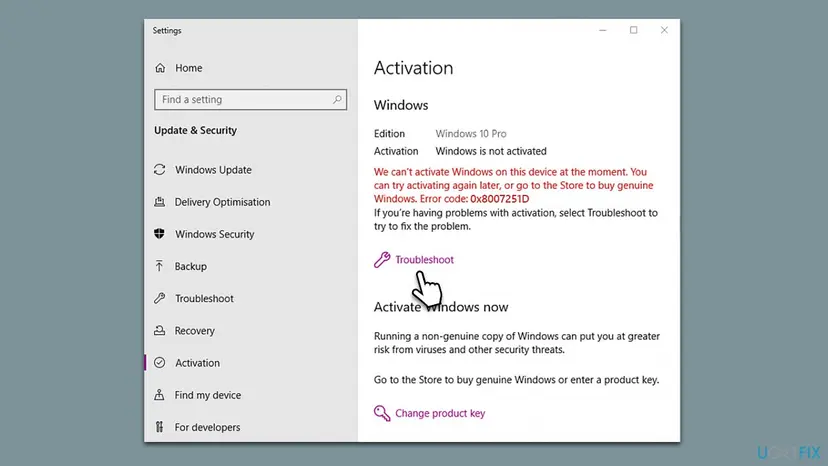
The message suggests the activation servers are busy. With 0x8007251D they are not the problem: the PC is not asking Microsoft at all, it is asking DNS for a company KMS host. Waiting changes nothing until the key or the network changes.
Why error 0x8007251D appears, from most to least common
The code comes from where Windows looks for activation, not from damaged files or a weak connection. Find the row that matches your PC and go to its fix.
| Cause | How often | How to tell | Fix |
|---|---|---|---|
| Windows was reinstalled from Enterprise or volume media, or a volume key was typed in during setup. | Most often on home PCs | slmgr /dli shows VOLUME_KMSCLIENT. Settings > System > About may show Enterprise or Education. | Fix 2, Fix 3 |
| A work or school PC is used at home, so it asks the home router's DNS for the company record. | Often | The PC was set up by an IT team and worked in the office. | Fix 4 |
| A KMS client key was left by a company image, a refurbished PC or an unofficial activator tool. | Sometimes | The PC was bought second hand, or a free activation tool ran on it once. | Fix 2, Fix 3 |
| The KMS host published its record in a different DNS zone than the client's domain. | In companies | nslookup finds the record in one domain, but clients in another domain fail. | Fix 6 |
| The KMS host does not publish its record, or dynamic DNS updates are refused. | In companies | Every new client fails, and naming the host by hand works. | Fix 5, Fix 6 |
| The organisation has no KMS host at all. | In small organisations | Volume media was used, but nobody runs a KMS host. | Fix 7 |
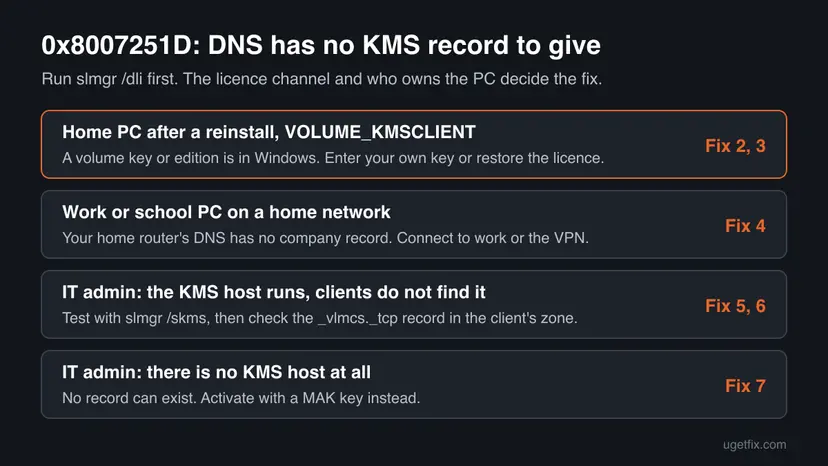
The old advice for this code was a better internet connection, repair tools and patience. Microsoft's own entry points to DNS and KMS only. A home PC with a working connection still fails, because no home DNS server holds a KMS record.
How to fix Windows activation error 0x8007251D
Fix 1 shows which licence Windows holds. Fixes 2 and 3 are for home PCs, Fix 4 for work and school PCs. Fixes 5 to 7 are for the IT admin and follow Microsoft's DNS and KMS procedures. Fix 8 is for a genuine purchase that still fails.
| What you see or have | Start with |
|---|---|
| You do not know which key Windows holds. | Fix 1 |
| Home PC after a reinstall, and you have a product key: a box card, a Store email or a COA sticker. | Fix 2 |
| Home PC that was activated before the reinstall, and you have no key to type. | Fix 3 |
| A work or school PC, used at home or on the road. | Fix 4 |
| IT admin: the KMS host runs, but clients do not find it. | Fix 5, then Fix 6 |
| IT admin: there is no KMS host in your organisation. | Fix 7 |
| The purchase is genuine and nothing above worked. | Fix 8 |
Fix 1. Check which licence Windows holds with slmgr /dli
2 minutesNo riskEveryone, first. It takes a minute and decides which fix is yours.
Windows looks up KMS records in DNS only when a KMS client key is installed. The licence channel in this box shows that at once, and the edition name shows whether the reinstall used the wrong media.
- Open Start, type cmd, right-click Command Prompt and select Run as administrator.
- Select Yes in the User Account Control window.
- Type
slmgr /dliand press Enter. - Read the Name and Description lines in the Windows Script Host box.
- Select OK to close it.
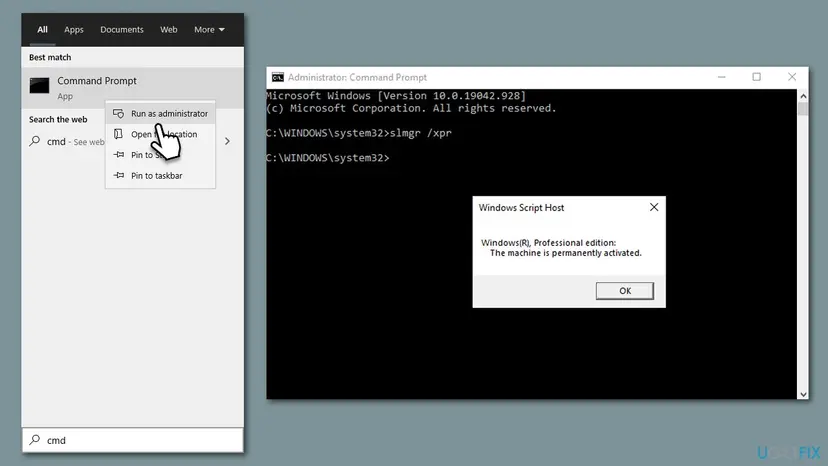
| The Description line contains | What it means | Go to |
|---|---|---|
| VOLUME_KMSCLIENT channel | A KMS client key is installed, so Windows asks DNS for a KMS host. | Home PC: Fix 2 or 3. Work PC: Fix 4. IT admin: Fix 5 |
| RETAIL channel or OEM channel | Your own licence is installed. Check the code on the Activation page again. | Fix 3, then Fix 8 |
| VOLUME_MAK channel | A volume key that activates online and does not use KMS. | Run slmgr /ato and read the new code |
If the Name line says Enterprise or Education and your licence is for Home or Pro, the reinstall used the wrong edition. Your own key cannot activate it until the edition matches.
It worked if: The box shows the edition, the licence channel and the last five characters of the key.
If not: If slmgr shows an access error instead, close the window, open Command Prompt as administrator and run it again.
Fix 2. Replace the volume key with your own product key for the same edition
3 to 5 minutesNo riskHome PC with VOLUME_KMSCLIENT in Fix 1, and you have a genuine key for the same edition.
Your retail or OEM key replaces the KMS client key. Windows then activates online with Microsoft and stops asking DNS for a KMS host, so the missing record no longer matters.
- Open Settings > System > Activation (Windows 10: Settings > Update & Security > Activation).
- Select Change product key. Windows may ask for an administrator password.
- Type your 25-character key and select Next.
- Select Activate and wait for the page to update.
- Run
slmgr /dliagain. The channel should now be RETAIL or OEM.
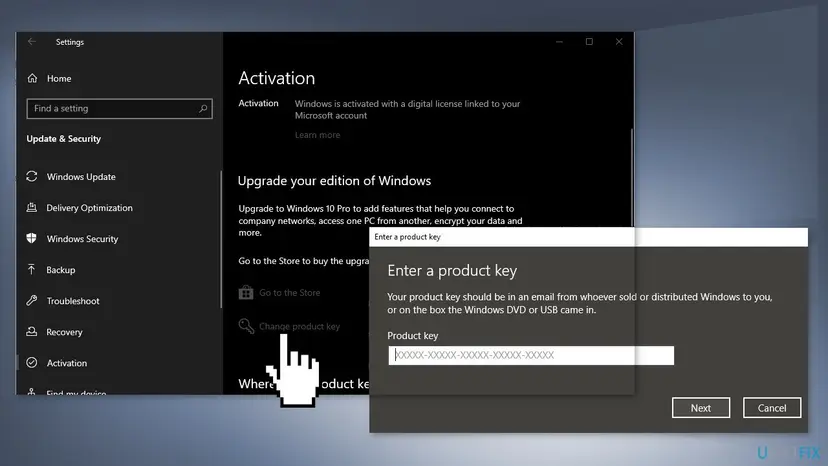
The same in Command Prompt as administrator takes two commands, and the error text is clearer when it fails.
Install your own key and activate online
slmgr /ipk XXXXX-XXXXX-XXXXX-XXXXX-XXXXX
slmgr /atoMicrosoft names an Enterprise key on Windows 11 Home or Pro as a cause of the KMS error group. A Home or Pro key also cannot activate an Enterprise install. If Fix 1 showed the wrong edition, reinstall from Microsoft's own media and pick the edition you own.
It worked if: The Activation page says Windows is activated, and slmgr /dli shows RETAIL or OEM.
If not: No key to type: Fix 3. The key is refused with another code: look that code up, for example 0xC004C060.
Fix 3. Restore your digital licence with the Activation troubleshooter
5 to 10 minutesNo riskHome PC that was activated before the reinstall, through a free upgrade, a Store purchase or a preinstalled licence, and you have no key.
A digital licence is stored with Microsoft for this hardware and often for your Microsoft account. While a KMS client key is in place, Windows keeps searching DNS instead. The troubleshooter looks up the licence for the device and can put the right key back.
- Make sure the PC is online, since the troubleshooter checks with Microsoft: How to check your internet connection in Windows
- On Windows 11, run the Windows Activation troubleshooter in the Get Help app, which is Microsoft's first advice for activation errors. You can also open Settings > System > Activation and select Troubleshoot.
- On Windows 10, open Settings > Update & Security > Activation and select Troubleshoot.
- If it asks you to sign in, use the Microsoft account you used on this PC before.
- If it finds the licence, follow its prompt to activate.

If Fix 1 showed Enterprise or Education, the troubleshooter finds nothing to restore for that edition. Reinstall the edition you own first.
It worked if: The Activation page says Windows is activated with a digital license or linked to your Microsoft account.
If not: If it finds no licence, enter the key from your order (Fix 2) or contact Microsoft with the purchase details (Fix 8).
Fix 4. Work or school PC: connect to the work network or VPN, then activate
5 minutesNo riskThe PC belongs to an employer or school, shows VOLUME_KMSCLIENT, and is used away from the office.
The _vlmcs._tcp record lives in the company's DNS. At home the PC asks the router's DNS, which answers that it has no such record: exactly 0x8007251D. Microsoft says a work device that is not connected to the workplace network shows this group of errors.
- Connect to the office network, or start the company VPN.
- Open Command Prompt as administrator (Fix 1).
- Type
slmgr /atoand press Enter. - If the code comes back, send a screenshot and the PC name from Settings > System > About to your IT team.
Activate once you are on the work network
slmgr /atoA KMS client contacts its host again to renew activation. A work laptop that stays off the company network for a long time can show 0x8007251D later. Connect to the VPN from time to time.
Microsoft adds that if you are on the work network and still see the error, the network settings may need a change by your organisation's support person. Without a support person, it suggests entering your product key again (Fix 2).
It worked if: slmgr /ato reports that the product activated successfully.
If not: If you are the admin and the error stays on the work network, go to Fix 5.
Fix 5. IT admin: test whether the problem is the SRV record or name resolution
10 minutesLow riskYou run the KMS host, and clients on the work network show 0x8007251D.
Microsoft's DNS procedure uses this test to split the problem. If naming the host by FQDN works, the SRV record is missing. If only the IP address works, name resolution is broken. If neither works, a firewall blocks port 1688.
- On the client, open Command Prompt as administrator.
- Run
pingwith the DNS server's IP address. No "Reply from" line means a network or DNS problem to solve first. - Run
slmgr.vbs -skmswith the KMS host's full name and port, thenslmgr.vbs -ato, as in the first block below. - If that worked, the SRV record is the problem: go to Fix 6. You can leave the host set for now.
- If it failed, repeat with the host's IP address, as in the second block. Success now means a name resolution problem.
- If both failed, allow TCP port 1688 in the firewalls on the client and on the KMS host.
- When DNS is fixed, run
slmgr.vbs -ckmsto return the client to automatic discovery.
Name the KMS host by its full name
cscript \windows\system32\slmgr.vbs -skms kms01.contoso.com:1688
cscript \windows\system32\slmgr.vbs -ato
Name it by IP address, then return to automatic discovery later
cscript \windows\system32\slmgr.vbs -skms 10.0.0.15:1688
cscript \windows\system32\slmgr.vbs -ato
cscript \windows\system32\slmgr.vbs -ckms
It worked if: One of the -ato runs reports success, and you know whether DNS records, name resolution or the firewall is at fault.
If not: SRV record missing: Fix 6. No KMS host to name: Fix 7.
Fix 6. IT admin: publish the _vlmcs SRV record in the client's DNS zone
15 to 30 minutesRead the warningNaming the host by hand in Fix 5 works, but automatic discovery returns 0x8007251D.
This is the exact case behind the code: the client's zone has no _vlmcs record. Microsoft explains that a KMS host registers its record only in its own domain's zone, every 24 hours, unless publishing is off. Clients in another zone, or a DNS server that refuses updates, find nothing.
- On a client, run
nslookup -type=all _vlmcs._tcp>kms.txtand open kms.txt. - A good entry reads
_vlmcs._tcp.contoso.com SRV service locationwith port = 1688 and the host name. Check that its domain is the client's domain. - Check that the client's primary DNS suffix search list contains the KMS host's domain.
- Back up the registry on the KMS host: Back up the registry before editing it
- On the KMS host, open regedit at
HKEY_LOCAL_MACHINE\SOFTWARE\Microsoft\Windows NT\CurrentVersion\SoftwareProtectionPlatformand check DisableDnsPublishing:0or missing publishes,1does not. - If clients use other DNS domains, add a Multi-String value DnsDomainPublishList there with one domain per line, then restart the Software Protection service.
- If your DNS server refuses dynamic updates, create the record by hand: service
_VLMCS, protocol_TCP, port1688, host = the KMS host's full name. - On a client, run
slmgr.vbs -ckmsto clear any cached host, thenslmgr /ato.
Look for the KMS record from a client
nslookup -type=all _vlmcs._tcp>kms.txt
notepad kms.txtA wrong value can stop activation across the network. Export the SoftwareProtectionPlatform key before you change it. On a BIND 9 server, Microsoft's example for accepting the host's updates is allow-update { any; }; in the zone definition; check that this fits your security policy.
It worked if: nslookup returns a _vlmcs._tcp record with port 1688 in the client's domain, and new clients activate without a host set by hand.
If not: If the record exists but clients still fail, their DNS server cannot reach the zone that holds it. Add forwarding, or set the host by hand as in Fix 5.
Fix 7. IT admin with no KMS host: activate with a MAK key
5 minutes per PCNo riskYour organisation installed volume media but runs no KMS host.
Without a KMS host, no DNS record can ever exist, so 0x8007251D will not go away. For the same DNS family, Microsoft's alternative is a Multiple Activation Key (MAK), which activates each PC online with Microsoft.
- Get the MAK for the installed edition from your organisation's volume licensing account.
- Open Command Prompt as administrator.
- Install the MAK with
slmgr /ipk. - Activate with
slmgr /ato.
Install the MAK and activate
slmgr /ipk XXXXX-XXXXX-XXXXX-XXXXX-XXXXX
cscript \windows\system32\slmgr.vbs /atoEach PC uses one activation. When the count is used up, Windows shows another code, covered in our guide to Windows activation error 0xC004C020.
It worked if: slmgr /dli shows VOLUME_MAK and License Status: Licensed.
If not: If the MAK is refused, check that it matches the edition, then contact the Microsoft Licensing Activation Centers.
Fix 8. Contact Microsoft support with proof of a genuine purchase
15 to 30 minutesNo riskYou bought Windows from Microsoft or an authorised seller, and Fixes 2 and 3 did not activate it.
Support can look up your purchase and the state of your key, which nothing on the PC can show. If your key turns out to be a volume key, only the seller or Microsoft can sort that out.
- Collect the order number or email, the account used to buy, and a photo of any key card.
- Take screenshots of the Activation page and of the
slmgr /dlibox. - Check the PC's date, time and time zone: How to fix the date and time in Windows
- Open support.microsoft.com/contactus and choose Windows activation.
- Say that the error is 0x8007251D and which channel
slmgr /dlishowed.
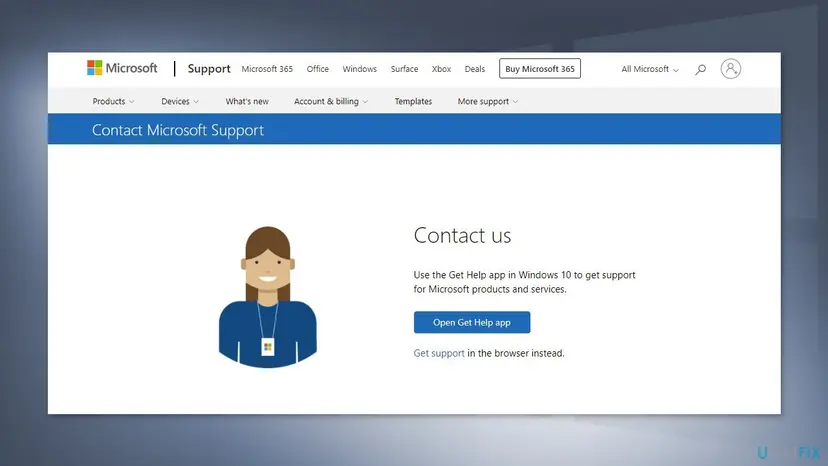
It worked if: Support activates the licence you bought or tells you which key to use.
If not: If support says the key is a volume key that was never yours, ask the seller for a refund and buy a genuine licence.
If error 0x8007251D is still there
Collect these facts before you ask your IT team or Microsoft. Together they show whether the key, the network or DNS is at fault.
| What to check | Where | What it tells you |
|---|---|---|
| The licence channel | slmgr /dli as administrator | VOLUME_KMSCLIENT means Windows still searches DNS for a KMS host. |
| Full licence details | slmgr /dlv | The key, the KMS host the client last tried, and the activation interval. |
| The installed edition | Settings > System > About | Enterprise or Education on a home PC points to the wrong install media. |
| The DNS servers in use | ipconfig /all | A home router's address on a work PC means the company DNS is out of reach. |
| The KMS record | nslookup -type=all _vlmcs._tcp | No record in the client's domain is the direct cause of this code. |
| Background attempts | Event Viewer > Windows Logs > Application | slui.exe entries with hr=0x8007251D show when Windows tried and failed. |
SFC, DISM, Windows Update and a network reset leave the KMS client key and the DNS records as they were, so this guide leaves them out. We could not confirm the exact Event Viewer event ID for these entries; search the log for the code instead.
How to avoid error 0x8007251D next time
At home, the error starts with volume media or a volume key. In a company, it starts with a DNS zone that has no KMS record.
- Reinstall Windows from Microsoft's own media and pick the edition your licence covers.
- Link your digital licence to your Microsoft account before a reinstall.
- Keep the order email or key card for later reinstalls.
- IT admins: keep DNS publishing on, list every client domain in DnsDomainPublishList, and allow port 1688.
- Use a company or school install image on a personal PC.
- Type a generic or KMS client key found online into a home PC.
- Run activator tools: they install KMS client keys and change system files.
- Leave a work laptop off the VPN for months.
Frequently asked questions
What does error code 0x8007251D mean?
It means Windows tried to activate through a company Key Management Service host and the DNS server had no record for one. Microsoft's text is "No records found for DNS query." Nothing on the PC is broken. On a home PC it means a volume key or Enterprise edition is installed. On a work PC it means the company DNS, and its _vlmcs._tcp record, cannot be reached.
Why do I get 0x8007251D right after reinstalling Windows?
Most often the install media was an Enterprise or volume edition, or a KMS client key was typed during setup. Windows then searches DNS for a KMS host that a home network never has. Check the edition in Settings > System > About and run slmgr /dli. If the edition is not the one you bought, reinstall from Microsoft's own media, pick your edition and activate with your key or digital licence.
What is the difference between 0x8007251D and 0x8007232B?
Both are KMS client errors about DNS. Microsoft's text for 0x8007232B is "DNS name does not exist", and for 0x8007251D it is "No records found for DNS query." In both cases the client cannot find the KMS SRV records, and the fixes are the same. Read our 0x8007232B guide if your screen shows that code instead.
How do I fix 0x8007251D on Windows 11?
Open Command Prompt as administrator and run slmgr /dli. If it shows VOLUME_KMSCLIENT on a home PC, open Settings > System > Activation > Change product key and enter your own key for the same edition. With no key, run the Activation troubleshooter in the Get Help app. On a work PC, connect to the work network or VPN and run slmgr /ato.
Is 0x8007251D on Windows 10 the same error?
Yes. The code, the cause and the fixes are the same on Windows 10 22H2. Only the menu differs: Settings > Update & Security > Activation instead of Settings > System > Activation. Windows 10 left support on 14 October 2025 and gets no more security fixes, but activation with a valid key works as before.
Will a better internet connection fix 0x8007251D?
Usually not. The PC needs to be online, but the error comes from the DNS answer, not from the speed or stability of the link. A home router can answer every web request and still have no KMS record. Changing the key on a home PC, or reaching the company DNS on a work PC, is what removes the code.
Can I just wait and try activating again later?
The message on the Activation page says you can try again later, but with 0x8007251D waiting does not help. The PC is not waiting for a busy Microsoft server. It is asking DNS for a KMS host that is not listed. Until the key changes, or the PC reaches a DNS server with the record, every attempt returns the same code.
Can I use a generic or default product key to get past 0x8007251D?
No. Microsoft's public KMS client setup keys activate only against a KMS host, so on a home PC they cause this very error. Older guides suggested them; this page does not. Use the key you bought or your digital licence (Fix 2 and 3). A work PC needs the company network, not another key.
Is there a way to bypass error 0x8007251D?
There is no safe bypass. Tools that promise free activation install a KMS client key and point Windows to an unofficial host; when that host is gone, this error returns. They also change system files and run with full rights, so this page does not link to any. The way through is a genuine key, a restored digital licence, or the work network.
What does an Event Viewer entry with hr=0x8007251D mean?
It is the same error written to the Application log. slui.exe, the Windows activation client, tried to activate in the background and DNS returned no KMS host. Use the same fixes as for the Activation page. We could not confirm the exact event ID in Microsoft's documentation, so search the log for the code.
Sources
- Microsoft Learn: Troubleshoot Windows activation error codes (0x8007251D No records found for DNS query) (learn.microsoft.com)
- Microsoft Learn: Guidelines for troubleshooting DNS-related activation issues (learn.microsoft.com)
- Microsoft Support: Get help with Windows activation errors (support.microsoft.com)
Did this fix work?
One click, no account. It tells the next reader which guides are worth their time.
Questions and experiences: fix Windows activation error 0x8007251D
Still broken, or found a fix we did not cover? Ask here: members and our editors answer. Reading is open; writing needs a free account.
…