
How to fix Windows Push Notifications User Service high CPU or memory usage in Windows?

Prefer to fix it yourself? The manual steps follow.
- 9methods
- 2 minutes for a restart, 15 minutes to rebuild the notification database
- Intermediate
Applies to Windows Push Notifications User Service (WpnUserService_xxxxx) on Windows 11 and Windows 10
9 methods in this guide
Hello. I noticed in Task Manager that the Windows Push Notifications User Service uses about 20% or 30% of CPU and RAM. What should I do?
Windows Push Notifications User Service (WpnUserService) is the Windows service behind toast notifications and the notification center. When it holds gigabytes of RAM or a steady share of CPU, the usual cause is a damaged notification database. Restart the service first, then rebuild the Notifications folder from Safe Mode.
Do not disable the service first: it delivers every notification in Windows. Restart it or sign out and back in (Fix 1). If the memory climbs again, the notification database is most likely damaged: start Windows in Safe Mode, rename the folder %LOCALAPPDATA%\Microsoft\Windows\Notifications and restart, so Windows builds a fresh one (Fix 2). Disabling it is the last step (Fix 9).
| Error | No error message. Task Manager shows Service Host: Windows Push Notifications User Service with a code after it high in the Memory or CPU column. Users report from a few GB up to 27 GB of RAM. |
|---|---|
| Where it appears | Task Manager on Windows 11 and Windows 10, Processes tab. On the Services tab it is WpnUserService_ followed by a short code, for example WpnUserService_373ad. |
| Main cause | A damaged notification database in %LOCALAPPDATA%\Microsoft\Windows\Notifications. Less often an app or website flooding the notification center. |
| Fastest fix | Restart the service or sign out and back in (Fix 1). For a lasting fix, rename the Notifications folder from Safe Mode (Fix 2). |
| Also written as | WpnUserService, WPN user service, Windows Push Notification User Service, Service Host: WpnUserService, wpnuserservice high memory. Not the same as Windows Push Notifications System Service (WpnService). |
| Affects | Windows 10 (reports since version 1809) and Windows 11. Windows 10 left support on 14 October 2025. |
| Microsoft's status | Microsoft documents the service (default start type Automatic) but lists no known issue or fix for its memory growth. We found no update that names it. |
| Safe to disable? | Possible, not recommended. Microsoft warns that dependent apps might not work correctly. Notifications, toasts and reminders stop. |
| Time to fix | 2 minutes for a restart, about 15 minutes for the Safe Mode rebuild. |
Facts checked on 15 October 2026. Steps written for Windows 11 (25H2 and 26H2) and Windows 10 22H2, with the service details read from Microsoft Learn's list of per-user services.
What Windows Push Notifications User Service (WpnUserService) is
Microsoft Learn describes Windows Push Notifications User Service as the service that hosts the Windows Push Notification Services (WNS) platform, which supports local and push notifications of three kinds: tile, toast and raw. In plain words, every banner in the corner of the screen and every item in the notification center passes through it. Its service name is WpnUserService and its default start type is Automatic.
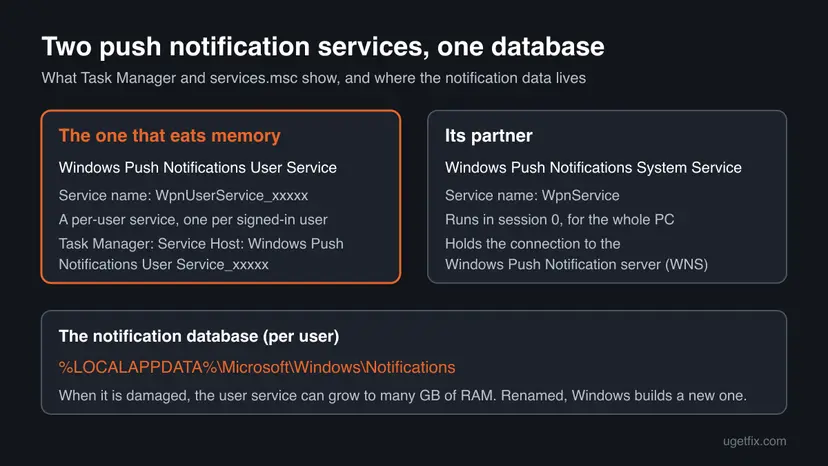
It is a per-user service. Windows creates a copy for every user when they sign in and stops and deletes it when they sign out. That copy carries a short code, the LUID, after its name, which is why you see WpnUserService_373ad or WpnUserService_66e32 instead of the plain name. WPN in these names simply stands for Windows Push Notifications.
| What you see | Where | What it is |
|---|---|---|
| Service Host: Windows Push Notifications User Service_xxxxx | Task Manager, Processes tab | The svchost.exe process that runs your copy of the user service. The Memory and CPU columns you are worried about. |
WpnUserService_xxxxx | Task Manager Services tab, services.msc | Your per-user copy. The code after the underscore changes from PC to PC. |
WpnUserService | Registry, HKEY_LOCAL_MACHINE\SYSTEM\CurrentControlSet\Services | The template Windows copies at every sign-in. Not shown in services.msc. |
Windows Push Notifications System Service (WpnService) | services.msc | A different service that runs in session 0 and handles the connection between the PC and the WNS server. |
Notifications folder | %LOCALAPPDATA%\Microsoft\Windows\ | Your notification database. Rebuilt by Windows when it is missing. |
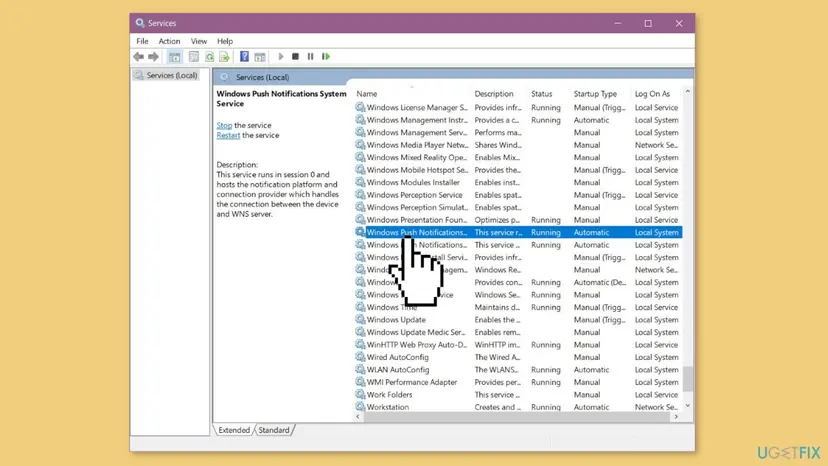
A few dozen MB and short CPU blips when notifications arrive are normal. Memory that keeps climbing into the gigabytes, or CPU that stays busy with no new notifications, is not.
Why WpnUserService uses high memory or CPU, from most to least common
Microsoft publishes no statistics on this, so the order below comes from the most helpful answer on Microsoft Q&A, which more than 20 people marked as helpful, and from what users report. Most often the notification database is damaged and the service keeps loading or rewriting it. Less often an app floods it. Rarely the cause is outside the service.
| Cause | How often | How to tell | Fix |
|---|---|---|---|
| A damaged notification database in the Notifications folder. | Most often | Memory grows by GB over hours, comes back after a restart, ending the task only helps for a while. | Fix 2 |
| A service copy stuck after sleep, a long uptime or an update. | Often | The spike started today; a restart or sign-out calms it for good. | Fix 1 |
| An app, chat client or website sending a stream of notifications. | Sometimes | The notification center holds dozens of alerts from one sender. | Fix 3 |
| Notifications piling up during games or full-screen apps. One user report links the load to full-screen mode. | Sometimes | The load shows up after a game or full-screen video ends. | Fix 4 |
| An old Windows build or damaged system files. | Less often | Updates are months behind, or other services misbehave too. | Fix 5, Fix 6 |
| Another program hooking into notifications, or malware using the svchost.exe name. | Rarely | The load disappears in a clean boot, or the file is not in C:\Windows\System32. | Fix 7, Fix 8 |
Microsoft has not explained why the database gets damaged and has not listed this as a known issue. The old version of this page suggested a link with graphics settings in full-screen apps; we found no source for that beyond one user's report.
How to fix Windows Push Notifications User Service high CPU or memory usage
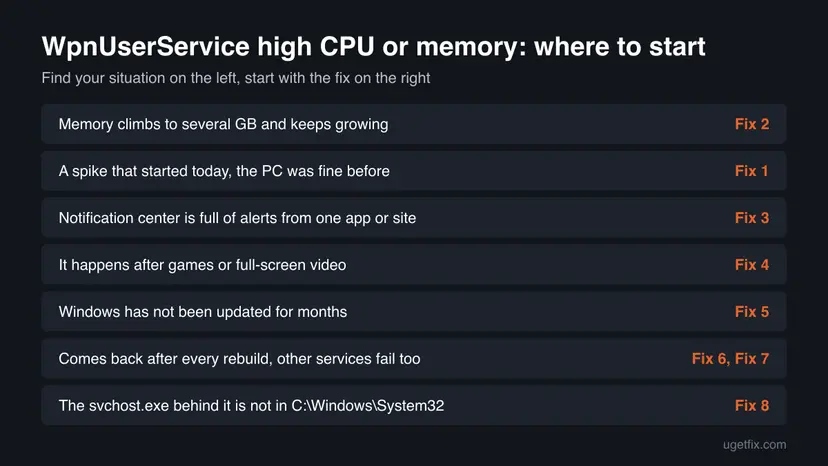
Fix 1 takes two minutes and confirms the culprit. Fix 2 rebuilds the notification database and solves most lasting cases. Fix 3 and Fix 4 cut down what flows into the service. Fix 5 to Fix 8 are the general repairs. Fix 9 turns the service off and is the last resort.
| What you see or have | Start with |
|---|---|
| A spike that started today, the PC was fine before. | Fix 1 |
| Memory climbs to several GB and comes back after every restart. | Fix 2 |
| The notification center is full of alerts from one app or site. | Fix 3 |
| The load appears after games or full-screen video. | Fix 4 |
| Windows has not installed updates for months. | Fix 5 |
| It comes back after the rebuild, and other services fail too. | Fix 6, then Fix 7 |
The svchost.exe behind it is not in C:\Windows\System32. | Fix 8 |
| Nothing helped and you can live without notifications. | Fix 9 |
Fix 1. Confirm it is WpnUserService and restart it
3 minutesNo riskEveryone, before changing anything. It is also the whole fix when the spike is new.
A Service Host line can hold several services, so you first check that the busy one is really the push notification user service. A restart, or a sign-out, gives you a fresh copy: Microsoft says Windows stops and deletes per-user services at sign-out and creates them again at sign-in.
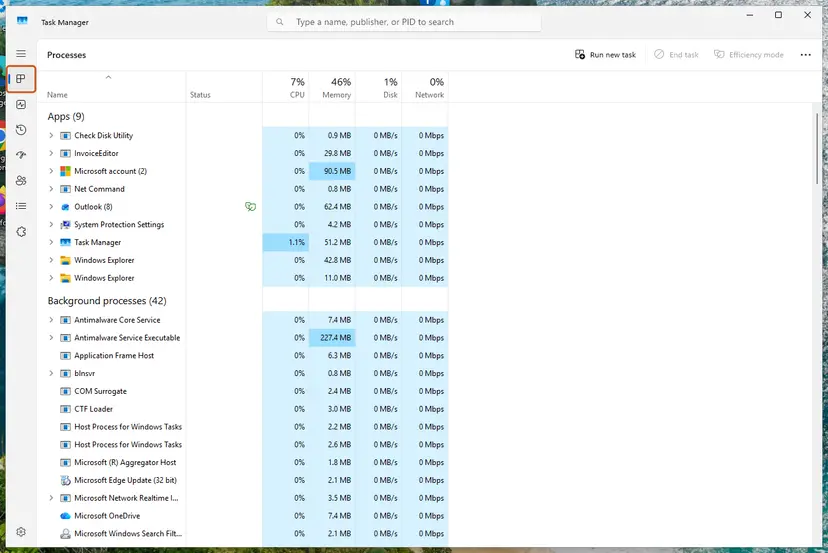
- Press Ctrl + Shift + Esc to open Task Manager. On Windows 10, select More details if you see a short list.
- On the Processes tab, select the Memory column header, then the CPU header, so the busiest process is on top.
- Expand Service Host: Windows Push Notifications User Service and note the code after its name.
- Open the Services tab and find
WpnUserService_with the same code. - Right-click it and select Restart. If Restart is grey, select Stop, wait a few seconds, then Start.
- If it will not restart, save your work, open Start, select your account picture and choose Sign out, then sign in again.
- Watch the Memory column for 10 minutes.
You can do the same in the Services console: open it with services.msc, find Windows Push Notifications User Service_xxxxx and restart it. Step by step for any service: Check and restart Windows services.

It worked if: The service drops back to a few dozen MB of memory and near 0% CPU, and stays there.
If not: If the memory climbs again within an hour, the notification database is the likely cause. Go to Fix 2.
Fix 2. Rebuild the notification database from Safe Mode
15 minutesLow riskThe memory keeps growing into the gigabytes and comes back after Fix 1.
The most helpful answer on Microsoft Q&A says the source of this problem is a corrupt notification database, and that the Notifications folder will be rebuilt automatically when you restart. In Safe Mode the service is not holding the files open, so you can rename the folder.
The notifications currently in the notification center are cleared. We could not confirm whether every per-app notification setting survives, so check Settings > System > Notifications afterwards. Renaming instead of deleting keeps the old folder, so you can put it back.
- Start Windows in Safe Mode. Step by step: Start Windows or a Mac in Safe Mode.
- Press Win + E to open File Explorer.
- Click the address bar, paste
%LOCALAPPDATA%\Microsoft\Windowsand press Enter. - Right-click the Notifications folder, select Rename and name it
Notifications.old. - Restart Windows normally.
- Open Task Manager and check that Windows Push Notifications User Service stays low for an hour.
- When notifications work again, delete
Notifications.old.
The same rename from a Command Prompt opened in Safe Mode, if File Explorer refuses:
Command Prompt (Safe Mode)
ren "%LOCALAPPDATA%\Microsoft\Windows\Notifications" Notifications.oldIt worked if: Windows creates a new, empty Notifications folder at sign-in, the notification center is empty, and the service stays at normal memory use.
If not: If the rename says the folder is in use, you are not in Safe Mode or another account is signed in; sign it out first. If the load comes back within days, an app is refilling the database: go to Fix 3.
Fix 3. Clear the notification center and silence the noisiest apps
5 minutesNo riskThe notification center holds dozens of alerts, or one app, chat client or website sends them all day.
Every notification is stored and shown by this service. A sender that pushes a constant stream keeps it busy and keeps the database growing. Cutting that stream at the source lowers the load without turning notifications off for everything.
- Open the notification center with Win + N on Windows 11, or Win + A on Windows 10.
- Note which app sends the most alerts, then select Clear all.
- Open Settings > System > Notifications (Windows 10: Settings > System > Notifications & actions).
- Under Notifications from apps and other senders (Windows 10: Get notifications from these senders), turn off the app you noted.
- If the alerts come from a website, turn off that site's notifications in your browser settings.
- Restart the service as in Fix 1 and watch Task Manager.
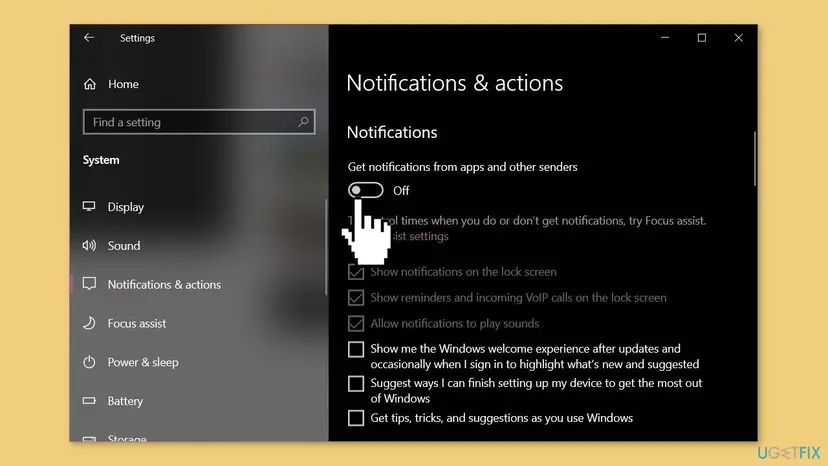
As a test you can also turn the main Notifications switch off for a day. Microsoft's notification settings page describes both switches. If the service stays quiet with notifications off, the stream of alerts is the cause.
It worked if: The notification center stays short and the service no longer climbs during the day.
If not: If the service grows even with notifications off, the database or the service itself is at fault. Go back to Fix 2, then Fix 5.
Fix 4. Let Do not disturb hold notifications during games and full-screen apps
3 minutesNo riskThe load appears after you play a game or watch full-screen video.
A user report on the old version of this page linked the problem to full-screen mode. Windows can switch on Do not disturb automatically in games and full-screen apps, so banners are not drawn over the game and alerts go quietly to the notification center.
- Press Win + I and open System > Notifications.
- Expand Turn on do not disturb automatically.
- Tick When playing a game and When using an app in full-screen mode.
- After your next game, open the notification center and select Clear all.
- Check Task Manager after a full-screen session to see whether the service still grows.
On Windows 10 the same idea lives under Settings > System > Focus assist, with automatic rules for games and full-screen apps.
It worked if: Nothing piles up during a game, and the service stays at its usual size afterwards.
If not: If it still grows after full-screen use, rebuild the database (Fix 2) and update Windows and the graphics driver (Fix 5).
Fix 5. Install Windows updates
20 to 40 minutesLow riskWindows has not installed updates for months, or you are on an old Windows 10 build.
The notification platform is part of Windows and is only changed through Windows updates. Reports of WpnUserService eating memory go back to Windows 10 version 1809, so an old build is more likely to carry old bugs. We found no update that names this problem, so treat this as a general repair.
- Press Win + I and select Windows Update (Windows 10: Update & Security > Windows Update).
- Select Check for updates and install everything offered.
- Restart the PC when Windows asks.
- Open Task Manager and check the service again.
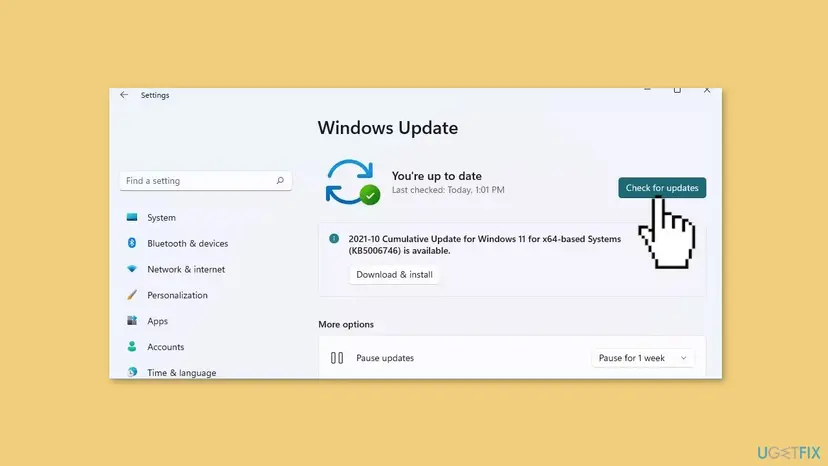
Windows 10 left support on 14 October 2025. Only PCs enrolled in Extended Security Updates still get fixes, so on Windows 10 this step may change nothing.
It worked if: Windows is up to date and the service stays at normal memory use after the restart.
If not: If updates fail to install, see Reset Windows Update components. If they install and the load stays, go to Fix 6.
Fix 6. Repair Windows system files with SFC and DISM
20 minutesNo riskThe database rebuild did not hold, and other Windows parts misbehave too.
The service runs from Windows system files. If they or the component store are damaged, the service can fail and restart in a loop, which shows as steady CPU use. SFC and DISM replace damaged files with good copies.
- Open an elevated command window. Right-click Start and select Terminal (Admin), or type cmd in the search box, right-click Command Prompt and select Run as administrator. Select Yes when Windows asks for permission.
- Run DISM first. Type the command below and press Enter. DISM downloads clean copies of damaged components from Windows Update, so it can take several minutes. Wait until it says The operation completed successfully.
DISM.exe /Online /Cleanup-Image /RestoreHealth - Run System File Checker. In the same window, type the command below and press Enter. Do not close the window until the verification reaches 100%.
sfc /scannow - Read the result and restart. Compare the last message with the table below this guide, then restart the PC so that repaired files are loaded.
These steps were written for Windows 11 24H2 and 25H2. The full page with the other versions and what each result means: Run DISM and SFC to repair Windows system files
It worked if: SFC reports that it repaired corrupt files or found no integrity violations, and the service settles after a restart.
If not: If SFC cannot repair some files even after DISM, go to Fix 7 and then read the still broken section.
Fix 7. Find a conflicting program with a clean boot
15 minutesLow riskThe load stays with Windows up to date and the database rebuilt.
Chat clients, mail apps, phone link tools and notification enhancers from other makers all post notifications. A clean boot starts Windows with only Microsoft services, so you can see whether one of them keeps the service busy.
- Open System Configuration. Select Search on the taskbar, type msconfig and select System Configuration from the results.
- Hide Microsoft services. On the Services tab, select the Hide all Microsoft services check box. Only services from other companies stay in the list.
- Disable the remaining services. Select Disable all, then select Apply.
- Open Task Manager. On the Startup tab of System Configuration, select Open Task Manager.
- Disable the startup apps. On the Startup apps tab in Task Manager, select each item whose status is Enabled and select Disable. Write down or take a screenshot of the items you disable: you need the list to turn them back on.
- Confirm the changes. Close Task Manager. On the Startup tab of System Configuration, select OK.
- Restart and test. Restart the PC. Windows now starts in a clean boot environment: try again the thing that failed (run the app, install the update, uninstall the program).
These steps were written for Windows 11 25H2 and 26H2. The full page with the other versions and what each result means: How to perform a clean boot in Windows
It worked if: In the clean boot the service stays quiet, which proves another program caused the load. Turn services back on in halves until it returns.
If not: If the service is busy even in a clean boot, the cause is inside Windows. Go back to Fix 2, then Fix 8.
Fix 8. Check the svchost.exe file and scan for malware
15 minutesNo riskGo to details shows a svchost.exe outside C:\Windows\System32, or the load stays with the service stopped.
Malware likes the svchost.exe name because many copies of it run on every PC. The real one is always in C:\Windows\System32. A scan with Microsoft Defender rules out anything hiding behind that name.
- In Task Manager, open the Services tab, right-click
WpnUserService_xxxxxand select Go to details. - Right-click the highlighted svchost.exe and select Open file location.
- Check that File Explorer opens
C:\Windows\System32. - Run a full scan with Microsoft Defender as in How to scan for malware with Microsoft Defender.
It worked if: The file is in System32 and Defender finds no threats, so the load is not malware.
If not: If the file is somewhere else or Defender finds a threat, remove it and run an offline scan before any other fix.
Fix 9. Disable WpnUserService in the registry as a last resort
5 minutesRead the warningNothing above helped and you accept losing Windows notifications on this PC.
The per-user copy cannot be disabled for good in services.msc, because Windows creates a new one at every sign-in from a template in the registry. Microsoft documents disabling that template by setting its Start value to 4; Windows then creates the service in a stopped and disabled state.
Microsoft warns that if you disable a per-user service, dependent apps might not work correctly. Toast banners, the notification center, mail and chat alerts and calendar reminders can all stop. Back up the registry first (Back up the registry before editing it) and keep the undo command below.
- Back up the registry: Back up the registry before editing it.
- Press the Windows key, type
cmd, right-click Command Prompt and select Run as administrator. - Paste the first command below and press Enter. It should say The operation completed successfully.
- Restart the PC.
- Open Task Manager and check that the service no longer runs.
Command Prompt (administrator): disable
reg add HKLM\System\CurrentControlSet\Services\WpnUserService /v Start /t REG_DWORD /d 4 /fCommand Prompt (administrator): undo, back to Automatic
reg add HKLM\System\CurrentControlSet\Services\WpnUserService /v Start /t REG_DWORD /d 2 /fIt worked if: After the restart the service is there but stopped, and its memory and CPU use are gone.
If not: If an app you need stops working, run the undo command and restart, then go back to Fix 2.
Windows Push Notifications User Service still uses high memory: what to check next
If the database is rebuilt, Windows is up to date, the clean boot and the scan found nothing and you do not want to disable notifications, collect evidence before you reinstall anything. Microsoft documents no log for this service, so you need what Windows records around it.
- Event Viewer: press Win + R, type
eventvwr.msc, open Windows Logs > System and filter for Service Control Manager. Errors for Windows Push Notifications User Service show it crashing or failing to start. - Reliability Monitor: type reliability in Start and open View reliability history. A red cross on the day the load began often names the update or app behind it.
- A second account: create a new local account (Create a new user account to test a problem) and sign in. Each user has their own copy and database, so if the new account is fine, the problem is in your profile.
- Feedback Hub: press Win + F and report it with your build number from
winverand a Task Manager screenshot. - Repair install: as the last step, reinstall Windows over itself and keep your files and apps: Reinstall Windows without losing files.
This is a software service. Its memory use does not mean failing RAM. If the PC also crashes or freezes with the service quiet, test the memory with How to test your RAM with Windows Memory Diagnostic.
How to keep WpnUserService from eating memory again
- Clear the notification center now and then instead of letting hundreds of alerts pile up.
- Allow notifications only from apps and sites you need; say no to the website pop-ups that ask for them.
- Turn on Do not disturb for games and full-screen apps (Fix 4).
- Keep Windows Update on and install the monthly cumulative update.
- Sign out or restart now and then: every sign-in starts a fresh copy of the service.
- If the memory starts climbing again, rebuild the database (Fix 2) before you reach for the registry.
Frequently asked questions
What is Windows Push Notifications User Service?
It is a built-in Windows service, service name WpnUserService, that hosts the Windows Push Notification Services platform. Microsoft Learn says it supports local and push notifications of the tile, toast and raw kinds. Every notification banner and every entry in the notification center goes through it. It is a per-user service: Windows creates one copy for each signed-in user, with a short code after the name such as WpnUserService_373ad, and removes it when the user signs out. Task Manager shows it as a Service Host line because it runs inside a shared svchost.exe process.
What does WPN mean on a computer?
In Windows, WPN stands for Windows Push Notifications. You meet it in service names such as WpnUserService, the Windows Push Notifications User Service, and WpnService, the Windows Push Notifications System Service. Both belong to the notification platform that shows banners and fills the notification center. The letters are not a separate program, an error or a virus. If you see WPN in Task Manager with high memory use, this page is about exactly that.
Why does Windows Push Notifications User Service use so much memory?
The most common reason is a damaged notification database. The most helpful answer on Microsoft Q&A names a corrupt notification database as the source and fixes it by renaming the Notifications folder from Safe Mode, as in Fix 2. Users report the service holding 12 GB and in one case 27 GB of 32 GB. Other reasons are an app or website sending a stream of notifications, a service copy stuck after sleep, or an old Windows build. Fix 1 tells you within minutes whether a restart is enough.
Is it safe to disable WpnUserService?
It is possible but not safe in the sense of having no side effects. Microsoft warns that if you disable a per-user service, dependent apps might not work correctly. With WpnUserService off you lose toast banners, the notification center, and alerts and reminders from mail, chat and calendar apps. Fix the cause first: a restart (Fix 1) and the database rebuild (Fix 2) solve most cases. If you still want it off, use the registry method in Fix 9 and keep the undo command.
How do I disable Windows Push Notifications User Service?
Setting the copy you see in services.msc to Disabled does not last, because Windows creates a new copy from a registry template at every sign-in. Microsoft documents the lasting way: set the Start value of the template, HKLM\System\CurrentControlSet\Services\WpnUserService, to 4 with reg add, then restart. Windows then creates the service stopped and disabled. To undo it, set the value back to 2 and restart. Fix 9 has both commands and the warning about what stops working.
What is Service Host: WpnUserService in Task Manager?
Service Host is the name Task Manager gives to svchost.exe, the Windows process that runs services. Service Host: WpnUserService, or Service Host: Windows Push Notifications User Service with a code after it, is the svchost.exe that runs your copy of the push notification service. The real file is always in C:\Windows\System32. Expand the line in Task Manager to see the service inside it, and use Go to details on the Services tab to check the file location, as in Fix 8.
What is the difference between the User Service and Windows Push Notifications System Service?
They are two parts of the same platform. Windows Push Notifications System Service, service name WpnService, runs in session 0 for the whole PC and handles the connection between the device and the WNS server, as its description in services.msc says. Windows Push Notifications User Service, WpnUserService, runs once per signed-in user and handles that user's notifications. The memory problem in this guide shows up on the User Service. The old version of this page told you to disable the System Service, which does not stop the user copy from growing.
Does ending the task in Task Manager fix it?
Only for a while. Ending the Service Host process or restarting the service frees the memory at once, and Windows starts the service again because its start type is Automatic. If the cause was a stuck copy, that is the whole fix. If the notification database is damaged, users report the memory climbing back within hours, and one user on Microsoft Q&A had to force end the task every time. In that case rebuild the database as in Fix 2.
Is WpnUserService a virus?
No. WpnUserService is a genuine Windows service that Microsoft documents in its list of per-user services. The code after its name is normal and differs from PC to PC. Malware can, however, borrow the svchost.exe name that hosts it. Right-click the service on the Task Manager Services tab, select Go to details, then Open file location: the real svchost.exe is in C:\Windows\System32. If it is anywhere else, run a full scan as in Fix 8.
Will I lose my notifications if I rename the Notifications folder?
You lose the notifications currently waiting in the notification center, because they live in that folder. New notifications arrive normally once Windows has built a fresh folder at sign-in. We could not confirm whether every per-app notification setting survives, so look through Settings, System, Notifications afterwards. Renaming the folder to Notifications.old instead of deleting it means you can put it back if something you need is missing. Delete the old folder once everything works.
Sources
- Microsoft Learn: Per-user services in Windows (learn.microsoft.com)
- Microsoft Support: Notifications and Do Not Disturb in Windows (support.microsoft.com)
- Microsoft Q&A: I'm getting a memory leak from Windows Push Notifications (user reports and community answer) (learn.microsoft.com)
Did this fix work?
One click, no account. It tells the next reader which guides are worth their time.
Questions and experiences: fix Windows Push Notifications User Service high CPU or memory usage in Windows
Still broken, or found a fix we did not cover? Ask here: members and our editors answer. Reading is open; writing needs a free account.
…